
You've got an email open, a technical report half-finished, and a growing ache in your hands from typing every sentence. The idea is clear in your head, but getting it into the Mac feels slower than it should. Voice typing on Mac can remove much of that friction, but only if you choose the right voice input mode for the job.
Apple Dictation and Voice Control are often grouped together, even though they solve different problems. Dictation turns speech into text at the cursor. Voice Control lets you operate apps, select text, move the pointer, and issue commands without relying on the keyboard. Dedicated tools add another option for people who dictate throughout the workday and need local processing, custom vocabulary, or faster cross-app workflows.
Table of Contents
- Why Voice Typing on Mac Deserves Your Attention
- Setting Up Apple Dictation and Voice Control
- When Voice Control is the better choice
- Apple Dictation vs Voice Control Pro for Professional Workflows
- Accuracy depends on the work, not just the app
- Understanding Local Processing and Privacy Options
- Accuracy has two separate variables
- Optimizing Accuracy and Workflow Integration
- Match the mode to the task
- Troubleshooting Common Voice Typing Issues
- Technical language needs deliberate testing
- Making the Switch, Your Voice Typing Action Plan
Why Voice Typing on Mac Deserves Your Attention
Typing speed creates a hard ceiling on how quickly many people can capture ideas. Independent productivity evidence places average typing speed around 40 to 60 words per minute, while speech can reach 130 to 150 words per minute, implying a roughly threefold raw speed difference in suitable conditions, as summarized by SCCI's overview of voice technology. Another industry summary describes speaking as about 40% faster than typing, which is a more conservative but still meaningful advantage.

That speed matters most during first drafts. A support agent can speak a complete reply instead of pecking out each sentence. A researcher can capture an observation before the thought disappears. A writer can outline paragraphs while walking through an idea, then return to the keyboard for editing.
Practical rule: Use your voice to create the rough material, then use the keyboard or editing commands to refine it.
Apple has treated dictation as a core Mac capability for more than a decade. Dictation became a system-wide macOS feature with Mac OS X Mountain Lion in 2012, and Apple added offline dictation support in Mac OS X Mavericks in 2013, milestones documented in this history of macOS voice typing. That progression moved voice input beyond a narrow, online-only feature and made it available wherever text entry works.
The trade-off is that voice typing isn't a magic replacement for every keystroke. Accuracy changes with microphone quality, room noise, accent, speaking style, and specialist vocabulary. You'll also need to learn spoken punctuation and adjust to hearing your own writing process aloud. For teams creating scripts, narration, or other audio-led material, understanding text to speech for video content can extend that workflow beyond transcription into production.
Setting Up Apple Dictation and Voice Control
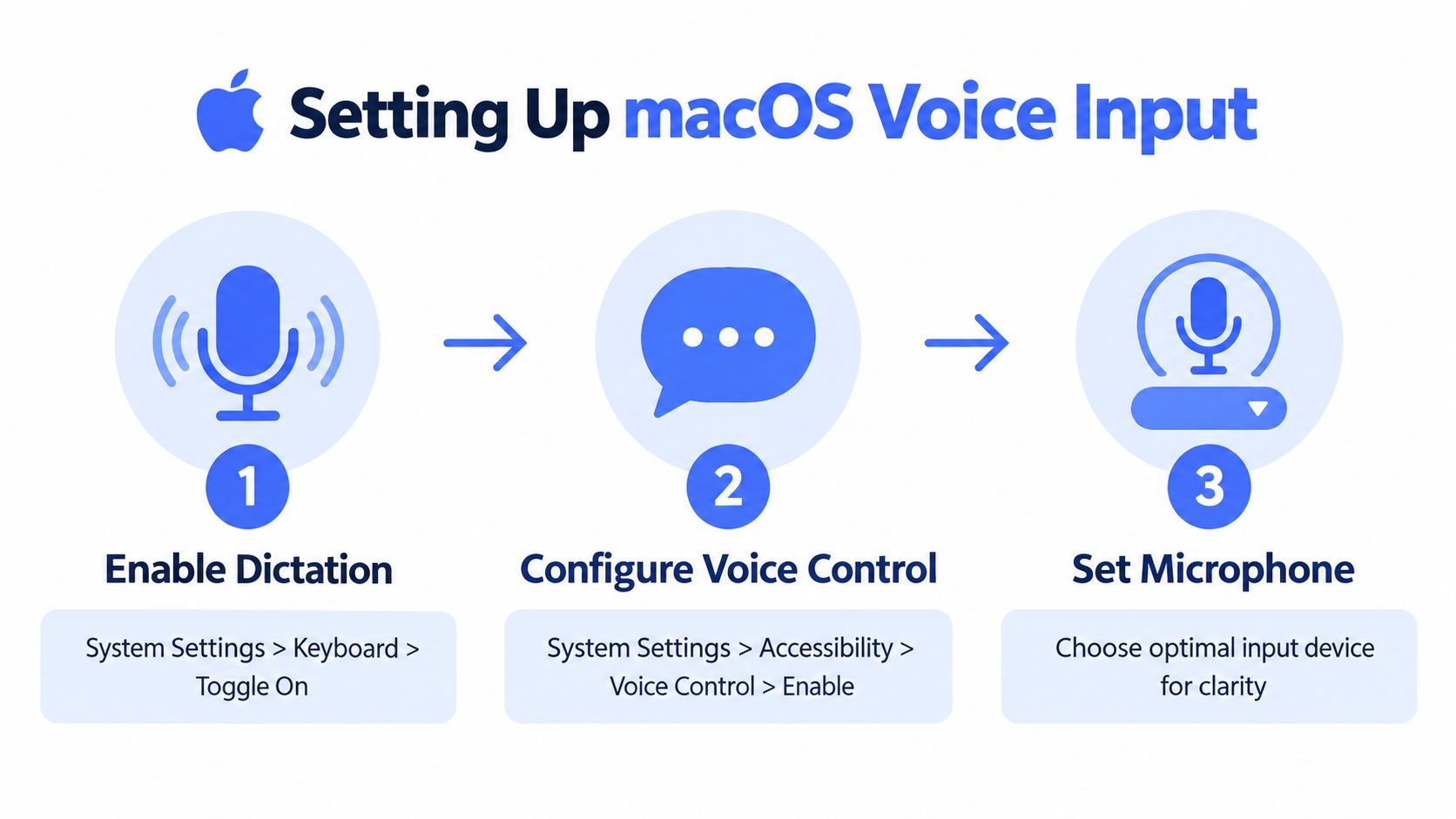
Start with Apple Dictation if you mainly want speech inserted into normal text fields.
- Open System Settings.
- Select Keyboard.
- Find Dictation and turn it on.
- Choose the preferred language and microphone.
- Select a shortcut, or use the microphone key when your keyboard provides one.
Apple's current guidance describes Dictation as a native Mac input method available from the insertion point in apps. You can start it from the configured shortcut, a microphone key, or an app menu where supported. Place the cursor, activate Dictation, speak naturally, and say punctuation such as “comma,” “period,” “question mark,” “new line,” or “new paragraph.”
If Dictation won't start, check the selected input device under your Mac's sound settings and confirm that the relevant app has microphone permission. An external microphone can help, but only if macOS is using it. Test the input source in a quiet application before judging transcription quality.
When Voice Control is the better choice
Open System Settings, select Accessibility, choose Voice Control, and enable it when you need to operate the Mac by voice rather than fill a text field. Voice Control supports navigation, commands, text selection, and editing across the desktop and apps.
That distinction affects setup. Dictation is keyboard-adjacent. Voice Control is hands-free interaction with the operating system. If you turn on Voice Control, use it for spoken text entry and commands rather than expecting standard Dictation to remain the main entry path.
For a more detailed walkthrough of the built-in workflow, see this guide to dictation on Mac.
The first activation may involve downloading required voice resources. After setup, Voice Control is designed for broader desktop use, while Dictation remains the simpler option for short messages, notes, and drafts.
Use a deliberate shortcut if the default trigger conflicts with another application. A reliable activation method matters more than a theoretically optimal one. If you activate voice input repeatedly throughout the day, the shortcut should be easy to reach and difficult to trigger accidentally.
Apple Dictation vs Voice Control Pro for Professional Workflows
The practical choice isn't built-in versus third-party. It's text insertion versus workflow control, followed by a separate decision about accuracy, privacy, and customization.
Apple Dictation is a sensible starting point for occasional voice input. It's already part of macOS, requires no separate workflow, and works well when you're writing ordinary prose in a quiet room. If you're replying to a short email or capturing a quick note, extra software may add more configuration than value.
Voice Control Pro is aimed at a different pattern. It inserts cleaned transcription at the cursor across apps, uses a global shortcut, and includes options such as custom vocabulary, transcription history, cleanup levels, and local processing through Fly Mode. It also provides the Hey Max assistant for tasks such as rewriting selected text, asking contextual questions, analyzing the screen, and launching installed apps.
Accuracy depends on the work, not just the app
Independent 2026 Mac testing used a fixed 10,000-word or representative corpus divided among casual English, technical jargon, and accented speech. In ideal quiet-room conditions, the strongest systems recorded a word error rate below 5%, while Apple Dictation measured around 15% to 18% real-world word error rate in one comparison. The same testing reported 65% to 75% accuracy in noisy offices, reinforcing that room conditions can dominate the result, as described in this Mac dictation accuracy test.
Those results shouldn't be treated as a universal scorecard. They show why a short, quiet demo can produce a very different impression from a full day of support replies, technical documentation, or accented speech.
| Requirement | Apple Dictation | Voice Control Pro |
|---|---|---|
| Occasional text entry | Strong fit | Useful, but may be more than needed |
| Desktop navigation | Voice Control is the relevant Apple feature | Adds workflow commands and assistant functions |
| Custom terminology | Limited compared with dedicated tools | Custom dictionary available |
| Local processing | Depends on the macOS configuration | Fly Mode supports local processing |
| Cross-app dictation | Native text-field workflow | Global cursor-based insertion |
For professional teams, the upgrade question is straightforward. If cleanup and correction take longer than the typing they replaced, or if every app needs a separate workaround, a dedicated tool deserves testing. This comparison of Voice Control Pro and Apple Dictation provides the product-level distinctions, but the decision should still come from your actual writing workload.
Understanding Local Processing and Privacy Options
Your microphone captures more than words. It can capture names, client details, medical information, internal plans, and unfinished ideas. The important question is therefore not only whether transcription is accurate, but where the audio and resulting text are processed.
Cloud processing can offer access to larger or frequently updated speech systems, but it requires a service connection and a clear understanding of the provider's handling practices. Local processing keeps the speech model on the Mac, which can reduce exposure and make dictation less dependent on network availability. The trade-off is that local systems depend more heavily on the computer's available resources and the quality of their installed models.
Voice Control Pro's Fly Mode is designed for local processing and pauses cloud features. A local workflow can be appropriate for legal drafting, private healthcare notes, confidential client work, or creative material that shouldn't leave the device. Before enabling any mode, review the product's privacy documentation and test whether its local model handles your vocabulary.
Accuracy has two separate variables
A 2026 MacBook Pro M2 Pro benchmark reported 89.3% general accuracy, 76.0% accuracy on technical content, and 0.3 seconds of latency in one test, while the same research theme emphasized that vocabulary adaptation can matter as much as the engine itself, according to this Mac dictation benchmark.
That gap is the reason a local engine isn't automatically the right engine for every professional. A technical team may prefer a slightly slower system that recognizes product names and commands correctly. A journalist dictating ordinary prose may value immediate insertion and offline availability more than specialist vocabulary handling.
Privacy is a workflow requirement, not a marketing checkbox. Decide which documents can use cloud processing before you start dictating them.
For a deeper explanation of the local approach, review this guide to local speech-to-text. Then test with representative material, including the names, abbreviations, and terminology you use. General accuracy tells you little if the first draft contains errors in every important noun.
Optimizing Accuracy and Workflow Integration
The microphone is part of the writing system. Keep it at a consistent distance, speak toward it rather than across the room, and reduce echo where possible. A headset microphone often performs more predictably than a laptop microphone in a shared office, but the best choice depends on the room and the device's input settings.
Sentence design also affects cleanup. Short, complete prompts are easier to review than long streams containing several unfinished thoughts. Speak punctuation, pause before changing topics, and say “new paragraph” when the structure matters. Voice typing works best when you treat speech as an intentional draft format rather than as an unedited conversation.
Match the mode to the task
Apple's own distinction is the most useful starting point. Dictation inserts text at the cursor, while Voice Control handles navigation, commands, and text editing across the desktop and apps, as explained in Apple's Mac Dictation guidance.
A support agent might use Dictation for a complete customer reply, then use normal keyboard controls to verify names and account details. A developer may dictate a code comment or prompt, but still use the keyboard for symbols and exact syntax. A writer can dictate an outline into a document, select a paragraph, and use an editing assistant to shorten or rephrase it.
Build the workflow around the handoff between speech and review:
- Drafting: Speak the idea in complete sentences, with punctuation.
- Verification: Scan names, numbers, technical terms, and quoted material.
- Refinement: Correct structure and tone after the main content exists.
- Reuse: Save frequent terminology in a custom dictionary when your tool supports it.
The biggest gain comes from reducing interruption. A global shortcut that starts and stops predictably lets you dictate in Gmail, Slack, a browser editor, or a project tool without changing your mental context. For teams, agree on a basic microphone standard and a short list of spoken punctuation commands before rolling voice input across daily workflows.
Troubleshooting Common Voice Typing Issues
Accuracy usually drops for a reason you can observe. Start with the room, then the microphone, then the vocabulary.
Noisy or echoing environment: Move closer to the microphone, switch to a headset, close nearby audio sources, and test again with the same sentence. Independent testing found wide variation between quiet-room performance and noisy-office performance, so changing the environment can produce a larger improvement than changing a setting.
The Mac doesn't hear you: Open the relevant microphone permissions in System Settings, confirm the correct input device, and check input volume. If another app is using the microphone, close it temporarily and run a fresh test. A visible microphone indicator doesn't guarantee that macOS selected the microphone you intended.
The shortcut does nothing: Return to Keyboard settings and choose a shortcut that another application doesn't already use. Test the trigger in a basic text field, then in the application where you plan to work. If Voice Control is enabled, confirm that you're using the expected voice mode rather than trying to start standard Dictation.
Technical language needs deliberate testing
Independent 2026 benchmark data reported word error rates as low as about 1.2% for standard English and around 2.8% for technical vocabulary in one test, showing that ordinary prose and specialist language can behave differently, as reported in this dictation accuracy benchmark. Treat those figures as test conditions, not a promise for your Mac, microphone, accent, or vocabulary.
Create a short personal test containing product names, acronyms, commands, and proper nouns. If the same terms fail repeatedly, add them to a custom dictionary where available, slow your delivery slightly, and keep microphone distance consistent. If corrections still consume too much time, the issue isn't your willingness to learn. The current tool may be a poor fit for the work.
Making the Switch, Your Voice Typing Action Plan
Start with Apple Dictation if your need is occasional text entry. Enable Voice Control when you need to select, and edit the Mac without touching the keyboard. Consider a dedicated local dictation workflow when voice input is part of nearly every email, document, support reply, or prompt you create.
Use this checklist before changing your team's habits:
- Choose one task: Begin with email replies, notes, or first drafts.
- Fix the input path: Select the right microphone and test it in the actual room.
- Create a vocabulary sample: Include the terms your work uses most often.
- Set one shortcut: Make activation easy and consistent across applications.
- Review every draft: Check names, technical terms, punctuation, and sensitive details.
- Measure friction qualitatively: Notice whether dictation keeps you moving or creates more corrections.
Expect an adjustment period. Speaking punctuation feels unnatural at first, and editing by voice requires a different mental model from typing. Start with low-risk writing, keep the keyboard available for precise corrections, and expand only after the workflow feels dependable.
The right goal isn't to eliminate the keyboard. It's to reserve keyboard time for the tasks where precision matters and use speech for the ideas that are slowed down by repetitive typing.
Voice Control Pro adds global cursor-based dictation, cleanup controls, custom vocabulary, transcription history, local Fly Mode processing, and Hey Max tools for rewriting and app interaction. Visit Voice Control Pro to test whether that workflow gives your Mac voice typing the speed, privacy, and control your daily work requires.