
You've got an email open, a useful thought in your head, and your fingers are moving slower than the sentence you want to write. You press the MacBook's Dictation shortcut, speak a few lines, then discover that the microphone picked the wrong input, a technical term came out mangled, or Dictation stopped during a pause. The feature was enabled, but the workflow still failed.
To dictate on MacBook reliably, treat voice input as a system rather than a single toggle. Native Dictation is useful for short bursts of literal text. Voice Control handles hands-free navigation, editing, and commands. Microphone choice, permissions, room acoustics, language settings, and privacy controls determine whether either tool feels dependable.
Table of Contents
- Why Dictating on Your MacBook Changes How You Work
- Dictation and Voice Control solve different problems
- Enable and Configure Dictation and Voice Control on macOS
- Set the capture method
- Review permissions before testing
- How to Dictate Naturally With Shortcuts and Voice Commands
- Speak in short, complete units
- Add voice editing to the workflow
- Get Better Accuracy With Microphone and Workflow Upgrades
- Compare the two setups
- Fix Dictation When It Stops Working or Types the Wrong Words
- Diagnose the failure by symptom
- Use a clean reset sequence
- Privacy Productivity and Everyday Dictation Habits That Stick
- Build habits around the work
Why Dictating on Your MacBook Changes How You Work
A short email reply is where macOS Dictation feels immediately useful. Put the cursor in Mail, press the shortcut, say the sentence, speak the punctuation, and stop. The same approach works for a quick Slack response, a note in Apple Notes, or a prompt in a browser text field. You're not trying to replace every keyboard action. You're moving the parts that benefit most from speech, especially drafting and capturing ideas before they disappear.

Longer work exposes the difference between convenience and reliability. A meeting note may contain names, product terms, and incomplete thoughts. A report may require headings, paragraph breaks, and corrections. A prompt may include symbols or specialized vocabulary. Native Dictation can enter the words, but you may still need to switch between speech and keyboard editing.
Apple positions Mac voice input as part of its broader accessibility system. Its documentation describes Dictation for text entry, voice commands for interacting with the screen, and Vocal Shortcuts that trigger actions through spoken words or sounds. Some apps also require permission for speech recognition through Privacy & Security, so access isn't automatically universal across your Mac. Apple's accessibility guidance for Mac voice input explains that distinction.
Dictation and Voice Control solve different problems
Dictation is primarily an insertion tool. It listens while a text field is active and turns speech into text. It suits a short email, a paragraph draft, a search query, or a quick note.
Voice Control is an interaction layer. It can help you select controls, move around the interface, edit text, and issue commands without reaching for the trackpad. Vocal Shortcuts extend that idea by letting a spoken phrase or sound trigger an action.
Practical rule: Use Dictation when the cursor is already where you want text. Use Voice Control when the task includes navigation, selection, or command execution.
The dependable workflow starts with native macOS settings, then adds deliberate habits for microphone placement, phrasing, and corrections. If your work involves frequent insertion across apps, you can also evaluate a dedicated tool such as Voice Control Pro later. The important decision comes first: match the tool to the action instead of expecting one mode to handle everything.
Enable and Configure Dictation and Voice Control on macOS
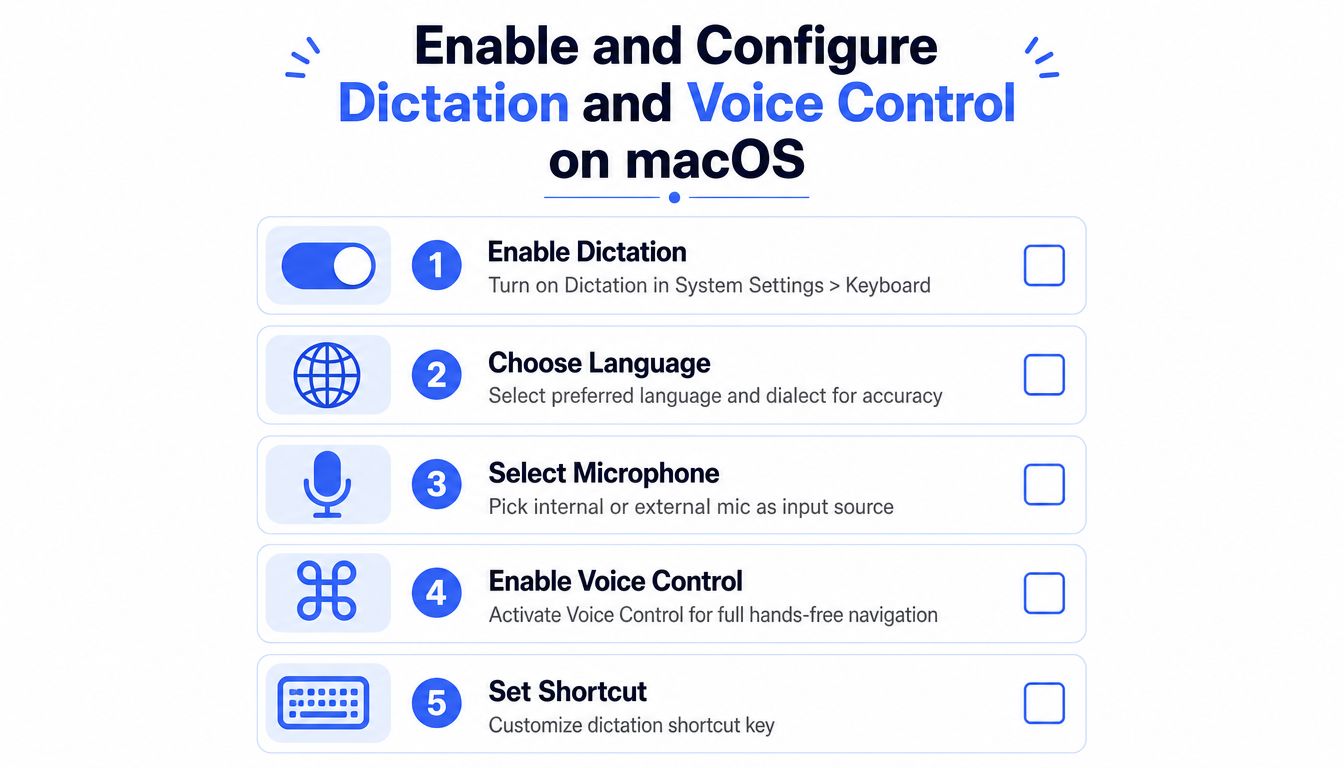
A dependable dictation setup starts before you speak. Open System Settings, select Keyboard, then open Dictation. Turn it on and choose the language and dialect you use. If you switch languages during the day, confirm this setting first. A mismatch can look like a microphone failure because familiar words are transcribed incorrectly.
Select the input microphone deliberately. The MacBook's internal mic is usually adequate at a desk, but macOS may also list a display, headset, webcam, or audio interface. If the wrong device is selected, Dictation may listen to a distant microphone while you speak beside another one.
Set the capture method
Customize the Dictation shortcut in Keyboard settings. Choose a key combination that you can trigger quickly, without colliding with a shortcut used in your writing apps. Test it in a basic text field, then use the same command consistently across Mail, Notes, documents, and browser forms. A stable shortcut matters more than the default assignment.
Apple's Mac help documentation explains the setup, microphone selection, and the effect of background noise or echo. Its default operation can upload audio to Apple servers and depends on an internet connection. Review Apple's Dictation setup and microphone guidance if the menu labels differ on your macOS version.
Turn on Voice Control under System Settings > Accessibility > Voice Control. Select its language, enable the feature, and let macOS download the required files if prompted. Voice Control can remain active for hands-free work, but leaving it on continuously may introduce unwanted commands, so use it deliberately.
Review permissions before testing
Check System Settings > Privacy & Security, then review Microphone and Speech Recognition permissions. An app may fail to accept spoken input even when Dictation works in another app. Test permissions in the exact application where you plan to dictate.
Permission warning: A working microphone does not give every app access to speech recognition. Confirm the permission for the affected app.
Native macOS tools handle standard text entry and interface commands. For workflows that require fast insertion across apps, compare them with AI-powered speech to text solutions or Voice Control Pro, then keep only the tool that behaves reliably in your daily apps. Before changing key assignments, review this guide to a shortcut for Dictation on Mac.
How to Dictate Naturally With Shortcuts and Voice Commands
Start with a text field, not a blank desktop. Open Mail, Notes, a document, or a browser form, click where the words should appear, and activate your Dictation shortcut. Speak as if you're talking to a person, but give the system clear boundaries through punctuation and line-break commands.
Say “comma”, “period”, “question mark”, or “exclamation mark” when you want punctuation. Say “new line” when the next thought should begin separately. The exact result can vary with the selected language and app, so check the insertion before sending anything important.
Speak in short, complete units
For an email, I'd dictate the greeting, pause, and then give the body as separate sentences:
- Opening: “Hi Morgan, new line.”
- Purpose: “I've reviewed the revised brief, comma, and the structure works well.”
- Request: “Could you send the final asset list by Friday, question mark.”
- Close: “Thanks, new line, Sam.”
Short sentences make corrections easier. If one phrase goes wrong, you can select or delete that phrase instead of repairing an entire paragraph.
A document paragraph needs a slightly different rhythm. State the idea, add punctuation explicitly, then create a new line before the next point. For a chat reply, keep it conversational and stop as soon as the answer is complete. Dictation is fastest when you don't narrate every formatting decision, but it becomes cleaner when you do speak the punctuation that matters.
Add voice editing to the workflow
Voice Control can help with actions such as “select that”, “delete that”, “undo”, and “move to the end of the line.” Use these after insertion when your hands are away from the keyboard. You can also use Voice Control to activate buttons, move between interface elements, and return focus to the text field.
Start with four commands: “select that,” “delete that,” “undo,” and “new line.” They cover the corrections that interrupt most short dictation sessions.
Vocal Shortcuts are useful for repeated actions. A spoken phrase can trigger an action by word or sound, which is different from asking Dictation to transcribe that phrase. Reserve shortcuts for commands you'll remember consistently, and avoid phrases that commonly appear in your writing.
When Dictation finishes, press the shortcut again or use the relevant stop command. Read the result before sending it. Voice input removes keystrokes, but it doesn't remove the need for a quick review, especially with names, links, numbers, and technical language.
Get Better Accuracy With Microphone and Workflow Upgrades
Accuracy starts with sound, not software settings. A quiet room gives speech recognition a clean signal. In a noisy office, voices, keyboard clicks, fans, and echo compete with the words you want transcribed. A 2026 benchmark summary found leading tools below 5% word error rate in quiet-room, native-speaker conditions, while Apple Dictation was reported at roughly 65% to 75% accuracy in noisy offices. The Mac voice-to-text accuracy benchmark also identifies accents, office noise, and technical jargon as recurring pitfalls.
On a MacBook, check the selected microphone and input level before changing applications. Put the microphone close enough to capture a consistent voice, avoid covering it, and move away from reflective walls or loud fans. If you're building a more involved desk setup, this guide to the best preamp for vocals and podcasts offers useful context on microphone signal chains.
Apple Dictation also struggles more with specialized vocabulary than ordinary prose. Independent 2026 testing on a MacBook Pro M2 Pro reported 89.3% general accuracy, 76.0% accuracy on technical content, and 0.3 seconds of latency in that test setup. The methodology used a 500-word general passage, a 200-word technical passage, word-by-word comparison, and three runs per app. The Mac Dictation comparison makes the practical lesson clear: technical terms deserve their own correction strategy.
Compare the two setups
Voice Control Pro takes a different approach from native Dictation. It uses a global shortcut to capture speech and insert text where the cursor is, while its available workflow includes cleanup levels, a custom dictionary, transcription history, and a local Fly Mode for on-device processing. Use those capabilities when you need polished insertion across applications rather than a short literal burst.
| Feature | Apple Dictation | Voice Control Pro |
|---|---|---|
| Insertion point | Active text field in the current app | Text insertion at the cursor across apps |
| Offline workflow | Default operation depends on internet access | Fly Mode processes locally and pauses cloud features |
| Technical vocabulary | May require manual correction | Custom dictionary available with the relevant upgrade |
| Cleanup | Primarily literal transcription | Cleanup levels can shape the output |
| Assistant features | Separate macOS commands and accessibility tools | Hey Max can rewrite selected text, answer contextual questions, analyze the screen, and launch installed apps by voice |
The native option remains sensible for quick notes, short messages, and users who want no additional software. A dedicated workflow becomes more attractive when you dictate repeatedly into email, documents, chat, support systems, development tools, or AI prompts.
For a practical desk configuration, follow this guide to the best microphone setup for voice dictation on desktop. The goal isn't maximum equipment. It's a stable input device, a consistent position, and a room that lets recognition focus on your voice.
Fix Dictation When It Stops Working or Types the Wrong Words
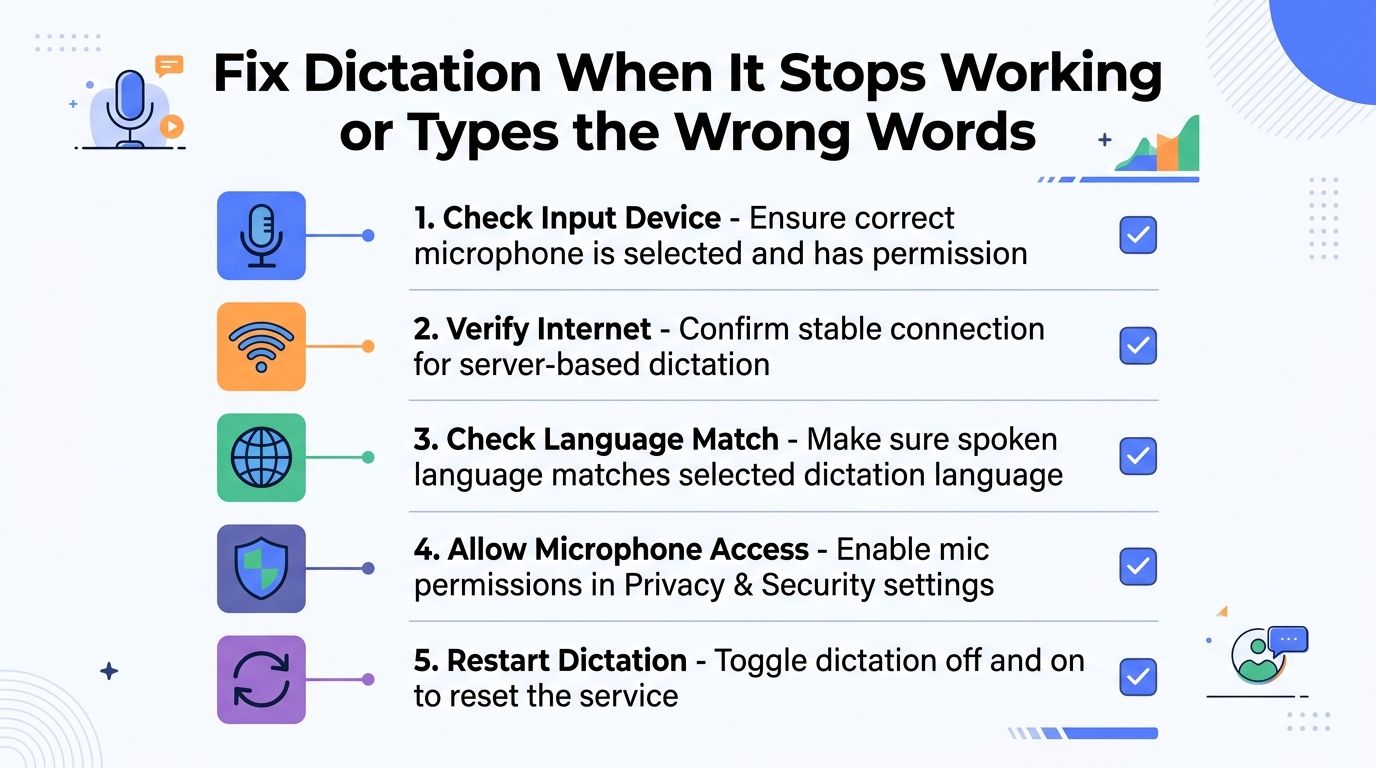
Turning Dictation on doesn't prove that the complete audio path works. The failure usually sits in one of five places: macOS is listening to another device, the microphone signal is weak, the app lacks permission, the room is too noisy, or the service depends on a connection that has dropped.
Diagnose the failure by symptom
- No text appears: Check System Settings > Keyboard > Dictation, then confirm the active shortcut and input microphone. If the shortcut does nothing, test a different assignment temporarily.
- The wrong words appear: Verify the selected language and dialect. A mismatch often produces consistent but incorrect substitutions.
- The text is incomplete: Reduce background noise, move closer to the microphone, and speak in shorter sentences. Echo can be just as disruptive as a loud office.
- One app fails while another works: Open Privacy & Security > Speech Recognition and Microphone, then allow access for the affected app.
- Dictation stops unexpectedly: Confirm the internet connection, especially when using the default server-dependent mode. Recent troubleshooting coverage also points to shortcut timeouts and service interruptions on newer macOS versions.
Apple's documentation notes that Dictation may need an internet connection, so a network failure can look like a microphone failure. The benchmark evidence also makes room control a first-line fix, not an afterthought. If you're in a busy office, moving to a quieter location may help more than repeating the same sentence louder.
Use a clean reset sequence
When individual checks don't solve it, reset the service in a controlled order:
- Turn Dictation off in System Settings > Keyboard, wait briefly, and turn it back on.
- Reselect the language or language pack.
- Reconfirm the microphone and its input level.
- Restart the Mac.
- Clear relevant speech caches only if the earlier actions haven't restored the service.
Don't change several unrelated settings at once. Test after each adjustment in the same text field, so you know which change fixed the problem. For command recognition that fails rather than text transcription, use this troubleshooting guide for Voice Control commands that aren't working.
Privacy Productivity and Everyday Dictation Habits That Stick
A sustainable dictation routine balances three concerns: how quickly words appear, how much correction remains, and where the audio or transcript is processed. Native macOS Dictation is convenient, but Apple says request history is associated with a random identifier rather than an Apple Account. Apple also provides controls for deleting request history younger than six months, while its privacy notice says transcripts and related request data may be retained for up to two years to improve Siri, Dictation, Search, and related language features. Apple's documentation on Mac request history explains the available deletion control and retention context.
That doesn't make the decision for you. It gives you information to use when choosing between cloud-dependent convenience and local processing. For sensitive or repetitive terminology, a local or offline workflow can be preferable, while ordinary low-risk messages may fit native Dictation comfortably.
Build habits around the work
Use a short warm-up sentence before a long session. Confirm that words appear in the intended field, then dictate in complete thoughts. Add recurring names, product terms, and technical vocabulary to a custom dictionary when your chosen tool supports it, and review the transcript before you send or publish.
Knowledge workers can dictate email drafts and reports. Students can capture study notes without stopping to type every sentence. Support and sales teams can draft replies directly in chat or CRM fields, then use voice or keyboard commands for the final check. Developers and prompt writers should expect extra review around symbols, code terms, and proper nouns.
A useful companion for prompt-heavy work is a collection of Prompt Builder productivity prompts. Dictation gets the raw thought out quickly, while structured prompts can help turn that thought into a clearer request or reusable workflow.
Keep this checklist near your MacBook:
- Before speaking: Confirm the active microphone, language, and text field.
- While dictating: Use short sentences and say important punctuation.
- When correcting: Select, delete, or undo immediately instead of letting errors accumulate.
- For sensitive text: Choose a local mode when cloud processing doesn't fit the material.
- Before sending: Check names, links, technical terms, and formatting.
The best time to build the habit is during a small real task, not during a settings experiment. Dictate one email or note today, inspect where the workflow breaks, and fix that specific point.
Voice Control Pro is designed for global shortcut dictation that inserts clean text at your cursor across Mac apps, with cleanup controls, custom vocabulary, transcription history, Fly Mode for local processing, and Hey Max tools for rewriting and screen-based assistance. If that matches the way you work, visit Voice Control Pro and test it on one recurring email, document, or prompt workflow.