
You're in the middle of a reply, your hands hover over the keyboard, and nothing happens when you tap the key you thought started Dictation. Or it fires at the wrong moment, right as you're trying to type a password, rename a file, or answer a chat. That's usually not a Dictation problem. It's a shortcut problem, and on a Mac, the shortcut is the whole workflow.
The good news is that Apple does give you a clean path through it. The shortcut for dictation on Mac can be the default double-press trigger, the microphone key on newer hardware, or a custom combo you set yourself in System Settings. Once the trigger is right, Dictation stops feeling like a hidden feature and starts acting like a tool you can reach for without thinking.
Table of Contents
- Why the Right Dictation Shortcut Changes Everything
- The shortcut is the habit, not just the launch button
- What Apple supports out of the box
- Turning On Built-In Dictation in macOS
- What changes when you switch it on
- Language and access checks that save time
- Default Shortcuts You Get Out of the Box
- Why Apple chose a double press
- Which default usually matches which Mac
- Setting a Custom Dictation Shortcut That Fits Your Workflow
- What works and what tends to backfire
- Apple Silicon vs Intel Why Dictation Speed and Privacy Differ
- How the two modes feel in real use
- Privacy and permissions are part of the shortcut story
- Where the hardware ceiling shows up
- When Built-In Dictation Hits Its Limits
- Where the built-in flow slows down
- When the built-in option is still enough
- Quick Troubleshooting for a Broken Dictation Shortcut
- Fast checks that catch most failures
- A simple way to triage the problem
- What to choose after the troubleshooting is over
Why the Right Dictation Shortcut Changes Everything
You've got the cursor in a Mail draft, a Notes page, or a Slack message. Your fingers leave the keys, you reach for the trigger, and if the wrong thing happens once or twice, Dictation starts to feel like extra work. The shortcut matters more than the speech engine itself. If the trigger feels awkward, unreliable, or too easy to collide with another shortcut, you will not use Dictation often enough to build muscle memory.
The shortcut is the habit, not just the launch button
Apple's built-in Dictation works across text fields in macOS, and the shortcut system lets you use the default trigger or set your own combo in System Settings > Keyboard > Dictation. Apple's help also shows that you can choose a custom shortcut such as Option-Z, and on supported hardware you can switch the trigger to the microphone key instead. That flexibility matters because the shortcut you can reach without thinking is the one that becomes part of your writing routine. Apple's Dictation help
The default setup does not fit every hand or every machine. A colleague may double-press Fn, another person may use a dedicated microphone key, and someone else may have changed the shortcut months ago and forgotten the choice. If you want a broader look at keyboard-first writing habits, browse writing workflow articles from Storyloft, but the Dictation trigger still has to be the combo you can fire without hesitation.
Practical rule: if you hesitate before using Dictation, the shortcut is already wrong for you.
What Apple supports out of the box
Apple's own setup gives you three paths that matter in real use. One is the default double-press trigger, another is the microphone key on newer MacBooks, and the third is a custom shortcut you choose yourself. Each option has a trade-off. The default is easy to find, the microphone key is fast on supported hardware, and a custom combo can fit around the shortcuts you already rely on.
That choice is what separates a shortcut you remember from one you ignore. Pick the trigger that disappears into your workflow instead of forcing you to pause and think about how to start speaking.
If you want a second walkthrough of the setup path before you change anything, this guide to using dictation on a Mac covers the same basics from a practical angle.
Turning On Built-In Dictation in macOS
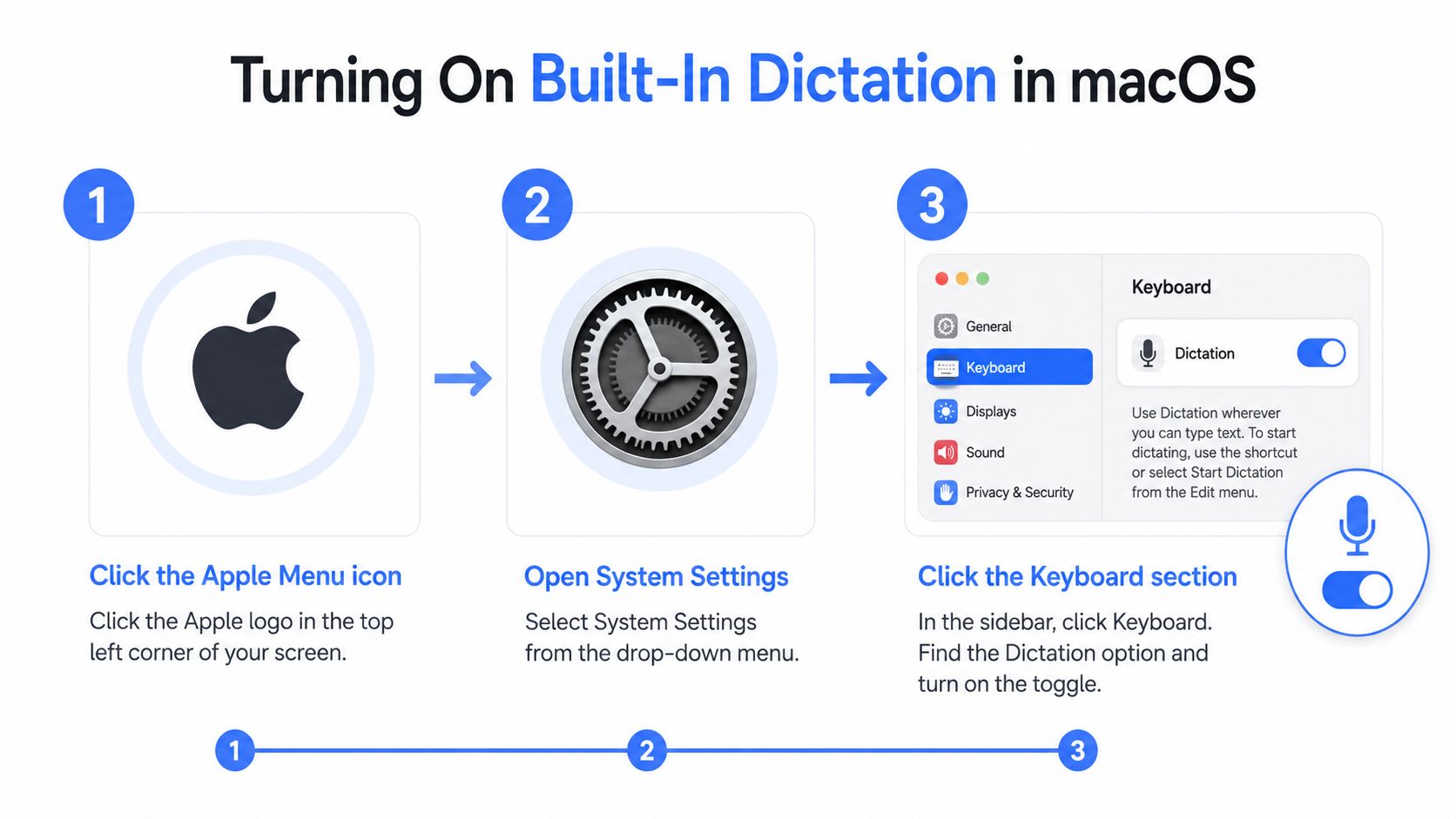
The shortcut won't do anything until Dictation itself is enabled. That sounds obvious, but people get stuck here, especially after a fresh setup, a macOS update, or a settings reset. The path is simple once you know where to look: Apple menu > System Settings > Keyboard > Dictation.
Open System Settings, click Keyboard, then find Dictation and turn it on. Apple's help documents that this is also where you choose or change the shortcut, so don't skip past it if you're only hunting for the key combo. The first time you activate Dictation, macOS may ask for microphone access, and if you dismiss that prompt, Dictation can appear broken even though the toggle is on. For a broader walkthrough that pairs well with this setup, the guide at how to use dictation on a Mac covers the same settings path from a different angle.
What changes when you switch it on
Once Dictation is enabled, you can use it in text fields across macOS without installing another app. That's the main advantage of the built-in route, it's already there, and the shortcut opens access to it. On Macs that support on-device language processing, the experience is more responsive than older cloud-dependent setups, which is why the enable step matters even before you start tuning the shortcut.
Language and access checks that save time
Pick the correct language in the Dictation settings if you write in more than one language. If Dictation seems enabled but still won't start, the first things to re-check are microphone access and whether another system feature has taken over the same trigger. That sounds small, but it's the difference between a working shortcut and a dead one.
Default Shortcuts You Get Out of the Box
You notice the shortcut first, not the settings panel behind it. On some Macs, Dictation starts with a double-press of Fn. On newer MacBook models, the Globe key can take that role. Some machines with a microphone key use a single press to start and stop Dictation. The behavior depends on the keyboard in front of you, which is why one person's setup can look fine while another user swears nothing is working.
Why Apple chose a double press
The double-press default is there to avoid accidental triggers. If you reach for modifiers a lot, switch windows quickly, or type across multiple apps, a single-key trigger can fire when you do not want it to. Apple's safer choice makes sense for general use because a false start wastes less time than cleaning up a stray Dictation launch.
The trade-off shows up when you dictate often. A double press is deliberate, but it is also slower than a dedicated key you can hit without thinking. If Dictation is part of your daily workflow, that small delay becomes noticeable fast.
Which default usually matches which Mac
- Older Apple keyboards: Fn Fn is the common trigger.
- Newer MacBook models with Globe: the Globe key often handles Dictation.
- Macs with a microphone key: a single press can start and stop Dictation.
- Fallback behavior: Apple lets you change the shortcut in the Dictation settings, so the trigger on one Mac may not match the next.
This is the part that gets missed in office rollouts and support docs. The hardware changed faster than the instructions people copied, so a user can follow a tutorial correctly and still end up with the wrong trigger for their Mac. If you need a broader look at tools that record speech for review or interview prep, the real-time interview cue platform is a different category, but it is useful to compare against Dictation's built-in shortcut behavior.
If you only dictate once in a while, the default trigger is usually enough. If you dictate throughout the day, set a shortcut that your hand can hit without hesitation.
Setting a Custom Dictation Shortcut That Fits Your Workflow
The built-in defaults are safe, but safety isn't always speed. If you want Dictation to feel natural, go back into System Settings > Keyboard > Dictation and open the Shortcut dropdown. Apple's documented options let you choose a custom combo built from modifier keys like Control, Option, or Command, and in some setups you can assign the microphone key instead.
A practical custom choice is Option-Z, because Apple explicitly supports a custom shortcut like that, and it's easy to remember. The test isn't whether a shortcut looks clever. It's whether it avoids collisions with system shortcuts you already use every day.
What works and what tends to backfire
- Option-based combos: usually easier to reserve for Dictation if you don't use them globally.
- Command-based combos: can conflict with app shortcuts more often, especially in creative and productivity apps.
- Control-based combos: can be workable, but check whether your keyboard layout or app already claims them.
- Microphone key assignments: best when the hardware supports it and you want one-press behavior.
The hidden rule is that a custom shortcut only helps if Dictation is already enabled and your cursor is in a text field. A global-looking shortcut won't magically type into Finder, menus, or places that don't accept text. That's where people misdiagnose the problem and start changing settings that were fine in the first place.
If you want a broader shortcut-driven voice workflow, real-time interview cue platform from Qcard sits in a similar productivity lane, but for Mac Dictation the value comes from picking a shortcut you can hit reflexively in the apps you use most.
Apple Silicon vs Intel Why Dictation Speed and Privacy Differ
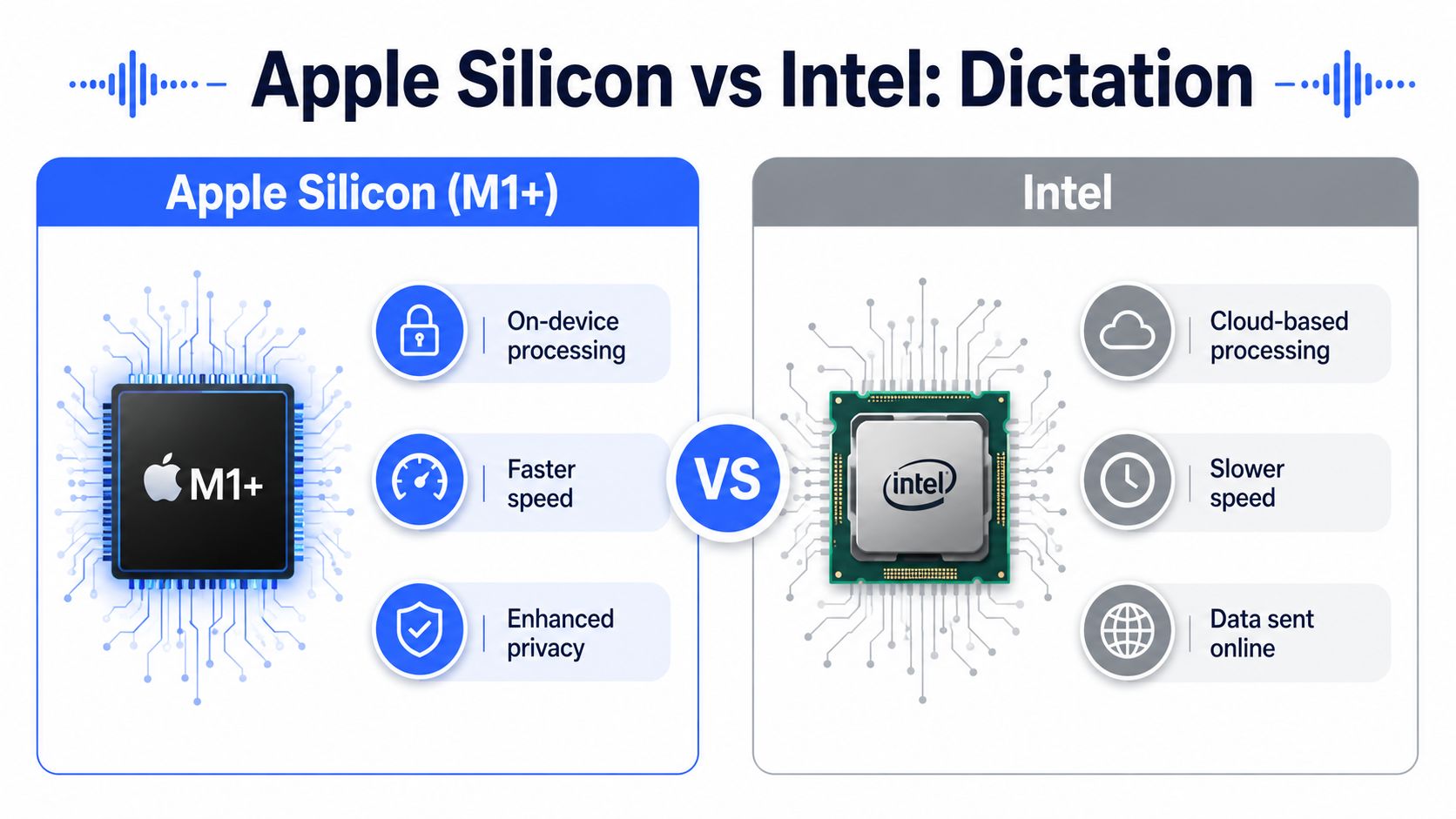
The hardware under your Mac changes Dictation more than many users realize. On M1 or newer Macs, Dictation can run on-device, which gives you a faster, lower-latency feel and keeps the speech processing local. On older Intel Macs, the audio may be sent to Apple's servers, which adds a slight delay and makes the feature feel more dependent on your network connection. That shift matters because Dictation went from being just a convenience feature to being part of the Mac's input pipeline itself. MacMost on dictation on modern Macs
How the two modes feel in real use
On Apple Silicon, Dictation tends to feel immediate enough that you stop thinking about the engine and start thinking only about the sentence you're saying. On Intel machines, the delay is small but noticeable, especially if you're used to typing and pausing in quick bursts. That difference matters most in support replies, rough drafts, and notes where you're switching between typing and speaking repeatedly.
Practical rule: if Dictation feels sluggish, check the chip first, not the shortcut.
Privacy and permissions are part of the shortcut story
The shortcut won't work if macOS has blocked the microphone. After an update or a privacy reset, go to System Settings > Privacy & Security > Microphone and confirm that Dictation still has access. If a call app is actively holding the mic, Dictation can fail because another app has already claimed the input device.
There's also a practical trade-off between local processing and cloud-style fallback. Local dictation on newer Macs is the cleaner privacy story, while older systems depend more on audio leaving the machine. That's one reason some people eventually compare the built-in feature with tools that keep everything local by design. Cloud vs local speech recognition
Where the hardware ceiling shows up
If you write a lot, the difference between local and cloud processing becomes part of your speed, not just your privacy posture. Apple Silicon makes the built-in shortcut feel more modern, while Intel Macs can still be perfectly usable but less immediate. That's not a settings issue. It's a platform issue.
When Built-In Dictation Hits Its Limits
Apple's Dictation is free, built in, and good enough for plenty of everyday text. It starts to feel cramped when you draft long emails, rough reports, or anything that needs cleanup after transcription. The shortcut still matters here, but the main limit is simpler, built-in Dictation gives you raw text, not a polished draft.
Where the built-in flow slows down
The first limitation is repetition. You have to press the shortcut again every time you want a fresh burst of text, and that interrupts momentum. The second is cleanup. Fillers, false starts, and awkward phrasing come through exactly as spoken, so you end up editing after the fact instead of finishing as you go. The third is field compatibility. Some code editors, terminal panes, and odd web inputs do not behave like normal text boxes.
Voice Control Pro fits that gap because it uses a global press-and-hold shortcut, starts when you press it, and inserts text when you release it. It also adds a local mode and an on-device Fly Mode for people who want to keep processing off the cloud. If Dictation keeps tripping over the same shortcut issues, a troubleshooting guide for Mac dictation problems is the next place to look. The workflow stays centered on the shortcut, but the output is less raw.
When the built-in option is still enough
- Occasional note taking: built-in Dictation is usually fine.
- Short replies: the default shortcut is fast enough.
- Privacy-first on Apple Silicon: local processing already covers a lot.
- Long-form drafting: cleanup starts to dominate the time cost.
People also reach for Dictation after buying a better recording app or lecture tool, then find out that transcription alone is not the same as usable text. If your workflow already includes note capture, the comparison with top lecture recording tools makes the gap obvious, because Dictation still has to turn speech into text that is ready to use.
Quick Troubleshooting for a Broken Dictation Shortcut
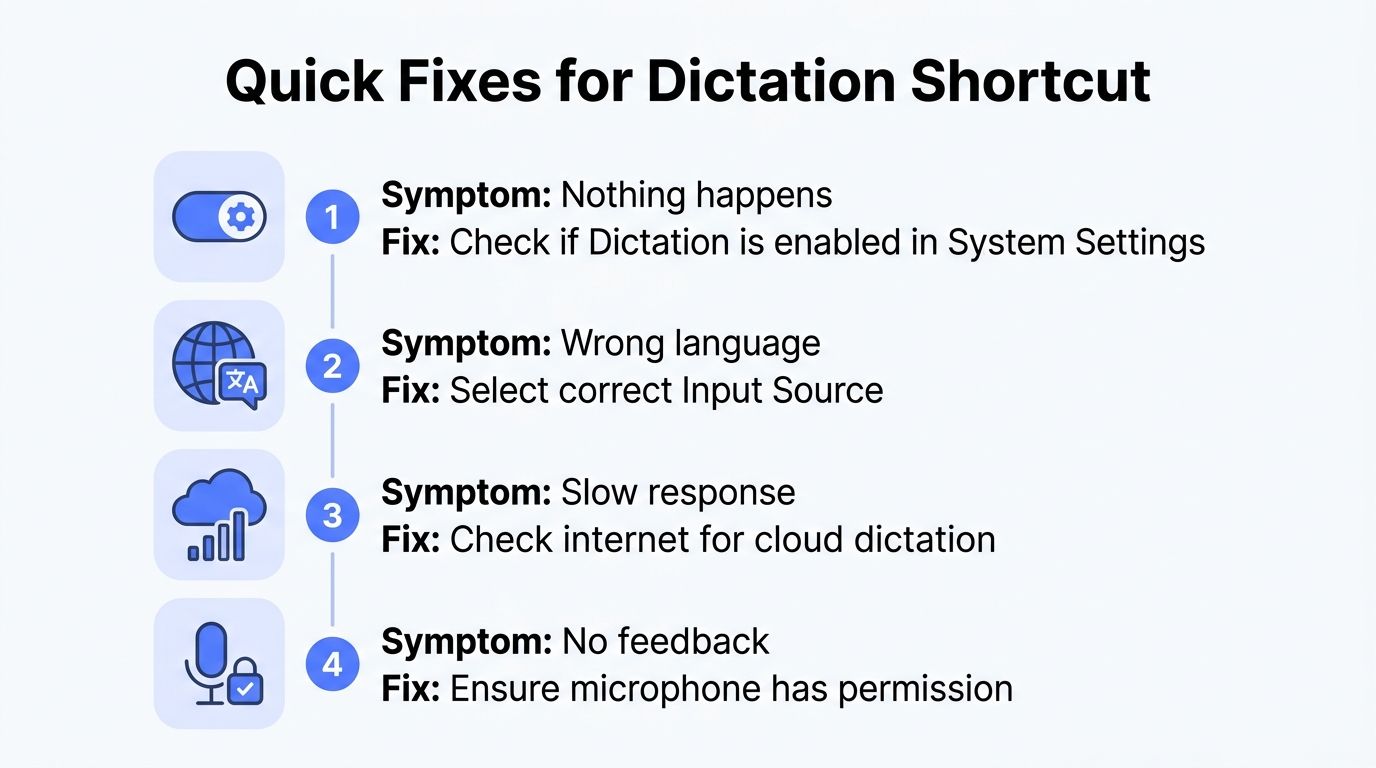
When Dictation stops responding, don't start by reinstalling anything. Start with the shortcut, because that's where most failures hide. If nothing happens after you press the trigger, the issue is usually one of a few predictable problems: a conflicting accessibility feature, a missing permission, the wrong input language, or a text field that doesn't accept Dictation properly.
Fast checks that catch most failures
- Nothing happens at all: confirm Dictation is still enabled in System Settings > Keyboard > Dictation.
- The wrong feature starts: check whether Voice Control is enabled in System Settings > Accessibility, because it can compete with Dictation for the same trigger. Voice Control Pro on Mac dictation issues
- Dictation works in one app but not another: the app may be using a non-standard text field, not rejecting Dictation globally.
- The mic seems dead: re-check System Settings > Privacy & Security > Microphone and confirm access wasn't revoked.
- The response feels delayed: on older Macs, cloud-style processing can feel slower than on-device dictation.
- The language seems wrong: verify the Dictation language and keyboard input source match what you're speaking.
A simple way to triage the problem
First, test Dictation in a plain text app like Notes. If it works there, your shortcut is fine and the app is the issue. If it fails everywhere, return to the keyboard settings, mic permission, and Accessibility conflict check. That sequence is faster than guessing, and it avoids changing three settings when only one of them is wrong.
What to choose after the troubleshooting is over
If you dictate occasionally, stay with the default Fn or Globe shortcut and keep the setup simple. If you dictate daily, switch to a custom combo like Option-Z so the trigger matches your muscle memory. If you draft long-form text or want cleaner output with less editing, a dedicated tool such as Voice Control Pro is the more realistic fit.
Voice Control Pro gives you a press-and-hold dictation shortcut that works across apps, plus local processing options when you want to keep your speech on your machine. If the built-in shortcut for dictation on Mac keeps getting in your way, it's worth trying a workflow built around faster insertion, cleaner text, and fewer settings to babysit. Visit Voice Control Pro and see whether it fits the way you write.