
Your hands are tired, your cursor is blinking, and you only need to get one email, one set of notes, or one rough draft out before the thought disappears. That's when many try dictation on Mac for the first time. They don't start because they love voice tech. They start because typing has become the slow part.
The good news is that built-in Mac dictation is easy to switch on. The bad news is that most advice stops there. In real work, the bigger issue isn't turning dictation on. It's getting reliable results after a macOS update, understanding when the built-in tool is enough, and knowing why it suddenly works badly in the same office where it seemed fine last week.
I've helped a lot of professionals set up voice workflows on Mac, and the same pattern keeps showing up. People can usually enable dictation in a minute. What they need help with is the messy middle: accuracy in normal rooms, technical vocabulary that gets mangled, and hidden conflicts with Voice Control that break things after updates.
Table of Contents
- Getting Started with Mac Dictation
- Turn it on fast
- What to do in the first five minutes
- Treat it like a tool, not a novelty
- Built-In versus Third-Party Dictation Options
- Where Apple Dictation fits
- Where third-party tools earn their place
- Mac Dictation Options Comparison
- Mastering Voice Commands and Shortcuts
- The first commands worth memorizing
- Shortcuts matter more than people think
- Build command memory with one repeated task
- Improving Dictation Accuracy in Real Environments
- What the benchmark numbers actually mean
- Fix the environment before you blame the tool
- Set the right expectations
- Troubleshooting Common Dictation Issues
- The hidden conflict most guides skip
- A five-minute recovery sequence
- Symptoms and likely causes
- The offline and privacy question
- Building a Sustainable Dictation Workflow
- A realistic daily system
- Don't chase perfection
Getting Started with Mac Dictation
If you need to capture text quickly, keep the setup simple. Mac dictation works best when you treat it as a fast input method first, not a full workflow redesign.
Turn it on fast
Open System Settings, go to Keyboard, and look for Dictation. Turn Dictation on, choose your language, and confirm the keyboard shortcut you want to use to start it. Once that's enabled, you can place your cursor in almost any text field, trigger dictation, and begin speaking.
For many users, that's enough to get moving. Don't spend twenty minutes tweaking settings before you've spoken a single sentence.
Practical rule: Start with one use case only. Email replies, meeting notes, or rough drafting. Don't test dictation in five apps on day one.
What to do in the first five minutes
Use a short test instead of a long one. Dictate a few sentences into Notes or Mail. Speak punctuation out loud. Try a period, a comma, and a new paragraph. Then stop and read what the Mac inserted.
That quick test tells you more than a settings screen ever will. You'll notice whether your microphone is hearing room noise, whether your pace is too fast, and whether your normal speaking style needs to become slightly more deliberate.
A good first session looks like this:
- Choose a quiet app context: Notes is better than a crowded browser tab with notification noise and distractions.
- Pick the right language variant: If your accent or spelling habits differ from the default, choose the closest language option available.
- Use short bursts: One or two sentences at a time is easier to review than a full paragraph while you're still learning.
Treat it like a tool, not a novelty
Mac dictation becomes useful when you pair it with a few habits. Keep your cursor where you want text to go. Pause briefly between ideas. Review immediately after each short burst.
Apple's speech input on Mac also sits in a broader accessibility history. Voice Control became a system-level feature in macOS Catalina (10.15), introduced around WWDC 2019, and Apple notes that when Voice Control is on, standard macOS Dictation isn't available, which matters later when troubleshooting hidden conflicts on your Mac in Apple's Voice Control documentation.
Built-In versus Third-Party Dictation Options
Once you've used the built-in tool for a few days, the choice appears. Do you stay with Apple Dictation, or do you move to a third-party app built for heavier daily use?
The answer depends less on features and more on tolerance. How much cleanup are you willing to do after each draft? How often do you write technical content? How sensitive is the material you're dictating?
Where Apple Dictation fits
Apple Dictation is convenient because it's already on the machine. For quick replies, rough notes, and short drafting sessions, that convenience matters. There's no separate purchasing decision, no extra onboarding, and no new interface to learn.
Privacy is part of the equation too. Apple says Siri and Dictation requests are associated with a random identifier rather than an Apple Account, and users can delete audio recordings and transcripts that are less than six months old. Apple also says that if you opt into improvement, samples of Siri, Dictation, and Translate interactions may be stored and reviewed to improve language-processing features including Voice Control in Apple's Siri and Dictation privacy settings guide.
Where third-party tools earn their place
Third-party dictation tools usually make sense when dictation stops being occasional and starts becoming infrastructure. That means long-form drafting, repeated use across multiple apps, technical terminology, or privacy-sensitive workflows where you want clearer control over local processing behavior.
Some tools focus on polished text insertion. Others focus on command layers, custom vocabulary, or offline handling. If you're comparing options, this overview of dictation apps for Mac is a useful place to sort by workflow rather than marketing.
Here's the practical comparison you need:
Mac Dictation Options Comparison
| Feature | Apple Dictation | Third-Party Tools |
|---|---|---|
| Setup | Built into macOS and quick to enable | Requires installation and initial configuration |
| Best use case | Short notes, simple emails, casual replies | Daily drafting, multi-app workflows, heavier production use |
| Technical vocabulary | Often needs manual cleanup | Many tools handle custom terms better or offer custom dictionaries |
| Privacy controls | Tied to Apple's Siri and Dictation privacy model | Varies by product, with some offering local processing modes |
| Workflow depth | Basic text entry | May include cleanup, rewriting, history, commands, or app-wide insertion |
| Cost | Built into macOS | Varies by tool and plan |
Built-in dictation is good enough for many people. It usually stops being good enough when correction becomes part of every sentence.
One balanced option in this category is Voice Control Pro, which inserts speech at the cursor across apps and includes features such as cleanup controls, a custom dictionary, transcription history, and local processing modes. That's useful if you like the idea of dictation on Mac but need something more durable than the built-in layer.
Mastering Voice Commands and Shortcuts
People who quit dictation early usually make the same mistake. They use voice for words, but not for control. Then they keep reaching for the keyboard and trackpad every few seconds, which breaks rhythm and makes dictation feel slower than typing.
The fastest improvement comes from learning a small command set and repeating it until it feels automatic.
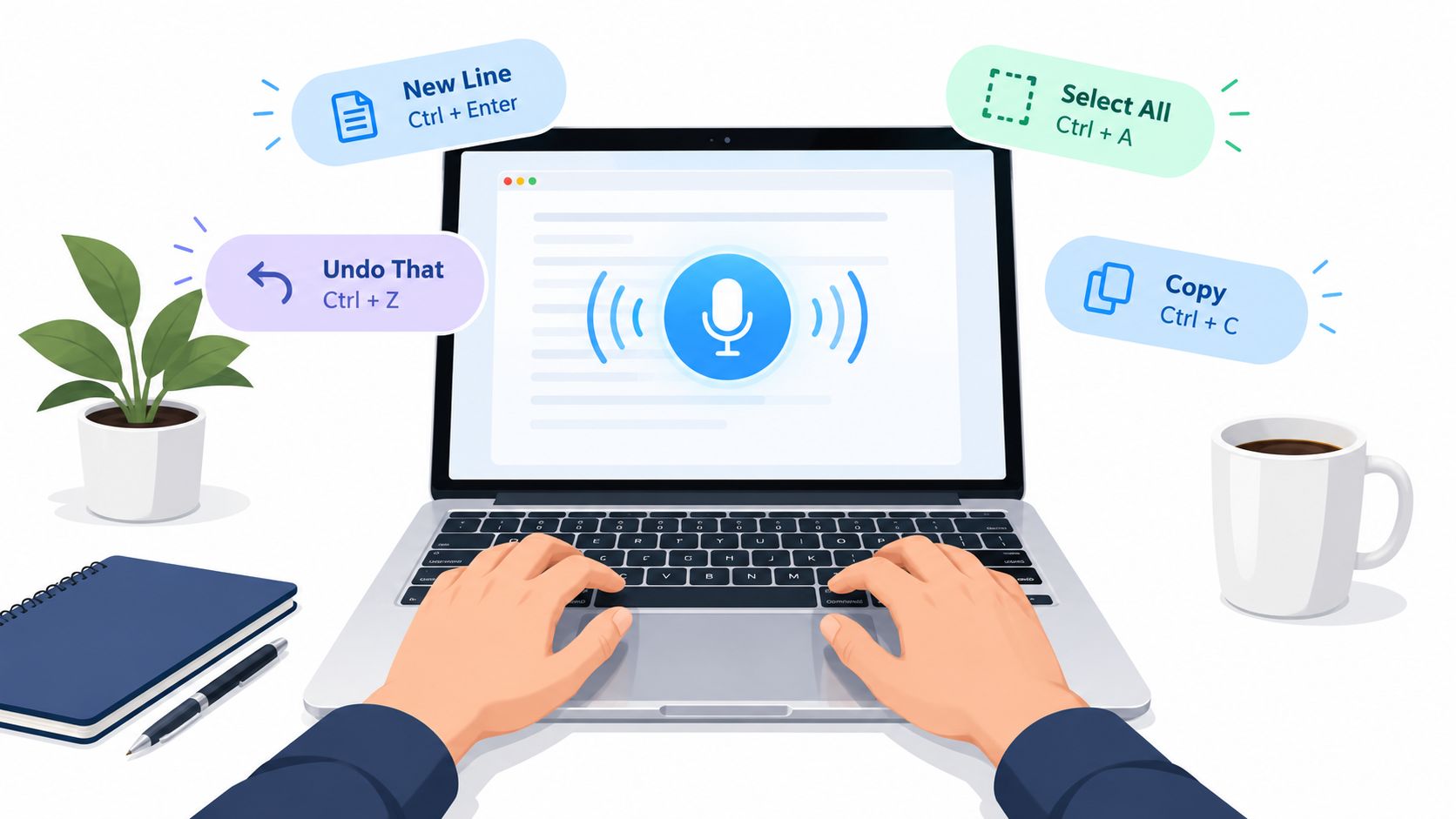
The first commands worth memorizing
Start with punctuation and structure. If you don't speak structure, you'll spend too much time fixing blocky text afterward.
Use phrases like:
- “Period” for sentence endings
- “Comma” for short pauses
- “Question mark” when tone matters
- “New paragraph” to separate ideas cleanly
- “Delete that” or delete the last phrase if your setup supports editing commands
- “Open quote” and “close quote” when you need cleaner dictated writing
The point isn't elegance. The point is flow. Spoken punctuation feels awkward for about two days, then it starts saving time.
Shortcuts matter more than people think
Your start and stop action needs to be frictionless. If launching dictation takes thought, you won't use it often enough to improve. Keep the assigned keyboard shortcut easy to remember and easy to trigger with one hand if needed.
For a deeper walkthrough of the trigger options and setup patterns, this guide to the shortcut for dictation on Mac covers the practical side well.
A simple daily pattern works:
- Place the cursor first: Don't activate dictation and then hunt for the text field.
- Speak one thought at a time: This reduces repair work.
- Stop, scan, continue: Quick review beats long cleanup later.
If dictation feels clunky, the problem usually isn't your voice. It's the number of times you're forced to switch back to your hands.
Build command memory with one repeated task
Pick one task you do every day. Replying to email is ideal. Use dictation for the greeting, one or two main points, and the close. Speak punctuation every time. Within a week, the command layer starts feeling less artificial.
A visual walkthrough helps if you're still building the habit:
If you want to go further, combine dictation with spoken editing and text selection commands. That's where voice becomes a real input system instead of a microphone that occasionally types for you.
Improving Dictation Accuracy in Real Environments
Accuracy on a clean desk in a quiet room is one thing. Accuracy in a shared office, with HVAC noise, laptop fans, and keyboard chatter, is another.
That gap is where most frustration comes from. People assume the software got worse. Often the room got louder, the mic moved farther away, or the task shifted from plain language to specialized terms.
What the benchmark numbers actually mean
A 2026 Mac dictation benchmark reported that leading tools can stay below 5% word error rate in quiet-room, native-speaker conditions, while Apple Dictation was reported at roughly 65% to 75% accuracy in noisy offices. The practical implication is simple: quiet conditions dramatically change outcomes, and teams should test in a quiet room, use a close mic, and avoid simultaneous keyboard noise or fan noise in this Mac dictation benchmark review.
That matches what I see in practice. Users blame the app first. The room is often the culprit.
A separate 2026 transcription test reported Apple Dictation at about 89.3% general accuracy, 76.0% accuracy on technical content, and 0.3 seconds of latency in that setup. The takeaway is that insertion can feel fast enough for real-time use, but technical vocabulary remains a clear failure point, especially acronyms and domain terms in this speech-to-text Mac test.
Fix the environment before you blame the tool
The highest-impact changes are usually physical, not software-based.
- Move the mic closer: A close microphone beats a better algorithm used from too far away.
- Reduce competing sound: Keyboard clatter, fans, and other voices create errors you'll never fix with settings.
- Face one direction consistently: Turning your head while speaking changes how the mic hears you.
- Pause around specialized terms: Acronyms, names, and product jargon need cleaner spacing.
For microphone setup ideas that fit a desk workflow, this guide on the best microphone setup for voice dictation desktop is worth reviewing.
Set the right expectations
Dictation on Mac is excellent for rough drafting, decent for general prose, and less reliable for technical language unless you're willing to edit. That's not failure. It just means voice works best when you use it for first-pass speed and leave precision cleanup for the end.
Troubleshooting Common Dictation Issues
The most common dictation complaint on Mac isn't “How do I turn it on?” It's “Why did it work fine until the last update, and now it barely works at all?”
That question matters because most guides stick to the surface. They tell you to check the shortcut, confirm the microphone, and reduce noise. Those are fine first checks, but they often miss the deeper post-update conflict.
The hidden conflict most guides skip
Recent reporting points to a gap in common troubleshooting advice. One 2026 guide says Voice Control is the “single most overlooked cause” of dictation failure, especially after updates, while broader coverage still tends to stay focused on basic settings in this review of post-update dictation issues on macOS Tahoe.
That lines up with the support cases I see. A user updates macOS, restarts, and assumes Dictation is broken. In many cases, the issue is that Voice Control has been enabled, changed, or left in a conflicting state, and standard Dictation won't behave normally while that conflict exists.
A five-minute recovery sequence
If dictation suddenly stops working, use this order:
- Check Voice Control first
Go to Accessibility settings and confirm whether Voice Control is on. If it is, test with it off and try Dictation again.
- Test in a simple app
Use Notes instead of Slack, your browser, or a web app. This tells you whether the issue is system-wide or app-specific.
- Review microphone permission behavior
Some apps lose or mishandle access after updates. If dictation fails only in one app, inspect that app's microphone permissions and relaunch it.
- Toggle Dictation off and back on
This sounds basic because it is, but it can reset a stuck service state after an update.
- Restart before changing more settings
If background speech services are hung, a clean restart is often faster than random experimentation.
Recovery habit: When Dictation breaks after a macOS update, check for a Voice Control conflict before you touch anything else.
Symptoms and likely causes
| Symptom | Likely cause | First check |
|---|---|---|
| Dictation shortcut does nothing | Voice service conflict or shortcut issue | Check whether Voice Control is enabled |
| Mic appears active but no text appears | App-specific permission or insertion issue | Test in Notes |
| Accuracy suddenly tanks after an update | Changed audio routing or background service conflict | Recheck selected mic and restart |
| Dictation works in one app but not another | App permission or field-level incompatibility | Inspect app permissions and relaunch |
The offline and privacy question
Another issue people keep asking about is whether dictation is on-device, when it needs the internet, and what changes for privacy-sensitive work. Recent reporting suggests basic Dictation still works without Apple Intelligence on Macs running Tahoe, and privacy-focused coverage distinguishes on-device dictation from cloud-dependent workflows, especially for sensitive use cases in this overview of macOS Tahoe dictation and offline behavior.
That matters if you handle legal, healthcare, student, or internal business material. If privacy is a deciding factor, don't assume all voice workflows behave the same way. Check how the specific tool handles local versus cloud processing before you rely on it.
Building a Sustainable Dictation Workflow
The people who stick with dictation on Mac don't use it for everything. They use it where it wins.
A realistic daily system
Use dictation for first drafts, replies, notes, and idea capture. Switch back to typing for dense editing, tables, precise formatting, and terminology-heavy cleanup. That split keeps voice fast and keeps correction fatigue low.
A simple workflow looks like this:
- Morning inbox: Dictate short replies and internal updates.
- Drafting block: Speak rough paragraphs into Notes, Docs, or your editor of choice.
- Cleanup pass: Fix names, acronyms, and formatting by hand.
- Technical writing: Dictate the explanation, then type the exact terms that need precision.
Don't chase perfection
If you expect every sentence to land cleanly, you'll abandon dictation too early. If you treat it as a fast capture layer, you'll get much more value from it. That mindset matters most for people writing proposals, reports, support replies, or study notes throughout the day.
The durable setup is simple: a reliable shortcut, a quiet enough environment, a known troubleshooting sequence, and a clear rule for when typing is still the better tool.
If you want a more capable voice workflow than the built-in option, Voice Control Pro offers cross-app dictation at the cursor, cleanup controls, a custom dictionary, transcription history, and local processing modes that fit privacy-sensitive work. It's a practical next step if dictation on Mac is already useful for you, but the built-in tool keeps falling short once the work gets technical or repetitive.