
You're halfway through a client email, your hands are busy, and the sentence in your head is already better than anything you'd type. You press a shortcut, speak into the MacBook microphone, and watch the words appear in the active field. With a local setup, the audio is decoded on the computer instead of being sent across the network to a transcription server.
That workflow is no longer a novelty. Local speech to text can make dictation faster, keep sensitive recordings under your control, and continue working without an internet connection. It also has real limits. Noisy rooms, strong accents, code-switching, specialist vocabulary, and less capable hardware can still expose gaps that cloud services handle more gracefully. The right question in 2026 isn't whether local transcription is universally better. It's which parts of the privacy, speed, accuracy, and cost trade-off you want to control.
Table of Contents
- What Local Speech to Text Actually Means
- Offline and local aren't identical
- On-Device versus Cloud Transcription
- On-Device Engines You Can Run Today
- Don't overlook the operating system
- Where Local Dictation Shines in Daily Work
- Four workflows worth setting up
- Setting Up Local Speech to Text on macOS and Windows
- Configure for daily use
- Performance, Privacy, and the Full Pipeline
- Privacy is a pipeline property
- Troubleshooting and Optimization Tips
- Fix the audio chain
- Run this final checklist
What Local Speech to Text Actually Means
Local speech to text is automatic transcription where the spoken audio is processed on your device. In the strictest version, the microphone input, acoustic features, model inference, and resulting text all remain on the computer. Cloud transcription works differently, streaming audio or extracted features to remote servers for decoding.
That distinction affects the entire workflow. A local engine doesn't need a network round trip, so dictation can continue on a plane, in a client office with unreliable Wi-Fi, or during an outage. It also avoids sending a recording to a third-party transcription provider for the recognition step. The practical benefit isn't abstract privacy. It means you can dictate a draft, private note, or sensitive conversation without creating a remote audio copy through the transcription engine.
Practical rule: “Local” describes where recognition inference runs, not necessarily every later operation performed on the text.
Punctuation restoration, spelling correction, formatting, summarization, and LLM cleanup may be separate stages. An app can recognize speech locally, then send the transcript to a cloud model to remove filler words or rewrite it. At that point, capture was local, but the complete privacy model is no longer local. Professional users should inspect the whole pipeline rather than trusting a single “offline” label.
Offline and local aren't identical
Offline speech to text means the recognition process has no cloud fallback, even when the device is connected to the internet. Some operating-system dictation modes advertise on-device processing but can use hybrid behavior depending on language, feature, or configuration. Check the app's network behavior and test it with connectivity blocked before using it for confidential material.
Local transcription also covers more than live dictation. You may run Whisper on a recorded meeting, process an interview file, or edit transcripts from audio files after recognition. In each case, the important question is where the audio and text travel at every stage. A local model gives you a strong starting boundary, but you still need to review storage, synchronization, crash reports, backups, and optional cloud features.
On-Device versus Cloud Transcription
Treat on-device and cloud transcription as points on a control spectrum, not as a simple privacy-versus-accuracy argument. A cloud service may deliver better results on difficult audio and unusual languages, while a local engine gives you predictable processing, no per-minute upload dependency, and a clearer data boundary. You can choose differently for live dictation, batch interviews, medical notes, or casual messages.
| Axis | On-Device | Cloud |
|---|---|---|
| Privacy | Audio and inference can remain on the device, subject to the app's storage and cleanup behavior | Audio or features travel to a provider, with retention, telemetry, and regional-routing policies to review |
| Latency | Avoids network round trips and can stream directly into the active field | Depends on upload time, server response, connection quality, and service load |
| Accuracy | Strong on clean speech, with more visible limits on difficult audio and specialist vocabulary | Often maintains an edge on noisy speech, accents, rare terms, and broad language coverage |
| Language support | Depends on installed model packs and available hardware | Frequently offers wider language menus and managed model updates |
| Cost | Usually involves software plus your own hardware, without usage billing | May use per-minute charges, subscriptions, quotas, or account-based pricing |
The privacy difference is strongest when the local setup is self-contained. You control model files, logs, and backups, and no transcription vendor needs access to the recording. Cloud services can still be appropriate when you need managed storage, speaker features, collaboration, or difficult multilingual recognition, but vendor access and data handling become part of the decision.
Latency feels different in practice. A local streaming engine can display partial words while you speak, whereas a cloud tool may wait for audio chunks to upload and decode. On-device streaming ASR has demonstrated sub-500 millisecond end-to-end latency for practical voice commands and dictation, and a compact English model reported 0.56 seconds of algorithmic latency while running faster than real time on CPU, with an 8.20% average streaming word error rate across eight benchmarks. Those results come from a specific research model, not a guarantee for every laptop or application, but they show why local inference can feel immediate. Microsoft's on-device streaming ASR research provides the technical context.
Accuracy is where disciplined selection matters. Cloud recognition often wins the last few points on noisy recordings, heavy accents, code-switching, and specialist terms. Local Whisper variants can be excellent for ordinary dictation, especially with a good microphone, but a larger model consumes more memory and may respond more slowly.
Choose local for predictable privacy and responsiveness. Choose cloud when a difficult recording costs more to correct than the upload and usage trade-off.
A journalist recording a quiet interview may get everything needed from local batch transcription. A clinician dictating in a busy ward may prefer a carefully governed cloud service if local accuracy produces too much correction work. For most users, the practical heuristic is simple: start local for routine dictation, then use cloud processing selectively for audio that needs its extra recognition capability.
For a deeper implementation comparison, see this guide to cloud versus local speech recognition.
On-Device Engines You Can Run Today
You don't need to build an ASR system from scratch. Several engines are practical on a laptop, but they serve different jobs.
Whisper local is the default choice when accuracy and language coverage matter most. The ecosystem includes whisper.cpp for portable CPU and GPU inference, faster-whisper through CTranslate2 for efficient Python deployments, and MLX-Whisper for Apple Silicon. Whisper models range from tiny through large variants, so you can trade recognition quality for speed and memory use. My verdict: start with whisper.cpp or MLX-Whisper if you want a reliable personal dictation system and can tolerate model setup.
VOSK remains useful for lightweight, CPU-only streaming. It starts quickly, works well on modest machines, and can be a sensible choice when battery life, thermals, or a small deployment footprint matter more than top accuracy. My verdict: use it for commands and simple dictation, not demanding multilingual interviews.
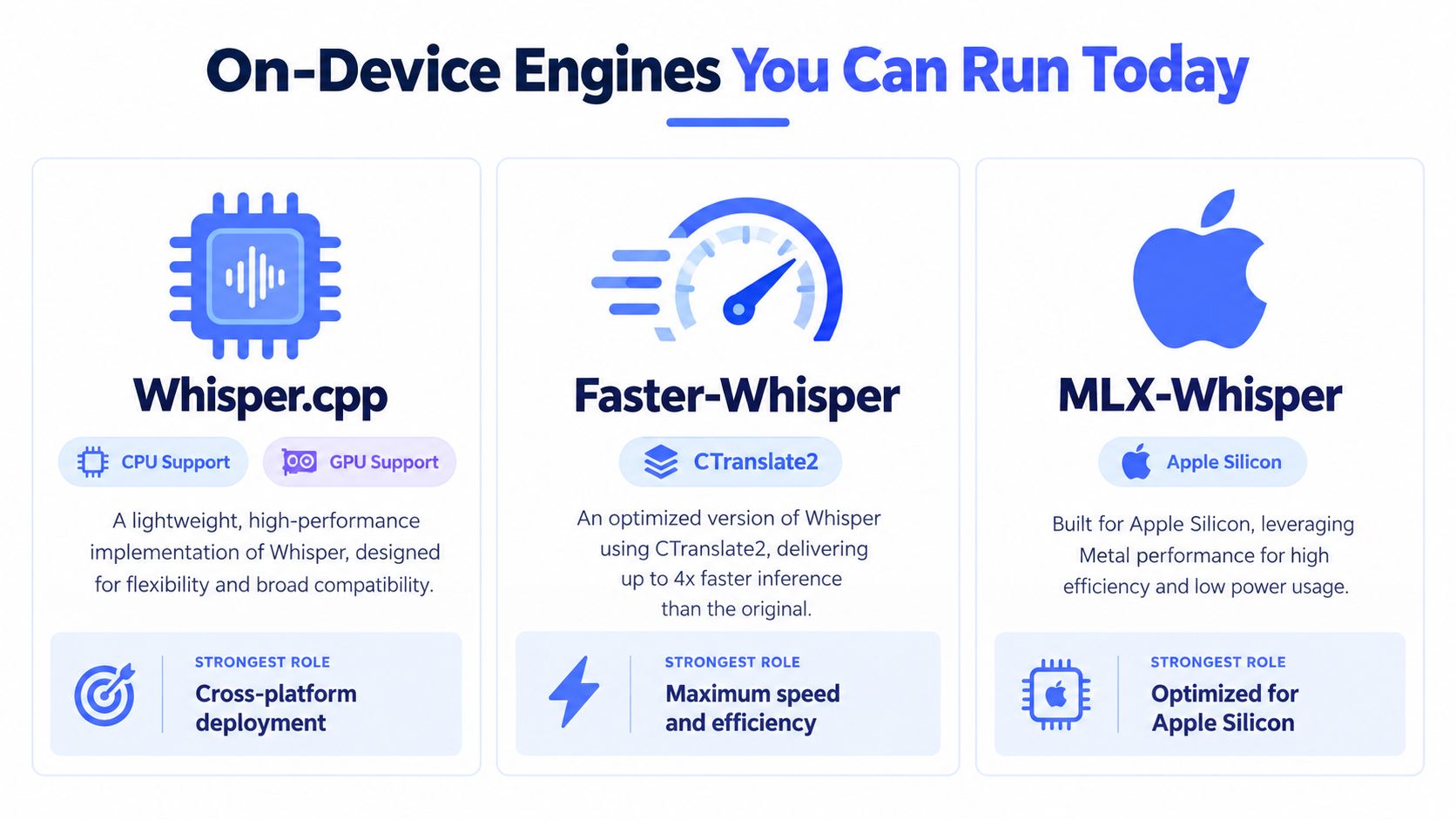
Coqui STT is a Kaldi-derived option for teams that want streaming recognition and more control over the runtime. It takes more engineering effort than an OS dictation toggle, but it can suit a custom application with a defined vocabulary. Silero offers compact models that are attractive on phones, older systems, and embedded hardware. My verdict: choose either when deployment constraints justify the smaller ecosystem and extra integration work.
Don't overlook the operating system
On macOS, Apple Dictation and the Speech framework are the easiest starting points. They offer tight text insertion and accessibility integration, but verify whether the selected mode is fully on-device or hybrid. Windows Speech Recognition and Voice Typing provide similar convenience, while newer tools and integrations can expose local options without requiring a full model-management workflow.
For app developers, a native API may be enough. If you're building a cross-platform mobile interface, a Capacitor speech plugin can connect speech recognition to the application layer, though you still need to verify the platform's actual processing path.
My recommendation is blunt. Use OS-native dictation for frictionless everyday input. Use Whisper when accuracy, offline assurance, or language flexibility matters. Use VOSK, Coqui, or Silero only when their small footprint or streaming behavior solves a specific constraint.
Where Local Dictation Shines in Daily Work
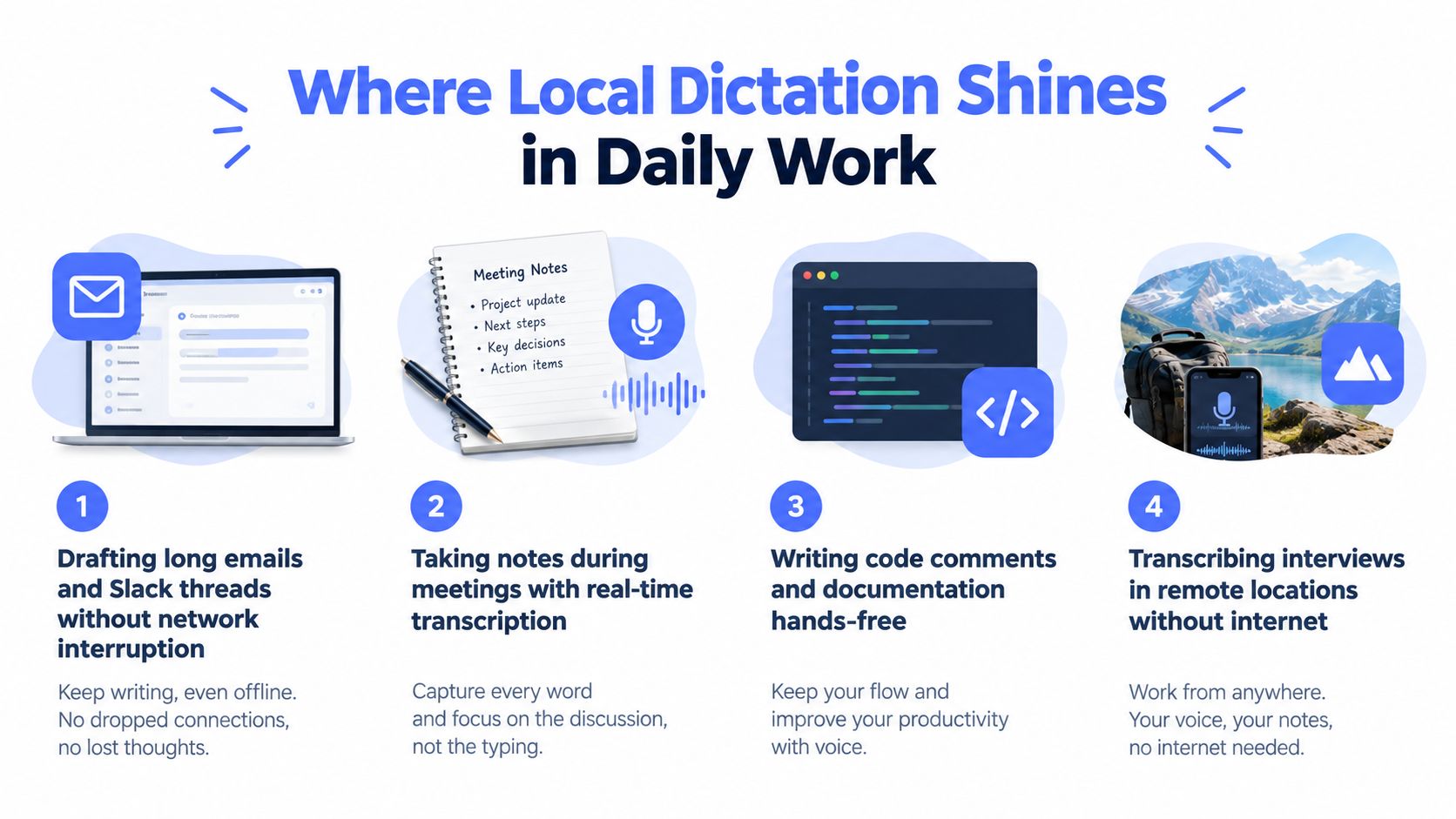
Local dictation earns its place when speaking is easier than typing and the content shouldn't leave your machine. Long emails are the obvious example. You can talk through the argument, add a qualification, and continue without opening a separate transcription window or waiting for a server response. The text appears where your cursor is, so the idea stays in motion.
Meetings create a different advantage. If you're taking notes in a client office, on a train, or during travel, patchy connectivity doesn't have to stop capture. A local recorder and model can produce a working transcript that you review later. For a private conversation, therapy session, or interview, keeping the audio and initial transcript on the device reduces exposure to a third-party transcription log. You still need consent, appropriate retention, and secure device storage, but the processing boundary is easier to enforce.
Four workflows worth setting up
- Messages and documents: Draft emails, reports, Slack threads, and notes by speaking in complete thoughts, then edit the inserted text.
- Accessibility input: People managing repetitive strain, RSI, or motor impairments can use speech as a low-friction alternative to sustained keyboard input.
- Developer work: Dictate code comments, issue descriptions, commit messages, documentation, and AI prompts without repeatedly switching to a browser.
- Remote interviews: Capture speech in locations where internet access is unreliable, then process and clean the transcript locally.
The strongest setup isn't trapped inside one editor. A global shortcut can activate the same local engine in a browser, terminal, document, CRM, or chat window. That matters because the value comes from reducing context switching, not merely converting audio into text.
The useful unit isn't the transcript. It's the uninterrupted path from thought to text.
Local dictation also works well for rough work. You can speak an imperfect first draft, preserve the momentum, and correct names or formatting afterward. Don't expect a local engine to eliminate editing, especially with specialist vocabulary. Expect it to remove the mechanical bottleneck of getting ideas onto the screen.
Setting Up Local Speech to Text on macOS and Windows
Start with the microphone, not the model. A decent headset or USB condenser microphone usually produces a larger practical improvement than switching between similar model variants. Place the microphone consistently, reduce room noise, and test normal speaking volume before judging the engine.
On macOS, begin with Apple Dictation if you want the lowest-friction path. In System Settings, review Dictation and select an on-device mode where the operating system offers one. Then test Whisper.cpp, MLX-Whisper, or VOSK if Apple's recognition misses your vocabulary or you need stronger offline control. Apple Silicon is the better fit for larger local Whisper models. Older Intel Macs should favor smaller variants so the interface stays responsive.
On Windows, start with Voice Typing and inspect whether the selected configuration uses local recognition or a cloud fallback. For a controllable Whisper setup, install Python and faster-whisper, download a model suited to your hardware, and keep the model files on an encrypted local drive. Quantized formats can reduce memory pressure and make local inference more practical.
| Aspect | macOS | Windows |
|---|---|---|
| Easy starting point | Apple Dictation and the Speech framework | Voice Typing and Windows Speech Recognition |
| Local engine options | MLX-Whisper, whisper.cpp, VOSK | faster-whisper, whisper.cpp, VOSK |
| Hardware preference | Apple Silicon for heavier local models | Recent Intel or AMD processor, or compatible GPU |
| Input integration | Accessibility permissions and text insertion tools | Text insertion utility or application integration |
| Best first test | Dictate into a native text field, then confirm offline behavior | Test Voice Typing, then compare it with a local faster-whisper build |
Configure for daily use
Use a global shortcut that your fingers can reach without leaving the active window. Option plus Space on macOS and Control plus Shift plus Space on Windows are sensible patterns, but avoid conflicts with existing utilities. Enable automatic insertion into the focused field, then test the behavior in a browser, document editor, chat application, and terminal.
Keep at least two model sizes available if your workflow changes between live dictation and recorded files. A smaller model is easier for quick interactive input, while a larger one may handle names and difficult phrases better. Quantization can reduce local resource demands. A study of on-device ASR found dynamic quantization for ARM64 reduced latency to 2.98 seconds from around 4.5 seconds in the base configuration and slightly improved CER from 6.8% to 6.46% in the best case, while another physical-device benchmark found sub-8-bit compression reduced memory footprint by 30.73% and user-perceived latency by 31.75%. The on-device ASR quantization study explains why smaller weights can improve compatibility.
For hardware, plan around your actual model rather than a generic specification. More RAM gives larger models room to operate, but a clean audio chain and sensible quantization often matter more than chasing the biggest model.
For practical workflows that turn spoken input into editable text, see this guide to transcribing voice to text.
Performance, Privacy, and the Full Pipeline
A local dictation system is a chain, and the weakest stage sets the experience. The microphone captures speech, the audio layer may resample and suppress noise, the recognition engine decodes it, and a text-insertion or cleanup layer places the result in your application. Inspect each stage before blaming Whisper for a problem caused by clipping, permissions, or an overactive formatter.
Many speech models expect 16 kHz mono audio, with preprocessing applied before inference. Noise suppression can help in a difficult room, but aggressive processing may distort consonants. Whisper local commonly runs quantized weights through whisper.cpp on CPU or through Apple Silicon acceleration paths, while VOSK and Silero can stream partial results and feel responsive because text appears during speech.
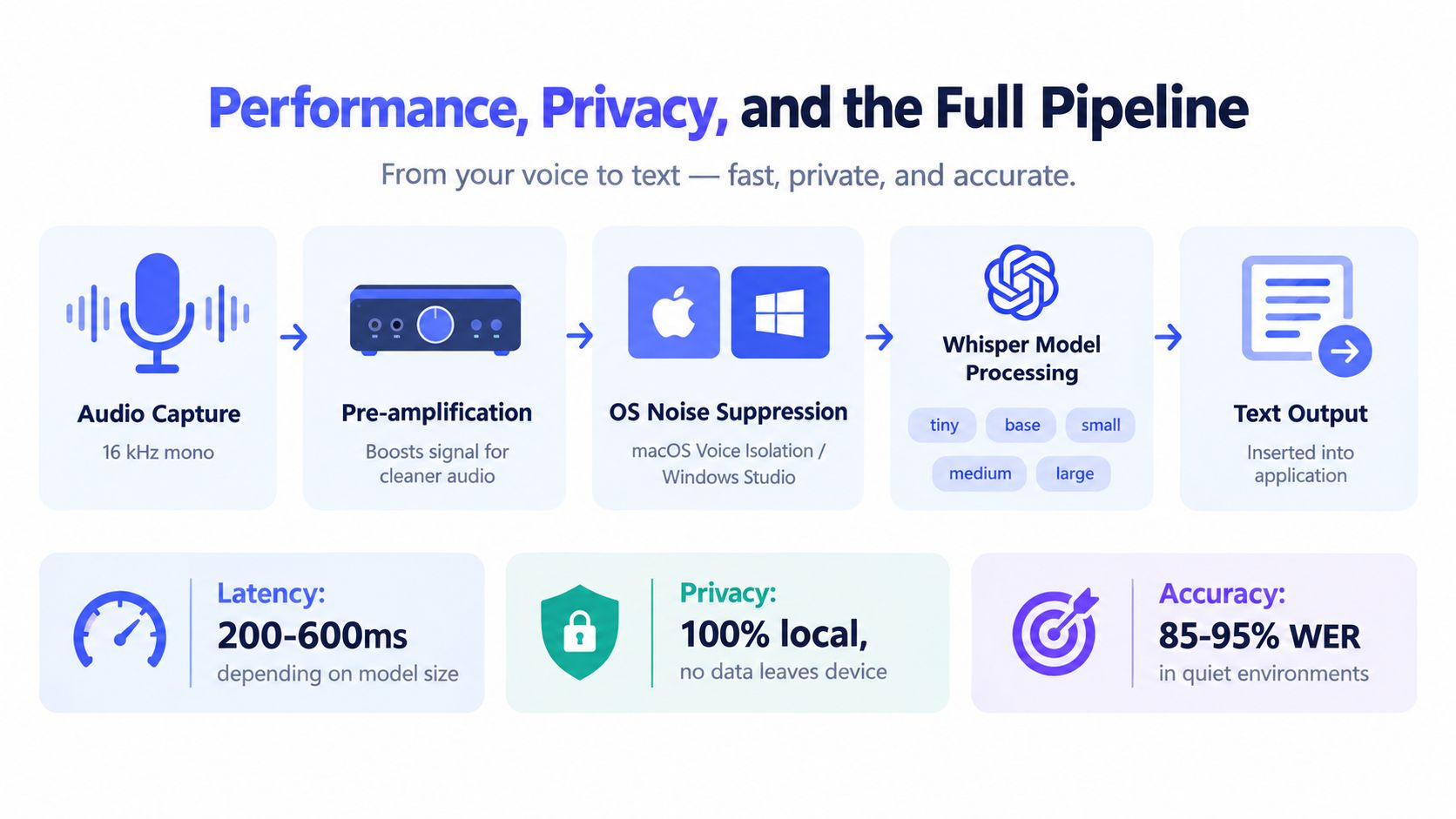
Don't treat an infographic's illustrative performance labels as a guarantee for your machine. The verified Microsoft research result shows that sub-500 ms streaming latency is achievable in a practical on-device configuration, but your model size, chunking, first-token behavior, microphone, and insertion layer determine what you feel.
Privacy is a pipeline property
Local inference removes transmission risk during capture. It doesn't automatically protect the transcript afterward. If an app writes temporary audio files, uploads crash reports, synchronizes transcript history, or sends text to an online cleanup model, information can still leave the device. Recent coverage makes this distinction explicit for professional users in healthcare, finance, and legal work. This analysis of on-device speech-to-text privacy is useful when reviewing post-processing and synchronization.
Use a local-only cleanup pass if privacy is the priority. Check temporary folders, application logs, cloud sync settings, and diagnostic uploads. Then block the app's network access temporarily and confirm that recognition, insertion, and any selected formatting still work.
The image URL above would duplicate the required asset, so the correct operational lesson is simple: don't call a pipeline local until every stage has earned that label. For multilingual workflows, review language behavior separately from privacy and consult this resource on multilingual audio transcription.
Troubleshooting and Optimization Tips
Most local dictation failures begin before the model sees the audio. A noisy room, distant microphone, clipped input, or competing audio source can make a capable engine look unreliable. Improve the signal first, then change the model.
Fix the audio chain
Use macOS Voice Isolation, Windows Studio Effects, Krisp, or RNNoise when the room is difficult, but compare processed and unprocessed audio. Hold the microphone close enough for a strong signal without touching it, and speak toward the pickup pattern. A headset is often more consistent than a laptop microphone because it stays at a stable distance.
Accents and specialist vocabulary need a different fix. Select the correct language explicitly, test a larger Whisper model, and add custom replacements for names, product terms, command syntax, or industry vocabulary. Recent reporting still identifies a meaningful privacy and accuracy trade-off for noisy audio, heavy accents, code-switching, and specialist terms. This 2026 review of on-device transcription limits is a useful reminder that “production-ready” doesn't mean uniformly accurate.
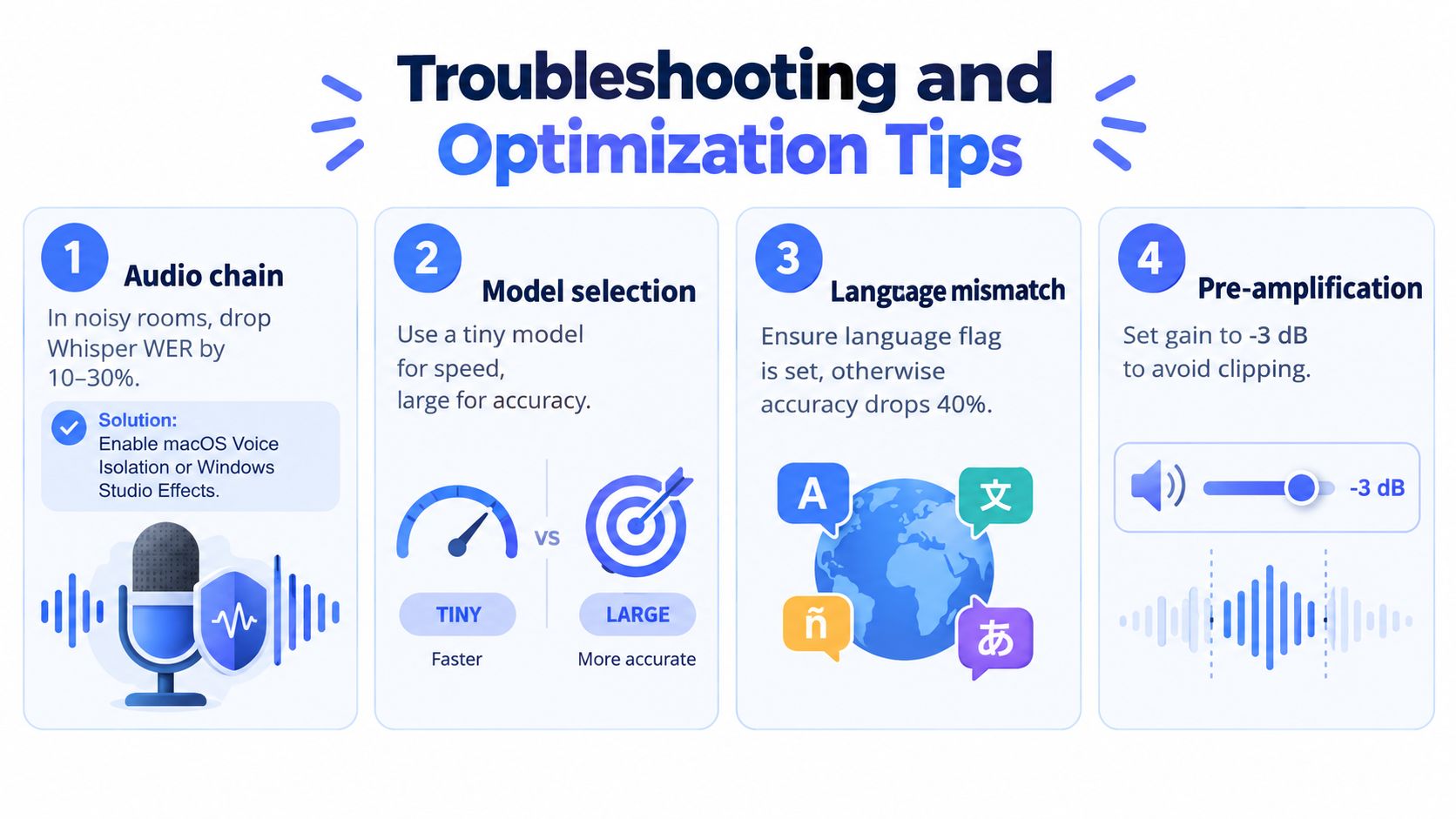
When latency spikes, close browser tabs and applications competing for CPU or GPU time. Reduce the model size, adjust chunking, and make sure the runtime isn't repeatedly unloading and reloading weights. If text appears in the wrong window, grant accessibility permissions on macOS, check Windows input permissions, and disable conflicting global shortcuts.
Run this final checklist
- Test the microphone: Record a short sample and listen for clipping, hum, and inconsistent volume.
- Check the language setting: Don't rely on automatic detection for mixed-language or specialist speech.
- Tune cleanup: Start with restrained cleanup, then increase it only if removing filler words doesn't damage meaning.
- Verify offline behavior: Disconnect the network or block the app's endpoint and confirm recognition still works.
- Review storage: Delete temporary audio and transcript files that you don't need, and exclude sensitive folders from unnecessary synchronization.
Local speech to text is worth the setup when privacy, offline access, and responsive insertion matter every day. It isn't worth forcing onto every workload. Keep a cloud option for difficult audio, but make local recognition your deliberate default for routine dictation.
Voice Control Pro provides cross-platform dictation that inserts cleaned speech directly into the focused app, and its Fly Mode keeps voice processing on your computer while cloud features are paused. If you want a global shortcut for private, offline voice input across macOS and Windows, visit Voice Control Pro and test whether its local workflow fits your daily writing.