
You have the idea already. It arrives while you're reading an email, reviewing a spreadsheet, walking between meetings, or staring at a browser tab full of research. Then the workflow breaks. You open a notes app, find the right document, click the correct field, remember the thought, and start typing after the useful momentum has disappeared.
That friction is why text from anywhere matters. The goal is not to replace the keyboard with a microphone. It's to keep your attention on the work while spoken language becomes clean text inside the app you're already using.
Table of Contents
- The Fragmented Workflow Problem
- The hidden bottleneck is switching
- How Universal Text Input Actually Works
- The three parts that matter
- Beyond Basic Dictation Tools
- What doesn't move the needle
- Setting Up Voice Control Pro
- A reliable first test
- Real-World Workflows for Professionals
- Research without losing the thread
- The Hey Max Assistant Integration
- From transcription to interaction
- Privacy and Local Processing
- A sensible privacy checklist
- The Future of Natural Interface
The Fragmented Workflow Problem
A knowledge worker's day rarely happens in one application. An email arrives in Gmail, the supporting detail sits in a browser tab, the project brief lives in Notion, and the final response belongs in Slack or a CRM. The writing itself may take only a few minutes. Finding the right window, locating the cursor, and reconstructing the thought can take longer.
That interruption has a cognitive cost even when the individual actions feel trivial. You stop composing to search for a note. You stop researching to open a document. You stop drafting to correct a misplaced cursor. By the time the destination is ready, you're no longer holding the original sentence with the same clarity.

Typing remains central to everyday mobile interaction. One arXiv study summarized through research on smartphone text entry and words per minute logged 1,607,199 interaction events across 364 apps used by 17 people over two weeks. Text-editing events made up about one-fourth of the recorded interactions, and 80% of typed text went into communication apps. The implication is practical, not academic. People create text constantly, but they create it across scattered contexts.
The hidden bottleneck is switching
Fast typing doesn't remove the need to switch applications. A skilled typist can still lose time when a thought must travel through a chain of windows, clipboard actions, and formatting corrections. Traditional note-taking tools make this worse when they force you to capture an idea in one place and transfer it later.
Practical rule: If capturing a thought requires opening a separate app, the workflow is already asking you to pay an attention tax.
A universal input layer changes the default. You speak while the relevant email, document, form, code editor, or chat field is active. The text appears at the cursor, so the destination remains part of the thought process instead of becoming a separate administrative task. That's the difference between faster typing and continuous flow.
For a useful example of the broader problem, see this guide to texting on a PC without breaking your workflow. The important principle is simple: capture should happen where the work is happening.
How Universal Text Input Actually Works
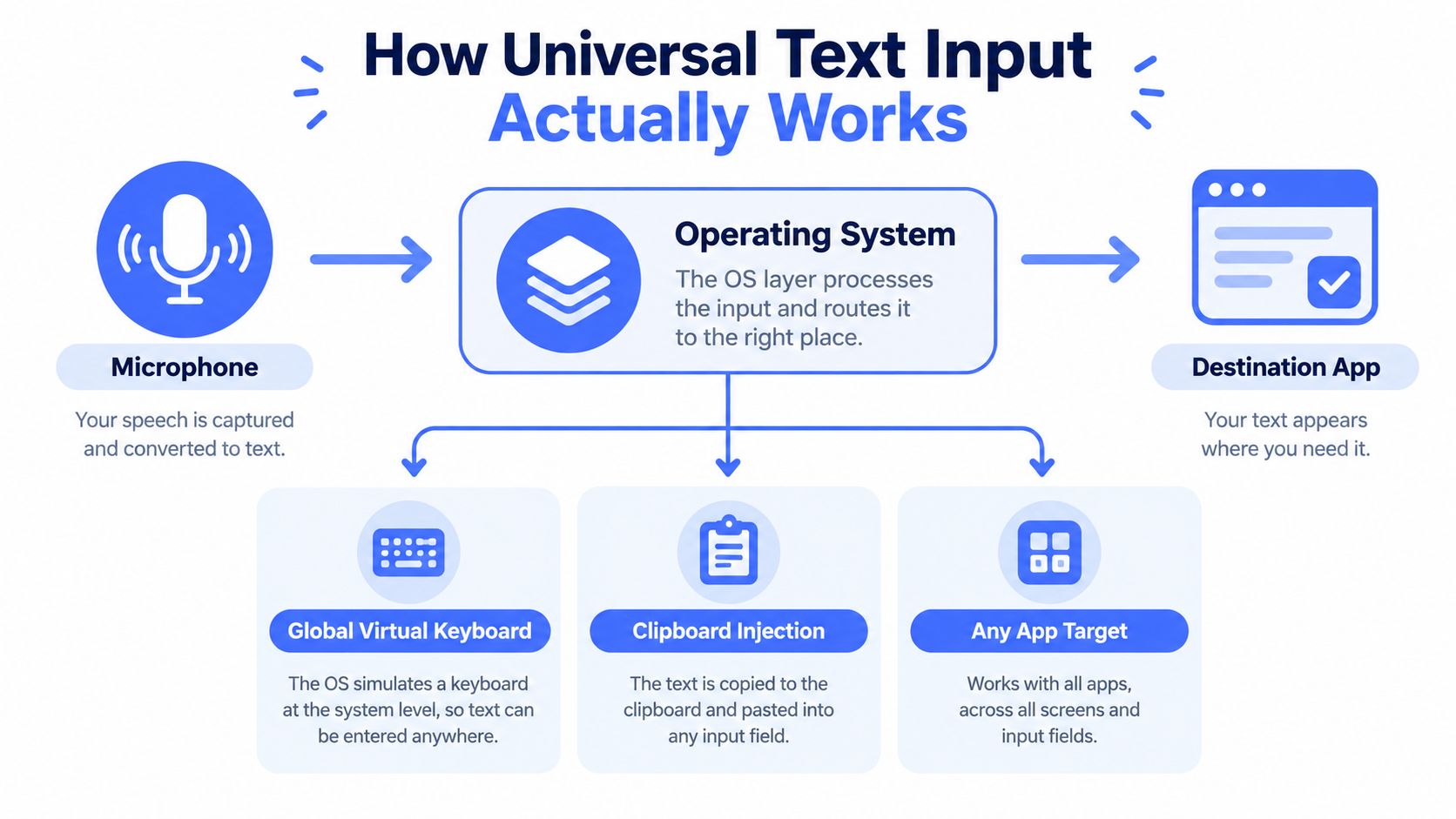
Universal text input works at the operating-system level rather than treating dictation as a feature belonging to one application. A global shortcut activates the microphone, the speech engine converts audio into text, and an input layer sends the result to the field that currently owns the cursor.
That final step determines whether the experience feels native or improvised. A tool that only works inside its own editor creates another destination to manage. A cursor-aware tool can place text inside a browser form, a desktop email client, a CRM record, an AI prompt, or a code editor without requiring a manual copy and paste.
The three parts that matter
Global virtual keyboard. The operating system receives simulated input as though it came from a keyboard. This approach lets the transcription layer work across applications that don't share the same editor or document format.
Clipboard injection. Some workflows pass the completed transcription through the clipboard and insert it into the active field. It's simple and broadly compatible, but the tool must manage timing carefully so it doesn't overwrite content or paste into the wrong destination.
Any-app targeting. The active cursor remains the deciding factor. If the focus changes unexpectedly, the text may land in the wrong place, which is why reliable testing across forms, editors, and browser applications matters more than a polished demo.
The speech engine itself can run remotely or locally. Cloud transcription can provide access to powerful processing, but it depends on a network connection and requires a clear understanding of where audio and transcripts travel. Local processing reduces that dependency and can improve responsiveness, although performance depends on the device and the installed model.
The useful distinction isn't "AI versus no AI." It's whether the entire chain, from microphone activation to insertion, respects the way professionals work. A strong voice recognition software workflow should handle activation, transcription, punctuation, cleanup, and insertion without making the user manage each stage separately.
Beyond Basic Dictation Tools
Built-in dictation is perfectly adequate for a short message or a quick search. It becomes less convincing when you use it throughout a workday. Native tools often assume that you'll start and stop inside a supported text field, speak in short phrases, and tolerate basic punctuation and cleanup.
Dedicated tools take a different approach. They treat speech as a continuous input method that should survive movement between applications. That changes the evaluation criteria.
| Capability | Basic built-in dictation | Dedicated cross-app input |
|---|---|---|
| Activation | Usually tied to a specific field or system control | Global shortcut available across applications |
| Punctuation | Basic spoken commands or automatic guesses | More deliberate punctuation and cleanup controls |
| Specialized language | Can struggle with names, jargon, and product terms | Custom dictionaries and user-specific vocabulary |
| App switching | May pause, disconnect, or lose focus | Designed to maintain a persistent workflow |
| Editing | Often leaves more cleanup to the user | Can offer selectable cleanup levels and formatting |
| Privacy | Depends on the platform's processing model | May include local or offline processing options |
The feature list only matters if it reduces friction. Persistent listening is useful when you're moving between a document and a research tool. A custom dictionary matters when your work includes technical terms, client names, or internal product language. Cleanup controls help when you want polished prose rather than a literal transcript.
What doesn't move the needle
Marketing language often focuses on transcription accuracy in ideal conditions. That's not enough. The test is whether the tool inserts the right text into the right field after you change windows, whether it preserves the intended tone, and whether correcting its output takes longer than typing the original sentence.
My practical shortlist is therefore narrow: global activation, cursor-aware insertion, reliable punctuation, vocabulary control, and a privacy mode. Everything else is secondary until those basics work consistently. Voice Control Pro is one option in this category. It provides system-wide cursor-based insertion, a global shortcut, cleanup controls, a custom dictionary, and a local processing mode, with additional assistant features available on its paid tier.
Setting Up Voice Control Pro
A good setup takes less time than repeatedly repairing a broken capture workflow. Install the macOS or Windows application, grant the requested microphone and accessibility permissions, then choose a shortcut that you can press without moving your hand away from the keyboard.
The shortcut is the core interface. It should be easy to reach, difficult to trigger accidentally, and available regardless of which application is active. A press-and-hold pattern works well for deliberate dictation because releasing the shortcut gives you a clear stopping point. Avoid a key combination that conflicts with a frequent editor command or a browser shortcut.
A reliable first test
Start with a blank document. Speak a short paragraph containing a full stop, a comma, a question, and a proper name. Check whether the punctuation appears naturally and whether the result lands at the cursor without an extra paste step.
Then test a more realistic environment:
- Open a browser form or CRM field and place the cursor deliberately.
- Activate the shortcut and dictate a complete response rather than isolated words.
- Switch to a different application and repeat the test.
- Select a sentence, delete it, and dictate a replacement.
- Try a technical term or name from your normal work.
Calibration is less about training a model to your entire voice than about identifying the conditions that affect recognition. Use your normal microphone distance, speaking volume, and working posture. If you regularly dictate in a shared office, test with realistic background noise before making the tool part of an important workflow.
A cursor jump usually points to focus management rather than transcription quality. Before blaming the speech engine, confirm that the target field remains active, the application has the required permissions, and no other shortcut is stealing focus. Once the path works in a plain document and a complex form, expand gradually into email, chat, notes, and prompts.
Real-World Workflows for Professionals
The value of universal input appears in the small transitions that conventional dictation ignores.
An email responder may read a customer message in one window while checking an account record in another. With ordinary typing, the responder switches back, reconstructs the answer, and edits around the details that were just reviewed. With cross-app dictation, the email field stays active. The responder can speak the response in a natural sequence, pause to verify a detail, and continue without opening a separate notes area.
A developer faces a different problem. Code editors contain symbols, indentation, and autocomplete behavior that can make voice insertion unpredictable. Dictation is most useful for comments, issue descriptions, commit notes, test explanations, and documentation around the code, not for blindly replacing every keystroke. A developer can leave the code untouched, place the cursor in a comment field, and describe the intent while it's fresh.
Research without losing the thread
Researchers often review a source in one window and capture observations in another. The old workflow demands repeated copying, tab switching, and formatting. Universal input lets the researcher keep a notes document active while speaking an interpretation of the source, then return to the reference material without rebuilding the context from memory.
For people who capture ideas away from a desk, a voice-to-text system can also complement dedicated recording hardware. This overview of AI-powered wearables for second brain note-taking is useful background for deciding when ambient capture and deliberate dictation belong in the same system.

The trade-off is editing. Voice is strongest when drafting takes most of the effort and revision is limited. It's less attractive for short fragments, dense tables, formula-heavy content, or text that must be heavily reshaped. A multi-country clinician study found median keyboard speed of 21.4 words per minute compared with 93 words per minute for dictation, while real documentation savings were 9% to 12%, with less consistent results for non-native English speakers. The clinical dictation study shows why raw speech speed isn't the same as end-to-end productivity.
The Hey Max Assistant Integration
Dictation solves the first half of the problem. You still need to revise, clarify, condense, and act on the text. An assistant that works inside the current workflow can reduce another layer of application switching.
The Hey Max feature is designed for that second stage. Select a paragraph, invoke the assistant by voice, and ask for a rewrite in a different tone, a shorter version, or a clearer explanation. The selected text provides the immediate context, so you don't need to copy it into a separate chatbot and then paste the result back into the original document.
From transcription to interaction
A practical sequence looks like this:
- Draft naturally: Speak the rough email, report paragraph, or prompt directly into the active field.
- Select the weak section: Highlight the sentence or paragraph that needs work.
- Give a precise instruction: Ask for a concise rewrite, a more formal tone, a summary, or a plain-language explanation.
- Review before accepting: Treat the result as an edit to inspect, not an automatic replacement for judgment.
Screen-aware questions extend the same idea. Instead of describing the contents of a dashboard or copying an error message, you can ask what the current screen shows or request help interpreting a visible block of information. Voice commands can also launch installed applications, which is useful when the next action is obvious but reaching for a mouse would interrupt the current train of thought.
The important shift is conceptual. Text from anywhere isn't only an input problem. It's a context problem. The most useful assistant is available at the point where the work already exists, understands the selected material or visible screen, and helps you iterate without forcing another workspace.
That doesn't eliminate review. It makes review cheaper by shortening the distance between noticing a problem and requesting a useful revision.
Privacy and Local Processing
Professionals often hesitate to dictate because their words may contain client information, unpublished research, source code, or internal strategy. The question isn't whether voice input is convenient. It's whether the organization can control the audio and transcript path.
Voice Control Pro provides a Fly Mode that pauses cloud features and processes dictation locally on the computer. Its free local mode also supports unlimited dictation through an on-device AI model. That architecture is relevant when a workflow must continue without sending voice data to an external service.
A sensible privacy checklist
Before approving any dictation tool for sensitive work, confirm:
- Where audio is processed: Look for a clearly documented local mode, not just a general privacy statement.
- What leaves the device: Distinguish audio, transcripts, usage diagnostics, and account data.
- When cloud features activate: Make sure the user can choose local processing rather than relying on an invisible fallback.
- How failures behave: A privacy mode that stops without notice or uploads after a network change creates operational risk.
- Who controls the setting: Teams need a repeatable policy, not an individual preference hidden in an app menu.
Local processing can involve trade-offs. An on-device model may require more computer resources, and some advanced features may depend on cloud services. That's acceptable when the tool makes the boundary visible and lets the user choose the appropriate mode for the material being handled.
For a deeper look at working without a network connection, see this guide to offline voice-to-text workflows. Privacy isn't a bonus feature for sensitive teams. It's part of whether universal dictation is deployable at all.
The Future of Natural Interface
Keyboards remain excellent for precise editing, code symbols, spreadsheets, and short corrections. They're less effective as the only path from a complex thought to a first draft. Voice removes some of the mechanical delay between deciding what to say and getting it into the working document.
The broader shift isn't about abandoning typing. It's about choosing the interface that matches the task. Speak when you're brainstorming or composing a long explanation. Type when you're correcting a name, navigating a table, or refining a technical expression. Use an assistant when the next step is rewriting or interpreting, not merely transcribing.
The evidence also argues against treating dictation as a universal replacement. Speech-to-text helped students with dyslexia produce longer and more accurate texts than handwriting in a controlled intervention, but the improvement remained specific to the speech-to-text condition and didn't transfer to handwriting, as reported in the intervention study. The right question is therefore not whether voice is always faster. It's whether voice reduces friction in this task, for this person, under these editing conditions.
The best interface is the one that keeps the thought moving.
Start with one workflow that repeatedly loses momentum, such as email replies, research notes, or report drafting. Make the cursor active, speak directly into the destination, and measure success by fewer interruptions rather than raw words per minute.
Voice Control Pro offers cursor-aware dictation across macOS and Windows, local processing options, and voice-driven rewriting and screen assistance for work that moves between applications. Visit Voice Control Pro to test a text-from-anywhere workflow and move your next idea directly into the document, message, or prompt where it belongs.