
You're deep in a document when your phone buzzes with a message that needs an answer now. You pick it up, wake it, read the thread, type with your thumbs, and then return to the laptop only to rediscover where your attention went. For one message, the interruption seems minor. Across a workday, it becomes a recurring tax on focus.
Texting on a PC removes that awkward handoff. Your keyboard, screen, files, browser tabs, and messaging window stay in one workspace. The benefit isn't only comfort. It depends on choosing the right connection method, understanding how the message reaches the recipient, and knowing when voice input is more effective than either a phone or a keyboard.
Table of Contents
- Why Texting on a PC Changes Your Workflow
- The Four Paths to Desktop Messaging
- Native bridges
- Official web clients
- Android-specific linking
- Hardware and third-party aggregators
- Setting Up Native Bridges on Windows and Mac
- Windows with Phone Link
- Mac with Messages and Continuity
- Understanding Delivery Methods and Reliability
- SMS remains the fallback layer
- iMessage depends on Apple identity
- RCS adds richer cross-platform behavior
- Boosting Speed with Voice-to-Text Tools
- Dictate the thought, then edit the result
- Build a safe message loop
- Choosing the Right Setup for Your Situation
- Match the architecture to the work
- Decide where oversight matters
- Use a hybrid workflow deliberately
Why Texting on a PC Changes Your Workflow
A support agent receives a customer question while reviewing the account record. The answer requires a reference number from a spreadsheet, a policy detail in a browser tab, and a clear explanation. Switching to a phone for that reply adds handling time and makes errors more likely. Texting on a PC keeps the message beside the information needed to answer it.

This use case has a direct connection to texting's early history. The first SMS was sent on December 3, 1992, by British engineer Neil Papworth to Richard Jarvis. Papworth typed “Merry Christmas” on a computer rather than a phone, showing that computer-entered text could already travel through a mobile network. The SMS standard was designed around a 160-character limit, with early development associated with GSM-era engineers including Friedhelm Hillebrand and Bernard Ghillebaert. The Computer History Museum documents this early milestone in texting.
The historical point is practical: entering mobile messages from a computer is not an unnatural workaround. It extends a long-standing relationship between typed input and mobile delivery. Today, the PC can serve as the message window, the place for voice dictation, or the shared workspace where communication is handled alongside other tasks.
Practical rule: Use the PC when the message belongs to a larger task. Use the phone when mobility, camera access, or immediate personal attention matters more than workspace continuity.
Volume changes the calculation. A short personal reply may be quicker on a phone that is already in hand. Longer explanations, appointment coordination, customer updates, and messages requiring copied details generally suit a full keyboard and larger display. Voice-to-text can improve the result further for high-volume replies. Speaking a well-structured response often beats typing it, although names, numbers, addresses, and sensitive wording still need a careful review.
Delivery method also affects the recipient's experience. A message sent through an SMS bridge has different feature support from one delivered through RCS or a service-specific chat system. Rich formatting, read indicators, media handling, and group behavior may change across platforms. A desktop workflow therefore needs a check for the actual channel, not just the convenience of the writing surface.
Teams should separate personal speed from operational control. A mirrored phone view may suit one person, while a shared inbox or business messaging platform gives several people visibility and clearer ownership. For a broader look at reducing friction across work apps, see this guide to communication efficiency on the desktop. Desktop texting works best when it supports the work already visible on the screen.
The Four Paths to Desktop Messaging
Before pairing devices, identify the architecture behind the setup. “Texting from a computer” can mean a phone bridge, a browser client, a service-specific application, or a separate messaging system. Each path handles identity, connection, history, and privacy differently.
Native bridges
Native bridges connect a computer to a phone ecosystem. Apple Continuity links compatible Apple devices so Messages can work across the Mac and iPhone environment. Microsoft Phone Link connects a Windows PC with a phone and can expose message conversations on the computer. These options are convenient because they preserve the phone number or account relationship people already use.
Their weakness is dependency. The phone still matters, pairing can be affected by permissions or connectivity, and platform features aren't always symmetrical. Microsoft's PC messaging support handles SMS and MMS, but Microsoft notes that users can't manage or delete messages from the PC. That limitation matters if your workflow requires message housekeeping rather than simple replies.
Official web clients
Web clients such as WhatsApp Web and Messenger's browser experience keep conversations in the service's own account system. They're often the easiest choice for teams or individuals who work across operating systems because the browser becomes the common interface.
The trade-off is that they don't necessarily provide carrier SMS. They depend on the messaging service, account authentication, and an internet connection. A browser tab can also be closed, logged out, or lost among other work tabs, so notifications and session management deserve attention.
Android-specific linking
Android users may combine phone-to-PC linking, browser pairing, or account-based messaging services. This approach can be practical when the phone and computer run different operating systems, but it creates more variables. Permissions, notification access, battery restrictions, and account settings can each affect whether messages appear promptly.
Hardware and third-party aggregators
Hardware docks and third-party aggregators place more emphasis on consolidation. They may combine several channels, provide shared access, or add workflow features that a basic phone bridge lacks. In exchange, they introduce another vendor, another account, and another place where message data may be processed or stored.
People who need account-based messaging without relying on a conventional phone number may also find it useful to review this guide to chat without a phone number. The relevant question isn't whether a tool has the longest feature list. It's whether the tool's identity model matches the conversations you need to handle.
| Pathway | Best For | Device Dependency |
|---|---|---|
| Native bridge | Personal SMS, MMS, iMessage, and tightly integrated workflows | Usually depends on a paired phone and platform ecosystem |
| Official web client | Service-specific conversations and cross-platform browser access | Depends on the account, browser session, and internet |
| Android-specific linking | Android phone users working from Windows or another desktop environment | Depends on Android permissions, pairing, and phone availability |
| Hardware or aggregator | Multiple channels, shared handling, or centralized oversight | Depends on the vendor, connected services, and account access |
Choose the least complicated path that supports your actual volume. Complexity only pays for itself when it solves a real operational problem.
Setting Up Native Bridges on Windows and Mac
Native setup is most reliable when you treat pairing as a permissions and identity task, not just a connection exercise. Decide first which phone carries the conversations, which computer should display them, and whether you want notifications visible during focused work.
Windows with Phone Link
On Windows, begin by opening Phone Link from the Start menu. Choose the phone type shown by the app, then sign in with the requested Microsoft account if prompted. On the phone, install or open the companion linking application, sign in with the matching account, and use the PC's displayed QR code to pair the devices.
After scanning, review each permission request instead of accepting everything automatically. Message synchronization requires access to messages and notifications. Calls, contacts, photos, and device discovery may use separate permissions. Grant only what the workflow needs, then confirm that the phone remains connected over the expected wireless connection.
A sensible validation sequence is:
- Pair the devices: Scan the QR code and complete the account confirmation on both screens.
- Approve message access: Enable message and notification permissions on the phone, then return to Phone Link.
- Test both directions: Send a short message from the PC and reply from the phone. Confirm that each conversation updates.
- Tune alerts: Keep message banners for urgent conversations, but disable duplicate alerts if the phone and PC both interrupt you.
- Test after restart: Reboot the computer and check whether the link reconnects without repeating the pairing process.
If messages stop appearing, check the phone's battery optimization settings first. Mobile operating systems can restrict background activity, which may delay synchronization. Then confirm Bluetooth or network availability, notification access, account matching, and whether the companion app is still permitted to run.
Reliability check: Don't call a bridge finished until it survives a restart, a locked phone, and a message initiated from each device.
Microsoft's implementation also has boundaries. PC access doesn't necessarily provide every management action available on the phone, so keep the phone as the source of truth for deletion, account changes, and settings that the desktop interface doesn't expose.
Mac with Messages and Continuity
On a Mac, open Messages and sign in with the Apple Account used by the iPhone. In Messages settings, verify that the account is enabled and that the addresses or phone numbers you expect to use are selected. On the iPhone, open the Messages settings and enable Text Message Forwarding for the Mac when the option is available.
For iMessage conversations, the Mac uses the Apple messaging identity configured in Messages. For ordinary carrier texts, forwarding depends on the iPhone being available and authorized to relay them. Keep both devices signed in, connected, and updated through normal system settings. If a conversation appears on one device but not the other, compare the selected send-and-receive identities before changing anything else.
The Mac setup is usually less fragile when notifications are designed rather than duplicated. Allow banners for messages that need an immediate response, use Focus settings for deep work, and decide whether previews should appear on a shared screen. iCloud-related message history and local device behavior can differ by account configuration, so don't assume that a message visible on the Mac has become an independent archive.
A short video can help users recognize the pairing flow and interface before they troubleshoot individual permissions.
The durable setup is the one you can explain to another person. If your process depends on an undocumented sequence of reconnects, it isn't ready for a high-volume workday.
Understanding Delivery Methods and Reliability
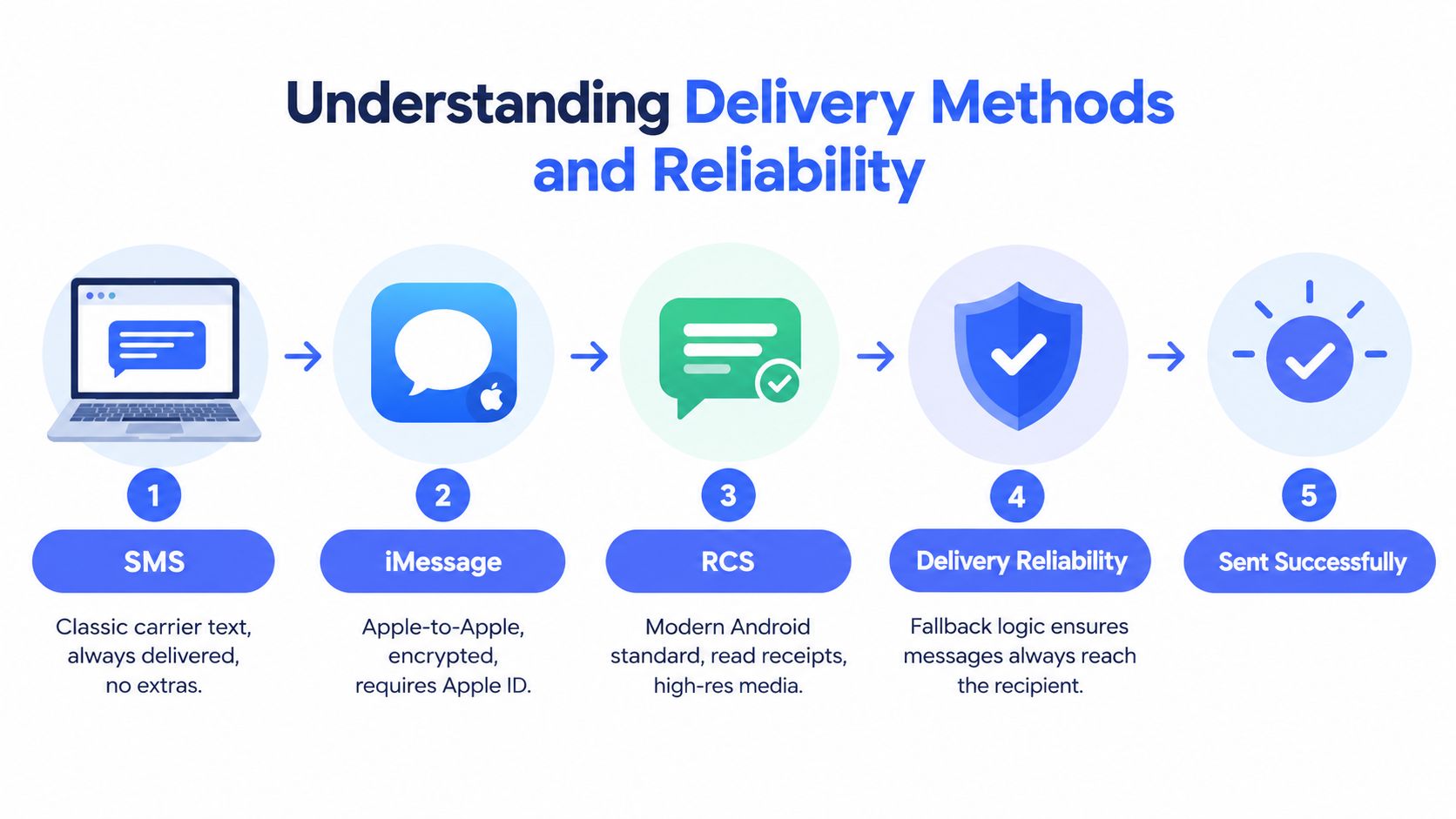
A message composed on a PC can reach the recipient through a different route from the one the interface suggests. The sender's identity, recipient's device, carrier, operating system, account configuration, and regional support all affect whether it travels as SMS, iMessage, or RCS. Two conversations can look nearly identical while offering different delivery confirmations, media handling, and fallback behavior.
SMS remains the fallback layer
SMS uses the carrier network and reaches smartphones and feature phones without requiring an app, a new account, or an internet connection from the recipient. That broad compatibility makes it the practical fallback when a richer service is unavailable.
The trade-off is limited feedback. SMS does not provide the typing indicators or read receipts available in richer services, so a sent text gives no reliable confirmation that the recipient has opened or read it. Media may also be compressed, restricted, or handled differently across devices. Write important messages so they remain clear as plain text, especially when a reply depends on a specific action.
iMessage depends on Apple identity
iMessage operates within Apple's account and device ecosystem. Compatible Apple identities can support features beyond carrier SMS, but those features depend on the conversation using iMessage rather than switching to another route.
A Mac can display the conversation through Messages without changing the underlying delivery identity. If the recipient is unavailable through iMessage, the message may use a different route according to the sender's settings and the recipient's device. For a work process, confirm the visible conversation state before assuming that rich media, read receipts, or other iMessage features will apply.
RCS adds richer cross-platform behavior
RCS supports features such as read receipts, typing indicators, and richer media when the relevant devices, applications, carriers, and regions support them. Recent industry coverage describes iOS 18 as shifting the default cross-platform path toward RCS in the United States and reports roughly a billion person-to-person RCS messages per day in that market. The Citizen's 2026 mobile transformation discussion provides that context.
RCS still depends on compatibility at both ends. If the recipient, application, or network does not support it, the conversation may fall back to SMS. Treat read receipts and rich attachments as useful signals, not proof that every recipient received the same experience.
Delivery discipline: For an important message, check the visible protocol and write the wording so it still makes sense if the recipient receives plain SMS.
A phone line can also affect a bridge while traveling or changing devices. For connectivity planning, review how to get an eSIM in New Zealand. The messaging application determines the route, while the phone's active service can determine whether a native bridge remains available.
Speech processing introduces a separate decision. Review cloud versus local speech recognition when assessing dictation privacy. A secure carrier route does not automatically make cloud transcription suitable for sensitive messages.
Boosting Speed with Voice-to-Text Tools
A keyboard is excellent for editing, precision, and short structured entries. It isn't always the fastest way to create a natural reply. People speak in complete thoughts, while typing often forces them to compose, pause, correct, and rephrase one fragment at a time.
A large CHI dataset containing 136 million keystrokes from 168,000 volunteers across more than 200 countries found a mean typing speed of 51.56 WPM, with a standard deviation of 20.20 and observed speeds ranging from 4 WPM to 158 WPM. The dataset's variation is the important lesson for workflow design. The reported typing analysis explains why long, natural sessions are more useful than short bursts.
Dictate the thought, then edit the result
For a high-volume reply, use a push-to-talk pattern. Hold a global shortcut, speak the complete idea, release the shortcut, and review the inserted text in the active message field. This avoids copying between a voice recorder, a notes application, and the final chat window.
The method works best when you speak punctuation and structure naturally. Say the recipient's name, the answer, the next action, and the closing in one pass. Then use the keyboard for names, dates, product codes, links, and any detail that deserves visual verification.
Voice input isn't automatically accurate. A computer-use study measured average entry speeds of 74.47 WPM in a lab and 80.59 WPM in the field, with uncorrected error rates of 0.12% and 0.28% respectively. The same study reported corrected error rates of 2.53% in the lab and higher in the field, reinforcing the need to track revisions rather than speed alone. The CHI paper details the distinction between uncorrected and corrected errors.
Build a safe message loop
A reliable dictation workflow has four stages:
- Draft: Speak the entire response without stopping to fix every word.
- Inspect: Read the inserted text on the PC screen, especially names, numbers, and commitments.
- Refine: Use the keyboard to correct wording, add a link, or remove unnecessary detail.
- Send: Confirm the recipient and attachment before sending.
Voice Control Pro is one option for this workflow. It inserts speech-to-text content at the cursor across desktop applications on Windows and macOS, allowing the same hold, speak, release pattern inside message fields, documents, and CRM notes.
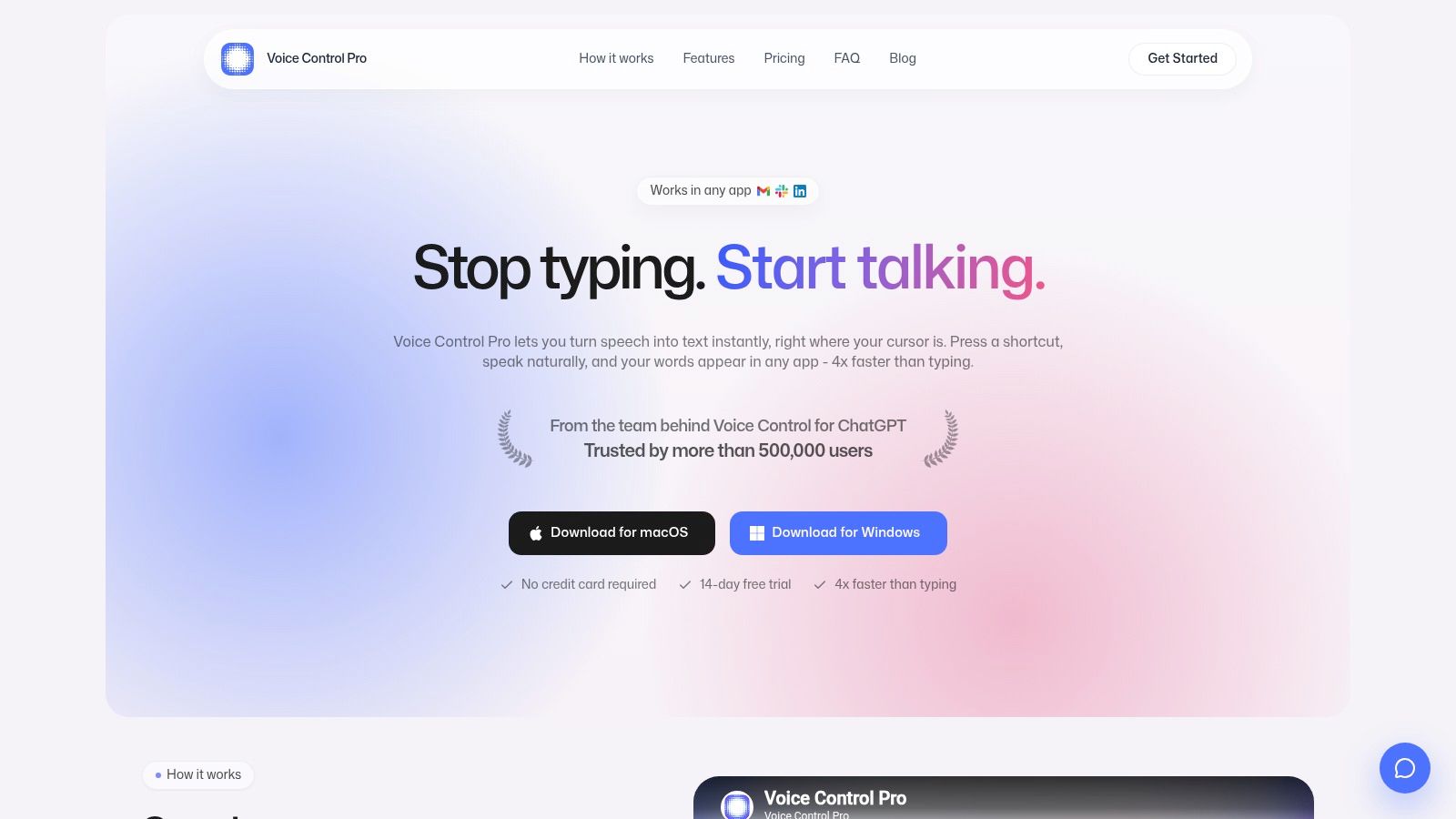
The practical advantage isn't that every message should be dictated. Short acknowledgements may be quicker to type, and sensitive messages may deserve slower composition. Voice-to-text becomes valuable when the reply contains explanation, empathy, context, or several connected actions. This guide to speech-to-text workflows covers the interaction pattern in more detail.
Choosing the Right Setup for Your Situation
The right desktop messaging method depends on three constraints: where your conversations originate, how much oversight you need, and how you create the text. Device ownership alone isn't enough. A personal iPhone user, a Windows-based support team, and a researcher drafting long replies have different requirements even if all three want to send messages from a PC.
Match the architecture to the work
| Situation | Recommended starting point | What to watch |
|---|---|---|
| One person with a compatible phone and computer | Native bridge | Phone availability, permissions, and platform limits |
| Frequent conversations inside one messaging service | Official web client | Account sessions, browser notifications, and internet dependence |
| Several people handling customer conversations | Shared business inbox or aggregator | Roles, audit visibility, retention, and privacy |
| Long replies, repetitive strain, or accessibility needs | Keyboard plus voice-to-text | Recognition errors, review habits, and sensitive content |
| Mixed devices and recipients | A setup that preserves fallback behavior | Whether rich features degrade to plain SMS |
For a power user who wants the lowest friction between phone identity and desktop typing, a native bridge is usually the cleanest starting point. It keeps the conversation close to the device ecosystem already in use. It isn't ideal when a team needs shared ownership, because a personal phone bridge often exposes one person's messaging context rather than a controlled work queue.
A web client suits people who prioritize access across computers. It can be easier to move between operating systems, but it may separate the conversation from carrier SMS and add browser-session risks. Teams should document who can sign in, how sessions are ended, and where message history remains available.
Decide where oversight matters
A sales representative may need fast replies from a laptop while referencing a proposal. A support manager may care more about assignment, escalation, and a record of who answered. A knowledge worker may want to avoid any shared inbox and keep messages inside a personal account.
Those are different jobs, so don't force one tool to serve all of them. If several people answer the same number, use a system with explicit ownership and review controls rather than passing a phone around or leaving a mirrored client open on a shared computer.
Privacy also changes the decision. Native bridges can limit the number of vendors handling the conversation, while aggregators may add useful controls at the cost of another service processing message content. For confidential work, review where transcription occurs, where message history is retained, and which notifications appear on screen.
Decision test: If you can't explain who owns the account, where the text is processed, and what happens when the phone is offline, the setup isn't ready for business-critical messaging.
Use a hybrid workflow deliberately
The strongest arrangement is often hybrid. Use the native bridge for short personal or urgent messages, a shared client for team-owned conversations, and voice input for longer replies that would otherwise interrupt keyboard work. Keep the phone available for mobility, camera-based context, and cases where the desktop bridge doesn't support the required action.
Before rolling out texting on a PC, run a small operational test:
- Send a short message to a compatible contact.
- Send a message where the recipient uses a different platform.
- Attach the type of media your team regularly sends.
- Restart the computer and confirm reconnection.
- Dictate a longer reply, then inspect every critical detail.
- Record which actions still require the phone.
This test reveals more than a feature list. It shows whether the setup handles the recipient mix, message volume, privacy expectations, and error correction your work demands.
A cursor-based voice-to-text workflow can turn long replies, CRM notes, and customer messages into editable text without switching windows, while local processing options help keep dictation on the computer when privacy requires it. Visit Voice Control Pro to see how its global shortcut and direct insertion workflow can fit into your PC messaging routine.