
Most advice about voice to text offline starts with privacy and ends with “download a model.” That misses the part that decides whether the workflow survives contact with real work: what stays local after setup, how much hardware the model needs, and what happens when someone dictates a surname, technical term, accent, or sentence in a noisy room.
Cloud dictation still has an advantage when you need maximum linguistic coverage with no installation effort. But offline speech recognition isn't automatically slow or inaccurate anymore. In 2018, researchers reported a local system with 97% test accuracy that ran on a Motorola Moto E using less than 1 MB of memory, with 34 milliseconds of prediction latency. The same work reported a 10x reduction in latency and a 16.5% smaller memory footprint than a larger neural network, showing that useful speech-to-text could run on a phone without cloud processing (verified offline speech recognition reference).
The practical question isn't “offline or cloud?” It's “which parts of my dictation workflow must remain local, and where am I willing to trade memory, speed, language support, or cleanup quality?”
Table of Contents
- Rethinking Voice to Text Offline Workflows
- Comparing Cloud Dictation and On-Device Models
- Hardware and OS Requirements for Local Dictation
- Matching the model to the machine
- Setting Up and Optimizing Offline Dictation
- Build the local boundary first
- Troubleshooting Accuracy and Handling Real-World Audio
- Fix recurring errors systematically
- Securing Your Workflow with Voice Control Pro
- What stays local and what changes
- Final Thoughts on Local Speech Recognition
Rethinking Voice to Text Offline Workflows
Offline dictation means more than an app that stores audio locally until it can upload it. True local processing captures audio, runs speech recognition on the device, generates the transcript, and performs any permitted cleanup without sending the recording or text to a remote service. If the app still uploads telemetry, sends audio during model updates, or calls a cloud assistant for rewriting, it isn't fully local across the whole workflow.
That distinction matters because dictation usually has several separate stages:
- Audio capture: The microphone records speech on the computer or phone.
- Speech recognition: A local model converts sound into words.
- Text insertion: The application places the result at the cursor.
- Cleanup: Punctuation, formatting, and rewriting may run locally or remotely.
- Storage and history: Audio, transcripts, logs, and backups may follow different privacy rules.
A tool can keep the first two stages local while sending the final text to a cloud-based writing assistant. That may be acceptable for a casual note, but it's a poor fit for confidential legal drafting, source interviews, internal product plans, or code that contains sensitive identifiers.
Practical rule: Treat “offline” as a workflow property, not a checkbox in an app store listing.
The old assumption that local dictation is inferior also deserves scrutiny. Compact models can deliver low-latency transcription on modest hardware, while local processing removes the network round trip that can make cloud dictation feel hesitant during unstable connectivity. The trade-off has moved. You may gain responsiveness and control, but you must choose a model that fits the device and accept that noisy, accented, or highly specialized speech can expose weaknesses.
Accessibility data shows why reliability matters even for a niche input method. In a 2026 survey of 1,286 respondents, 125 people, or 9.7%, said they used voice dictation to move through websites. Among those users, 38.4% reported difficulty every day and another 38.4% reported difficulty a few times a week, meaning 76.8% experienced frequent friction (2026 speech-to-text accessibility statistics). Local dictation should therefore be judged by correction speed and consistency, not by privacy claims alone.
For writers who dictate rough ideas before polishing them with AI writing tools for marketing and long-form, the cleanest setup separates capture from enhancement. Keep the voice recording and first-pass transcript local, then decide deliberately whether a later editing step can use a network service.
Comparing Cloud Dictation and On-Device Models
Cloud systems have a structural advantage: they can run larger models on powerful remote infrastructure and update those models without asking users to manage storage or compatibility. That helps with unusual names, broad language coverage, difficult audio, and complex punctuation. The cost is dependence on connectivity, vendor policies, upload paths, and round-trip latency.
Local models reverse the priorities. The device handles inference, so audio doesn't need to travel to a server for every utterance. That can make insertion feel immediate and keeps the core transcript available when networks are restricted. The device also carries the burden of model memory, CPU or neural-engine throughput, storage, and updates.
Modern streaming research makes the trade-off concrete. An int4 k-quant streaming model reported 8.20% average word error rate across eight benchmarks, faster-than-real-time CPU performance, and 0.56 seconds of algorithmic latency. A tuned operating point reached 7.28% average word error rate, with only 0.21% absolute worse accuracy than the offline batch baseline (streaming on-device ASR research). Compression and chunking can work well, but they still require careful tuning for long-form speech and noisy conditions.
| Feature | Cloud Dictation | Offline On-Device |
|---|---|---|
| Processing location | Remote servers | Local CPU, GPU, or neural engine |
| Network dependency | Usually required | Not required after local setup |
| Latency | Includes upload and response time | Avoids network round trips |
| Model capacity | Often larger and centrally updated | Limited by device resources |
| Privacy boundary | Audio or text may leave the device | Can remain local if every feature is local |
| Maintenance | Vendor manages models | User or app manages model files and updates |
| Best fit | Difficult audio, broad coverage, zero setup | Sensitive work, unreliable networks, controlled workflows |
The quality gap isn't fixed. It depends on the recording, language, model, and hardware. A compact model may beat a cloud service for a clean short note because it responds quickly, while a larger remote system may handle a mixed-language meeting or rare terminology more gracefully.
Before choosing an engine, compare practical behavior rather than marketing labels. The local voice-to-text comparison is useful background alongside broader on-device AI insights, particularly when you need to separate local transcription from cloud-assisted editing.
Hardware and OS Requirements for Local Dictation
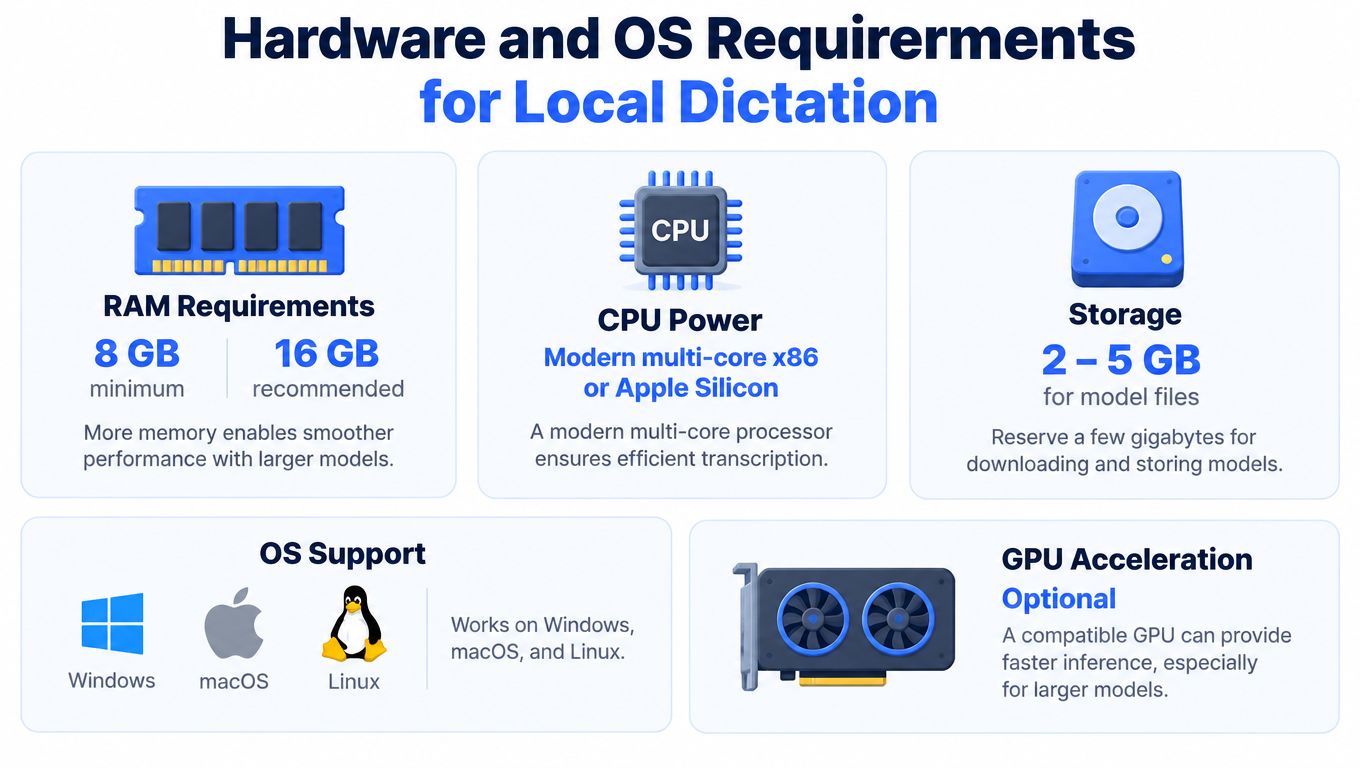
Running speech recognition locally is a hardware decision. The operating system must expose a stable microphone path, the application needs permission to capture audio and insert text, and the model needs enough memory to process speech without forcing the computer into constant swapping.
Independent offline benchmarks show how sharply model choice changes the experience. A 74 million-parameter Whisper Base model, around 160 MB, ran at about 0.13 real-time factor on the benchmarked setup. A 244 million-parameter Whisper Small model, around 490 MB, ran at about 0.41 real-time factor. A 600 million-parameter Parakeet TDT v2 model, around 660 MB, reached about 0.113 real-time factor, while Moonshine Tiny, with roughly 27 million parameters and a footprint of about 125 MB, reached 0.040 real-time factor (independent offline transcription benchmark).
The exact result will vary with the computer, runtime, quantization, and audio pipeline. The direction is reliable: smaller models start more easily on constrained machines, while larger models can demand more memory and better acceleration even when their measured throughput is strong.
Matching the model to the machine
On macOS, Apple Silicon can provide efficient local inference through the platform's CPU and neural acceleration paths, depending on the application. On Windows, a modern multi-core processor can handle smaller or quantized models, while GPU support may improve responsiveness for heavier engines. Linux is often the most flexible environment for technical deployments, but it can require more manual configuration.
Use the smallest model that meets your correction tolerance. For quick notes, a lightweight model may be preferable because it starts quickly and leaves headroom for the rest of the desktop. Long-form drafting, specialist vocabulary, or multilingual work may justify a heavier model, provided the computer can keep up during continuous capture.
The on-device speech recognition guide offers useful context for understanding this relationship. Don't judge a model only by its file size. Leave room for the operating system, the application, audio buffers, local history, and any cleanup model that runs after transcription.
Setting Up and Optimizing Offline Dictation
A dependable local workflow begins by proving what the application does. Install the app and model while connected if necessary, then inspect its settings for telemetry, automatic updates, cloud cleanup, transcript history, backups, and assistant features. “Works without internet” may describe transcription only, not every surrounding function.
Build the local boundary first
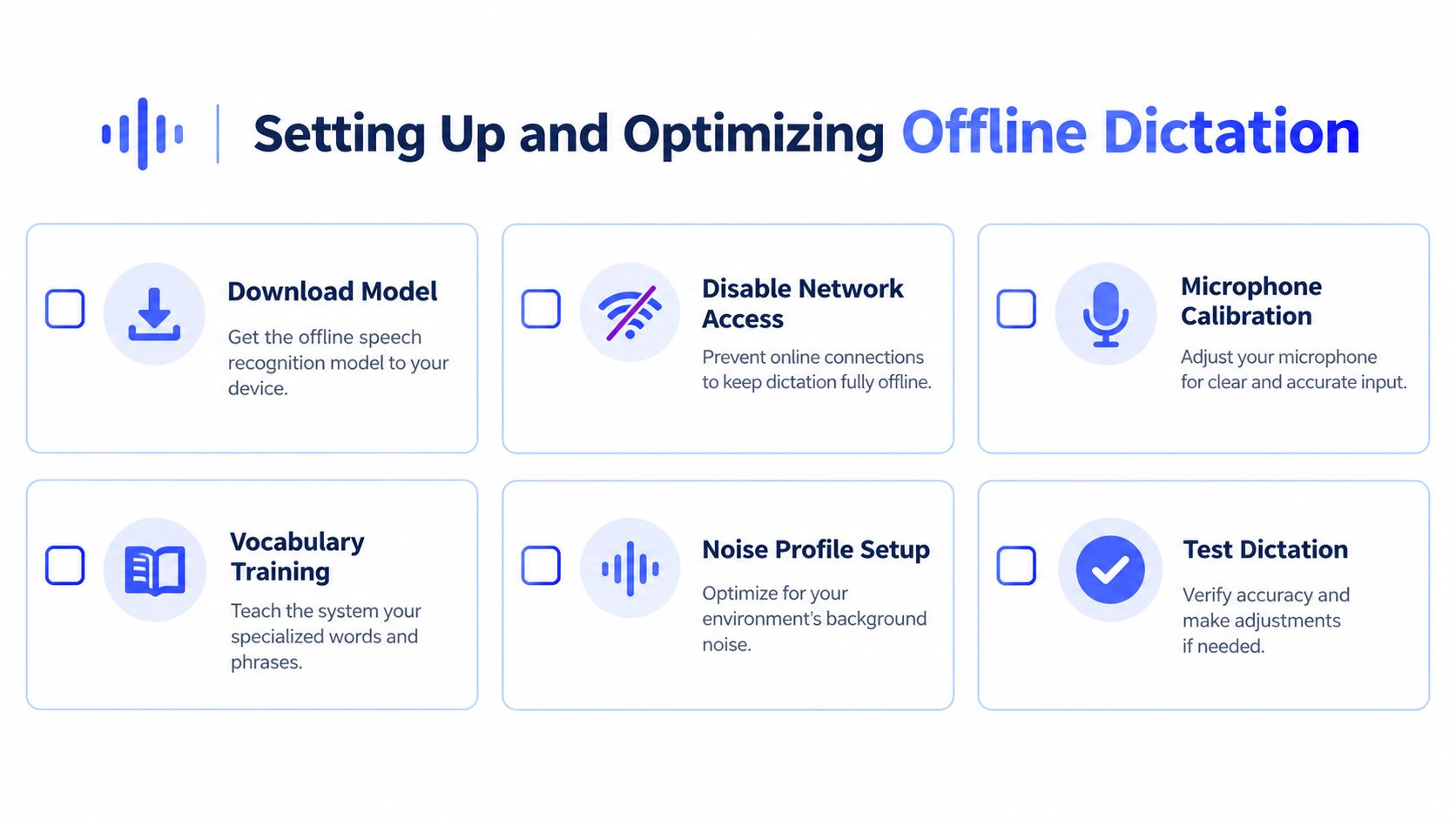
- Download the model deliberately. Choose a model that fits the computer's memory and language needs. Store it in a known local directory and record its version so an automatic replacement doesn't change behavior without notice.
- Disable outbound features. Turn off telemetry, cloud enhancement, automatic model downloads, and remote history. For sensitive environments, use the operating system's firewall or network controls and verify that the app still transcribes with connectivity unavailable.
- Set the microphone before tuning the model. Select one consistent input, keep it close enough for a strong voice signal, and disable audio effects that introduce pumping or aggressive noise suppression.
- Calibrate vocabulary locally. Add names, product terms, acronyms, and technical phrases to a local dictionary if the software supports one. A dictionary won't repair poor audio, but it can reduce predictable substitutions.
- Create a noise profile. Test the workflow with the actual room, keyboard, ventilation, and headset position. A quiet office test doesn't tell you how the system will behave beside a laptop fan or on a shared desk.
- Test insertion, not just transcription. Dictate into an email editor, document, browser field, terminal, and chat tool. Confirm that the global shortcut, permissions, punctuation, and cursor placement work consistently.
On macOS, check microphone and accessibility permissions separately. On Windows, review microphone privacy settings and make sure the dictation tool can interact with the target application. A local transcription engine can be accurate while text insertion fails because the operating system blocks simulated keystrokes or focus changes.
Security check: Disconnect the network after setup, dictate a known phrase, inspect the transcript, and review whether the application reports an unavailable service or continues locally.
File handling deserves the same care as inference. Audio clips, temporary files, logs, crash reports, screenshots, and cloud-synced folders can bypass the privacy boundary even when recognition itself is local. For recorded M4A material, a separate workflow such as AI M4A transcription for Mac may be useful, but confirm where processing occurs before adding it to a sensitive pipeline. A practical offline voice-to-text app workflow should make local processing, cleanup, and storage choices visible rather than hiding them behind a single offline label.
Troubleshooting Accuracy and Handling Real-World Audio
Clean benchmark audio can make almost any modern speech recognizer look impressive. Daily dictation is harder. People speak while walking, turn away from the microphone, use abbreviations, switch languages, mention unfamiliar names, and dictate into rooms with reflections or background noise.
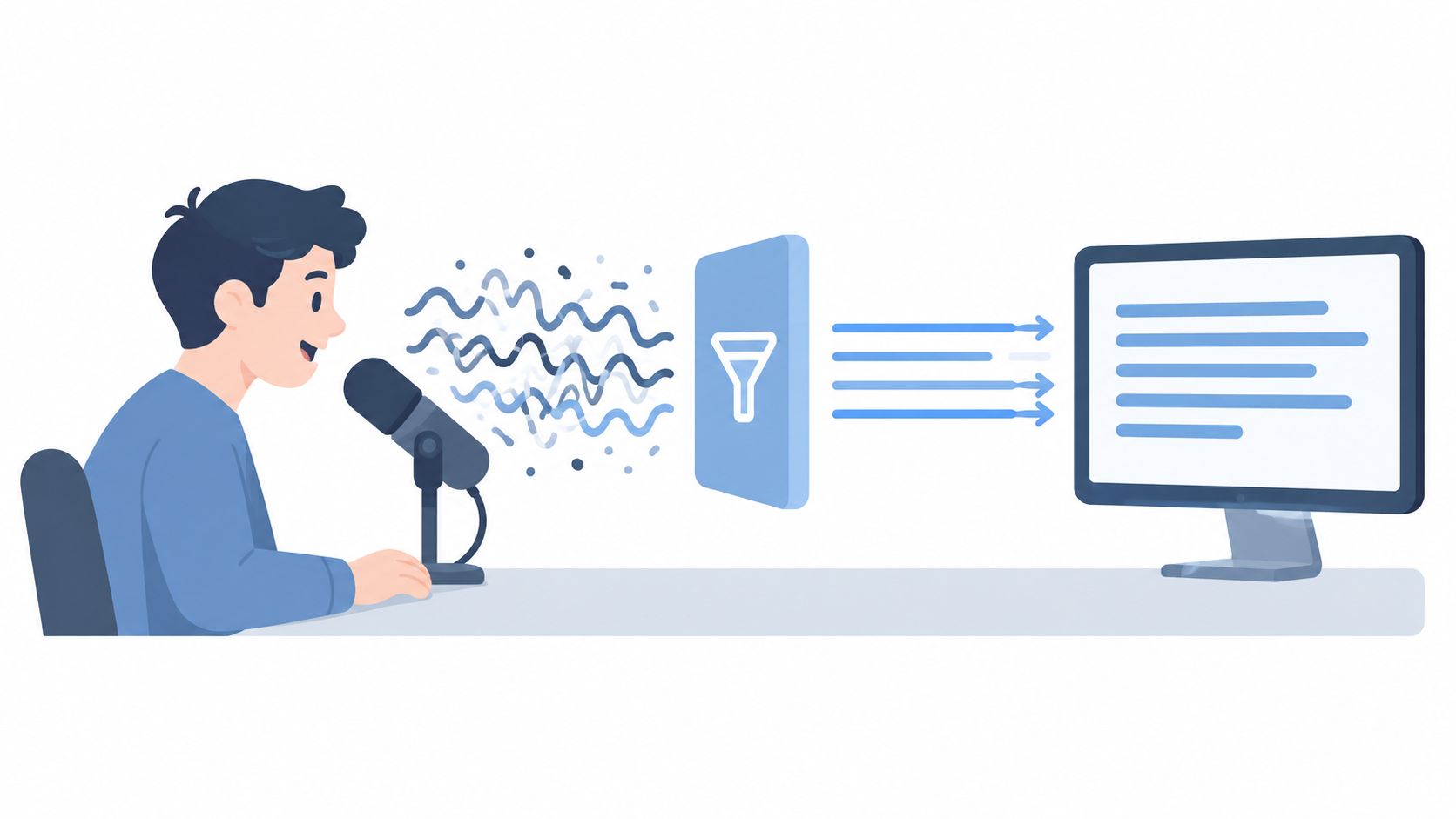
Offline models can struggle with accents, noisy recordings, long-tail vocabulary, and mixed-language text because their local capacity and update path are constrained. That doesn't mean you should abandon them. It means you need to troubleshoot the input and the correction loop before blaming the engine.
Start with the microphone. Move it closer, reduce room reflections, and speak toward the capsule. A headset microphone often produces more consistent results than a laptop microphone because it reduces the distance between your voice and the input. If errors cluster at the ends of sentences, check whether the application is cutting off audio through overly aggressive voice activity detection.
Fix recurring errors systematically
- Names and jargon: Add recurring terms to a custom dictionary, or dictate a short spelling cue when the term matters more than speed.
- Accents: Test the model with representative phrases before committing to a workflow. Slowing slightly and separating words can help, but don't expect speech coaching to solve a model coverage problem.
- Noise: Improve the signal first. Local noise reduction can help, but heavy filtering may remove consonants that the recognizer needs.
- Mixed-language speech: Select the correct language mode where possible. Automatic language detection can be convenient, but explicit language selection is often more predictable for short passages.
- Long dictation: Use sensible chunks and pause between ideas. Streaming systems must balance context against latency, so uninterrupted monologues can produce more corrections than short paragraphs.
- Formatting: Speak punctuation and paragraph breaks consistently, then use a local cleanup pass if the application supports one.
Reported results for Whisper Large-v3 illustrate why conditions matter. On clean LibriSpeech audio, it has been reported at 97.9% accuracy, with 2.7% word error rate on clean studio audio, while mixed real-world recordings showed a higher error rate of around 7.88% (offline speech recognition accuracy coverage). Those figures aren't a promise for your microphone or language. They are a reminder to test with the audio you produce.
When a transcript looks wrong, compare three versions: the original audio, the raw local transcript, and the cleaned text. If cleanup introduces an error, keep raw transcription and cleanup separate. That makes it possible to correct locally without losing the source or accepting a polished but inaccurate sentence without question.
A 2026 study of dictation users found frequent friction among people who rely on voice input, so correction speed deserves its own test. If fixing a repeated surname takes longer than typing it, add the term to the dictionary, change the microphone position, or choose a larger model rather than tolerating the same error indefinitely.
Securing Your Workflow with Voice Control Pro
Privacy fails at the edges of a workflow. A local recognizer may keep audio on the computer while a rewrite feature, screenshot analysis tool, backup folder, or model updater sends related data elsewhere. For sensitive work, the useful question is whether you can pause cloud functions as a group and continue dictating locally.
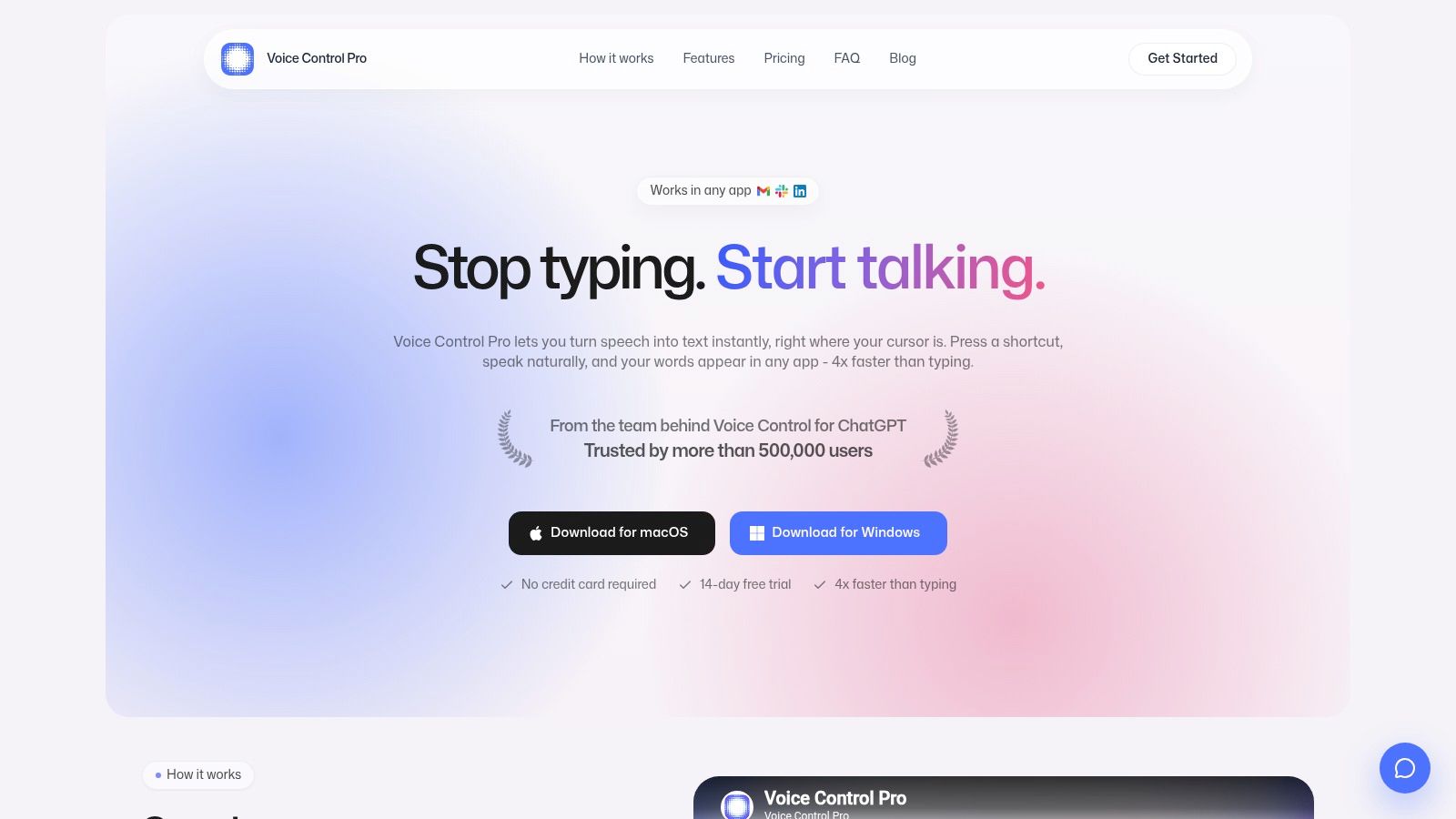
Voice Control Pro provides a Fly Mode that keeps voice processing on the computer and pauses cloud features, alongside a free local mode for unlimited dictation powered by an on-device AI model. The workflow is designed for direct insertion at the cursor across applications, so the local transcript can move into the document without requiring a separate copy and paste step.
What stays local and what changes
The local boundary should be explicit:
- Dictation: Audio is processed on the computer in local mode.
- Text insertion: The result is inserted into the active application.
- Cloud features: Fly Mode pauses features that depend on remote processing.
- Advanced assistance: Max adds functions such as broader language support, custom dictionaries, cleanup controls, transcription history, and the Hey Max assistant for rewriting, screen questions, and app launching. Those features should be evaluated individually against your security policy.
This local-first design addresses a common operational gap: people don't want to choose between a completely manual offline tool and a cloud assistant that can polish everything but requires sending text away. A sensible compromise is to dictate confidential material locally, use local correction for routine cleanup, and enable network features only for content approved for external processing.
The product supports macOS and Windows, but the same verification rules apply as with any offline tool. Test with the network unavailable, inspect permissions, confirm where history is stored, and understand which Max features require connectivity before adopting it for regulated or confidential work.
Final Thoughts on Local Speech Recognition
Offline dictation works best when you treat it as a system rather than a download. The model is only one part. The microphone, operating system permissions, insertion method, vocabulary handling, storage policy, update behavior, and cleanup features all affect whether the workflow feels dependable.
The evidence points to a practical middle ground. Compact models can run on constrained devices, streaming systems can deliver low latency, and larger local engines can provide strong results when the hardware supports them. At the same time, accuracy remains condition-dependent, especially with noise, accents, rare terms, and mixed-language speech.
A reliable rollout looks like this:
- Choose the smallest model that meets your accuracy needs.
- Test it with your real voice, vocabulary, room, and target applications.
- Disable telemetry and cloud assistance before handling sensitive material.
- Keep raw audio and cleaned text under separate retention rules.
- Maintain a local dictionary for names, acronyms, and specialist terminology.
- Re-test after model or operating system updates.
For a writer, developer, researcher, or support professional, the payoff isn't privacy in isolation. It's a workflow that remains usable on a plane, inside a restricted network, or beside confidential documents, while giving you control over every step from speech to final text.
Voice Control Pro offers local on-device dictation, direct text insertion across applications, and Fly Mode for pausing cloud features when you need a tighter privacy boundary. Visit Voice Control Pro to test whether its local workflow fits your hardware, applications, and daily dictation needs.