
Most advice on an offline voice to text app treats "offline" like a single feature. It isn't. One tool downloads a language pack but still keeps part of the workflow tied to the platform. Another runs a full speech model locally but only transcribes recorded files. A third can dictate live into any text field with no network connection, yet sends text to the cloud if you turn on cleanup or rewriting.
Those differences matter more than the label. If you're trying to type into email, Slack, a CRM, or a code editor, local file transcription isn't enough. If you need to process interviews or meeting recordings privately, a push-to-talk dictation tool won't replace a batch transcription app. And if you're working on mobile, the quality of the keyboard integration matters just as much as the speech model.
That split became much more practical after a major milestone in September 2022, when OpenAI released Whisper as open source after training it on 680,000 hours of multilingual audio, which helped push high-quality speech recognition beyond cloud-only products and into local apps people could run on their own machines (Whisper release context and why it mattered). Since then, the broader category has moved from niche to infrastructure. One market forecast valued speech recognition at $6.39 billion in 2018 and projected $29.28 billion by 2026, with a 19.9% CAGR from 2019 to 2026 (speech recognition market forecast).
So don't pick by marketing tag alone. Pick by the actual offline work you need: system-wide typing, recorded-audio transcription, mobile input, privacy controls, hardware demands, language coverage, and workflow customization.
Table of Contents
- 1. Voice Control Pro
- Where it fits, and where it does not
- Offline behavior and privacy trade-offs
- Real workflow verdict
- 2. Nuance Dragon Professional v16
- Why Dragon still holds its place
- Best fit
- 3. Microsoft Voice Access (Windows 11)
- What it gets right
- Where it falls short
- 4. Apple Voice Control and On-Device Dictation
- What Apple does well
- Limits to expect
- 5. Gboard Voice Typing (with Offline Language Packs)
- Best use case
- What to keep in mind
- 6. MacWhisper
- Where MacWhisper wins
- Where it doesn't fit
- 7. Superwhisper
- Why people choose it
- Practical fit
- 8. JesType
- Where it works best
- Where it gives ground
- 9. Glimpse
- Why it stands out
- Trade-offs
- 10. Lven Instant
- Why it earns a spot
- Real limitations
- Top 10 Offline Voice-to-Text Apps, Feature Comparison
- Choose the Offline Workflow You Actually Need
- Setup details that decide whether offline dictation feels good
- What to check when things go wrong
1. Voice Control Pro
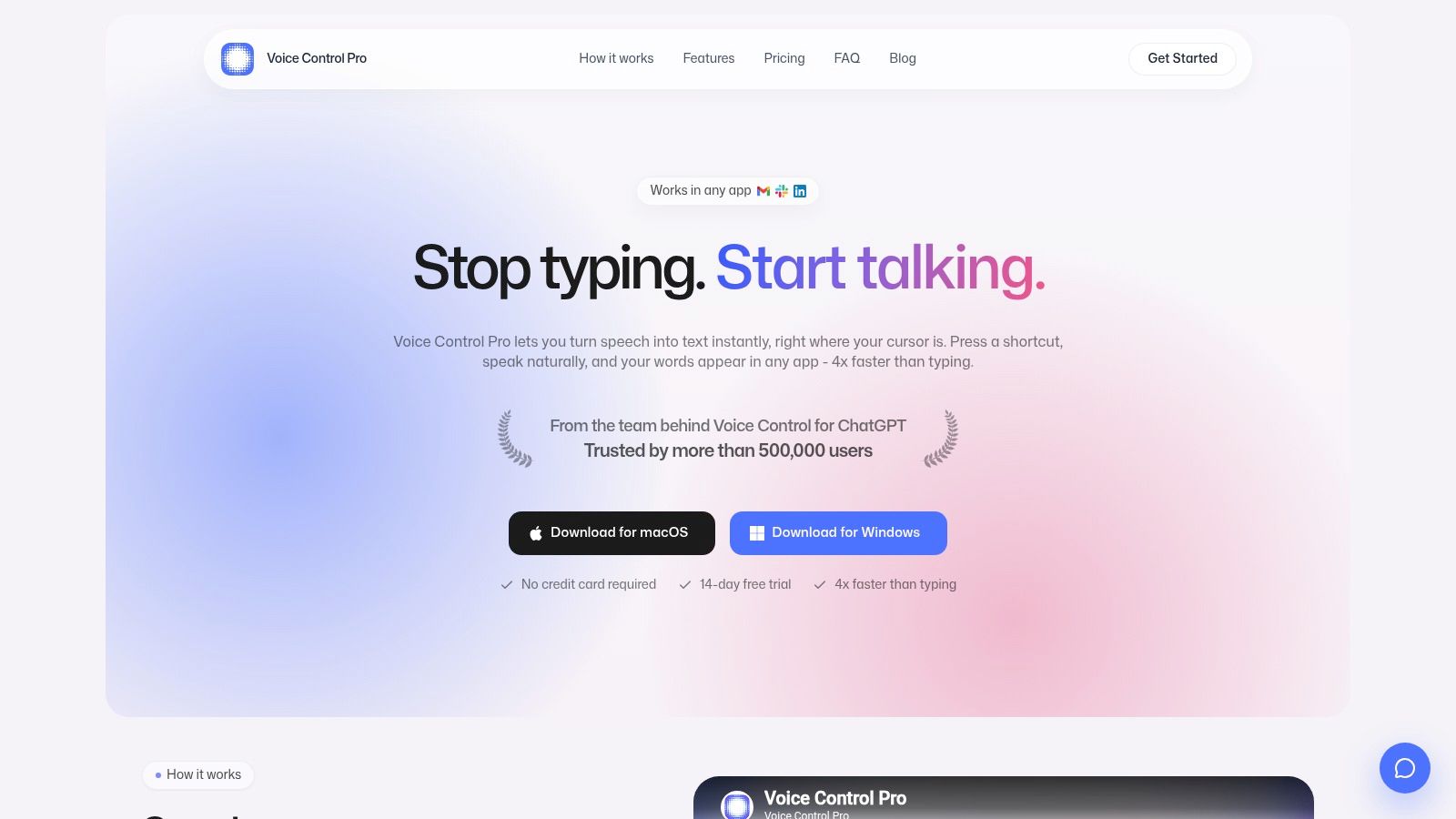
Voice Control Pro is one of the few tools in this category that is built first for live desktop dictation, not recorded-audio transcription. That distinction matters. If your actual job is typing into Chrome, Slack, a CRM, notes, or a document editor all day, a push-to-talk tool that inserts text at the cursor is usually more useful than a stronger transcription app that keeps audio and output inside its own window.
The core workflow is practical. Press a global shortcut, speak, release, and the text drops into the active field. In daily use, that feels closer to keyboard input than to a speech app. It suits short, frequent bursts of writing across many programs.
Where it fits, and where it does not
Voice Control Pro makes the most sense for system-wide typing on desktop. It is less compelling if your offline requirement is transcribing long interviews, podcasts, lectures, or folder-based batches of saved audio. This tool is aimed at live input and on-screen control, not archival transcription workflows.
That puts it in a different lane from Dragon and from file-focused Whisper apps later in this list.
Its other differentiator is the layer around dictation. Hey Max can rewrite selected text, answer questions about visible content, and trigger actions like opening installed apps. I would treat those as workflow extras, not reasons to ignore the basics. The question is whether local dictation lands reliably in the apps you already use, whether corrections are fast, and whether the system stays responsive on your hardware.
Offline behavior and privacy trade-offs
Voice Control Pro includes a local mode for on-device dictation. If you are screening tools by privacy controls, that is the setting to inspect first. Local dictation and AI-assisted cleanup are not the same thing, and this app makes that distinction more explicit than many products do.
There is still a trade-off. Some of the broader language support, text cleanup options, custom dictionary features, history, and expanded Hey Max functions sit behind the Max tier. Public pricing is also not clearly posted, which makes direct comparison harder if you are weighing it against one-time-purchase tools or built-in OS features.
Hardware matters here. On a strong machine with a decent microphone, local dictation can feel quick enough to replace a chunk of keyboard time. On weaker hardware, or in noisy rooms, the gap between "private" and "usable" gets harder to ignore. That is true of local speech tools in general, but it matters more for a system-wide dictation app because any lag interrupts active writing.
Real workflow verdict
I would put Voice Control Pro near the top of the list for desktop users who care most about cursor-level text entry, app control, and low-friction switching between speaking and typing. I would not pick it first for someone whose main offline task is transcribing recorded files, processing batches, or building a formal documentation workflow with heavy vocabulary training.
That makes it a focused tool, not a universal one.
For readers comparing broader voice-enabled workflows in healthcare and admin settings, this example of a voicebot for general practice is useful because it shows how much productivity comes from reducing manual app switching, not just converting speech into text.
2. Nuance Dragon Professional v16
Nuance Dragon Professional v16 is still the reference point for serious Windows dictation. If your idea of voice input includes custom commands, large vocabularies, correction workflows, and batch handling of recorded audio, Dragon remains in a different class from lightweight consumer dictation tools.
This is not the app I'd hand to someone who just wants to dictate a few texts. It makes more sense for legal, admin, documentation-heavy, and accessibility-driven workflows where users spend enough time in voice input to justify training profiles, building vocabulary, and learning commands.
Why Dragon still holds its place
Dragon's biggest strength is maturity. It runs as a locally installed speech engine after activation, supports custom words and macros, and handles digital recorder or folder-based transcription workflows that built-in dictation tools usually ignore. That combination matters if your "offline" need includes both live speech and recorded audio.
Its weaknesses are predictable. It's Windows-only, it can feel heavy on older machines, and the setup is more commitment than convenience. You don't install Dragon for casual capture. You install it because you want repeatable professional control.
Dragon is best when voice is part of the job, not just a convenience feature.
Best fit
Choose Dragon if you need command-and-control as much as transcription. Skip it if your real need is quick push-to-talk typing across everyday apps with minimal setup.
3. Microsoft Voice Access (Windows 11)
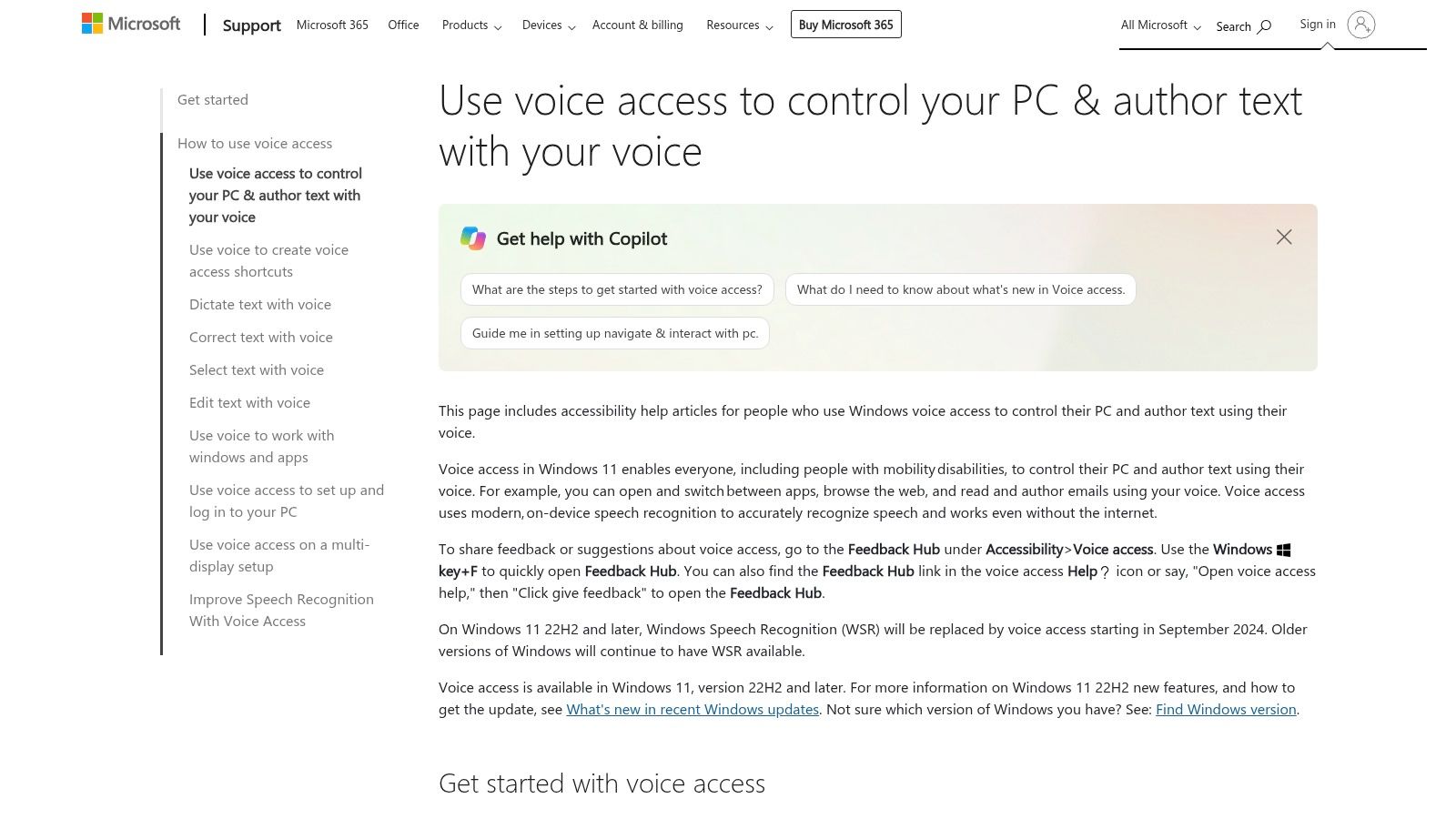
Microsoft Voice Access is what most Windows 11 users should try before installing anything else. It's built into the OS, supports system-wide dictation and command control, and can work offline after the required language file is downloaded.
That last detail is where many people get misled. This is offline-capable, not magically offline from the first second. You need the right language resources installed, and quality varies by language pack.
What it gets right
Voice Access is free, integrated, and useful in any app that accepts typing. For users who want hands-free input or basic dictation without buying a dedicated tool, it covers more ground than people expect. It also supports vocabulary additions, which matters for names, jargon, and product terms.
Microsoft's broader work on compact on-device ASR helps explain why tools like this now feel practical. The company reported a compact streaming ASR model shrinking from 2.47 GB to 0.67 GB while staying within 1% absolute WER of the full-precision baseline, with its recommended variant averaging 8.20% WER across eight benchmarks and running faster than real time on CPU with 0.56 s algorithmic latency (Microsoft on compact on-device streaming ASR). That doesn't tell you how every Windows workflow will feel, but it does explain why local dictation is no longer confined to workstation-grade setups.
Where it falls short
Voice Access isn't Dragon, and it isn't trying to be. It has fewer deep workflow controls for professionals who live in dictation all day. If you want a more direct comparison with a dedicated cross-app dictation tool, this breakdown of Voice Control Pro vs Windows Voice Access is worth reading.
For many users, though, free and built-in is enough.
4. Apple Voice Control and On-Device Dictation
Apple's built-in stack is the cleanest answer for people already living on a Mac, iPhone, or iPad. Apple Support documents Voice Control and dictation features that can process audio on-device once the needed language files are installed, and on supported hardware the experience is often fast enough that you stop thinking about the engine and just dictate.
That doesn't mean Apple gives you every workflow. It gives you a private, integrated one.
What Apple does well
Apple is strongest when you want built-in, low-friction offline dictation tied into accessibility settings and editing commands. Modern on-device recognition has become strong enough that local processing isn't just a privacy compromise anymore. Independent benchmark coverage reported Apple's on-device SpeechAnalyzer at 2.12% WER on LibriSpeech clean speech and 4.56% on noisy speech, outperforming Whisper Small in that test set (Apple on-device benchmark coverage). The practical takeaway isn't the benchmark itself. It's that local dictation on Apple hardware can now be credible for serious use, while noise still hurts.
Limits to expect
Apple's tools are less customizable than dedicated dictation apps. Some standard dictation modes on macOS also have session constraints that frustrate long-form writers. If you want a more practical walkthrough for Mac workflows, this guide to dictation on Mac is useful.
Good Apple dictation feels invisible. Bad Apple dictation usually comes from the wrong mode, the wrong mic, or an unsupported language setup.
5. Gboard Voice Typing (with Offline Language Packs)
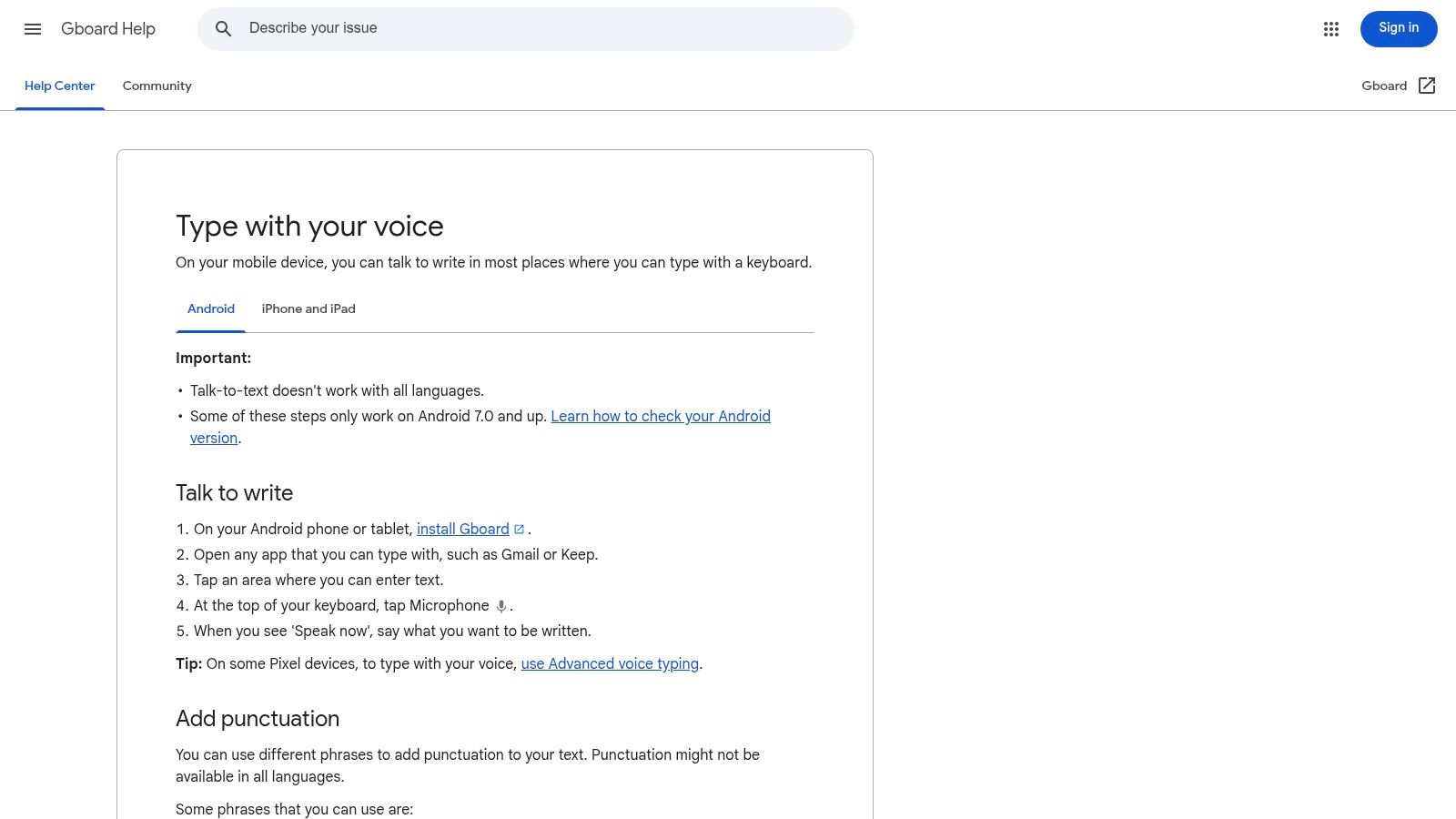
On Android, Gboard voice typing is the practical default. It works where the keyboard works, which is exactly what users want on mobile: messages, notes, search boxes, forms, and quick replies.
Its offline value comes from downloadable language packs. That's enough for many users, but it also means the experience varies by device, language, and Google feature tier.
Best use case
Gboard is best for short mobile capture. If you're sending texts, drafting notes in the field, or dictating a paragraph into a mobile doc, it feels immediate. It launches quickly, requires little setup beyond language downloads, and doesn't ask you to change how you use your phone.
Where it doesn't shine is extended writing or workflow customization. You won't get the same level of command control, custom correction behavior, or desktop-style insertion logic that you get from a dedicated dictation app.
What to keep in mind
Offline mobile dictation works best when expectations stay narrow. Recent reporting on offline dictation points out that Apple can run fully offline on newer devices, Android can download offline language packs, and local Whisper-based apps can get close to cloud-like accuracy on clear audio, but noisy conditions and multilingual edge cases still trip these systems up (practical constraints for offline mobile and multilingual dictation). That's exactly how Gboard feels in practice. Fast for everyday use. Less dependable once the environment gets messy.
6. MacWhisper
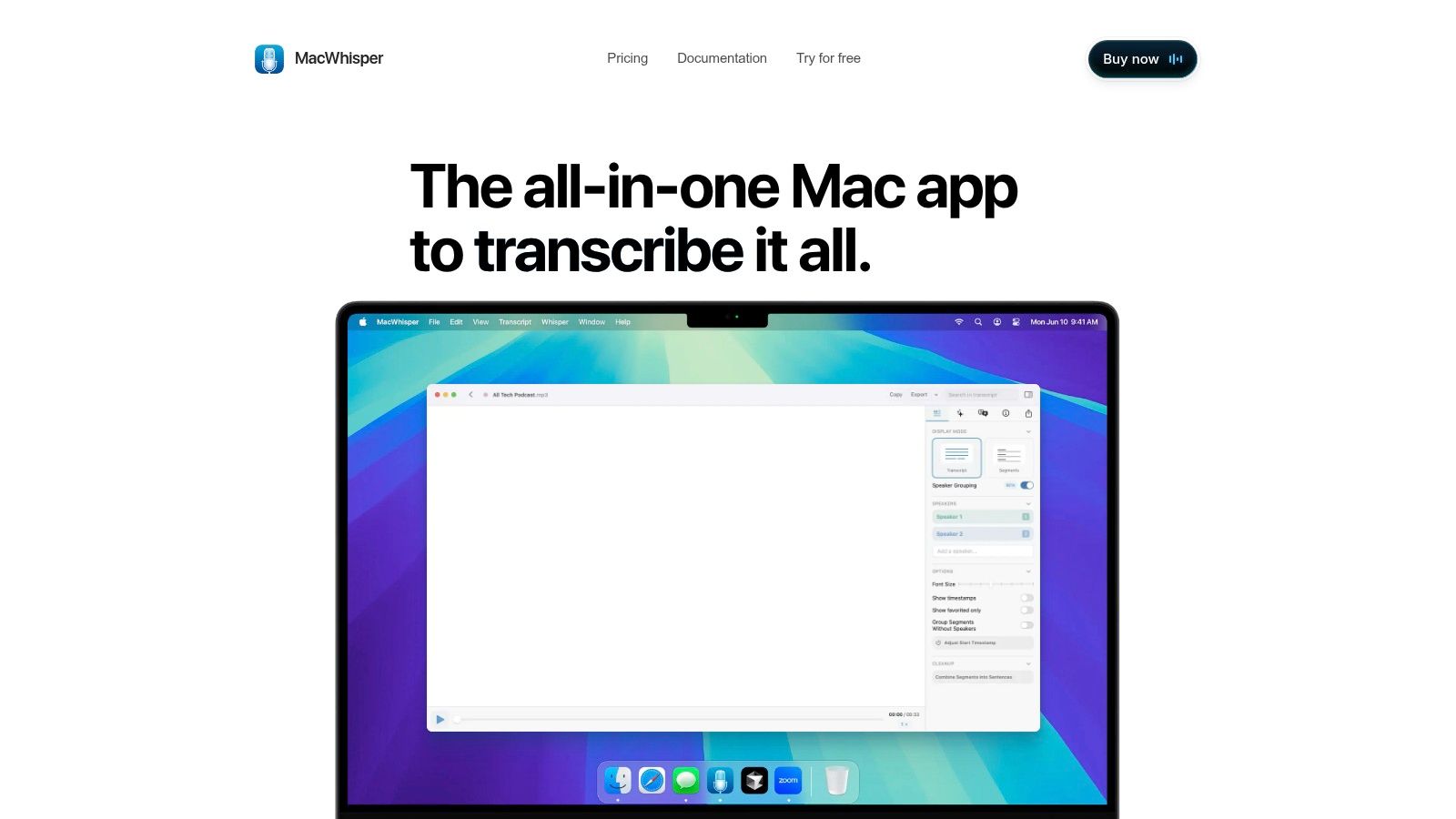
MacWhisper is excellent, but only if you judge it by the right job. It's a local transcription app first. That means recordings, interviews, lectures, calls, and imported audio files. It can also handle live mic input, but that's not the main reason people use it.
A lot of buyers confuse file transcription with dictation. MacWhisper is the clearest example of why that distinction matters.
Where MacWhisper wins
If you need private transcription of recordings on macOS, MacWhisper is one of the easiest ways to get there. It runs Whisper models locally, lets you choose different model sizes, and supports export and cleanup workflows that make sense after the transcript is created.
Its interface is straightforward enough for non-technical users, but the hardware trade-off is real. Larger local models ask more from CPU, GPU, and RAM. That's usually fine for batch transcription. It's more noticeable if you try to force it into always-on dictation behavior.
For a broader look at local model trade-offs, this guide to local speech to text is a good companion read.
Where it doesn't fit
MacWhisper is not the best offline voice to text app for direct system-wide typing into any app. If you want text to land in your cursor position while you work across tools, use something built for that pattern instead.
Recorded-audio transcription and live desktop dictation overlap technically. They don't feel the same in use.
7. Superwhisper
Superwhisper is one of the few offline speech tools that makes sense if you split the job into two modes: typing into live apps and transcribing recordings later. A lot of products do one of those well and feel awkward at the other. Superwhisper is built for both, which is its main argument.
The practical trade-off is hardware. On a newer MacBook, a larger local model is reasonable for recorded meetings or interview files where accuracy matters more than speed. On older laptops, that same model can feel too heavy for live dictation, so dropping to a smaller model usually makes the workflow more usable, but you should expect more cleanup on names, punctuation, and technical terms.
That matters if your day switches between short dictated messages and longer audio review. You can use a lighter model to speak into email, docs, or chat fields with less delay, then switch up for a one-hour recording that you want transcribed locally without sending it anywhere.
Why people choose it
Superwhisper covers more offline work than many local-first apps. It supports macOS, Windows, and iPhone, offers local model choices, and handles both microphone input and file transcription. For users trying to keep one privacy posture across desktop and mobile, that cross-device consistency is useful.
It also fits people who want local processing without enterprise setup. No account is required for the core offline workflow, and the app can serve direct text entry rather than only post-recording transcription.
Practical fit
Superwhisper works best for users who need one tool that can move between system-wide dictation and offline transcription of saved audio. That is different from a dedicated desktop command system, and different again from a transcription-only app.
Its limits are pretty clear. If you want deep voice commands, heavy automation, or mature admin controls, look elsewhere. If your machine is underpowered, the model choice becomes less about preference and more about what your hardware can sustain without adding lag to live typing.
8. JesType
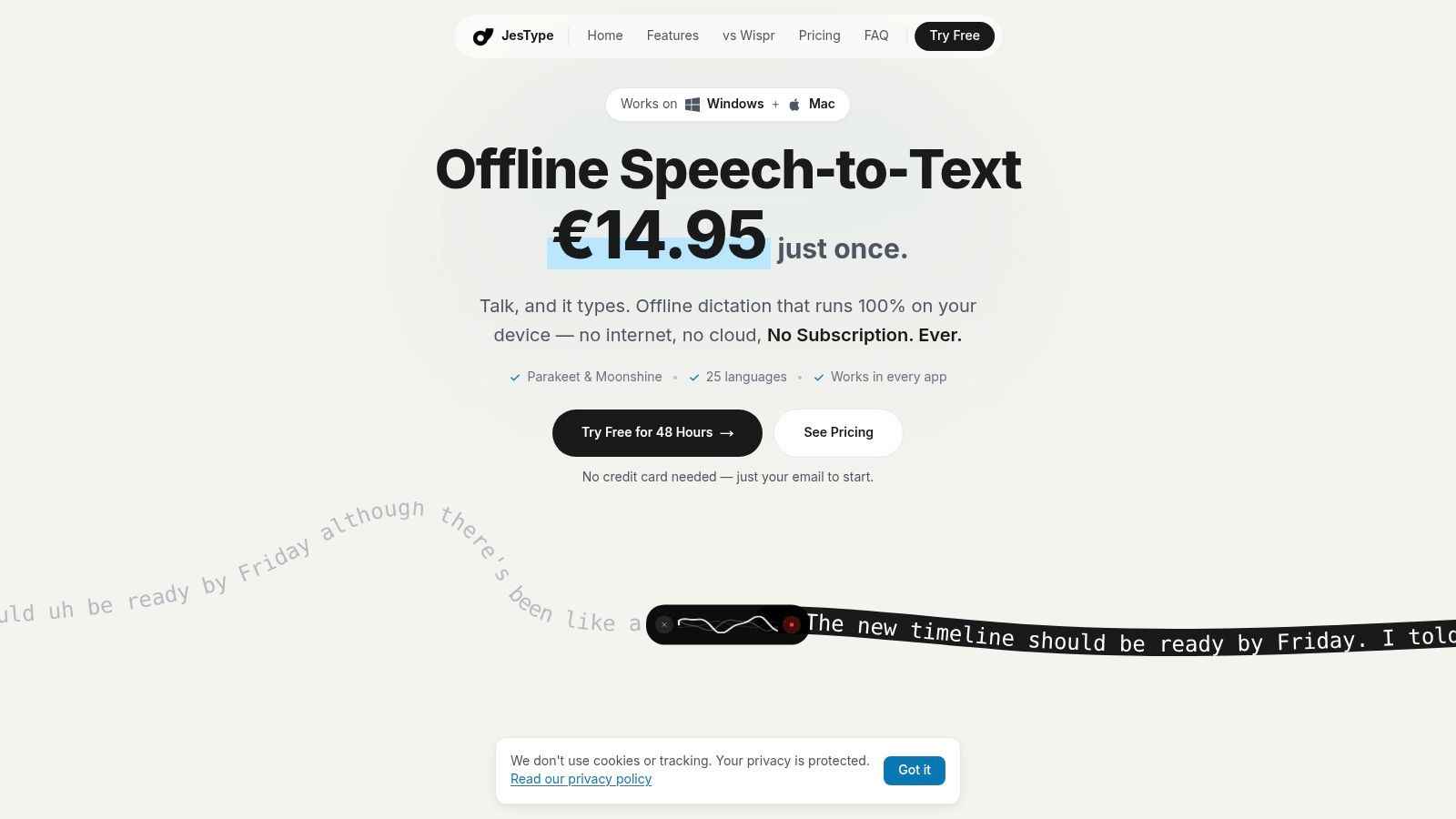
JesType takes the opposite approach from enterprise dictation. It's lightweight, system-wide, and focused on getting spoken words into the current text field with minimal ceremony. For many users, that's the sweet spot.
The appeal is the push-to-talk model. Hit the hotkey, speak, and let it type directly where the cursor sits.
Where it works best
JesType makes sense for everyday writing bursts: replies, notes, task managers, browser fields, and short drafting sessions. It also includes practical customization such as custom dictionary entries, autocorrect, and history. Those aren't glamorous features, but they matter more than flashy AI extras when you're trying to remove repeat errors from names or domain-specific vocabulary.
Its privacy posture is also clear. The app is built around on-device transcription, which will matter to users who want local speech processing without digging through mixed cloud settings.
Where it gives ground
JesType doesn't try to match enterprise command systems or broad language coverage from cloud engines. It's a simpler tool with a simpler scope. If that scope matches your work, that's a strength rather than a limitation.
9. Glimpse
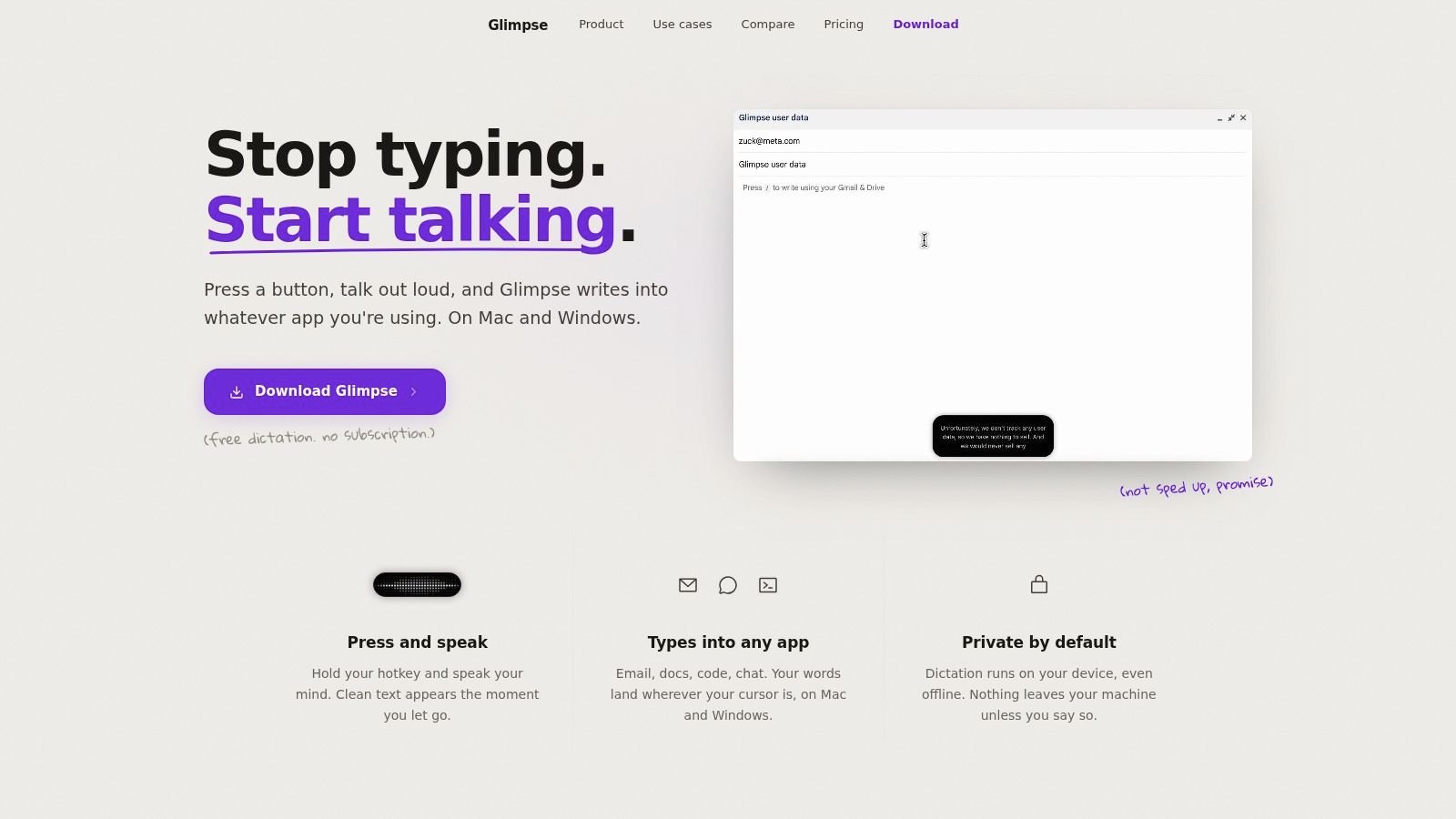
Glimpse is one of the more interesting local-first options because the core dictation layer is open source and free. That immediately changes the trust conversation for privacy-focused users. You aren't just taking a marketing claim at face value.
The app uses a push-to-talk workflow and types directly into any app, which puts it in the same practical category as desktop dictation tools rather than file transcription apps.
Why it stands out
Open-source local dictation is still a relatively small corner of the market, so Glimpse has a natural advantage for users who care about transparency. It also adds useful quality-of-life controls, including custom dictionary entries, replacements, per-app modes, and configurable hotkeys.
Those per-app behaviors matter. Dictation inside a code editor, a CRM, and a chat app usually needs different punctuation and cleanup expectations. Tools that recognize that tend to age better in daily use.
Trade-offs
The paid layers add rewriting tools, libraries, and integrations, so the free local core isn't the whole product story. It's also a newer project, which means polish may continue to change faster than with older incumbents.
Still, for users who want open-source privacy with real system-wide typing, Glimpse is easy to take seriously.
10. Lven Instant
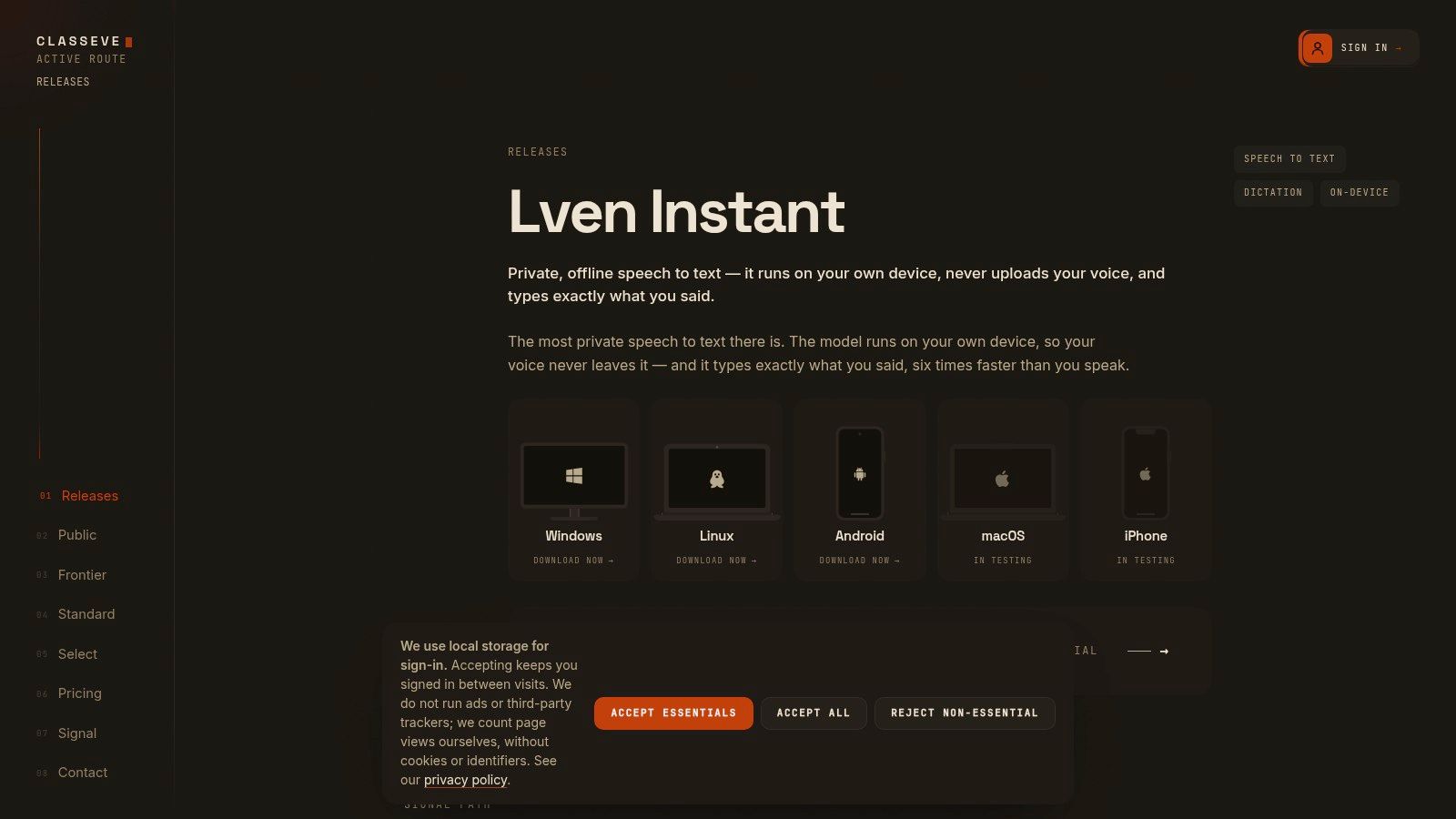
Lven Instant fills a gap the bigger offline dictation apps usually ignore. It supports Windows, Linux, and Android, and that changes the recommendation for anyone who needs local speech input across more than one operating system.
The practical question is what kind of offline work it handles. Lven Instant is built for live dictation, not long-form batch transcription of recorded files. On desktop, it uses a hotkey workflow to insert text into whatever field is active. On Android, it adds a floating bubble for mobile input. That puts it closer to system-wide typing tools like Voice Control Pro or built-in voice input than to apps such as MacWhisper, which are mainly for recorded-audio transcription.
Why it earns a spot
Linux support is the headline feature here, because that still narrows the field fast. Android support matters too if you want the same local-first privacy model on both phone and desktop instead of mixing offline dictation on one device with cloud input on another.
The product page is also unusually direct about how the app works. It describes local processing, real-time transcription, and platform support in concrete terms rather than broad AI language. That is more useful than vague accuracy claims, because offline speech tools live or die by hardware, microphone quality, and accent fit on the machine you use.
Real limitations
Lven Instant is a narrower tool than Dragon. It does not present itself as a heavy transcription workstation with deep correction workflows, enterprise vocabulary training, or mature batch processing for large audio archives.
Platform maturity is also uneven. The current release page presents macOS and iPhone support as still in testing, so Apple users should expect less certainty than they would get from native Apple dictation tools. If your real need is offline dictation on Linux or Android, though, Lven Instant covers a category that very few apps in this list address well.
Top 10 Offline Voice-to-Text Apps, Feature Comparison
| Product | Core features | UX & Accuracy (★) | Pricing & Privacy (💰) | Best for (👥) | Key differentiator (✨) |
|---|---|---|---|---|---|
| Voice Control Pro 🏆 | Push-to-talk global shortcut; cross-app insert; Hey Max assistant | ★★★★☆, fast, polished insertion; cleanup levels | 💰 Free local unlimited; Max paid (undisclosed); strong on-device privacy | 👥 Knowledge workers, students, support, devs, accessibility | ✨ Hey Max (rewrite, screen Q&A, app launch); seamless cross-app dictation |
| Nuance Dragon Professional v16 | Local speech engine; trainable profiles; macros & batch transcribe | ★★★★★, very high once trained | 💰 Premium enterprise price; fully local/offline after activation | 👥 Legal, medical, enterprise transcription pros | ✨ Deep command customization; mature correction workflows |
| Microsoft Voice Access (Win 11) | System-wide dictation & commands; offline language packs | ★★★☆☆, convenient; quality varies by language pack | 💰 Free; offline after language download; integrated privacy depends on settings | 👥 Windows users, accessibility, casual dictation | ✨ Built-in Windows integration; easy setup |
| Apple Voice Control & On‑Device Dictation | System-wide dictation/editing; on-device processing on Apple Silicon | ★★★★☆, low latency on Apple Silicon; some timeout limits | 💰 Free; on-device processing after language install; integrated privacy | 👥 macOS/iOS users, accessibility | ✨ Deep integration with Apple accessibility; optimized for Apple Silicon |
| Gboard Voice Typing | Keyboard-based voice typing; offline language packs | ★★★☆☆, fast for short messages | 💰 Free; varies by device/language; local packs available | 👥 Android users, mobile messaging | ✨ Preinstalled on many devices; instant startup |
| MacWhisper | Local Whisper models; file & live mic transcription; model choice | ★★★★☆, excellent for recordings | 💰 Local processing; compute/resource dependent | 👥 Podcasters, researchers, journalists | ✨ High-quality offline transcription; model speed/accuracy tradeoffs |
| Superwhisper | Offline local transcription (Mac/Win/iPhone); live mic & file support | ★★★★☆, good, hardware-dependent | 💰 Local/offline; no account required | 👥 Multi‑platform privacy-conscious users | ✨ True offline across devices; selectable model sizes |
| JesType | Push-to-talk hotkey; local Parakeet/Moonshine models; autocorrect | ★★★☆☆, simple, reliable | 💰 Local/offline; lightweight | 👥 Everyday dictation users seeking privacy | ✨ Fast startup; clear privacy stance |
| Glimpse | Open-source local dictation; per-app modes; custom dictionary | ★★★☆☆, evolving, transparent | 💰 Free core; paid add-ons for AI cleanup/integrations | 👥 Privacy-minded users, developers | ✨ OSS transparency + optional paid AI layers |
| Lven Instant | Cross-platform local dictation (Win/Linux/Android); floating bubble | ★★★★☆, benchmarked performance | 💰 Local/offline; privacy-first; newer ecosystem | 👥 Multi-platform privacy users, Linux users | ✨ Published WER benchmarks; Linux support |
Choose the Offline Workflow You Actually Need
The best offline voice to text app depends less on "which one is best" and more on where the text needs to go.
For cross-app desktop dictation, Voice Control Pro is the strongest fit when you want spoken text inserted directly at the cursor across many apps, plus cleanup and assistant-style actions around that core flow. For professional Windows command control, Dragon still makes the most sense when voice is central to the job and you need deep vocabulary, macros, and correction discipline. For built-in accessibility on mainstream systems, Microsoft Voice Access and Apple Voice Control are the obvious first stops because they cost nothing extra and already sit inside the operating system.
On mobile, Gboard is the practical answer for Android messages, notes, and quick form input. For recorded-audio transcription on Mac, MacWhisper is better judged as a private file-transcription tool than as a general dictation app. If you want one local-first ecosystem across multiple platforms, Superwhisper is the more flexible middle option. If you want lightweight push-to-talk typing with less overhead, JesType is easier to justify. If open-source transparency matters most, Glimpse is the one to watch. And if Linux or Android desktop-mobile coverage is essential, Lven Instant fills a gap most competitors still leave open.
Setup details that decide whether offline dictation feels good
A lot of offline dictation disappointment comes from setup, not from the engine itself.
- Download the right language resources: Built-in tools often need a language file or pack before they work offline.
- Use the right microphone distance: Too far away adds room noise. Too close can distort consonants and breath sounds.
- Choose the right local model size: Larger local models may improve output, but they can also slow insertion or spike CPU use.
- Grant the boring permissions: Microphone, accessibility, input monitoring, and keyboard access can all block proper operation.
- Add custom words early: Names, acronyms, ticket codes, and product terms are where many users lose trust in dictation.
- Test with Wi-Fi off: That's the only simple way to confirm what still works locally and what depends on the cloud.
Don't trust the word "offline" until you've tested the exact workflow you care about with the network disabled.
What to check when things go wrong
If offline mode isn't behaving, look at the common failure points first.
- Missing language packs: Built-in Apple, Windows, and Android options may stay limited until the right files are installed.
- Poor recognition: Try a quieter room, a better headset mic, and custom vocabulary before blaming the model.
- Delayed insertion: Smaller local models often feel better for live dictation than the largest available model.
- Heavy CPU use: File-transcription apps can be excellent and still feel wrong for live cursor-level dictation.
- Unsupported apps: Some tools work everywhere text input is standard, while others struggle with remote desktops, virtualized environments, or unusual editors.
- Cloud assumptions: Cleanup, rewriting, summaries, and personalization may stop working offline even when core transcription still works.
One last point matters more than brand choice. Verify what remains local, test with your own vocabulary, and dictate in the environment where you'll use it. A polished app with the wrong workflow fit will frustrate you faster than a simpler tool that types reliably into the right box at the right moment.
If you also handle recorded calls or voicemail audio, BubblyPhone transcription help is a useful companion resource for understanding the transcription side of the workflow.
If you want offline dictation that behaves like real desktop input, Voice Control Pro is built for that exact job. It can run locally, insert polished text directly where your cursor is, and reduce the copy-paste friction that makes many offline tools feel slower than they should. Take a closer look at Voice Control Pro if you want private, cross-app dictation rather than just another transcription window.