
You reread an email for the third time and still miss the wrong word. Then your device reads the sentence aloud, and the mistake becomes obvious immediately. The words looked right, but they sounded wrong.
That's often what people mean when they search for “says what I type.” They may want their computer or phone to speak typed text aloud as it appears. Others want the opposite, a microphone that turns spoken words into written text. Many users need both: speak to reduce keyboard work, then listen to confirm what landed in the text field.
These features solve different problems, and confusing them can lead to frustrating settings searches. By the end, you'll know how text-to-speech feedback differs from dictation, who benefits from each approach, where to find built-in options on common devices, and when dedicated software makes sense. You'll also have a practical way to think about privacy, vocal fatigue, posture, and repetitive strain before changing your workflow.
Table of Contents
- What Says What I Type Actually Means
- Why the search feels confusing
- Who Benefits from Spoken Feedback
- Three everyday use cases
- A quick self-check
- Built-In Features on Your Device
- Phone settings follow the same model
- Third-Party Tools Worth Considering
- Privacy and Health Trade-Offs
- Voice changes the load
- Getting Started Today
What Says What I Type Actually Means
Think of a proofreader sitting beside you. As each word lands on the page, the proofreader reads it aloud. You hear missing words, duplicated phrases, and errors your eyes have learned to ignore. That's the basic idea behind spoken typing feedback.
Two technologies can create a similar-looking experience, but they work in opposite directions:
- Text-to-speech, or TTS: The system takes text you've already entered and reads it aloud.
- Dictation, also called speech-to-text: The system listens to your voice and writes the words into a text field.
If you type “Please send the revised contract,” TTS speaks that sentence. If you say the sentence into a microphone, dictation produces the written version. One starts with text and creates audio. The other starts with audio and creates text.
Why the search feels confusing
Operating systems often place spoken feedback under accessibility, while dictation may appear under keyboard, voice control, or input settings. Individual apps can add their own reading tools, microphones, or proofreading features. As a result, two tools may sound similar in a product description while performing completely different jobs.
A useful test is to ask, “What do I want to happen first?” If you want to hear text that's already on screen, look for text-to-speech, spoken content, read aloud, or a screen reader. If you want to talk and see words appear, look for dictation, voice typing, or speech recognition.
Some applications combine the two. You speak naturally, the software inserts the transcription, and a spoken echo confirms the result. That pairing can help users who want fewer keystrokes without losing auditory confirmation. It's also useful in workflows where accurate wording matters, such as support replies, research notes, and prompts. For teams that rely on spoken input to improve lead qualification, separating recognition from feedback makes it easier to identify whether a problem came from what was said or what was heard.
Who Benefits from Spoken Feedback
Maya is editing a report late in the afternoon. Her eyes glide over “their new policy,” even though the intended phrase is “there new policy.” A read-aloud tool interrupts that automatic visual reading. Hearing the sentence gives her a second route into the meaning, so the error stands out.
Spoken feedback helps because listening and scanning don't fail in exactly the same way. It can expose homophones, missing words, awkward repetitions, and punctuation that changes the rhythm of a sentence. It won't replace careful editing, but it can make a familiar paragraph feel new again.
Three everyday use cases
Consider three people who might use the same feature for different reasons:
- A report writer listens after drafting a section. The spoken version highlights a sentence that looks grammatically complete but sounds confusing.
- A reader with low vision or dyslexia hears what reached the field instead of relying only on what they intended to enter. That distinction matters when autocorrect, focus changes, or recognition errors alter the text.
- A fatigue-prone professional dictates a first draft, then listens while reviewing it. The hands do less repetitive work, while the ears provide an immediate quality check.
Voice input is also a fast way to move an idea from your mind into software. A landmark 2016 study by researchers from Stanford University, the University of Washington, and Baidu found that speech input averaged approximately 161 words per minute, compared with about 53 words per minute for mobile keyboards, and English speech recognition produced an error rate 20.4% lower than keyboard typing in the tested phrases. The study and its findings are summarized here.
Practical rule: Use dictation to create a draft, then use spoken feedback to inspect the draft. The first tool reduces mechanical effort. The second checks the result.
A quick self-check
You may benefit from this combination if you regularly:
- lose mistakes when rereading your own writing;
- want independent confirmation of text in a form field;
- experience hand or wrist fatigue during long writing sessions;
- capture ideas faster by speaking than typing;
- switch between languages, devices, or applications;
- support students who need more than visual proofreading.
For students, accessibility specialists, and families comparing assistive options, a broader guide to best apps for dyslexic students can help place read-aloud and dictation alongside other study supports. You can also explore this speech-to-text software guide for students with disabilities when the main need is reducing the effort of written input.
Built-In Features on Your Device
Before installing anything, test the tools your device already provides. Built-in features usually handle basic reading and dictation well enough to answer the most important question: does hearing or speaking change the way you work?
On macOS, accessibility settings include spoken-content options that can read selected text or screen content aloud. macOS also includes dictation for entering text through speech. Start with a short note in a text editor, select the sentence, and activate the reading feature. Then place the cursor in a fresh field and test dictation separately. Keeping the tests separate prevents you from mistaking one technology for the other.
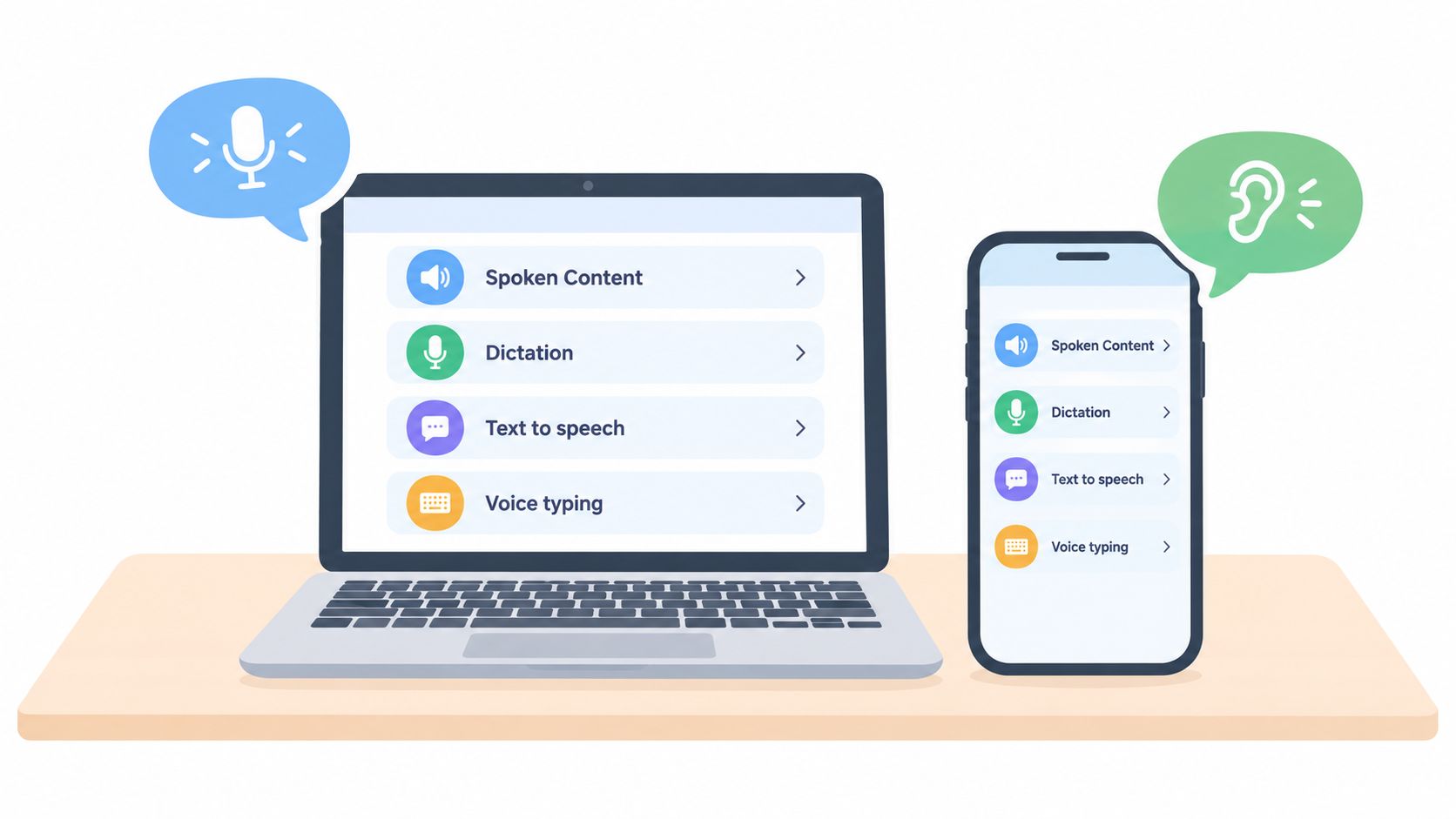
Windows offers text-to-speech and accessibility tools for reading interface content, along with voice typing for turning speech into text. The exact controls can vary by Windows version and configuration, so search Settings for terms such as “text to speech,” “narrator,” or “voice typing.” Test the feature inside the application where you write, because a shortcut that works in one field may behave differently in another.
For a practical macOS walkthrough focused on entering spoken text, see this guide to speech-to-text on Mac.
Phone settings follow the same model
On iPhone and iPad, spoken-content accessibility features can read selected text or screen content, while the keyboard includes dictation. On Android, accessibility services such as text-to-speech can read content aloud, and the installed keyboard commonly provides voice input. Names and locations vary between manufacturers, Android versions, and keyboard apps.
The free built-in tools are useful, but they have limits:
- Basic feedback: They can read text or provide simple voice entry without extra software.
- App variation: A feature may work smoothly in one application and feel inconsistent in another.
- Limited cleanup: Dictated text may need manual punctuation, formatting, or correction.
- Few custom terms: Specialized names, products, and technical vocabulary may require repeated fixes.
- Separate controls: Reading and dictation often live in different settings, so the combined workflow takes practice.
Try the built-in option for a week of real work. Use it in emails, notes, documents, and search fields rather than judging it from a single sentence. You'll quickly learn whether the main barrier is recognition quality, editing, the microphone, or remembering to use the feature.
Here's a short visual demonstration of how voice-related settings can fit into an everyday device workflow:
Third-Party Tools Worth Considering
Built-in tools are often enough for occasional dictation or a quick read-aloud check. Dedicated software becomes more attractive when voice input is part of your daily work and you need consistent behavior across applications, better cleanup, specialized vocabulary, or stronger language support.
A 2025 multi-country study of clinicians found a median dictation speed of 93 words per minute, compared with 21.4 words per minute for keyboard entry, roughly 4.3 times faster, with about 9–12% documentation time savings in the study population. The researchers also noted variation between participants and less consistent gains for some non-native English speakers, so raw speaking speed shouldn't be treated as a guaranteed productivity result. Read the full study.
The practical question isn't “Which tool has the longest feature list?” It's “Where does my current workflow break?” If you only need occasional voice entry, built-in options may be sufficient. If you dictate reports, support replies, research notes, or prompts throughout the day, global insertion and automatic cleanup can matter more than a polished demo.
| Factor | Built-In OS Features | Dedicated Tools (e.g. Voice Control Pro) |
|---|---|---|
| Processing location | Often depends on the operating system and feature | May offer cloud processing, local processing, or both |
| App coverage | Can vary by application and text field | Usually designed to insert text wherever the cursor is |
| Language support | Typically tied to system and keyboard language options | May provide broader language choices and custom language handling |
| Text cleanup | Basic transcription with manual correction | Can include punctuation, formatting, and style-aware cleanup |
| Vocabulary | Limited customization | May support custom dictionaries and specialized terms |
| Feedback workflow | Reading and dictation are often separate | Some tools combine dictation, editing, and spoken review |
Look for software that lets you control when recording starts and stops, shows where audio is processed, and makes correction easy. A tool that inserts rough text quickly but forces extensive cleanup may not save time. Readers comparing broader audio capture and note workflows may also find a voice recording note taking app comparison useful before choosing a setup.
Privacy and Health Trade-Offs
Voice input isn't automatically private or automatically healthy. It changes where your data travels and which parts of your body do the work.
With cloud processing, recorded speech may leave your device so a remote service can transcribe it. That can improve access to language models or specialized recognition systems, but it raises questions for medical notes, legal drafts, customer records, internal strategy, and unpublished research. Read the provider's privacy explanation, check retention and deletion terms, and identify whether audio, transcripts, or both are stored.
Local processing keeps recognition on the device. It can be valuable when a document is sensitive or an internet connection isn't appropriate. Some tools provide a local-only mode, such as Fly Mode, which pauses cloud features while processing speech on the computer. The important point is to verify the setting rather than assume that “offline” or “private” means the same thing everywhere.
Voice changes the load
Many users try dictation because typing hurts, then discover that their shoulders rise, their neck leans toward the microphone, or their voice tires. A small laboratory study found reduced static muscle activity in the forearm and neck during speech-recognition tasks, but also observed changes in shoulder activity and increased activity in voice-related muscles. Most participants remained slower after six weeks of training. The ergonomics discussion is summarized here.
That finding supports a more accurate description: dictation can redistribute load, not eliminate it. Keep the microphone at a comfortable distance, sit with your shoulders relaxed, vary your posture, and pause when your voice or neck feels strained. Alternate between speaking, keyboard input, and listening rather than forcing one method through every task.
For users testing privacy-sensitive dictation, this guide to local speech-to-text explains why on-device processing can be part of a safer workflow. Accessibility tools can support communication and reduce effort, but they aren't medical treatment. Persistent pain, numbness, weakness, or vocal symptoms deserve advice from an appropriate health professional.
Getting Started Today
You can test the complete idea without redesigning your whole workspace:
- Enable spoken feedback: Read a sentence you've already typed and listen for errors your eyes missed.
- Try dictation: Speak a short email or note into the device's built-in voice input.
- Compare the result: Check how much editing the transcription needs and whether hearing it improves your review.
- Test local processing: Use a local option for sensitive material and create a clear rule for what never enters cloud processing.
- Choose by workload: Stay with built-in tools for occasional use. Consider dedicated software when dictation, cleanup, and cross-app entry are daily requirements.
The central insight is simple: hearing your words and speaking your words are complementary halves of one workflow. One checks the text that exists. The other helps you create it with less mechanical effort. Start with a short note today. The barrier is usually a few settings and a small amount of practice, not a complete technical project.
Voice Control Pro combines cursor-based dictation with spoken-typing feedback, so you can speak naturally, insert polished text across apps, and review what landed without breaking your flow. Visit Voice Control Pro to try a faster, more accessible voice workflow with local processing options.