
A student opens a blank document before class and faces several different barriers at once. Dictating an essay may be easier than typing it, but controlling the cursor and correcting errors can still require a keyboard. A student who struggles to hear the lecturer needs live captions, while another student may need a searchable transcript to review ideas later. Someone with dyslexia may benefit from dictation only when it works alongside word prediction, text-to-speech, and reading support.
That's why the best speech to text software for students with disabilities depends less on the brand and more on the accessibility job. Do you need hands-free authoring, system control, lecture capture, live captions, or integrated literacy support? The answer also depends on your device ecosystem, school platform, privacy requirements, institutional licensing, and whether you need a polished draft, a rough transcript, or readable speech on screen.
The tools below compare those practical differences, including setup burden, compatibility, on-device versus cloud processing, cost constraints, classroom fit, and limitations. Dictation can also support broader reading and writing strategies, including an aanpak voor leesbegrip bij dyslexie, but no software should be treated as a universal accommodation.
Table of Contents
- 1. Voice Control Pro
- Where it helps most
- 2. Nuance Dragon
- Best classroom fit
- 3. Windows 11 Voice Access
- Limits to check first
- 4. Microsoft 365 Dictation and Transcribe in Word for the Web
- When to choose it
- 5. Apple Voice Control and Dictation
- Where it falls short
- 6. Otter.ai
- Consent and accommodation
- 7. Google Live Transcribe and Sound Notifications
- Classroom use
- 8. Google Docs Voice Typing and Slides Captions
- A good first test
- 9. Texthelp Read&Write
- Questions for education IT
- 10. Ava
- When automated captions aren't enough
- Top 10 Speech-to-Text Tools, Accessibility Comparison
- Match the Tool to the Accommodation
1. Voice Control Pro
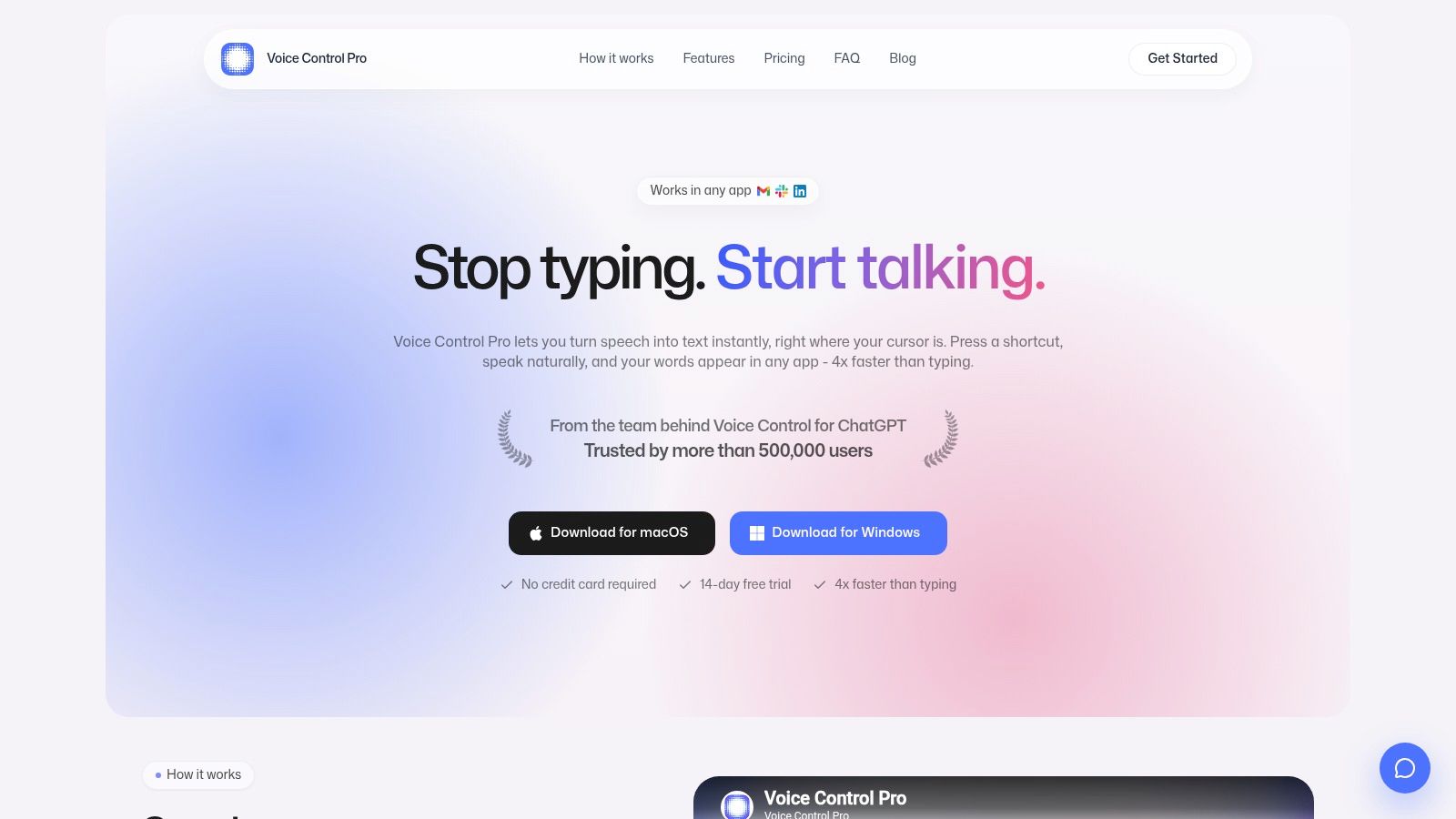
Voice Control Pro fits students who need hands-free authoring across different applications. Hold its global shortcut, speak naturally, and release to place refined text wherever the cursor is active. That includes documents, browser forms, email, chat windows, and learning-management systems, so students can avoid dictating in one app and copying the result into another.
The cursor-based workflow reduces switching for students who lose momentum between tools. It can support an assignment draft, a discussion-board reply, or notes entered directly into a web application. The company states that the process can be up to four times faster than typing, but results depend on speech patterns, microphone quality, correction habits, and background noise. Students should test it with their own coursework rather than assume the stated speed.
Where it helps most
The built-in Hey Max assistant adds system-control functions beyond dictation. Students can ask it to rewrite selected text, answer a contextual question about the screen, or open an installed app by voice. Those commands may help when repetitive mouse and keyboard use is the main barrier, although accessibility staff may need to check how well they fit a student's workflow.
Privacy and processing location also affect suitability. Fly Mode keeps processing local and pauses cloud features, while the free local mode provides unlimited dictation through an on-device model. Cloud features add higher refinement, custom dictionaries, transcription history, more than 99 languages, and cleanup levels matched to a student's writing style.
Voice Control Pro supports macOS and Windows and has a relatively simple setup. It is less suitable for mobile users or students who need continuous background recording. Push-to-talk also requires holding a shortcut, which may not work for every motor profile. Cloud dictation on the free plan is limited to 2,000 words per week, while local dictation remains available. The Max plan costs $9 per month, and the product offers a 14-day free trial without a credit card, according to the Voice Control Pro website.
Practical rule: Test local mode with the student's actual course vocabulary before sending sensitive academic or disability-related information to a cloud service.
2. Nuance Dragon
Nuance Dragon remains the better choice for students who need deep systemwide voice control, long-form dictation, and extensive customization on Windows. It's designed for people who dictate across multiple applications and need more than a microphone button inside one document editor. Students working with technical terminology can build custom words, phrases, and commands, then use voice editing and navigation to revise text without constantly reaching for the keyboard.
Dragon Professional v16 works offline on Windows, which helps when privacy, connectivity, or institutionally restricted networks are concerns. Its mature command system can support drafting long papers, navigating menus, selecting text, correcting phrases, and moving through compatible applications. Dragon Anywhere extends continuous dictation to mobile devices and can synchronize custom vocabulary.
The trade-off is setup. Dragon asks more of the student and support team than a built-in dictation tool. A disability-services office or campus IT department may need to help create a profile, configure microphones, and confirm compatibility with the applications used for coursework. The desktop version is Windows only, with no Mac desktop support, and the heavier configuration can be frustrating for a student who needs immediate access.
Students comparing Dragon with a lighter cross-app option can also review this guide to speech recognition software for students with disabilities.
Best classroom fit
Dragon makes sense when dictation is a central accommodation for essays, exams, research writing, and daily computer control. It's less attractive for occasional note-taking or students who primarily use an iPad, Chromebook, or Mac.
Visit Nuance Dragon for current editions and availability. Pricing and licensing can change, so students should check whether their institution already provides access before purchasing.
3. Windows 11 Voice Access
Windows 11 Voice Access is the practical starting point for a student who needs free hands-free control of a Windows computer. It combines dictation with commands for navigating the operating system, editing text, opening applications, and interacting with interface elements. That makes it more useful than a simple voice-typing box for students with mobility limitations, repetitive-strain concerns, fatigue, or difficulty using a mouse.
The feature is built into Windows 11, so students generally don't need to request permission to install a separate application. That can make a difference on managed school devices where third-party software is blocked. Its on-device speech model can work without an internet connection, which supports privacy and reliability in classrooms with inconsistent connectivity.
Voice Access also offers precise controls such as number overlays and spelling by voice. Those tools help when the student needs to identify a particular button, correct a proper name, or enter a word the recognizer doesn't understand. In practice, the student should rehearse commands before relying on them during an assessment or live class, especially if the software behaves differently across Windows builds.
Limits to check first
Some newer capabilities are limited by language, hardware tier, and Windows version. A school device may therefore offer a different experience from a personal computer even when both run Windows 11. IT support should confirm the build, microphone permissions, account restrictions, and whether Voice Access can be used during proctored assessments.
For students who need a no-cost systemwide option, Windows accessibility features are a sensible first test. It won't offer the same depth of custom vocabulary or refinement as Dragon or Voice Control Pro, but its OS integration lowers the setup burden.
4. Microsoft 365 Dictation and Transcribe in Word for the Web
Microsoft 365 works well when the student already writes in Word for the web through a school account. Dictation places spoken words directly into the document, while the Transcribe pane supports a different job, turning uploaded recordings into text and separating speakers. That distinction matters in group projects, interviews, office hours, and lectures where the student wants to review what was said after the event.
The strongest advantage is workflow continuity. The document, transcript, and related files can remain connected to the student's Microsoft account and OneDrive environment. A student can dictate a paragraph, edit it in Word, and keep a recording or transcript nearby rather than managing several unrelated applications.
The main limitation is institutional dependency. Features vary by Microsoft 365 subscription tier, and uploaded-audio transcription can be subject to a monthly allowance. Students who record many lectures should confirm the current allowance with their school administrator before making Transcribe the primary note-taking method. A cap can turn a convenient accommodation into a planning problem.
When to choose it
Choose Microsoft 365 when the school already uses Word, OneDrive, and Microsoft accounts, and when the student needs both live authoring and occasional recording transcription. It's less suitable as a complete computer-control solution because Word dictation doesn't replace system navigation.
Try the current features through Microsoft 365. Ask the school whether the account includes Transcribe, whether recordings may be uploaded under its privacy policy, and how long transcript data is retained.
5. Apple Voice Control and Dictation
Apple Voice Control and Dictation are a strong built-in combination for students who use a Mac, iPad, or iPhone and want hands-free text entry without installing extra software. Dictation handles text fields across Apple apps, while Voice Control supports navigation, selection, editing, and interaction with interface elements. Together, they can reduce the need for keyboard and pointer use in notes, messages, documents, and email.
The minimal setup is the main benefit. A student can activate the relevant accessibility settings and start testing in Notes or a document. Automatic punctuation and keyboard co-editing can make short drafts less tedious, while Voice Control provides more granular control when a student needs to select text, move through a page, or issue commands.
Privacy is another consideration. Apple has expanded on-device processing on supported hardware and operating-system versions, but students shouldn't assume every model handles every feature locally. Device age, language, OS release, and feature availability all affect the experience.
On-device processing can reduce exposure of sensitive speech, but the student still needs to check the specific device and feature before relying on that assumption.
Where it falls short
Students using older Apple hardware may not receive the newest dictation improvements. Language availability also varies, and specialized academic terminology may need more manual correction than it would in a dedicated tool with custom vocabulary. Voice Control can help with navigation, but it may take practice to learn exact commands.
Review current options at Apple Accessibility. For a formal accommodation, disability services can help determine whether Apple's built-in tools meet the student's needs or should be paired with another application.
6. Otter.ai
Otter.ai is built for lecture capture and review, not primarily for turning spoken ideas into polished text inside an essay. It can provide live transcription on web and mobile, identify speakers, create summaries and highlights, and make notes searchable. That makes it useful for students who need to revisit a lecture, study-group discussion, interview, or online meeting.
A student may use Otter during a class, then search the transcript for a term while studying. Shared note spaces can support group projects, and integrations with video-conferencing platforms can reduce the need to manage a separate recording workflow. Automated summaries may also give a student a starting outline, although they should be checked against the transcript and course materials.
Accuracy depends heavily on the audio environment. Multiple people speaking at once, distance from the microphone, background noise, accents, and technical vocabulary can all create errors. A transcript is a support for review, not an unquestioned record of what an instructor said.
Consent and accommodation
Because Otter is cloud-based, students should check recording consent, institutional policy, and instructor expectations before capturing a class. A disability-services office may already have an approved process for lecture recording or note-taking technology. Paid tiers may gate useful features, while student discounts and promotions can vary.
For a workflow focused on spoken material rather than document drafting, this guide to voice dictation for lecture notes offers a useful comparison point. See the current product details at Otter.ai.
7. Google Live Transcribe and Sound Notifications
Google Live Transcribe serves a different accessibility job: turning nearby speech into readable captions in real time. It's particularly relevant for deaf and hard-of-hearing students who need access to classroom discussion, lab instructions, office hours, or spontaneous conversations. Sound Notifications add alerts for environmental sounds such as alarms and doorbells, which can support awareness beyond spoken language.
The Android app is fast to launch and designed for immediate use. Students can pause and resume captions, hold a transcript, and use an accessibility shortcut rather than searching through settings every time. On-device processing supports offline use in many scenarios, though performance and availability vary by device model and Android version.
Live Transcribe isn't a polished writing tool. It's not the right choice when the student wants to dictate an essay into a document, control a computer by voice, or produce carefully edited lecture notes. It also shouldn't replace formal captioning when a class requires dependable access to complex content, multiple speakers, formulas, or specialist vocabulary.
Classroom use
Position the phone where it can hear the instructor clearly, and test the setup before class. Students may need permission to use a phone or display captions on another screen. For formal accommodations, coordinate with disability services so the instructor understands whether Live Transcribe is supplemental or part of the approved access plan.
Explore the current features through Android accessibility. The app's no-cost availability makes it a useful fallback for ad-hoc conversations, even when a campus uses a separate captioning service.
8. Google Docs Voice Typing and Slides Captions
Google Docs Voice Typing fits students who do most of their work in Google Workspace, especially on a Chromebook or another cloud-first school device. It places dictation directly into a document and supports spoken commands for punctuation, formatting, and edits. Google Slides adds live captions for presentations, so the same ecosystem can support both writing and presenting.
The setup is light. There's no profile training, separate desktop installation, or complex configuration. A student can open a document, activate Voice typing, and begin drafting. Because text appears in the document as the student speaks, it's easier to keep ideas in one place than with a standalone transcription recorder.
The limitations are equally clear. Voice typing is browser-dependent and requires internet processing, which can be a problem in rooms with unreliable connectivity or strict network controls. It also offers fewer advanced correction, vocabulary, and workflow tools than dedicated dictation software. Students who need dictation across email, desktop applications, or an LMS may end up copying and pasting.
A good first test
Use Google Docs Voice Typing for a short assignment and a realistic paragraph containing course terminology. Check whether punctuation, names, citations, and formatting need more correction than the student can comfortably manage.
Students who want detailed instructions can follow this guide to dictate in Google Docs. The official Google Docs environment remains a practical option when the school account and browser are already familiar.
9. Texthelp Read&Write
Texthelp Read&Write is the best fit for students who need a literacy support system rather than dictation alone. Talk&Type provides speech-to-text, but the suite also includes text-to-speech, word prediction, reading support, and other tools that can help students with dyslexia, language-processing difficulties, or mixed learning needs.
That combination changes the workflow. A student might dictate a first draft, use word prediction while correcting a phrase, and listen back to the text through text-to-speech. Listening can reveal missing words or awkward sentences that are easy to overlook when the student is focused on getting ideas onto the page. The tool therefore supports both production and review.
Schools often deploy Read&Write through institutional licenses, with administrative controls, training resources, and integration options for education environments. That can reduce the burden on an individual student, but it also means access may depend on the school's procurement decisions. Pricing is commonly negotiated institutionally rather than displayed as a simple student subscription.
Questions for education IT
Ask whether the school's license covers the student's platform, whether Talk&Type works in the relevant LMS and browsers, and which features require an internet connection. Offline capability varies by platform and configuration, so students shouldn't assume that a feature available on a managed Windows computer will behave identically on a Chromebook or Mac.
See the current product information at Texthelp Read&Write. For students whose main barrier involves reading, spelling, drafting, and revision together, its breadth may matter more than dictation speed.
10. Ava
Ava is designed around live captioning for education and campus life. It can display automated captions on phones, laptops, or classroom screens for in-person and online classes. Institutional workflows can also include professional or human-assisted captioning when automated output isn't reliable enough for the content or accommodation.
That education focus is useful when a student needs more than an app installed on a personal device. Disability services can evaluate how captions should appear, whether instructors need a classroom display, and whether online classes require a coordinated captioning workflow. Ava's model can scale from individual use to broader campus deployment, although larger implementations require planning and procurement.
The practical trade-off is reliability versus cost. Automated captions can struggle with poor audio, overlapping speech, names, formulas, and specialist terminology. Higher reliability or advanced options may require paid tiers or human assistance, so the student and institution should define what level of accuracy the course demands.
When automated captions aren't enough
Use automated captions as a supplement when the student can safely verify meaning and the class environment is predictable. For high-stakes instruction, complex technical material, or formal accommodation requirements, discuss human-assisted captioning with the disability-support team.
Review education options through Ava. The most suitable setup may involve the instructor's microphone, classroom audio, a caption display, and an agreed process for correcting or reporting errors.
Top 10 Speech-to-Text Tools, Accessibility Comparison
| Product | Key features | Quality (★) | Price/Value (💰) | Target (👥) | Unique (✨) |
|---|---|---|---|---|---|
| Voice Control Pro 🏆 | Cursor‑first press‑hold dictation; Hey Max assistant; Fly Mode (local) | ★★★★☆, polished, fast insertion | 💰 Free tier (2k cloud words/wk); Max $9/mo; 14‑day trial | 👥 Knowledge workers, students, devs, accessibility users | ✨ Hey Max rewrites/screen Q&A, on‑device unlimited dictation, cross‑app insertion |
| Nuance Dragon (v16 / Anywhere) | Trainable offline model; extensive voice commands; Dragon Anywhere mobile | ★★★★★, industry accuracy | 💰 Premium (higher upfront/subscription) | 👥 Power users, students needing technical vocab, disability support | ✨ Trainable vocab & deep command/control; robust offline Windows support |
| Windows 11 Voice Access (built‑in) | Systemwide dictation & PC control; on‑device model; precise editing tools | ★★★★☆, tight OS integration | 💰 Free (included with Windows 11) | 👥 Windows users, IT‑restricted environments, accessibility needs | ✨ Number overlays, spelling by voice, on‑device privacy |
| Microsoft 365 Dictation & Transcribe | Live dictation in Word; Transcribe pane with speaker labels; OneDrive sync | ★★★★☆ | 💰 Included with Microsoft 365 (subscription caps apply) | 👥 Students and institutions on Microsoft 365 | ✨ Speaker separation, integrated transcript + document |
| Apple Voice Control & Dictation | Systemwide dictation & Voice Control across Apple devices; on‑device processing | ★★★★☆ | 💰 Free with Apple devices | 👥 Apple users, accessibility and RSI support | ✨ Strong on‑device privacy, keyboard co‑editing |
| Otter.ai | Live transcription, automated summaries, highlights, Zoom integration | ★★★★☆ | 💰 Free tier; paid plans for more minutes/features | 👥 Students, study groups, meeting note‑takers | ✨ Auto‑summaries, searchable collaborative notes |
| Google Live Transcribe & Sound Notifications | Real‑time captions and sound alerts on Android; on‑device mode | ★★★★☆ | 💰 Free | 👥 Deaf/hard‑of‑hearing users, Android users | ✨ Sound Notifications + instant on‑device captions |
| Google Docs Voice Typing (and Slides captions) | Voice typing with commands; Slides live captions; Drive integration | ★★★☆☆, browser‑dependent | 💰 Free (requires Google account/internet) | 👥 Chromebook/Google Workspace users, classrooms | ✨ Direct in‑doc dictation and presentation captions |
| Texthelp Read&Write (Talk&Type) | Talk&Type dictation + TTS, word prediction, cross‑platform, LMS integration | ★★★★☆ | 💰 Institutional licensing (varies) | 👥 Schools, students with dyslexia/literacy needs | ✨ All‑in‑one literacy suite with admin/training tools |
| Ava (Live Captions for Education) | Live AI captions, translation, display on phones/screens, pro captioning options | ★★★★☆ | 💰 Paid / institutional plans | 👥 Classrooms, institutions needing captioning scale | ✨ Scales campus‑wide; human‑assisted caption workflows |
Match the Tool to the Accommodation
Start with the barrier, not the feature list. If the student needs to produce essays, emails, discussion posts, or research notes by voice, prioritize a document-dictation tool that inserts text where the cursor is active. Voice Control Pro, Dragon, Windows Voice Access, Apple Dictation, Microsoft 365, and Google Docs Voice Typing can all fit that broad job, but they differ sharply in system control, customization, privacy, and platform requirements.
If typing and pointer use are both difficult, choose systemwide control, not just a dictation button. Voice Access, Apple Voice Control, Dragon, and Voice Control Pro can help with navigation and editing, while simpler document tools may leave the student dependent on a keyboard for corrections. If the student needs to revisit teaching rather than author text, choose lecture capture or searchable transcription, such as Otter.ai or Microsoft 365 Transcribe. For deaf and hard-of-hearing students who need speech displayed as it happens, Live Transcribe and Ava address live captions instead.
Then confirm the device and school platform. A Windows student may have access to Voice Access or Dragon, while a Chromebook user may be limited to browser-based tools. A school committed to Microsoft 365 may make Word and OneDrive the simplest route. A Google Workspace environment may favor Docs and Slides. Apple users can begin with built-in features before considering a dedicated application.
Processing location deserves equal attention. On-device options can support privacy and offline use, while cloud tools may provide stronger refinement, searchable transcripts, collaboration, or speaker separation. Ask where audio and transcripts are processed, how long recordings remain available, and whether the student's disability, medical, or academic information could appear in dictated content.
Accuracy is personal. Test the tool with the student's accent, speech patterns, languages, names, formulas, quotations, and course vocabulary in the actual classroom environment.
Review subscription limits, institutional licenses, consent requirements, recording policies, and assessment rules before adopting a tool. A free product may be the best fit if it works reliably, while a paid product may be justified when the student dictates across every application or needs a custom vocabulary. Educational guidance also treats assistive technology as part of individualized planning for students receiving special-education services, as described by the National Center for Education Statistics.
The need is substantial. During the 2022–23 school year, 7.5 million U.S. students ages 3–21 received special-education or related services under IDEA, representing 15% of public-school students, according to the same federal source. The largest served group was specific learning disabilities at 32%, followed by speech or language impairments at 19%, other health impairments at 15%, and autism at 13%. Those categories point to varied barriers, so one universal dictation recommendation is unlikely to serve every learner.
Finally, pilot one primary tool and one fallback before building coursework around them. Compare raw transcription with the corrected submission, because automatic cleanup can alter punctuation, quotations, formulas, meaning, or the student's authentic voice. A 2025 systematic review identified promise in AI-driven speech-to-text while also calling for further validation and warning about algorithmic bias and inaccessible interfaces, as discussed in the Journal of Disability Research review.
Coordinate with disability services or education IT when the student needs formal accommodations, exam support, campus-wide captioning, software deployment, microphone advice, or privacy review. The right tool isn't the one with the longest feature list. It's the one the student can operate consistently, verify confidently, and use without adding a new barrier to learning.
Voice Control Pro gives students cross-app dictation, local processing options through Fly Mode, custom vocabulary, cleanup controls, and support for more than 99 languages on macOS and Windows. If you need to draft, revise, or enter text without leaving the active application, visit Voice Control Pro and test whether its workflow fits your accommodation needs.