
Most advice about speech recognition software for students with disabilities starts with typing speed. That's the wrong starting point. A student doesn't need a fast transcript that repeatedly mishears their name, diagnosis, course terminology, or spoken answer. They need a system that understands their speech well enough to preserve ideas, works inside the apps they already use, protects sensitive audio, and lets them correct errors without losing concentration.
Dictation can be a valid accommodation. A classic accessibility study found that high school students with and without learning disabilities learned speech recognition with acceptable accuracy, with total word errors under 10%. For students with learning disabilities, essays dictated with speech recognition were better than handwritten essays, supporting dictation as a valid test accommodation (classic dictation accommodation study). But that evidence doesn't justify handing every student the default microphone button and calling the problem solved.
The right evaluation asks a harder question: What happens when the student's speech differs from the training data? The answer determines whether a tool expands participation or creates another barrier.
| Accessibility priority | What to test | Why it matters |
|---|---|---|
| Speech adaptation | Read phrases and natural conversation | Performance can differ sharply between prepared and spontaneous speech |
| Error analysis | Deletions, substitutions, and inserted words | A single missing word can change an assignment's meaning |
| Personalization | Custom vocabulary, pronunciations, and user training | Academic language and atypical speech need more than a default model |
| Privacy | Local or offline processing | Sensitive audio shouldn't automatically leave the student's device |
| App access | Direct insertion into documents, LMS tools, and forms | Copying between apps adds friction and cognitive load |
Table of Contents
- The Hidden Accessibility Gap in Mainstream Dictation
- Core Features That Actually Determine Usability
- Accuracy must include adaptation
- Vocabulary controls should be usable by the student
- Local processing protects workflow continuity
- Integration determines whether students can actually use it
- Comparing Leading Speech Recognition Solutions
- Matching Tools to Specific Student Profiles
- Speech differences require individualized trials
- Recommended Workflows for Academic Success
- Build the setup once
- Use dictation for different kinds of work
- Navigating Privacy and Assistive Technology Funding
- Put procurement questions in writing
- Final Recommendations for Inclusive Classrooms
- Use an evidence-based approval checklist
The Hidden Accessibility Gap in Mainstream Dictation
Mainstream dictation is not a universal accommodation. It performs well for many speakers, but that does not equal equitable access. A system may transcribe conventional speech accurately while failing a student with atypical articulation, stuttering, unusual rhythm, or disability-related language patterns.
Product comparisons often reduce performance to one accuracy figure. That number conceals the type and academic effect of each error. A substitution creates the wrong word, a deletion removes a word, and an insertion adds text the student never spoke. Deleting a negation or inserting a technical term can change an assignment's meaning far more than a minor spelling mistake.
Practical rule: Do not approve dictation from a specification sheet. Test the student's own speech, vocabulary, assignments, and classroom environment.
Research on speech recognition for people with speech disorders shows why individualized testing matters. In a 2024 study, median word error rate for short read phrases was about 5%, while conversational speech performed substantially worse. For severe cases, personalization reduced median word error rate from about 90% to 28% (Journal of Speech, Language, and Hearing Research study). Those results do not predict one student's outcome or guarantee performance from a particular product. They do establish that speech context and adaptation can change usability dramatically.
Recognition can also vary widely with speech intelligibility and disability-related characteristics. Reported recognition rates ranged from 82% for normally intelligible speech to 3.9% for profoundly impaired speech, with intermediate results for mild, moderate, and severe impairment. Treat these figures as a warning about system limitations, not as a forecast for an individual student.
The accommodation must match the barrier. A student with a motor impairment may use mainstream dictation successfully when keyboard access is the main problem. A student with Down syndrome may face lower word accuracy and frequent deletion errors. A student who stutters may lose content when interruptions, repetitions, or pauses cause the system to stop listening.
Evaluate whether the student can complete meaningful academic work, then review errors by type and fix recurring failures with local processing, custom dictionaries, pronunciation entries, or a different recognition engine. Guidance on accessibility for disabled users supports the same practical principle: accessibility depends on the interaction between a person, a task, and a system.
Core Features That Actually Determine Usability
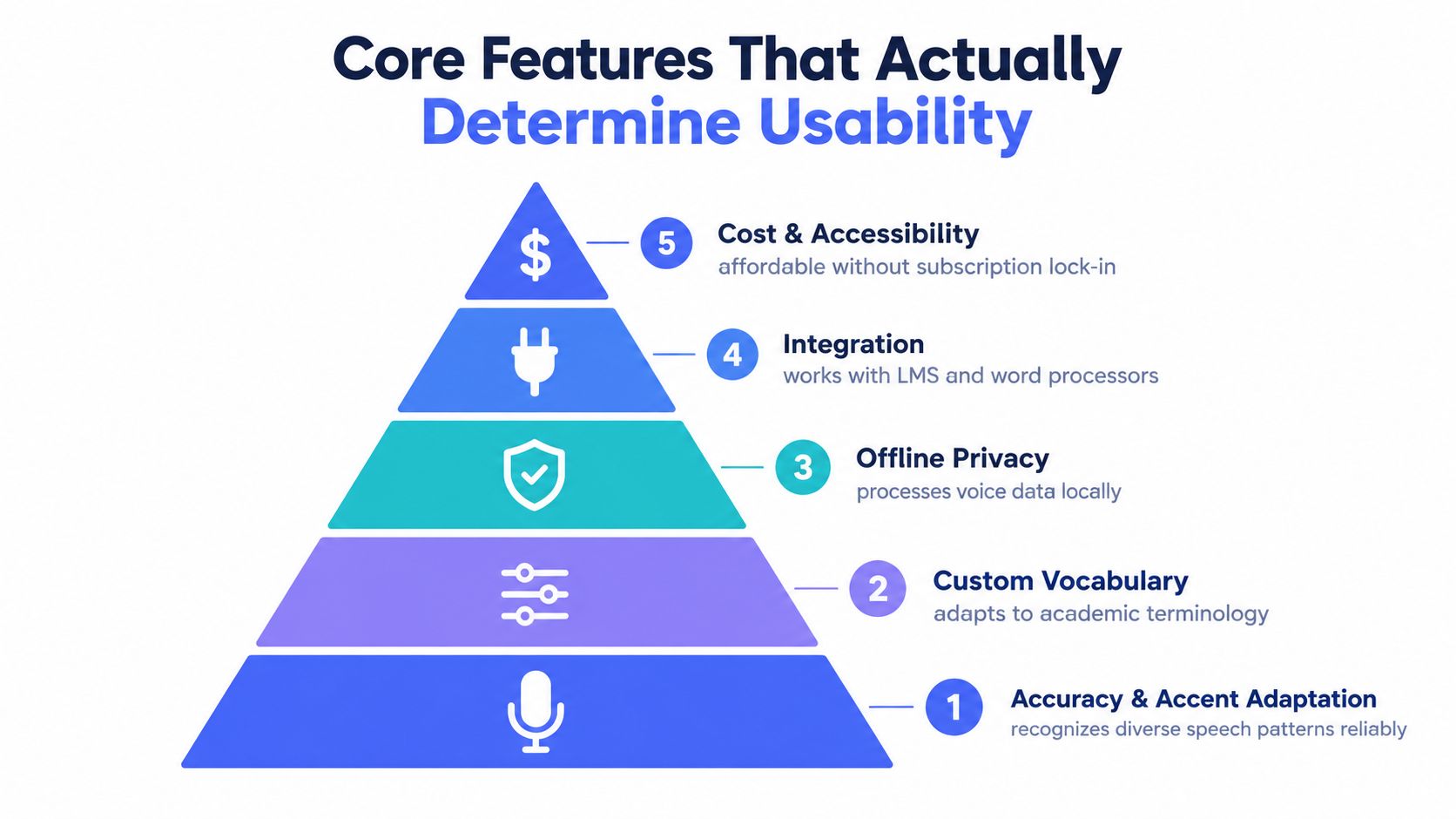
A microphone icon is not an accessibility strategy. The usable system sits on a technical foundation, and the most important features aren't always the ones highlighted in app stores.
Accuracy must include adaptation
Start by testing recognition with the student's actual speech. Use short reading passages, spontaneous explanations, course vocabulary, names, formulas spoken in words, and the kind of dictation they'll use during an assignment. For adolescents with learning difficulties, a scoping review found reported accuracy clustered around 87% to 90% in student studies. One study reported a mean of 87%, another approximately 90%, and a modestly trained system using a customized dictionary and pronunciations reached 94% (scoping review of speech-to-text technology).
Those findings support a practical recommendation: personalization isn't a luxury feature. If the tool can learn pronunciations, recognize names, and accept custom terms, the student has a way to reduce recurring errors. If it can't, staff may spend the semester correcting the same failures manually.
Vocabulary controls should be usable by the student
A custom dictionary should accept academic terms, proper names, abbreviations, and words that the student says in a distinctive way. The interface also matters. A disability service coordinator shouldn't need administrator-level technical expertise to add a biology term, and the student shouldn't have to abandon a draft to fix a recurring misrecognition.
Cleanup controls deserve equal attention. Some students need raw transcription because they're capturing ideas quickly. Others benefit from punctuation, paragraphing, and light rewriting. The software should let users control how much it changes their words. “Helpful” cleanup that alters meaning is an accessibility failure.
Local processing protects workflow continuity
Cloud processing can improve access to powerful models, but it introduces dependency on a network, account permissions, and a vendor's data practices. Offline capability is both a privacy feature and a reliability feature. A student dictating in a classroom, testing room, or restricted environment shouldn't lose access because connectivity drops.
Ask whether audio leaves the device, whether local mode is unlimited, whether cloud features can be disabled, and whether the tool stores transcripts or voice data. Keep student consent and school policy in the decision, especially when recordings contain personal information.
Integration determines whether students can actually use it
A tool that only works inside one editor creates unnecessary barriers. Prefer system-wide insertion, global shortcuts, keyboard alternatives, and compatibility with word processors, browsers, learning management systems, messaging tools, and form fields. The best shortcut is one the student can activate without moving focus away from the task.
Finally, evaluate the complete cost. A free tool that forces repeated copying, correction, and reformatting may consume more support time than a paid tool with direct insertion and personalization. Don't buy features for their own sake. Fund the workflow that lets the student work independently.
Comparing Leading Speech Recognition Solutions
The “best” solution depends on the student's speech, device, privacy requirements, and destination for the text. Built-in dictation is a sensible first test, not an automatic final recommendation. Specialized accessibility software may offer deeper training and vocabulary controls, while cross-platform tools can reduce the friction of moving between apps.
| Tool Category | Local/Offline Processing | Custom Dictionary Support | Cross-App Integration | Best For |
|---|---|---|---|---|
| Built-in operating system dictation | Varies by operating system and setting | Usually limited or basic | Often broad within the operating system | Students who need quick, low-cost initial testing |
| Google Docs Voice Typing | Dependent on the browser and service environment | Limited compared with specialized tools | Primarily Google Docs | Students whose writing stays inside Google Docs |
| Microsoft Word Dictate | Depends on product configuration and connection | Useful within Microsoft workflows, but test specialist terminology | Strong across Microsoft applications | Students working mainly in Word, OneNote, Outlook, or PowerPoint |
| Specialized desktop accessibility software | Often stronger offline support | Typically deeper training and vocabulary controls | Usually system-wide on supported platforms | Students who dictate extensively or need advanced adaptation |
| Lecture transcription and captioning apps | Commonly cloud-dependent | Usually less focused on personal dictation adaptation | Strong for recorded or live speech workflows | Students who need captions, transcripts, or lecture organization |
| Cross-platform voice-to-text tools | May offer a local mode alongside cloud features | Can include custom dictionaries and cleanup controls | Designed for insertion wherever the cursor is active | Students who move between browsers, documents, LMS tools, and messaging |
The matrix should guide a trial, not replace one. Ask the student to dictate the same material into each candidate tool, then compare meaning-changing errors, correction time, fatigue, and whether the student can operate the interface independently. Don't reward a tool because its transcript looks clean during a short demonstration.
Privacy architecture is another major dividing line. Some products require cloud connectivity for recognition, while others provide local processing or a mode that pauses cloud features. For students with atypical speech, local processing alone won't guarantee accuracy, but it can make repeated practice and sensitive academic work more controllable.
A cross-platform option such as Voice Control Pro inserts dictated text where the cursor is active and includes a local Fly Mode for on-device processing. Its Max tier also provides cleanup controls, a custom dictionary, transcription history, and an assistant for rewriting, screen questions, and app launching. Educators comparing broader assistive technology ecosystems may also find apps for autistic children useful when considering communication, routine, and learning supports beyond dictation.
Enterprise tools can be dependable, but they may lock schools into particular platforms, accounts, or licensing arrangements. Built-in tools are accessible financially, but often expose fewer controls for atypical speech. The strongest choice is the one that passes the student-centered trial and fits the school's privacy obligations.
Matching Tools to Specific Student Profiles
A tool that works for one disability profile can fail another. Match the software to the student's speech, motor access, academic tasks, and tolerance for correction. A student with limited hand movement may need system-wide dictation more than advanced speech adaptation. Prioritize reliable text entry in assignments, email, browser forms, and the LMS, plus commands that reduce mouse and keyboard use. Begin with the operating system's built-in tool. Move to specialized software when vocabulary errors, weak punctuation control, or app restrictions repeatedly obstruct work.
A student with dyslexia or another specific learning disability may produce a strong first draft but need support with spelling, cleanup, and organization. Separate composition from editing. Let the student speak without interrupting the flow, then review the draft with text-to-speech, spell checking, word prediction, and a controlled rewrite step. The guide to speech-to-text for dyslexia can help educators present dictation as one part of literacy support, not a substitute for instruction.
Speech differences require individualized trials
Standard demonstrations hide the hardest failures. For a student with a speech or language impairment, scripted phrases can sound accurate while conversational recognition breaks down, especially with more severe speech differences. Personalization may reduce errors, but only a student-centered trial shows whether the tool handles real academic communication. Test concept explanations, answers to questions, and an authentic paragraph. Compare meaning-changing errors and correction time, not just the transcript's appearance.
A student with Down syndrome may need close review for deletion errors. A grammatically plausible sentence that omits a key word can misrepresent the student's meaning. Compare transcripts with the audio or intended message, and record which errors affect grades, participation, and confidence.
Students who stutter need an adequate listening window, tolerance for interruptions, and an easy way to restart. If pauses or repetitions trigger commands, dictation increases workload. Add a personal communication strategy, alternate input method, or human-supported workflow when recognition remains unreliable.
The same profile-based approach applies to students who are deaf or hard of hearing. Their priority may be speech-to-text captioning of other people's speech, not personal dictation. Evaluate caption quality, speaker separation, display placement, and access to the complete lesson. For mobility and classroom access beyond text entry, educators can also review accessible wayfinding with Waymap.
Recommended Workflows for Academic Success
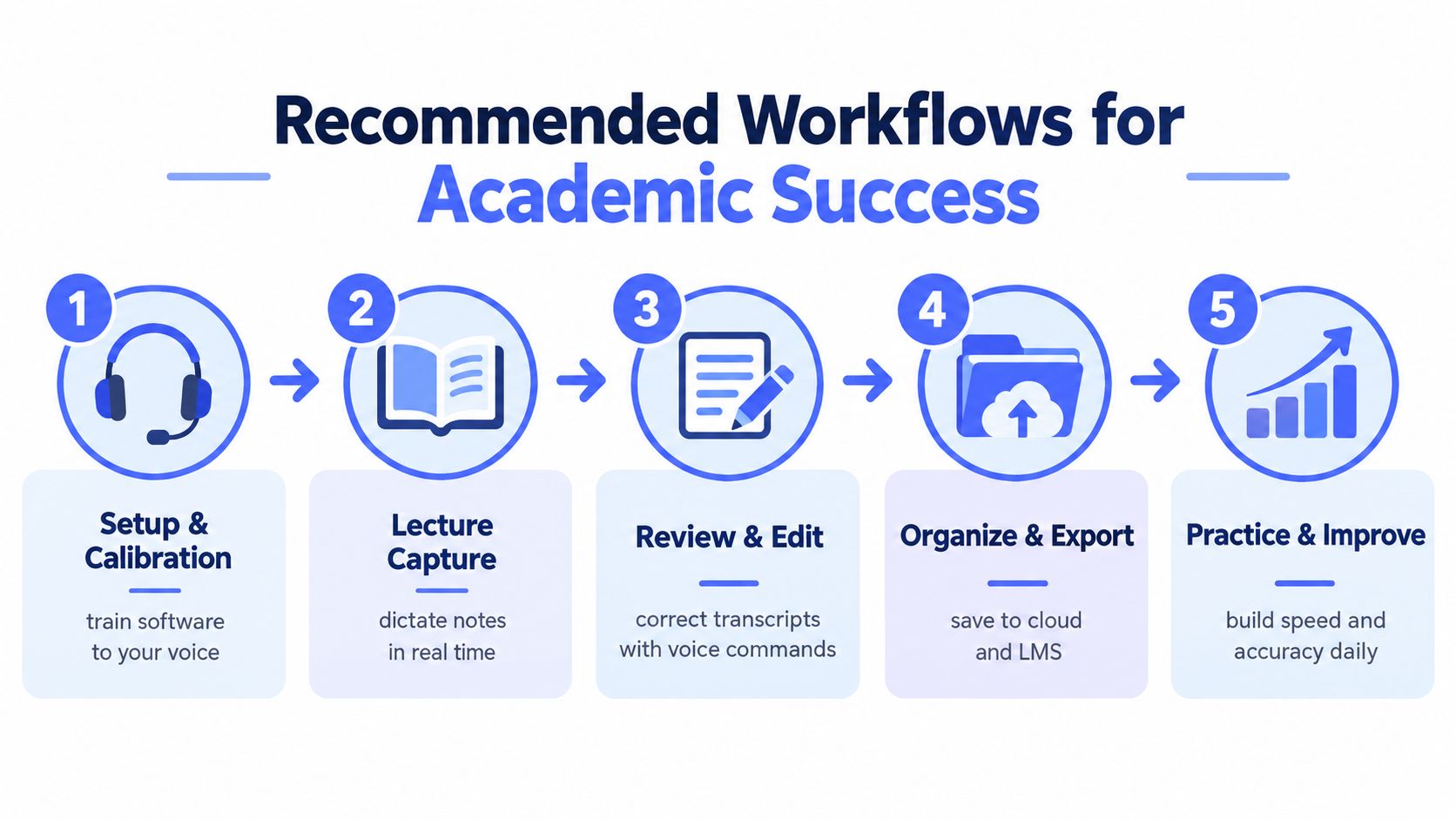
Good software still fails when students must improvise the workflow every time. Build a repeatable sequence that separates speaking, checking, organizing, and submitting. The student should know what to do before a lecture, during drafting, and after transcription errors appear.
Build the setup once
Choose a consistent microphone position and a quiet location whenever possible. Create a short calibration routine using the student's ordinary speaking style, not an artificial announcer voice. Add course-specific names and terminology before a major assignment, then test those words in complete sentences.
Set a global shortcut that works across the student's main applications. If pressing or holding the shortcut is physically difficult, configure an alternative trigger or switch access method. The goal is to let the student dictate without navigating through menus or breaking attention.
Use dictation for different kinds of work
During brainstorming, prioritize continuity over polish. The student can speak fragments, questions, and rough explanations into a document. During formal drafting, use spoken punctuation and paragraph commands, but don't force the student to monitor every word as it appears. Constant correction interrupts composition and can erase the benefit of voice input.
A practical sequence looks like this:
- Capture ideas: Speak the argument, examples, and questions without editing every sentence.
- Mark uncertainty: Say a consistent phrase such as “check this term” when a word may be wrong.
- Review by meaning: Search for names, technical vocabulary, negations, and numbers written as words.
- Polish deliberately: Apply grammar, punctuation, and style cleanup only after the ideas are complete.
- Verify the submission: Read the final document aloud or use text-to-speech before uploading it.
The third step deserves more attention than it gets. Students and staff should record recurring errors by type. If the tool deletes short words, substitutes course terms, or breaks at pauses, the remedy differs. A custom dictionary may solve vocabulary substitutions, while a different microphone, listening mode, or input method may be needed for interruptions and deletions.
Use the same review routine for lecture notes. Capture the key ideas, label uncertain passages, organize notes into the LMS or course folder, and confirm that the transcript didn't omit a critical point. A transcript is a draft of the lesson, not an unquestionable record.
The following demonstration can help students and educators understand voice-driven text entry in practice:
Navigating Privacy and Assistive Technology Funding
Schools shouldn't treat privacy as a legal checkbox added after selecting an app. Speech data can reveal a student's identity, communication profile, classroom context, and disability-related characteristics. Before deployment, staff should know whether audio is uploaded, whether transcripts are retained, who can access them, and whether the provider offers a local processing mode.
Local recognition is attractive because it reduces dependence on network access and limits the movement of sensitive data. It can also support practice in settings where cloud services aren't approved. A useful technical overview of on-device speech recognition can help an IT team distinguish local inference from a marketing label that still sends audio to a remote service.
Put procurement questions in writing
Disability service offices, teachers, IT staff, and families should agree on the student's actual requirements before requesting funding. Document the tasks the student must complete, the failures observed in testing, and the features that address those failures.
Ask vendors and school administrators:
- Data handling: Does the tool process audio locally, and can cloud processing be disabled?
- Retention: Are recordings, transcripts, or voice profiles stored after processing?
- Account control: Can the school manage access without exposing unnecessary student information?
- Device support: Does the tool work on the student's assigned operating system and required LMS?
- Continuity: Does dictation remain available when the network is unavailable?
- Exit options: Can the student export drafts, vocabulary, and notes if the school changes tools?
Funding arguments should focus on access, not novelty. A student who can dictate independently may need fewer repeated accommodations during drafting, but don't promise a specific reduction in staffing or support. Present the tool as one component of an individualized plan, with human assistance and alternate input methods available when recognition fails.
Underfunded districts should begin with structured trials of built-in tools and local-capable options, then reserve paid licenses for students whose testing demonstrates a real need. A low-cost tool is not economical if staff must repeatedly repair transcripts or manually reproduce the student's work. Conversely, an expensive platform isn't justified if a simpler option reliably meets the student's accommodation.
Final Recommendations for Inclusive Classrooms
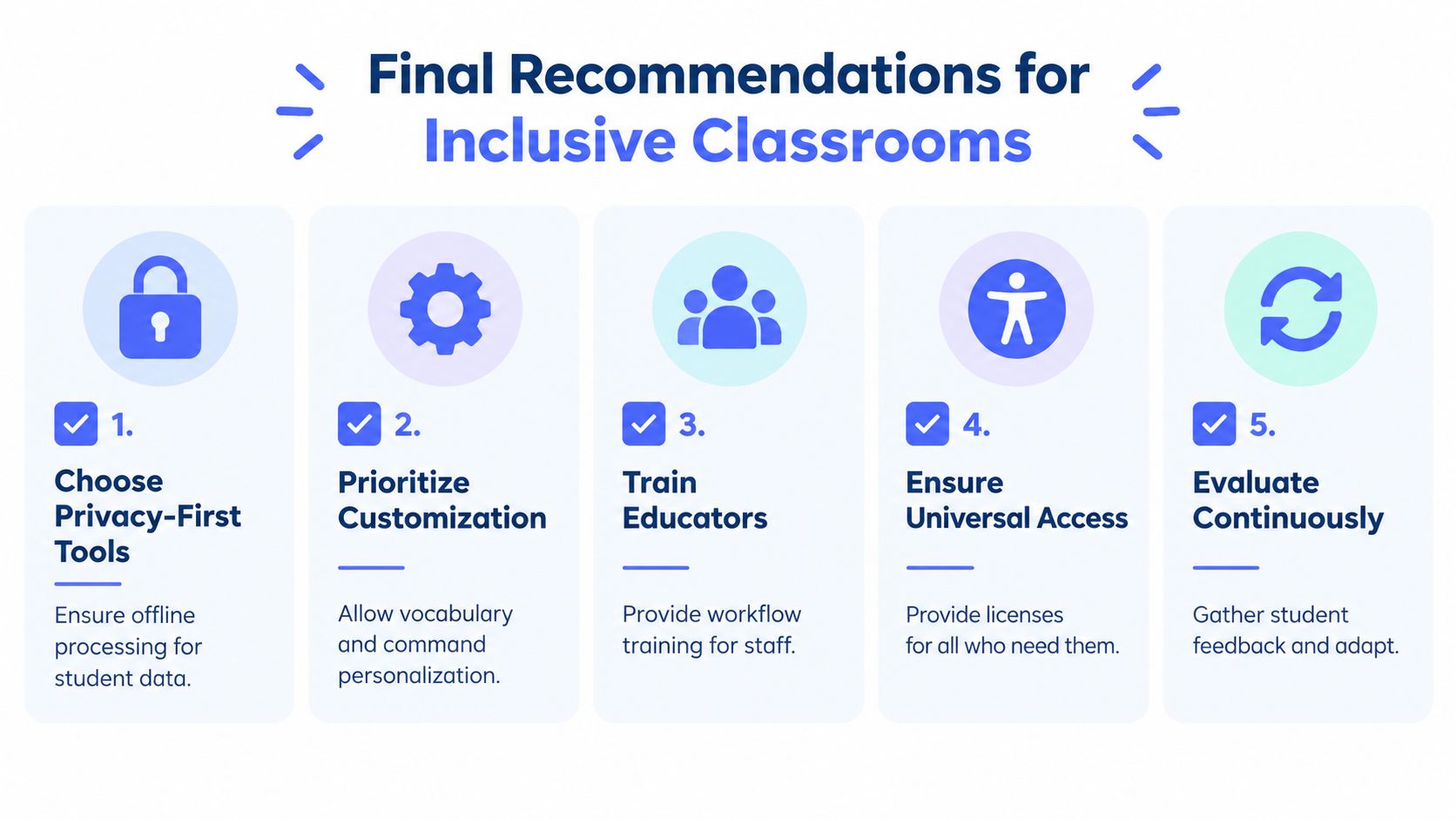
Schools should stop approving dictation because it works for the majority of speakers. Approval should depend on the individual student's outcomes. Can the student produce an accurate enough draft, correct errors independently, use the tool across required applications, and keep sensitive speech within an acceptable privacy boundary?
The strongest baseline is privacy-aware, customizable, and platform-flexible. That doesn't mean every student needs premium software. It means every student deserves a fair trial that examines their speech patterns and academic tasks rather than assuming the default model is neutral.
Use an evidence-based approval checklist
- Test authentic speech: Include conversation, pauses, repetitions, course language, names, and the student's real assignment format.
- Classify the errors: Track deletions, substitutions, insertions, punctuation failures, and recognition drop-offs during longer speech.
- Require personalization: Look for custom dictionaries, pronunciation training, adaptable listening behavior, and user-controlled cleanup.
- Protect student data: Prefer local processing when it meets the accuracy requirement, and verify retention and account policies.
- Review the whole workflow: Confirm that the student can start, dictate, edit, save, submit, and recover from mistakes without unnecessary assistance.
Training staff matters as much as licensing the software. Teachers should know how to avoid grading transcription artifacts as though they represent the student's knowledge. They should also provide a clear alternate submission route when the system misrecognizes speech, especially for students whose disability-related speech patterns remain underserved by current models.
Training data remains a serious accessibility issue. The Speech Accessibility Project describes gaps affecting people who stutter and people who are deaf or hard of hearing, and its 2025 Interspeech challenge launched with more than 400 hours of transcribed data from over 500 people with diverse speech disabilities (Speech Accessibility Project). That effort shows why schools shouldn't frame failures as student deficits. Many systems still need better representation of diverse speech.
For families and educators building broader inclusion plans, Queens Online School inclusion support offers a useful complement to software selection. Technology works best when classroom routines, assessment practices, staff training, and student preferences support the same access goal.
Evaluate the tool again after meaningful changes, such as a new course, a new device, a different microphone, or a software update. Gather feedback from the student first. The student is the person who can tell you whether dictation saves effort or merely moves the effort into correction.
Voice Control Pro provides cross-app dictation through a global shortcut, local processing through Fly Mode, and tools such as custom vocabulary, cleanup controls, and voice-assisted rewriting. Visit Voice Control Pro to test whether its workflow fits your student's privacy, speech adaptation, and academic access requirements.