
You're staring at a half-finished email, the cursor is blinking, and every word you type seems to trigger another red squiggle. The idea is clear in your head, but the act of getting it onto the page keeps breaking the flow. That's where speech to text for dyslexia earns its place, not as a cure for reading or spelling, but as a writing productivity tool that gets ideas out before they slip away.
Table of Contents
- Why Speech to Text Helps With Dyslexia
- What it fixes right away
- What the research says
- Setting Up Your Environment for Accurate Dictation
- Start with the microphone and room
- Check permissions before you blame the app
- Choosing the Right Speech to Text Tool
- Compare by accuracy, privacy, and cost
- Make the decision in two minutes
- Personalizing the Tool With Custom Vocabulary and Cleanup Levels
- Teach the words you actually use
- Match cleanup level to the task
- Dictation Habits That Reduce Editing Later
- Speak in chunks, not a stream
- Build a fast review routine
- Fitting Dictation Into a Real Daily Workflow
- Use dictation where it saves the most time
- Keep the same muscle memory across machines
- Troubleshooting the Problems Dyslexic Users Actually Hit
- Fix the usual failures first
- When accuracy suddenly drops
Why Speech to Text Helps With Dyslexia
Speech to text for dyslexia works best as a writing productivity tool rather than a literacy intervention. A student can dictate a rough draft, a professional can get an email out, and a tired writer can keep moving without getting trapped in spelling decisions every few words. That matters because the bottleneck is usually output, not ideas.
What it fixes right away
For many dyslexic writers, typing fails in the same places again and again. The slow part is rarely keying letters. It is the constant stop-start cycle of checking spelling, second-guessing word choice, and backing up to repair a sentence that has already gone stale. Dictation shifts the work to speaking, which is easier to sustain for longer stretches and puts the draft on the page before attention drops.
Practical rule: use dictation to capture thought, not to prove literacy. If you need a tool that builds spelling or reading skill over time, that is a different job.
That distinction matters. A 2026 study found no significant transfer from speech-to-text use to handwriting-based writing skills or writing motivation, and concluded STT should not be treated as a remedial literacy technology (study details). So the honest promise is narrower and more useful. Dictation helps you produce text now, and it reduces the friction that keeps strong ideas trapped.
For families and educators looking at support options more broadly, the guide to speech therapy for families is a useful companion resource because it keeps therapy and accommodation in their proper lanes. Therapy works on communication skills. Dictation works on output.
If you want a concrete sense of where this helps, look at examples of writing challenges for dyslexic users. The pattern is predictable. Drafting slows down because the writer has to manage language, spelling, and transcription at the same time. Speech-to-text removes one of those layers.
What the research says
The practical evidence lines up with what users report in real work. In a 2024 single-case intervention study in Nordic countries, 7 of 8 students with writing difficulties increased text productivity during speech-to-text use, and word-level accuracy was maintained or improved, with NAP values from 0.69 to 1.00 for most participants and near-zero word-level inaccuracy during the intervention (Nordic study). That is the result that matters, more output without throwing accuracy away.
Older dyslexia-focused evidence points in the same direction. One study found that dictation plus correction reduced the time needed to create text versus handwriting and halved error rates for severe dyslexic participants, with errors improving as users practiced and calibrated the system (ICSLP paper). That is not a magic wand. It is a better way to write when the setup is solid.
<div>
</div>
The point is straightforward. If typing drains you, dictation is worth learning because it changes how the work feels. It gets ideas down faster, and it gives you a draft worth editing instead of a blank screen worth avoiding. Just do not expect it to teach spelling by itself, and do not expect the first draft to be clean.
Setting Up Your Environment for Accurate Dictation
Bad dictation usually comes from bad audio, bad permissions, or a sloppy workspace. I've watched people blame the app while the problem was a laptop mic catching a fan, a headset sitting too far from the mouth, or the operating system blocking access.
Start with the microphone and room
Use a decent headset or a USB microphone, not the cheapest built-in option you can find. A mic close to your mouth gives the system a cleaner signal, and that matters more than flashy features. Move to a quiet corner and cut background noise as much as you realistically can.
Keep the microphone distance consistent every time you dictate. If the mic drifts farther away in the middle of a session, accuracy wobbles, and that wobble is exhausting when you are already working around dyslexia. For a practical hardware walkthrough, the best microphone setup for voice dictation desktop covers the basics without overcomplicating them.
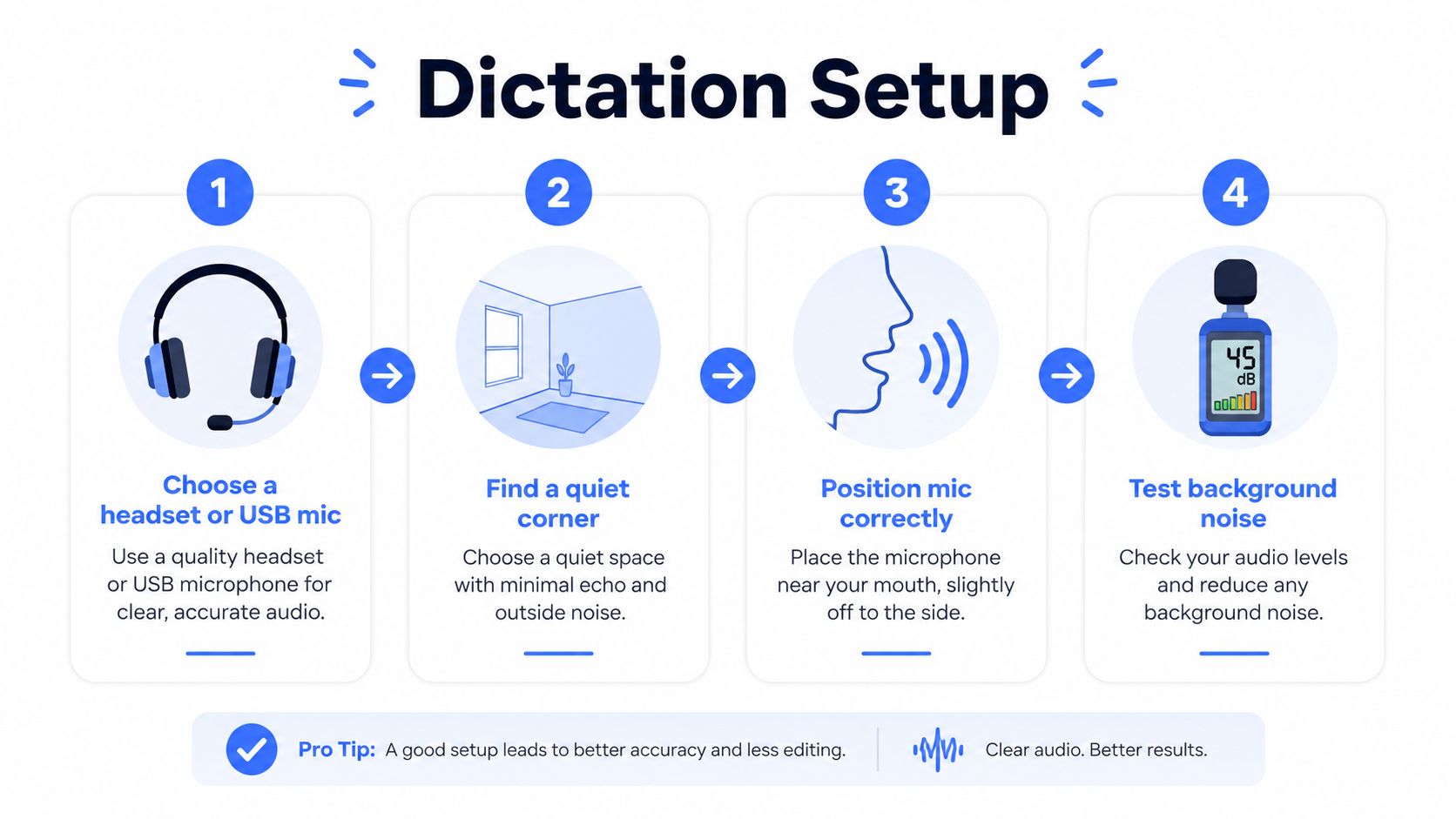
A clean mic beats a clever feature list. If the audio is messy, the model has to guess, and guessing is where accuracy starts to slide.
Check permissions before you blame the app
On macOS and Windows, verify microphone access first. Then check any accessibility permissions needed for global hotkeys, because a tool that cannot hear your shortcut feels broken even when the transcription engine is fine. If your app depends on background services, watch for firewall or security prompts that block them during setup.
Run a simple test before you do anything else: speak one short sentence and confirm it appears cleanly at the cursor. If it does not, skip vocabulary tweaks and cleanup settings for now. Fix the input chain first.
A good setup also lowers fatigue. When you are not straining to repeat yourself, you can dictate longer passages without the mental drag that makes people abandon the tool after a week. That matters whether you treat dictation as a writing aid, a literacy support, or both, because the editing burden still has to be handled somewhere. If you want a mobile comparison that shows how environment and setup shape outcomes in practice, see the iScribe Live Transcribe comparison.
Choosing the Right Speech to Text Tool
The wrong tool can waste a month. People often jump to the fanciest option, then discover it's expensive, overbuilt, or too private to trust with their actual work. For speech to text for dyslexia, the decision should be boring and practical.
Compare by accuracy, privacy, and cost
Built-in dictation is the easiest place to start. Apple Dictation and Windows Voice Typing are free and local enough for casual use, but they're limited when you need better handling for uncommon names, technical terms, or repeated cleanup. They're fine for quick notes and basic drafting, less convincing when you rely on dictation every day.
Cloud-based tools such as Dragon, Otter, and Rev usually offer stronger raw recognition, especially when you're dealing with names or specialized language. The trade-off is obvious, your audio leaves the device and goes to a server. If you're dictating sensitive content, that matters.
On-device tools sit in the middle. They can keep audio local, work across apps, and still offer customization that makes daily dictation less annoying. One example is Voice Control Pro, which includes a free local mode, an optional upgrade with 99+ language support, custom dictionaries, and Hey Max rewriting, all while staying focused on cursor-level insertion rather than forcing you into a separate editor.
| Dictation Tool Options at a Glance | Accuracy on Names | Privacy | Typical Cost |
|---|---|---|---|
| Built-in dictation | Mixed, limited customization | Stronger by default on-device | Free |
| Cloud services | Often stronger, especially with practice and training | Lower, audio leaves the device | Usually subscription-based |
| On-device AI tools | Good, especially with custom vocabulary | Strong, audio can stay local | Free local mode or paid upgrade |
If you want a side-by-side consumer look at iPhone-focused options, the iScribe Live Transcribe comparison is worth skimming before you lock yourself into one platform.
Make the decision in two minutes
Pick built-in dictation if you only need occasional voice input and you want zero setup cost. Pick cloud dictation if you're chasing the strongest raw recognition and privacy isn't a concern. Pick an on-device tool if you want a mix of privacy, customization, and cross-app workflow without constantly rethinking your setup.
My opinion: most dyslexic users who dictate every day should avoid “just try everything” mode. That burns time and teaches you nothing. Pick one path, set it up properly, and use it long enough to know what's actually failing.
If you want a broader overview of app types and workflow differences, the speech to text app guide is a good companion read.
Personalizing the Tool With Custom Vocabulary and Cleanup Levels
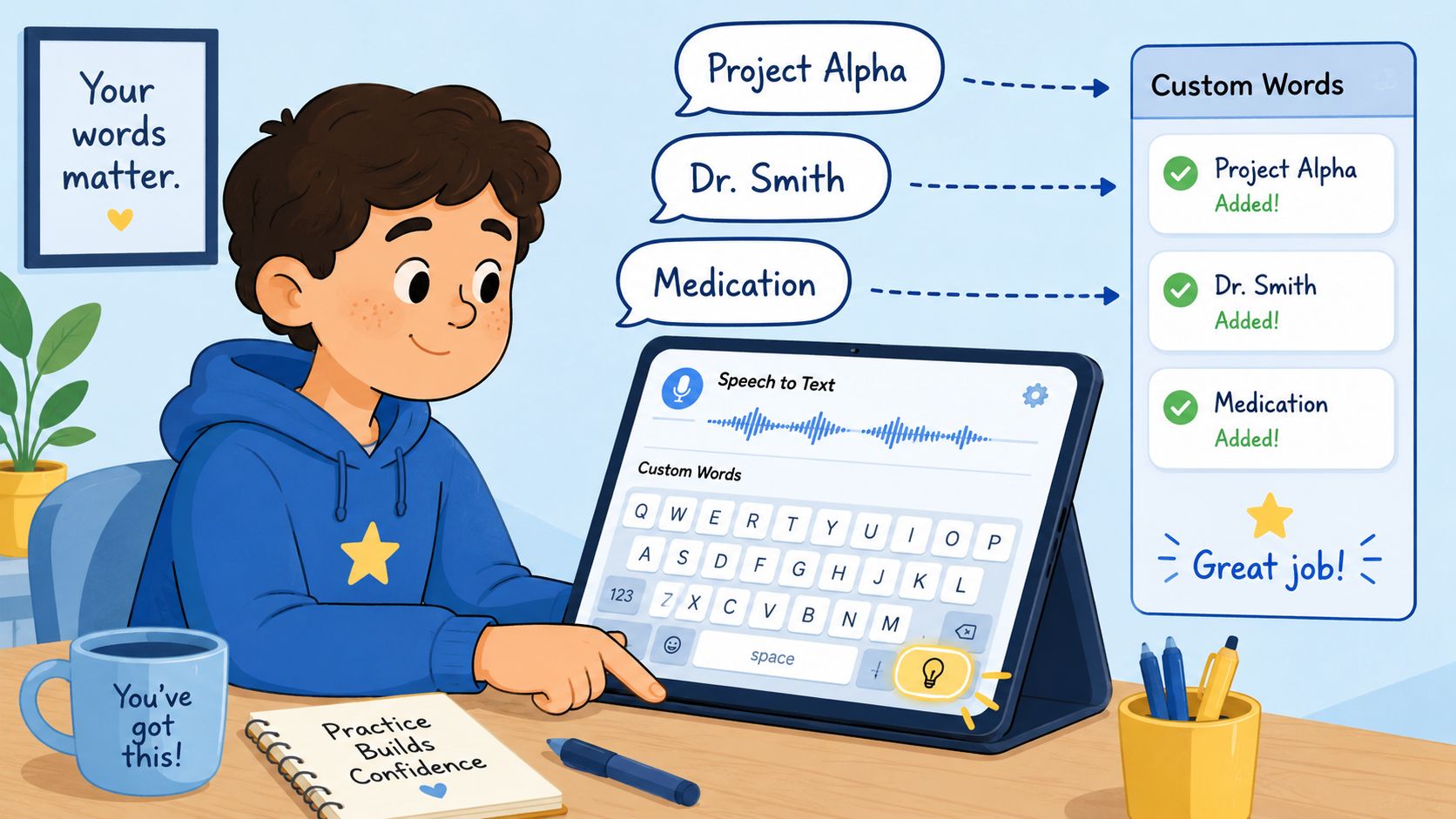
Default dictation models don't know your life. They don't know your coworker's unusual surname, the medication you mention every week, or the project code that keeps getting mangled into something else. That's why the first real improvement usually comes from customization, not from switching apps.
Teach the words you actually use
Start with names, recurring terms, places, and any jargon you write often. Add them to a custom dictionary if the tool supports one. If it doesn't, repeat the phrase clearly a few times and save the corrected version wherever the system lets you build a history or voice profile.
Tools differ in ways that matter. Some systems only transcribe. Better ones let you shape the vocabulary and the cleanup behavior so the output fits your writing style. Voice Control Pro's Max tier includes a custom dictionary and cleanup levels, which is the kind of feature set that helps when the same wrong term keeps coming back.
Match cleanup level to the task
Use light cleanup when speed matters more than polish, like quick messages or rough brainstorming. Use medium cleanup for emails and internal notes where you want a cleaner sentence shape without losing your voice. Treat heavy cleanup cautiously, because it can flatten technical language, names, and nuance if the model gets too eager.
A rough draft can survive a few rough edges. A legal memo, a customer complaint, or a nuanced explanation can't survive over-assertive rewriting that changes meaning. That's why customization should come first, cleanup second. If the model doesn't know your words, it can't clean them well.
A good dictation system should sound like you, only cleaner. If it starts sounding like someone else, the cleanup setting is too aggressive.
The rule is simple. Customize first, then dictate. Don't waste time polishing a vocabulary problem with a cleanup setting.
Dictation Habits That Reduce Editing Later
The hidden cost of dictation is the cleanup after the words land on the page. People expect speech-to-text to save time, then they spend twenty minutes fixing homophones, punctuation, and broken sentences because they dictated as if they were talking across a room. That habit creates extra work, and it is easy to break.
Speak in chunks, not a stream
Short sentences come out cleaner than long, wandering thoughts. Once you feel your point starting to drift, stop at a paragraph break and finish the idea before moving on. If a proper noun keeps getting mangled, say it the same way twice, slowly and clearly.
Use punctuation commands when punctuation matters. If you want a clean email, say the comma or period instead of hoping the model guesses your pause. Skip filler words like “um” and restart the sentence if you lose your place. Those small restarts cost less than repairing a corrupted paragraph later.
Build a fast review routine
Read the last sentence before you start the next one. That catches drift early, before the model carries one mistake three lines downstream. Then scan for the failures that show up most often, especially homophones and wrong-word substitutions.
- Homophones: If “their,” “there,” or “they're” looks off, read the sentence aloud once. The ear usually catches what the eye misses.
- Wrong-word substitutions: If the sentence is grammatical but the meaning feels wrong, check each content word, not just the spelling.
- Missing punctuation: If the text runs together, insert punctuation while the thought is still fresh instead of waiting until the end.
- Names and places: Fix them immediately, then add them to your custom vocabulary if the tool allows it.
- Lost place mid-thought: Stop, reread the last clean sentence, and restart from there. Don't let half a sentence infect the next paragraph.
The 2000 dyslexia-focused study that reported halved error rates also noted that errors improved with practice and calibration (study). That lines up with what I see in practice. The more deliberate your dictation habits, the less painful the edit pass becomes.
Fitting Dictation Into a Real Daily Workflow
Dictation only becomes useful when it fits the day you live. If a tool works in one app and nowhere else, it's a demo, not a system. The point is to make voice input a default option wherever your cursor blinks.
Use dictation where it saves the most time
Email is a strong fit, especially when you need to answer quickly and the first draft matters more than perfect phrasing. Meeting notes and class notes are also good candidates because you're capturing information fast, not polishing prose. Long-form drafting in a document works well too, as long as you accept a review pass afterward.
Typing still wins in some places. Spreadsheets, tiny data-entry fields, and situations where you need precise symbols often move faster by keyboard. Code comments and AI prompts can work surprisingly well with dictation once you say symbols out loud, but they need attention.
| Task | Dictate or Type | Cleanup Level |
|---|---|---|
| Email replies | Dictate | Medium |
| Long drafts | Dictate | Light to medium |
| Meeting or class notes | Dictate | Light |
| Chat replies | Dictate for longer replies, type for one-liners | Light |
| Spreadsheets | Type | None |
| Code comments and AI prompts | Dictate with symbol commands | Light |
Keep the same muscle memory across machines
Cross-platform consistency matters more than people expect. If you switch between a laptop at home and a desktop at work, you don't want a new shortcut, a new button, and a new workflow each time. Global shortcut dictation keeps the habit stable, which lowers friction for students, support reps, researchers, and anyone who writes across devices.
That's also where on-device tools are handy. They let you keep the same basic workflow without forcing you into a separate text editor or a browser tab just to speak your draft.
Troubleshooting the Problems Dyslexic Users Actually Hit
When dyslexic users get frustrated with dictation, the problem usually shows up in the same few ways: the tool mishears a cluster of words, drops punctuation, or runs into a setup problem after a change in room, health, or hardware. Those failures are predictable. They usually point to wording, audio quality, or configuration, not some mysterious breakdown in the software.
Fix the usual failures first
Homophones are the classic trap. “Their” can replace “there,” “know” can become “now,” and the sentence still looks plausible at a glance. Read the line aloud and listen for meaning, not spelling. If the word sounds right but feels wrong in context, you have found the error.
Wrong-word substitutions are harder because they often keep the grammar intact. The model may choose a related word that fits the sentence structure but changes the meaning. Catch those by checking whether the sentence says what you intended, not whether it merely reads smoothly.
Punctuation drift is another common mess. End-of-sentence periods vanish, commas disappear, and the paragraph becomes a wall. Dictate punctuation when it matters, then scan once for sentence boundaries before you move on.
Names deserve special treatment. If the model keeps inventing spellings, add the name to your custom dictionary and dictate it slowly, in the same pronunciation every time. Repetition helps more than force.
When accuracy suddenly drops
If dictation was working and then gets worse for a week, check the microphone first, then the room, then whether you have changed position, picked up a cold, or started speaking with a slightly different accent because you are tired or congested. A voice profile may also need fresh calibration after those changes.
Privacy belongs in the troubleshooting list too, not just the policy page. Keep sensitive material offline when you can, especially if you are dictating passwords, confidential client or patient details, draft legal or HR documents, or anything covered by a non-disclosure agreement. Local mode and Fly Mode in tools like Voice Control Pro keep processing on the device and pause cloud features, which is the setup you want for private content.
If you'd be embarrassed to see the text on a billboard, keep it offline.
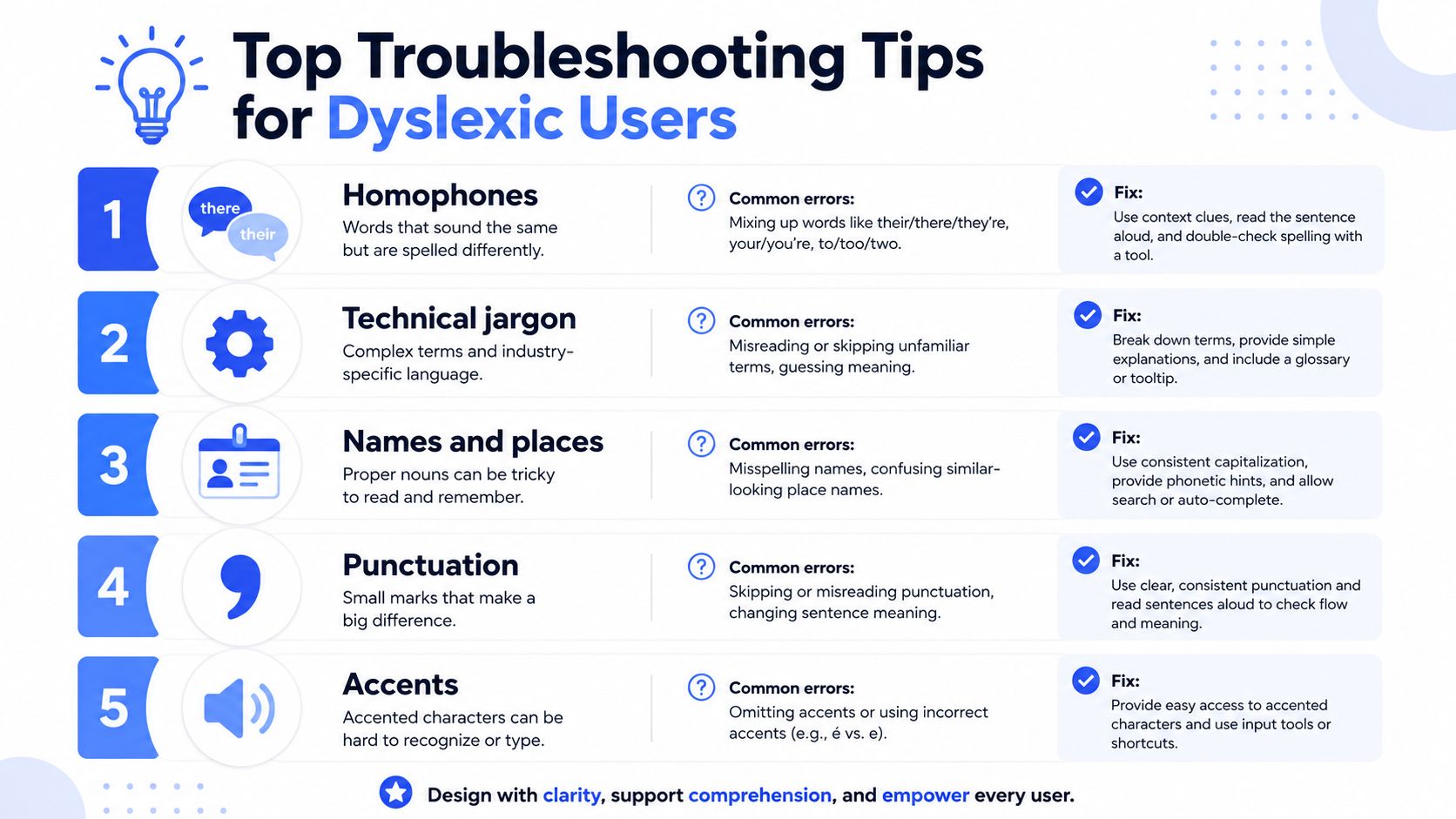
Tape this rule to your monitor and use it without overthinking: if the content is sensitive, dictate locally; if the audio is messy, fix the setup; if the words are wrong, fix the vocabulary; if the meaning is off, slow down and review.
Voice Control Pro gives you cursor-level dictation, local processing options, cleanup controls, and a custom dictionary, which is the mix that matters when you are using speech to text as a writing tool instead of a literacy lesson. It still leaves you with editing work, and that is the part many guides skip. If you want a workflow that handles drafting, cleanup, and private notes without jumping between apps, visit Voice Control Pro and see whether its shortcut-based dictation fits the way you already work.