
You're staring at a screen with a half-written reply, an inbox that won't clear itself, and a keyboard that suddenly feels like the slowest part of your day. A speech to text app changes that basic equation. You speak, the software writes, and the key question becomes where that speech is processed, on your device or somewhere else, because that choice shapes latency, privacy, and accuracy in ways most feature checklists never explain.
Table of Contents
- What a Speech to Text App Actually Does
- Three places dictation can land
- How the Software Hears You
- Why streaming feels fast
- Why latency matters more than people expect
- Offline Versus Cloud Dictation
- What each side gives up and gains
- Accuracy, Languages, and Accents
- Why “accuracy” needs a wider lens
- Noise and multi-speaker settings are a different problem
- How Cursor Insertion Changes the Workflow
- The press-hold-speak-release flow
- Why this feels different from a transcript tool
- Real Workflows for Real People
- Four habits that show up in real use
- Habits That Make Dictation Work Better
- The basics that move the needle
- A short checklist that keeps dictation usable
- Choosing the Right Speech to Text App for You
- Match the tool to the person, not the marketing
What a Speech to Text App Actually Does
A speech to text app turns spoken words into written text. That sounds obvious, but the user experience can look very different depending on where the text ends up. Some apps create a transcript in their own window, some save a note, and some insert text directly into whatever field your cursor is already in.
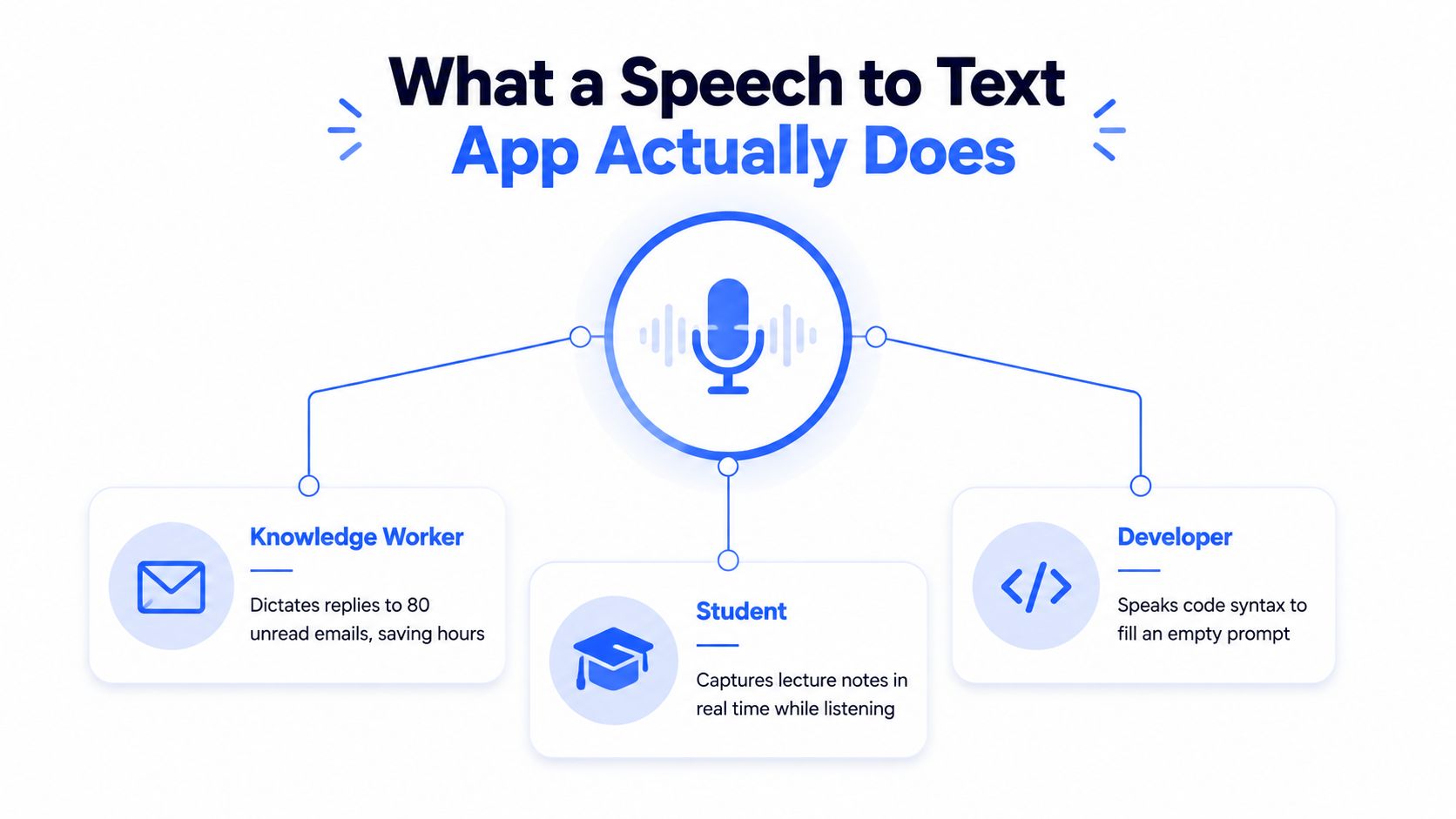
That difference matters because people use dictation in very different moments. A knowledge worker may be clearing a stack of email replies, a student may be trying to keep up with a lecture, and a developer may be filling an empty prompt box while thinking through syntax. The software is the same category in all three cases, but the job is not.
Three places dictation can land
A tool can send your words into a notes app, into a transcription file, or straight into the active text field at the cursor. The last option is the most natural for everyday work because it doesn't force you to copy, paste, or switch windows. That's why some dictation feels like a writing shortcut, while other tools feel like an extra step.
The category itself is bigger than accessibility, though accessibility is one of its most important uses. It's also for people who think faster than they type, people who want to reduce repetitive strain, and people who need to get rough ideas out before they vanish. Speech recognition has been chasing this goal for decades, from Bell Labs' Audrey in 1952 to IBM's Shoebox in 1962, and then to DARPA-era systems like Harpy, which reached 1,011 words in the 1970s (history of speech recognition milestones).
Practical rule: If a tool makes you leave the app you're already using, it's not really solving the typing bottleneck. It's just moving it around.
How the Software Hears You
The part most users never see is how streaming recognition differs from batch-style processing. IBM describes streaming recognition as real-time processing where fragmented text can appear while you're still speaking, while synchronous recognition works better with shorter clips and asynchronous recognition fits large prerecorded files (IBM on speech-to-text modes). For dictation, that split shapes the whole experience.
Why streaming feels fast
A kitchen line makes the difference easy to picture. One cook starts plating as each item arrives, so the meal moves out quickly. Another waits for the full grocery bag, which means nothing gets done until every ingredient is on the counter. Streaming recognition works like the first cook, it processes your voice in chunks, so text can appear before you finish the sentence.
That is where partial hypothesis and finalization come in. A partial hypothesis is the engine's best guess while you are still speaking. Finalization is the moment that guess gets locked in as confidence rises. When those guesses show up quickly and settle cleanly, the app feels responsive instead of sticky.
Why latency matters more than people expect
For cursor-insertion dictation, end-to-end latency is the time between speaking a word and seeing it appear where you need it. Even if the transcription is accurate, too much delay makes the experience feel broken because your brain has already moved on. A good dictation tool does more than get the words right, it keeps partial text moving without forcing you to wait on every phrase.
Microphone setup matters for the same reason. Clean audio gives the software less catching up to do, so recognition can stay closer to your speech. A solid desktop setup can make the difference between voice input that keeps pace and a tool that trails behind, which is why a practical guide like best microphone setup for voice dictation desktop is worth reading before you blame the app.
A simple comparison helps here. Streaming dictation behaves like live conversation, you speak a phrase and watch it form right away. Batch transcription is more like handing over a recording and waiting for the finished transcript. One supports flow, the other supports post-processing.
Offline Versus Cloud Dictation
A speech to text app makes a choice before it ever turns your voice into words, it decides where the audio gets processed. If the engine runs locally on your device, the sound stays on the machine and the app can keep working without depending on a remote server. If it runs in the cloud, your audio travels over the network so a larger server model can handle the recognition.
What each side gives up and gains
Local processing usually wins on privacy, because your voice does not need to leave the device for every sentence. It can also feel steadier when your workflow should keep going even if the connection drops. That makes it a better fit for people who want the app to behave more like a notebook than a service. Cloud dictation, on the other hand, often has the edge when you need wider language coverage or the strongest recognition engine the product can offer.
Latency changes with that choice too. Local tools can respond quickly because the audio does not have far to travel, but that depends on the device being strong enough to keep up. Cloud tools can also feel fast in good network conditions, yet they add another moving part between your voice and the cursor.
Rule of thumb: Pick local when privacy and uninterrupted use matter most. Pick cloud when you need the widest language support and can tolerate the audio leaving the device.
The tradeoff is not just about speed. It also affects how picky the app is about your audio format. Google's speech recognition docs require raw, headerless 16-bit PCM, mono, at 16 kHz for file-descriptor input, and Azure's embedded speech documentation limits embedded recognition to mono 16-bit 8 kHz or 16 kHz PCM WAV while stressing device specs and real-time factor as a performance measure (Google speech recognition audio requirements). That matters because a workflow that looks simple on paper can break if the audio does not match what the engine expects.
A small scenario makes the difference easier to feel. A journalist dictating notes on a train may prefer local processing because the app keeps working without depending on signal strength. A team that needs broad language coverage may accept cloud processing because the server-side model can handle more variety. For a plain comparison of those two paths, the guide on cloud vs local speech recognition is a useful companion. If you are curious how accent-specific pronunciation can shape recognition quality, the page on Irish phonology explained for beginners gives a clear example of why sound patterns matter.
Accuracy, Languages, and Accents
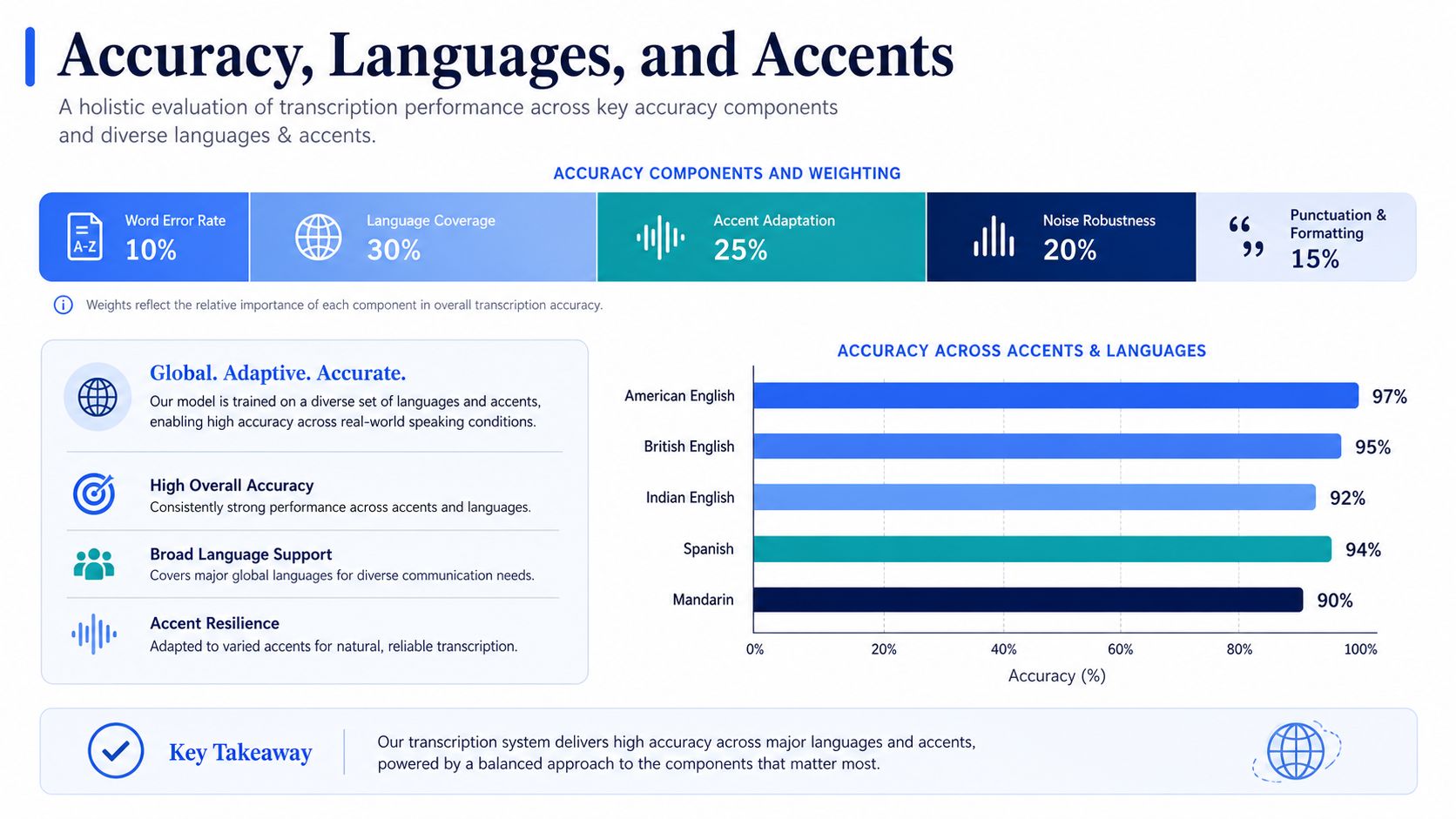
A speech to text app can be excellent with one voice and weak with another. Accuracy is not a single score. It is a set of separate tests, and the results change with your language, your accent, the room around you, and whether other people are speaking at the same time.
Why “accuracy” needs a wider lens
The clearest way to judge a speech to text app is to split accuracy into parts. One part is how well it handles your own voice. Another is whether the model was trained for your language variety. Accent variation is separate again. Noise matters too, because a clean office and a busy kitchen do not ask the engine to do the same work. Formatting also counts, since punctuation and paragraph breaks can turn a transcript into something readable or into a wall of text.
That is why accent and language coverage deserve more than a quick brand comparison. A 2025 evaluation found that even a stronger model showed word-error metrics 15 to 20 percentage points worse for Sylheti and Haitian Creole than for better-represented languages like English and French (evaluation of accent and language gaps). That gap is large enough to change whether a tool feels dependable in everyday use.
Noise and multi-speaker settings are a different problem
A quiet room and a meeting room ask for different kinds of listening. Google's work on group-conversation accessibility focuses on sound localization as a separate challenge, which shows that transcription by itself does not solve the problem of following speech in crowded spaces (Google on group conversation accessibility). Even a strong dictation engine can lose coherence when people talk over each other or when the microphone cannot separate who said what.
Accessibility projects like Project Relate point to another gap. They exist because some voices do not fit the patterns that mainstream systems learn first. If your voice, language mix, or recording environment falls outside the default training data, claims that an app “works for everyone” become less useful than testing it against your actual use case.
Accent differences can be easy to underestimate until you hear how much variation exists inside one language system. The overview Irish phonology explained for beginners makes that visible in a simple way, and that kind of variation is exactly what recognition systems have to survive in real use.
For practical changes that improve output, the guide on speech to text accuracy tips is the next place to look.
How Cursor Insertion Changes the Workflow
A transcription window is fine if you only need a record. A cursor-insertion tool is different, because it writes directly into the app you're already using. That changes the work from “dictate, then move text” to “speak, release, continue.”
The press-hold-speak-release flow
Voice Control Pro uses a simple pattern. Press and hold a global shortcut, speak naturally, then release, and the text inserts directly wherever your cursor is across any app. That avoids window switching, so the dictation becomes part of the sentence you were already writing instead of a separate task (Voice Control Pro).
The workflow matters more than it sounds. If you're in email, CRM software, a chat app, a code editor, or an AI prompt box, direct insertion keeps the response in the right place. If you have to transcribe in one window and paste somewhere else, you've added a manual handoff that can break concentration.
Why this feels different from a transcript tool
Writing a recipe, for example, illustrates this well. Cursor insertion is writing directly into the cookbook. A standalone transcription window is a sticky note you must copy over later. Both capture words, but only one lets you stay inside the actual workspace while you're thinking.
That difference also affects how often people use the tool. The lower the friction, the more likely you are to speak small updates, short replies, and half-formed ideas instead of saving dictation for rare occasions. In practice, that means the software gets used where typing is annoying, not just where typing is impossible.
If your tool lives in another window, you'll use it like a special occasion app. If it writes where you're already working, it starts to feel like a normal input method.
Real Workflows for Real People
A knowledge worker opens a long client email and starts with the part that usually slows everything down, the first draft. Speaking in full sentences gets the ideas out faster than typing them, and saying punctuation out loud keeps the text readable without a cleanup pass later. That makes voice feel less like a gimmick and more like a drafting habit.
A support agent lives inside a CRM and cares about turnaround, not elegance. Dictation helps because the bottleneck is often the keyboard, not the answer. If the agent can answer one case, close it, and move on without retyping the same phrasing, the workflow stays in the same system where the work already happens.
For teams that also publish video or training content, captions become another useful comparison point. A practical resource like add captions to videos in 2026 helps show how text output supports accessibility and comprehension in more than one medium.
Four habits that show up in real use
- Knowledge worker: Speaks in paragraphs, then cleans up only the parts that need polishing.
- Support agent: Uses short, complete replies so the CRM doesn't become a bottleneck.
- Student: Keeps pace with the lecture by capturing ideas hands-free while watching slides.
- Developer: Speaks prompt variations, then edits the best one instead of starting from scratch.
The student case is where dictation often feels the most immediate. Notes become capture, not composition. The developer case is different again, because the goal is to move from rough phrasing to a usable prompt faster, not to produce a final memo.
The common thread is that the tool works best when the user treats speech as a first draft. That expectation is important because it keeps the person in charge of the sentence, not the software.
Habits That Make Dictation Work Better
A good speech to text app can still turn out messy text if the setup is sloppy. The quickest gains usually come from the microphone, the room, and the way you speak. None of those parts are flashy, but they matter more than the logo on the app icon.
The basics that move the needle
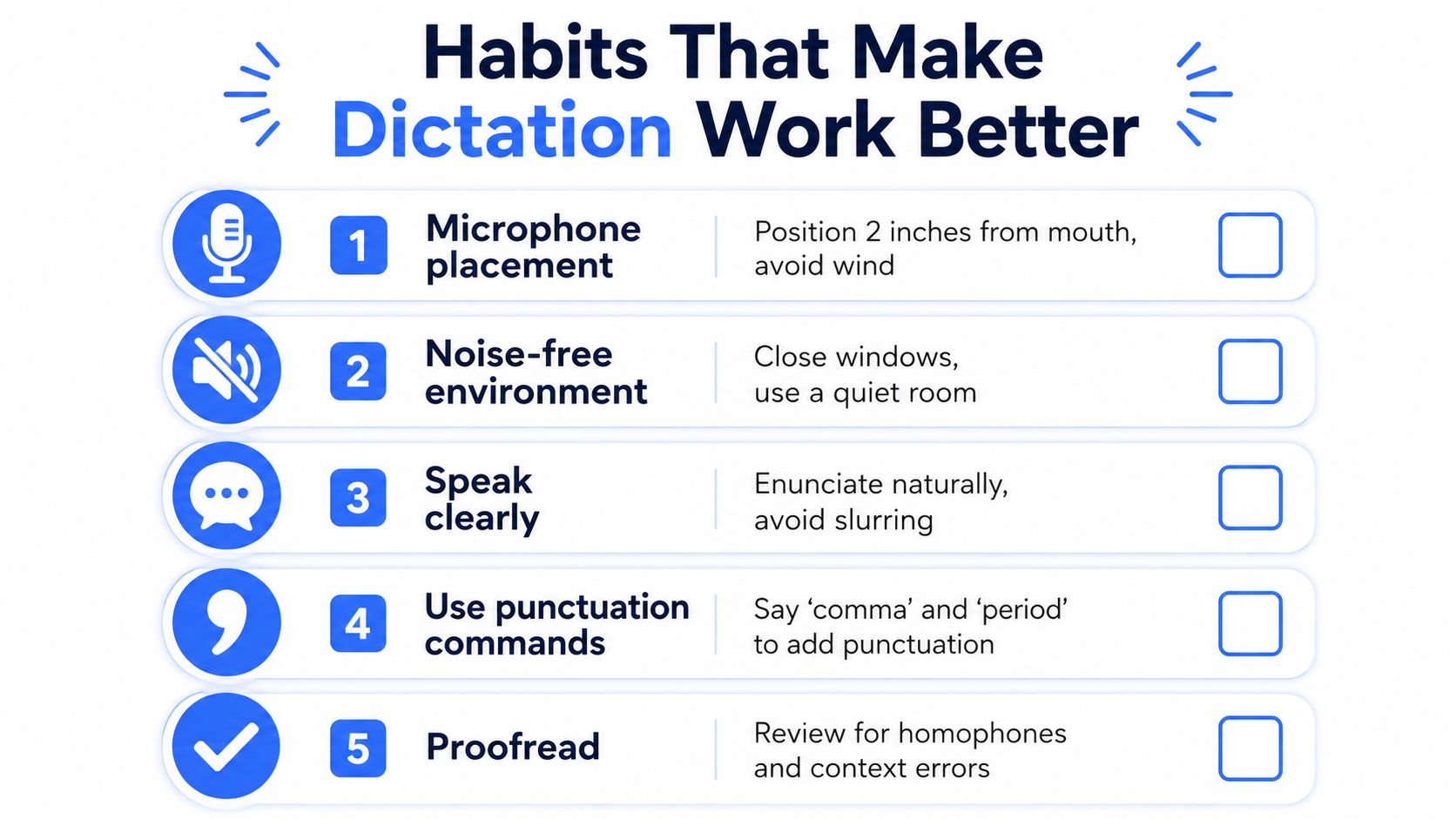
Keep the microphone close enough to pick up your voice cleanly. In a shared office, a headset usually beats a laptop mic because it cuts down on room noise before the software ever has to guess what you said. Saying punctuation out loud also helps, as long as the app is built for that kind of input. A custom dictionary can save time with product names, acronyms, and jargon that a general engine is unlikely to guess on its own.
Speaking too slowly can make things worse. It often pushes your phrasing into something unnatural, and that can confuse the recognizer more than a steady, normal pace.
Audio format still matters behind the scenes. As noted earlier, some engines want narrow input types, such as mono 16-bit 8 kHz or 16 kHz PCM WAV or raw, headerless 16-bit PCM at 16 kHz. If the app handles capture on its own, there is less risk of the signal getting distorted before recognition starts, which is one reason local capture can feel more predictable than routing audio through extra layers.
A short checklist that keeps dictation usable
- Microphone placement: Keep it close, and avoid wind or desk noise.
- Room choice: Pick the quietest place you can, especially for long sessions.
- Natural pace: Speak clearly, but do not over-enunciate into robot speech.
- Punctuation commands: Say “comma” and “period” when the app supports it.
- Proofreading: Fix homophones and context slips before sending.
That last step matters because even strong dictation still makes the occasional wrong guess. Names, mixed-language phrases, and noisy rooms are the usual trouble spots. A quick reread is part of the workflow, not a sign that the tool failed.
Choosing the Right Speech to Text App for You
A good speech to text app choice usually comes into focus once you answer two questions. Where is the audio processed, on your device or in the cloud. Where does the text need to land, in a document, a chat box, a prompt field, or an editor. Those two answers explain more than a long feature checklist usually does.
Match the tool to the person, not the marketing
A privacy-conscious professional usually starts with a local-first app, because the audio stays on the machine and leaves less room for worry about every sentence traveling elsewhere. That setup often feels like keeping notes in a locked drawer instead of handing them to a receptionist. A multilingual support team, on the other hand, may care more about cloud processing, since that is where broader language coverage often lives.
A developer or prompt writer has a different priority again. Cursor insertion matters more than a transcript window, because the words need to appear exactly where work is happening, not sit off to the side waiting for copy and paste. That difference sounds small until you use dictation all day and realize that extra hop breaks your flow.
The support team case is easy to overcomplicate. If people switch between languages or language varieties during the day, coverage and recognition quality matter more than a polished interface. If one person is dictating into a document while another is using chat, the same app can feel useful in one setting and awkward in the other, mostly because of how it handles insertion.
For readers who want an option built around cursor insertion, Voice Control Pro is one example. It inserts speech directly at the cursor, supports a local mode for offline dictation, and includes an in-line assistant for rewriting selected text and handling other voice-driven tasks. That does not make it the right pick for everyone, but it does match the workflow this guide keeps returning to.
Choose the speech to text app by tracing the path of the audio and the path of the text. If the audio must stay private, local processing is usually the first filter. If speed, language coverage, or direct insertion matters more, the cloud may fit better. Once that choice is made, the rest of the experience, privacy, latency, and how often you keep using the tool on a busy day, tends to follow from it.
If you want to try a dictation workflow that writes directly into the app you are already using, visit Voice Control Pro and test it in the kind of work you do every day. It is built for cursor-insertion dictation, local processing when you want it, and faster capture across email, documents, prompts, and chat.