
Most Windows users don't need one perfect application. They need a small set of tools that capture ideas, organize work, find files, automate repetitive steps, protect focus, and get text into the apps where work already happens. The problem is that these jobs rarely belong to the same product.
This roundup groups the best productivity software for Windows by the workflow job each tool performs. You'll find options for knowledge workers, support and sales teams, students and researchers, developers, and accessibility users, with practical limitations and pricing transparency called out instead of glossed over. The aim isn't to build the largest possible stack. It's to choose a few tools that remove your biggest sources of friction.
Table of Contents
- 1. Voice Control Pro for fast capture and voice input
- Who it suits and where it saves time
- Privacy and upgrade trade-offs
- 2. Notion for shared knowledge and flexible workspaces
- Best fit for collaborative documentation
- 3. Obsidian for local-first research and connected notes
- What it handles well
- 4. Todoist for quick task capture and triage
- Where Todoist stays lean
- 5. Microsoft PowerToys for native Windows utilities
- Best for Windows power users
- 6. AutoHotkey for custom Windows automation
- Powerful, but not maintenance-free
- 7. Microsoft Power Automate for desktop automation
- Strong enterprise fit, complicated licensing
- 8. Everything for instant local file search
- Fast navigation with a clear boundary
- 9. DisplayFusion for complex multi-monitor work
- 10. RescueTime for focus and attention tracking
- Measurement without turning work into surveillance
- Top 10 Windows Productivity Tools Comparison
- Building a Windows Stack You Will Actually Keep
1. Voice Control Pro for fast capture and voice input
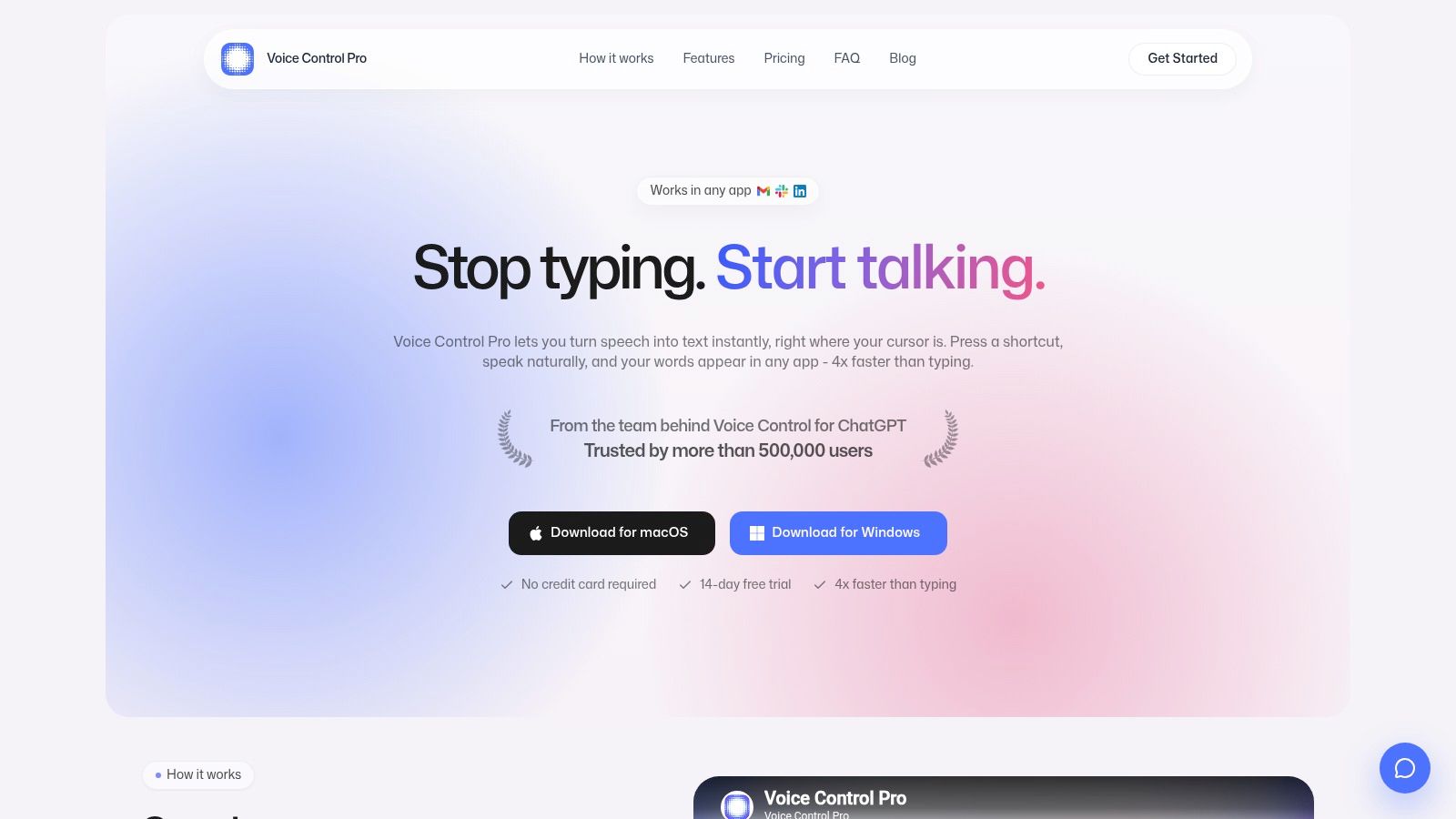
Voice Control Pro is the strongest choice here when typing, repetitive strain, or constant window switching slows you down. It's a desktop-first voice-to-text tool that inserts cleaned-up transcription wherever your cursor sits, whether you're writing in Gmail, Slack, a document, a CRM, an IDE comment, or an AI prompt.
Hold its global shortcut, speak naturally, and release to insert polished text. The claimed advantage is speed, with the vendor positioning dictation as often up to four times faster than typing. The practical value is broader than speed alone. You can draft a support reply, capture research notes, or dictate a rough prompt without opening a separate transcription window and copying the result manually.
Who it suits and where it saves time
Voice Control Pro fits knowledge workers, sales and support teams, students, researchers, developers, and users who need accessibility-friendly input. Its Hey Max assistant extends the workflow beyond dictation. It can rewrite selected text, answer questions about visible screen content, analyze what's on screen, and launch installed applications by voice.
That matters during interruption-heavy work. Microsoft's 2025 Work Trend Index reported that employees are interrupted every two minutes during core work hours, equivalent to 275 interruptions per day, and that 60% of meetings are unscheduled or ad hoc. Microsoft's Work Trend Index supports the case for tools that work inside the active application instead of adding another destination.
For a deeper look at Windows dictation workflows, see speech-to-text programs for Windows.
Practical rule: Test dictation in the exact apps where you write every day. Accuracy in a quiet demo doesn't guarantee a good experience in a noisy office, with specialist terms, or inside a heavily formatted CRM.
Privacy and upgrade trade-offs
Fly Mode processes voice locally and pauses cloud features. The free local mode provides unlimited on-device dictation, which makes it a sensible starting point for sensitive drafts or anyone evaluating workflow fit. The Max upgrade adds 99+ language support, cleanup levels matched to writing style, a custom dictionary, transcription history, rewriting, screen questions, and app launching.
The vendor materials provided here don't publish pricing, testimonials, or awards. That's a real buying limitation, not a minor detail. Start with the free local mode, test accuracy and editing effort, then decide whether the Max features justify checking the current upgrade cost on the Voice Control Pro website.
2. Notion for shared knowledge and flexible workspaces
Notion is best for teams that need one place for notes, project hubs, lightweight documentation, databases, and internal wikis. It uses a block-based system, so a team can combine meeting notes, task views, project briefs, forms, and reference material without adopting separate applications for every content type.
A marketing team might create a launch workspace with a brief, content calendar, owners, status fields, and a linked decision log. A support team could build a knowledge base with team permissions and publishable pages. The flexibility is the attraction, but it also creates the central risk: teams can build a maze as easily as they can build a useful system.
Best fit for collaborative documentation
Notion works particularly well when several groups need to contribute to the same information architecture. Teamspaces, granular permissions, SSO, domain verification, calendar integration, forms, and published pages give administrators more control as usage grows. Its AI features and Custom Agents can help with research, meeting notes, and routine assistant tasks.
The downside appears during onboarding. New users may not know whether a piece of information belongs in a page, database, task view, or linked document. Heavy databases can also require performance tuning, especially when teams treat one workspace as a replacement for every operational system.
Use clear naming rules, ownership fields, archive policies, and a small number of standard templates. Without those guardrails, Notion's flexibility becomes maintenance work.
Pricing and plan details can change, so check the current options directly on Notion before designing a team-wide workspace.
3. Obsidian for local-first research and connected notes
Obsidian suits researchers, writers, developers, and independent professionals who want their knowledge base stored as Markdown files on their own Windows device. Notes remain readable outside the application, work offline, and can connect through backlinks, tags, graph views, and Canvas boards.
That local-first design changes how you use the tool. You're not primarily building a shared team dashboard. You're building a durable personal knowledge system for source notes, technical references, project thinking, meeting records, and drafts. A researcher can link a paper summary to a concept note, a question, and a later conclusion instead of filing everything into isolated folders.
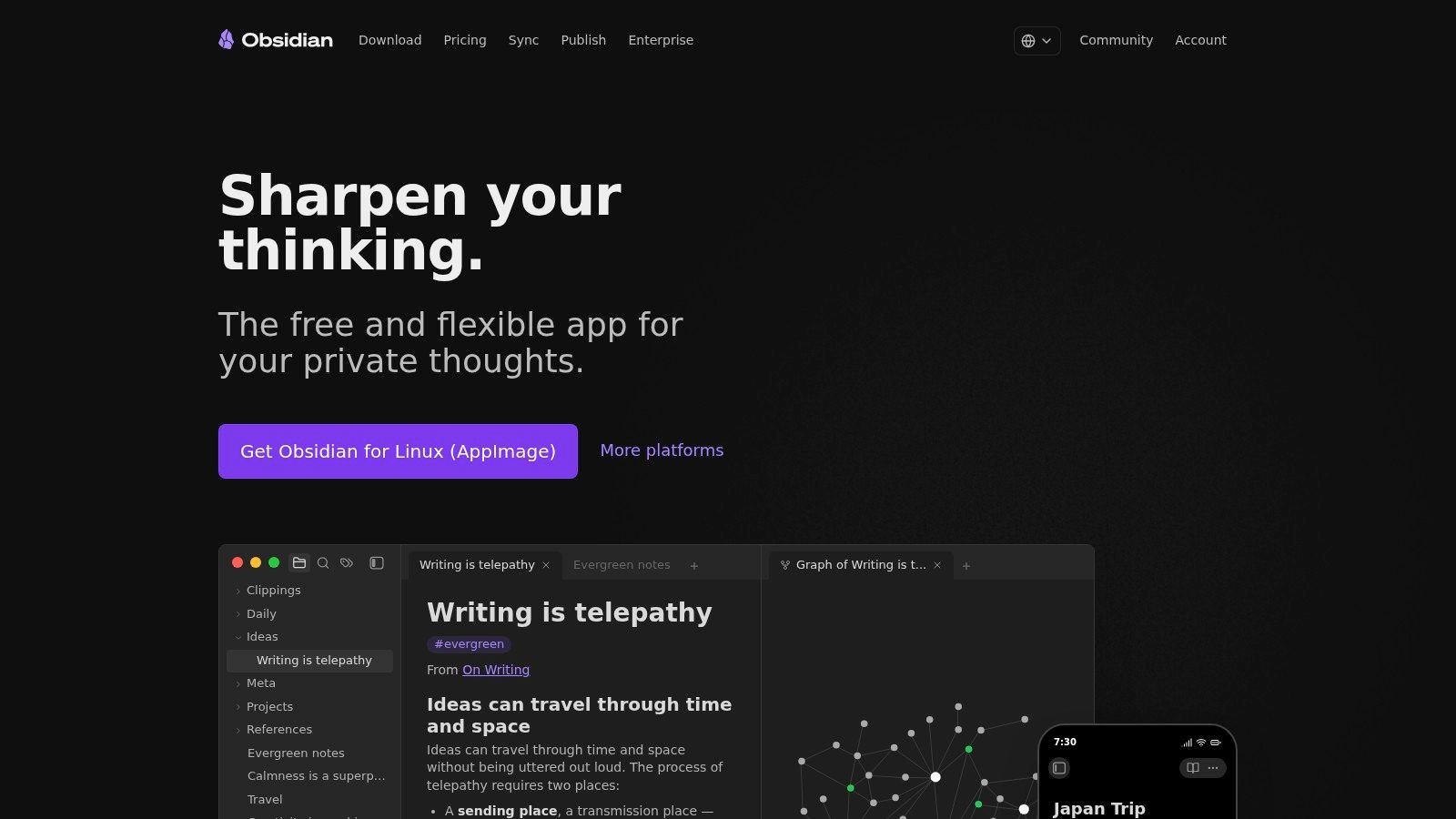
Obsidian's plugin ecosystem supports custom workflows, while Canvas provides a more visual space for arranging ideas. Optional Sync uses end-to-end encryption, and Publish can turn selected material into a public site. Those additions make the platform more capable, but they also introduce more decisions.
What it handles well
- Offline knowledge work: Notes remain available without an active connection.
- Linked research: Backlinks and graph views reveal relationships between ideas.
- Customization: Plugins and themes let technical users shape the environment around their process.
The trade-off is collaboration. Team editing isn't the core experience, so shared work may require add-ons, Git-based workflows, or a separate collaboration platform. Obsidian also has a learning curve. A vault filled with inconsistent tags, duplicate concepts, and unstructured plugins becomes difficult to maintain.
Get started with a simple folder structure and a small set of link conventions. Don't install plugins to solve problems you haven't encountered. Visit Obsidian for the current desktop and optional service details.
4. Todoist for quick task capture and triage
Todoist is the practical choice for people who need to capture tasks quickly and keep them moving. Its strength isn't elaborate project governance. It's the short path from “I need to remember this” to a dated, labeled, recurring task that you can filter later.
Quick Add, labels, filters, calendar layout, and recurring tasks cover the daily work of personal planning and small-team coordination. A sales representative can capture a follow-up from an email, assign a due date, and filter all open customer actions. A student can separate reading, assignments, and revision tasks without building a complex project database.
Where Todoist stays lean
Todoist integrates with calendars, email, and other services through a broad integration ecosystem. Team workspaces add roles, permissions, and centralized billing. Newer AI helpers can assist with planning and organization, but the main advantage remains the task system's speed and low friction.
It's less convincing when you need portfolio-level reporting, financial tracking, deep resource planning, or complex dependencies. Those jobs belong to project-management suites, not a lightweight task manager.
A task manager should make the next action obvious. If maintaining the system takes longer than capturing the work, the setup is too elaborate.
Todoist's pricing varies by region and billing cycle, and the pricing presentation may not answer every question at a glance. Check the current plans on Todoist before standardizing it for a team.
5. Microsoft PowerToys for native Windows utilities
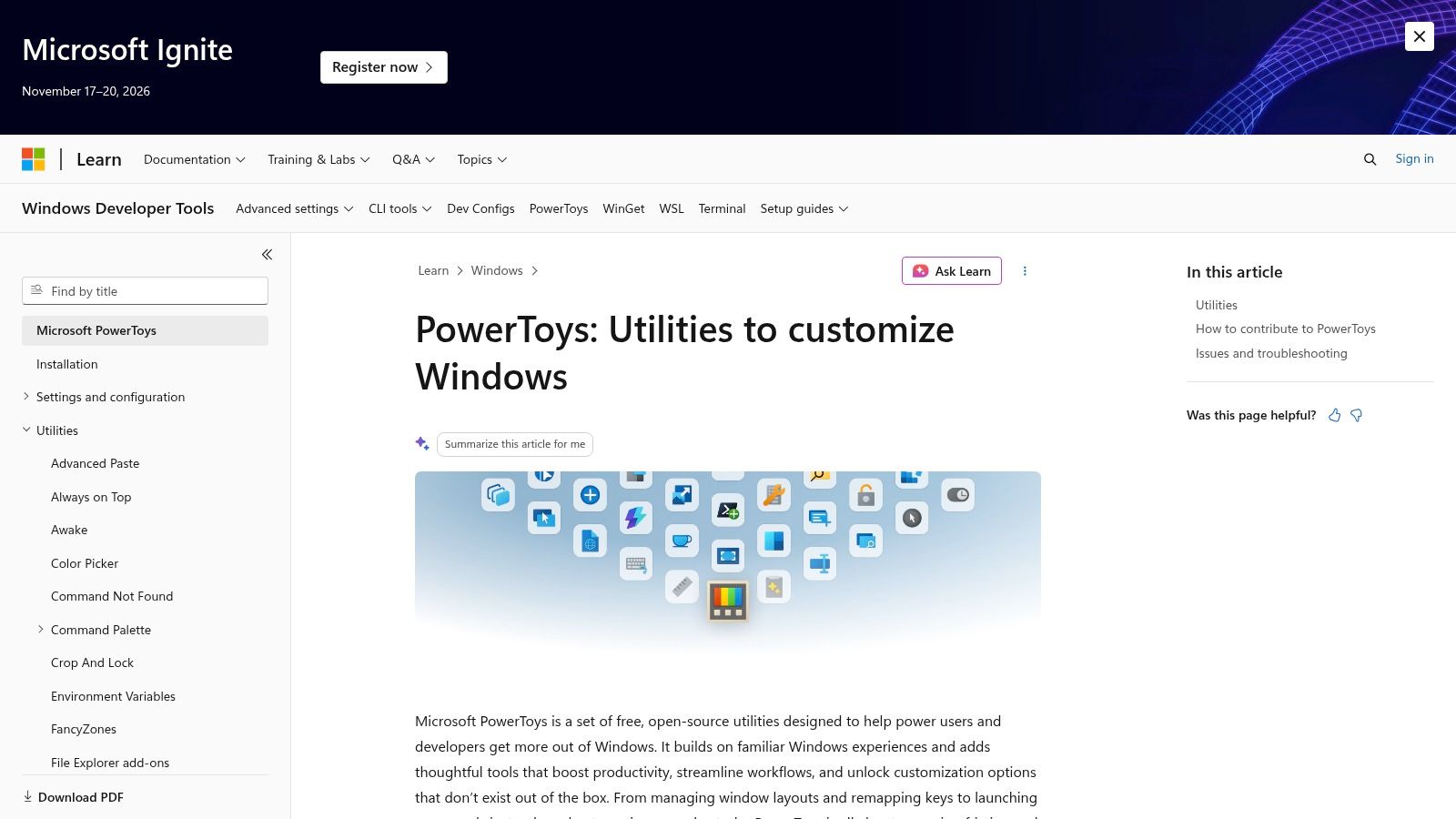
PowerToys is the best free utility bundle for Windows power users who want to remove small desktop frustrations without installing a collection of unrelated applications. It includes window arrangement, launching, OCR text extraction, image resizing, keyboard remapping, bulk operations, and File Explorer enhancements.
FancyZones is useful when your day involves a browser, documentation, chat, and a main work application spread across a large display. PowerToys Run provides a fast launcher for applications, files, and commands. Text Extractor can pull text from an image or inaccessible interface, while Advanced Paste, Image Resizer, Always On Top, and Keyboard Manager address smaller but frequent interruptions.
Best for Windows power users
PowerToys is free, open source, and maintained by Microsoft and the community. It integrates closely with Windows and generally adds capability without the overhead of a large productivity suite. The broad feature set is also its main weakness. New users can spend too much time configuring utilities they rarely use.
Rapid releases may occasionally introduce regressions, so conservative business environments should test updates before broad deployment. PowerToys can complement a focused audio workflow too, including setups discussed in Isolate Audio on Windows DAWs.
Install it for a specific friction point first. If you repeatedly resize images, extract text, rearrange windows, or remap a key, PowerToys is a strong fit. Find the current documentation on Microsoft PowerToys.
6. AutoHotkey for custom Windows automation
AutoHotkey is for users who want Windows to respond to their own rules. It can create global hotkeys, text expanders, window controls, application launchers, macros, and small graphical interfaces. A developer can map a shortcut to a standard code comment. A support agent can expand a short trigger into a carefully reviewed response template. A researcher can automate repetitive window and file actions.
The flexibility is the point. AutoHotkey can stay small, with a short script that saves a few keystrokes, or grow into a larger personal automation layer. Its runtime is lightweight, scripts can be portable, and the community provides extensive examples and libraries.
Powerful, but not maintenance-free
AutoHotkey isn't a plug-and-play task manager. You need enough scripting knowledge to write, test, and debug automations. Scripts can also break when applications change their interfaces, shortcuts, window titles, or security behavior. In a corporate environment, administrators may restrict custom executables or unsigned scripts.
For users comparing shortcut tools and text expansion, text expander apps for Windows provides useful context around the problem AutoHotkey solves.
Keep production scripts documented and separate from experiments. Use descriptive names, add comments, and test changes in a safe environment before assigning a global shortcut. AutoHotkey is available from the official AutoHotkey website.
7. Microsoft Power Automate for desktop automation
Power Automate is the right choice when a team needs to standardize repetitive desktop actions across Windows applications and cloud services. It combines desktop flows for robotic process automation with cloud flows, connectors, attended and unattended execution, and Microsoft 365 and Azure integration.
A finance team might automate the movement of information between a legacy Windows application and a spreadsheet. An operations team could build a flow that monitors incoming information, updates systems, and alerts an owner. The appeal is strongest where employees repeat the same interface steps and the organization needs governance around those automations.
Strong enterprise fit, complicated licensing
Power Automate offers process and task mining, hosted virtual-machine scenarios, and a broad connector ecosystem. It's more suitable than a personal macro when administrators need centralized controls, permissions, monitoring, and repeatable deployment.
The limitation is complexity. The licensing matrix can be difficult to interpret, and unattended or hosted execution adds meaningful cost. Desktop automation also needs careful exception handling. A flow that works perfectly with a stable screen can fail after a layout change, permission prompt, or unexpected data value.
Start with one repetitive process that has a clear owner and measurable manual effort. Document the exceptions before automating the happy path. Review current licensing and capabilities on Microsoft Power Automate.
8. Everything for instant local file search
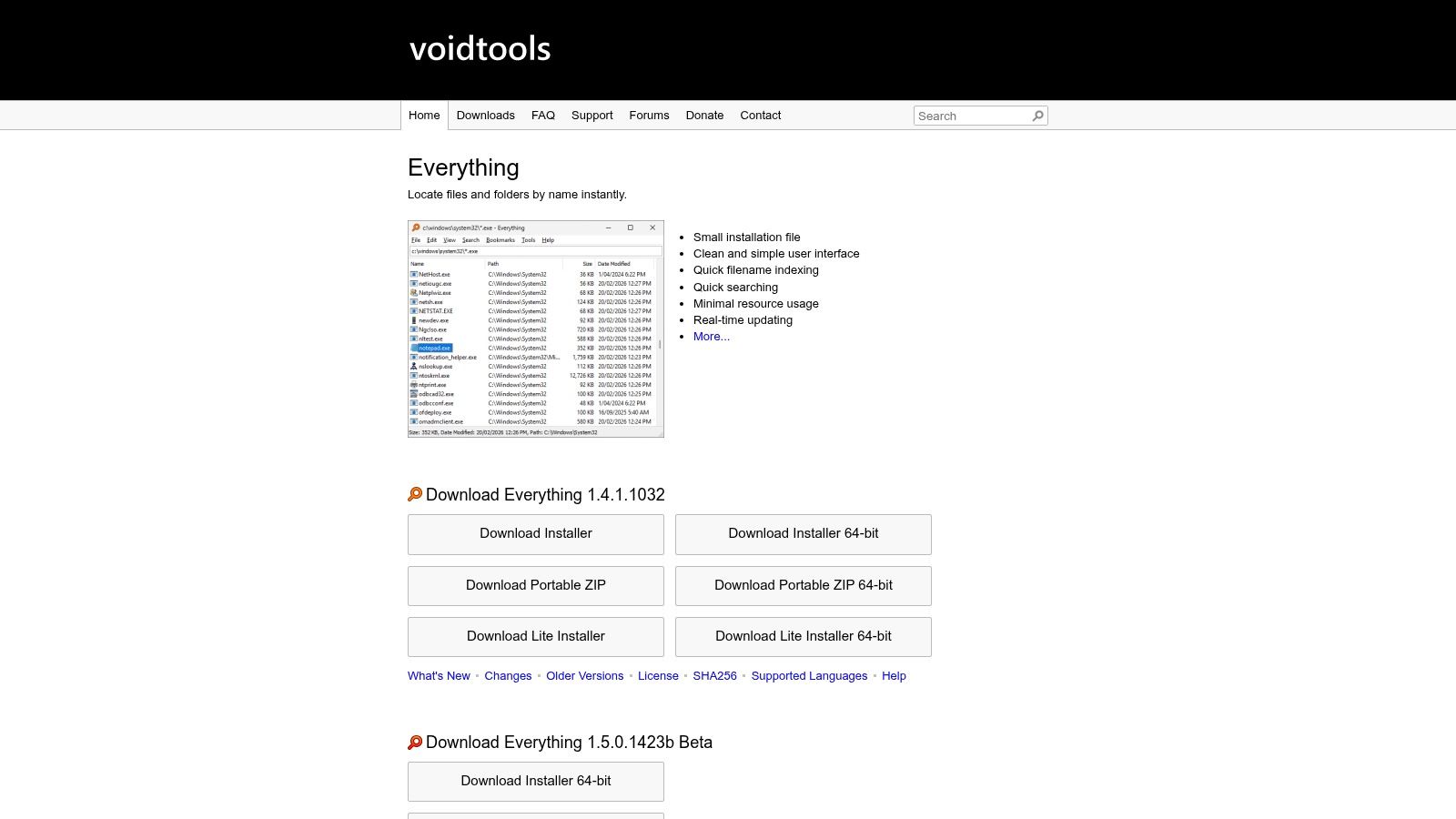
Everything from Voidtools is for Windows users who lose time navigating folders. It indexes file and folder names on NTFS and ReFS volumes and returns results as you type. The interface is simple, but the effect on a large local file system is substantial: you search by name instead of remembering which project folder contains the document.
A developer can find a repository file without opening several nested folders. A consultant can locate a client brief from a partial filename. A student can find downloaded course material without relying on a slow, broad search interface.
Fast navigation with a clear boundary
Everything supports advanced queries, filters, portable builds, installer options, and a command-line interface. It has a small footprint and can remain out of the way until you need it.
Its search is primarily name-based. Finding text inside documents requires additional tools or configuration, so it won't replace a knowledge base, document-management system, or full content index. Network indexing also needs extra configuration or server components.
Use Everything when the bottleneck is “Where did I save that file?” Don't choose it as the main answer to “What did that document say?” Download the current version from Voidtools Everything.
9. DisplayFusion for complex multi-monitor work
DisplayFusion is built for Windows users who treat several monitors as part of their working environment. It adds per-monitor taskbars, wallpaper controls, title-bar buttons, window snapping, monitor profiles, advanced window rules, scripting, and macros.
This is particularly useful for developers, analysts, traders, editors, and support staff who switch between stable screen layouts. A profile can place communication on one display, active work on another, and reference material on a third. Window rules can place recurring applications where they belong instead of forcing you to arrange them manually every morning.
DisplayFusion offers deeper control than standard Windows multi-monitor features and overlaps with some PowerToys functions. That overlap is worth checking before you install both. PowerToys may be enough if you only need window tiling, while DisplayFusion is more suitable when you need persistent profiles, detailed rules, monitor-specific behavior, or scripting.
The interface is dense, and fine-tuning takes time. New users may need to learn how functions, triggers, profiles, and rules interact. A one-time lifetime license option is available, but current terms should be confirmed before purchase.
Visit DisplayFusion to review the current feature set and licensing options.
10. RescueTime for focus and attention tracking
RescueTime is designed for people who want automatic visibility into how they use applications and websites, then want help protecting time for focused work. It tracks activity in the background, categorizes usage, produces reports and timelines, and offers Focus Sessions that block distracting sites and applications across supported devices.
The useful distinction is that RescueTime isn't only a reporting dashboard. Goals, alerts, calendar feeds, Focus Zones recommendations, and team reports help turn measurement into a behavior change. A knowledge worker can identify how much of a morning disappears into communication tools, then schedule a protected work session around a realistic goal.
Measurement without turning work into surveillance
RescueTime offers privacy controls and automatic tracking, but it must run consistently in the background to produce useful insights. Blocking also depends on platform and browser permissions, so it shouldn't be treated as an absolute barrier against distraction.
Interruption is often a workflow problem, not a character flaw. Microsoft's 2025 Work Trend Index described a workday shaped by frequent interruptions and ad hoc meetings. Tools that measure attention can help you identify whether the issue is social media, chat notifications, unplanned calls, or constant application switching. For a related discussion of mental switching costs, see cognitive load management.
RescueTime publishes annual pricing and plan tiers for individuals and teams, but check the current offer before committing. Review the product on RescueTime.
Top 10 Windows Productivity Tools Comparison
| Product | Core features | Quality ★ | Price / Value 💰 | Target audience & USP 👥 ✨ |
|---|---|---|---|---|
| Voice Control Pro 🏆 | Cursor-level dictation; Hey Max assistant; Fly Mode (local) | 4.5★ | 💰 Free local mode; Max upgrade (paid; pricing not listed) | 👥 Knowledge workers, developers, accessibility users; ✨ On-device unlimited dictation, screen Q&A, rewrite & app-launch by voice |
| Notion | Pages, databases, teamspaces, Notion AI | 4★ | 💰 Freemium; Team/Enterprise plans | 👥 Teams & documentation hubs; ✨ Extremely flexible “LEGO” workspace |
| Obsidian | Local Markdown vault; backlinks, graph, plugins | 4.5★ | 💰 Free core; paid Sync/Publish | 👥 Personal PKM, researchers, writers; ✨ Privacy-first, powerful plugin ecosystem |
| Todoist | Quick Add, labels, filters, recurring tasks | 4★ | 💰 Freemium; Premium subscription | 👥 Individuals & small teams; ✨ Fast capture and reliable task triage |
| Microsoft PowerToys | FancyZones, PowerToys Run, OCR, utilities | 4★ | 💰 Free & open-source | 👥 Windows power users; ✨ Broad, high-impact native utilities |
| AutoHotkey | Global hotkeys, scripting, automation | 4★ | 💰 Free & open-source | 👥 Scripters and power users; ✨ Extremely flexible automation and macros |
| Microsoft Power Automate | Desktop RPA + cloud flows; connectors | 4★ | 💰 Paid enterprise licensing (complex) | 👥 Enterprises & IT teams; ✨ Low-code RPA with deep MS365/Azure integration |
| Everything (Voidtools) | Real-time filename index; instant search-as-you-type | 5★ | 💰 Free (donations) | 👥 Power users needing fast file lookup; ✨ Near-instant local search with tiny footprint |
| DisplayFusion | Multi-monitor taskbars, window rules, scripting | 4.5★ | 💰 Paid (pro/lifetime license) | 👥 Multi-monitor professionals; ✨ Deep, battle-tested monitor/window control |
| RescueTime | Automatic activity tracking; Focus Sessions | 4★ | 💰 Subscription (clear plans) | 👥 Individuals & teams tracking focus; ✨ Automated attention analytics + distraction blocking |
Building a Windows Stack You Will Actually Keep
Start with the bottleneck that costs you the most time each day. If writing emails and notes is slow, test Voice Control Pro. If you lose decisions in scattered documents, test Notion or Obsidian. If tasks disappear after meetings, start with Todoist. If file navigation is the drag, install Everything before adding a larger information-management system.
Run one focused trial for two weeks before adding another tool. Track a few practical signals: how often you use the tool, whether it removes a repeated step, whether you still need a workaround, and whether another application becomes harder to use. Adoption matters more than the number of features installed. Microsoft's workplace Copilot experiment reached 83% adoption after rollout and change-management activity, with adoption remaining approximately 80% through the trial, but usage was concentrated in Teams at 71%, while Excel and PowerPoint peaked at 23% and 24%. The experiment report is a useful reminder to evaluate actual workflow use rather than license activation.
Your stack should stay small and deliberate. Pair Notion or Obsidian with Todoist when you need both knowledge storage and action management. Add PowerToys or DisplayFusion when window arrangement and desktop control create friction. Use AutoHotkey for personal automations, and choose Power Automate when a team needs governed desktop and cloud flows.
Privacy deserves its own decision. Check where processing occurs, whether cloud features can be disabled, how long transcription or activity data is retained, and whether the product works acceptably offline. Microsoft's 2025 Work Trend Index reported that 82% of leaders expected to use AI-driven solutions within the following 12 to 18 months, while 67% of leaders said they understood AI agents compared with 40% of employees. Microsoft's regional report highlights why “AI included” isn't enough as a procurement criterion.
Several tools in this list don't publish complete pricing on the provided pages, and plan terms can change. Check vendor pages before approving a purchase, especially for Todoist, DisplayFusion, Power Automate, and Voice Control Pro. Also confirm that company policy allows installed utilities, scripts, OCR tools, and background activity tracking.
When typing is the bottleneck, Voice Control Pro is the specialized pick for fast cross-application dictation and AI-assisted rewriting. Use its free local mode first, test it in your real Windows workflow, and decide whether Max features such as multilingual support, custom vocabulary, transcription history, and Hey Max justify the upgrade.
Voice Control Pro inserts polished dictation wherever your cursor is, while Hey Max helps rewrite text, answer screen-context questions, and launch apps without forcing you to change windows. Visit Voice Control Pro to try the free local mode and see whether faster voice input earns a place in your Windows productivity stack.