
You've answered the same customer question three times today. You've pasted the same sign-off into several emails, retyped the same meeting instructions, and corrected the same product wording in different apps. None of those tasks is difficult, but each one consumes keystrokes, attention, and a little more patience.
A text expander app turns those repeated phrases into short triggers. Type a code such as ;sig, and the app inserts your complete signature. Use ;refund, and it can place a carefully reviewed support response wherever your cursor is active. The benefit isn't only speed. A well-designed expander can improve consistency, reduce physical repetition, support accessibility, and give teams a way to manage shared language.
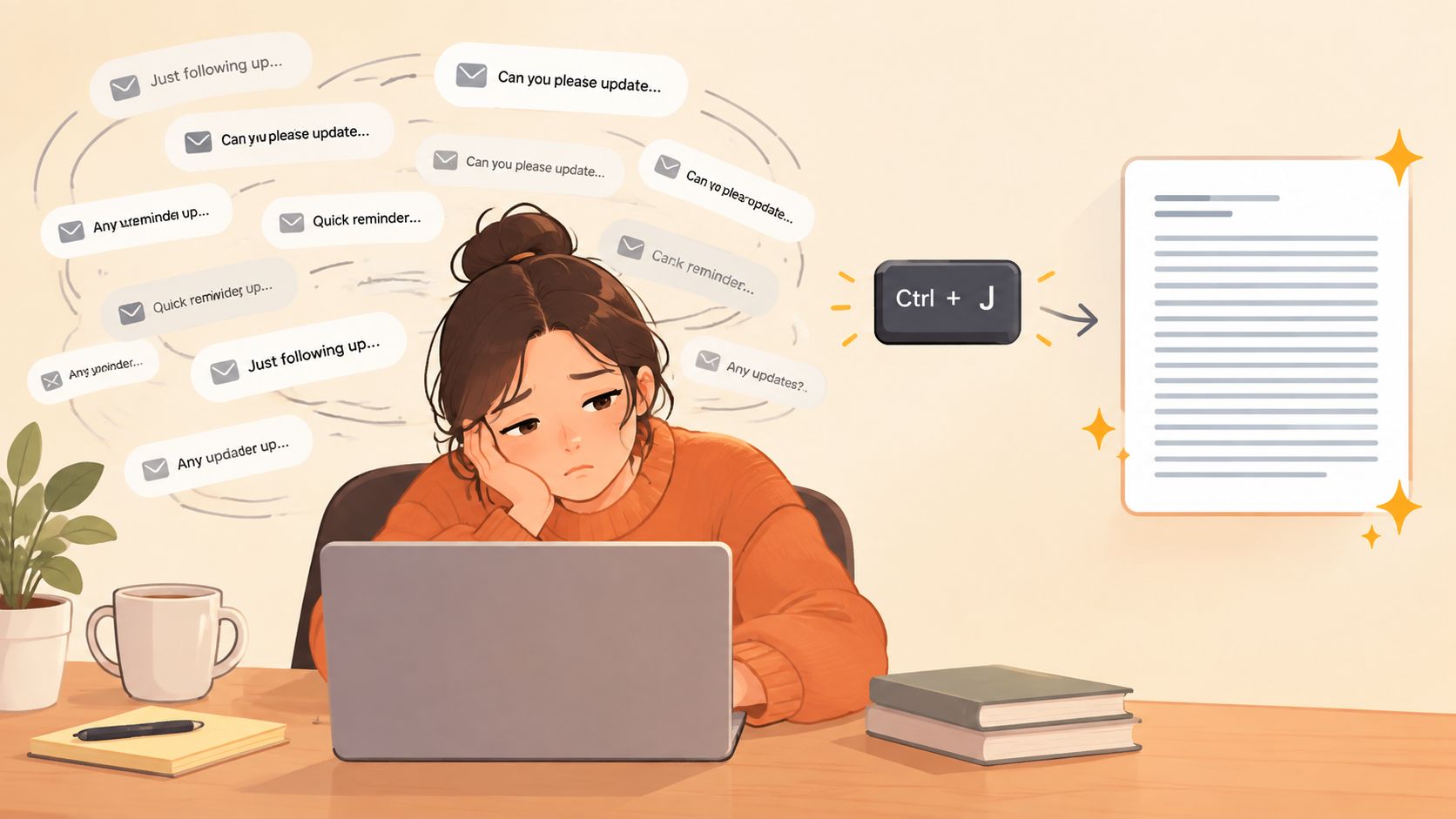
Table of Contents
- Introduction to Text Expander Apps and Why They Matter
- How a Text Expander App Actually Works
- Core Features That Define a Great Text Expander App
- Start with a library you can actually find
- Add fields when the text changes by situation
- Treat sync and analytics as workflow features
- Real World Use Cases for Different Audiences
- Knowledge workers and researchers
- Support and sales teams
- Developers and prompt writers
- People managing physical strain
- Text Expander App Versus Voice to Text and When to Use Each
- How to Choose and Integrate the Right Text Expander App
- Use a practical shortlist
- Build the first library carefully
- Privacy Security and Measuring Success Over Time
- Measure the work, not just the feeling
Introduction to Text Expander Apps and Why They Matter
Text expansion began as a small utility idea and grew into a broader productivity category. TextExpander's history offers a useful timeline: the product began as Textpander, was acquired by Smile, and was first released in October 2007. It later reached the iPhone on August 26, 2009, introduced a standalone macOS app in March 2010, and released a Windows version in January 2017. That progression reflects how expanders moved from desktop shortcuts toward cross-platform workflows. TextExpander's startup story also says thousands of individuals and teams use the product, with users saving an average of 4 to 8 hours per month.
That promise sounds simple, but it covers several different problems. A student might use an abbreviation for a recurring research note. A support agent might insert a response template and personalize only the customer's name. Someone managing hand fatigue might use a shortcut instead of repeatedly typing a long phrase. A team administrator might maintain approved snippets so staff don't improvise important instructions.
The right questions go beyond “Does it type faster?” You'll want to understand how expansion works, which features matter for your workflow, where voice-to-text fits, and how to measure whether the tool earns its place. You'll also need to consider privacy, permissions, stale snippets, and whether the app works reliably in the text fields you use every day.
Practical rule: Automate text you repeat, not judgment you still need to make.
A text expander won't decide the right tone for a sensitive message or replace thoughtful writing. It removes the mechanical part, leaving you more attention for the part that requires context.
How a Text Expander App Actually Works
The easiest mental model is autocorrect with a library and a purpose. Instead of correcting a misspelled word, the app watches for a trigger you've defined, finds the matching snippet, and inserts the longer text.
The process usually follows four steps:
- You type a trigger. This might be
;address,/meet, or another code that's unlikely to appear accidentally. - The app detects the completed trigger. Depending on the product, expansion may happen after a delimiter such as a space or punctuation, or after a chosen keyboard command.
- The system replaces the trigger. The shorter characters disappear, and the stored snippet takes their place.
- The expanded text appears in the active field. You can use it in email, chat, a browser form, a document, or another compatible text area.
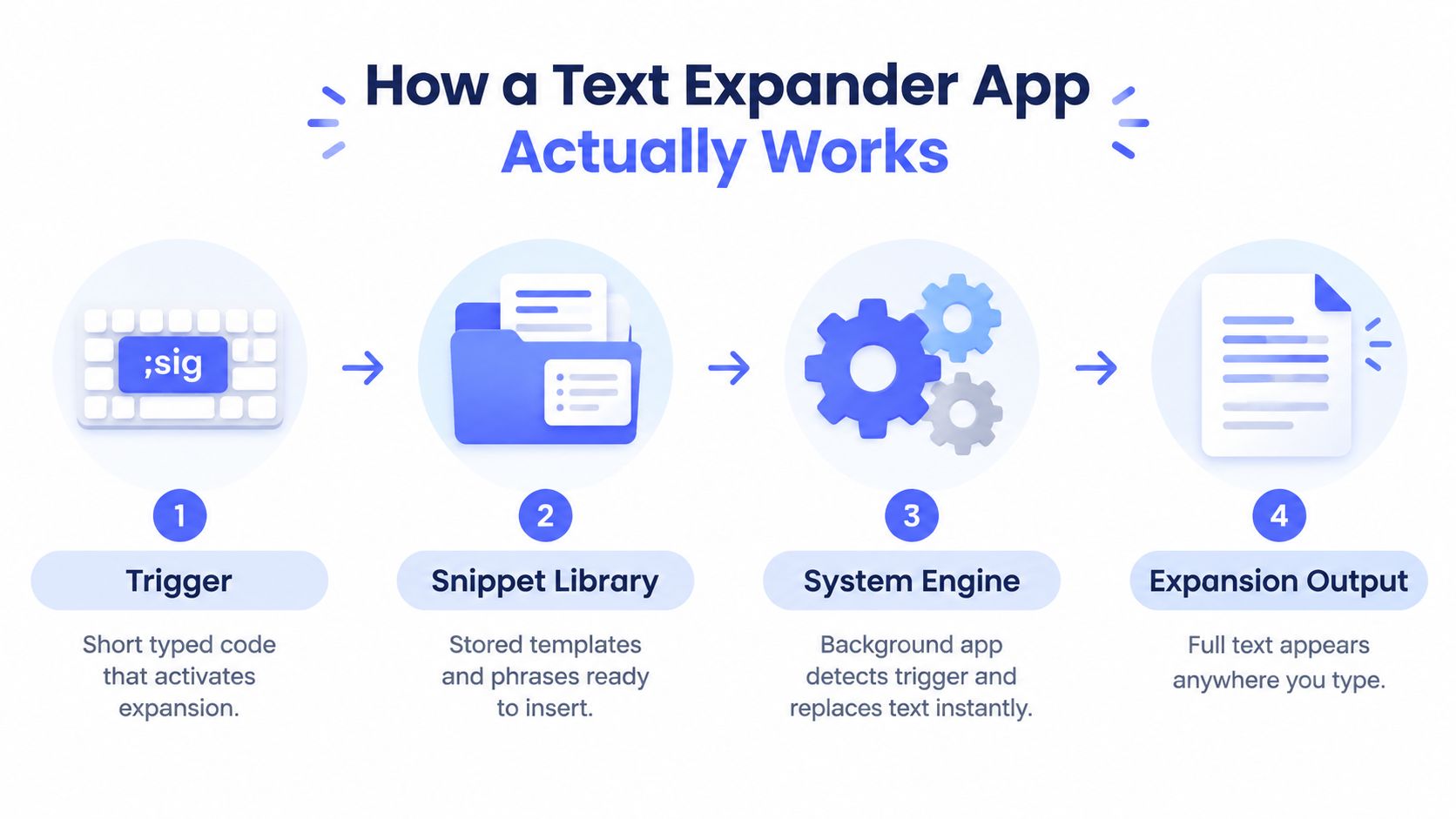
The important technical detail is where the replacement happens. Text expansion can intercept the keystrokes before the receiving application processes them. That system-level position is why a good implementation can work across multiple apps instead of being limited to one editor.
Static snippets contain fixed text, such as a postal address or email sign-off. More advanced snippets can include fields for a name, date, order number, or other information you provide at the moment of expansion. Some tools also support dynamic values, including dates or clipboard content, so the inserted result changes according to the situation.
The app isn't making your fingers move faster. It's removing repeated keystrokes. A measured workflow described by this explanation of OS X autocomplete and text expansion reduced common-phrase entry from 4.3 to 2.5 seconds, because the user entered fewer characters rather than typing at a higher raw speed.
That distinction matters. If a shortcut is too easy to trigger, expands in the wrong place, or introduces a delay, it can create friction. Independent HCI research found that word prediction saved an average of 3.43 characters per phrase but added about 2 seconds compared with manual typing, while autocorrection fixes took an average of 5.5 seconds. The study on frustration with predictive text is a useful reminder that fewer keystrokes don't automatically mean a better experience.
Core Features That Define a Great Text Expander App
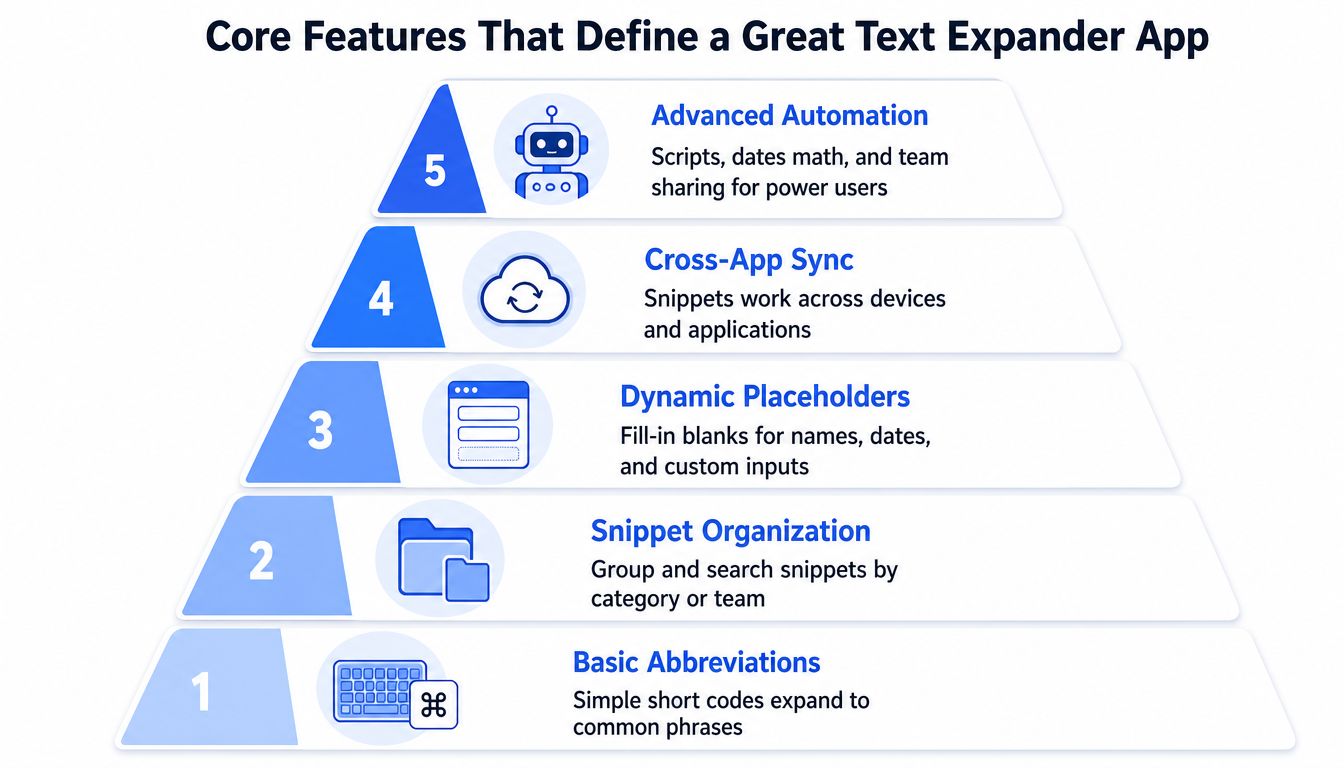
A basic utility needs only two things: a trigger and replacement text. A dependable text expander app adds layers that help you create, retrieve, personalize, share, and evaluate those snippets.
Start with a library you can actually find
Your snippet collection should behave like a small reference system, not a drawer full of mystery shortcuts. Folders, tags, search, and clear naming help you locate a response when you're under pressure. Useful groups might include customer support, sales, internal communication, writing, research, or personal information.
Trigger design matters just as much. A code like ;addr is easier to remember than an arbitrary string, but it must also be unlikely to appear inside ordinary words. Use a consistent prefix and keep related triggers predictable, such as ;sig, ;sigshort, and ;sigformal.
Add fields when the text changes by situation
A reusable template becomes more valuable when you don't have to edit it from scratch. Fill-in-the-blank fields can request a person's name, appointment date, reference number, or preferred option. Dynamic tokens can insert dates, clipboard contents, or other changing information.
For example, ;followup might insert:
Hi [Name], thanks for speaking with me about [Project]. I'll send [Next step] by [Date].
That structure protects the parts that should remain consistent while leaving room for a human decision.
Treat sync and analytics as workflow features
Cross-platform support matters if you move between macOS, Windows, mobile devices, and different applications. A snippet library that works only on one machine can leave gaps precisely when you need it.
Analytics turn a shortcut collection into an auditable system. TextExpander's organization statistics documentation explains that time saved is calculated from the difference between expanded snippet length and abbreviation length, divided by typing speed in words per minute. Its reports can show snippets expanded, time saved, daily activity, member usage, and total hours saved across a selected period. Administrators can also adjust the WPM setting to better reflect real typing behavior.
The feature priority depends on the user:
| Workflow | Prioritize |
|---|---|
| Solo writing | Fast triggers, search, dynamic fields |
| Customer support | Shared libraries, approved language, update controls |
| Sales | Personalization fields, CRM compatibility, consistent messaging |
| Accessibility | Low-effort activation, reliable expansion, reduced keystrokes |
| Technical work | Code-friendly triggers, scripting, clipboard and date tokens |
If voice is part of your system, you can also pair expansion with custom voice commands for actions that are awkward to type repeatedly.
Real World Use Cases for Different Audiences
A text expander app becomes easier to evaluate when you follow the exact moment someone would use it.
Knowledge workers and researchers
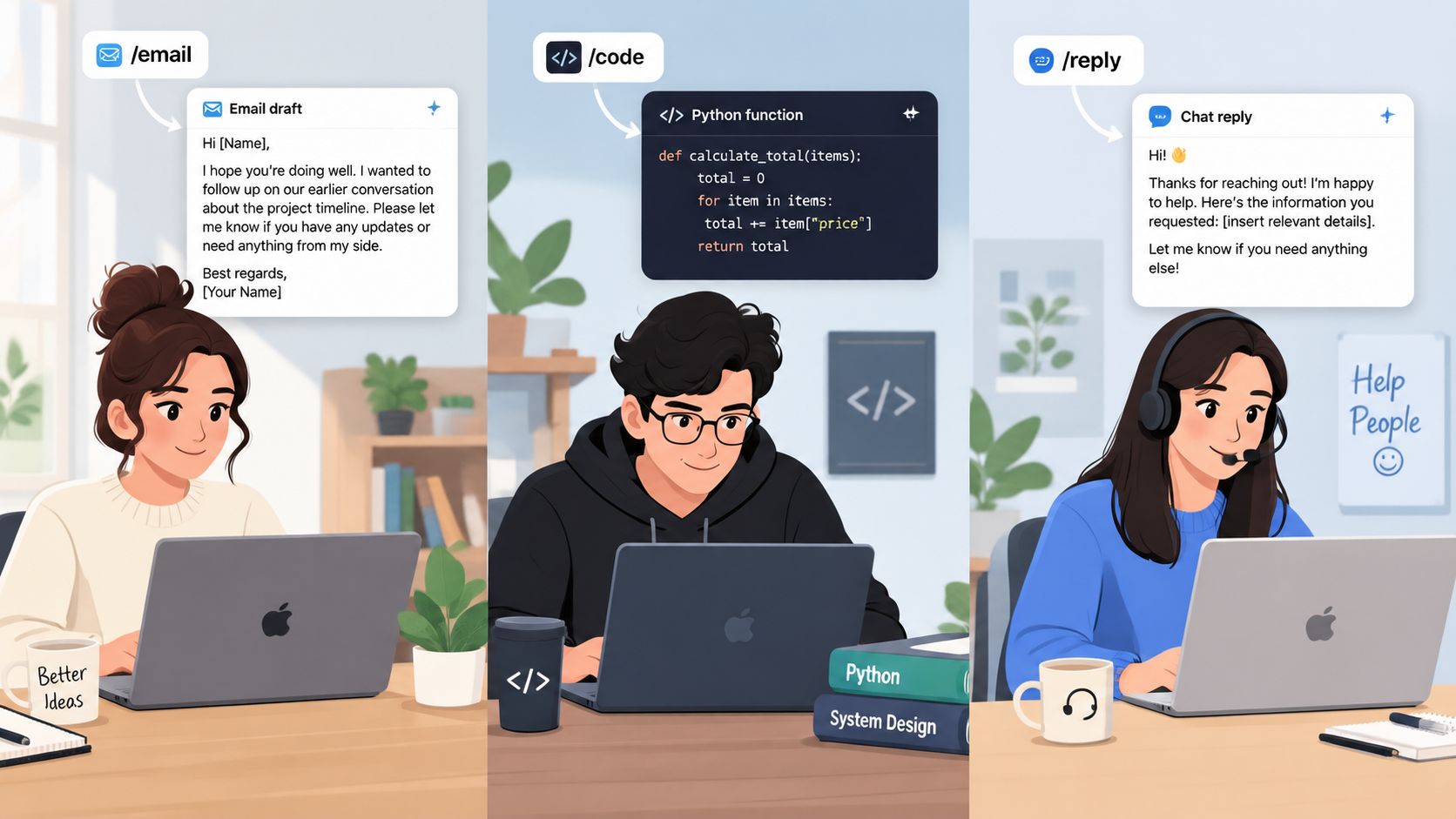
An analyst sends recurring project updates. Instead of rebuilding the structure every time, they type ;status and receive headings for progress, risks, decisions, and next actions. They fill in the changing details and keep the overall format stable.
A student might use ;citecheck to insert a reminder such as “Verify author, publication date, page number, and citation style before submission.” The shortcut doesn't write the research, but it keeps a repeatable quality check close to the writing surface.
Support and sales teams
A support agent receives a question about cancellation. The trigger ;cancel inserts the approved explanation, the relevant next steps, and a prompt to personalize the response. The agent still decides whether the template fits, but they don't need to remember the exact policy wording.
A sales representative could use ;demo for a follow-up framework with fields for the prospect's goal, agreed action, and meeting date. This helps the team maintain a consistent experience while avoiding the stiff feel of sending an untouched canned reply.
Developers and prompt writers
Developers repeat code comments, issue templates, testing notes, and environment reminders. A trigger such as ;bug can insert a structured report with reproduction steps, expected behavior, actual behavior, and logs.
Prompt writers can save stable instruction blocks, formatting requirements, or evaluation criteria. The reusable portion stays fixed, while project-specific context remains editable.
People managing physical strain
Accessibility is one of the category's most overlooked applications. Coverage of text expanders for accessibility notes that reducing keystrokes can lower the physical cost of writing, yet mainstream discussions often present these tools only as speed aids.
Someone experiencing keyboard or mouse fatigue might create shortcuts for their name, address, frequent greetings, workplace terminology, or recurring replies. The best setup is personal. It should reduce movements that cause discomfort without forcing the user to explore a complicated interface or correct unpredictable expansions.
The most useful snippet is often the phrase your hands resent typing, not the phrase that looks impressive in a demo.
Text Expander App Versus Voice to Text and When to Use Each
Text expansion and voice-to-text solve different input problems. An expander is strongest when the wording is known in advance. Dictation is strongest when the idea is new, nuanced, or longer than the templates you've prepared.
Use a text expander for a stable phrase:
- A customer support policy
- An email sign-off
- A recurring meeting link
- A standard code comment
- A research checklist
Use voice-to-text for content that depends on natural thought:
- A first draft
- A detailed explanation
- A personal response
- Meeting notes
- A long-form idea captured while it's fresh
The difference is control. A snippet can produce the same approved wording every time, while dictation captures the speaker's actual phrasing. Voice input can also be more comfortable for someone who finds extended typing tiring, but it may require cleanup when speech recognition misunderstands a name, technical term, or punctuation.
Prediction systems add another consideration. The HCI evidence cited earlier found that a tool can reduce characters while adding latency, so test how quickly an expander reacts in the applications you rely on. A delayed suggestion is especially disruptive when you're writing a sentence that doesn't follow a predictable pattern.
A hybrid workflow often feels natural. Type a short trigger for the fixed opening, dictate the personal explanation, then expand a closing checklist. Voice Control Pro provides desktop speech-to-text that inserts transcription at the cursor across apps, so it can occupy the free-form part of this workflow. You can find practical guidance on using voice-to-text when you want to test that combination.
The choice doesn't have to be permanent. Start by identifying whether your repetitive work is mostly known language or new language. Known language belongs in snippets. New language belongs in dictation or ordinary typing.
How to Choose and Integrate the Right Text Expander App
Choose the app around your actual text fields, not its longest feature list. A tool that looks powerful but fails in your browser, terminal, CRM, or mobile keyboard will become an abandoned shortcut library.
Use a practical shortlist
Check these questions before committing:
- Platform coverage: Does it support the operating systems and devices you use?
- Application compatibility: Does expansion work in your main email, chat, browser, document, and business tools?
- Library controls: Can you organize, search, import, export, and update snippets easily?
- Team permissions: Can administrators control who creates, edits, or publishes shared content?
- Personalization: Are fill-in fields, dates, clipboard values, or other dynamic elements available?
- Privacy model: Is snippet data stored locally, synced through a cloud service, or handled through an account?
- Cost structure: Does the payment model match your preference for recurring or one-time spending?
You can score each candidate as essential, useful, or unnecessary. For a solo writer, search and dynamic fields may matter more than team administration. For a support department, permissions, shared libraries, and usage reports may matter more than advanced personal automation.
Business productivity software guidance can also help frame the decision around adoption, access, and team fit rather than individual novelty.
Build the first library carefully
Start with phrases you've typed repeatedly during the current week. Give each trigger a readable prefix, avoid abbreviations that occur inside normal words, and test punctuation around the expansion. Keep the initial library small enough that you'll remember what exists.
Then test every important destination. Expand a snippet in an email, browser form, chat tool, document editor, and any specialized application your role requires. If the product supports syncing, confirm that an update on one device reaches the others before you depend on it.
Assign ownership for shared snippets. A team should know who reviews policy language, who retires old templates, and how staff request changes. Without that responsibility, an efficient library can become a collection of contradictory instructions.
Privacy Security and Measuring Success Over Time
A snippet can contain more than harmless boilerplate. It might include internal processes, customer wording, personal details, or sensitive business information. Before adopting a text expander app, determine where that content is stored, whether it syncs to a cloud account, what permissions the app requests, and how your organization handles third-party software.
Local processing can reduce exposure, while cloud sync can make a library easier to use across devices. Neither choice is automatically right for every workplace. Your security review should match the sensitivity of the text and the devices involved.
Team governance deserves equal attention. Neutral coverage of PhraseExpress highlights the familiar value of time savings, consistency, and fewer errors, but the operational questions remain yours to answer: who can publish a snippet, how updates are communicated, and how stale or off-brand language is removed.
Measure the work, not just the feeling
Track the snippets people use and compare that activity with the tasks they were designed to support. Usage reports can show snippets expanded, time saved, daily activity, and usage by member, as described in TextExpander's statistics documentation. Treat the result as an estimate based on snippet length, trigger length, and typing speed, not as a perfect accounting of every productivity benefit.
Review the library regularly. Remove duplicates, revise policy changes, label experimental snippets, and ask users which shortcuts still help. A small, trusted collection is more valuable than a large library nobody can use.
The strongest long-term setup combines three habits: protect sensitive content, assign ownership, and verify usage. Start with a handful of repetitive phrases, measure their adoption, and expand only after the shortcuts feel reliable.
Voice Control Pro offers cross-platform voice-to-text that inserts polished transcription directly at your cursor across apps, making it a practical companion to fixed text snippets and reusable templates. Visit Voice Control Pro to explore a hybrid workflow that combines spoken drafting with controlled text expansion.