
You know the moment. You're in the middle of writing an email, updating a CRM note, or changing a code comment, and your hands leave the keyboard for the same sentence you've typed fifty times this week. By the time you get back to the work itself, the flow's gone.
That's where custom voice commands stop being a gimmick and start being a real workflow tool. The useful version isn't “talk to your computer,” it's mapping a spoken trigger to a repeatable action so you can stay in the task instead of bouncing between typing, menus, and window switching.
Table of Contents
- Why Custom Voice Commands Matter for Modern Workflows
- From accessibility feature to work habit
- Where the value shows up fastest
- The Anatomy of a Reliable Voice Command
- Trigger phrase
- Intent, action, and parameters
- Designing for natural speech
- Building and Testing Your First Commands
- Set up the command surface
- Test in real conditions
- Local Processing Versus Cloud Voice Features
- What local processing changes
- What cloud features still do well
- Advanced Techniques for Power Users
- Macros and command chaining
- Hey Max style contextual actions
- Keep the automation short
- Troubleshooting Common Voice Command Failures
- Symptom to cause to fix
- Cross-platform quirks
- Your Action Plan for Voice Command Mastery
Why Custom Voice Commands Matter for Modern Workflows
A lot of knowledge work still gets slowed down by small, repetitive tasks. You draft the same response, paste the same disclaimer, jump into the same app, and type the same status update. None of those actions is hard, but each one breaks concentration just enough to drag the day down.
Spoken triggers matter because they can remove that friction without changing the work itself. Apple built Voice Control so users can create a new command through Accessibility, then Customize Commands and Create New Command, and can scope it system-wide or to a specific app through the same interface Apple's Voice Control guide. That puts custom phrases inside the operating system layer, which is where everyday workflows already live.
From accessibility feature to work habit
The shift is as much behavioral as technical. Once a command can mean “insert this phrase,” “open this app,” or “run this action,” voice becomes another input method beside the keyboard and trackpad. That helps most when the work is repetitive, because the command can handle the boring part while you stay focused on the content.
The broader market context explains why this keeps showing up in productivity tooling. Industry reporting points to billions of active voice assistants worldwide, plus large-scale daily use across major devices and regions, which shows voice is already a normal interface pattern rather than an experimental one voice-search statistics and market reporting. In practice, the question is not whether voice can work. It is whether your command library survives real work.
Practical rule: if you only save commands for “cool” moments, you will not use them. Save them for the tasks that interrupt your typing every day.
Where the value shows up fastest
The first wins usually come from boring places. Filling in template text, moving between apps, inserting standard replies, and navigating to the same tools over and over are all good candidates because they are frequent and predictable. The more a task depends on exact wording or exact sequence, the more a custom command helps.
A second useful pattern is reducing context switching. Even when a command only saves a few seconds, it can cut the deeper cost of reorienting yourself after an interruption. That becomes noticeable after a week of use, not just in the seconds saved on each trigger.
Custom voice commands work best when they fit into your real habits instead of trying to replace them. If you already think in short repeats, templates, and sequences, voice can become the fastest way to express them. For implementation details on speech-driven workflows, the speech recognition plugin for Capacitor shows how these patterns can be wired into app logic as well.
The Anatomy of a Reliable Voice Command
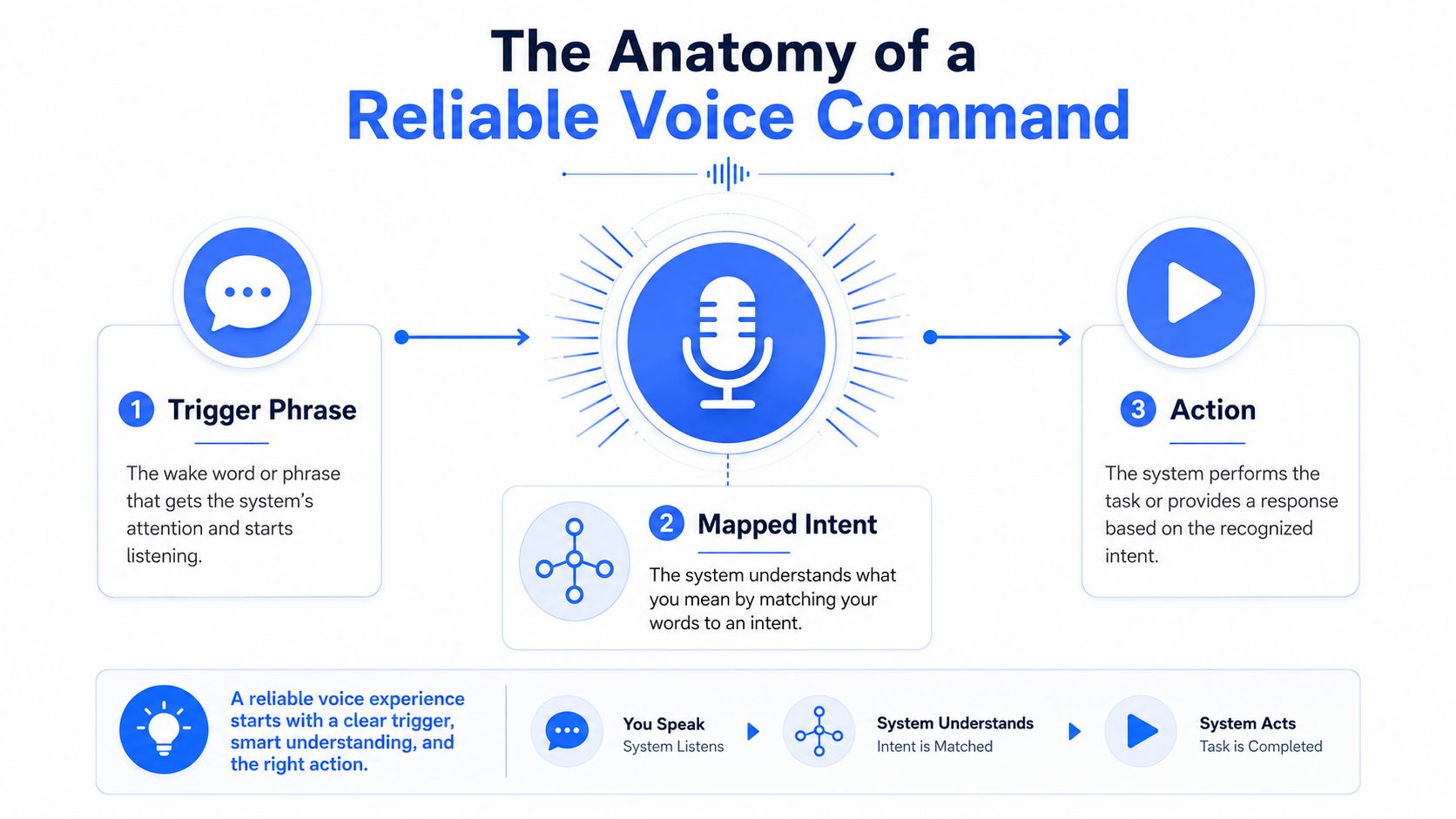
A voice command that works in a quiet demo is not much use. A command that survives real speech, background noise, app switching, and a bad mic on a busy day is the one you can trust. In practice, that depends on a narrow intent, a trigger that is easy to say, and one outcome that fires the same way every time.
Trigger phrase
The trigger phrase is the spoken handle you rely on every time. Keep it short, distinct, and easy to say without hesitation, because awkward phrasing leads to misfires and users abandon commands that feel slow to remember. If the phrase sounds like ordinary speech, or too much like another command in your set, it will cause trouble fast.
A clean setup starts with a phrase, an action, and a scope. Apple's Voice Control guide shows that structure clearly, with commands defined by a spoken phrase, attached action, and availability that can be system-wide or app-specific. The useful part is the discipline behind it, the trigger is only an entry point, not the whole command Apple's Voice Control guide.
Intent, action, and parameters
The cleanest way to think about a custom command is trigger phrase → mapped intent → action. Alexa's interaction model follows the same idea, one intent can accept many utterances, and changing values belong in slots or parameters instead of being buried inside one overloaded phrase Alexa interaction model.
That structure is why single-purpose commands beat broad ones. A trigger like “Insert follow-up” can map to one action, while the variable part, such as a name or project code, lives in a parameter. If one phrase has to mean “open the app, draft the reply, insert the template, and log the note,” you have built a brittle chain, not a reliable command.
Practical rule: one spoken phrase should reliably do one thing. Add more utterance variants or slots before you make the command broader.
Designing for natural speech
The most common mistake is underspecifying utterances. If the system only knows one phrasing, the first time you say the same idea a different way, recognition gets sloppy. People do not speak like test data, especially when they are busy, distracted, or moving between tasks.
A better pattern is to treat each command as a command-plus-action pair, then add obvious variants. That can mean a few different ways of saying the same thing, but the core meaning should stay narrow. If the command has to guess what you meant, it is already too loose.
Latency matters here too. Fast commands feel dependable because they keep pace with thought, while slower ones make you second-guess whether the command heard you. Local processing often feels better for frequent actions because it reduces the wait and cuts dependence on a stable connection, while cloud processing can help when the recognition model needs broader language support. The trade-off shows up immediately in daily use.
Cross-platform behavior adds another layer. A command that behaves well on macOS can feel different on Windows because focus handling, app permissions, and activation timing do not match perfectly. That is why voice workflows need real testing in the app, not just in a setup screen. The setup guide is useful because it shows the baseline configuration before you start layering in custom behavior.
If you are building apps that need voice input in a mobile or cross-platform environment, the speech recognition plugin for Capacitor is worth reading. It shows how voice capture gets wired into app logic instead of treated like a lab demo, and the same rule applies there, narrow triggers hold up better than clever ones.
Building and Testing Your First Commands
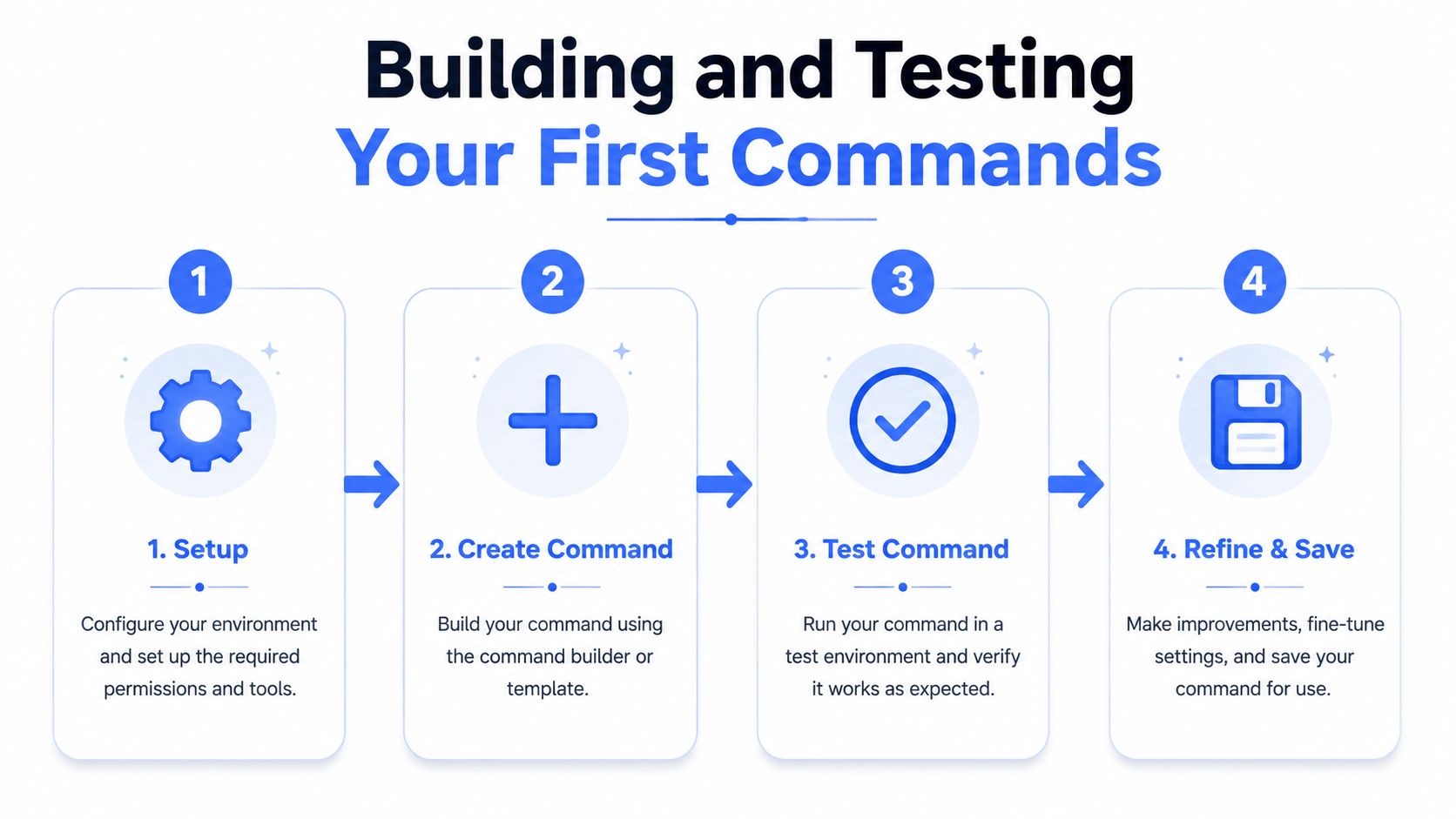
The quickest way to make voice feel unreliable is to test it only in a quiet room and assume the job is done. Real use includes fan noise, half-finished phrases, background tabs, and the exact app you happen to be working in when the command matters. If you do not test under those conditions, you are building a demo, not a workflow.
Set up the command surface
Start small. Pick the tasks you repeat all the time, then map each one to a single action that you can recognize at a glance when it fires correctly. If your command library has no shape, you will forget what exists and stop trusting it.
The setup walkthrough for Voice Control Pro's workflow is useful because it shows the baseline configuration before you start layering in custom behavior, and the setup guide gives that starting point clearly. The point is not the brand name, it is the discipline of getting a clean foundation in place before you add more commands.
A first pass should look like this.
- Choose one workflow category: Start with one area, such as email replies, meeting notes, or app launching, so patterns show up quickly.
- Keep the phrase short: Shorter triggers are easier to repeat consistently and less likely to collide with normal speech.
- Assign one output: If the command inserts text, have it insert one known block of text, not a chain of unrelated actions.
- Store the intent mentally: If you cannot explain what the command does in one sentence, it probably does too much.
Test in real conditions
Speak the command while you are working, not while you are “testing voice.” Run it with the apps you use every day open in the background, then repeat it with natural changes in pace and tone. If it only works when you pronounce it like a robot, it does not work.
Repetition across contexts is the most useful test. Use the command while editing text, while you are in a browser, and right after switching windows. Commands that depend on a perfectly staged environment tend to fail the first time you need them for real work.
Practical rule: if a command feels slightly slow or uncertain during testing, it will feel broken in real work.
The same applies to cleanup levels and dictation behavior. If the system rewrites your wording too aggressively, you may need a lighter touch for text-heavy work. If it preserves too much raw speech, your custom dictionary and phrasing choices matter more. The right balance is the one that matches the way you already write, not the one that looks best in a demo.
Local Processing Versus Cloud Voice Features
Privacy and performance aren't separate questions in voice work, they're tied together. If processing happens locally, you usually gain control and predictability. If it happens in the cloud, you often gain broader language support and more advanced cleanup, but you also add a dependency you can feel the first time the connection stutters.
What local processing changes
Local processing is the cleanest answer when the command touches sensitive material or when your internet connection can't be trusted. Voice Control Pro's Fly Mode is built around that idea, with processing kept on your computer and cloud features paused, while the free local mode provides unlimited dictation using an on-device AI model. That approach lines up with a broader trend toward on-device inference and edge processing for voice systems on-device voice processing trend.
The upside is obvious. Local processing can feel tighter, and it keeps the audio path simpler. The trade-off is equally obvious, because local systems may give up some language coverage or cleanup sophistication that a cloud-backed feature set can provide.
What cloud features still do well
Cloud features earn their keep when you need broader language support, more adaptable cleanup, or a more forgiving command surface across devices. They can also be easier to extend if the product is built around sync and centralized updates. That's one reason many teams keep cloud features in the mix even after they adopt local dictation for everyday work.
The practical mistake is treating this as a purity contest. You don't need every command to be local. You need the right command to be local, especially the one that handles private notes, client data, or quick insertion while offline. The cloud can still be useful for the rest.
Practical rule: use local processing for sensitive or latency-sensitive commands, and reserve cloud features for the cases where broader coverage matters more than isolation.
A good comparison guide is the cloud-versus-local overview from the product side, which frames the trade-off around offline reliability, privacy, and feature scope cloud versus local speech recognition. That's the question worth asking before you build your command library, not after.
Advanced Techniques for Power Users
Once basic commands are reliable, the gains usually come from chaining actions instead of making a single command smarter. The point isn't to build a giant voice script. It's to let one spoken trigger handle a small workflow that would otherwise take three or four manual steps.
Macros and command chaining
Macros are useful when the workflow is stable. A support agent might open a ticket, insert a reply template, and fill in a customer detail block with one trigger. A developer might insert a code comment pattern, jump to a file, and open a test command from the same cue. Those are good macro candidates because the steps always happen together.
The trap is overbuilding. If each macro becomes a pile of conditional logic, the command stops feeling like voice control and starts feeling like a brittle automation project. Keep the chain short, and keep the components homogeneous so latency stays predictable.
Hey Max style contextual actions
Contextual voice tools are strongest when they work on selected text, the visible screen, or the app you already have open. That's where rewriting, asking questions about on-screen content, or launching apps by voice becomes useful, because you're not switching modes to get the benefit. You're making the current screen more productive.
If you're doing any coding-related voice work, the coding by voice article is a helpful companion because it shows how spoken commands become more valuable when they're tied to the exact editing context you're already in. That same principle applies to support replies, research notes, and prompt drafting.
Keep the automation short
The strongest operational habit is to favor short command paths. Long chains create more timing variance, which makes the whole thing feel unreliable even when the final output is correct. If a workflow needs five steps, consider whether three of them can be preconfigured before the command runs.
A simple way to think about advanced voice workflows is this.
- Use macros for fixed sequences: Best when the same steps always happen in the same order.
- Use chaining for adjacent actions: Best when one command naturally leads to the next.
- Use context tools for local edits: Best when the current selection or screen already contains what you need.
- Avoid branching logic early: If the command has too many choices, it's probably not a command anymore.
The more advanced the workflow, the more important it is to keep the spoken trigger small and the output deterministic. Voice is fastest when the command is obvious to the system and obvious to you.
Troubleshooting Common Voice Command Failures
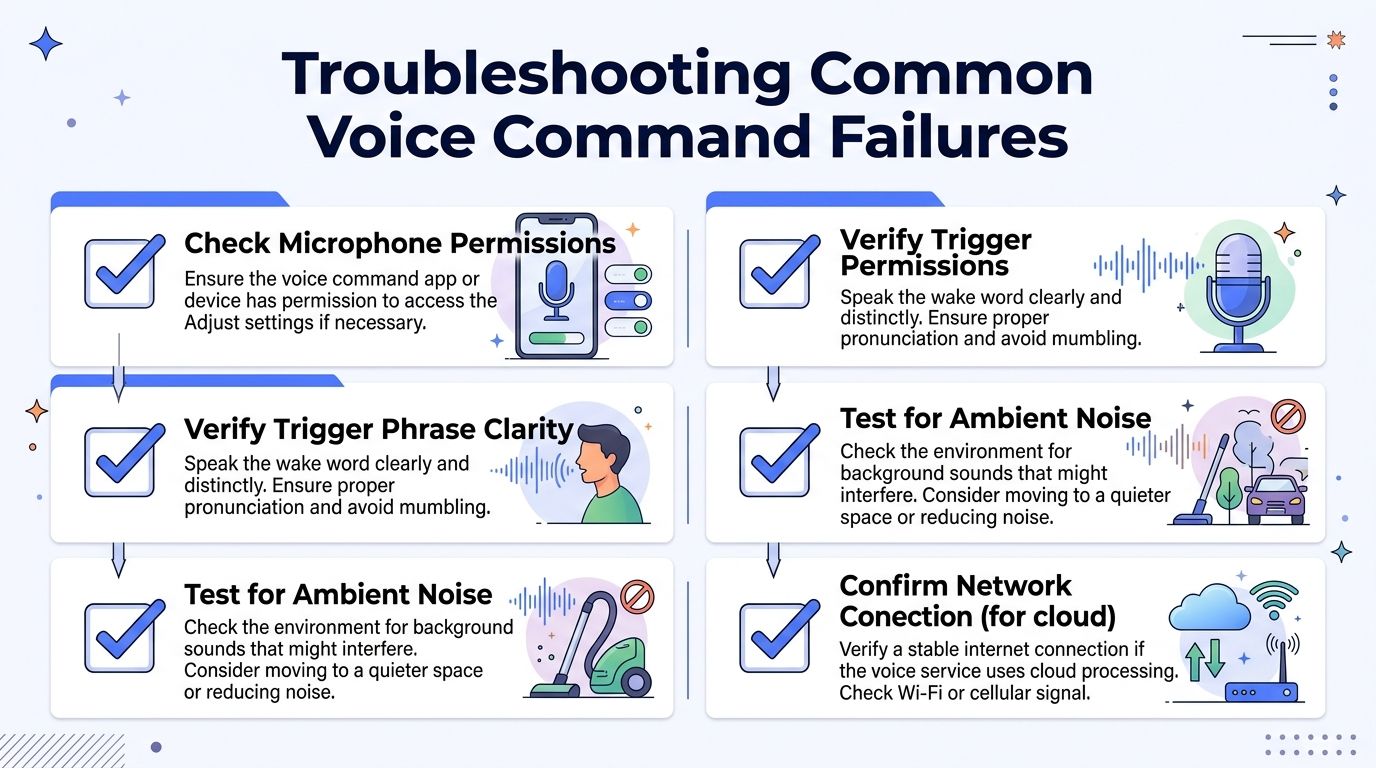
When a command fails, the symptom usually tells you where to look first. Don't start by rewriting the whole setup. Start by asking whether the trigger, the microphone path, the network path, or the app permission is failing.
Symptom to cause to fix
If the command doesn't trigger at all, check the microphone permission and input source first. A dead or misrouted input path looks a lot like recognition failure, and users often waste time on the wrong layer. If the phrase triggers incorrectly, the issue is usually phrase clarity or conflict with another command.
Latency is its own failure mode. A command that takes too long feels broken even if it eventually works, especially if the response path depends on the cloud or a noisy network. The practical fix is to shorten the command path, reduce ambiguity, and remove anything that forces unnecessary round-trips.
For navigation and route-style commands in adjacent workflows, a resource like diagnose offline navigation faults is useful because it reinforces the same diagnostic habit, isolate the failure before you change the whole system. That mindset works just as well for voice commands as it does for other input-driven tools.
Cross-platform quirks
macOS and Windows often behave differently at the edges. Permissions, shortcut handling, and app focus can all change how reliable a command feels. If a command works in one app but not another, the app-specific permission model is often the first place to look.
Network conditions only matter when the system depends on them, which is why cloud-backed voice features can feel inconsistent in ways local processing doesn't. If you notice command quality dropping when the connection is unstable, don't treat that as a recognition problem. It's a transport problem.
Practical rule: fix the simplest layer first. Microphone, phrase conflict, ambient noise, then network. Reordering that process usually wastes time.
The best troubleshooting habit is to keep a small log of failures. Write down what you said, where you were, and what happened. Patterns show up fast, and once they do, you'll see which commands need redesign instead of another round of guesswork.
Your Action Plan for Voice Command Mastery
Start small and build around what you repeat most. Three to five commands is enough for the first pass if they cover the tasks that interrupt your day the most. If a command doesn't save time or reduce friction, it doesn't earn a place in the library yet.
The right benchmark is practical, not theoretical. A good command should feel more dependable than the manual alternative, easier to remember than a shortcut buried in an app, and natural enough that you'll keep using it. If it needs explanation every time, it's too complex.
A useful rollout order looks like this.
- Pick repetitive tasks first: Choose actions you perform every day, like inserting text, opening apps, or jumping to a frequent workflow.
- Test in real use: Run each command during actual work, not a clean demo session.
- Refine the wording: Tighten trigger phrases that feel awkward or collide with ordinary speech.
- Add only when stable: Expand the library only after the current set works without hesitation.
- Review monthly: Replace commands that no longer fit your work pattern.
The command library should evolve with your workflow. Templates change, apps change, and the way you speak changes too. That's normal. The people who get the most out of voice automation are the ones who keep pruning the weak commands and promoting the ones they trust.
If you want the fastest next step, build one command that removes a daily annoyance and make it reliable before you build the next one. That's the compounding effect. Once the first few commands hold up under real work, the rest of the system starts paying for itself.
If you want a faster path to reliable dictation, app launching, and contextual rewrite workflows on macOS or Windows, Voice Control Pro is built for exactly this kind of day-to-day use. It gives you a practical way to speak naturally, keep your hands on the keyboard when it matters, and build a voice workflow that doesn't fall apart outside a demo.