
You've got a long email, research note, or support response in front of you, and typing it will take far longer than saying it out loud. The problem isn't finding a microphone button. It's choosing a Windows speech-to-text program that fits your workflow, whether that means inserting polished text into any app, controlling the whole computer without a keyboard, capturing meetings, or editing recordings from a transcript.
This comparison groups the options by job rather than brand familiarity. You'll find system-wide dictation for everyday writing, accessibility tools for hands-free Windows control, Microsoft 365 features for Office workflows, and meeting or transcript platforms for recordings, interviews, and shared notes. Privacy, offline use, language coverage, setup effort, and plan limits matter as much as recognition quality. For a broader look at voice-driven productivity, see Smarter workflows with AI.
Table of Contents
- 1. Voice Control Pro
- Best for cross-app dictation
- 2. Nuance Dragon Professional v16
- Where Dragon still earns its place
- 3. Windows 11 Voice Typing
- The cloud and privacy trade-off
- 4. Windows 11 Voice Access
- Offline control is its advantage
- 5. Microsoft 365 Dictation and Word Transcribe
- Strong for Office-based teams
- 6. Otter.ai
- A meeting tool, not a universal dictation tool
- 7. Descript
- Best for transcript-led media production
- 8. Notta
- Fast deployment with plan boundaries
- 9. Philips SpeechLive
- Built for routed work
- 10. Trint
- Collaboration is the differentiator
- Top 10 Windows Speech-to-Text Comparison
- Choose by Workflow, Then Test With Your Own Audio
1. Voice Control Pro
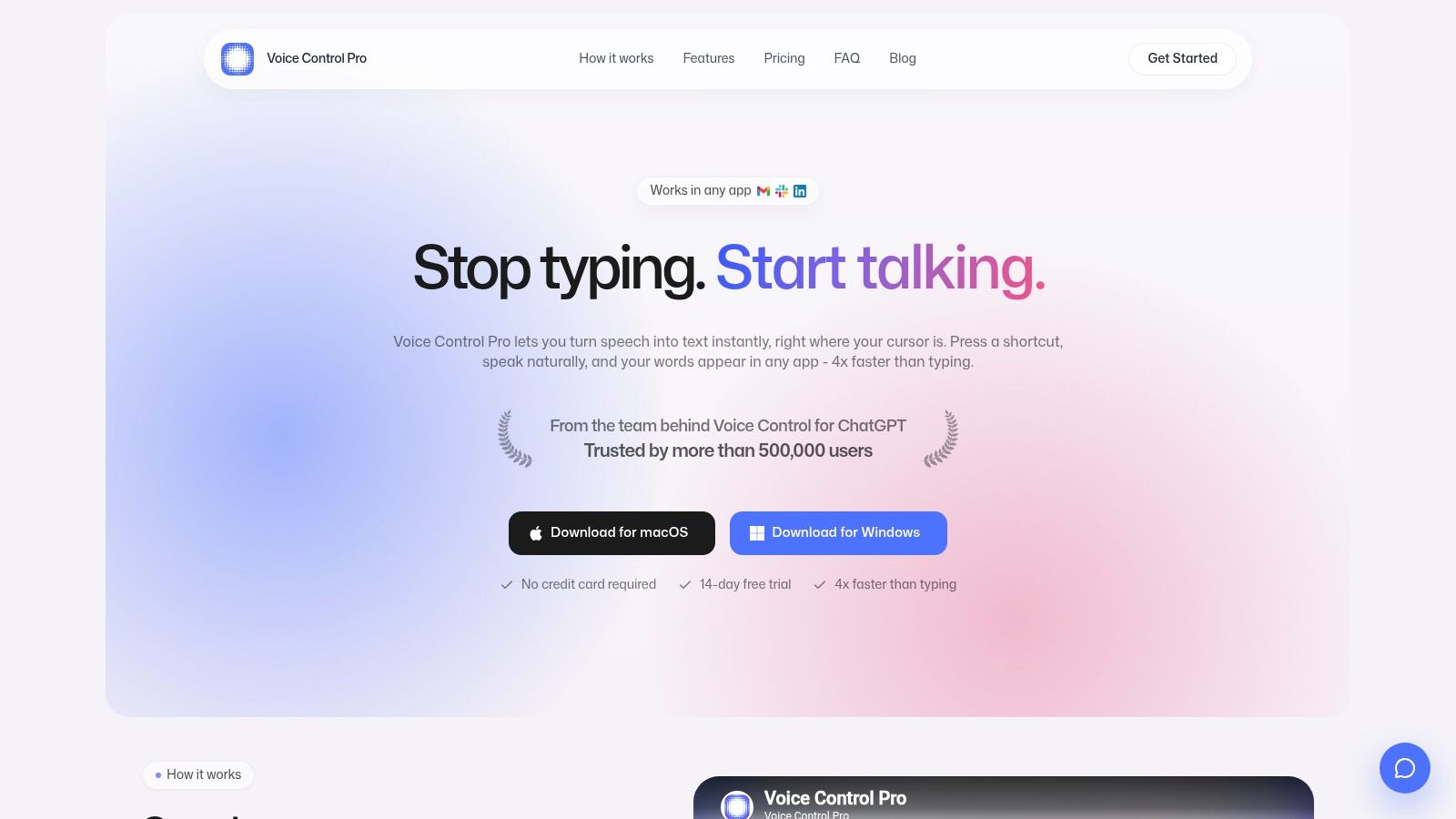
You are replying in Slack, updating a CRM record, and fixing a paragraph in a browser form. Voice Control Pro fits that kind of work because it focuses on one job first: typing into any Windows app where the cursor is already active. Hold the shortcut, speak, release, and the text drops straight into the field you were using. In practice, that matters more than headline accuracy claims. It removes the copy-paste step that slows down meeting transcription tools and browser-only dictation extensions.
It also reaches beyond plain dictation. Hey Max can rewrite selected text, answer questions about what is on your screen, and open installed apps by voice. That makes it more useful for people who draft in short bursts across different tools. A support rep can dictate a reply in a ticket, highlight a weak sentence, and ask for a cleaner version without switching apps.
Best for cross-app dictation
Setup is light, which is part of the appeal. The trade-off is that microphone quality still decides a lot. Cheap laptop mics, room echo, and office noise will hurt results faster than many buyers expect, so test it in the exact environment where you plan to use it.
Plan limits are also easy to understand. Voice Control Pro offers a 14-day free trial with no credit card. The Free tier includes cloud processing up to 2,000 weekly words, and the Max plan costs $9 per month for unlimited cloud use, according to the Voice Control Pro website.
Offline capability is where this tool becomes easier to place by workflow. Fly Mode processes voice locally and pauses cloud features, and the free local mode provides unlimited on-device dictation. Max adds 99+ language support, adjustable cleanup levels, a custom dictionary, transcription history, cloud backup, and stronger rewriting tools. Use local mode when confidentiality matters more than AI assistance. Switch to cloud features when you need broader language coverage, rewriting, or screen-aware help.
2. Nuance Dragon Professional v16
Dragon Professional v16 remains the specialist choice for Windows users who need deep voice control, custom vocabulary, and local processing rather than a lightweight dictation overlay. It's designed for professionals who dictate continuously, use specialized terms, or need voice commands that go beyond inserting paragraphs.
The setup takes more commitment than modern AI dictation apps. You'll need to configure the microphone, teach Dragon unusual words and phrases, and build habits around its command vocabulary. In return, you get voice macros, auto-text templates, Windows application control, and support for digital recorders with deferred transcription. Those features are useful when dictation is a core operating method rather than an occasional shortcut.
Dragon's local operation suits users handling confidential legal, medical, financial, or internal business material. It also supports custom words and phrases, which helps when generic speech recognition repeatedly mishandles product names, technical terminology, or client references.
Where Dragon still earns its place
The trade-off is the product experience. Dragon feels more traditional than newer cloud tools, and its perpetual-license model can make the purchase harder to justify for casual users. It's also less attractive if you want built-in rewriting, modern transcript history, or a polished cross-device workflow.
Choose Dragon when accuracy, commands, macros, and Windows depth matter more than minimal setup. Skip it if you only want to dictate short emails across several apps. In that case, a cursor-level tool will usually feel faster to adopt.
Visit Nuance Dragon Professional for the current edition and licensing details.
3. Windows 11 Voice Typing
Windows 11 Voice Typing is the quickest starting point for system-wide dictation because it's already part of Windows and launches with Win+H. Put the cursor in a text field, activate the microphone, and speak. It works across ordinary Windows applications without requiring a separate dictation program.
The built-in commands cover basic editing and punctuation, including actions such as deleting or selecting text. You can also adjust the profanity filter and use speaker-audio suppression while dictating. That's enough for emails, notes, search fields, and first drafts, but it doesn't provide the custom dictionaries, advanced cleanup, or workflow automation found in dedicated tools.
The cloud and privacy trade-off
Microsoft emphasizes internet connectivity for Voice Typing, so it shouldn't be treated as an offline-first option. That matters if you're dictating confidential customer information, proprietary research, or private prompts. This comparison of Voice Control Pro and Windows Voice Typing is useful if you're deciding whether built-in convenience is enough.
Language coverage is broader than hands-free command coverage across Windows features. Microsoft lists regional English variants including Australia, Canada, India, New Zealand, the United Kingdom, and the United States, along with languages such as French, German, Hindi, Japanese, Korean, and Polish in its Voice Typing documentation. Still, selecting a language variant doesn't guarantee equal performance for every accent, technical term, or noisy workspace.
Use Voice Typing when you want zero cost, immediate access, and basic dictation. Choose something else when offline processing, extensive customization, or polished text insertion is central to your work.
4. Windows 11 Voice Access
Windows 11 Voice Access is the better built-in choice when dictation is only part of the requirement. It lets you author text and control the interface with commands such as clicking named controls, opening applications, moving through windows, and operating the desktop without relying on a mouse.
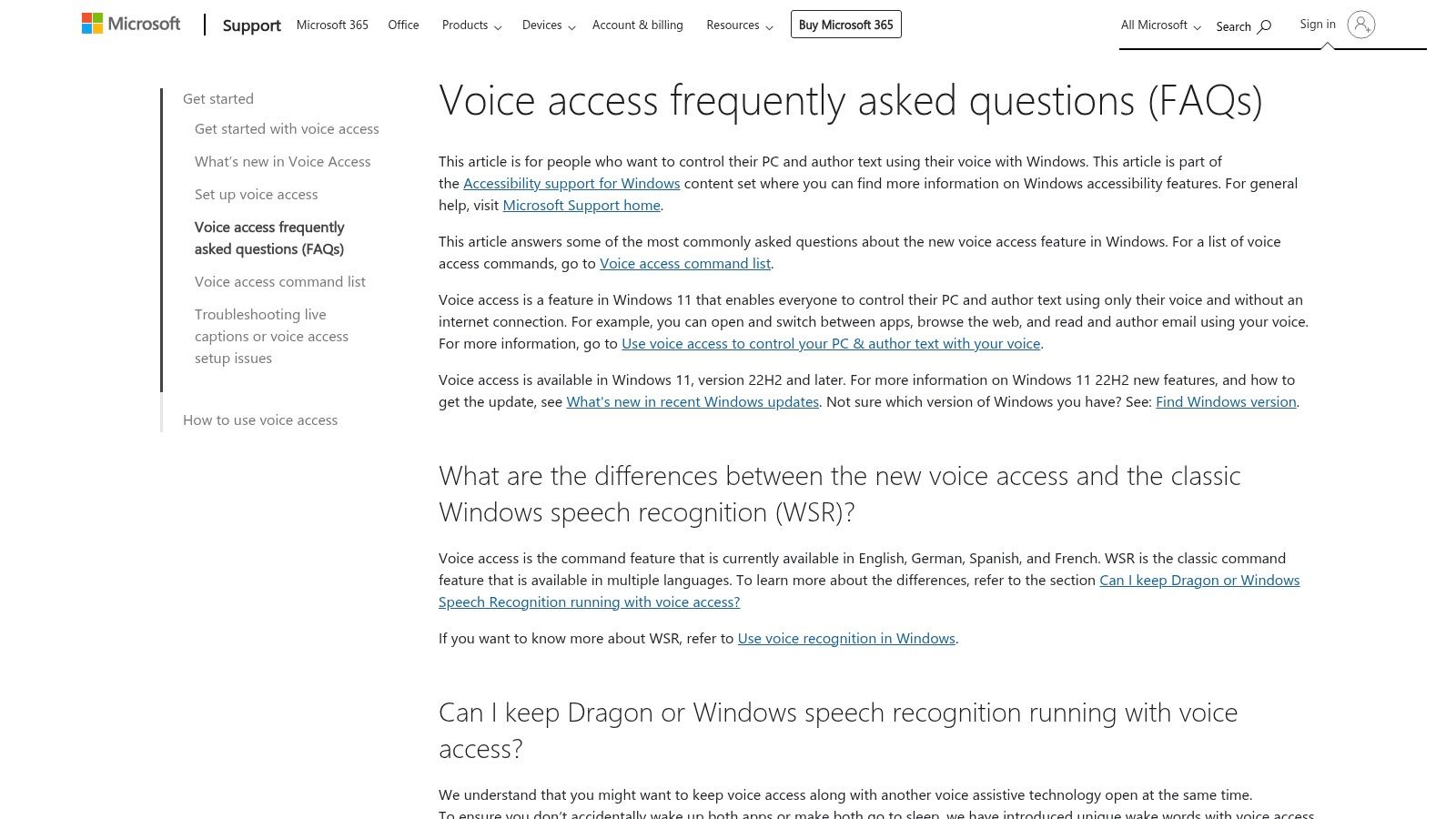
That distinction matters for accessibility. Voice Typing helps you enter text, while Voice Access can help you move through the surrounding interface. It can also work offline after you download its on-device speech models. Microsoft says the processing, voice signature, and model remain on the PC, and raw recordings aren't uploaded or saved, according to its Voice Access FAQ.
Offline control is its advantage
The main cost is learning the command vocabulary. You'll need to understand how Voice Access names controls, how it handles text selection, and when to switch between dictation and navigation commands. It also has a shorter command-language scope than Voice Typing, so multilingual users must check whether their preferred language supports both text entry and control.
Microsoft distinguishes dictation-language selection from the Windows display language. Voice Isolation can help when other speakers or background noise are present, but a very noisy environment can still cause recognition errors. Voice Control Pro versus Voice Access provides a useful contrast between local hands-free control and a third-party app focused on polished cross-app insertion.
Pick Voice Access when offline privacy and full Windows control matter more than automatic writing polish. It's especially appropriate for accessibility-focused workflows. For fast drafting across many applications, it may feel more command-heavy than necessary.
5. Microsoft 365 Dictation and Word Transcribe
Microsoft 365 is convenient when your work already lives in Word, Outlook, and PowerPoint. Dictation is built into those applications, so there's no separate Windows utility to learn and no need to move text between a transcription service and an Office document.
Word Transcribe adds a different workflow. Instead of speaking directly into the document, you can upload an audio recording and receive a transcript with speaker separation and timestamps. That suits interviews, internal meetings, research conversations, and recorded briefings where the source audio already exists.
Strong for Office-based teams
The advantage is governance. Organizations already using Microsoft 365 can apply their existing tenant-level controls and data-handling policies instead of introducing another transcription vendor. Administrators may also prefer centralized identity, permissions, and compliance settings.
The limitation is scope. Microsoft 365 Dictation is primarily tied to Office applications, so it doesn't follow your cursor into every desktop tool. Word Transcribe also has plan-dependent upload entitlements, with quotas commonly described around 300 minutes per month, although the exact allowance depends on the Microsoft 365 plan and current product terms. Check the current Microsoft 365 Dictate documentation before planning a large transcription workload.
This is a sensible choice for Office-first users who want dictation and audio transcription in one familiar environment. It's less suitable if you need offline processing, universal app insertion, or a meeting knowledge base outside Microsoft 365.
6. Otter.ai
Otter.ai is built for meetings and conversations, not cursor-level dictation. Its Windows desktop workflow captures live meetings, creates searchable transcripts, identifies speakers, and produces AI notes and summaries. That makes it a poor replacement for Win+H when you're writing an email, but a strong option when the spoken content comes from recurring team calls.
The desktop app supports automatic and bot-less recording options, with integrations for Zoom, Microsoft Teams, and Google Meet. Teams can search transcript history, share notes, and build a more consistent record of decisions and follow-ups. That shared context is more valuable than raw word conversion for sales, support, and project teams.
A meeting tool, not a universal dictation tool
Otter's plan structure is tied to usage, imports, concurrent meetings, and collaboration features. Those limits can matter more than recognition quality if your team records frequently. Review the current Otter.ai platform plan details before rolling it out across a department.
The setup is easier for teams than a specialist dictation suite because users can start with meeting capture rather than learning a large command system. The trade-off is that Otter doesn't turn spoken text into the active field in your CRM, email client, or document editor.
Choose Otter when the question is “What did everyone say, and what should we do next?” Choose Voice Control Pro, Dragon, or Windows Voice Typing when the question is “How can I write this response without typing?” For a broader look at Windows transcription workflows, see transcription software for Windows.
7. Descript
Descript treats the transcript as the editing surface for audio and video. That makes it a natural choice for podcasters, video teams, educators, and marketers who don't just need words on a page. They need to cut spoken content, remove filler, clean up a recording, and publish the finished media.
Its workflow is different from desktop dictation. You import or record media, let Descript generate a transcript, then edit the transcript to change the underlying audio or video. AI cleanup tools, filler-word removal, and text-based editing reduce the need to work directly on a waveform.
Best for transcript-led media production
Descript supports automated transcription in 25+ languages, according to its product materials. That broad coverage can help multilingual creators, but language support shouldn't be confused with equal performance across accents, specialist terminology, or noisy recordings.
The main plan limitation is the media-minute model, combined with AI credits for advanced features. A creator who records and edits regularly needs to track both the amount of media processed and the AI operations used. The app is also heavier than a simple Windows dictation utility, so it's unnecessary if your only goal is writing emails or notes.
Visit Descript if you need transcription and media editing in one workspace. Don't choose it as a general-purpose Windows speech-to-text program when a lighter cursor-level app would solve the actual problem.
8. Notta
Notta is aimed at teams that spend much of the day in meetings but want a quick desktop setup. Its Windows app supports on-screen and meeting capture without requiring a bot to join every call. It also adds speaker labels, AI notes, summaries, translation, exports, and team sharing.
That bot-free approach removes a common objection from clients or colleagues who don't want an unfamiliar participant appearing in the meeting roster. It also makes Notta practical for calls hosted across different services, provided your organization's recording and consent policies allow desktop capture.
Fast deployment with plan boundaries
Notta's setup is lighter than building a formal dictation workflow around specialist hardware. A sales or support team can install the desktop app, capture calls, and share summaries without changing its primary meeting platform.
The limitation is focus. Notta is primarily a meeting recorder, so it won't behave like a global hotkey that inserts polished text into whichever Windows field is active. Its plans also use defined monthly minute allowances, and some translation, administration, and collaboration features require higher tiers. Confirm the current Notta plans and Windows features before choosing it for high-volume use.
Select Notta when meeting capture and quick team adoption matter most. For drafting across Gmail, Slack, documents, and AI tools, use a tool designed for direct cursor insertion instead.
9. Philips SpeechLive
Philips SpeechLive fits organizations with a structured dictation process rather than individuals who want faster typing. It combines a Windows desktop app, web recording, workflow routing, optional speech recognition, optional human transcription, and support for equipment such as SpeechMike microphones and foot pedals.
That structure is valuable in legal, medical, and other regulated environments where a dictation must move from one person to another, retain a clear status, or pass through an established review process. It's also useful when teams have dedicated transcription staff or need to maintain a consistent device setup.
Built for routed work
SpeechLive supports cloud speech recognition add-ons and legal-specific speech-to-text options. Enterprise features include SSO, reporting, and support for virtual environments. Those capabilities are more relevant to an organization than to a student writing occasional notes.
The trade-off is configuration and pricing complexity. Full capability often depends on paid add-ons, device choices, workflow requirements, and whether you use automated or human transcription. A single user who only needs clean text in a browser may find the system excessive.
Review Philips SpeechLive when you need structured dictation routing, hardware support, and enterprise controls. It isn't designed to be the fastest casual Windows voice typing option, but it addresses operational problems that simpler applications ignore.
10. Trint
Trint serves editorial, research, legal, and media teams that need live and batch transcription in the same platform. Its Windows desktop app supports live microphone or on-screen capture through Trint Live, while the broader service provides searchable, time-coded, speaker-aware transcripts and collaborative editing.
The time-coded workflow is useful when someone needs to return to the exact point in a recording, verify a quote, or assemble a story from several interviews. Team members can edit and review a transcript together instead of passing audio files and notes through email.
Collaboration is the differentiator
Trint supports transcription in 40+ languages, according to its product materials. That's useful for international editorial and research workflows, but language count alone doesn't tell you how well a tool will handle your accent, specialist vocabulary, overlapping speakers, or recording conditions. Test representative audio before committing.
Trint isn't a global-hotkey dictation tool. It won't replace a program that inserts text directly into an active Windows field while you draft. Its pricing and feature access vary by plan, and some capabilities target enterprise customers, so buyers should check the current Trint platform rather than assuming a consumer-style subscription.
Choose Trint when collaborative, time-coded transcription is the deliverable. Choose a system-wide dictation app when the deliverable is text you're composing live.
Top 10 Windows Speech-to-Text Comparison
| Product | Core features | Quality ★ | Unique ✨ | Target 👥 | Price 💰 |
|---|---|---|---|---|---|
| Voice Control Pro 🏆 | Cursor‑level dictation (press‑hold‑release), Hey Max assistant, Fly Mode local processing | ★★★★☆, fast, polished | ✨ In‑place rewriting, screen Q&A, app launching, on‑device unlimited mode | 👥 Knowledge workers, students, devs, support/sales | 💰 Free tier (2k weekly cloud), Max $9/mo, 14‑day trial |
| Nuance Dragon Professional v16 | On‑device continuous dictation, macros, custom vocabularies, device support | ★★★★☆, very accurate for pro mics | ✨ Deep Windows integration, macro automation, hardware support | 👥 Power users, legal/medical pros | 💰 Perpetual license, high upfront cost |
| Windows 11 Voice Typing | System‑wide Win+H dictation, basic edit/punctuate commands | ★★★☆☆, decent baseline | ✨ Built‑in, zero install | 👥 Casual users, quick dictation needs | 💰 Free, uses Microsoft cloud by default |
| Windows 11 Voice Access | Text authoring + full PC voice control, offline models available | ★★★☆☆, powerful, steeper learning | ✨ Offline UI control + dictation | 👥 Accessibility users, privacy‑minded | 💰 Free; download on‑device models for offline use |
| Microsoft 365 Dictation & Word Transcribe | In‑app dictation (Word/Outlook/PowerPoint), Transcribe with speaker separation & timestamps | ★★★★☆, reliable inside Office | ✨ Transcribe uploads, speaker/timestamps, tenant controls | 👥 Office/enterprise users | 💰 Included with Microsoft 365 plans; quotas apply |
| Otter.ai (Desktop for Windows) | Real‑time meeting capture, searchable transcripts, summaries, conferencing integrations | ★★★★☆, strong meeting UX | ✨ Live notes, automated summaries, Zoom/Teams integrations | 👥 Teams, meeting‑heavy roles | 💰 Freemium, tiered minutes & team plans |
| Descript | Transcript‑driven audio/video editor, filler removal, multilingual STT | ★★★★☆, excellent for creators | ✨ Text‑based AV editing, filler‑word removal, publishing tools | 👥 Creators, podcasters, producers | 💰 Tiered plans, media‑minute/credit model |
| Notta | Meeting recorder, AI notes/summaries, translation, desktop capture | ★★★☆☆, meeting‑focused | ✨ Bot‑free desktop capture, translations, quick sharing | 👥 Sales/support, meeting‑heavy teams | 💰 Freemium, minutes‑based tiers |
| Philips SpeechLive | Dictation workflow, web/desktop recorder, optional human transcription & device support | ★★★☆☆, workflow & device oriented | ✨ Device (SpeechMike) support, routing, human transcribe option | 👥 Firms needing regulated workflows (legal/medical) | 💰 Subscription + paid add‑ons, complex pricing |
| Trint | Live on‑screen capture (Trint Live), time‑coded/searchable transcripts, collaboration tools | ★★★★☆, newsroom‑style collaboration | ✨ Live + batch workflows, 40+ languages, editorial tools | 👥 Media, research, legal teams | 💰 Subscription plans, enterprise pricing |
Choose by Workflow, Then Test With Your Own Audio
Start with the job, not the brand. Use Windows Voice Typing or Voice Access when cost and built-in access matter, with Voice Access standing out when offline operation and hands-free control are important. Choose Voice Control Pro when you draft across many applications and want speech inserted directly at the cursor. Choose Dragon when local processing, custom vocabulary, macros, and deep Windows commands justify a more involved setup.
Meeting tools solve a different problem. Otter.ai and Notta are designed to capture conversations, identify speakers, and produce shared notes. Descript is better when the transcript drives audio or video editing. Trint fits editorial and research teams that need time codes, collaboration, and both live and recorded workflows. Philips SpeechLive makes sense when dictation must move through a formal route with devices, reviewers, or enterprise controls.
The controlled speech-input experiment summarized by Viska AI research measured English speech entry at 153 words per minute, compared with 52 words per minute on a keyboard, using 32 participants. The same summary reports a 20.4% lower error rate, 29% fewer user corrections, and lower cognitive demand for voice typing. Those figures describe a controlled experiment, not a promise for every Windows setup. They also explain why corrected words per minute and post-editing time are more useful measures than a tool's advertised recognition speed.
Your microphone and environment can change the outcome. Microsoft notes that Voice Isolation is most useful when background noise or other speakers are present, while very noisy rooms can still produce recognition errors. A controlled test with your own headset, accent, technical terms, email style, and target applications will tell you more than a generic feature list.
Before buying, verify four things:
- Offline processing: Confirm whether audio and models stay on the device, especially for confidential work.
- Language fit: Check the exact dictation and command languages, including regional variants and mixed-language needs.
- Plan limits: Review cloud words, meeting minutes, media minutes, imports, AI credits, and team entitlements.
- Editing overhead: Measure how much time you spend correcting names, punctuation, formatting, and cursor placement.
Try a real paragraph rather than a clean demo script. Dictate a customer reply, research note, technical explanation, or meeting summary, then compare the finished text and the time needed to correct it. For a practical way to turn spoken ideas into polished writing across Windows apps, the AI highlight detection tool can also help you identify the parts of recorded content worth revisiting.
Voice Control Pro is designed for the gap between basic Windows dictation and full transcription suites. It inserts cleaned speech directly into the active app, offers local processing through Fly Mode and on-device mode, and adds Hey Max for rewriting, screen questions, and app launching. Try Voice Control Pro with your own microphone and daily workflow, then judge the result by corrected writing time rather than the feature list.