
The assumption that one transcription app is "best" for every Windows user is wrong. A tool that excels at turning a meeting recording into speaker-separated notes may be frustrating for someone who wants to dictate directly into Outlook, a CRM, or a code editor. The choice depends on live dictation versus recorded audio, local versus cloud processing, cursor-level insertion versus transcript editing, integrations, language requirements, budget, and privacy.
That distinction matters because Windows now offers several different transcription paths. Built-in voice typing handles quick system-wide input, Microsoft 365 keeps interview transcripts inside Word, Dragon supports demanding professional dictation, and cloud platforms turn meetings or media files into searchable, collaborative assets. Newer tools also compete on a neglected workflow detail, whether spoken words appear directly where the cursor is without forcing you to switch windows. Recent Windows transcription comparisons still describe the market as fragmented by live dictation, meeting transcription, cloud file processing, and local tools.
The list below ranks tools by workflow fit, not by a single accuracy claim. Start with the job you do most often, then check the processing model, privacy controls, insertion behavior, integrations, and quotas before committing.
Table of Contents
- 1. Voice Control Pro
- Why its workflow stands apart
- 2. Microsoft Windows Voice Typing
- 3. Microsoft 365 Transcribe in Word
- The practical constraint is the subscription model
- 4. Nuance Dragon Professional v16
- Where the desktop license fits
- 5. Dragon Professional Anywhere
- Cloud convenience changes the privacy equation
- 6. Otter.ai
- Meeting coverage is not the same as app-wide input
- 7. Descript
- The editor is also the source of its complexity
- 8. Trint
- Plan structure matters more than the feature list
- 9. Sonix
- Browser convenience has a clear boundary
- 10. Notta
- Cross-platform reach does not remove cloud risk
- Windows Transcription Software Comparison
- Choose the Windows Transcription Setup You Can Sustain
1. Voice Control Pro
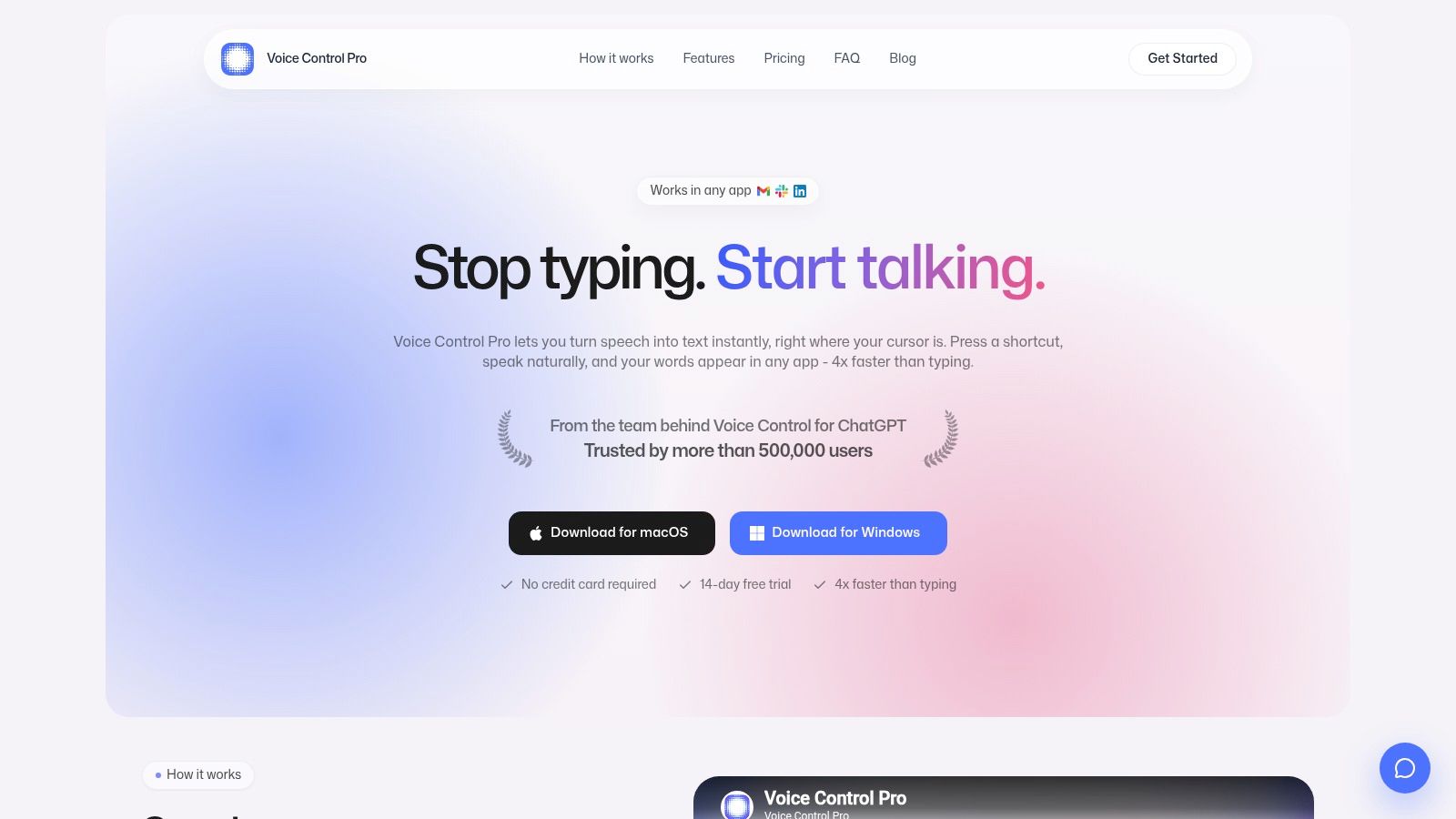
Voice Control Pro fits Windows users who need speech to replace keyboard input across their existing applications. Hold a global shortcut, speak, release it, and the text appears at the active cursor. This workflow suits emails, documents, support replies, CRM fields, prompts, and code comments because it avoids moving between a recording window and the application where the work happens.
Its value extends beyond transcription. Hey Max can rewrite selected text, answer questions about visible screen content, and open installed applications by voice. Dictation therefore includes an editing step in the same context. A user can refine a paragraph without copying it into another assistant or interrupting the current task.
Why its workflow stands apart
The processing model changes what the tool can do. Fly Mode keeps processing local and pauses cloud features, while a fully local mode allows dictation without sending audio to servers. Cloud processing supports features such as history, higher-capability models, and Hey Max, so choosing local operation may mean accepting fewer functions or different performance.
The Max plan includes 99+ language support, a custom dictionary, transcription history, cloud backup, and cleanup levels matched to a user's writing style. The free tier allows 2,000 words per week, while the Max plan costs $9 per month for unlimited transcription, according to the product information supplied for this comparison. A 14-day free trial is available without a credit card.
Practical rule: Choose this tool when fast cursor-level insertion and fewer context switches matter more than producing a long, speaker-labeled transcript.
The limitation is workflow scope. Voice Control Pro is built mainly for live, app-wide dictation, not detailed review of lengthy recordings with speaker labels. It fits knowledge workers, support and sales teams, students, accessibility users, and anyone who captures ideas directly inside the application already open. The local options also suit users who cannot send audio to a cloud service, while the cloud features are more relevant when history, language coverage, and AI-assisted editing take priority. Visit the Voice Control Pro website for Windows setup and current plan details.
2. Microsoft Windows Voice Typing
Microsoft Windows Voice Typing is the sensible starting point for anyone who needs basic dictation without buying or installing another application. The built-in Win+H shortcut opens voice typing in Windows 10 and Windows 11, and the feature works across text fields in email, chat, documents, and other applications. Because it's already part of the operating system, the adoption barrier is low.
Windows 11 voice typing can convert speech to text and add punctuation automatically, making it useful for short messages, notes, and first drafts. Microsoft's support documentation also explains that online speech recognition is the default path, with device-based speech available when cloud recognition is turned off. That creates a straightforward privacy trade-off. Online recognition can offer the preferred experience, while device-based processing is more appropriate when audio shouldn't leave the computer.
The feature is not the same as a full professional dictation suite. Custom vocabulary, advanced commands, specialized workflows, and transcript organization are more limited than in Dragon or dedicated AI dictation tools. It also requires a cursor in an editable text field, so it won't replace a meeting recorder or a media transcription editor.
Windows' broader voice roadmap adds another implementation consideration. Microsoft says Voice Access replaced Windows Speech Recognition on Windows 11 version 22H2 and later starting in September 2024, while older Windows versions continue to use WSR, leaving users on different releases with different voice paths. The company also says Voice Access remains available only on Windows 11 22H2 and later. Microsoft's voice data privacy guidance describes a change in how newer voice data appears in the privacy dashboard.
For a practical comparison with dedicated tools, see this guide to Windows voice-to-text software. Windows Voice Typing is best for occasional dictation, accessibility support, and users who value zero cost over customization.
3. Microsoft 365 Transcribe in Word
Microsoft 365 Transcribe in Word is built for a different job from Windows Voice Typing. Instead of placing live speech into whichever field currently has focus, it turns a recording into a structured transcript inside Word. Users can record directly in Word or upload an audio file, then work with playback, timestamps, and speaker separation in the same document environment.
That makes it particularly useful for researchers, journalists, students, and professionals who already organize their work in Microsoft 365. A quoted passage can be checked against the audio, and the transcript can remain alongside the notes or draft rather than being exported from a separate application. Recordings and transcripts are stored in OneDrive, which keeps the workflow connected to Microsoft's cloud ecosystem.
The practical constraint is the subscription model
Word Transcribe requires internet access and a Microsoft 365 subscription. Uploaded audio also has a monthly minutes cap without Copilot, so the feature can become difficult to budget for users who process a large archive or conduct frequent interviews. The important question isn't whether it can transcribe a file. It's whether the user wants the transcript to live inside Word and accepts Microsoft's cloud storage and usage boundaries.
The tool is less suitable for users who need offline processing, universal cursor insertion, or extensive command-and-control dictation. It also isn't the natural choice for editing video, exporting subtitle formats, or managing a large media library. Those workflows belong to Descript, Trint, or Sonix.
Microsoft 365 Transcribe makes the most sense when Word is already the place where research becomes a finished document.
If your goal is live dictation rather than recorded-audio conversion, compare it with this overview of transcribing voice to text. For Word-centered interviews and meetings, however, Microsoft 365 Transcribe has a clear implementation advantage because playback and text share one workspace. See Microsoft's Transcribe documentation for current recording and upload requirements.
4. Nuance Dragon Professional v16
Nuance Dragon Professional v16 remains the reference point for demanding Windows dictation because it treats speech as a full input and command layer, not merely as text captured from a microphone. It supports on-device dictation into Windows applications such as Word and Outlook, custom vocabularies, and voice commands for users who spend much of the day composing or navigating by voice.
That distinction matters in regulated, repetitive, or specialized work. A medical, legal, technical, or operational user may need more than ordinary words appearing in a text box. Custom vocabulary and command behavior can reduce the repeated corrections that make basic dictation feel inefficient, although the supplied information doesn't establish a universal accuracy advantage.
Where the desktop license fits
Dragon Professional v16 is Windows-only and supports Windows 11 as well as Windows Server and remote desktop environments. Its on-device model makes it a stronger candidate for organizations that need local processing or cannot depend on a continuous cloud connection. It's also designed for heavy daily use, where learning commands and configuring vocabulary can justify the implementation effort.
The cost is substantial. Independent reviews describe Dragon Professional as a leading paid desktop option, with a one-time price around $699 to $700 and subscription alternatives around $55 per month. Those figures come from the Kindlepreneur dictation software review, while the official Dragon Professional page provides the product's Windows capabilities.
The product's age and release cadence create another trade-off. A mature command system can be valuable, but users seeking rapid consumer-style feature updates may prefer a newer cloud dictation tool. Dragon is also excessive for occasional email dictation. Choose it when local operation, specialized language, and deep Windows control matter enough to support the higher cost and setup commitment.
5. Dragon Professional Anywhere
Dragon Professional Anywhere solves the organizational problems that make a traditional desktop installation difficult. It uses a lightweight Windows client with a streamed Dragon engine, centralized provisioning, automatic updates, and IT management. That architecture suits businesses with thin clients, virtual desktops, remote workstations, or users who need managed profiles across locations.
Its strongest advantage is deployment fit. The platform supports VDI and remote environments involving Citrix, VMware, and RDS, so an organization can manage the service centrally rather than configuring every workstation as an isolated Dragon installation. For an IT team, that can be more important than the difference between one local feature and another.
Cloud convenience changes the privacy equation
Dragon Professional Anywhere requires a subscription and is typically sold through resellers. It also depends on reliable internet access and isn't suitable for offline dictation. That makes it a poor fit for travel, disconnected sites, or organizations that require all speech recognition to remain on the endpoint.
The processing model should be evaluated alongside policy requirements. A centralized cloud service may simplify updates and profile management, but it also means the organization must assess connectivity, vendor terms, identity management, and data handling before deployment. The product's official Dragon Professional Anywhere information is the right place to confirm current environment support.
Dragon Professional Anywhere is therefore not “Dragon in the cloud.” It's an infrastructure choice for organizations that want a managed speech platform across remote desktops and Windows endpoints. Individual professionals who need offline dictation should choose Dragon Professional v16 instead, while casual users will likely find Windows Voice Typing or Voice Control Pro easier to adopt.
The best enterprise dictation product is often the one IT can provision, update, and support without turning every user into a local administrator.
6. Otter.ai
Otter.ai is a meeting transcription platform first, not a general Windows dictation utility. Its Windows desktop app supports live meeting transcription, speaker identification, searchable transcripts, AI notes, summaries, and collaboration. Integrations with Teams, Zoom, and Google Meet make it relevant to teams that want meeting content captured as part of a recurring call process.
That focus changes how its value should be judged. A support manager may care less about inserting a sentence into a CRM field and more about whether the team can search a customer call, identify speakers, review action items, and share the result. Otter's workspace and collaboration features address that lifecycle better than a system-wide dictation tool.
Meeting coverage is not the same as app-wide input
Otter's cloud model supports its searchable and collaborative workflow, but it isn't designed for fully offline use. File-import limits and more advanced capabilities are concentrated on Business and Enterprise tiers, so teams need to compare their meeting volume and collaboration requirements against the plan boundaries before standardizing on it.
It also isn't the best option for private, local transcription of sensitive recordings. A user who needs audio to stay on a Windows computer should look toward a local Dragon workflow or a tool with explicit on-device processing. A user who needs to draft an email by voice should choose Voice Control Pro or Windows Voice Typing instead.
For teams evaluating no-cost alternatives, this guide to free speech-to-text software provides useful context, but Otter's distinguishing feature is not basic transcription. It's the combination of live meeting capture, speaker identification, searchable records, and team review. Visit Otter.ai to assess its current meeting integrations and plan limits.
7. Descript
Descript turns the transcript into the editing surface. Instead of treating text as the final output, it lets creators edit audio and video by editing the words on screen. That makes it one of the most practical choices for podcasters, marketers, educators, and content teams that need to move from recording to polished media without maintaining separate transcription and editing workflows.
Its feature set reflects that purpose. Descript supports automated transcription, filler-word removal, captions and subtitles, collaboration, publishing workflows, and voice tools such as overdub. A producer can identify a passage in the transcript, remove it, and let the corresponding media edit follow the text. For video work, that connection is more valuable than a standalone transcript export.
The editor is also the source of its complexity
Descript is a heavier application than a focused dictation utility. A user who only wants to dictate an email or convert a short interview into text will inherit an interface designed for media projects. Some advanced AI features also consume credits on specific plans, so production teams should examine how frequently they'll use those features rather than assuming every capability is included without limits.
The Windows desktop app makes it accessible to PC-based creators, but its strongest advantage appears after transcription. It's less compelling for a researcher who only needs timestamps and quotes, or for a support team that needs searchable meeting records. Those users should consider Microsoft 365 Transcribe or Otter.ai.
Descript's official product page explains the current editing, collaboration, and publishing functions. Choose it when the transcript is part of a media production pipeline, not when transcription is an isolated task.
8. Trint
Trint is designed around newsroom and media-team workflows. It combines AI transcription with collaboration, highlights, summaries, translation, and publishing-oriented review. Its desktop app mirrors the web experience, while live capture is available on some plans, with the strongest live capabilities reserved for enterprise use.
The distinction between Trint and a basic file transcriber is organizational. A journalist may need to highlight a quote, share a transcript with an editor, translate material, and prepare content for publication. Trint supports that chain more directly than a tool that only produces a text file.
Plan structure matters more than the feature list
Trint's limitations are tied to plan selection. The best live features are enterprise-only, and pricing varies by plan, so teams need to confirm quotas and capture capabilities before committing. A desktop app doesn't automatically mean local processing. Trint should be evaluated as a cloud media workflow unless its current policy says otherwise for the specific feature being used.
It's also not a natural choice for app-wide dictation. If you're writing customer responses or reports by voice, opening a media-focused transcript workspace adds unnecessary steps. If you're managing interviews and distributing reviewed material across a team, those same steps become useful structure.
The Trint apps page is the appropriate reference for current desktop, web, capture, translation, and collaboration availability. Trint belongs on a shortlist for newsrooms, interview-heavy teams, and media operations that need review and publishing controls alongside transcription.
9. Sonix
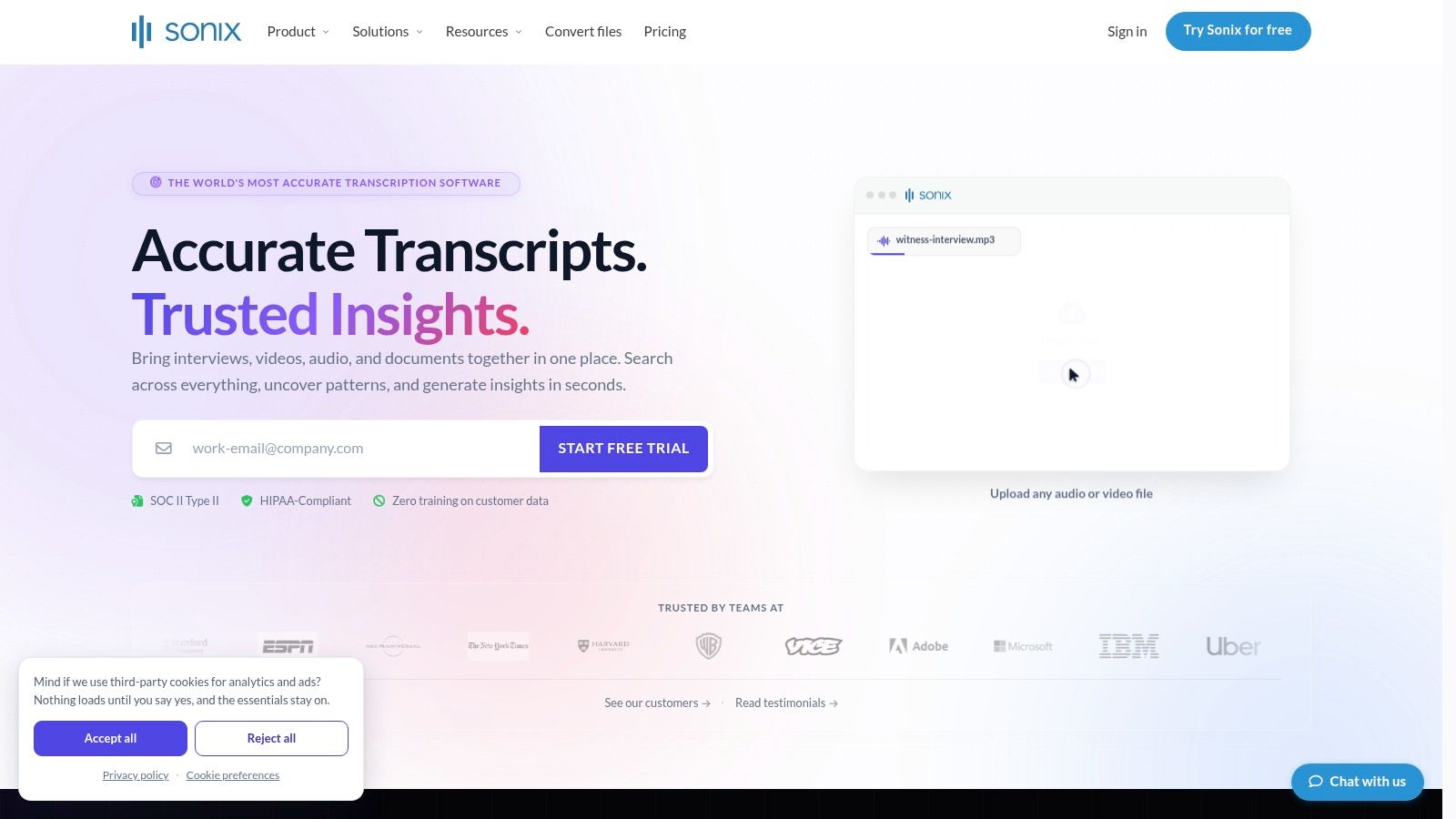
Sonix is a browser-based transcription workspace for Windows users who prefer batch processing without installing a full desktop editor. It supports a browser editor with speaker labeling and timestamps, translation, subtitle and caption exports, and automation through Zapier. Its pricing model includes pay-as-you-go use and subscription credits, which can suit both occasional and recurring media work.
That flexibility makes Sonix appealing to freelancers and small teams with uneven workloads. A user who processes files only when a project arrives may prefer not to maintain a permanent desktop subscription. A heavier user can choose a recurring plan, but the credit and quota model requires monitoring so that a growing archive doesn't create unexpected workflow interruptions.
Browser convenience has a clear boundary
Sonix doesn't provide a native Windows desktop app, so it depends on browser access and an internet connection. That's acceptable for batch uploads, subtitle work, and collaborative review, but it rules out offline processing and app-wide live dictation. The browser editor is the product's center of gravity, not a background voice layer that follows the cursor.
Sonix is therefore best for recorded audio, captions, translations, and export workflows. It's less suitable for someone who wants to speak into Outlook, Word, a CRM, or an AI prompt field without leaving the current application. The Sonix platform provides the current details on supported exports, pricing structures, and automation.
A flexible billing model helps only if you also track the units your workflow consumes.
For media freelancers, the pay-as-you-go option can reduce commitment. For teams with recurring recordings, subscription credits may make planning easier, but usage should be tested against real file lengths and language requirements before adoption.
10. Notta
Notta combines meeting capture, file import, AI summaries, searchable transcripts, and workspaces across Windows, macOS, mobile devices, and the browser. Its Windows desktop client gives it a more native feel than a purely browser-based meeting tool, while the broader device coverage helps users capture calls and notes across different working locations.
The product is strongest when a team wants one meeting record to move through capture, summary, search, and sharing. Live meeting transcription and file uploads support more than one source type, while workspaces give teams a place to organize the resulting material. Notta also supports meeting capture across popular conferencing tools, which reduces the need to manually record and upload every call.
Cross-platform reach does not remove cloud risk
Notta is cloud-based, and most of its value sits on paid tiers. The free tier is limited, so teams should test actual meeting frequency, recording length, export needs, and collaboration requirements before treating the free plan as a long-term operating model. Privacy-sensitive users should also review the current data policies before uploading confidential calls or internal discussions.
Notta is not a replacement for Dragon's local command-and-control workflow, nor is it a direct cursor insertion tool like Voice Control Pro. Its role is closer to a cross-platform meeting archive and AI note system. It can suit distributed teams that value desktop and mobile access, but it's excessive for a user who only wants short dictation in a document.
The Notta website lists its current desktop, mobile, browser, workspace, and meeting features. Evaluate it against Otter.ai if meeting collaboration is central, and against Microsoft 365 Transcribe if your team already works primarily in Word and OneDrive.
Windows Transcription Software Comparison
| Product | Core features | Quality (★) | Value & Price (💰) | Target (👥) | Unique selling points (✨) |
|---|---|---|---|---|---|
| Voice Control Pro 🏆 | Press‑and‑hold global dictation; Hey Max assistant; on‑device Fly Mode | ★★★★★ | 💰 Free tier (2k words/week); Max $9/mo unlimited; 14‑day trial | 👥 Knowledge workers, students, accessibility users, sales/support teams | ✨ Cross‑app insert; local processing; rewrite, screen Q&A & app launch |
| Microsoft Windows Voice Typing | System‑wide Win+H dictation; online & device modes | ★★★ | 💰 Free (built into Windows 10/11) | 👥 Casual users; quick basic dictation | ✨ No install; OS‑level integration |
| Microsoft 365, Transcribe in Word | Record/upload audio; time‑stamps & speaker separation; stored in OneDrive | ★★★★ | 💰 Requires Microsoft 365 subscription (cloud) | 👥 Journalists, researchers, meeting owners | ✨ Speaker IDs + playback inside Word |
| Nuance Dragon Professional v16 | On‑device Windows dictation; custom vocabularies & voice commands | ★★★★★ | 💰 One‑time license (≈ US$699) | 👥 Power users, legal/medical pros, heavy dictation users | ✨ Deep command/control; enterprise on‑device accuracy |
| Dragon Professional Anywhere | Cloud‑hosted Dragon engine; VDI & roaming profile support | ★★★★ | 💰 Subscription (reseller/enterprise pricing) | 👥 IT‑managed orgs, VDI/remote desktop users | ✨ Centralized provisioning; thin‑client friendly |
| Otter.ai | Live meeting transcription; speaker ID; searchable transcripts & AI notes | ★★★★ | 💰 Freemium; paid Team/Business tiers for higher quotas | 👥 Teams, meeting note takers, sales/ops | ✨ Zoom/Teams integrations; AI summaries & collaboration |
| Descript | Text‑based audio/video editing; filler removal, overdub, captions | ★★★★ | 💰 Freemium; paid plans & credits for advanced features | 👥 Creators, podcasters, marketers | ✨ Edit audio/video by editing text; overdub voice tools |
| Trint | Multi‑language transcription + translation; collaborative editor & highlights | ★★★★ | 💰 Paid plans (team/enterprise tiers) | 👥 Newsrooms, media teams, researchers | ✨ Translation & newsroom publishing workflows |
| Sonix | Browser editor with timestamps, speaker labels, subtitle export & translation | ★★★★ | 💰 Pay‑as‑you‑go + subscription credits | 👥 Content teams, subtitling workflows, freelancers | ✨ Flexible pricing; strong subtitle/translation exports |
| Notta | Desktop + mobile apps; live meeting capture across 40+ tools; AI summaries | ★★★ | 💰 Freemium; paid tiers for heavy use | 👥 Teams capturing calls, note takers | ✨ Wide meeting‑tool capture; true desktop client |
Choose the Windows Transcription Setup You Can Sustain
The best transcription software for Windows is the one that matches the work you'll repeat, not the tool with the longest feature page. Start with the input moment. If you want to speak and see polished text appear wherever your cursor sits, choose Voice Control Pro for its global press-and-hold workflow, local processing options, and text refinement features. Choose Windows Voice Typing when basic app-wide dictation, built-in access, and no additional cost matter more than customization.
Choose Dragon Professional v16 when you dictate heavily into Windows applications and need local processing, specialized vocabulary, and deep voice commands. Its one-time license is easier to justify for a sustained professional workflow than for occasional use. Choose Dragon Professional Anywhere when the problem is organizational deployment, especially managed remote desktops, thin clients, centralized provisioning, and roaming profiles. Its cloud architecture means reliable internet and vendor data review are part of the implementation decision.
For research, interviews, and Word-centered work, Microsoft 365 Transcribe keeps recordings, timestamps, speaker-separated text, and documents in one Microsoft environment. For collaborative meetings, evaluate Otter.ai and Notta according to integrations, searchable history, summaries, workspaces, and plan limits. For media production, Descript is the most workflow-oriented choice because editing the transcript edits the audio or video. Trint fits newsroom-style collaboration and publishing, while Sonix suits browser-based batch transcription, subtitle exports, translations, and flexible usage patterns.
Before you commit, run a short trial with the exact work you expect the tool to handle:
- Microphone permissions: Confirm Windows and the application can access the intended microphone, then test speech in the room where you'll work.
- Shortcut behavior: Check whether the activation key works reliably beside your normal keyboard shortcuts and whether text appears in the correct field.
- Vocabulary and languages: Add product names, customer terminology, technical phrases, and required languages before judging the workflow.
- Processing location: Identify which functions run locally and which send audio, transcripts, screenshots, summaries, or history to cloud services.
- Export requirements: Test Word, text, subtitle, timestamp, speaker, and collaboration exports with a real file rather than a sample.
- Quotas and credits: Review free-tier limits, monthly minutes, uploaded-file restrictions, subscription credits, and AI feature usage.
- Real-world trial: Dictate an email, capture a meeting, process a recording, and complete the final editing step before paying.
The market still lacks one universal tool that combines modern transcription, enrichment, privacy controls, and operating-system insertion for every workflow. That's why a two-tool setup can be more practical than forcing one application to do everything. A live dictation tool can handle cursor-level writing, while a meeting or media platform manages recordings, speakers, search, and exports.
The key decision is not whether a tool recognizes speech. It's whether the tool removes work at the point where your current process slows down. Test that point directly, then choose the setup your team can sustain.
Voice Control Pro is built for Windows users who want clean transcription inserted directly at the cursor across any app, with global press-and-hold dictation, local processing options, and Hey Max tools for rewriting and screen-aware assistance. See whether that workflow fits your daily writing, support, research, accessibility, or prompting needs by visiting Voice Control Pro.