
You're staring at the same sentence for the third time, your fingers are annoyed, and Windows dictation just turned a simple email into a mess of wrong words and stray punctuation. At that point, the question isn't whether voice typing sounds useful, it's whether your setup is broken, your mic is bad, or the tool itself is the wrong fit.
Few users begin exploring windows voice to text software out of curiosity. They start because they've already tried the built-in option, it's noisy, awkward, or slow, and they want a workflow that allows them to write without babysitting every line.
Table of Contents
- The Moment Most People Start Shopping for Better Dictation
- The real decision is not “does dictation work”
- What Windows Voice to Text Software Does
- Audio input, recognition, and insertion
- Dictation, commands, and transcription are different jobs
- The Six Criteria That Decide If It Works
- Accuracy comes first, but only if it survives your setup
- Latency and insertion polish decide whether it feels worth it
- Privacy, languages, and shortcuts separate casual use from serious use
- The core decision is not “does dictation work”
- Built-In, Cloud Third-Party, or On-Device Local
- The table that actually helps you choose
- The default rule is blunt
- Setup and Optimization That Moves Accuracy
- Fix the input before you touch the software
- Permissions and punctuation are the next two checks
- Matching the Tool to the Person Doing the Work
- Knowledge workers need cross-app insertion first
- Support, sales, students, developers, and accessibility users are not the same case
- Why Meeting Transcription Is Not Voice Typing
- The wrong purchase cuts both ways
- Troubleshooting the Four Symptoms That Drive People Away
- Nothing transcribes, then the setup is the issue
- Wrong words and punctuation chaos usually share the same cause
- Lag and freezes are a different problem
- Use the shortest possible decision tree
The Moment Most People Start Shopping for Better Dictation
A project manager finishes a status update by voice, reads it back, and finds that Windows got half the nouns wrong. The mic was on. The shortcut worked. The words still came out scrambled enough to make the whole thing slower than typing.
That's the moment people start blaming themselves. They talk too fast, they mumble, they sit too far from the microphone, they don't “sound clear enough.” Sometimes that's true, but very often the actual issue is simpler: the setup is wrong for the room, or the tool is built for a different job than the one they need.
The real decision is not “does dictation work”
The better question is what kind of writing you do. If you're drafting emails and reports, you need clean insertion wherever your cursor is. If you're capturing a meeting after the fact, you need a transcript that organizes conversation, not a live writing tool. If your content is sensitive, on-device processing matters more than fancy rewriting.
That's why the shopping process should start with a workflow decision, not a feature list. The built-in option may be enough, a third-party tool may be worth it, or a local model may be the only sane answer. The right choice depends on whether you value convenience, polish, privacy, or reliability more.
Practical rule: if your first instinct is “this is too annoying to use every day,” don't start by comparing features. Start by deciding whether you need system-wide dictation, privacy-first local processing, or meeting transcription.
Your choice gets easier once that's clear. You only need one of four outcomes: keep the built-in tool, upgrade to a third-party app, move on-device for privacy, or pick a meeting tool and stop expecting it to act like dictation software.
What Windows Voice to Text Software Does
Audio input, recognition, and insertion
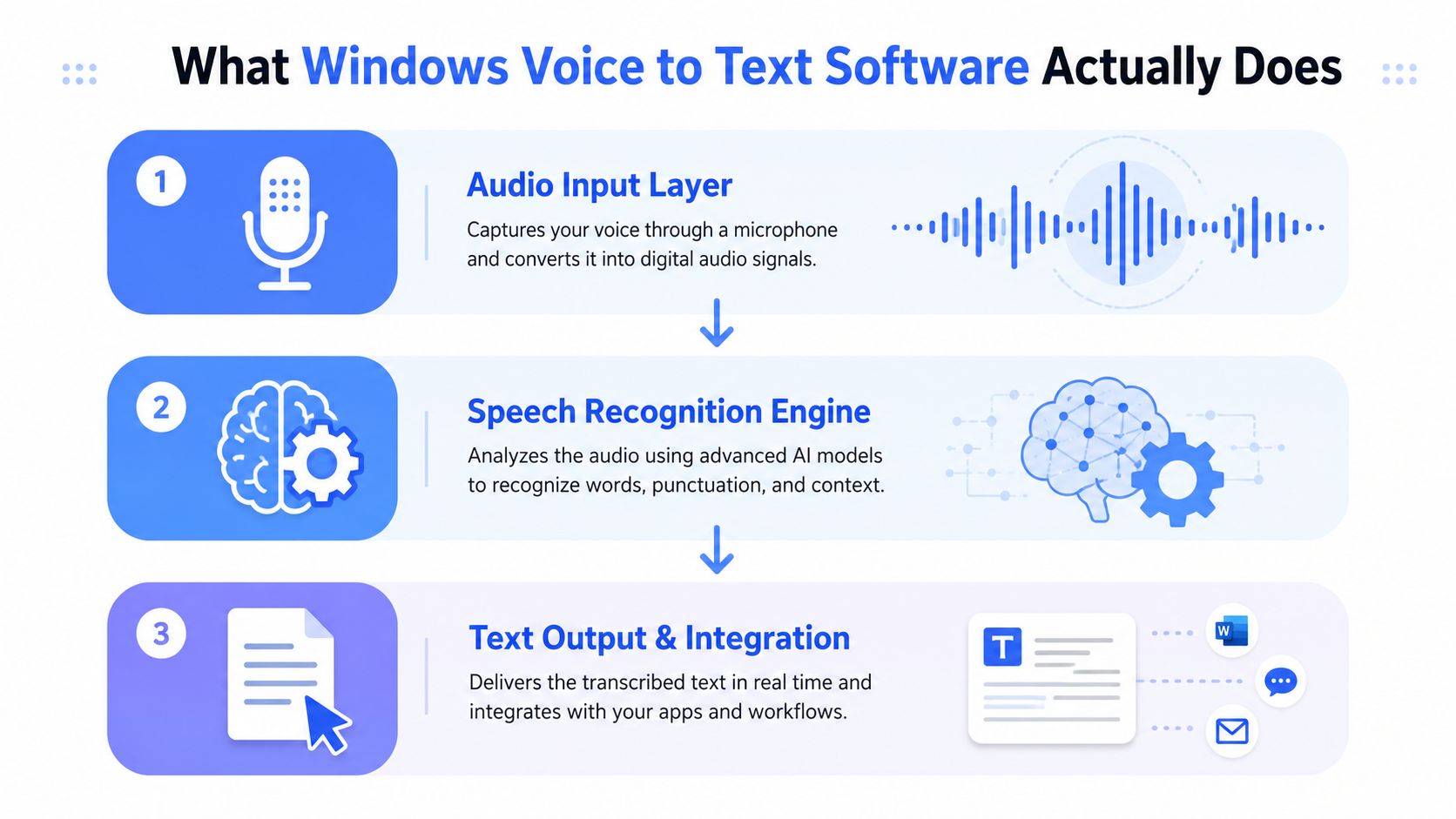
Every dictation setup has three layers. First is the audio input layer, which is your microphone, its placement, and how Windows hears the signal. Second is the speech recognition engine, which may run locally or in the cloud. Third is the text insertion layer, which places the result where your cursor sits.
That matters because people usually blame the wrong layer. If your words are garbled, the microphone or room noise may be the problem. If the words are right but arrive late, latency is the problem. If the text lands in the wrong box or refuses to appear in an app, the insertion layer is failing, not the recognition engine.
Dictation is basically a translator sitting between your voice and your cursor. The translator can be smart, but it still needs a decent microphone, a reliable engine, and a place to put the words.
Dictation, commands, and transcription are different jobs
Continuous dictation is for writing live. Voice commands are for controlling the computer or editing the text you've already spoken. Meeting transcription is for recording who said what in a conversation and organizing it later. These sound related, but they solve different problems.
A product page that brags about transcripts from meetings may still be clumsy for live writing. A dictation tool that excels at dropping text into any app may be terrible at speaker labeling or post-call summaries. Reading the label carefully saves you from buying the wrong category.
If you want a quick external reference point for how transcription tools are framed, Klap's transcript tool is a good example of a product built around turning spoken content into usable text after the fact. That is not the same thing as a clean voice typing workflow inside Windows.
When a tool says “speech to text,” ask one question first, “Does it insert live text into my current app, or does it create a transcript I review later?”
The answer tells you almost everything. Once you separate the layers, product pages stop looking interchangeable, because they aren't.
The Six Criteria That Decide If It Works
Accuracy comes first, but only if it survives your setup
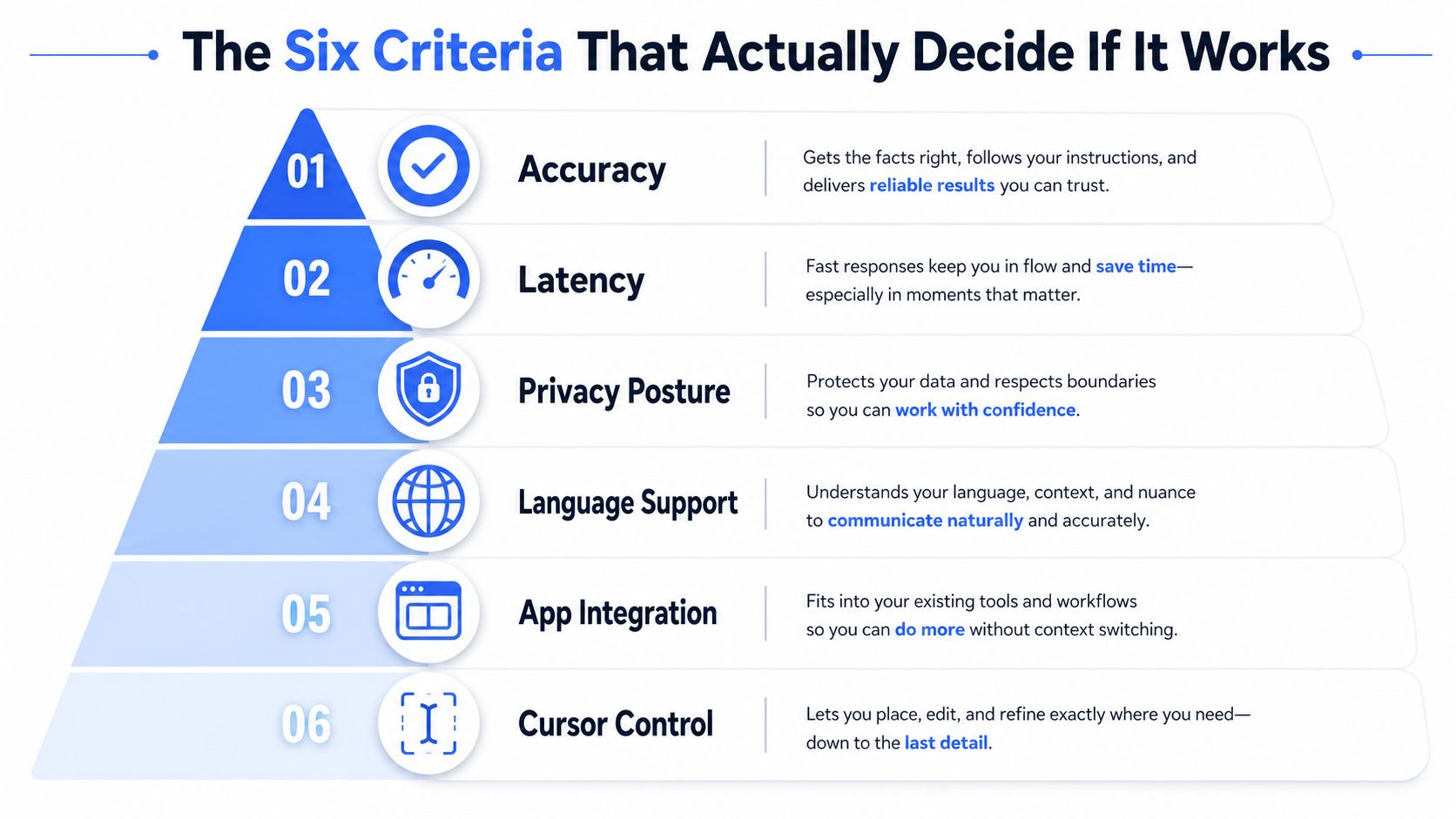
Accuracy is the first thing people notice, and it still decides whether dictation gets used or ignored. If the tool keeps mangling names, jargon, or simple words, nobody keeps trusting it. A polished demo means nothing if the output falls apart in real work.
The environment matters just as much as the engine. A tool can look strong in a review and still fail in a home office with a fan running, a cheap headset, or background chatter. That is why setup quality matters as much as model quality. If the baseline is weak, you end up blaming software for a microphone problem.
Latency and insertion polish decide whether it feels worth it
Latency is the pause between speaking and seeing text. If the delay stays short, your brain keeps moving and dictation feels natural. If it drags, the tool feels slow and interruptive.
App integration and cursor control matter just as much. A tool that works well in one field but breaks in Outlook, Slack, Chrome, or your CRM will not survive a normal workday. The words need to land where you are already working, without sending you to another window or forcing cleanup after every paragraph.
Privacy, languages, and shortcuts separate casual use from serious use
Privacy posture is the dividing line for legal, healthcare, HR, finance, and anyone handling sensitive material. Windows Voice Typing uses online speech recognition through Azure Speech services, so it needs internet and a working microphone, while Microsoft also distinguishes device-based speech recognition that processes locally and sends no voice data to Microsoft Microsoft's speech and privacy documentation. That difference changes what belongs in your workflow.
Language support matters more for multilingual teams than for solo English writers, but a long language list does not guarantee strong dictation quality. Shortcut workflow is the last filter. If activation is clumsy, every use feels like a chore instead of a habit.
For a clear comparison of deployment tradeoffs, this cloud versus local speech recognition guide lays out the privacy and offline differences in plain terms.
Best use case order: for most knowledge workers, rank criteria as accuracy, latency, app integration, privacy, language support, then shortcut workflow.
That ranking changes by job. A support rep cares more about speed and insertion. A clinician cares more about privacy. A researcher may care more about language coverage and command consistency. Score tools against the work you do, not against someone else's review checklist.
A quick note on transcription products helps here. Klap's transcript tool is built around turning spoken content into usable text after the fact. That is a different job from live voice typing inside Windows, and the difference matters when you choose a default.
The core decision is not “does dictation work”
The first question is whether the tool fits the job you are asking it to do. A product page that promises meeting transcripts may still be awkward for live writing. A dictation tool that drops text into any app may be poor at speaker labeling or cleanup after the call.
That is why the category label matters. Continuous dictation is for writing as you speak. Voice commands are for controlling the computer or editing what you already said. Meeting transcription is for recording who said what and organizing it later. A tool can be strong in one of those jobs and weak in the others.
When a tool says “speech to text,” ask one question first, “Does it insert live text into my current app, or does it create a transcript I review later?”
That answer tells you what you are buying. Once you separate the jobs, product pages stop looking interchangeable, because they are not.
Built-In, Cloud Third-Party, or On-Device Local
The biggest architectural choice is simple. Use the built-in Windows option if you want convenience and low friction. Use a cloud third-party tool if you need better polish and cross-app workflow. Use an on-device local tool if privacy, offline work, or compliance is the priority.
Windows dictation has a long history behind it. Microsoft shipped SAPI in 1995, integrated speech recognition into Office in 2002, and didn't add built-in speech recognition to Windows itself until Windows Vista on January 30, 2007 ACM historical perspective on speech recognition. That timeline matters because Windows voice to text moved from add-on territory to native capability over time.
The table that actually helps you choose
| Option | Best for | Internet required | Privacy posture | Typical cost |
|---|---|---|---|---|
| Built-in Windows dictation | Casual use, quick emails, basic accessibility | Yes for Windows Voice Typing, because it uses online speech recognition | Mixed, cloud-backed for Voice Typing, local for device-based speech recognition | Free |
| Cloud third-party dictation | Power users who want polish, custom vocabulary, and smoother insertion | Usually yes | Depends on vendor, voice is sent to their servers | Usually subscription-based |
| On-device local dictation | Sensitive work, unreliable internet, stricter privacy needs | No, once configured | Strongest local posture | Varies by tool |
Built-in Windows dictation is the default answer for casual users because it's already there. Third-party cloud tools are the better fit when you spend hours a day writing and want a cleaner experience across apps. On-device local is the serious answer when you can't afford cloud dependency.
Microsoft's newer Whisper via Foundry Local option for Windows 10+ is promising, but Microsoft says performance varies and it isn't available on all devices Microsoft's speech recognition APIs documentation. That's exactly why local is not a one-size-fits-all answer, hardware and model support still matter.
The default rule is blunt
If you mostly dictate emails, notes, and quick responses, stay built-in until it annoys you enough to justify a switch. If dictation is part of your daily output, move to a third-party tool with cleaner insertion and better workflow features. If your work involves sensitive content or offline use, pick local first and treat cloud as a compromise, not the baseline.
Setup and Optimization That Moves Accuracy
Windows voice typing gets blamed for a lot that the microphone caused. Microsoft's own guidance for voice-driven workflows keeps returning to microphone quality, placement, and punctuation settings, and that is the right order of operations. If the input is wrong, no model will save you.
Fix the input before you touch the software
Start with the microphone itself. Use the input device Windows should hear, then keep it close enough to pick up your voice without forcing you to raise your volume. A headset mic or a decent desktop mic beats a laptop mic in a noisy room almost every time.
If the wrong microphone is selected, dictation can look broken even when the engine is fine. Low input level does the same thing. Sitting too far away or turning your head while you talk does it too.
The fastest way to waste an hour is reinstalling software before checking the audio source.
Permissions and punctuation are the next two checks
Windows privacy permissions matter. If microphone access is blocked, dictation fails for a boring reason that feels like a product bug. Check the relevant Windows privacy controls first, then test again before changing anything else.
Turn on automatic punctuation if the tool supports it. Manually speaking every comma and period slows you down and makes dictation feel more robotic than it needs to be. Language settings matter too, especially if your accent or dialect does not match the default.
For a tighter mic setup walkthrough, this microphone guide for voice dictation desktops covers the practical details people usually skip.
Fast test: if dictation misses words, lower background noise, move the mic closer, confirm the correct input device, and retest before changing any software settings.
Custom vocabulary and shortcuts help later, not first. If the base signal is bad, custom terms will not rescue it. Once the basics are stable, add jargon, names, and any reusable snippets you use all the time.
If you are testing Microsoft's Whisper-based path, remember that Microsoft says performance varies and it is not on every device Microsoft speech recognition documentation. That means your setup may be good and the machine may still be the limiter.
Matching the Tool to the Person Doing the Work
A good dictation setup fits the person, not just the machine. Different jobs need different levels of polish, privacy, and speed, and the wrong match creates friction fast.
Knowledge workers need cross-app insertion first
If you spend your day drafting emails, reports, meeting notes, and internal docs, choose a tool that inserts clean text wherever the cursor is. You want less friction at the point of writing, not a transcript you have to move around later.
For this group, a cross-app dictation tool with strong cleanup and optional local processing is the right default. The built-in Windows option is fine until it becomes the bottleneck, then third-party workflow polish starts to pay back immediately.
Support, sales, students, developers, and accessibility users are not the same case
Customer support and sales teams need speed across chat and CRM windows, plus snippets and consistent formatting. They do better with low-latency tools and simple shortcuts than with heavy transcription suites. Students and researchers usually need something cheaper, easier to review, and good at preserving notes they can search later.
Developers and AI prompt engineers care about technical vocabulary, inline insertion, and app control inside IDEs, ticket systems, and chat tools. Accessibility-focused users and anyone dealing with repetitive strain should be even less sentimental. Pick the setup that eliminates the most typing, full stop.
If you want one concrete example of a Windows dictation tool that inserts text at the active cursor in any app, Voice Control Pro fits that pattern. It uses a shortcut-plus-speech workflow for desktop dictation and includes a local mode, which makes it relevant for people who want live insertion rather than a separate transcript.
Good default by persona: knowledge workers, third-party cross-app dictation. Support and sales, low-latency shortcut-based dictation. Students and researchers, low-cost capture with searchable history. Developers and accessibility users, whichever tool removes the most manual typing.
People overcomplicate the decision. If the tool helps you write, keep it. If it keeps shuttling you into another interface, it's slowing you down.
Why Meeting Transcription Is Not Voice Typing
Meeting transcription and voice typing solve different problems, and mixing them up leads to bad purchases. A meeting tool captures a conversation after it happened. Voice typing helps you write in real time, inside the app where the cursor already is.
That distinction sounds obvious until you watch people buy the wrong software. A consultant on client calls may need a clean transcript, speaker context, and later review. A salesperson writing follow-ups into a CRM field needs immediate insertion, not a post-meeting archive.
The wrong purchase cuts both ways
Buy a meeting tool when you needed dictation, and you overpay for features you won't touch. Buy a dictation tool when you really needed transcription, and you end up with a plain text dump that still needs cleanup. Neither is ideal.
The best products for live voice typing optimize for speed of insertion and low friction across apps. The best meeting tools optimize for capture, retention, and later analysis. They overlap at the word “speech,” then diverge everywhere else.
Ask one question before you buy anything. Am I capturing a conversation, or am I writing into an empty field?
If it's the second one, stop shopping for note-takers and start shopping for dictation software that respects your cursor.
Troubleshooting the Four Symptoms That Drive People Away
When dictation fails, people usually assume they need a new app. Most of the time they don't. They need to fix the input chain, the permissions, or the workflow.
Nothing transcribes, then the setup is the issue
If absolutely nothing appears, check microphone permissions first. Then confirm that Windows is listening to the correct input device, not a webcam mic, a stale headset profile, or some random default. Only after that should you touch the software.
If you still get nothing, restart the app and retest in a different text field. A dead shortcut, a blocked permission, or the wrong device can look identical at first glance.
Wrong words and punctuation chaos usually share the same cause
Wrong words often mean the mic is poor, too far away, or overwhelmed by background noise. Try a better microphone position before changing settings. If the environment is noisy, move to a quieter space or choose a more isolated mic.
If punctuation is messy, check whether automatic punctuation is on and whether the language matches how you speak. Don't type commas manually unless you have to. That just slows the whole system down.
Lag and freezes are a different problem
If dictation trails behind your speech, you're probably dealing with cloud delay, hardware strain, or a model that's too heavy for the machine. First, test with a more stable connection. Then see whether a lighter setup behaves better.
If the problem persists on a local model, the device may be the limiter. Microsoft's Whisper-based option is not available on all devices, and Microsoft says performance varies Microsoft speech recognition documentation. That means hardware compatibility can matter more than people expect.
For a focused failure checklist, this voice-to-text troubleshooting guide is the fastest place to start when the basics aren't working.
Use the shortest possible decision tree
- Need dictation everywhere, inside any app? Choose a cross-app dictation tool.
- Handle sensitive content or work offline? Choose on-device local processing.
- Need more than English? Favor the tool with the strongest language support in your workflow.
- Need voice commands too? Make sure the tool supports command and control, not just transcription.
- Only need occasional text entry? Keep the built-in Windows option until it clearly stops being enough.
My default recommendations are blunt. Knowledge workers should look at a cross-app tool with local mode support. Support and sales teams should favor fast insertion and reusable snippets. Students and researchers should stay with the cheapest workable setup. Developers and accessibility users should choose the tool that removes the most friction, not the one with the longest feature list.
Voice Control Pro is built for exactly this kind of workflow, live dictation that drops clean text into whatever app you're already using on Windows. If you want a shortcut-based setup with local dictation, optional cloud features, and less friction than the built-in route, visit Voice Control Pro and see whether it fits the way you actually work.