
Adding more dashboards rarely fixes a fragmented workday. The most productive Windows toolchains cut context switches and keep working in offline mode, because interruption is the true tax on knowledge work.
Windows has been the default home for business software for a long time, and that history matters because it explains why the best tools win by fitting into existing workflows instead of adding another place to check. Microsoft's own work-trend data shows why this matters, workers were interrupted by a meeting, email, or notification about every two minutes, and many employees described their work as chaotic and fragmented. Windows productivity guides built around dashboards miss the point, because the problem is not a lack of features. It's too many switches, too many surfaces, and too much cognitive drag.
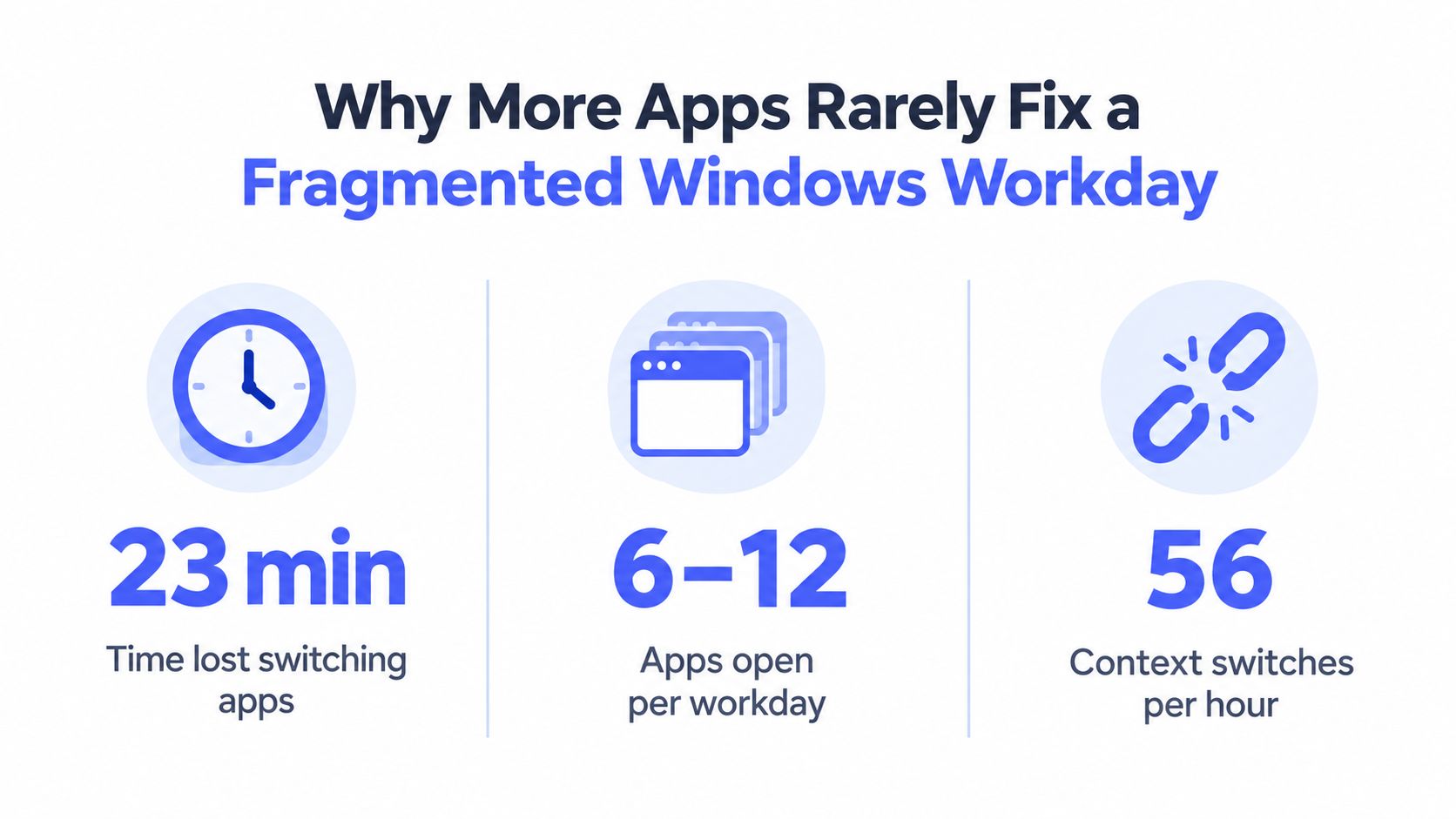
Table of Contents
- Why More Apps Rarely Fix a Fragmented Windows Workday
- What to measure instead of app count
- The Core Categories of Windows Productivity Software
- Task and project management
- Note-taking and knowledge bases
- Dictation and voice-to-text
- Automation and scripting
- Communication and collaboration
- Focus and distraction blocking
- A Decision Framework for Evaluating Windows Productivity Tools
- The criteria that actually matter
- How Four Real Windows Workflows Fit Together
- What each role should optimize for
- Local Mode Versus Cloud Mode and Why Privacy Changes the Pick
- Questions to use in a trial
- Benchmarking Productivity Tools Without Fooling Yourself
- Putting Together a Personal Productivity Stack on Windows
Why More Apps Rarely Fix a Fragmented Windows Workday
The default buying habit is wrong. Teams see a messy calendar, scattered notes, and slow replies, then they add another app to manage the mess. That usually increases the number of tabs, notifications, and habits people must remember, which is the opposite of productivity.
Practical rule: if a tool adds one more place to check, it probably adds friction unless it removes two or more context switches.
The better lens is flow preservation. Microsoft says workers face interruptions from meetings, email, or notifications roughly every two minutes, and 48% of employees in the global survey described work as chaotic and fragmented. That makes a simple feature checklist misleading, because a beautiful interface doesn't help if it forces the user to stop, search, and reorient every few minutes. TheContentMap's 2026 software comparison is a useful reminder that comparison pages are only helpful when they focus on practical use, not feature clutter.
What to measure instead of app count
Forget “how many features does it have.” Ask what it removes.
- Context switches eliminated: If a tool keeps you inside Word, Outlook, Slack, or a CRM field, it's doing real work.
- Time to first draft: A tool wins if you can capture a thought before it evaporates.
- Interrupt recovery: The best tool does not punish you after a call, notification, or browser hop.
- Cross-app continuity: Copying, pasting, revising, and sending should feel like one motion, not a chain of mini-tasks.
The win condition is simple. A Windows productivity stack should let people capture ideas, turn them into text, revise them, and send them without bouncing between five interfaces.
The Core Categories of Windows Productivity Software
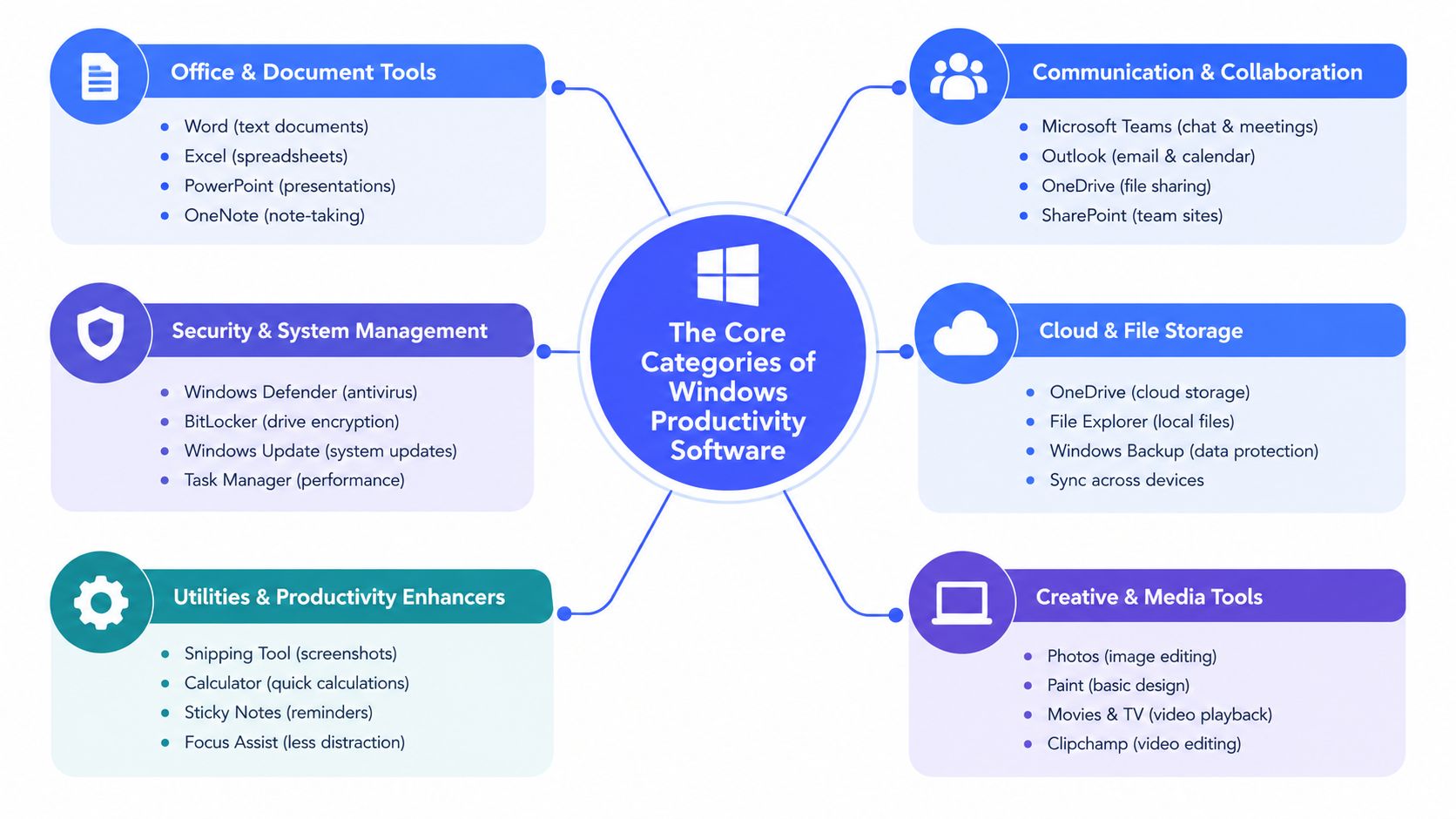
Windows productivity software falls into six practical buckets, and each one solves a different part of the workday. The trick is not collecting one app from every category. The trick is choosing the smallest set that keeps people moving.
Task and project management
Use this for deadlines, ownership, and handoffs. Jira, Asana, and Trello fit here. A support lead uses it to track queue work, while an engineering manager uses it to keep bugs from vanishing into chat.
Note-taking and knowledge bases
Notion, OneNote, and Obsidian live here. Pick this category if your team needs a durable place for research, drafts, SOPs, and meeting memory. A researcher uses it to turn scattered citations into something reusable.
Dictation and voice-to-text
This category is about capture speed. A tool like Voice Control Pro's speech-to-text guide for Windows belongs here because voice input can turn a rough thought into editable text without window switching. That's useful for email, documents, CRM updates, and prompt drafting.
Automation and scripting
Power Automate, AutoHotkey, and similar tools reduce repetitive clicks. They help when a team repeats the same paste, rename, or file-routing pattern all day.
Communication and collaboration
Outlook, Teams, Slack, and browser-based chat tools dominate this layer. This layer is where replies, approvals, and shared files move through the company.
Focus and distraction blocking
Freedom, Cold Turkey, and similar tools reduce noise. They matter most for people who need uninterrupted drafting blocks.
For a broader view of how these categories show up in search and app discovery, the LLMrefs visibility toolkit is a practical reference point. It helps separate visibility from usefulness, which is the core issue in productivity software.
A Decision Framework for Evaluating Windows Productivity Tools
A good free trial starts with a scorecard, not a wishlist. If the tool can't survive real work inside Word, Outlook, a browser, and a CRM, it won't survive long after rollout.
The criteria that actually matter
- Flow preservation: Does it reduce friction, or does it become another thing to manage?
- Time to first draft: Can someone speak, type, or capture an idea instantly?
- Cross-application reliability: Does it still work when focus changes, dialogs appear, or the user jumps between apps?
- Local capability: Can the tool function on-device when the network is weak?
- Retention controls: Can prompts, transcripts, and notes be handled in a way the team accepts?
- Accessibility: Does it help people who prefer voice input, have repetitive strain, or need hands-free capture?
- Total cost of ownership: Does it save enough time to justify the training, support, and habit change?
A tool like Voice Control Pro is easy to evaluate with this lens. It inserts speech at the cursor, so the first question is whether it keeps pace with real writing tasks instead of forcing people into a separate editor. The second question is whether its cleanup, launch, and rewrite behavior helps inside existing apps, because that's where Windows productivity software either earns adoption or gets ignored.
Ask one question before any trial ends, “Would I miss this if it disappeared tomorrow?”
| Method | What it measures | What it misses |
|---|---|---|
| Feature checklist | Surface-level capabilities | Workflow friction and habit cost |
| One-off demo | Best-case polish | Real-world interruptions |
| Scorecard trial | Fit across tasks and roles | Nothing important if the criteria are chosen well |
If the scorecard is honest, the winner is usually obvious by day two.
How Four Real Windows Workflows Fit Together
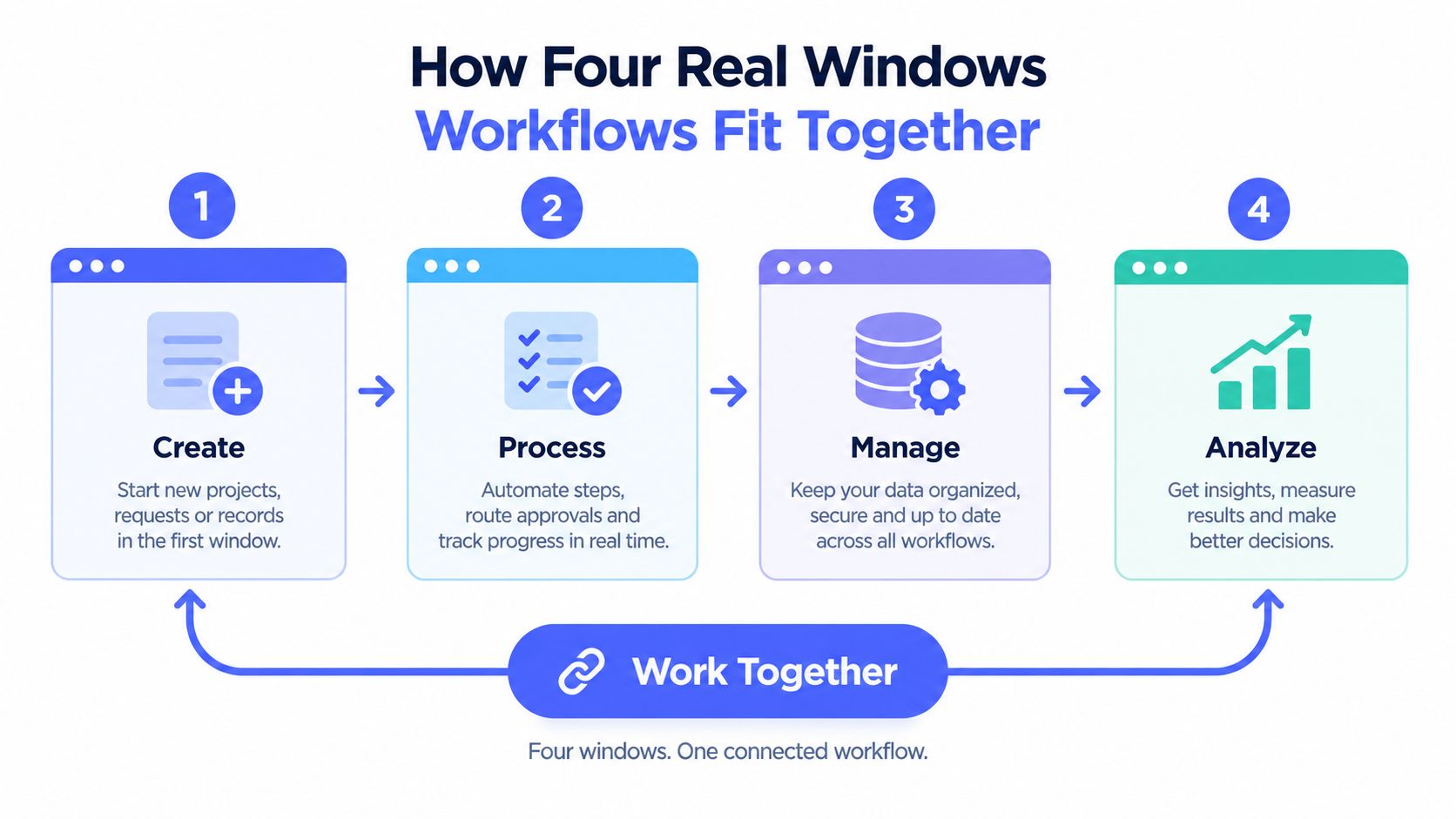
A knowledge worker drafting a weekly report needs a stack that stays out of the way. Task management keeps the deadline visible, a note system holds source material, and dictation handles the first rough pass so the report doesn't start as a blank page. In that setup, voice input is not the main event. It's the fastest way to get words onto the screen before the day fractures again.
A customer-support agent handling chats and CRM notes needs something more ruthless. The best stack here is the one that trims typing, shortens replies, and avoids extra app hops. Dictation sits between the chat window and the CRM field, because the agent should not have to choose between answering quickly and recording accurately.
A graduate student working on a literature review needs a different rhythm. Notes, citations, and synthesis matter more than ticket tracking, so the useful stack is one that captures quotes, rewrites clumsy prose, and keeps source notes searchable. Voice input helps most when the student is brainstorming, because it lets ideas land before they get polished into silence.
A developer iterating on prompts or comments needs speed with precision. Automation and focus matter, but so does the ability to rewrite text without opening another window or losing the thread of an idea. In that workflow, voice input is useful for prompt drafts, code comments, and quick fixes, while the rest of the stack keeps the work organized.
What each role should optimize for
- Knowledge workers: draft speed, review flow, and fewer app switches.
- Support and sales: reply speed, CRM continuity, and low typing friction.
- Students and researchers: capture quality, note recovery, and easy revision.
- Developers: fast iteration, clean edits, and app launching without leaving context.
A practical illustration is voice input used as an input layer, not a standalone app. That framing matters because the best results come when a tool lets the user stay in the app they already trust.
Local Mode Versus Cloud Mode and Why Privacy Changes the Pick
The first question to ask any AI-assisted Windows tool is not whether it's smart. It's where the data goes. That matters more as the material gets more sensitive, because customer records, legal drafts, internal strategy, and source code all carry different risk.
The useful checklist is short. Can the tool process locally? Can retention be disabled or limited? Are prompts and transcripts stored, and if so, where? Does it keep working when the connection disappears? Those answers decide whether a tool is acceptable for a support desk, a sales rep, or a team handling confidential research.
Voice Control Pro's cloud versus local speech recognition guide is a useful comparison point because it frames the trade-off clearly. Its Fly Mode gives you a local processing path, and that matters because offline work is not a niche requirement. It's a reliability feature.
Questions to use in a trial
- Can this run offline? If not, what breaks first?
- What gets retained? Transcripts, prompts, and history should be visible and intentional.
- Can admins control it? Enterprise teams need policy, not guesswork.
- Does it degrade gracefully? A tool that fails hard during travel or network loss creates more work than it saves.
The more sensitive the workflow, the more local execution should weigh in the decision.
Cloud convenience is fine when the stakes are low. For confidential or interruption-heavy work, local capability usually matters more than another AI feature.
Benchmarking Productivity Tools Without Fooling Yourself
Benchmark numbers are easy to misuse. A tool can look fast in a demo and still feel clumsy in real work if it struggles with app switching, dialogs, or mixed workflows. Microsoft's own guidance for productivity testing points to the UL Procyon Office Productivity benchmark with Word, Excel, PowerPoint, and Outlook, and it relies on repeated launches after warm-up to cut caching and transient noise.
Use that logic everywhere. Test on standardized hardware and software, repeat the run, and report a median or geometric mean instead of a lucky first pass. If a dictation or automation tool claims major speed gains, ask what workload was measured, whether the test was repeated, and whether the result includes cleanup, switching, or recovery.
Windows Agent Arena pushes the same point harder. It spans 154 tasks across browsers, documents, video, coding, and native apps like Notepad, Paint, File Explorer, Clock, and Settings. That spread shows how performance changes by domain, and why a tool that only works inside one narrow app is not a productivity platform.
- Fix the hardware and software setup.
- Warm up the system before timing.
- Run the test three times or more.
- Report the median, not the best run.
- Note the exact workload and conditions.
Use the same skepticism for any speed claim around voice input, automation, or AI cleanup. If the claim does not name the workload and the conditions, it is marketing, not evidence.
Putting Together a Personal Productivity Stack on Windows
Start with one tool per job, not three tools that overlap. Pick one task manager, one note system, one dictation or voice-input tool, one automation utility, and one focus tool. Anything beyond that should earn its place by removing friction you can clearly feel.
A sane rollout works best in two weeks. In week one, install only the task manager and note system, then teach the team where decisions and references live. In week two, add dictation or voice input and one automation layer, then watch whether people finish drafts faster or just collect another shortcut to forget.
For browser-heavy teams, the surrounding environment matters too. Building a browsing experience that fits is a reminder that tab discipline, search behavior, and workspace layout influence productivity just as much as the app list does. A tool stack is only as good as the window it lives in.
If you want a clean implementation path, use the implementation best practices guide to map rollout order, shortcut choice, and team habits before you scale anything. That keeps the input layer from competing with the rest of the stack.
The right stack is the one your team forgets about after setup because it removes enough clicks to feel obvious. If a tool doesn't reduce switching, speed up capture, or improve offline resilience, cut it.
If you want a Windows input layer that drops text into the active cursor, handles cleanup, and supports local processing when privacy matters, take a look at Voice Control Pro. It fits this topic because it helps people capture, revise, and move faster without opening another window. Visit it and see whether the workflow matches how your team works.