
You're on a flight with no Wi-Fi, halfway through a confidential client email. The wording is clear in your head, but typing on a cramped keyboard is slow and irritating. Your cloud dictation tool is useless because it needs a connection. A local tool keeps listening, converting your speech into text, and placing the result in the message without sending the audio anywhere.
That's the practical case for offline dictation software in 2026. It isn't nostalgia for old desktop utilities. It solves three recurring jobs: privacy, reliability, and speed. The best setup lets you speak naturally into any application, keeps sensitive material on your computer, and remains available when the network disappears.
Table of Contents
- Why Offline Dictation Matters Right Now
- Local processing is an old idea with a better delivery mechanism
- What Offline Dictation Software Actually Does
- The local pipeline in practice
- Why local hardware can keep pace
- Offline vs Cloud Dictation
- Privacy and reliability belong to local tools
- Cloud still earns a place
- The Hidden Privacy Risks That Survive the Offline Label
- Audit every stage of the data path
- The five-minute verification test
- Features That Actually Matter in an On-Device Dictation Tool
- Who Offline Dictation Is Built For
- Four workflows, four different priorities
- Setting Up Voice Control Pro for Private Local Use
- Configure the local path before adding convenience features
- Choosing Your Setup With Confidence
Why Offline Dictation Matters Right Now
A sealed filing gets drafted in an airport lounge. An executive records board notes from a train. A developer speaks a fix idea between meetings. In each case, the bottleneck is the same: input has to keep working when the network is weak, blocked, or unavailable, and sensitive text has to stay inside the machine you control.
That is why offline dictation software matters now. It protects speed, but it also protects workflow integrity. If speech recognition depends on a remote service, every dictated sentence inherits extra failure points: connection loss, account state, browser sessions, sync delays, transcript storage, clipboard handoff, and “hybrid” features that send part of the job back out to the cloud. Local dictation cuts that chain down to the parts you can inspect and manage on your own device.
The idea itself is old. Bell Laboratories demonstrated “Audrey,” an early speech-recognition machine, in 1952. It recognized spoken digits with reported accuracy of roughly 70% to 90%, but it needed a room of specialized and expensive equipment, according to this history of early speech-recognition systems.
Local processing is an old idea with a better delivery mechanism
Commercial desktop speech recognition followed decades later. DragonDictate reached DOS users in March 1990 and sold as a premium single-user product, but the experience was still constrained. Users had to speak one word at a time with short pauses because the hardware of the period could not reliably separate continuous speech. That limitation matters because it shows what changed. The core goal did not. Delivery did.
NaturallySpeaking 1.0 made the shift obvious in 1997. It supported continuous speech, handled a vocabulary of about 23,000 words, and ran at roughly 100 words per minute. By the end of that year, Dragon had sold 29,463 copies, while IBM had sold 46,182 copies of ViaVoice, as recorded in this history of Dragon NaturallySpeaking.
Today's machines finally make local speech recognition practical without specialty hardware. That is the change.
Practical rule: If a task must survive a dead network, don't make cloud processing the first step.
Offline dictation earns its place when the words carry consequences. Legal drafts, medical notes, customer records, financial details, product plans, and proprietary code should not pass through a vague “private mode” promise and a hidden transcript log. What matters is simple: your dictation setup should keep working under bad network conditions, keep text where you intended, and keep the full data path, including history, clipboard behavior, and optional cloud assists, under your control.
What Offline Dictation Software Actually Does
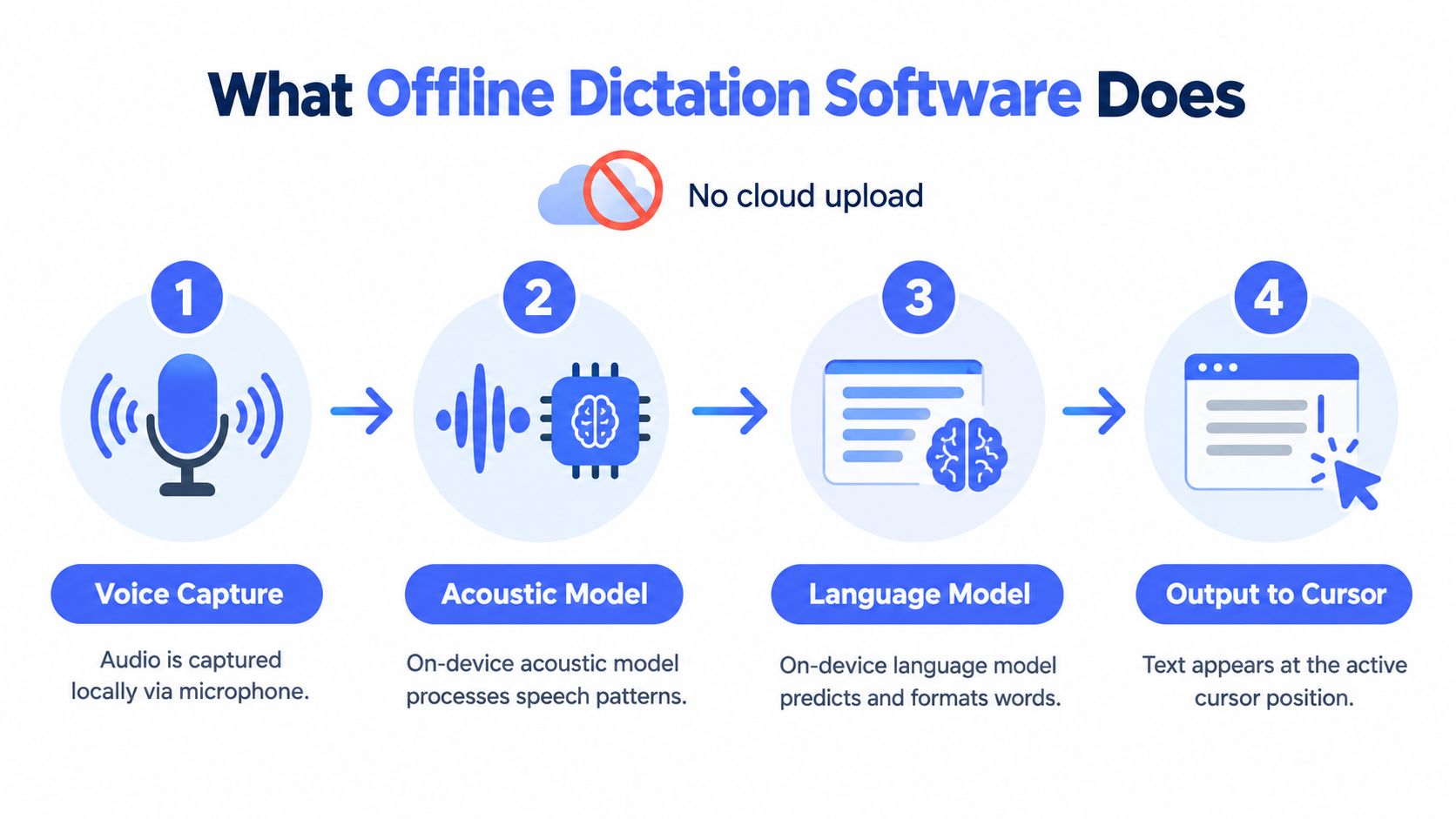
Offline dictation software converts speech into text through a local pipeline. The microphone captures audio, an acoustic model interprets speech patterns, a language model predicts likely words and formatting, and the application inserts the result at the active cursor.
Cloud dictation follows the same broad logic, but the processing location changes. The application sends audio, or an audio representation, to a remote service. That service performs recognition and returns text. Local dictation keeps the recognition model on your computer and removes that network round trip.
A useful analogy is the difference between an in-house translator and a phone-based interpreter. The in-house translator works inside your building and doesn't need to send the conversation outside. The phone-based interpreter may be excellent, but every sentence depends on a connection and another party handling the exchange.
The local pipeline in practice
- Voice capture: The application reads microphone input and creates short audio frames. A push-to-talk control limits accidental recording and makes the capture boundary obvious.
- Acoustic interpretation: The local acoustic model evaluates sounds, pronunciation, pauses, and background conditions. It doesn't match a sound to one fixed word. It estimates which speech patterns are present.
- Language prediction: The language model uses surrounding words to choose plausible text, punctuation, and formatting. Custom vocabulary matters here because names, product terms, legal phrases, and technical jargon often fall outside ordinary language patterns.
- Cursor insertion: The application sends the resulting text to the active field. A system-wide tool can place words in email, a browser form, a document editor, a terminal, or an integrated development environment without forcing you to copy and paste.
The model may still create temporary buffers, transcripts, logs, or history. “Local inference” describes where recognition occurs. It doesn't automatically describe where every related artifact is stored, whether the operating system synchronizes it, or whether an assistant feature sends the resulting text elsewhere.
Why local hardware can keep pace
A study of automatic speech recognition on Raspberry Pi and NVIDIA Jetson Nano hardware found that quantization enabled real-time CPU inference on the Raspberry Pi with only a small increase in word error rate. Jetson Nano GPU inference reduced latency by approximately 3 to 5 times, while the evaluated transformer models required roughly 1 to 2 seconds of loading time, about 300 MB of memory, and achieved a real-time factor below 1.0, as reported in this edge speech-recognition evaluation.
Those results point to the right engineering priorities. A local product should preload models, decode incrementally, and choose quantization that fits the device. A larger model isn't automatically better if it makes text arrive too slowly or exhausts available memory.
Offline vs Cloud Dictation
Offline and cloud dictation win different categories. Treating one as universally superior leads to poor buying decisions.
| Decision factor | Offline dictation | Cloud dictation | Practical winner |
|---|---|---|---|
| Audio privacy | Audio can remain on the computer during recognition | Audio leaves the device for remote processing | Offline |
| Network reliability | Works without an active connection | Depends on service availability and connectivity | Offline |
| Immediate insertion | Avoids network round trips | May add connection-dependent delay | Offline |
| Broad language and model access | Depends on installed local models | Providers can offer extensive remote infrastructure | Cloud |
| Advanced cleanup and assistant features | Local features may be more limited | Remote models can provide richer rewriting and analysis | Cloud |
| Recurring service exposure | Can support local-only use without a cloud account | Often tied to an online service | Offline |
Privacy and reliability belong to local tools
For confidential audio, offline dictation wins because the first processing boundary stays on your device. That advantage disappears if a separate cleanup, summary, or assistant function uploads the transcript, so the product's full data path still matters.
Reliability is simpler. A local model doesn't need a functioning network to recognize speech. That makes it the right choice for flights, restricted workplaces, basements, remote locations, and any workflow where interruptions cost more than recognition perfection.
Cloud still earns a place
Cloud services can offer broader language coverage, larger models, and more capable rewriting layers. They may also handle unusual speech or complex context better in a particular workflow. A medical practice comparing tools should assess the clinical workflow, terminology, retention rules, and compliance requirements alongside recognition quality. A focused starting point is these medical dictation software resources.
The strongest setup for many teams is split by content sensitivity. Use a fully local path for protected work. Use cloud enhancement for routine material only when the organization has approved the data flow. This comparison of cloud and local speech recognition provides another useful framework for making that distinction.
Accuracy depends heavily on sound conditions, not just the architecture. A controlled evaluation found that models trained with distorted speech achieved about a 60% improvement in word-error-rate-related performance compared with models trained only on clean speech. The noise-resistant model maintained performance at signal-to-noise ratios of 5 dB or higher, and tolerated jitter below 20% and packet loss below 15%, as described in this noise-robust speech-recognition research.
That finding changes the buying question. Don't ask only whether a tool is local or cloud-based. Test it with your microphone, room noise, accent, vocabulary, and actual applications.
The Hidden Privacy Risks That Survive the Offline Label
“Runs offline” describes one layer of a product. It doesn't guarantee that the entire workflow stays local.
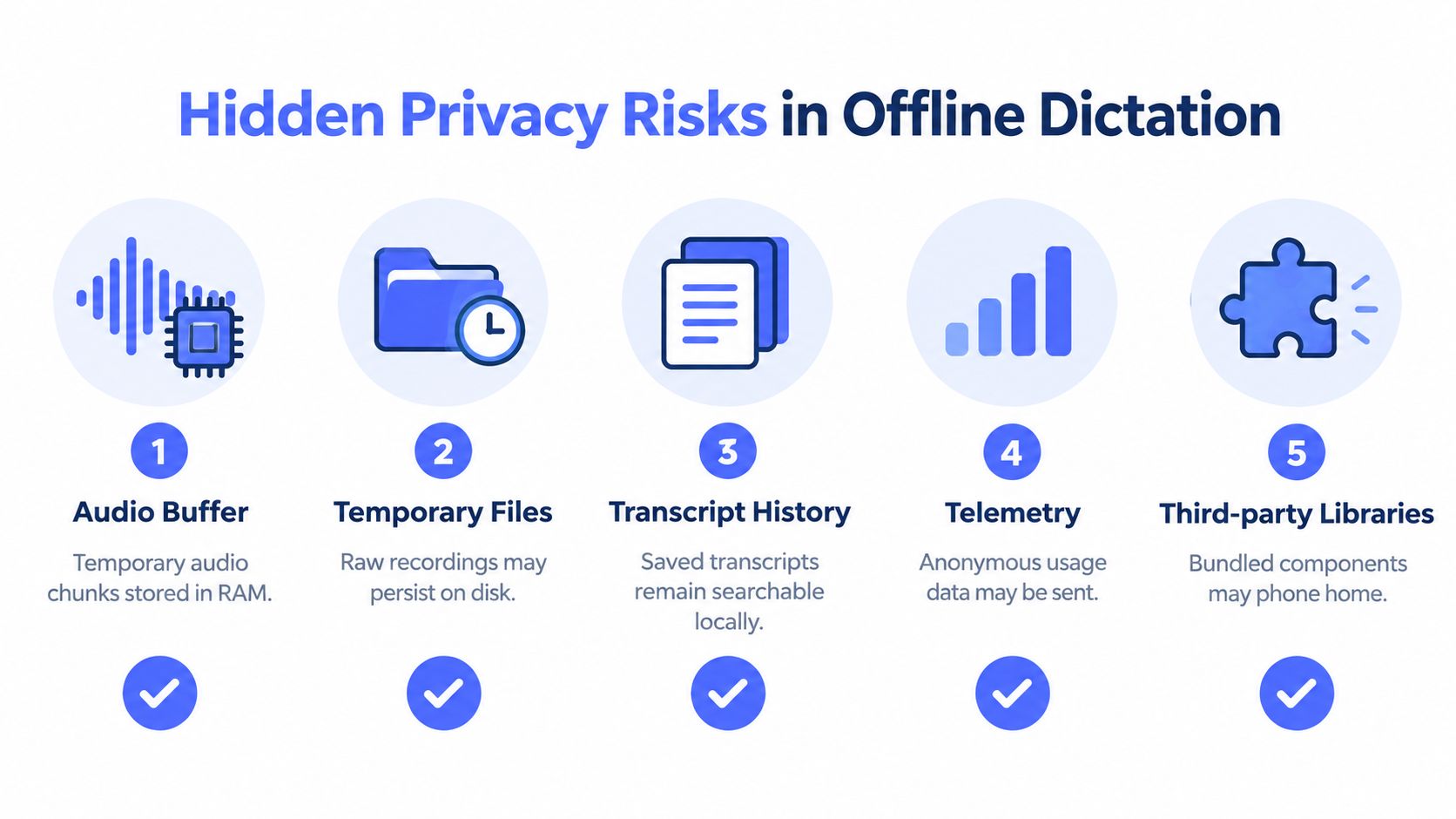
A dictation application may recognize audio on the device, save transcript history to a synced folder, retain raw audio temporarily, transmit usage telemetry, or send selected text to a remote assistant for rewriting. The model can be local while the surrounding features create a second data path.
Audit every stage of the data path
Check the workflow from the moment you press the shortcut:
- Audio buffers: Find out whether captured audio remains in memory only or is written to disk.
- Temporary files: Look for recordings, crash files, exports, and cached segments that survive after dictation ends.
- Transcript history: Confirm whether history is searchable, how long it remains, and whether it sits inside a folder covered by operating-system synchronization.
- Backups: Determine whether local transcripts and audio enter backup software, shared drives, or device migration tools.
- Clipboard behavior: Check whether the application copies full transcripts to the clipboard and whether clipboard managers retain them.
- Telemetry: Ask what event data leaves the machine, whether it includes text, and whether telemetry can be disabled.
- Hybrid features: Treat rewriting, summarization, question answering, screen analysis, and app automation as separate services until the vendor proves otherwise.
The five-minute verification test
Disconnect the computer from the network, launch the application, and dictate a harmless but representative sentence. Confirm that recognition, insertion, punctuation, and any local history continue to work. Then reconnect briefly and inspect application settings, firewall activity, account sync options, and assistant controls.
Next, select text and test every enhancement separately. A local transcription mode may pause cloud functions, while a rewrite command may send the selected text to a remote model. Don't infer privacy from a badge that says “offline.” Verify each action.
The privacy boundary is the complete data path, not the location of the speech model alone.
This matters for small businesses as much as for large enterprises. Teams reviewing ways to avoid data loss with Finchum Fixes IT should treat transcripts as business records when they contain customer, financial, legal, or operational information. The local disk still needs access controls, encryption, retention rules, and sensible backup handling.
For a deeper explanation of the local voice pipeline, see this guide to local voice-to-text. It helps separate recognition from storage and from optional processing layers.
Features That Actually Matter in an On-Device Dictation Tool
Marketing pages emphasize model names and language counts. Daily use is decided by simpler controls.
A serious on-device dictation tool should pass this checklist before you trust it with work:
- Global push-to-talk: Choose a shortcut that works in every application and doesn't conflict with your operating system. Hold-to-speak is safer than an always-listening mode for confidential work.
- Cursor-agnostic insertion: Text should appear in the active field, whether you're writing in an email client, browser, document editor, terminal, or IDE. A tool that requires repeated copying will break your rhythm.
- A genuine local mode: Look for explicit documentation about local inference, local storage, and cloud feature behavior. A free trial that only previews local processing isn't enough.
- Custom vocabulary: Add client names, project codenames, medical terms, legal phrases, API names, and internal abbreviations. Without this, the model may repeatedly produce plausible but wrong substitutions.
- Controllable history: History can rescue a lost paragraph, but it also creates a searchable record. You should be able to inspect, export, delete, and disable it.
- Noise handling: A well positioned microphone, voice-activity detection, and training that handles noise matter more than a glossy accuracy claim. Test keyboard noise, ventilation, café conversations, and traffic.
- The languages you use: “99+ languages” means little if only one local model is installed, punctuation is English-centric, or code-switching performs badly. Test every language, accent, and mixed-language workflow that matters to you.
Ask one blunt question before installation: Which features still work with the network disabled? Then ask where transcripts, clipboard contents, logs, and assistant prompts are stored. A vendor that can't answer those questions clearly hasn't given you a privacy-ready product.
Who Offline Dictation Is Built For
Offline dictation works for anyone who speaks faster than they type, moves between noisy places, or needs a dependable input method that does not depend on a live cloud connection.
A lawyer drafting a sealed motion in a coffee shop can dictate straight into a document without sending client language to a remote speech service. That matters because it keeps the workflow usable when Wi-Fi is unstable and keeps an unapproved processor out of sensitive work. The point is not abstract privacy, it is control over where the words go.

A developer uses the same setup differently. They dictate a pull-request comment, explain a function, or draft an issue while staying inside the IDE. System-wide insertion matters because it avoids constant window switching, paste cleanup, and formatting repair after every thought.
Four workflows, four different priorities
- The lawyer: Confidentiality and predictable operation come first. Local history can help recover a paragraph, but retention and deletion controls should be explicit.
- The developer: Cursor placement, technical vocabulary, punctuation, and fast correction matter more than polished prose. A custom dictionary should recognize repository names, frameworks, commands, and product terms.
- The student: Searchable local notes and reliable use without campus or travel connectivity can matter more than advanced rewriting. Test lecture-room acoustics, not just a quiet room demo.
- The accessibility user: Dictation can reduce repetitive strain and provide an alternative to sustained keyboard input. The tool has to be tested with the person's actual speech pattern, assistive setup, microphone, and correction method.
Headline accuracy figures do not guarantee accessibility. A benchmark on speech recognition and dysarthria found that users with severe dysarthria experienced recognition failure rates above 51% word error across all evaluated systems, while users with mild dysarthria achieved near-typical functionality, as reported in this benchmark on speech recognition and dysarthria.
That gap calls for a personal test, not a generic recommendation. A tool can work well for fluent English in a quiet room and still fail for a particular speaker, accent, disability, dialect, or noisy workplace.
Test the exact conditions you face, including names, jargon, spontaneous speech, punctuation, and correction time. Do that before you trust the tool for real work.
Offline dictation earns its place when it removes friction from real work. The lawyer protects a document, the developer stays inside the IDE, the student captures ideas, and the accessibility user gains a sustainable input path. Privacy is one benefit, not the whole reason to use it.
Setting Up Voice Control Pro for Private Local Use
Voice Control Pro offers system-wide voice-to-text insertion on macOS and Windows, with a local mode designed for on-device dictation. Configure it as a controlled input tool rather than turning on every assistant feature at once.
Start by installing the application and choosing a global push-to-talk shortcut. Pick a key combination that your keyboard layout reaches comfortably and that doesn't collide with shortcuts in your editor, browser, or accessibility software. Hold the shortcut while speaking, then release it to insert the result at the cursor.
Configure the local path before adding convenience features
Enable Fly Mode when the entire dictation path must remain on the computer. This pauses cloud features and keeps processing local. Test the application with the network disabled before using it for client, legal, medical, financial, or proprietary work.
Place the microphone away from the keyboard and avoid pointing it directly at a fan, air vent, or speaker. Speak at a consistent distance. A better capture position often improves usability more than changing models.
Add custom vocabulary for project codenames, client names, product terms, libraries, and domain-specific phrases. Test those terms inside the applications where you'll use them, because insertion, capitalization, and punctuation can vary by context.
Stay with the free local mode when you need private dictation and straightforward insertion. The Max tier adds features such as broader language support, cleanup levels, custom dictionary tools, transcription history, and Hey Max functions for rewriting, screen questions, and app launching. Treat those additions as separate privacy decisions. Keep Fly Mode enabled for sensitive work and use cloud features only when the text is appropriate for remote processing.
A practical first session is short: dictate an email, a document paragraph, a code comment, and a note in a noisy room. Review errors, update the vocabulary, then repeat the test with the network disabled.
Choosing Your Setup With Confidence
Choose an auditable local-only path when confidentiality is the priority. Choose cloud assistance when broad language access or advanced rewriting matters more and the content is approved for remote processing. If your day includes both, use a clearly labeled local mode with cloud features disabled by default for sensitive work.
Before committing, test your own microphone, accent, jargon, typical noise, and correction habits. For broader desktop software ideas, browse Tintd's curated Mac app list, then compare your needs with this guide to an offline voice-to-text app. Reconsider cloud processing only when its extra capability solves a real problem, not because “offline” sounds less polished.
Voice Control Pro provides system-wide dictation that inserts text wherever your cursor is, with Fly Mode for local processing on macOS and Windows. Test it with your own microphone and sensitive workflow, then visit Voice Control Pro to set up private on-device dictation.