
You're answering email, switching to a document, hunting for a file, capturing a task before it vanishes, then jumping into chat to reply to a question you already answered somewhere else. Your Mac is fast. Your workflow isn't. The friction comes from small gaps between apps, slow text entry, and tools that store information in places you have to remember to check.
That's why the best productivity software for Mac isn't the app with the longest feature list. It's the tool that removes one concrete bottleneck without forcing you to rebuild everything else around it. Pick a launcher if navigation is slow. Pick a task manager if capture is unreliable. Pick a voice input layer if typing and rewriting eat your day. Don't buy an all-in-one workspace to solve a five-second problem that happens fifty times daily.
I judged these tools on the Mac experience, setup effort, useful integrations, pricing transparency, offline or local-first behavior, privacy, and whether they fit solo work or teams. I also weigh whether a tool respects your money, much like a budget where you give every dollar a job instead of paying for overlapping subscriptions. Distribution matters too. When the Mac App Store launched, Apple reported more than 1 million downloads in its first 24 hours, showing how much easier software adoption became when discovery and installation were centralized.
Table of Contents
- 1. Voice Control Pro
- More Than Basic Dictation
- Privacy and Pricing Trade-Offs
- 2. Raycast
- Where Raycast Earns Its Place
- 3. Todoist
- 4. Notion
- Use It With Restraint
- 5. Obsidian
- 6. Things 3
- 7. Keyboard Maestro
- What to Expect
- 8. Asana
- 9. Google Workspace
- 10. Alfred
- Alfred or Raycast
- Top 10 Mac Productivity Software Comparison
- Build a Mac Setup That Sticks
- A 30-Day Implementation Checklist
1. Voice Control Pro
If your bottleneck is getting words into apps, start here. Voice Control Pro inserts cleaned-up dictated text directly at your cursor, so you can dictate into email, documents, chat, CRM fields, browser forms, and AI prompts without copying from a separate transcription window. You hold a global shortcut, speak, and release.
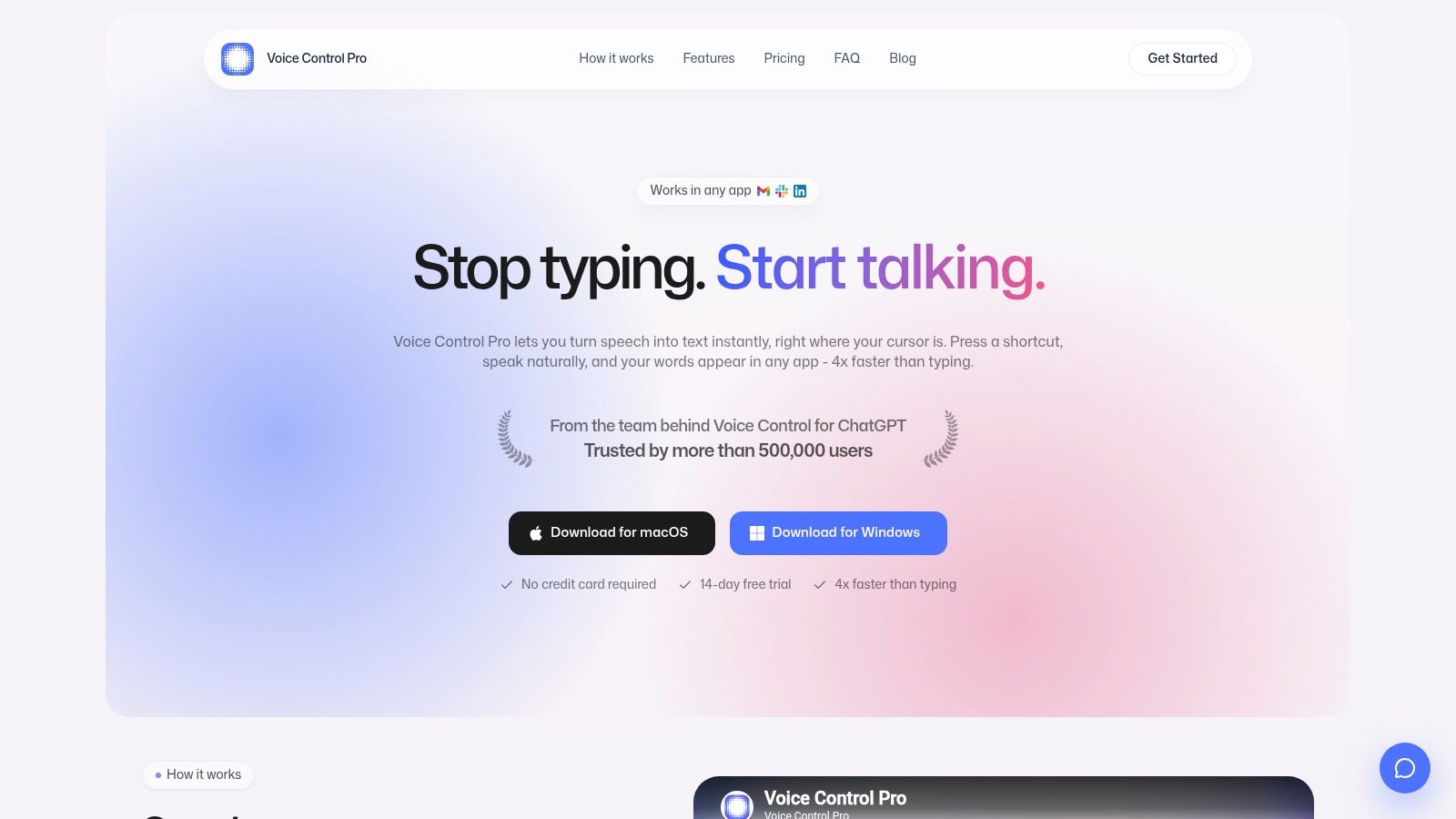
The company says that workflow can be up to four times faster than typing. Treat that as a vendor claim, then test it against your own correction burden. Dictation only saves time if punctuation, names, formatting, and technical terms arrive close enough that you aren't spending the saved minutes editing.
More Than Basic Dictation
The Hey Max assistant rewrites selected text, answers spoken questions, handles questions about what's on your screen, and launches installed apps by voice. That matters for rapid iteration. You can dictate a rough reply, ask for a tighter version, and keep your hands off the window switcher. It's especially useful for support and sales work, research notes, coding comments, AI prompting, and anyone reducing repetitive strain from continuous typing.
It runs on macOS and Windows and supports more than 99 languages. The Max plan adds cleanup options and a custom dictionary, both practical if you dictate client names, product terms, or jargon all day.
Privacy and Pricing Trade-Offs
Fly Mode is the differentiator for sensitive work. It pauses cloud features and processes voice locally on your computer. Use it for confidential client, legal, medical, financial, or internal material, and test how your workflow behaves offline before standardizing. Cloud convenience and local privacy aren't the same product setting. Know which one you're using.
The website lists a free plan with a 2,000-word weekly limit, a 14-day free trial with no credit card required, and Max at $9/month for unlimited usage. Product details also describe unlimited dictation in free local mode, so confirm how that allowance applies to your account before you rely on it. The company says it's from the team behind Voice Control for ChatGPT and is trusted by more than 500,000 users.
Buy this if text production across many apps is your bottleneck. Skip it if you mainly need project tracking, can't speak aloud where you work, or won't spend time building a custom dictionary for specialized vocabulary.
2. Raycast
Raycast is the pick if you're tired of mousing through Finder, the Dock, and browser tabs to do simple things. It's a keyboard-first launcher and command center for opening apps, finding files, running commands, calculating, expanding snippets, checking clipboard history, and managing windows.
The free core is strong enough that many people should stop there. Set up Quicklinks for sites and searches you use daily, add snippets for repeated text, and learn window commands before you install a pile of extensions. If you also publish content, you could pair a Quicklink workflow with a Threads scheduling tool instead of hunting for the right tab each time.
Where Raycast Earns Its Place
- Consolidation: It can replace several small utilities for launching, snippets, clipboard access, and window placement.
- Extensibility: Community extensions and custom scripts let technical users connect tools without opening each app.
- Keyboard speed: Once the commands become habits, routine navigation stops interrupting your train of thought.
Pro adds AI, cloud sync, dictation, unlimited notes, and expanded clipboard history. Pay only if you'll use those daily. Raycast's depth is also its main cost. Extensions, settings, and custom commands take time to learn, and a badly curated setup becomes another system to maintain.
It isn't a task manager or project system. Use it as the fast front door to your Mac, and let dedicated apps handle planning. If you're comparing ways to organize a broader stack, this overview of practical productivity software tools is a useful companion. Best fit is a keyboard-driven power user. If you prefer clicking through visual workspaces, Raycast will feel like homework.
3. Todoist
Choose Todoist when your tasks live across Mac, phone, browser, and maybe a work computer that isn't a Mac. It's a cross-platform task manager built around fast capture, clear lists, and shared projects when you need them.
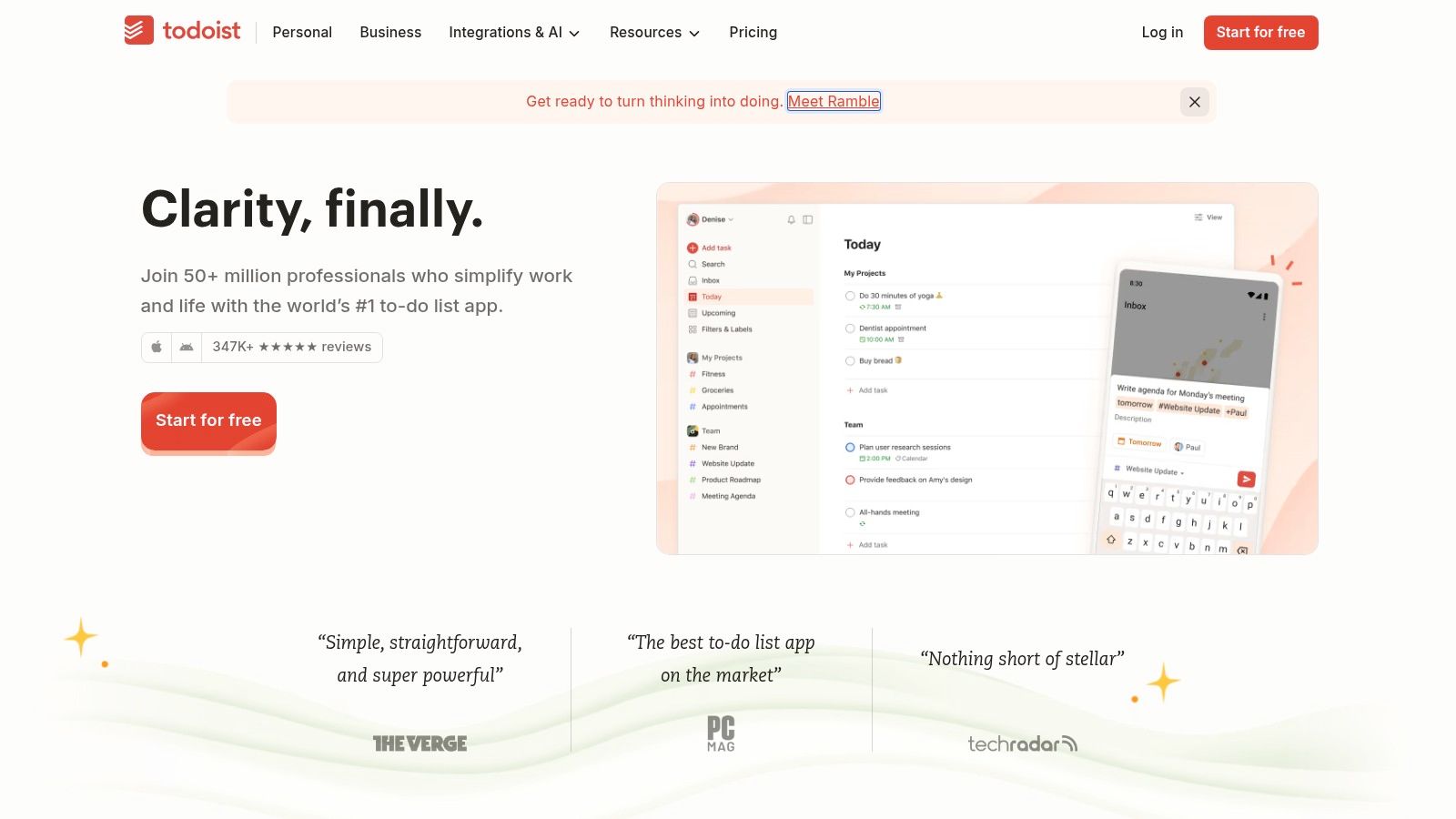
Quick Add is the feature to master first. Capture the task, date, and project in one motion, then get back to work. Todoist offers list and board views, reminders, and email and calendar integrations. Paid plans add calendar layout, task duration, expanded filters, and reporting. The Business plan adds a shared team workspace, project folders, and team roles.
The practical setup is simple. Keep personal and work projects separate, use filters sparingly, and review due dates instead of decorating every task with labels. A task system fails when capture is slower than remembering. Todoist stays useful because capture is quick and the same list follows you between devices.
Practical rule: If a task takes longer to organize than to write down, your system is too complicated. Capture first, classify during a review.
The free plan handles everyday tracking, but its limits can pinch if you manage many projects. Advanced views and reporting require payment, and Todoist isn't as customizable as a full project platform. That's fine. It's for tasks, not resource planning.
For people whose problem is mental overload rather than missing features, pairing simple capture with better cognitive load management matters more than adding another view. Pick Todoist for cross-platform reliability. Pick Things 3 instead if you're Apple-only and want a calmer, more native personal system.
4. Notion
Notion works best when your team needs one flexible place for documents, notes, project boards, databases, and shared reference material. It can become a company wiki, a client hub, a content tracker, or a personal planning system. That flexibility is the product. It's also the risk.
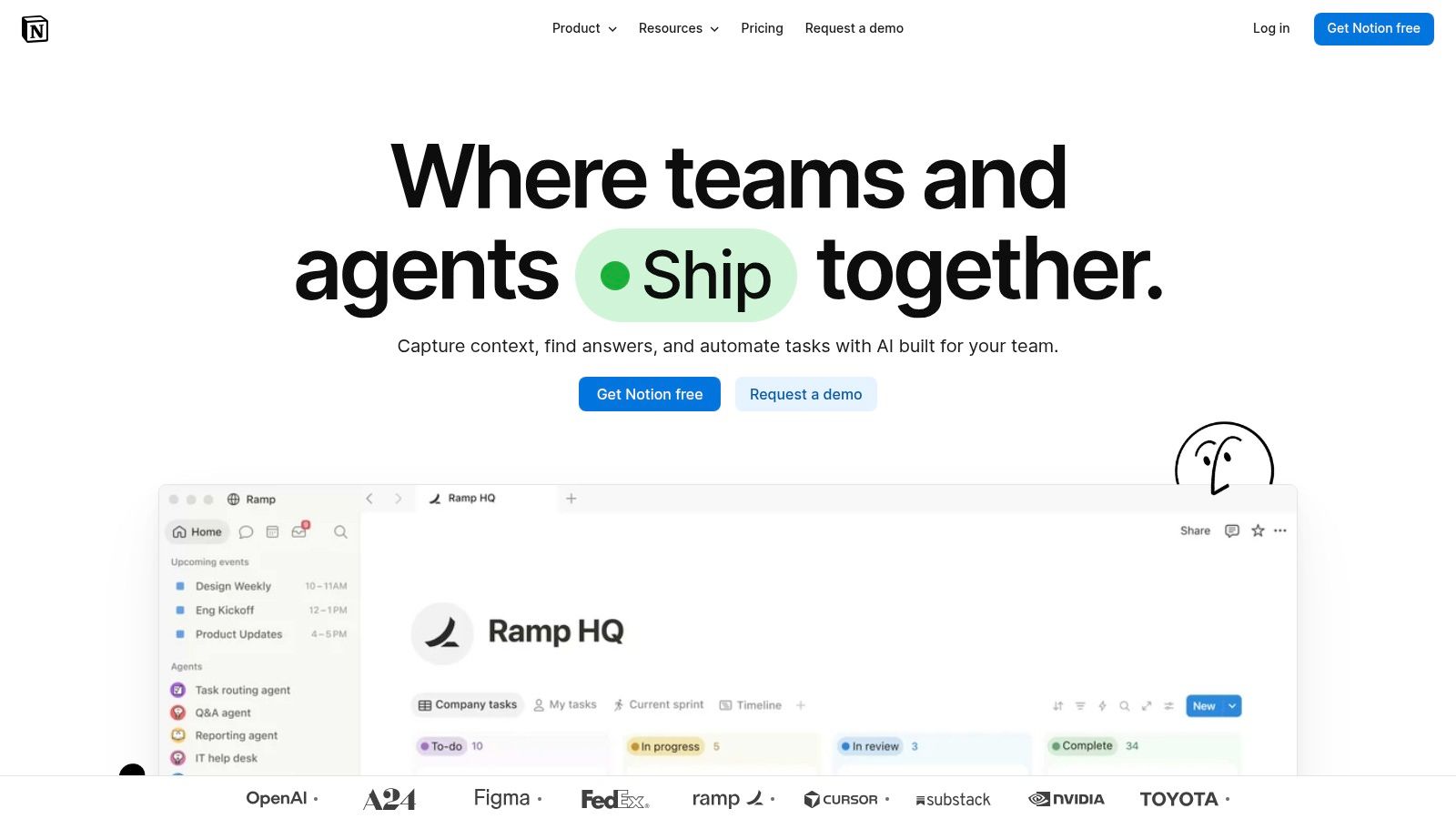
Pages hold writing and embedded content. Databases track projects, tasks, contacts, inventory, or research, with multiple views over the same information. Collaboration features make it a natural shared workspace, while paid plans add more collaboration and administrative controls. AI availability depends on the plan, so verify that before building a workflow around it.
Use It With Restraint
Start with one workspace purpose, such as team documentation or project tracking. Create a small number of databases, name properties clearly, and assign an owner for cleanup. If everyone invents their own structure, search becomes archaeology within months.
Notion is a poor choice for a simple personal to-do list. The setup and maintenance cost more than the problem. It's also cloud-centered, so teams handling sensitive material should review account controls, sharing settings, retention needs, and what happens when someone leaves. Don't put confidential information into a shared workspace just because the page looks tidy.
The free plan is available for individual use, which makes testing low risk. Build one real project in it for two weeks. If your team keeps returning without reminders, keep it. If information still lives in chat and email, Notion didn't solve the behavior problem, and another template won't fix that.
5. Obsidian
For private, portable notes, Obsidian takes the opposite approach from Notion. Your notes are locally stored Markdown files, and you control the folder. That makes Obsidian the clear recommendation for researchers, writers, and professionals who want a knowledge base that doesn't depend on one vendor's cloud workspace.
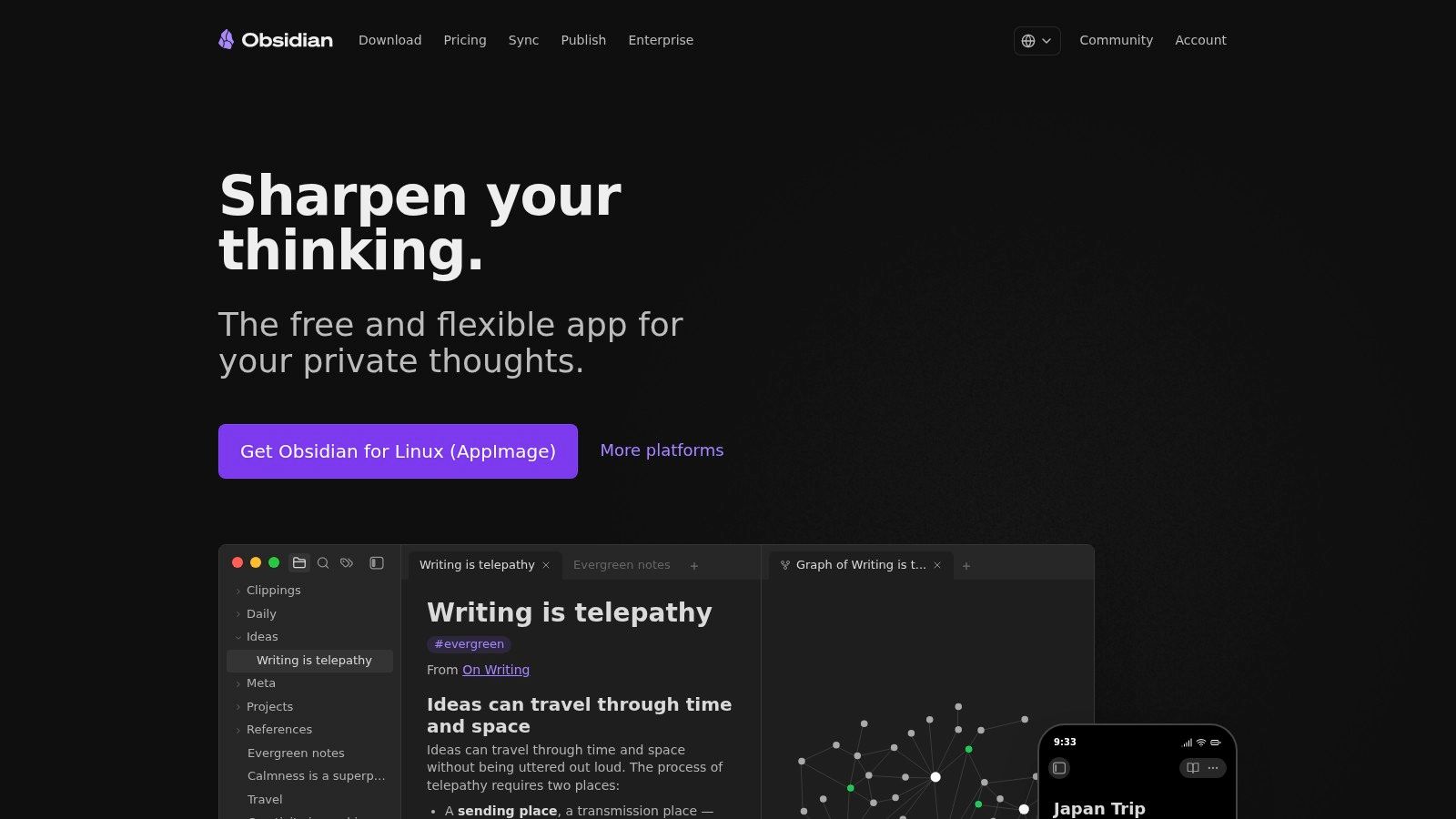
You can link notes together and explore connections visually, which helps when ideas recur across projects, books, meetings, and research threads. Themes and community plugins extend the app, while Sync and Publish are optional paid services rather than required parts of the core experience.
Keep the first setup boring. Use a few folders, consistent note titles, and links where a real relationship exists. Add plugins only when you can name the repeated task they remove. A heavily customized vault can become a hobby that competes with the work the notes were supposed to support.
- Strongest advantage: Local Markdown files are portable, readable, and under your control.
- Good fit: Long-term research, writing, study notes, and personal knowledge management.
- Weak spot: Collaboration and syncing aren't built into the free core the way they are in cloud-first apps.
The core app is free with no account required. That privacy posture is meaningful, but local files still need backups. Put the vault in your normal backup routine and be selective with community plugins, since extensions can change how data is handled. Choose Obsidian for ownership and offline control. Choose Notion when real-time team collaboration matters more than local files.
6. Things 3
Things 3 is the most Mac-native personal task manager on this list. It's built for Apple platforms, with projects, areas, tags, and scheduled to-dos organized around a simple question. What are you doing today?
Quick Entry captures tasks from elsewhere on your Mac, so an idea doesn't require stopping to open and use the app. Calendar integration, widgets, Shortcuts support, and Markdown notes make it feel integrated rather than ported. Things Cloud syncs between Things apps on Apple devices.
Use areas for ongoing responsibilities such as work, family, finance, and health. Use projects only for outcomes with an end. That separation keeps the Today view honest and prevents a giant project list from becoming a guilt inventory.
Things 3 is sold as a one-time purchase for each platform, and the Mac version includes a free trial. There's no free tier, and the Mac, iPhone, and iPad apps are sold separately. Budget for the full set if you want the complete Apple ecosystem experience.
The limitation is deliberate. Things 3 is aimed at individuals, not collaborative team project management. Don't force shared accountability, dependencies, or reporting into it. If you work alone or manage your own commitments inside a team, that focus is refreshing. If teammates need assignments and status visibility, use Asana or Todoist instead. My call is Things 3 for Apple-only users who value calm design and hate subscriptions, Todoist for everyone who needs tasks beyond Apple devices.
7. Keyboard Maestro
When the same clicks, keystrokes, window moves, and text entries repeat every day, Keyboard Maestro is the tool that can remove them. It builds macros triggered by hotkeys, menu selections, or other configured events, then runs a sequence of actions across your Mac and apps.
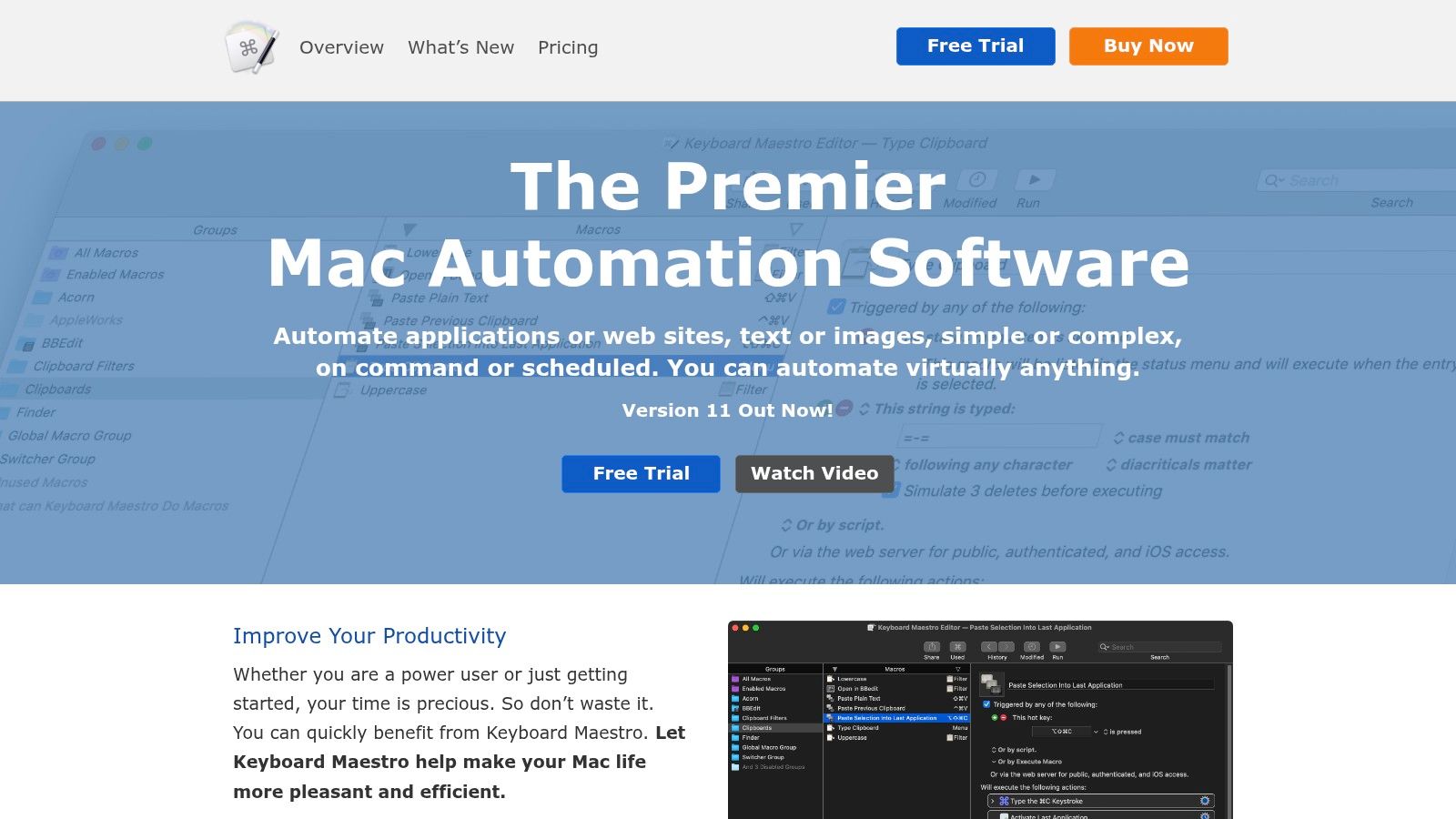
Start small. Automate one repeated sequence, such as formatting a status update, opening a standard set of apps, inserting boilerplate text, or preparing a file for sharing. Test it until it's boringly reliable. Only then build longer chains. Grand automations that break when an app updates will cost more trust than they save.
Its text expansion capability overlaps with snippets in launchers, so decide where repeated text should live. If you already use Raycast snippets, don't duplicate them here without a reason. A focused guide to choosing a text expander app can help you draw that boundary before your shortcuts start colliding.
What to Expect
Keyboard Maestro uses a one-time license rather than a monthly subscription. It can handle small repetitive tasks and longer cross-app sequences, and the macro wizard and community forum help when you're learning. Still, it's more technical than a notes or to-do app, and useful macros require experimentation.
It's Mac-only and unnecessary if your work is mostly reading, writing, and simple task tracking. But if you perform the same computer routine until your hands do it automatically, that's your signal. Automate the routine, document the trigger, and revisit it after major app changes.
8. Asana
Asana is for team coordination, not personal list keeping. It tracks tasks, projects, owners, deadlines, and status across people who need shared visibility. If your productivity problem is that nobody knows who owns the next step, Asana addresses the right problem.
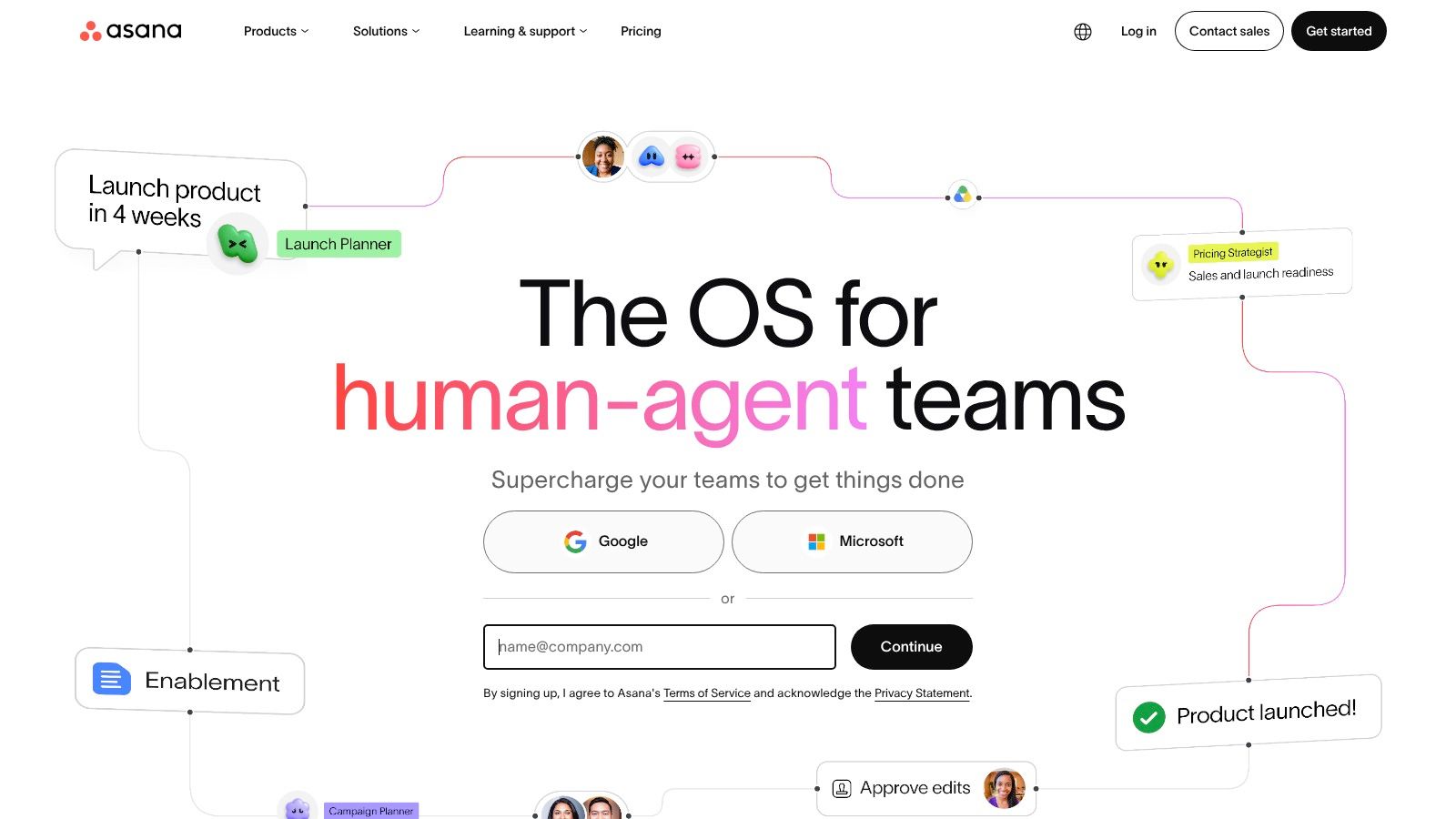
Teams can view work as lists, boards, or calendars, collaborate around tasks, and post status updates. Paid plans add timelines, forms, automations, and reporting. The Mac desktop app gives access to the web product with desktop conveniences such as focus timers and notification management, and mobile apps keep tasks available away from your desk.
The implementation rule matters more than the feature tier. Every task needs one owner, one clear outcome, and one due date when timing matters. Projects need naming conventions and archived work needs to disappear from active views. Without those habits, Asana becomes a colorful record of confusion.
Software doesn't create accountability. It makes missing accountability easier to see.
The free Personal plan supports basic personal projects and small-scale use. Broad integrations can connect Asana to existing business tools, which helps reduce duplicate updates. But integrations also create notification noise, so connect only systems your team checks.
Asana is more complex than a solo user needs, and advanced features sit behind paid plans. Choose it when handoffs, dependencies, and visibility across a team are the friction. Choose Todoist or Things 3 when the only person you need to coordinate is yourself. For teams, test Asana on one active project with real deadlines, not a sample project nobody cares about.
9. Google Workspace
Google Workspace isn't a single Mac-native app. It's a browser-centered bundle for organizations that need Gmail, Drive, Docs, Sheets, Slides, Calendar, Meet, and shared storage under one subscription. For many distributed teams, that standardization is the productivity gain.
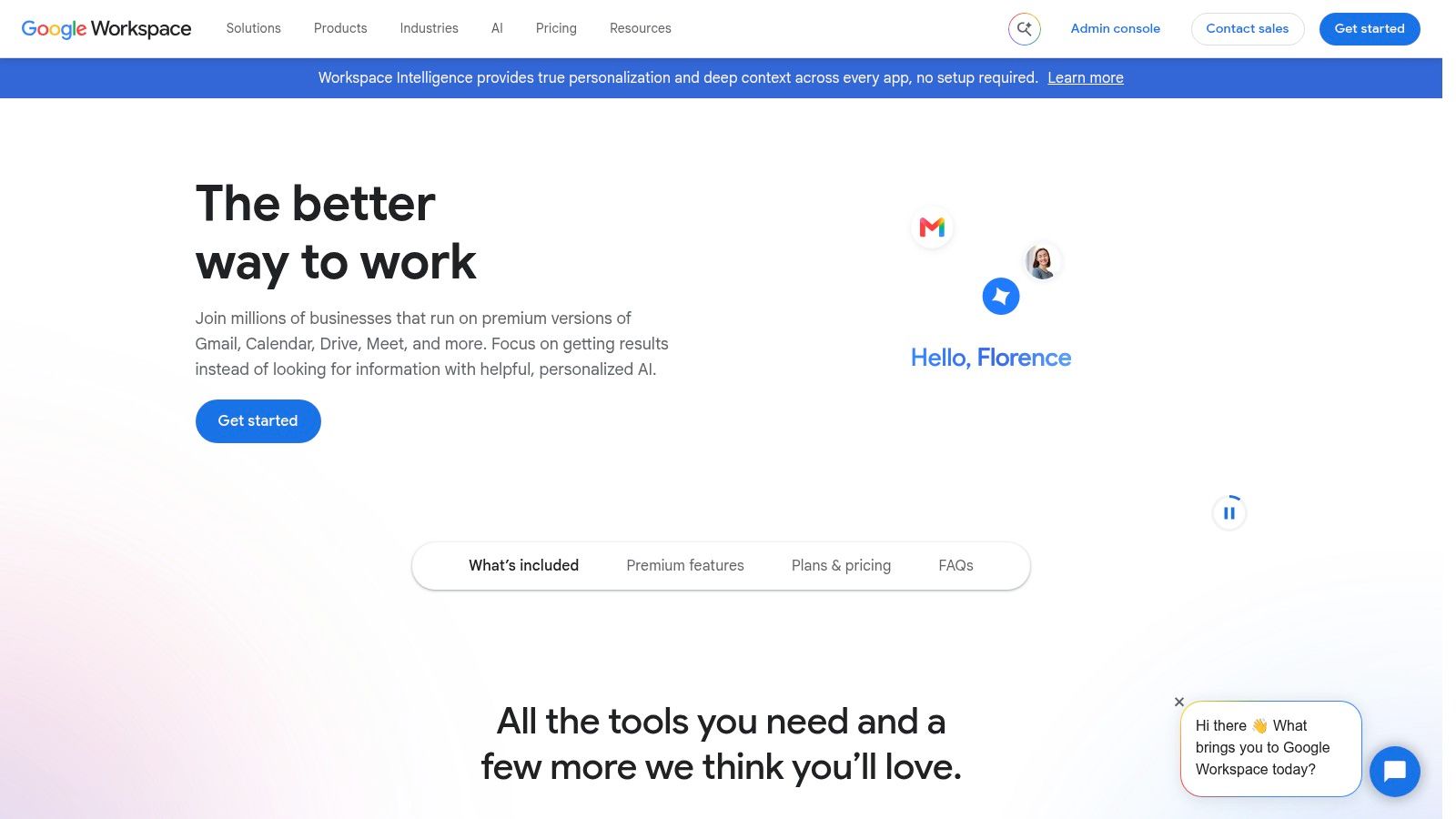
The strongest feature is real-time collaboration. Several people can work in the same document, spreadsheet, or presentation without emailing versions back and forth. Business email supports a custom domain, and plans differ in storage, meeting capabilities, security controls, and AI features. Eligible plans offer a 14-day trial.
On a Mac, the experience depends heavily on your browser discipline. Pin the services you use, set default apps intentionally, and decide how Drive files should be organized before the shared folders grow. Workspace removes version chaos only if the team agrees where the current document lives.
Consider the privacy and offline trade-off directly. Many workflows rely on web apps and an internet connection, and administrators need to review sharing defaults, external access, retention, and account removal. Per-user billing can also add up for larger teams, especially when people need different plan levels.
Pick Google Workspace if your team collaborates across operating systems and wants communication, documents, meetings, and storage from one vendor. Don't pick it expecting a focused native Mac writing or task experience. It pairs well with a launcher for navigation and a separate task manager for personal execution. As the shared office layer, it's practical, familiar, and easy to standardize.
10. Alfred
Alfred is the focused launcher for Mac users who want faster keyboard access without turning the launcher into a giant platform. It finds apps and files, searches the web, and runs actions from a keyboard-driven command box.
The free version covers core app launching, local file search, web searches, and custom hotkeys or keywords. That's already a meaningful upgrade if you still browse Finder or scan the Dock for routine work. The developer says Alfred supports both Intel Macs and Apple Silicon, which matters if your setup includes an older machine.
Alfred or Raycast
The optional Powerpack adds workflows and additional controls for people who want personalized automation. Build workflows for routines you repeat, not clever tricks you'll use twice. Setup takes learning, and every custom keyword is another thing to remember.
Choose Alfred if you want a mature, focused launcher and prefer building specific workflows. Choose Raycast if you want a broader command center feel, a larger extension-driven setup, and more utilities consolidated in one place. Running both as primary launchers is usually redundant. Pick one hotkey, commit for a month, and let muscle memory form.
Alfred won't manage projects, store team knowledge, or write your documents. It removes navigation friction. That's enough if navigation is the bottleneck. Start free, master app and file search, then buy the Powerpack only when you can name the workflow you'll build first. Best fit is a Mac user who wants speed, keyboard control, and less platform sprawl than Raycast invites.
Top 10 Mac Productivity Software Comparison
| Product | Core Strength | Experience & Standout Feature | Best For | Price & Value |
|---|---|---|---|---|
| 🏆 Voice Control Pro | Voice-to-text across apps; Hey Max writing and screen tools | ★ Flow-friendly dictation; ✨ local processing with Fly Mode; macOS & Windows | 👥 Writers, multitaskers, and anyone who prefers speaking | 💰 Free plan listed; Max $9/month. Free-plan dictation terms may vary |
| Raycast | Mac launcher, search, commands, and extensions | ★ Highly customizable; ✨ large extension ecosystem | 👥 Mac users streamlining keyboard workflows | 💰 Free core; paid plans add AI and other features |
| Todoist | Personal tasks and shared projects | ★ Quick task capture; ✨ cross-platform access | 👥 Individuals and small teams managing to-dos | 💰 Free plan; paid tiers add views and reporting |
| Notion | Documents, databases, projects, and team knowledge | ★ Flexible workspace; ✨ customizable pages and databases | 👥 Individuals and teams building an all-in-one hub | 💰 Free for individual use; paid plans available |
| Obsidian | Local Markdown notes and knowledge management | ★ Portable, user-controlled files; ✨ linked-note graph and plugins | 👥 Researchers and note-takers who value local files | 💰 Core app free; Sync and Publish are optional paid services |
| Things 3 | Personal task and project organization | ★ Focused interface; ✨ one-time purchase per platform | 👥 Apple users managing personal tasks | 💰 Paid apps sold separately; Mac trial available |
| Keyboard Maestro | Mac automation and macros | ★ Automates repetitive workflows; ✨ triggers and multi-step actions | 👥 Mac users comfortable configuring automations | 💰 One-time license |
| Asana | Team tasks, projects, and coordination | ★ Multiple project views; ✨ integrations and team updates | 👥 Teams coordinating shared work | 💰 Free Personal plan; advanced features require paid plans |
| Google Workspace | Email, documents, storage, calendar, and meetings | ★ Real-time collaboration; ✨ connected Google services | 👥 Organizations and distributed teams | 💰 Per-user subscription; eligible plans offer a 14-day trial |
| Alfred | Mac app and file launcher | ★ Fast keyboard access; ✨ customizable Powerpack workflows | 👥 Mac users who want quicker access to apps and actions | 💰 Free core; Powerpack is paid |
Build a Mac Setup That Sticks
Start with the bottleneck that interrupts you most often, not the app category that sounds impressive. If you lose time opening apps and finding files, install Raycast or Alfred. If tasks slip because capture is unreliable, choose Todoist or Things 3. If you spend the day producing text across email, chat, documents, and CRM tools, test Voice Control Pro before adding another specialized writing app.
Add one primary tool for one job. Run it long enough to notice behavior, not novelty. A useful stack often looks smaller than people expect. One launcher, one task manager, one notes system, one team platform if you need it, and one input or automation layer can cover most knowledge work. Overlapping tools create a new decision every time you capture something. Where does this go? That hesitation is productivity loss in a clean interface.
The wider Mac context supports that integrated view. Apple said the Mac App Store passed 100 million downloads in under one year, which helped normalize digital installation and searchable software catalogs. Easy installation made experimentation cheap. It didn't make every installed app useful. Your job is still curation.
A 30-Day Implementation Checklist
- Keyboard shortcuts: Assign one reliable trigger for your launcher, task capture, and dictation if you use it. Avoid conflicts.
- Task capture: Test whether you can record a task from any app without losing your place.
- Note organization: Decide what belongs in Notion, Obsidian, documents, or chat, then stop splitting the same material across all four.
- Backup or sync: Confirm where data lives, how it syncs, and how you'd recover it on a new Mac.
- Privacy settings: Review cloud processing, account requirements, sharing defaults, offline behavior, and whether AI features can be limited.
- Trial period: Use the setup for 30 days on real work, then remove anything you opened only out of guilt.
Privacy deserves its own test, especially as systemwide AI expands. Apple says macOS now supports AI-assisted writing and automation across the Mac, but different features can follow different data paths. Ask what runs locally, what leaves the Mac, what's retained, and what still works without internet. For client, medical, legal, financial, or internal company material, the most powerful cloud workflow may be the wrong workflow.
Also evaluate the Mac as an integrated endpoint, not a pile of isolated apps. Cisco enterprise deployment data reported in Apple's blueprint says Mac-based sellers created 9.8% more deals, generated 10.9% more bookings, and closed deals 9.9% faster than PC-based counterparts, alongside 12% fewer support tickets and 33% fewer engineers needed to manage Mac environments, according to Apple's Mac Adoption Blueprint. Don't read that as proof that any single app creates those outcomes. Read it as a reminder that low-friction, interoperable tools and low administrative overhead compound across a workday.
Here are the direct picks by profile. Raycast or Alfred for keyboard navigation, with Raycast for consolidation and Alfred for focused workflows. Todoist for cross-platform tasks and Things 3 for Apple-only personal task management. Notion for shared team knowledge and Obsidian for private, local-first notes. Keyboard Maestro for repeatable Mac actions, Voice Control Pro for voice-based input with local-processing options, Asana for team coordination, and Google Workspace for browser-centered collaboration.
Don't install all ten this week. Install the one that attacks today's bottleneck, configure the shortcut, route real work through it, and measure time to finished output. If typing speed and correction burden are your issue, include dictation tests across email, documents, chat, coding comments, and AI prompts rather than judging from one clean demo sentence. If navigation is the issue, commit to one launcher. If team handoffs are the issue, fix ownership in Asana. The best setup sticks because each tool has an obvious job and no tool has to be checked just in case.
If writing across email, documents, chat, CRM tools, and AI prompts is where your Mac day slows down, Voice Control Pro lets you dictate polished text at your cursor, rewrite selections with Hey Max, and use Fly Mode when voice processing needs to stay local. Try it on your real workflow, compare the correction time against typing, and keep it only if finished work comes out faster.