
You're halfway through a client email, dictating because your hands are full of notes, and your assistant drops a period in the middle of a name, capitalizes the wrong word, then reads the draft back so fast you miss the error. You fix it by hand, dictate the next line, and watch the same punctuation mistake appear again. That loop isn't a typing problem. It's a settings problem you've never tuned.
Assistant voice settings are often treated as a one time cosmetic choice, a nicer accent or a different wake word. In daily work, those controls decide whether dictation saves time or creates a second editing job. They also decide where your audio goes, how long transcripts stick around, and whether the system still works when you're tired, in a noisy room, or switching between languages.
Table of Contents
- Why Assistant Voice Settings Deserve More Than a Quick Glance
- Defaults Are Built for Demos
- Where to Find Assistant Voice Settings on Every Platform
- macOS and Windows Paths
- Mobile and Cross Platform Tools
- Tuning Voice Output With a One-Variable-at-a-Time Method
- Run a Three Part Acceptance Test
- Choosing Between Local and Cloud Voice Processing
- Test Both Modes With the Same Script
- Privacy Settings That Actually Fit Your Scenario
- Match the Mode to the Situation
- Productivity and Accessibility Presets That Save Real Time
- Preset Configurations at a Glance
- Troubleshooting Assistant Voice Settings That Misbehave
- Symptom, Likely Cause, First Fix
Why Assistant Voice Settings Deserve More Than a Quick Glance
A support agent I watched test dictation kept blaming the language model for garbled product names. The model wasn't the main issue. Her headset gain was low, noise suppression was clipping soft consonants, and auto punctuation was guessing sentence breaks from pauses she made while reading a ticket. Three unrelated toggles produced one convincing impression, that voice input just wasn't accurate.
That compounding effect is the core reason to slow down. Microphone level, language, custom vocabulary, speaking speed, and pause behavior don't operate independently. A strong recognition engine can't recover words the microphone never captured cleanly. A pleasant voice becomes fatiguing at the wrong speed, and a helpful cleanup level can shift meaning in a legal or technical draft if it's set too aggressively.
Defaults Are Built for Demos
Defaults favor a quiet room, short commands, and a single speaker with a common accent. Professional work is messier. You dictate long sentences, names, order numbers, code terms, and half finished thoughts you expect to revise. You also pause to think, which some systems read as a full stop.
- Demo friendly settings: Short replies, confident punctuation, fast playback, cloud processing assumed.
- Work friendly settings: Longer pause tolerance, conservative cleanup, custom terms, playback you can scan without rewinding.
- Shared device settings: Visible microphone status, limited history, quick switch to local processing.
The gap between those profiles explains why a voice activated AI assistant can feel impressive in a first test and irritating by the third real document. The assistant hasn't changed. Your task has.
Change one control, retest the same sentence, and keep the change only if your correction time falls.
Treat configuration as maintenance, not setup. New headset, new office, new client vocabulary, a cold that changes your voice, any of these can shift what works. A five minute review when conditions change beats weeks of fighting defaults. The goal isn't a perfect voice. It's a predictable system where you know why it behaves the way it does, and which knob to touch when it stops behaving.
Where to Find Assistant Voice Settings on Every Platform
Start by finding the microphone permission for your platform. If that permission is off, or granted to the wrong input device, every later adjustment is theater. Check the permission first, confirm the correct headset or laptop microphone is selected, then open the speech controls.
macOS and Windows Paths
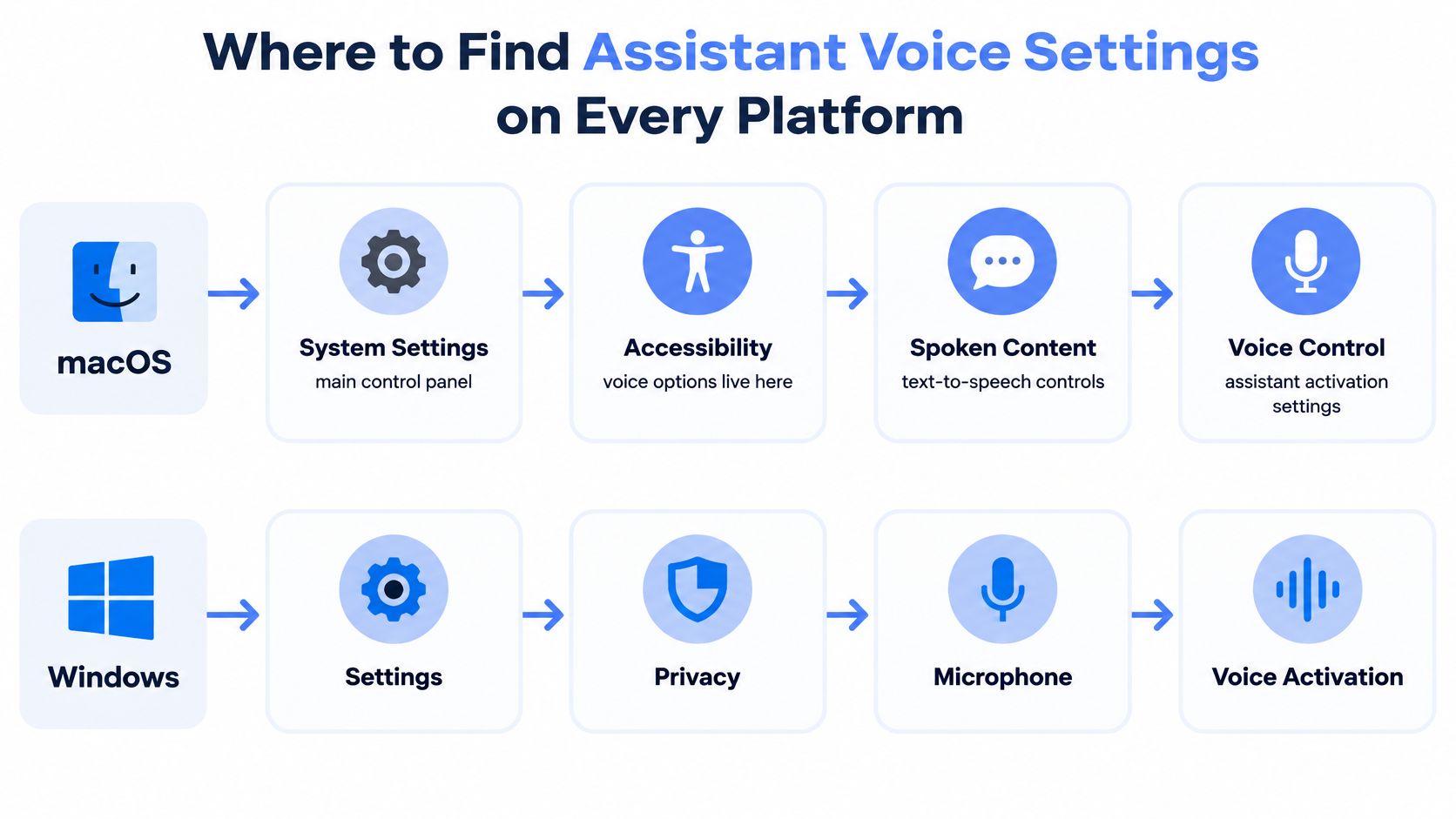
On macOS, open System Settings, then check Privacy and Security and Microphone for the app you use. For reading text aloud, go to Accessibility, then Spoken Content, where you'll find system voice, speaking rate, and related controls. For dictation language and shortcut behavior, look under Keyboard and Dictation, and for full voice navigation, open Accessibility and Voice Control.
On Windows, open Settings, then Privacy and security and Microphone to confirm access. Speech language and voice options sit under Time and language and Speech, while accessibility related controls appear under Accessibility. Names shift slightly between versions, so searching Settings for speech, dictation, or microphone is often faster than browsing.
This diagram maps the main routes before you start changing values.
Mobile and Cross Platform Tools
On iPhone, Siri language and voice choices live in Settings under Siri, with dictation tied to keyboard settings. On Android, Google Assistant settings are reached through the Google app or Assistant settings, where languages, voice match, and personal results are grouped separately. Don't assume a phone setting syncs to your laptop. It often doesn't.
Cross platform dictation tools usually keep their controls closer to the work. After install, look for a menu bar icon on macOS or a system tray icon on Windows, then open panels for push to talk shortcut, language, cleanup level, custom dictionary, and assistant behavior. That's the practical advantage. You can adjust dictation where your cursor already is instead of digging through operating system menus between tasks.
Write down where your four essentials live, microphone permission, input device, language, and history or processing mode. Once you can reach those in under a minute, tuning stops feeling like a research project.
Tuning Voice Output With a One-Variable-at-a-Time Method
Choosing a voice by its name or a ten second sample is how people end up hating a perfectly good voice by lunch. A controlled method works better. Establish a baseline, change one parameter at a time, test with the same short passages, and validate the winner in the app and room where you will use it.
That approach matches research on slider based personalization. In a within subject study of 94 participants, personalized text to speech voices were rated significantly better than non personalized voices and nearly as highly as human voices. The same work found clarity was generally satisfactory while naturalness and emotional expressiveness were weaker, which is why speed and pauses deserve more attention than novelty voices.
Run a Three Part Acceptance Test
Use the same three utterances for every candidate profile.
- Scanning instructions: A short list you need to follow without looking closely at the screen.
- Dense information: A paragraph with names, dates, and clauses you'd normally reread.
- Multi step command: A sequence where missing one step changes the outcome.
Adjust in a fixed order, accent, then voice character, then pitch, then speaking speed, then pause duration. Keep a simple note after each change. Did you ask for a repeat, lose the thread, or feel rushed? Repetition requests are more useful than whether the voice sounds impressive.
Don't stack changes. If you switch accent, raise pitch, and speed everything up at once, you won't know which change helped. You also shouldn't tune only in silence. Test with your usual keyboard noise, office chatter, or street sound, because a voice that sounds crisp in a demo can blur consonants in a real room.
Practical rule: Pick the slowest speed that still feels efficient. Comprehension drops quietly before it collapses.
Once a profile survives the test, save it as a reversible preset rather than overwriting everything. Labels such as concise, balanced, and accessibility focused make sense only if you can still override speed and pauses independently. Presets should reduce fiddling, not lock you into someone else's idea of comfort.
Choosing Between Local and Cloud Voice Processing
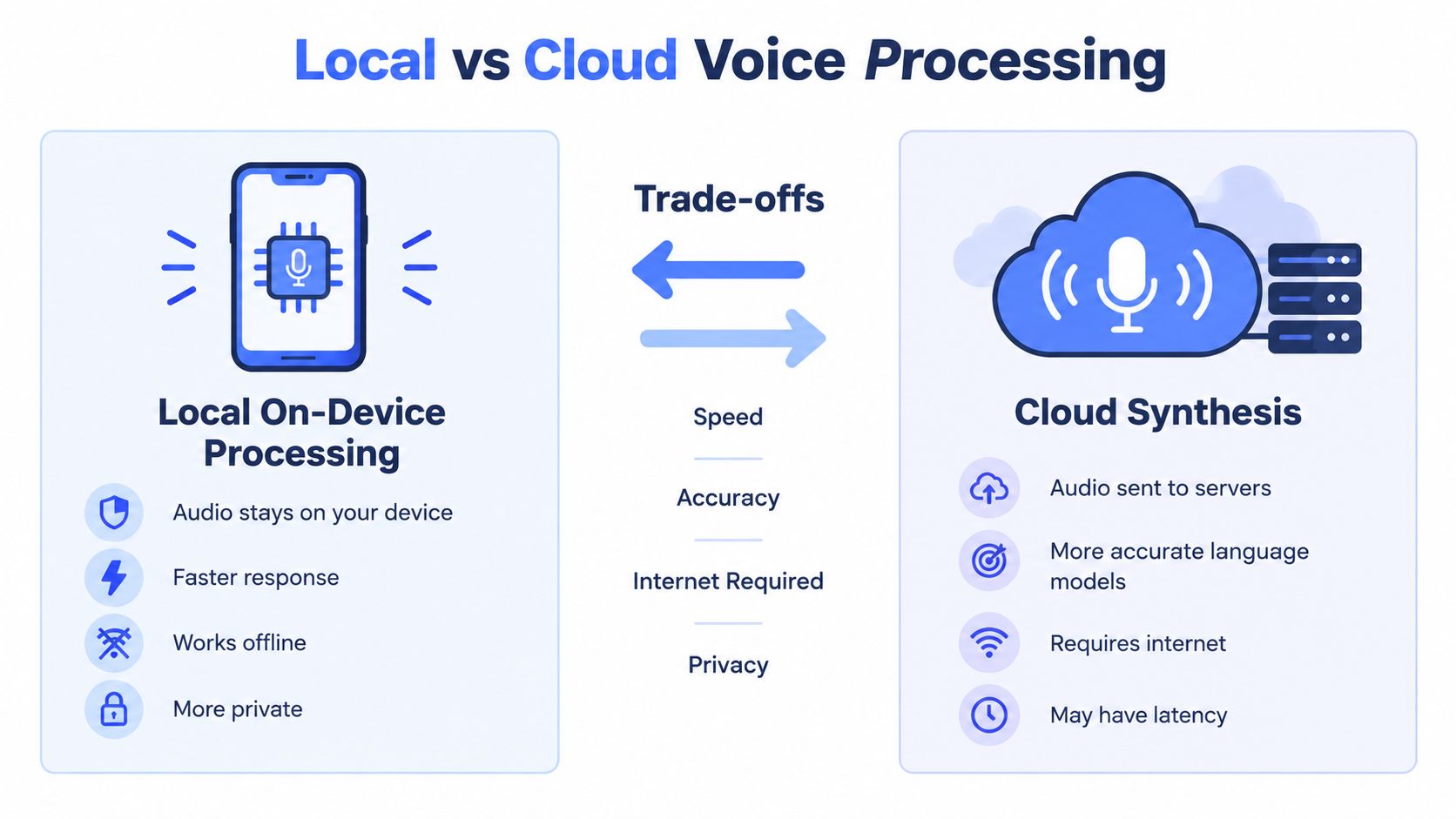
Where processing happens changes latency, offline reliability, privacy exposure, and sometimes accuracy. It's the most consequential choice in your assistant voice settings, and it's often buried under a label like enhanced dictation or improve recognition. Find that toggle before you debate voices.
Local processing keeps audio on your device. It typically keeps working without a connection and avoids sending recordings to a server, which matters for confidential work. The trade off is that the model available on your machine may handle specialist vocabulary, accents, or cleanup differently from a cloud model, and you won't know the gap until you test your own material.
Cloud processing can be useful for multilingual work and heavier cleanup, but it depends on a network and raises questions about retention and review. If latency spikes, text arrives in chunks and your speaking rhythm breaks. That alone can increase errors, because you start pausing unnaturally to wait for the screen.
This comparison is a useful starting point, but your script should make the final decision.
Test Both Modes With the Same Script
Benchmark with word error rate, or WER, calculated as substitutions plus deletions plus insertions divided by reference words. Use the same 50 to 100 utterance script in both modes, in quiet and realistic noise, as described in guidance on measuring word error rate for voice input settings. Recent dysarthric speech benchmarking found leading systems around 1% to 2% WER for mild dysarthria while severe dysarthria exceeded 51% WER for every tested system, a reminder that averages hide who a default fails.
Track names and domain terms separately. A mode with slightly worse overall WER may still win if it captures client names reliably. For a deeper breakdown of these trade offs, see this guide to cloud versus local speech recognition.
My working rule is simple. Make local the default for sensitive or offline work, enable cloud deliberately for a defined job, and switch back when the job ends.
Privacy Settings That Actually Fit Your Scenario
A single recommendation such as turn history off doesn't fit real life. A solo writer drafting fiction, a nurse dictating notes, and a support team reading account details face different risks. Privacy configuration should start with context, who can hear you, what's being said, where transcripts live, and how fast you can stop uploading.
That trust gap is measurable in user perception. A 2025 NIST survey of 401 U.S. smart home users found voice assistants were perceived as the most problematic device category for security and privacy. Instructions for toggling history don't resolve that concern if users can't predict what happens to audio, transcripts, and derived data.
Match the Mode to the Situation
- Confidential legal, health, or customer work: Use local or offline mode, keep the microphone indicator visible, limit transcript storage, and confirm deletion practices before dictating.
- Routine support replies with account data: Prefer local processing for identifiers, use push to talk instead of always listening activation, and review history settings as a team rather than leaving them to individual habit.
- Developer dictating comments or prompts: Watch for secrets, tokens, and internal names entering transcripts. A fast switch to a no upload mode matters more than a perfect cleanup level.
- Shared laptop or student use: Separate accounts where possible, check voice match and parental or activity controls for children, and clear history on a schedule you can verify.
Google's guidance shows why one toggle is rarely the whole story. Audio recording is not saved by default but users can change that setting, while children's accounts involve separate Voice Match, parental control, activity review, and deletion rules. Each platform splits these decisions differently, so verify your actual account settings instead of relying on a screenshot from a tutorial.
Privacy isn't a feature checklist. It's whether you can see the current mode, trust its boundary, and change it in seconds.
Ask four questions before any sensitive session. Is audio leaving this device? Is a transcript being stored? Who can review or delete it? What functionality do I lose in local mode? If you can't answer, don't dictate the sensitive part yet.
Productivity and Accessibility Presets That Save Real Time
Individual sliders help during setup. Presets help during the workday. Once you've tuned output, processing mode, and vocabulary, bundle those choices into named profiles you can switch without reopening five panels. Three presets cover most knowledge work if each one is honest about its trade offs.
A concise preset suits chat, support replies, and short emails where speed matters and heavy rewriting can distort tone. A balanced preset works for documents and reports, with moderate cleanup and enough pause tolerance for thinking mid sentence. An accessibility focused preset should slow playback, lengthen pauses, keep cleanup predictable, and reduce the need to watch every word appear, which matters for fatigue, low vision, repetitive strain, or speech differences.
Preset Configurations at a Glance
| Preset | Voice profile | Speed and pause | Cleanup level | Hey Max mode |
|---|---|---|---|---|
| Concise | Clear, neutral | Faster, short pauses | Light, punctuation focused | Shorten and send ready rewrite |
| Balanced | Natural, low fatigue | Moderate, thinking pauses allowed | Medium, plain formatting | Rewrite selected text in place |
| Accessibility focused | Distinct consonants | Slower, longer pauses | Conservative, minimal reformatting | Plain language rewrite and screen Q and A |
In Voice Control Pro, those bundles can pair a global push to talk shortcut, cleanup levels, a custom dictionary, and the Hey Max assistant for rewriting selected text, answering questions about what's on screen, and launching apps by voice. The value isn't any single control. It's that selecting accessibility focused can load the slower rate, conservative cleanup, and a rewrite style that doesn't over format, all at once.
Presets also expose a common misconception, that dictation should mirror typing exactly. This reflection on speech that says what I type is useful because spoken drafts need different cleanup from typed notes. Keep presets reversible, review the custom dictionary monthly, and delete profiles you no longer use. A small library you trust beats a long menu you avoid.
Troubleshooting Assistant Voice Settings That Misbehave
Settings fail in predictable ways. The wake word gets ignored, the wrong language takes over, background music becomes a runaway transcript, or a proper noun is mangled the same way in every document. Don't respond by toggling everything. Isolate the symptom, make one fix, and retest.
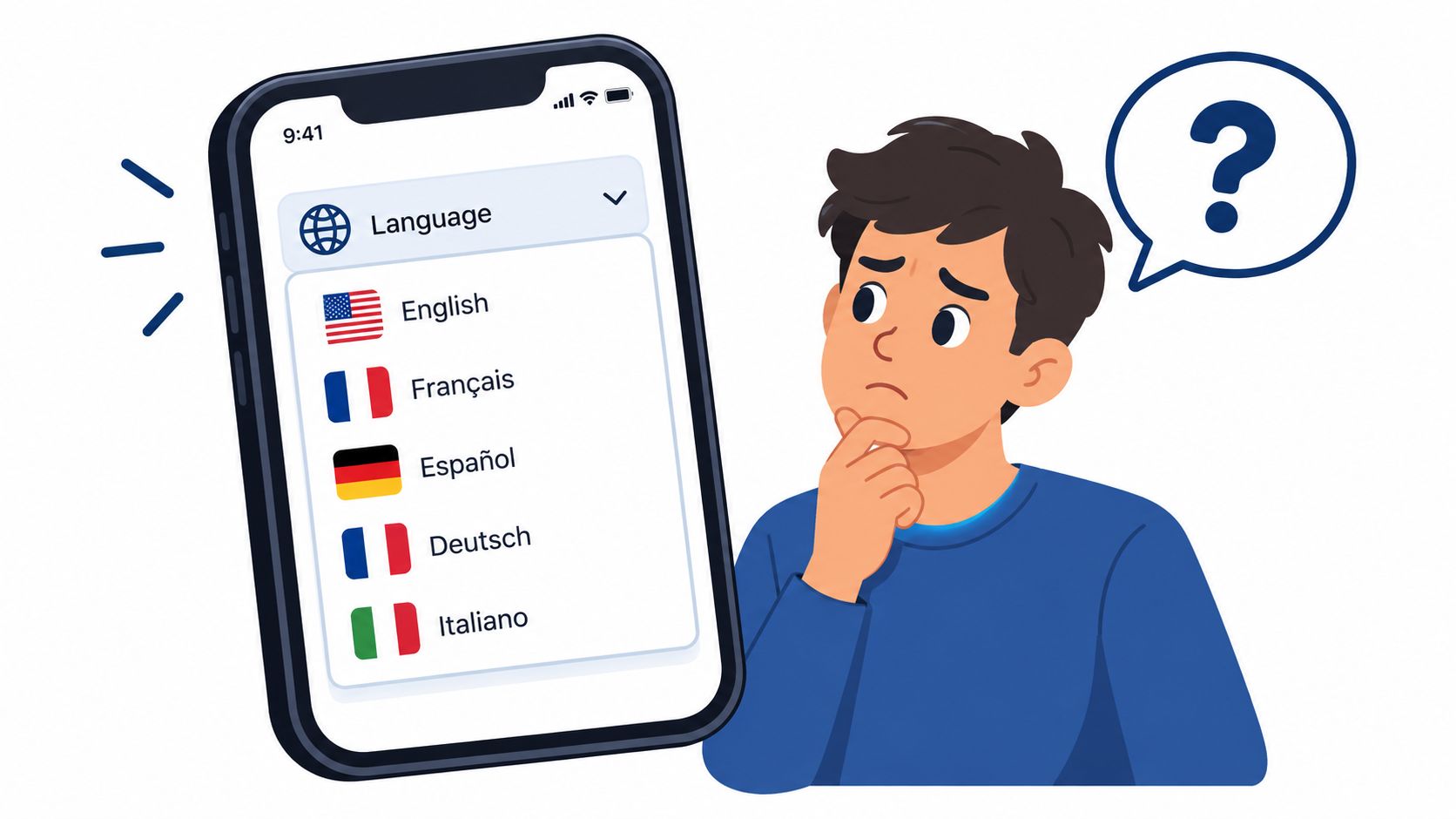
Language confusion is a common starting point, especially for multilingual speakers who code switch mid sentence.
Symptom, Likely Cause, First Fix
- Ignored wake word: Wrong microphone selected or permission revoked after an update. Confirm input device and test with push to talk.
- Wrong language detected: Auto detection is guessing from short utterances. Lock the primary language for the session and add mixed language terms to the dictionary.
- Garbled proper nouns: The term is missing from custom vocabulary or cleanup is normalizing it. Add the exact spelling and test the name in a full sentence.
- Runaway transcript: Always listening mode is capturing media or nearby speech. Switch to push to talk and check noise suppression and gain.
- Inconsistent results between apps: Local and cloud modes differ by app or account. Confirm processing mode in each place before comparing accuracy.
After each fix, rerun the same 50 utterance script and watch WER rather than relying on impressions. Flag any setting producing more than 5% WER on your main workflow for review, and score proper nouns separately because fixing a client name costs more than fixing a filler word. If correction time rises while raw dictation gets faster, the setting isn't an improvement.
This short walkthrough helps you see how a settings change should be validated instead of guessed.
Do three things today. Record your current baseline, run the three part acceptance test, and save two presets you will use, one for routine work and one for private or accessibility focused work. That's enough to move from reactive fixing to a setup you understand.
Put these trade offs into practice with push to talk dictation, reversible cleanup and dictionary controls, Fly Mode for local processing, and Hey Max for rewriting and screen aware help where your cursor already is. Visit Voice Control Pro to set up a baseline on macOS or Windows, run your own acceptance test, and save presets that match the way you work.