
You're in the middle of work, and the bottleneck isn't ideas, it's typing. One window has email, another has a doc, a third has chat, and every time you switch context, you lose a little momentum. A voice activated AI assistant exists to remove that friction, but the question is how it works, where it belongs in your stack, and when local processing beats cloud convenience.
Table of Contents
- What a Voice Activated AI Assistant Actually Does Today
- How the Technology Pipeline Works
- The four stages that matter
- Why latency shows up as frustration
- The design trade-off that is easy to miss
- Local vs Cloud Processing and Why It Matters
- What changes when processing stays on-device
- When cloud still makes sense
- A simple way to choose
- Practical Workflows for Professionals, Students, and Developers
- Privacy and Accessibility Implications You Should Plan For
- Why confidentiality changes the product decision
- Accessibility works best when the interface stays simple
- Language support is not a checkbox
- How to Evaluate and Select the Right Solution
- Voice Assistant Evaluation Checklist
- Choosing Your Next Steps With Confidence
What a Voice Activated AI Assistant Actually Does Today
A lot of people still think of voice input as something you use to set a timer or ask for the weather. That's too small. In day-to-day work, a voice activated AI assistant is more like a fast input layer that lets you draft, search, command, and switch context without dragging your hands back to the keyboard every few seconds.
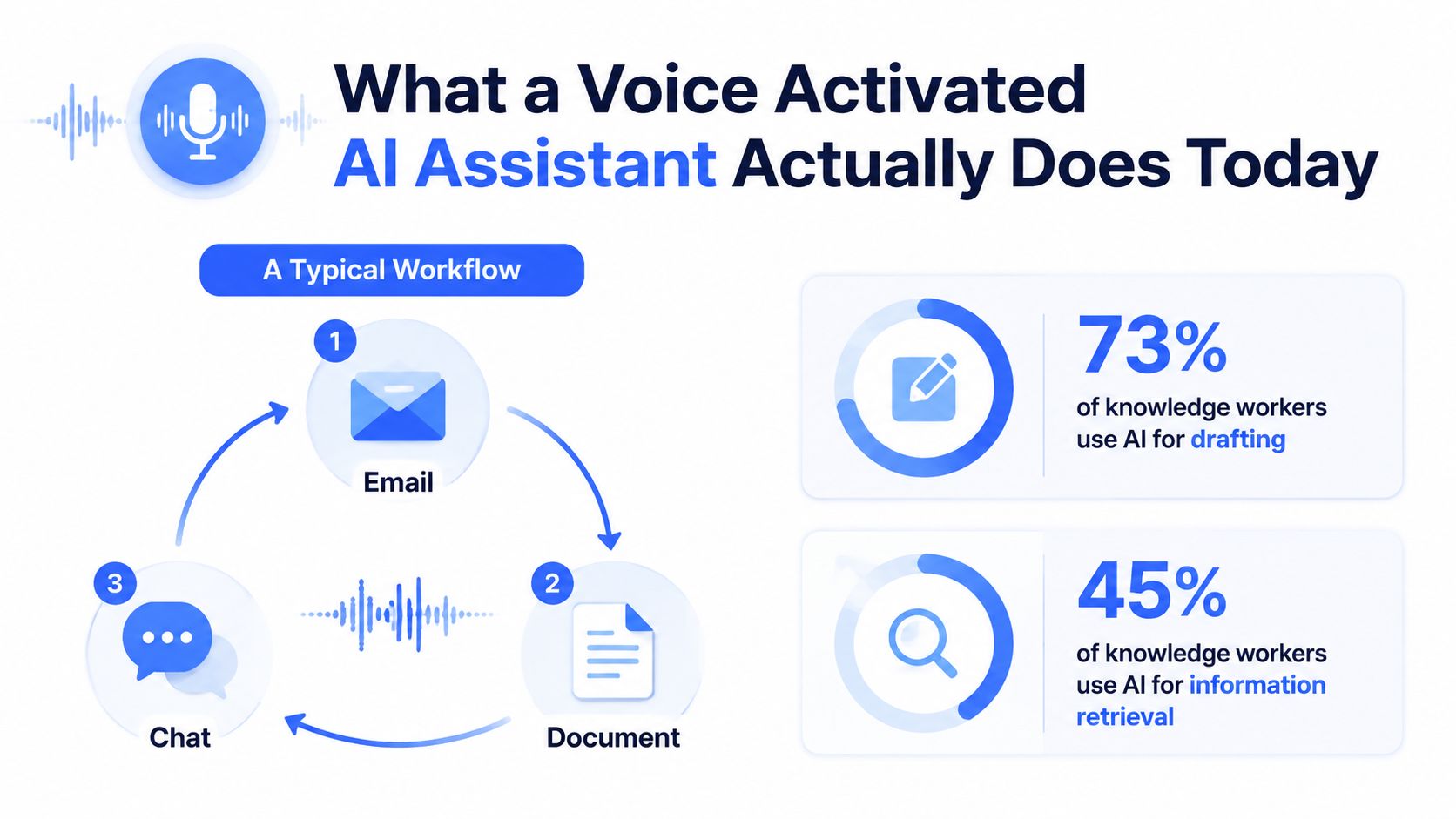
A typical morning makes the value obvious. You're scanning email, answering a chat thread, and editing a doc at the same time. With voice, you can dictate a reply, ask for a quick rewrite, or fill in a note while your cursor stays in place, which is often faster than bouncing between tabs and re-reading the same thread.
That shift isn't hypothetical. Industry reporting says digital voice assistants grew from 3.25 billion in 2019 to 4.2 billion in 2020, then to 8.4 billion by 2024 (market.us voice assistant statistics). In the U.S., users were estimated at 142.0 million in 2023 and projected to reach 157.1 million by the end of 2026 in that same reporting. On the behavior side, one industry summary says 20.5% of people worldwide use voice search regularly, 91% of users interact with voice assistants primarily through mobile devices, and 32% of U.S. consumers use voice instead of typing every day (voice assistant statistics summary).
Practical rule: if someone is already using voice on a phone in a car, on a walk, or while multitasking, the same habit can carry into work apps. The interface is no longer a novelty. It's a habit layer.
For teams deciding whether to adopt this category, a useful reference point is the economics of adding automation around conversations. A practical overview like the cost of AI chatbots for small business helps frame the broader question, even if your use case is voice rather than chat.
How the Technology Pipeline Works
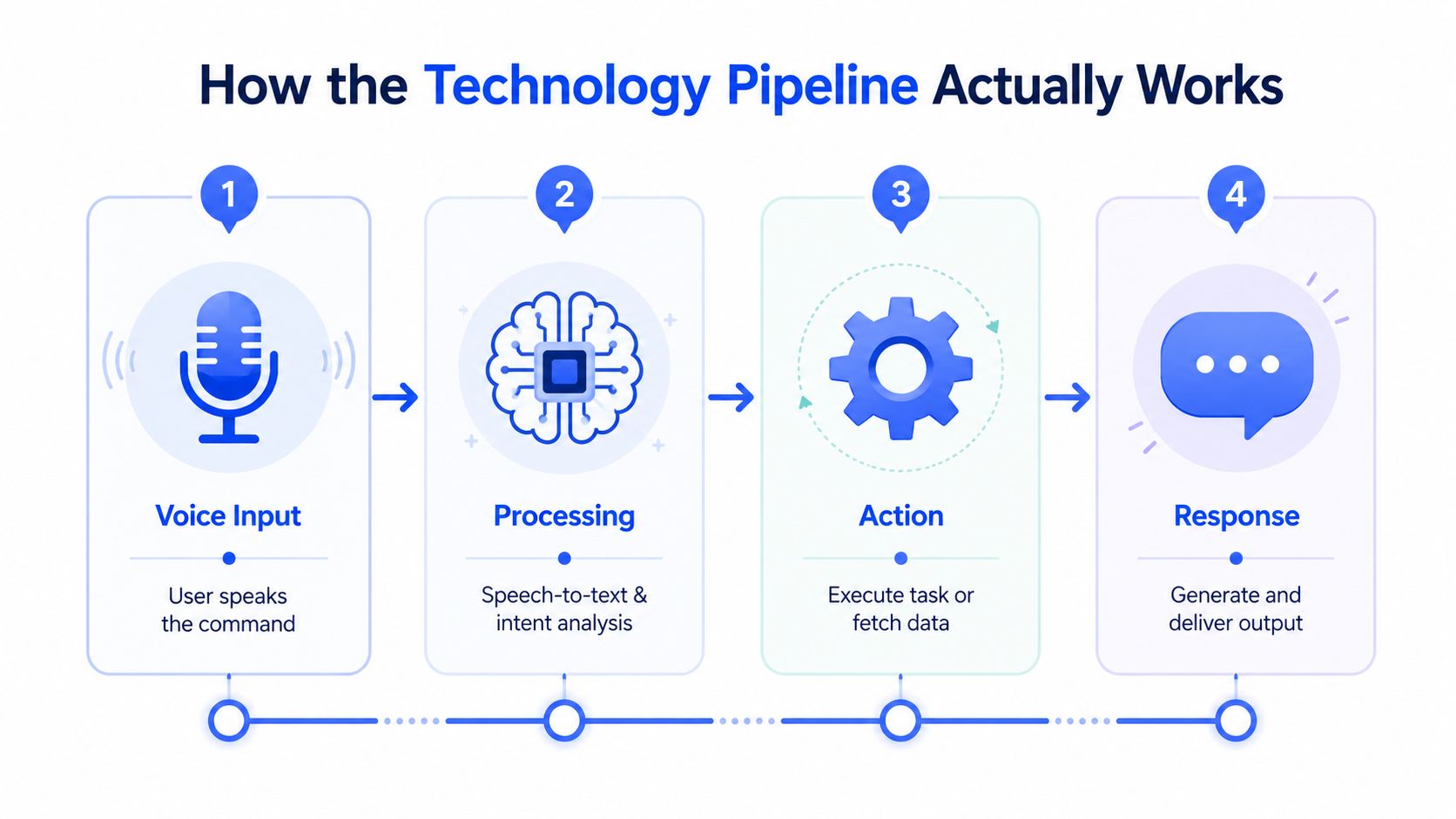
A voice assistant is easier to understand when you break it into stages. Audio comes in, speech gets turned into text, the system decides what the user wants, and then the response comes back out as spoken words. The pipeline matters because each handoff can help the conversation feel quick and natural, or make it feel delayed and clumsy.
The four stages that matter
The common production pipeline has four parts, voice activity detection, automatic speech recognition, LLM or NLU orchestration, and text-to-speech (development guidance). Voice activity detection, or VAD, decides when someone has started and stopped speaking. If it triggers too often, the assistant spends time and money processing silence. If it waits too long, it cuts people off or misses the start of a sentence.
ASR turns spoken audio into text. That transcription step is where accents, background noise, and domain-specific words can create errors. Orchestration then interprets the text and chooses the next action. A voice assistant becomes useful at that point because it can search a knowledge base, open an app, route a request, or answer directly. TTS closes the loop by speaking the result back to the user.
A simple analogy helps here. The assistant stack behaves less like one model and more like a relay team, where each runner has a separate job and the handoff matters as much as the runner's speed.
Useful mental model: accuracy alone does not make a voice system feel good. A system can transcribe well and still feel awkward if turn-taking is slow or the response arrives late.
Why latency shows up as frustration
A small pause in a chat box is easy to ignore. In voice, the same pause feels like uncertainty. If the assistant waits too long between stages, people repeat themselves, interrupt the reply, or give up on the interaction.
That is why orchestration layers such as LiveKit, Pipecat, Vapi, or Retell exist. They coordinate low-latency turn-taking so the pipeline behaves like a conversation instead of a batch process. For teams trying to understand the transcription layer on its own, the voice to text AI overview is a useful companion read. It separates speech conversion from the rest of the assistant stack, which makes the design easier to reason about.
The design trade-off that is easy to miss
A stronger model can still feel worse if the surrounding system is poorly wired. A weak orchestration layer makes even good speech components feel sluggish, while a better setup separates the stages so teams can replace one piece without rebuilding the whole assistant. That modular approach is why serious voice builds now separate VAD, ASR, orchestration, and response generation instead of bundling everything into one opaque component.
The same pattern shows up in retrieval-heavy systems. If a voice assistant needs grounded answers rather than guesses, it has to fetch context from another source before speaking. That is why RAG systems for enterprise automation matter in assistant design, since the pipeline often needs to combine speech input with reliable retrieval before it generates a response.
Local vs Cloud Processing and Why It Matters
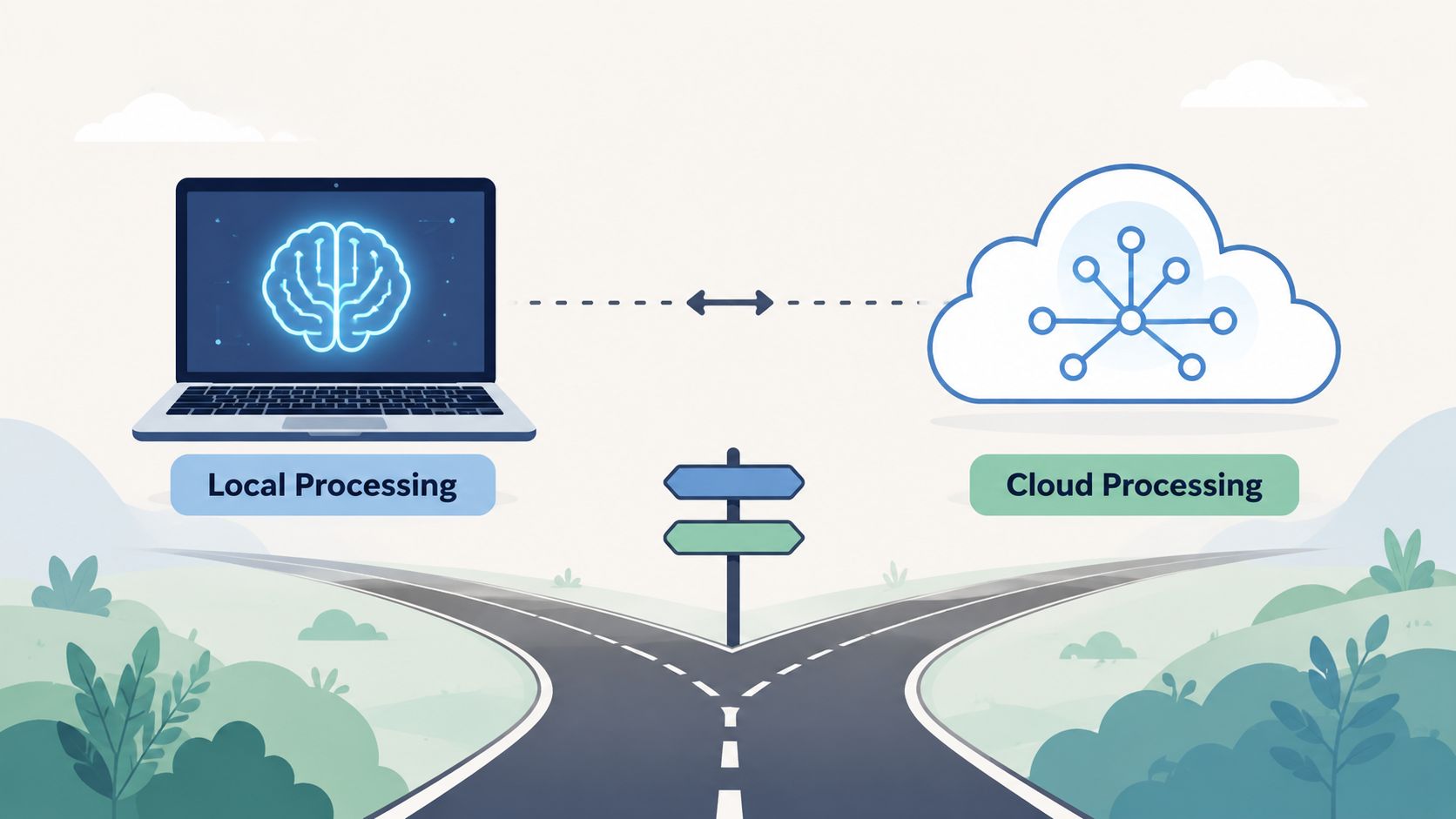
The local-versus-cloud decision sounds technical, but it's really a question about trust, speed, and where the work happens. A freelance consultant dictating client memos has a different tolerance for risk than a healthcare admin entering notes. One can usually trade some privacy for convenience. The other often can't.
What changes when processing stays on-device
Local processing means the audio and transcription work happen on your machine. That matters when the text is sensitive, when connectivity is poor, or when you don't want speech data routed through another company's servers. A local setup also tends to feel more immediate because the assistant isn't waiting on round trips to external infrastructure.
The hardware side is not abstract. One voice-AI hardware guide recommends sub-800 ms end-to-end latency, 16 kHz audio sampling, at least 4 CPU cores per GPU accelerator, and 8 GB or more VRAM, with 16 GB+ preferred for production-scale workloads (hardware requirements guide). Those numbers explain why local mode can feel snappier on the right machine, but also why underpowered hardware makes voice feel sticky.
When cloud still makes sense
Cloud transcription is still the smarter trade-off when you need easier scaling, broader managed infrastructure, or less device-specific tuning. It's also the more practical path for teams that don't want to manage model performance, audio capture edge cases, or local resource limits. Cloud can be the right choice when confidentiality isn't the main constraint and the workflow benefits more from operational simplicity than from local control.
In practice, the right question isn't “local or cloud?” It's “what do I lose if the text leaves my device, and what do I lose if the assistant feels slow?”
A simple way to choose
If the task involves client secrets, medical notes, legal drafts, or source code, local-first processing deserves serious weight. If the task is lighter, or if the team needs centralized control across many users, cloud can be easier to deploy and maintain. The best answer is often hybrid, with local dictation for the sensitive part and cloud features only where the user explicitly wants them.
The broader cloud-versus-local argument for speech tools is covered in the cloud vs local speech recognition guide, which is worth reading alongside this decision.
Practical Workflows for Professionals, Students, and Developers
The easiest way to judge voice software is to watch what it replaces. It should reduce window switching, shorten drafting time, or keep your hands on the keyboard for the work that still needs precision. If it only adds another button to click, it's not saving much.

A knowledge worker usually benefits most from hold-to-record dictation and instant insert at the cursor. That means you can answer an email, clean up a paragraph, or draft a short client update without switching to a separate dictation app. If your day is mostly triage, this is the workflow that pays off first.
A student has a different pattern. Voice helps when notes are coming fast, but the keyboard still matters for formulas, code, or citation cleanup. The useful setup is a mix of spoken capture and typed editing, so the laptop becomes a note sink instead of a full-time typing surface.
For developers, the win is often prompt iteration and code comments. Saying a rough prompt aloud, then revising it immediately, can be faster than stopping to type a first draft from scratch. Customer support agents get another benefit, they can reply across CRM tabs while keeping the customer's case visible, which cuts down on context loss.
The media choices matter too. The right tool roundup can help you compare workflows without overfocusing on a single feature set, and a WaveGen.ai tool roundup is a decent reminder that voice, writing, and publishing tools often overlap in practice.
After that, a short demonstration is often more useful than a feature list.
For researchers and interviewers, the best pattern is usually long-form capture with cleanup later. Voice keeps the conversation moving, and the transcript becomes the raw material for analysis after the fact. That's more practical than trying to perfect every sentence in real time.
Privacy and Accessibility Implications You Should Plan For
Privacy and accessibility are usually treated as side topics. They shouldn't be. For a lot of users, they're the deciding factors. If a tool handles sensitive text badly, or if it requires too much mental effort to use, the assistant stops being helpful even if the transcription looks good on paper.
Why confidentiality changes the product decision
Sensitive work changes the rules fast. A voice assistant that's fine for meeting notes may be a poor fit for client memos, medical notes, or legal drafts. Local-first control helps here because it reduces the number of places sensitive speech can travel, which is exactly why tools such as Voice Control Pro include Fly Mode and on-device processing as part of the product model.
That trade-off matters because more capability can create more friction. If the assistant adds delays, extra confirmation steps, or cloud dependencies, some users will stop trusting it for confidential work. In regulated environments, the simplest workflow is often the one people adopt.
Accessibility works best when the interface stays simple
Research on voice-based AI in healthcare emphasizes helping elderly, rural, and low-literacy users without exposing sensitive conversations to cloud dependencies (healthcare voice AI research). The same work also points to an important constraint, impaired users can operate voice assistants only when cognitive demands stay low. That means accessibility doesn't just need voice input, it needs low-friction design.
A feature-rich assistant can accidentally become harder to use. More options, more prompts, and more settings can overwhelm the very people who need voice input most. A smaller set of predictable actions often works better than a complex menu of voice commands.
Language support is not a checkbox
Multilingual support also deserves more than a marketing bullet. In one clinical workflow, a multilingual generative AI voice agent improved colorectal cancer outreach among Spanish-speaking patients, with 18.2% vs. 7.1% fecal immunochemical test opt-in rates and longer call durations of 6.05 vs. 4.03 minutes in the Spanish-language flow (PMC study). That doesn't mean every multilingual assistant should chase the same design, but it does show that language-concordant voice work can change outcomes.
The deeper point is that accent handling, code-switching, and transcription quality across non-English workflows matter more than a long language list. If your team works across languages, the assistant should be evaluated where people speak, not only in a polished demo.
Practical rule: privacy, accessibility, and multilingual support are connected. If one of them breaks, user trust usually drops in the same place.
For a closer look at accessibility patterns, the voice input accessibility guide is a helpful companion resource.
How to Evaluate and Select the Right Solution
The best way to compare voice tools is to use the same checklist on every candidate. Otherwise, one demo wins on speed, another wins on polish, and neither tells you whether the assistant fits your workday. A simple scorecard keeps the comparison honest.
Voice Assistant Evaluation Checklist
| Criterion | What to Look For | Voice Control Pro Example |
|---|---|---|
| Speed and latency | Does the assistant feel immediate while you talk, or does it lag between speech and insertion? | Global press-and-hold dictation inserts text directly at the cursor, and local mode keeps the loop on-device. |
| Accuracy and cleanup quality | Can it handle your names, jargon, and preferred formatting without heavy manual correction? | Cleanup levels and a custom dictionary help shape transcription to match your style. |
| Privacy and local mode | Can you keep sensitive dictation off the cloud when needed? | Fly Mode pauses cloud features, and free local dictation runs on an on-device AI model. |
| Language and accent coverage | Does it support the languages you actually use, not just the headline ones? | 99+ language support is available on upgraded plans. |
| Integrations and workflow fit | Does it work where you already write, or does it force you into a separate app? | It inserts text in any app and can also launch installed apps by voice through Hey Max. |
| Accessibility and ergonomics | Can you operate it without juggling windows or memorizing a complicated command tree? | The global shortcut and cursor-based insertion keep interaction simple. |
A few questions cut through the noise. Can you dictate without breaking flow? Can you keep sensitive work local? Can you adapt it to your vocabulary? If the answer is no in any of those areas, the tool may be a poor fit even if the demo looks polished.
Buyer test: run the tool against your messiest real task, not a clean sample. If it can't survive your actual workflow, the marketing page doesn't matter.
One practical example is Voice Control Pro, which combines cross-platform voice-to-text insertion, local processing through Fly Mode, and contextual tools like rewriting or screen-aware help. That doesn't make it the only option, but it does map cleanly to the criteria above.
Choosing Your Next Steps With Confidence
The decision usually comes down to three jobs. First, understand what a voice assistant does. Second, understand how the pipeline shapes speed and reliability. Third, compare tools against the way you already work, not against a feature checklist built for someone else.
Start with local mode if privacy matters. Add multilingual support if your work crosses languages. Only then decide whether you need paid features like app launching, screen-aware Q&A, or more advanced cleanup. That order keeps the decision grounded in real needs instead of shiny extras.
If you want a quick test, try voice dictation inside your heaviest-typing app for 30 days. Judge it on speed, accuracy, trust, and how often it saves you from window switching. If those four things improve, you've got a workflow worth keeping.
Voice Control Pro gives you direct voice-to-text dictation in any app, plus local processing with Fly Mode, a free on-device dictation mode, and contextual tools for rewriting, screen Q&A, and app launching. If you want to see how those pieces fit into a hands-free workflow, visit Voice Control Pro and try it against the app you type in most.