
You're halfway through a project update when the words start flowing faster than your fingers can type. You dictate a paragraph into one window, switch to Slack to paste it, return to the ticket to fix punctuation, then open your notes because the product name was transcribed incorrectly again. The speech recognition worked. The workflow didn't.
That difference explains what are some unique features worth examining in a voice tool. The useful question isn't only whether an app can turn speech into text. It's whether the text appears in the right place, arrives in a usable form, stays easy to correct, and respects the privacy of the work you're doing.
Table of Contents
- The Voice Input Problem Most Tools Still Leave Unsolved
- Cursor-Level Insertion Across Every App
- A practical insertion routine
- Cleanup Levels and a Custom Dictionary
- Hey Max as an In-Flow Assistant
- Three assistant jobs
- Fly Mode and the Free Local Dictation Path
- How These Features Work Together in a Real Session
- History turns separate actions into a session
- Accessibility, Repetitive Strain, and the Inclusive Angle
- Accessibility depends on the surrounding conditions
- Putting the Unique Features Into Your Own Stack
The Voice Input Problem Most Tools Still Leave Unsolved
Most dictation tools treat their job as producing a transcript. Once the words appear in a separate panel or document, you're responsible for moving them into the application where the work happens. You become the clipboard, editor, formatter, and integration layer.
A project manager might dictate a status update, copy it into a project ticket, remove filler words, repair the capitalization of a customer name, and then shorten the paragraph for an executive summary. Each step seems small, but the repeated switching breaks concentration. Voice input saves keystrokes while creating a different kind of manual labor.
The more useful design asks three questions:
- Insertion: Where should the words land? The answer should be the active cursor, whether it's inside a CRM note, a chat composer, a document, or a code comment.
- Polish: What should the text look like when it arrives? A raw transcript may need punctuation, paragraph breaks, and filler removal before anyone else can read it.
- Control: How much editing should happen automatically? A brainstorming note and a client email need different treatment.
A Stanford Human-Computer Interaction study measured English speech entry at 161.20 words per minute, compared with 53.46 words per minute for keyboard entry. Speech was approximately 3.0 times faster, and produced 21.6% fewer errors in that comparison, although actual performance varies by speaker, microphone, language, recognition quality, and editing needs. The Stanford speech and keyboard input study helps explain why placement and cleanup matter so much. Fast recognition loses its value if you spend the saved time repairing the result.
For a broader look at how researchers and technical users think about speech workflows, a voice lab notebook for scientists offers useful context around voice-driven work. You can also see why voice dictation still breaks and how to fix it when recognition is separated from the application where the text belongs.
The distinctive bundle here is simple to describe: the microphone, the cursor, and the finished sentence stay connected. That's more consequential than adding another transcription window.
Cursor-Level Insertion Across Every App
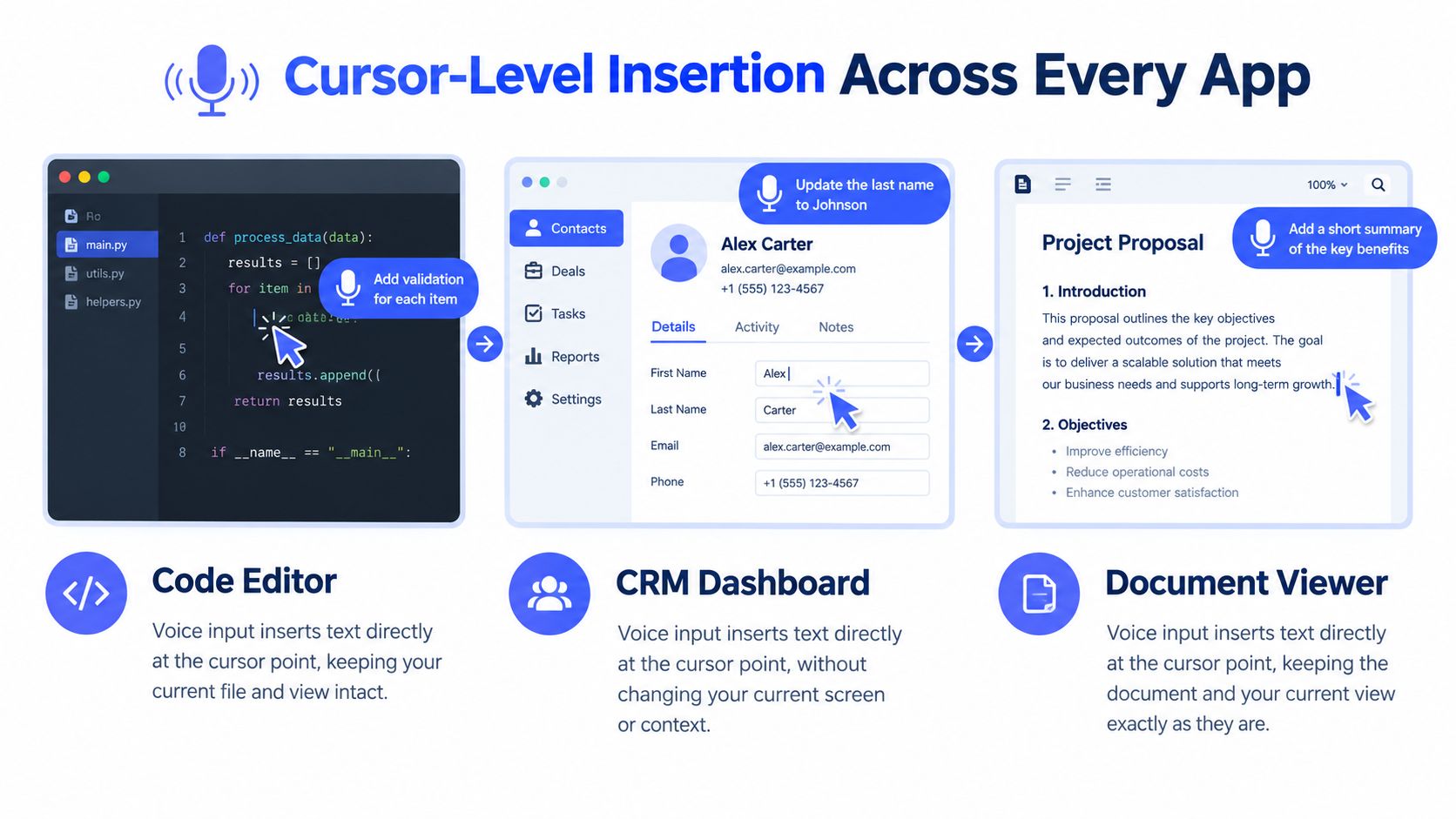
Cursor-level insertion is the mechanical feature that makes the rest of the workflow practical. Press and hold a global shortcut, speak naturally, release it, and the recognized text is inserted at the caret in the application that currently has focus.
There's no clipboard detour and no intermediate document. The text doesn't wait in a holding area while you decide where to paste it. If the cursor is inside a CRM note, the words go there. If it's in a Jira comment, the comment receives them. The same principle applies to Gmail, Notion, Linear, VS Code, and other fields where you can type.
A useful analogy is the difference between a scanner and a pen. Traditional dictation can behave like a scanner that creates an image on your desktop. You still have to move that image into the correct folder and convert it into something usable. Cursor-level insertion behaves more like a pen that writes into the form field as soon as you place it there.
A practical insertion routine
- Place the cursor. Click or move to the exact field where the sentence belongs.
- Activate the shortcut. Use the global command without opening a separate transcription workspace.
- Speak the complete thought. Dictate the idea in the context of the message, note, report, or prompt.
- Release and review. The text appears in place, ready for a quick check or a targeted rewrite.
This arrangement matters because context survives the dictation. A support agent doesn't have to remember which ticket a paragraph belongs to. A developer doesn't need to dictate into a notes app and then paste code comments into an editor. A researcher can capture a note directly inside the document under review.
Cursor-level insertion also gives cleanup and vocabulary controls a clear destination. They aren't polishing text in isolation. They're preparing text for the field where you're already working. That reduces context switching, but it doesn't eliminate the need to review important names, figures, commands, or confidential content before sending.
Cleanup Levels and a Custom Dictionary
Raw speech is conversational. Finished writing usually isn't. People pause, restart, repeat themselves, and use filler words while thinking. A useful voice workflow needs to decide whether those signs of spontaneous speech should remain, disappear, or be rewritten.
Cleanup levels act like editing profiles. A light setting can remove obvious fillers while preserving the speaker's wording. A medium setting can organize punctuation and break long spoken thoughts into clearer sentences. A heavy setting can tighten phrasing for text that needs to resemble edited prose.
| Cleanup Level | What It Removes | Best Used For |
|---|---|---|
| Light | Obvious filler and minor verbal clutter | Quick notes, ticket updates, brainstorming |
| Medium | Filler, run-on phrasing, and missing punctuation | Internal messages, CRM notes, working drafts |
| Heavy | Conversational repetition and loose phrasing | Client emails, reports, polished summaries |
The right level depends on the job, not on a universal idea of “clean.” A brainstorming session benefits from preserving the speaker's original direction. A customer response benefits from clearer sentences. Applying heavy rewriting to every thought can make a personal note sound unnatural or remove a useful qualification.
The custom dictionary solves a different problem. Cleanup can improve a sentence, but it can't reliably repair a product name or specialist term that the recognizer repeatedly hears incorrectly. Add the names, project labels, technical concepts, or proper nouns that appear in your work, then let the vocabulary persist across sessions.
That pairing creates a practical division of labor:
- Cleanup controls how much the system edits.
- The custom dictionary controls which words it recognizes.
- The insertion workflow controls where the result appears.
A developer might add a model name, a framework, and an internal service to the dictionary, then use medium cleanup for code comments. A sales representative might use the same level for CRM notes while keeping a customer's exact company name intact. The feature earns its place when it prevents the same correction from returning every day.
Hey Max as an In-Flow Assistant
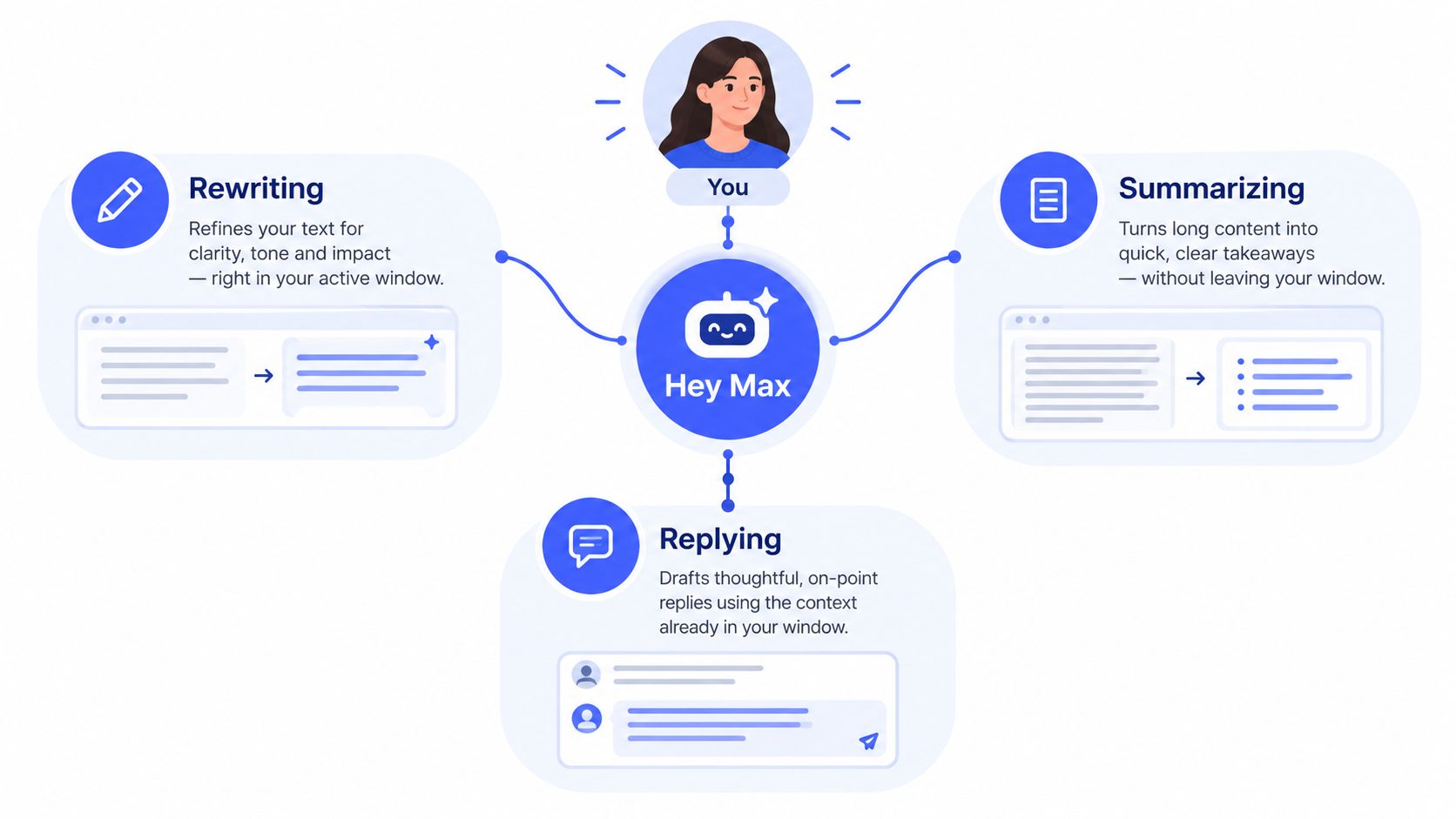
Dictation turns speech into text. Hey Max handles the jobs that begin after the text exists, while staying close to the active window instead of forcing you into a separate chat tab.
Start with a paragraph you've just dictated. You can ask the assistant to rewrite it for a different tone, shorten it, or turn a run-on explanation into a clearer list. The important detail is that the selected text remains attached to the task. You don't need to copy it into another assistant, explain where it came from, and paste the result back.
Three assistant jobs
Rewrite in place. A support agent dictates a long explanation, selects it, and asks for a concise customer-facing reply. The assistant changes the presentation while the agent remains inside the ticket.
Answer a contextual question. While writing a bug report, a developer can ask what a visible error message means or request a summary of the document on screen. The answer is tied to the active context rather than a blank conversation.
Launch or switch applications. Saying “open Linear” can move the user to the relevant installed app without reaching for the launcher or typing its name.
Those tasks belong to the assistant layer, not the basic transcription engine. The transcription engine captures and inserts speech. Hey Max interprets a request, works with selected or visible content, and performs an action.
The assistant is optional. Core local dictation can remain useful for someone who wants speech input without contextual AI actions. That separation also makes the privacy decision clearer. Users can choose local dictation for sensitive text and reserve assistant features for work they're comfortable processing through the selected model path.
Fly Mode and the Free Local Dictation Path
Voice workflows become easier to evaluate when you separate where processing happens from what the assistant can do. Voice Control Pro provides a free local dictation path, Fly Mode for local offline use, and cloud-backed Max processing for broader capabilities.
| Path | Processing Location | Best Use Case | Trade-off |
|---|---|---|---|
| Free local dictation | On the computer | Unlimited everyday dictation without cloud dependence | Hardware and model limits can affect responsiveness and recognition |
| Fly Mode | Fully on the computer, with cloud features paused | Confidential work, travel, and unreliable connectivity | Local processing may offer narrower language coverage or lower performance in difficult conditions |
| Max cloud processing | Cloud-backed model path | Advanced rewriting, contextual assistance, broader language support, and demanding environments | Audio or text may leave the device, so policies and content sensitivity matter |
Local processing can reduce exposure during work involving customer records, unreleased documents, source code, or research notes. A technical survey of local and cloud AI systems describes local models as generally better suited to low-latency real-time use, while cloud systems can support larger models but add network dependence and data-security considerations. The survey of efficient edge AI also makes the trade-off clear: local inference has to fit the computer's CPU, GPU, memory, and power budget.
Fly Mode is therefore more than an offline convenience. It gives you a deliberate boundary. If Wi-Fi drops while you're dictating a sensitive email, local processing can preserve the primary input method instead of turning connectivity into a single point of failure. For a practical explanation of that workflow, see how offline voice-to-text works.
Cloud processing has a legitimate role. It can offer broader language support, more advanced rewriting, and stronger contextual reasoning when those capabilities matter more than keeping every part of the session local. A 2025 privacy study found that people could still feel monitored even when speech processing occurred locally, showing why clear controls and visible processing states matter alongside technical architecture. The research on privacy and perceived surveillance in local speech systems supports a simple operating rule: verify what is local, what is cached, what leaves the device, and which assistant actions activate cloud services.
How These Features Work Together in a Real Session
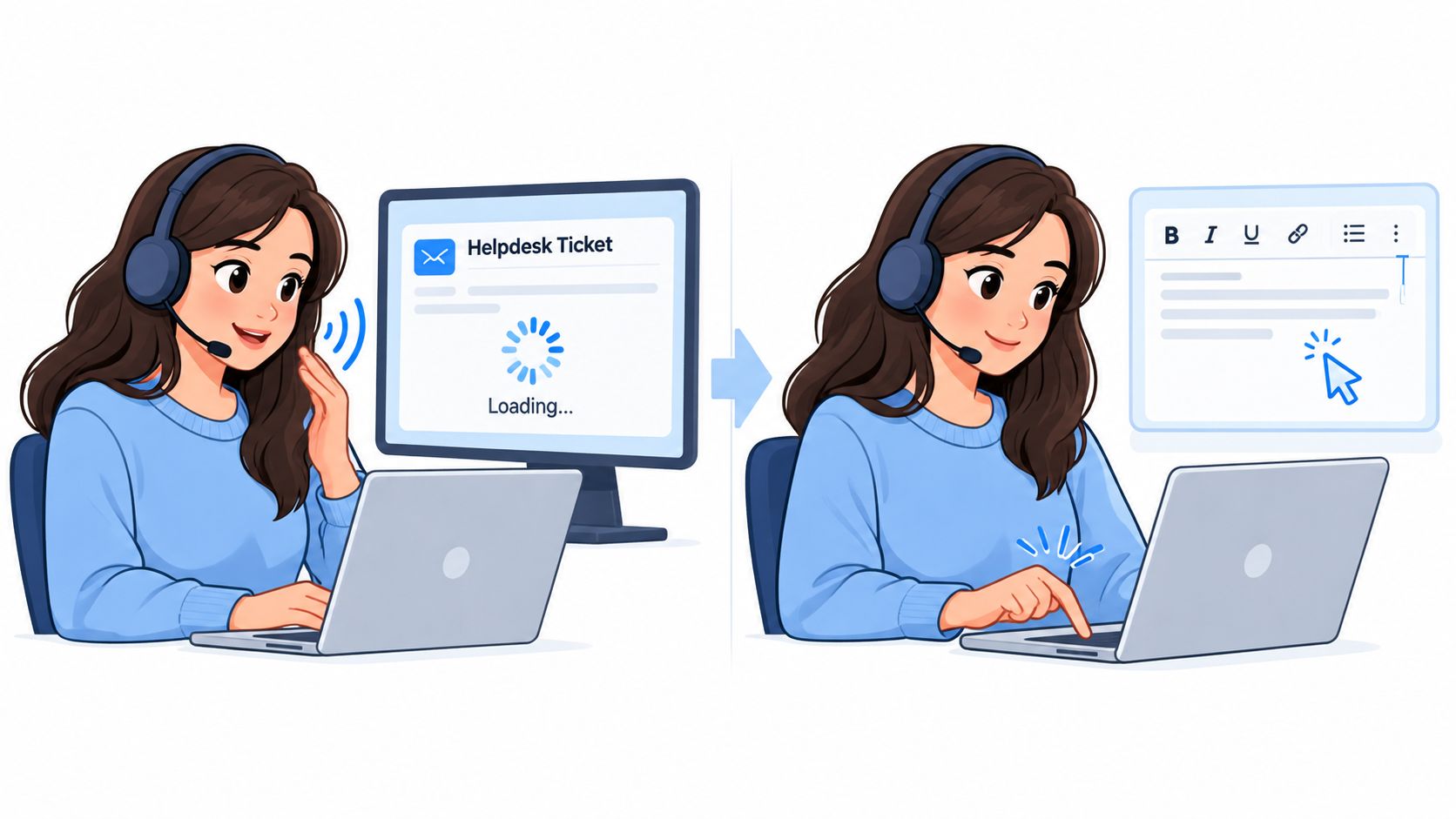
A support agent opens a customer ticket with the reply field active. Instead of drafting in a notes app, the agent holds the global shortcut and dictates the complete response where it belongs. Cursor-level insertion puts the text directly into the ticket, and a medium cleanup level removes conversational clutter without turning the reply into stiff legal prose.
The agent then selects the dictated paragraph and asks Hey Max to summarize the thread into a closing sentence. The assistant works on the selected context, while the agent keeps the ticket open. Before sending, the agent checks the customer name, product references, and promised next step.
A developer follows a different path. They dictate an AI prompt directly into the prompt field, using a custom dictionary entry for the model name and an internal system that appears throughout the request. After insertion, they ask Hey Max to identify ambiguous requirements, then revise only the unclear section.
History turns separate actions into a session
Transcription history provides the connective tissue. If the developer realizes that an earlier instruction was better than the edited version, they can retrieve the earlier snippet, revise it, and reinsert it without speaking again. The support agent can reuse a carefully phrased explanation in another ticket while still adapting it to the new customer's situation.
The rhythm is consistent across both examples:
- Dictate the complete thought.
- Refine it with an appropriate cleanup level.
- Query the assistant when the task needs interpretation.
- Insert the result at the active cursor.
- Reuse earlier wording from history when repeating the idea makes sense.
That rhythm keeps voice input from becoming a one-shot transcription trick. It becomes a working surface for drafting, editing, asking, and reusing.
Accessibility, Repetitive Strain, and the Inclusive Angle
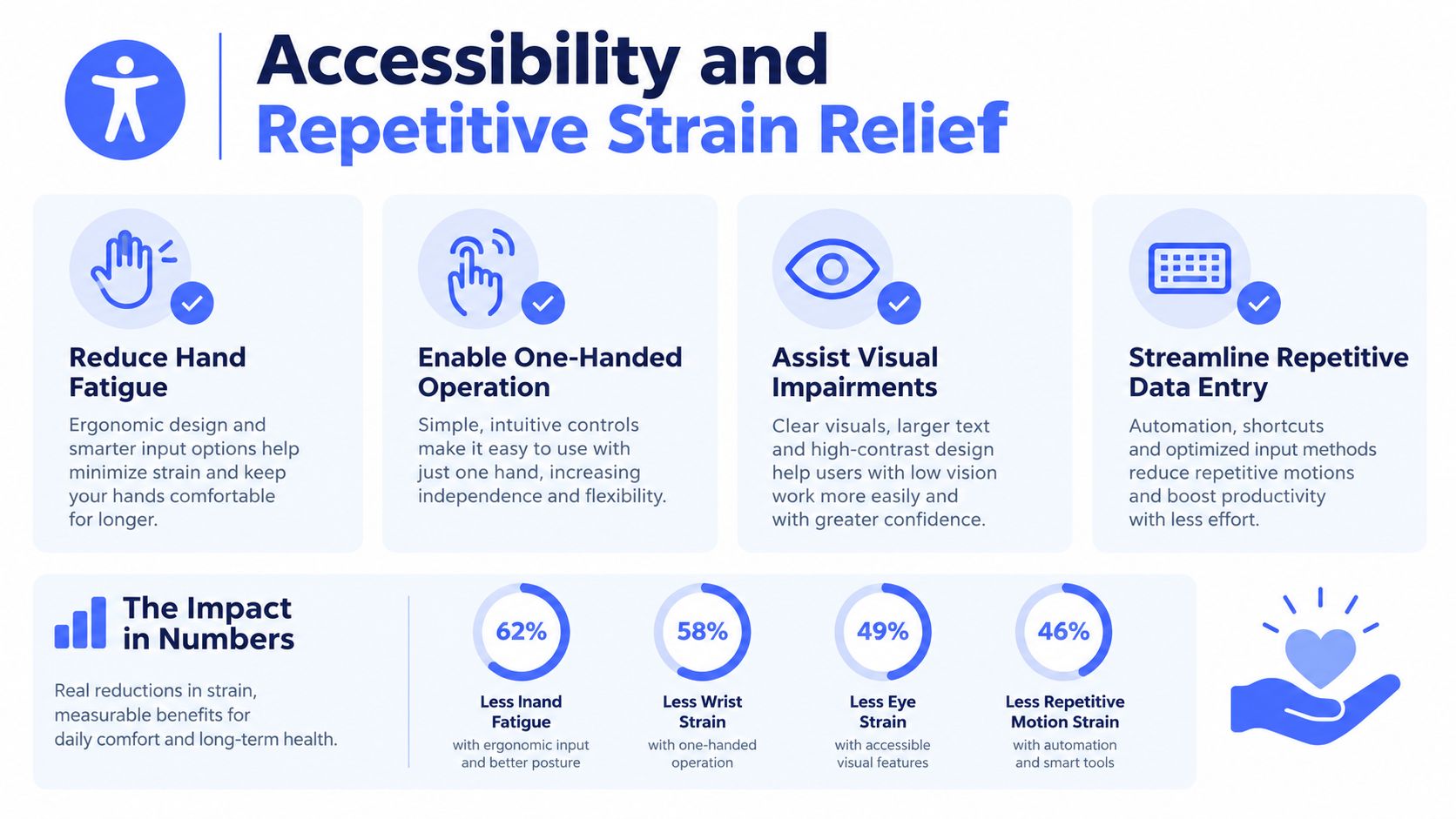
A microphone button isn't automatically an accessibility feature. Voice input becomes meaningfully inclusive only when the full workflow works for the person using it, including placement, correction, vocabulary, privacy, and fallback options.
Cursor-level insertion can remove repeated clicking, dragging, and pasting for someone with limited hand mobility or pain caused by repetitive movement. Local dictation can also reduce dependence on a cloud connection, while keyboard shortcuts and screen-reader-compatible controls can help users avoid navigating a visual transcription interface.
The research is more nuanced than a simple promise of speed. A study of experienced automatic speech-recognition users with physical disabilities recorded recognition accuracy from 72% to 94% and text-entry rates from 3 to 32 words per minute. A separate study of new users reported accuracy from 60% to 99% and entry rates from 1.5 to 72.6 words per minute after 4 to 6 weeks of use. The RESNA research on speech recognition performance identified correction strategies as the strongest influence on performance.
Accessibility depends on the surrounding conditions
Voice can help a person with repetitive-strain limitations, dyslexia, a temporary injury, or difficulty typing for long periods. It can also create new barriers when an accent is poorly recognized, background noise makes correction exhausting, or speaking aloud isn't safe in a shared office.
A 2025 voice technology survey reported that 97% of respondents already used some form of voice technology, while 86% viewed voice AI as a driver of more accessible and inclusive interactions. The 2025 State of Voice AI report points toward growing familiarity, but familiarity doesn't guarantee usable access.
Practical rule: Treat voice as an additional input route, not a mandatory replacement for the keyboard.
Custom vocabulary reduces repeated corrections for proper nouns and specialist terminology. Local processing can create a meaningful confidentiality boundary for healthcare, legal aid, journalism, and customer support, but users should still check whether history, metadata, analytics, or assistant actions use another processing path. If long screen sessions are part of the same ergonomic review, you can also find Prescript Glasses as one possible complement to broader workspace adjustments.
Putting the Unique Features Into Your Own Stack
Start with the place where voice currently fails. If you can dictate quickly but spend the next few minutes moving and repairing the text, cursor-level insertion is the capability to test first. It connects the spoken thought to the application instead of asking you to maintain a separate transcript workspace.
If your work includes recurring product names, project labels, technical terms, or client names, build the custom dictionary before judging recognition quality. A cleanup setting can improve sentence structure, but it won't consistently fix a term the recognizer doesn't know. Test the vocabulary in the applications where you work, not only in a blank demo field.
Use a simple decision filter:
- Many applications: Choose direct insertion when your day moves between email, CRM, chat, documents, tickets, and development tools.
- Specialist vocabulary: Prioritize the custom dictionary when the same names and terms appear repeatedly.
- Sensitive material: Use local dictation or Fly Mode when audio and text must stay on the computer, then reserve cloud-backed assistance for content approved by your organization.
- Frequent drafting: Add Hey Max when rewriting, screen questions, and app launching solve real interruptions rather than adding another interface.
- Variable environments: Keep typing available for shared offices, noisy rooms, meetings where speaking isn't appropriate, and moments when recognition would require too much correction.
The bundle matters because each part removes a different bottleneck. Insertion handles placement. Cleanup handles presentation. The dictionary handles terminology. Hey Max handles interpretation and actions. Local modes handle confidentiality and connectivity.
That's the practical answer to what are some unique features. The value isn't a longer list of voice commands. It's a workflow in which you can speak into the right field, receive text in the right shape, correct less, and choose where processing takes place.
Voice Control Pro combines cursor-level insertion, configurable cleanup, custom vocabulary, local dictation, Fly Mode, transcription history, and Hey Max for in-flow rewriting and contextual tasks. Visit Voice Control Pro to see whether that combination fits the applications, accessibility needs, and privacy requirements in your own workflow.