
You've opened a blank document, your hands are already tired, and the idea in your head is much clearer than the paragraph appearing under your keyboard. You try voice-to-text, speak naturally, then discover missing commas, incorrect names, awkward formatting, and a sentence that somehow changed meaning. After fixing the same errors several times, typing starts to feel faster.
The problem usually isn't your voice or the transcription engine. Voice-to-text docs work best as a drafting system, not as a perfect replacement for typing. The productive workflow separates fast idea capture from deliberate editing, uses short semantic chunks, and treats privacy as a configuration decision rather than an afterthought.
Table of Contents
- Why Your Current Dictation Workflow Feels Slow
- The difference between dictation and transcription
- Setting Up Your Environment for Smooth Dictation
- Build the shortest path from speech to document
- Make the editor part of the workflow
- Understanding Accuracy and Word Error Rates
- Test the audio you actually create
- The Dictate and Edit Method for Maximum Throughput
- Use rewriting only after the meaning is secure
- Protecting Sensitive Data with Local Processing
- Choose processing mode by document sensitivity
- Troubleshooting Common Dictation Roadblocks
Why Your Current Dictation Workflow Feels Slow
A typical failed session starts with good intentions. You press the microphone shortcut, begin dictating an email, notice that the software missed a word, stop to correct it, resume speaking, pause again to add punctuation, and then lose the original thought while searching for the right menu. The document fills with fragments, but the work still feels unfinished.
Typing hides some of this friction because the keyboard combines composition and correction in one motion. Dictation separates them. Your mind generates ideas continuously, while the transcription layer interprets speech and the editor evaluates the result. Trying to perform all three jobs at once creates the impression that voice input is slow.
Practical rule: Dictate for momentum, edit for precision. Don't ask the microphone to produce a final document on the first pass.
The useful mindset shift is simple: the first voice pass is a rough draft. Speak a complete thought, let the words appear, and continue even if the punctuation isn't perfect. If a technical term looks wrong, repeat it once or mark it mentally for review instead of abandoning the paragraph. This keeps your attention on reasoning rather than on the mechanics of text entry.
That separation matters beyond personal productivity. Teams that redesign how people capture, review, and approve information often remove more friction than teams that just add another app. The broader principles in this guide to why workflow matters for business apply here too: a tool performs well when its surrounding process gives each step a clear purpose.
The difference between dictation and transcription
Dictation is interactive. You speak directly into the field where the document is being created, using commands or pauses to shape the text. Transcription usually begins with a recording, followed by a later conversion and editing stage.
Both have a place. Transcription suits meetings, interviews, and lectures where the recording itself matters. Dictation suits emails, reports, research notes, and outlines where you already know what you want to say. Problems start when writers use a live dictation tool as though it were a silent secretary that understands every intention, formatting preference, and specialist term without review.
A dependable session therefore has two passes:
- Capture: Speak in complete thoughts without repairing every minor error.
- Refine: Review the finished chunk for meaning, names, terminology, punctuation, and formatting.
Once those passes stop competing, voice input becomes far less tiring. You're no longer trying to type with your mouth. You're drafting with your voice and editing with the right tool for the job.
Setting Up Your Environment for Smooth Dictation
A reliable dictation setup removes small interruptions before they become editing work. Start with the speech feature built into your operating system. On macOS, configure Dictation or Voice Control in System Settings. On Windows, enable the relevant speech and accessibility controls, then test the microphone in the document editor you use most often.
Native tools suit occasional notes because they are already installed and work in common text fields. A professional workflow may require more control, including a consistent shortcut, custom terminology, writing-style cleanup, and dependable text insertion across applications. Cloud-based tools can also create hidden friction if their output needs extensive post-editing or sensitive text leaves your device.
Build the shortest path from speech to document
A cross-platform dictation tool can reduce handoffs between recording, transcription, copying, and pasting. Configure a press-and-hold global shortcut to activate the microphone, send the result to the active field, and insert text at the cursor when you release the shortcut. The cursor should stay in the document, chat box, CRM field, or email composer where you plan to write.
Use this setup sequence:
- Choose one activation gesture. A shortcut that works in every application is easier to remember than separate controls for documents, browsers, and messaging tools.
- Test cursor insertion. Open a plain text field, dictate a short sentence, and confirm that the output appears where the cursor sits.
- Create a custom dictionary. Add client names, product terms, acronyms, technical vocabulary, and proper nouns the default engine regularly mishears.
- Select a cleanup level. Use lighter cleanup for raw notes and brainstorming. Choose stronger punctuation and formatting refinement for emails or polished reports.
- Keep a correction habit. Correct recurring terms once, then add their preferred spelling to the dictionary if the tool supports it.
Structured chunking matters as much as the software. Dictate one complete idea at a time, then pause before starting the next. Short, focused chunks make punctuation, terminology, and paragraph breaks easier to check than a long uninterrupted recording.
A custom dictionary has the greatest effect when your work contains language that ordinary conversation rarely uses. Keep capture tools separate from archive tools when the workflow begins with recorded lectures or meetings. A guide to choosing recording apps for study can help you decide whether you need live dictation, saved audio, or both: a guide to choosing recording apps for study.
Make the editor part of the workflow
Test the destination before committing to a system. For Google Docs, follow this practical guide to dictating in Google Docs, then compare the result with Word, an email client, or your project-management system. Choose the configuration that keeps your eyes on the task and avoids unnecessary copying.
Give the microphone a fixed position, reduce fan noise where possible, and speak toward the pickup rather than across it. A quiet room helps, but stable distance and consistent volume often matter just as much. The target is a repeatable environment that produces text you can review quickly, while local processing can reduce privacy exposure when sensitive documents are involved.
Understanding Accuracy and Word Error Rates
A polished demo can hide the problems that appear in real documents. The useful test is not whether an engine understands a quiet sentence. It's whether it handles your continuous speech, accent, background noise, names, abbreviations, and specialist vocabulary over a complete working session.
Word Error Rate, or WER, measures the proportion of word-level recognition errors in a transcription benchmark. A lower WER generally means less correction, but the metric doesn't tell you which words were wrong or whether the mistakes affect critical meaning. A missed article is an inconvenience. A changed product name, medication, legal term, or programming function can require a much deeper review.
A 2026 benchmark set placed leading transcription systems between 4.50% and 7.02% English WER, including 4.50% for AssemblyAI Universal-3 Pro, 5.24% for Mistral Voxtral Mini, 5.34% for OpenAI GPT-4o Transcribe, 6.66% for Deepgram Nova-3, and 7.02% for Azure Batch. These figures come from the independent WER benchmark, but they shouldn't be treated as a guarantee for your own workflow.
Test the audio you actually create
Run a private benchmark using several short samples:
- Continuous drafting: Speak a paragraph without stopping to correct punctuation.
- Domain language: Include the names, acronyms, and technical phrases you use every week.
- Natural conditions: Test your normal room, microphone position, and background sound.
- Accent and language variation: Include the speakers and languages your team supports.
- Editing burden: Count the corrections that change meaning, not only visible spelling errors.
The last test is the one most engineers skip. Two engines can have similar WER while producing very different workloads. One might miss harmless punctuation. Another might repeatedly replace a key term, forcing you to search the entire document.
For long-form voice-to-text docs, small differences accumulate because every paragraph creates another opportunity for an error. The right engine is therefore the one that performs reliably on your usage mix, not necessarily the one with the most impressive demonstration.
If you process recorded calls, lectures, or interviews rather than live dictation, you may also need a workflow to generate video transcripts with API. That use case has different requirements from writing directly into a document, particularly around speaker separation, timestamps, and batch processing.
This short demonstration can help you observe the difference between raw capture and a more deliberate review process:
For additional practical testing ideas, use these speech-to-text accuracy tips as a checklist, then judge the result by the time required to produce a trustworthy document.
The Dictate and Edit Method for Maximum Throughput
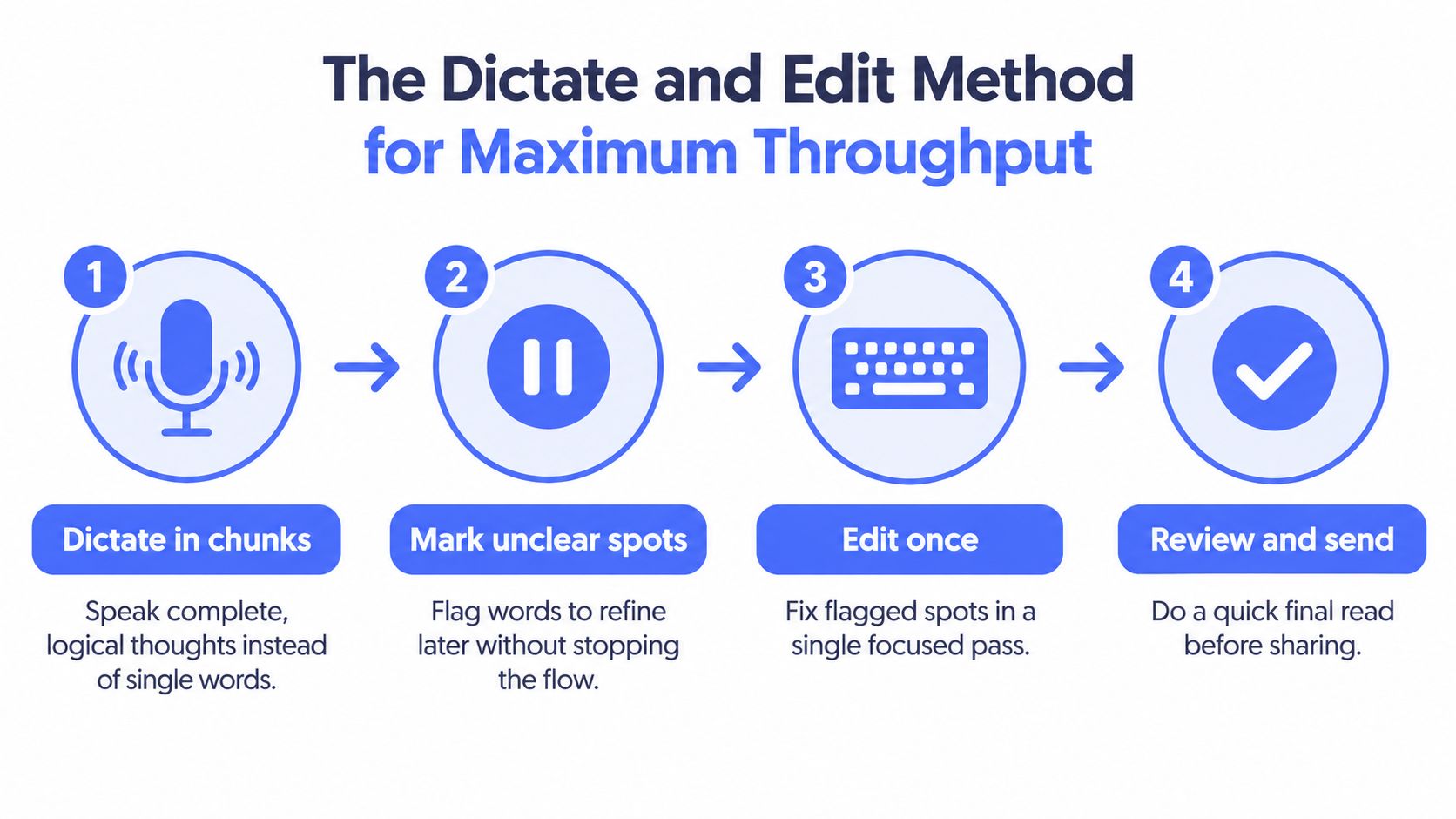
The most reliable workflow is built around semantic chunking. Instead of speaking until you run out of breath or ideas, deliver one complete unit of meaning at a time. A chunk might contain the claim in a report, the request in an email, the explanation of a technical decision, or the next step in a project note.
Start each chunk with a clear intention. Say, “The main risk is delayed approval because the legal review depends on the revised terms.” Pause. Then add the supporting detail. This is easier to transcribe and easier to edit than a long stream of loosely connected thoughts.
A practical session looks like this:
- Outline aloud. Name the purpose of the document and the points you need to cover.
- Dictate one thought. Speak in a complete paragraph or a small group of related sentences.
- Mark uncertainty. If a name or phrase seems questionable, say “check term” and continue. Don't break the flow for a minor repair.
- Pause between ideas. Use natural pauses to help the editor identify paragraph boundaries.
- Edit once. Return to the chunk and fix terminology, homophones, punctuation, and formatting in one focused pass.
- Read the result aloud. Check whether the document says what you intended, not merely whether the words look correct.
Dictation becomes tiring when every sentence demands a decision. Chunking moves those decisions into a short, predictable review pass.
The revision stage should be immediate enough that you still remember the intended meaning. It shouldn't become a second writing session. Correct obvious recognition errors, remove spoken filler, add headings or bullets, and check names and numbers. Avoid rewriting every sentence while the ideas are still arriving.
Use rewriting only after the meaning is secure
Contextual assistants can help after the transcript is accurate. Select a rough paragraph and ask the assistant to make it more concise, change the tone, turn it into bullets, or expand a brief note into a fuller explanation. This works better than asking an assistant to rescue an unreviewed transcript because the underlying facts and terminology have already been checked.
The same principle applies to emails and messages. Dictate the purpose, the recipient's context, and the requested action. Review the result before asking for a more formal or more concise version. An assistant can improve structure, but you remain responsible for the details, commitments, and tone.
A 2026 study found that texts created with speech-to-text were longer and more accurate than handwritten texts. The study's strongest practical pattern was to dictate in short semantic chunks and immediately review terminology and punctuation, as described in the research on speech-to-text writing.
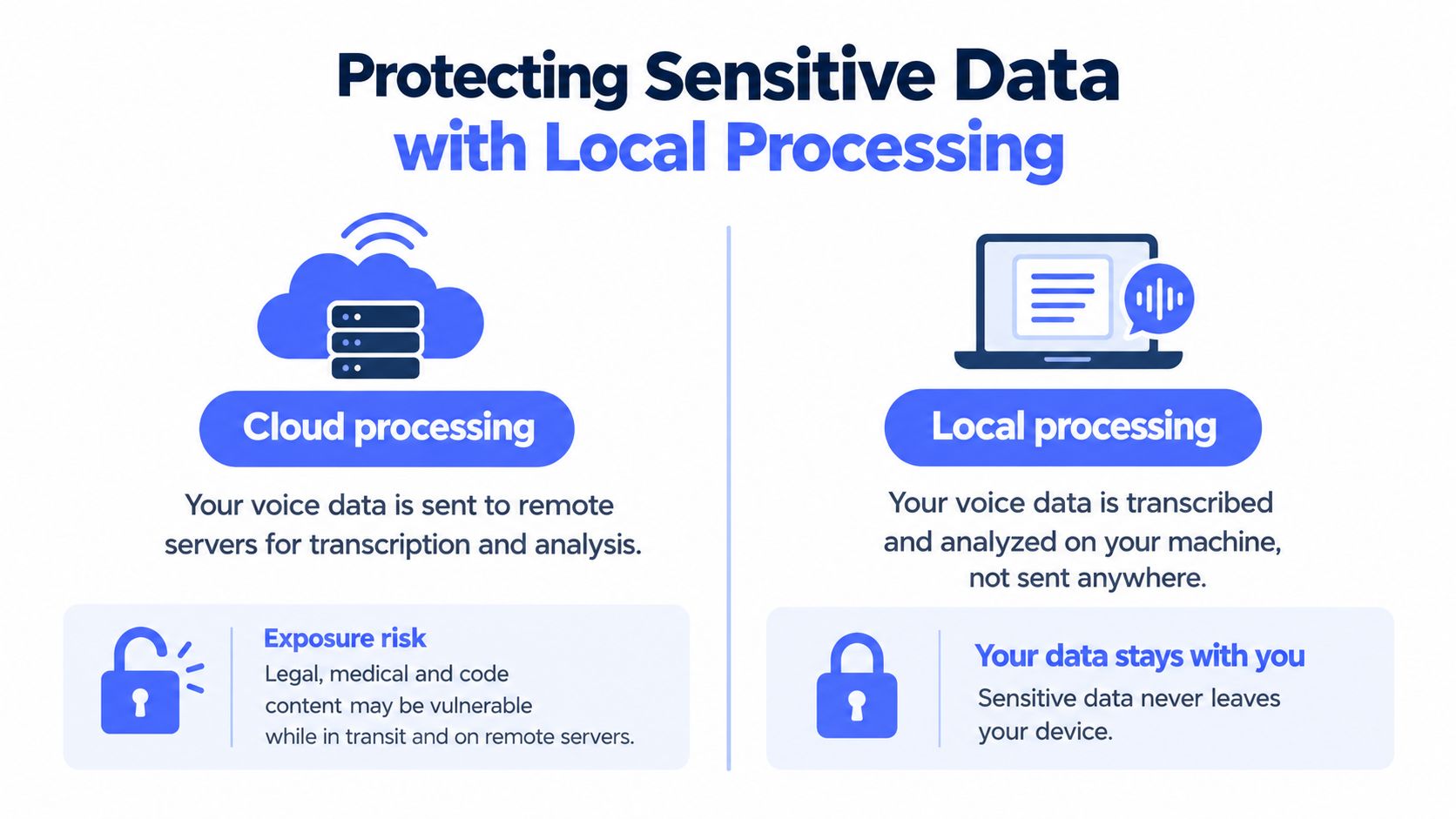
That method produces better documents because it treats speed and quality as separate controls. Speak quickly enough to preserve thought, then edit carefully enough to protect meaning.
Protecting Sensitive Data with Local Processing
Accuracy isn't the only decision that matters. Every voice-to-text workflow also has an architecture, and that architecture determines where your audio and transcript go while the system processes them.
Cloud dictation sends speech to remote infrastructure for recognition or additional language processing. That can provide access to powerful models and convenient features, but it creates a data-handling question for every document. A legal draft, medical note, unreleased product detail, private customer conversation, or source-code comment may contain information that shouldn't leave the device without a clear organisational policy.
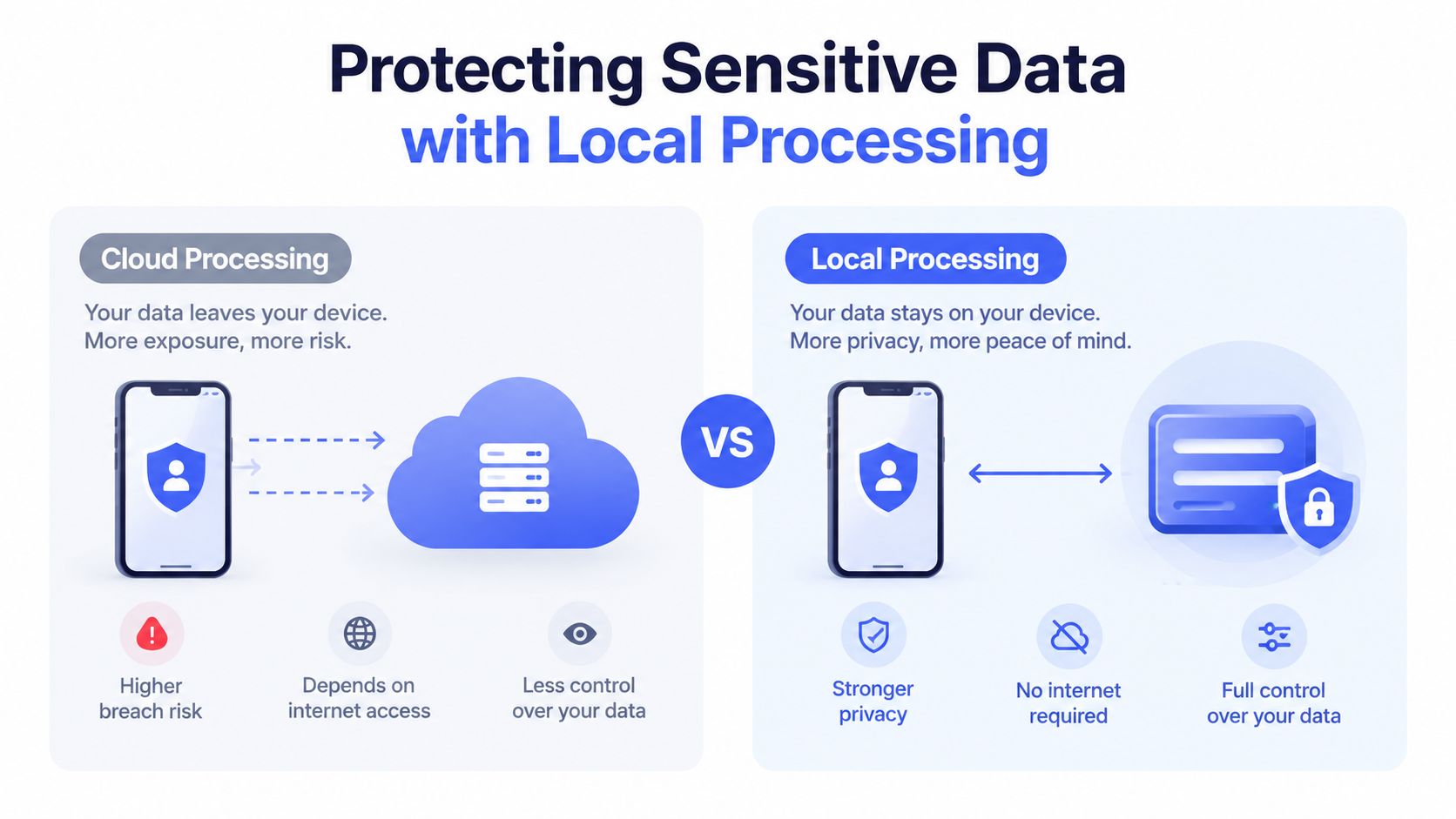
Recent research on privacy-preserving speech recognition found that cloud processing can expose sensitive speech data, which makes on-device and privacy-first designs an emerging differentiator for regulated work and accessibility scenarios, as discussed in this privacy-preserving speech recognition research.
Choose processing mode by document sensitivity
A sensible policy doesn't require every document to use the same mode. Match the processing choice to the content:
- Public or low-risk writing: Cloud processing may be acceptable when the service's data practices and organisational policy allow it.
- Internal business material: Check retention, access, and administrative controls before using a shared tool.
- Regulated or confidential content: Prefer local processing when the workflow must keep audio on the device.
- Highly sensitive drafts: Disable cloud-dependent assistants as well as transcription, because rewriting and contextual features may use separate processing paths.
Local processing can involve trade-offs. An on-device model may have different language coverage, vocabulary handling, or cleanup capabilities from a cloud service. It may also require more local computing resources. Those limitations are easier to accept when the alternative is sending sensitive speech to an external system.
Look for a clear offline mode rather than assuming that an app works locally because it has a desktop interface. Verify what happens to audio, transcripts, correction history, and screen context. If the tool offers a mode that pauses cloud features and keeps transcription on the computer, test it with the same terminology and audio conditions you use in daily work. This guide to offline voice-to-text processing provides a useful reference for evaluating that distinction.
Privacy check: Ask where audio is processed, whether transcripts are retained, which features require the cloud, and whether administrators can control those settings.
Privacy-first design also supports accessibility and repetitive-strain workflows. Users shouldn't have to choose between a convenient input method and responsible handling of their information. A hybrid approach often works well, with local dictation for sensitive passages and cloud assistance reserved for content that has been cleared for external processing.
Troubleshooting Common Dictation Roadblocks
When dictation fails, diagnose the workflow before blaming the model. Most problems fall into a few practical categories: the microphone captures poor audio, the engine lacks your vocabulary, the speaker changes language or accent, or the writer expects unedited output to be publication-ready.
Use this quick checklist during your next session:
- Unclear or missing words: Move the microphone closer, keep your distance consistent, and reduce competing noise. Test a short sentence before starting a long document.
- Incorrect specialist terms: Add the preferred spelling to the custom dictionary. Say the term in a complete sentence rather than repeating it in isolation.
- Punctuation problems: Speak in complete chunks and use explicit commands for paragraph breaks when the editor supports them. Apply punctuation cleanup during the review pass.
- Rambling paragraphs: Pause after each claim, reason, or action. If the document needs structure, dictate the outline first.
- Accent-related errors: Compare engines using your natural speaking style. Don't judge performance from a speaker or accent that doesn't represent your team.
- Language switching: Set the intended language before the session when possible, and test mixed-language phrases separately. Make correction easy for speakers who regularly work across languages.
Multilingual performance deserves its own test. Recent multi-country evidence found that dictation was 4.3 times faster than typing overall, but the advantage was inconsistent for non-native English speakers and varied across accents and countries, according to the multi-country dictation evidence. That means a global team shouldn't adopt voice-to-text based on an English-only demonstration.
The daily operating loop is straightforward: check the microphone, dictate one semantic chunk, mark anything uncertain, review immediately, and update the dictionary when the same error returns. Keep cloud processing off for sensitive material, and reserve rewriting assistants for text whose facts and terminology you've already verified.
You'll know the system is working when editing becomes predictable rather than constant. The objective isn't flawless first-pass transcription. It's a shorter path from thought to trustworthy document.
Voice Control Pro inserts cleaned-up dictation directly at your cursor across apps on macOS and Windows, with a global press-and-hold shortcut, custom dictionary, cleanup controls, and a local Fly Mode for on-device processing. Try Voice Control Pro to build a faster voice-to-text workflow without giving up structured editing or control over sensitive speech.