
You turn on voice input because your hands are busy, your shoulder is tired, or you want to get a thought into Slack before it disappears. Then macOS gives you two similarly named choices, Dictation and Voice Control, and the workflow becomes slower instead of easier. One inserts speech into a text field. The other can operate the Mac, edit text, and move through apps, but enabling it changes how standard Dictation works.
That distinction matters for anyone who writes emails, support replies, reports, prompts, or code comments throughout the day. Voice control for Mac is powerful, but Apple built it primarily as an accessibility and hands-free control system. Dedicated dictation apps solve a different problem, fast, cursor-based text insertion across ordinary work apps. The practical answer usually isn't choosing one tool forever. It's assigning each tool the job it handles best.
Table of Contents
- Understanding Mac Voice Control and Dictation
- The mode trade-off that catches professionals
- Setting Up Native Voice Control on macOS
- Enable the feature and let macOS prepare local files
- Build commands around repeated actions
- Configure language support deliberately
- Comparing Native Tools with Third-Party Apps
- Where native tools save time
- Where dedicated apps reduce friction
- Optimizing Voice Workflows for Professionals
- Support and sales teams
- Developers and prompt engineers
- Researchers and writers
- Troubleshooting Common Voice Recognition Issues
- Start with the microphone path
- Check the active mode
- Verify language and offline assets
- Choosing the Right Voice Strategy for Your Needs
- Frequently Asked Questions About Mac Voice Input
- Is Voice Control private and usable offline?
- Can I use standard Dictation while Voice Control is enabled?
- Can Voice Control handle technical vocabulary?
- What should multilingual teams configure?
- When should I use a third-party app?
Understanding Mac Voice Control and Dictation
A common failure pattern looks like this. You enable Dictation, dictate an email, then expect to say “open the next message” or “select that paragraph.” The Mac may insert text, but it won't behave like a fully voice-operated computer. You switch to Voice Control, discover that standard Dictation is no longer available, and now a simple text-entry task feels heavier than it did before.
Apple separates the features because they serve different purposes. macOS Dictation is primarily a speech-to-text input method. Place the cursor in a supported field, trigger Dictation, speak, and macOS inserts the words. It's suitable for messages, notes, email drafts, and other conventional text-entry tasks where your keyboard or pointer still handles navigation.
Voice Control is a broader command system. It supports dictation, text editing, app and desktop navigation, on-screen interaction, and spoken commands. Apple introduced modern Mac Voice Control as a built-in feature in macOS Catalina 10.15, released in 2019, marking a move from limited voice dictation toward full hands-free computer control (Apple's Voice Control technical brief).
The mode trade-off that catches professionals
When Voice Control is enabled, standard macOS Dictation isn't available. Apple documents this separation directly in its guidance on using Dictation on Mac. Voice Control can still dictate text, but it does so inside the command-oriented system rather than through the ordinary Dictation workflow.
That creates a useful rule:
- Choose Dictation when the cursor is already where you want text and you need quick speech-to-text.
- Choose Voice Control when you need to move through the interface, select text, edit by voice, or operate the Mac without touching input devices.
- Choose a dedicated dictation app when you dictate repeatedly across many apps and the start, stop, and insertion cycle is costing attention.
You can identify the active mode by checking System Settings → Keyboard → Dictation for standard Dictation, or System Settings → Accessibility → Voice Control for the full hands-free system. If Voice Control is on, don't troubleshoot standard Dictation as though the two tools can run independently. The conflict is part of Apple's design, not necessarily a microphone failure.
For a practical explanation of basic text entry, this guide to Dictation on Mac is useful. The key point remains simple: Dictation enters words, while Voice Control operates the computer. Confusing those jobs is the source of much of the friction.
Setting Up Native Voice Control on macOS
Native Voice Control is worth configuring even if you later adopt another dictation tool. It gives you hands-free navigation, text selection, editing commands, and accessibility support without requiring a separate service. The setup also reveals whether your intended workflow needs system control or only fast text insertion.
Enable the feature and let macOS prepare local files
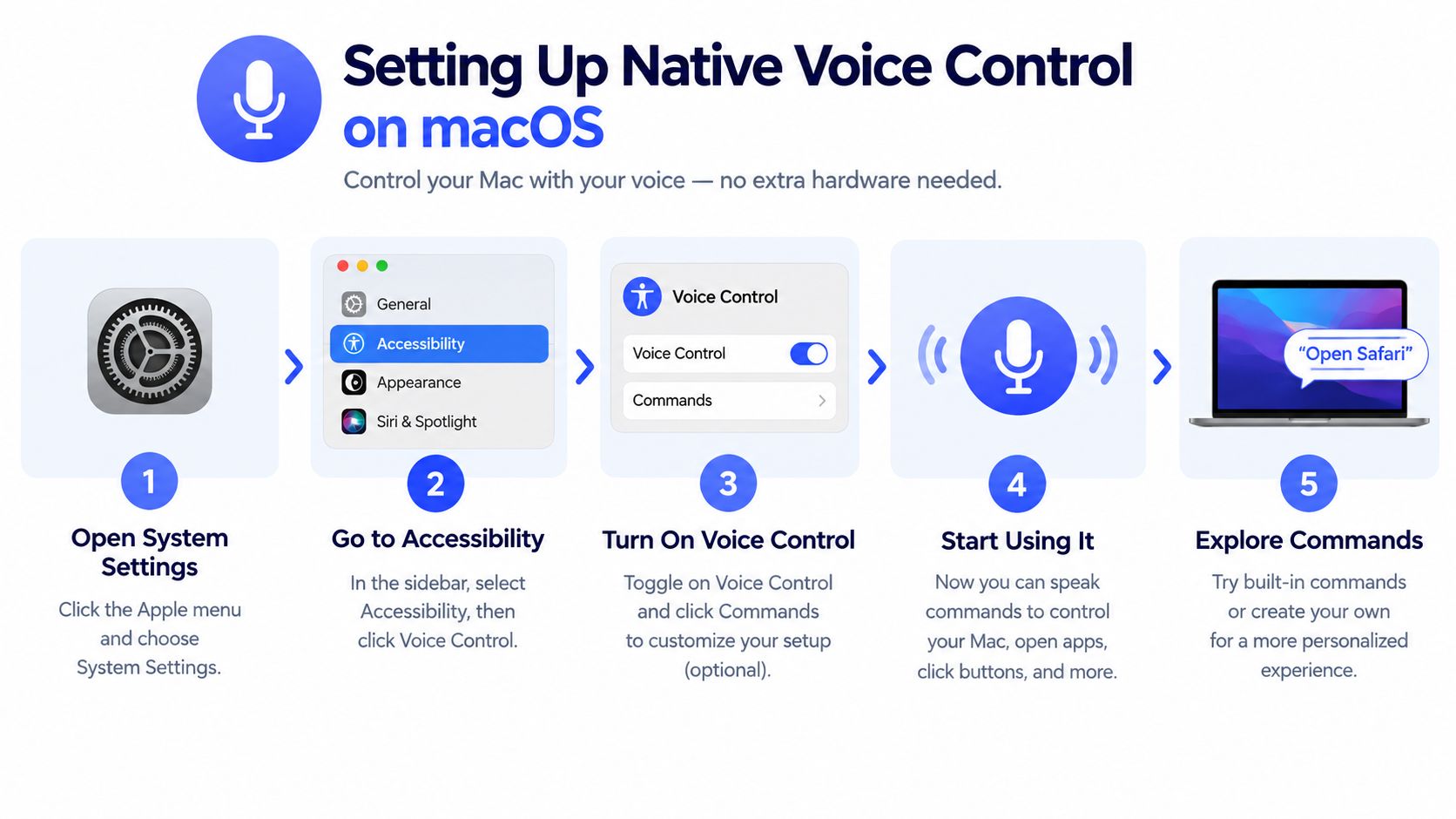
Open System Settings, select Accessibility, then choose Voice Control. Turn it on and select the language and microphone you want to use. Apple says the first setup needs an internet connection for a one-time download. After the files are installed, Voice Control can work without an internet connection, as documented in Apple's Voice Control setup instructions.
That local architecture is important in practice. Apple says Voice Control performs audio processing on the Mac itself, and the offline setup means command recognition doesn't depend on a continuing connection (Apple's Mac Voice Control documentation). If you're working while travelling, in a restricted network environment, or with privacy-sensitive material, this is a meaningful advantage.
After activation, open the command browser or say a command such as “show commands.” The browser is more useful than trying to memorize a long list. It exposes commands for navigation, text editing, window control, selection, and on-screen interaction.
Build commands around repeated actions
Custom commands are where native Voice Control becomes more than a demonstration. In its settings, create a phrase that triggers an action you perform often. For example, a spoken command might open a particular application, paste a standard response, or run a sequence of interface actions supported by macOS.
Use short phrases that are easy to say consistently. “Open support dashboard” is more reliable as a personal trigger than a sentence that resembles ordinary conversation. Test each command in the application where you'll use it, because an action that works in one interface may not map cleanly to another.
Apple also supports custom vocabulary, along with importing and exporting custom voice commands in newer macOS versions. That lets you maintain terms for product names, specialist language, or recurring phrases rather than correcting the same recognition error repeatedly.
Configure language support deliberately
Voice Control supports multiple languages and additional language downloads, but vocabulary and command support can vary by selected language. For a multilingual team, choose the language that matches the task rather than assuming one configuration will handle every professional context equally well.
Practical rule: Keep Voice Control for navigation and accessibility tasks, and test your professional vocabulary before depending on it for specialist work.
Native setup works particularly well when your goal is to control the Mac without a keyboard or trackpad. It becomes less convenient when you're drafting short bursts across several unrelated applications and need a fast, app-agnostic text insertion loop.
Comparing Native Tools with Third-Party Apps
A professional moving between Gmail, Slack, a CRM, and a browser editor can lose more time activating tools than speaking. macOS Dictation handles text entry, Voice Control handles hands-free interaction with the system, and dedicated apps focus on repeated speech capture and insertion at the cursor. The practical choice depends on which part of the workflow creates the delay.
Voice Control Pro illustrates the third category. It uses a global shortcut, inserts cleaned transcription at the cursor across applications, and offers custom vocabulary, transcription history, cleanup controls, and local processing through Fly Mode. These features address repeated dictation friction rather than replacing Voice Control's accessibility commands.
| Feature | macOS Dictation | macOS Voice Control | Voice Control Pro |
|---|---|---|---|
| Primary job | Quick text entry in supported fields | Hands-free navigation, commands, editing, and dictation | Cursor-based dictation across applications |
| Activation | Keyboard or configured Dictation shortcut | Accessibility settings and spoken commands | Global press-and-hold shortcut |
| System navigation | Limited | Broad support for apps, windows, selection, and on-screen interaction | Focused on text insertion, with additional voice-driven assistant actions |
| Offline use | Depends on the Dictation configuration | Works offline after Apple's one-time download | Fly Mode processes locally on the computer |
| Custom vocabulary | Available through Apple's language and input settings | Available, with custom commands and vocabulary | Includes a custom dictionary in the product's advanced features |
| Multilingual workflow | Depends on the selected configuration | Language options and downloads vary by language | Advanced features include support for many languages |
| Best fit | Occasional notes, messages, and drafts | Accessibility, navigation, and complete hands-free control | Frequent dictation across chat, documents, CRM tools, and AI prompts |
Where native tools save time
For occasional notes, messages, and short drafts, macOS Dictation is usually the simplest option. It is already integrated into macOS, so there is no separate app to configure or keep open. The trade-off appears when drafting becomes frequent or spans several applications. Repeated activation, cursor checks, and corrections can interrupt the writing rhythm.
Voice Control earns its place when keyboard and pointer movement create the main barrier. Spoken commands can select text, move through an application, and interact with visible controls, reducing physical effort during hands-free work. Apple has continued to ship Voice Control across successive macOS releases, indicating ongoing platform support.
Where dedicated apps reduce friction
Native tools require a choice between text entry and full command control. A dedicated app can narrow the interaction to a repeatable loop: hold a global shortcut, speak, release, and insert the result at the active cursor. That workflow suits professionals who dictate many short passages while switching among Gmail, Slack, CRM records, browser editors, and writing applications.
For a broader comparison of tools intended for repeated Mac dictation, see this overview of Dictation apps for Mac. The decision depends on activation steps, app switching, correction time, and the type of control required. Keep native Dictation for light text entry, use Voice Control for accessibility and system navigation, and consider a dedicated app when cursor-based drafting becomes a recurring bottleneck.
Optimizing Voice Workflows for Professionals
Voice input becomes valuable when it removes a specific bottleneck. A support agent doesn't need the same setup as a developer, and a researcher capturing notes has different priorities from someone controlling a Mac without hand input.

Support and sales teams
A support professional often works in a browser, a ticketing system, internal documentation, and chat. Native Dictation can handle a response once the cursor is active, but repeated mode activation and app switching interrupt the rhythm.
A practical workflow is to keep a global dictation shortcut available for response drafting, then use normal keyboard shortcuts for final review. Dictate the explanation in natural language, insert the customer-specific details manually, and check names, dates, links, and commitments before sending. Voice input accelerates composition, but it shouldn't remove the review step.
For teams that record product demonstrations or need to preserve spoken explanations for later editing, a guide on how to record screen on Mac can complement the dictation workflow. Recording and dictating serve different purposes, but both reduce the need to reconstruct an explanation from memory.
Developers and prompt engineers
Voice recognition struggles when the task depends on exact symbols, filenames, or syntax. Dictating prose such as “create a function that validates the input and returns an error” is practical. Dictating every bracket, flag, path, and punctuation mark directly into a code editor is far less forgiving.
Use voice for intent, comments, issue descriptions, commit explanations, and AI prompts. Let the editor or an AI assistant produce structured syntax, then inspect the output manually. Voice Control remains useful for selecting text and moving through the interface, while a dedicated dictation layer can speed up the prose surrounding technical work.
Use speech for meaning first, precision second. Voice is excellent at expressing what a command or function should accomplish, but exact syntax still deserves visual verification.
Researchers and writers
Researchers can dictate observations, questions, and rough summaries while reading or reviewing material. The useful workflow is to capture ideas quickly, then clean them in a second pass. Trying to produce publication-ready prose in one uninterrupted dictation session usually creates avoidable editing work, especially around quotations, references, and specialist terminology.
Voice Control Pro fits this pattern as one third-party option. Its cursor-based insertion, cleanup controls, custom dictionary, local Fly Mode, and Hey Max features are designed for dictation and selected-text actions across applications. Use those features where they remove app switching, not where native Voice Control already provides the accessibility control you need.
The video below shows a practical example of voice-driven computer interaction and can help you judge whether your own workflow needs navigation, dictation, or both.
Troubleshooting Common Voice Recognition Issues
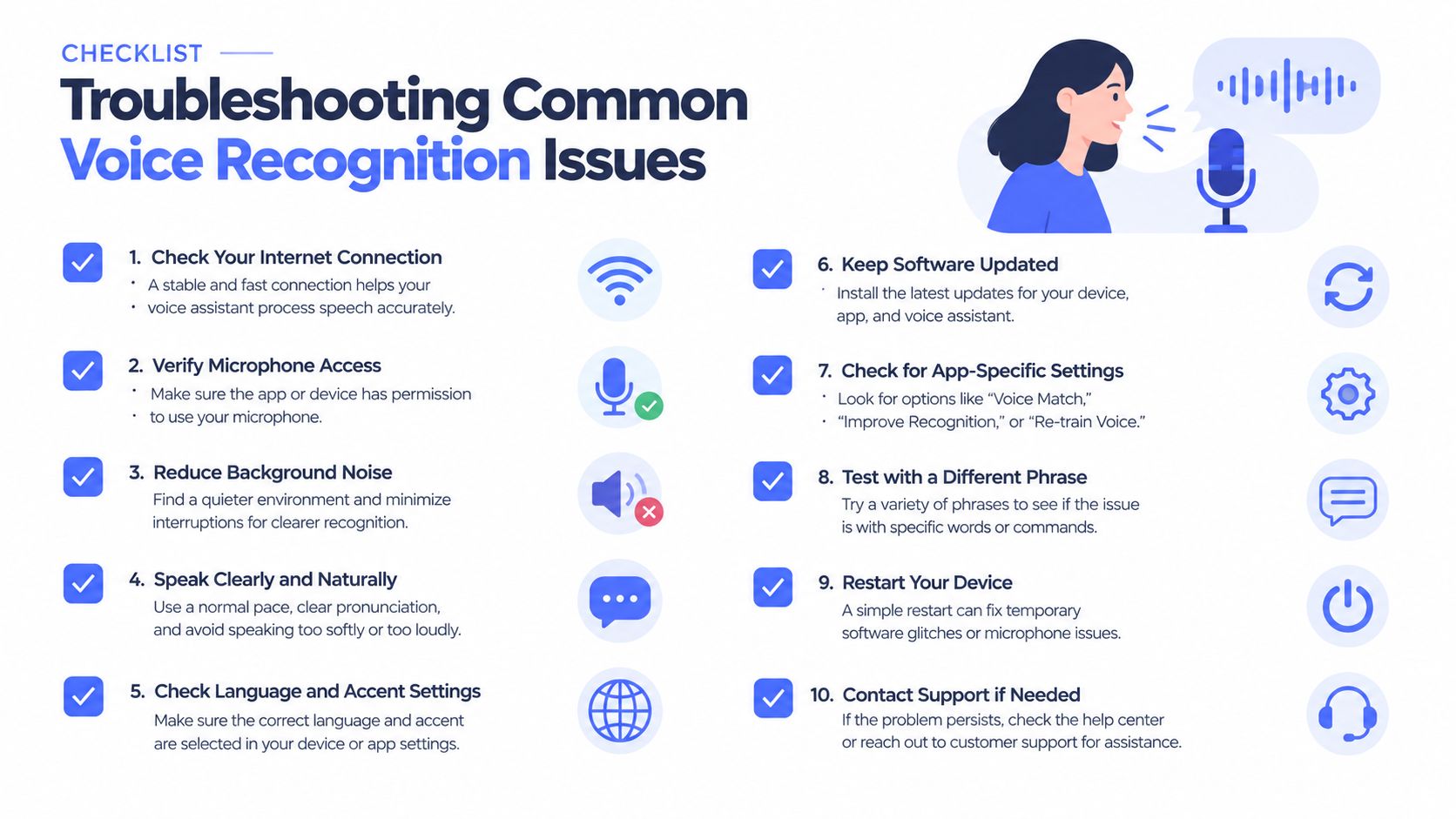
Most voice failures have a boring cause, which is good news. Check the input path, active mode, language, and local files before restarting the Mac or replacing the application.
Start with the microphone path
Open the relevant settings and verify that macOS is using the microphone you expect. An external display, headset, webcam, or USB microphone can become the active input without making the change obvious. Check the selected device and raise its input level if the system barely detects your speech.
Background noise and room echo also reduce command reliability. A headset microphone can help in a busy environment, while a quieter room makes spoken commands easier to distinguish. Speak commands in a consistent, concise manner rather than changing volume and distance between phrases.
Check the active mode
If Dictation appears unavailable, check whether Voice Control is enabled. Apple states that standard Dictation isn't available while Voice Control is active, so switching between the two features may be the actual fix.
If commands don't work, open the command browser and confirm the phrase exists in the current language. Custom commands may also depend on the active application or the visible interface, so test them in the context where you'll use them.
Verify language and offline assets
Voice Control requires an internet connection for its initial file download, then can work offline. If setup was interrupted, reconnect and allow the download to complete before judging offline performance. Language options and vocabulary support can differ, so confirm that your selected language matches the terms you're speaking.
Use this troubleshooting guide for a Mac voice command that isn't working when the basic checks don't resolve the problem. A clean diagnostic order saves time:
- Input source: Confirm the correct microphone is selected.
- Input level: Check that the Mac registers your voice clearly.
- Mode: Determine whether Dictation or Voice Control is active.
- Language: Match the selected language to the spoken workflow.
- Command availability: Review the command browser and custom phrases.
- Offline setup: Confirm the one-time Voice Control download completed.
If recognition remains poor only in one application, test another text field. That distinction tells you whether the problem belongs to macOS input or the target app's text interface.
Choosing the Right Voice Strategy for Your Needs
The best setup depends on what you want your voice to control.
Choose macOS Dictation when you need occasional text entry and still use the keyboard or trackpad for navigation. It has the lowest setup burden for ordinary messages, notes, and short drafts.
Choose macOS Voice Control when accessibility, hands-free operation, text selection, or spoken navigation matters. Its local processing and offline operation after setup make it a strong fit for system control, especially when network access isn't dependable or audio privacy is important.
Choose a dedicated dictation app when you dictate throughout the day and the repeated activation cycle is your main source of friction. Look for a global shortcut, cursor-based insertion, cleanup controls, custom vocabulary, and a local-processing option if those requirements match your work.
A hybrid setup is usually more practical than forcing one tool to handle everything:
- Use Voice Control to move around, select, edit, and operate the Mac without touching the keyboard.
- Use Dictation for occasional speech-to-text in normal fields.
- Use a dedicated app for rapid drafting across several applications.
- Review technical content manually because names, symbols, paths, and syntax need visual confirmation.
Don't replace a native accessibility feature just because a third-party tool produces cleaner prose. Conversely, don't make an accessibility command system carry the burden of high-volume drafting if a focused dictation tool would remove the repeated mode switching.
Frequently Asked Questions About Mac Voice Input
Is Voice Control private and usable offline?
Apple says Voice Control processes audio on the Mac itself. The first setup requires an internet connection for a one-time download, after which Voice Control can work without internet. That makes it different from a workflow that depends on continuous cloud processing.
Can I use standard Dictation while Voice Control is enabled?
No. Apple states that standard macOS Dictation isn't available while Voice Control is on. Voice Control can still dictate, but you'll use its command and editing system rather than the ordinary Dictation feature.
Can Voice Control handle technical vocabulary?
It can support custom vocabulary and custom commands, which helps with recurring terms. Recognition still depends on the selected language, microphone conditions, and the precision of the material. For code, paths, and symbols, dictate the intent and verify the generated syntax instead of trusting every spoken character.
What should multilingual teams configure?
Choose the language that matches the work, download any required language assets, and maintain vocabulary for product names and specialist terms. Language support and vocabulary behavior can vary, so test a real workflow before rolling out a shared process.
When should I use a third-party app?
Move when dictation is part of your daily work and activation, app switching, cleanup, or vocabulary correction repeatedly interrupts you. Keep native Voice Control available when you need genuine hands-free navigation or accessibility control.
Voice Control Pro provides global cursor-based dictation across Mac applications, local Fly Mode processing, custom vocabulary, cleanup controls, and Hey Max tools for rewriting or contextual actions. If your main friction is repeated drafting rather than system navigation, try Voice Control Pro and evaluate it against the apps and phrases you use every day.