
Most advice about a talk to text program for Windows starts with “try Windows Voice Typing.” That's reasonable only if your job is short dictation into a text field. A tool that types at the cursor isn't interchangeable with one that controls Windows, drafts inside Word or Google Docs, records meetings, or processes speech locally.
The useful comparison is therefore workflow-first. Do you need text inserted into Slack, Gmail, a CRM, or any other app? Do you need hands-free navigation and accessibility commands? Are you drafting inside a specific workspace, turning meetings into searchable transcripts, or keeping audio on your computer? Accuracy matters, but so does correction effort, connectivity, privacy, pricing, setup complexity, and language coverage.
Windows has moved from its older Speech Recognition experience toward Voice Access, while cloud-based Voice Typing remains the fastest built-in route for ordinary dictation. Microsoft said in December 2023 that Windows Speech Recognition was deprecated in favor of Voice Access, a shift documented in the Windows Speech Recognition history. Voice Control Pro adds a notable speak-to-insert workflow with local modes, but the right choice depends on the job you need your voice to perform.
Table of Contents
- 1. Voice Control Pro
- Where it fits
- 2. Nuance Dragon Professional v16
- Where Dragon earns its complexity
- 3. Windows 11 Voice Access
- Free doesn't mean frictionless
- 4. Windows 11 Voice Typing
- The cloud dependency matters
- 5. Microsoft 365 Dictation
- The boundary is the application
- 6. Google Docs Voice Typing
- Collaboration comes with browser limits
- 7. Otter.ai Desktop
- Choose it for records, not replies
- 8. Notta Desktop
- Quotas shape the buying decision
- 9. Braina Pro
- Simplicity has a trade-off
- 10. Talon Voice
- Powerful means technical
- Top 10 Windows Talk-to-Text Comparison
- Match the Tool to Your Voice-First Workflow
1. Voice Control Pro
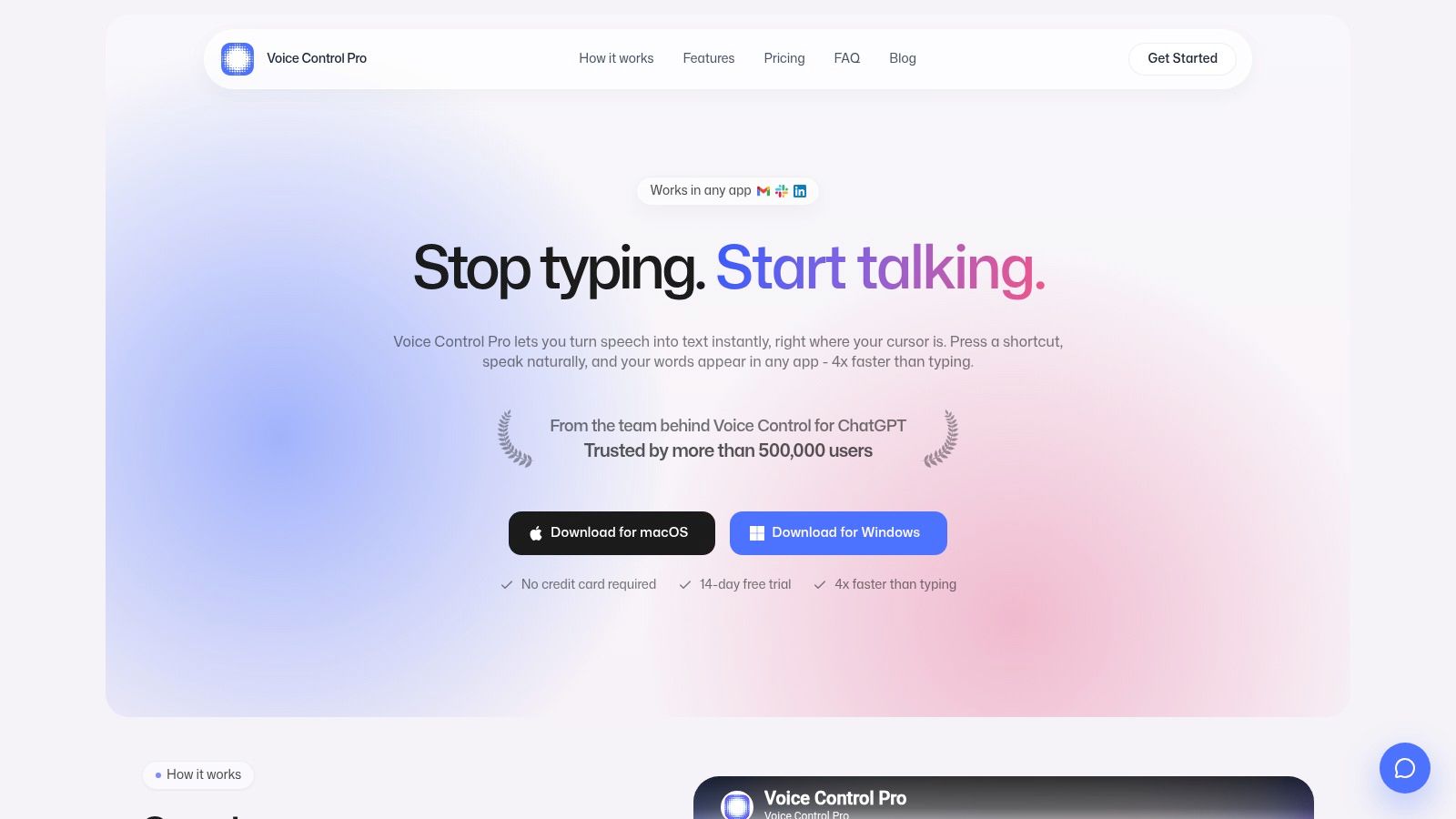
Voice Control Pro targets a specific Windows task: inserting prepared speech wherever the cursor is active. Hold a global shortcut, speak, and release it to place cleaned-up text in Slack, Gmail, documents, support systems, CRM tools, and AI prompts. That makes it more flexible than a dictation feature tied to one editor, especially for people who change applications throughout the day.
Its value depends on correction effort. Traditional dictation may produce a transcript that requires punctuation, restructuring, and editing. Voice Control Pro is designed to turn spoken input into a more finished message, so it suits short replies, notes, and prompts better than workflows that need a raw transcript. The publisher claims it can be up to four times faster than typing, but that is a product claim, not a guaranteed result. Microphone quality, speaking habits, language, and vocabulary will affect the outcome.
Where it fits
The built-in Hey Max assistant gives the application a second role. It can rewrite selected text, answer questions about what appears on screen, and launch installed applications by voice. Those commands reduce the need to switch windows or work through menus while revising an email or AI prompt.
Privacy depends on the selected mode. Fly Mode and the free local mode process audio on the device and suspend cloud features, while cloud processing may provide better results for some speakers or specialist vocabulary. The Max tier adds unlimited usage, 99+ language support, adjustable cleanup, a custom dictionary, transcription history, cloud backup, and expanded Hey Max tools. The free tier includes all features with a 2,000-word weekly limit. The supplied Max price is $9 per month, and the publisher offers a 14-day trial without a credit card. These terms may change, so confirm them on the Voice Control Pro website.
Practical rule: Test speak-to-insert in the applications you use daily. Strong recognition in a separate window does not help if your CRM rejects insertion or every message needs extensive correction.
Voice Control Pro runs on Windows and macOS, not Linux or mobile platforms, according to the supplied product information. Setup is lighter than building a full desktop command system, but local performance still depends on the computer and microphone. For its workflow differences from Microsoft's built-in option, read this Voice Control Pro and Windows Voice Typing comparison.
2. Nuance Dragon Professional v16
Dragon Professional v16 remains the heavyweight choice for Windows users who want dictation and voice control to behave like a configurable desktop system rather than a quick microphone button. It can dictate into almost any Windows application, learn from corrections, support custom vocabulary, and run commands, macros, and scripts.
That combination suits clinicians, legal professionals, administrators, developers, and accessibility users who repeatedly use specialized terminology or complex desktop workflows. The key advantage isn't just recognition quality. It's the ability to build a personal operating layer around your voice, including correction habits and commands that go beyond inserting sentences.
Where Dragon earns its complexity
Dragon runs offline after installation, which makes it relevant for users who can't send spoken material to a cloud speech service. It also offers anchor dictation to help maintain focus in the target window, a practical feature when several applications are open and text focus can drift.
The trade-off is implementation effort. Dragon's command vocabulary, customizations, and scripting options create a learning curve, and the upfront purchase model can be harder to justify than a free built-in Windows feature or a monthly cloud tool. Its mature ecosystem and documentation help, but they don't remove the need to configure microphones, profiles, commands, and application behavior.
Dragon makes the most sense when voice is a primary input method, not an occasional shortcut.
If you need reliable system-wide dictation, recurring domain terms, offline operation, and deep automation, Dragon is one of the clearest professional candidates. If you only dictate short emails, its setup burden may outweigh its capabilities. Review the current offering directly through Nuance Dragon Professional, because the supplied plan does not specify a current price.
3. Windows 11 Voice Access
Windows 11 Voice Access is the built-in option for users who need to control the whole PC, not just dictate into a text box. It combines dictation with hands-free navigation, commands, and system interaction. Microsoft positions it as the successor to the older Windows Speech Recognition experience, and Voice Access is included on supported Windows 11 installations rather than requiring a separate purchase.
The workflow is broader than pressing a microphone shortcut. You can dictate in text fields, move through the interface, and operate Windows using spoken commands. That makes it particularly relevant for accessibility, repetitive strain, or situations where reaching for a mouse and keyboard isn't practical.
Free doesn't mean frictionless
Voice Access uses on-device wake words and supports offline operation, but its language coverage remains limited compared with the needs of global teams. Microsoft's accessibility documentation describes support for Japanese and a limited set of languages, so international users should verify their language before treating it as a complete replacement for cloud dictation. The Microsoft Voice Access guide also reflects the distinction between local control and broader language availability.
Accuracy and command coverage can vary with the application or text field. Windows 11 Voice Access is free and system-integrated, but it doesn't offer the same depth of customization, correction learning, or advanced editing workflow associated with Dragon.
Choose it when hands-free Windows control matters as much as dictation. Choose another tool when your priority is polished insertion, specialist vocabulary, or a wider multilingual workflow.
4. Windows 11 Voice Typing
Windows 11 Voice Typing is the fastest built-in answer for short dictation. Press Win+H, place the cursor in a text field, and speak. It works across many applications, includes auto-punctuation, and offers basic editing commands without asking you to install another program.
That low friction makes it useful for messages, quick notes, search queries, and short replies. It isn't designed as a complete writing environment. You get text at the cursor, but advanced cleanup, custom vocabulary, and app-independent workflow controls remain limited.
The cloud dependency matters
Voice Typing uses Microsoft's cloud speech services and therefore depends on internet connectivity. That makes it unsuitable for situations where audio must stay local or where you need uninterrupted dictation while traveling without a reliable connection. It also creates a practical split in Windows: Voice Access is the more local, control-oriented option, while Voice Typing is the broader, cloud-dependent dictation shortcut.
Independent reviews place practical accuracy around 85% to 92% on clear conversational English, with weaker results in noise, accented speech, and specialist vocabulary, as summarized in this Windows voice recognition review. Those figures are review-level observations, not a guarantee for every speaker or microphone.
The best use case is simple: you want free dictation now, you work online, and you can tolerate correcting occasional errors. If you want custom terminology, polished output, or local processing, compare it with how speech-to-text works in a broader workflow.
5. Microsoft 365 Dictation
Microsoft 365 Dictation is the sensible choice when your work already lives in Word, Outlook, PowerPoint, or another supported Microsoft 365 application. You start Dictation from the ribbon, speak into the active document or message, and use voice commands for punctuation, formatting, and editing.
Its greatest strength is context. The controls appear inside the software where you already write, so there's no separate transcription window or unfamiliar insertion method to learn. A Word-heavy user may get more value from that integration than from a technically broader tool that requires extra configuration.
The boundary is the application
Microsoft 365 Dictation isn't a system-wide Windows solution. It works best inside Microsoft 365 desktop and web apps, which means it won't replace a global shortcut for Slack, a CRM, or unrelated desktop software. The feature generally requires internet access because it uses Microsoft's cloud speech services.
That cloud model also deserves attention for confidential documents and regulated work. Review your organization's Microsoft 365 policies before dictating sensitive content, especially when data handling rules differ between personal and managed accounts. The Microsoft Word Dictate documentation explains the supported workflow and commands.
For Office-centric teams, the familiar interface reduces setup friction. For people who switch constantly between applications, the lack of system-wide insertion is the decisive limitation. Microsoft 365 Dictation is a workspace tool, not a universal Windows voice layer.
6. Google Docs Voice Typing
Google Docs Voice Typing is a browser-based option for people who draft and collaborate in Google Workspace. Open a document in a compatible browser, choose Voice typing from the Tools menu, and dictate directly into the document. It also supports voice input for speaker notes in Google Slides.
The feature is useful for long-form drafting because the transcript appears inside the document you're already organizing and sharing. Basic punctuation and editing commands reduce the need to touch the keyboard, while collaboration remains in the same Google Docs workflow.
Collaboration comes with browser limits
This isn't a system-wide talk to text program for Windows. It won't insert dictated text into every application, and it depends on the browser and an internet connection. That makes it a poor choice for offline work or users who want one shortcut across email, messaging, documentation, and desktop software.
Google Docs Voice Typing also separates drafting from cleanup. It can capture spoken language, but it isn't positioned as a universal rewriting or custom-vocabulary layer. You may still need to revise structure, specialist terms, and formatting after dictation.
The Google Docs Voice Typing instructions are a good starting point for checking browser compatibility and available commands. Pick this tool when your primary destination is a shared Google document. Pick a system-wide option when the destination changes throughout the day.
7. Otter.ai Desktop
Otter.ai Desktop solves a different problem from Windows dictation tools. It is designed to capture meetings, interviews, and conversations, then turn them into searchable notes with speaker labels, summaries, action items, and exports. The Windows desktop app can record locally, but the finished workflow is centered on a transcript workspace rather than text appearing at the cursor.
That distinction changes what “accuracy” means. A meeting tool must separate speakers, preserve searchable context, and help you find decisions later. A type-anywhere tool must produce clean text in the exact field you're using. Otter is better judged by the quality of its meeting record and export path than by whether it can replace Win+H.
Choose it for records, not replies
Otter can export formats such as TXT, DOCX, and SRT on paid tiers, which helps teams move transcripts into documents, captions, or other systems. The free plan has time and import limits, so frequent meeting users need to compare the supplied limits with their recording volume. Current plan details are available on Otter's pricing page.
Privacy requires a separate review from ordinary dictation. Recording a meeting involves other people, organizational policies, and potentially sensitive information. Get the necessary consent and confirm retention and access settings before making Otter part of a recurring meeting process.
It's a strong fit for searchable meeting notes and interviews. It isn't the right pick if your main goal is to speak an email directly into Gmail or a response into a support console. For that comparison, see Voice Control Pro versus Otter.ai.
8. Notta Desktop
Notta Desktop sits between free-form dictation and formal meeting transcription. It can capture live speech, accept uploaded files, create timestamped transcripts, summarize content, translate it, and connect with meeting services such as Zoom, Teams, and Meet. Its cross-platform presence also makes it useful for users who don't want their notes locked to a single Windows application.
The practical benefit is organization. A spoken idea, lecture, or meeting can become a transcript with timestamps and an AI-generated summary, then move into another workflow through export or integration. That is entirely different from a tool whose success depends on clean insertion into the active cursor.
Quotas shape the buying decision
Notta provides plan comparisons and quotas, while advanced features sit behind paid tiers. That transparency helps, but it also means buyers should estimate the amount of live transcription and file processing they expect rather than choosing based on the existence of a free tier alone. The current Notta pricing information should be checked before purchase because plan limits can change.
Notta isn't true system-wide dictation. You won't get the same press, speak, release, and insert flow across arbitrary Windows applications. Its setup is more involved than Win+H but less specialized than building a technical local voice-command environment.
Choose Notta for meetings, lectures, recorded files, multilingual transcript handling, and collaboration. Choose a cursor-based tool for rapid email, messaging, and CRM entry.
9. Braina Pro
Braina Pro is a Windows-only assistant aimed at users who want dictation into websites and Windows applications alongside voice commands and AI language tools. It can serve as a simpler system-wide alternative for people who need more than built-in Voice Typing but don't want the deeper configuration associated with Dragon or Talon.
The product supports multilingual dictation, custom vocabulary, cleanup and rephrasing tools, and an optional mobile app that can act as a wireless microphone. That combination gives it a broader role than a basic dictation button. You can speak into different Windows applications, then use assistant features to refine or control parts of the workflow.
Simplicity has a trade-off
Braina's interface is more utilitarian than newer voice-first applications, and the experience is centered on Windows rather than cross-platform continuity. Some AI features require internet access and tokens, so local dictation and online assistant behavior shouldn't be treated as the same privacy mode.
The product can suit a Windows user who values broad language support and custom terms but wants a less elaborate setup than a professional command-and-macro system. It may be less attractive to someone who prioritizes polished design, native macOS access, or a tightly integrated meeting workspace.
Review the current capabilities and licensing through Braina Pro. Test it in your actual applications, especially if your work involves specialist vocabulary or repeated commands. System-wide coverage on paper doesn't guarantee that every text field, browser workflow, or security-controlled application will behave identically.
10. Talon Voice
Talon Voice is for users who want to shape their own voice interface. It combines system-wide dictation with granular commands, local speech engines, extensibility through .talon files, and Python scripting. Developers, accessibility users, and automation-focused power users can use it to create a voice workflow that reaches beyond ordinary text entry.
Its local processing is the central attraction. Talon can use local speech engines such as Conformer-D for offline work, which makes it relevant when cloud dependence is unacceptable or when users need greater control over their environment. It also supports commands for navigation, application interaction, and coding-oriented workflows.
Powerful means technical
Talon is not a turnkey install-and-dictate experience. Configuration, microphone tuning, command design, and practice all affect the result. The flexibility that attracts developers can intimidate users who only want to dictate emails, and a custom command system requires ongoing maintenance as applications and personal workflows change.
The best candidates are people willing to learn a platform rather than just buy a feature. A programmer might use .talon files and Python to create commands that match a development environment. An accessibility user might build a highly specific hands-free navigation scheme. A casual note-taker probably won't benefit from that degree of control.
The Talon Voice site provides the starting point for its local engines, command model, and community resources. Pricing information isn't supplied in the brief, so check the current terms directly. Talon is the strongest specialist choice here for local, extensible voice control, but it demands the most technical commitment.
Top 10 Windows Talk-to-Text Comparison
| Product | Core features | Quality (★) | Unique selling points (✨) | Target audience (👥) | Price / Value (💰) |
|---|---|---|---|---|---|
| Voice Control Pro 🏆 | Speak‑to‑insert anywhere; Hey Max assistant; local & cloud modes | ★★★★★ | ✨ Press‑and‑hold insert; on‑device Fly Mode; Hey Max rewrite & screen Q&A | 👥 Productivity pros, support/sales, students, accessibility users | 💰 Free tier (2k w/w); Max $9/mo, unlimited & advanced features |
| Nuance Dragon Professional v16 | System‑wide high‑accuracy dictation; macros & custom vocab | ★★★★★ | ✨ Best‑in‑class accuracy; robust scripting & automation | 👥 Power users, legal/medical pros, heavy transcribers | 💰 High upfront/licensed price, enterprise/pro level |
| Windows 11 Voice access | System‑wide dictation + hands‑free PC control; on‑device wake | ★★★★ | ✨ Built‑in hands‑free navigation; no install | 👥 Windows users needing built‑in accessibility/control | 💰 Free (included with Windows 11) |
| Windows 11 Voice typing (Win+H) | Quick Win+H dictation; auto‑punctuation; basic edits | ★★★ | ✨ Minimal friction for short notes/messages | 👥 Casual users, fast notes, messaging | 💰 Free (cloud service requires internet) |
| Microsoft 365 Dictation | Ribbon one‑click dictation; formatting & editing commands | ★★★★ | ✨ Office‑tuned commands and formatting | 👥 Office‑centric authors, corporate users | 💰 Included with Microsoft 365 subscription |
| Google Docs Voice Typing | Browser‑based dictation in Docs; punctuation commands | ★★★★ | ✨ Free longform drafting & collaboration in Docs | 👥 Google Workspace users, collaborators | 💰 Free (Chrome recommended; needs internet) |
| Otter.ai Desktop | Real‑time meeting transcription; speaker labels & summaries | ★★★★ | ✨ Meeting‑centric searchable transcripts & exports | 👥 Meeting hosts, teams, researchers | 💰 Freemium, paid tiers for longer recordings & exports |
| Notta Desktop | Live transcription, translation, summaries; meeting integrations | ★★★★ | ✨ Cross‑platform + translation & Zoom/Teams integration | 👥 Meeting note‑takers, multilingual users | 💰 Freemium, paid plans for higher quotas & exports |
| Braina Pro | System‑wide dictation; AI writing tools; mobile mic support | ★★★ | ✨ Mobile mic as wireless input; simple workflow | 👥 Windows users wanting low‑cost system‑wide dictation | 💰 Affordable paid / subscription options |
| Talon Voice | Local speech engines; extensible voice commands & scripting | ★★★★ | ✨ Deep customization (.talon/Python), offline engines | 👥 Developers, power users, accessibility/keyboard‑free coders | 💰 Community/ donation model; tools are free to use |
Match the Tool to Your Voice-First Workflow
There isn't one universal winner because these tools perform different jobs. If you dictate across Slack, Gmail, documents, CRM systems, and browser forms, start with a system-wide insertion tool such as Voice Control Pro, Dragon, Braina, or Talon. Voice Control Pro prioritizes polished text at the cursor with a quick global shortcut. Dragon emphasizes mature offline control, custom vocabulary, and macros. Braina offers a simpler Windows-oriented assistant workflow, while Talon gives technical users the deepest local customization.
Windows 11 Voice Typing and Voice Access are the low-friction starting points. Use Voice Typing for quick notes and short messages when an internet connection is available. Use Voice Access when hands-free navigation and PC control matter as much as dictation. Their built-in status keeps setup simple, but the practical limitations remain important: cloud dependence for Voice Typing, narrower language coverage for local Voice Access, and less advanced cleanup or vocabulary management than specialist tools.
Choose a workspace-specific tool when your destination rarely changes. Microsoft 365 Dictation fits Word, Outlook, and PowerPoint users who want familiar controls inside Office. Google Docs Voice Typing suits shared documents and browser-based collaboration. Neither is a substitute for system-wide insertion, but both can be easier to adopt when your team already works inside that ecosystem.
Meeting tools solve a separate problem. Otter.ai and Notta are better for recording conversations, generating searchable transcripts, identifying speakers, summarizing discussions, and exporting material than for typing a reply into the active Windows field. Their privacy considerations are also different because meetings may include other people and sensitive organizational information.
Local processing narrows the field. Dragon and Talon are the clearest choices when offline operation and control matter most. Voice Control Pro is worth testing because its free local mode offers unlimited local dictation according to the supplied product information, while Max adds cloud refinements, custom vocabulary, language support, history, and Hey Max capabilities. Confirm current pricing and feature terms before relying on them in regulated work.
Use the same microphone and a comparable speaking sample when testing. Dictate a short email, a specialist paragraph, and a correction-heavy passage in your main applications. Check whether punctuation lands correctly, whether corrections are easy, whether text inserts at the cursor, and whether the tool handles your accent, background noise, and terminology.
Then verify the operational details. Turn off the internet where practical to test local behavior, review whether audio and transcripts leave the device, and compare each supplied free limit or price with your expected usage. A tool that produces a slightly better transcript but forces constant app switching may waste more time than a simpler option that inserts cleanly where you already work.
Voice Control Pro combines global speak-to-insert dictation, polished cleanup, Hey Max rewriting and screen-aware assistance, plus Fly Mode and a free local mode for privacy-focused use. If your Windows workflow spans email, chat, documents, CRM tools, and AI prompts, visit Voice Control Pro and test whether its cursor-based workflow reduces the correction and app-switching work built-in dictation leaves behind.