
Your hands are on the keyboard, your thought is already formed, and then it starts slipping away while you hunt for the right window, the right field, the right phrasing. That's the moment many people first wish they could just say it out loud and have the computer keep up.
You probably already do some version of this on your phone. You ask for directions, dictate a message, or correct a reminder with your voice. On a computer, the same habit can feel less obvious at first, partly because people lump everything together as “voice assistant” and expect one tool to do every job equally well. That's where the confusion starts.
Talking to a computer works better when you split it into three separate jobs. One tool writes what you say. Another does specific actions. A third has a back-and-forth conversation and helps with thinking tasks. Once you see those as different modes, setup gets simpler and results improve fast.
Table of Contents
- Introduction to Talking to Your Computer
- What people usually mean when they say talk to computer
- A simple goal for today
- How Computers Understand Your Voice
- First, it captures sound
- Then it decides whether to listen actively
- Next, it transcribes speech into text
- Finally, it decides whether the text is the output or the input
- Why mistakes happen
- From Audrey to Modern Assistants
- Early systems were small and strict
- Bigger vocabularies came before natural interaction
- Why the current moment feels different
- Three Ways to Talk to Your Computer Today
- Dictation is for getting words onto the page
- Commands are for control
- Conversation is for help, not just input
- Which voice mode fits your task
- A simple decision rule
- Hardware and Software You Need to Get Started
- Pick hardware based on your environment
- Match the software to the job
- Choose a trigger you'll actually use
- Understand local and cloud processing
- Practical Tips to Dictate Faster and More Accurately
- Use speech for drafting, then edit in passes
- Speak in usable chunks
- Build your own correction rhythm
- Start Talking to Your Computer with Confidence
Introduction to Talking to Your Computer
A common workday scene goes like this. You're replying to email, copying notes from a meeting, and trying to draft a better version of a paragraph at the same time. Your brain is moving faster than your fingers, and the keyboard becomes the bottleneck.
That's why voice input no longer feels like a novelty. It fits the way people already think out loud when they're solving a problem, outlining a message, or trying to capture an idea before it disappears. Modern voice tools have moved well beyond old, clunky command systems and into everyday computing.
What people usually mean when they say talk to computer
Sometimes they mean, “I want to dictate text into a document.”
Sometimes they mean, “I want to control the computer without touching the mouse.”
And sometimes they mean, “I want to ask a computer for help, like rewriting text, answering a question, or launching something for me.”
Those are different jobs. Treating them as the same thing is like using a kitchen knife, a blender, and an oven as if they were one appliance. They all help you make dinner, but each one handles a different step.
The fastest way to get comfortable with voice computing is to stop asking one assistant to do everything.
There's also a practical reason to learn this now. Voice interaction is no longer a niche behavior. A 2026 survey roundup reported 153.5 million Americans using voice search, 157.1 million forecasted U.S. voice assistant users, and 8.4 billion active voice assistants globally, up from 4.2 billion in 2020. The same roundup also estimated that 35% of the U.S. population aged 12+ own smart speakers and that 91.4 million people use smart speakers for questions (smart speaker and voice assistant statistics roundup).
A simple goal for today
By the end, you should be able to pick the right voice mode for the task in front of you. You'll know when to dictate, when to issue a command, when to use a conversational assistant, and when privacy settings matter more than convenience.
If you also want a broader view of how AI tools are changing quickly, especially around model access and capability shifts, Openbase's coverage of LLM provider access updates is useful background because the software behind voice and assistant features keeps moving.
How Computers Understand Your Voice
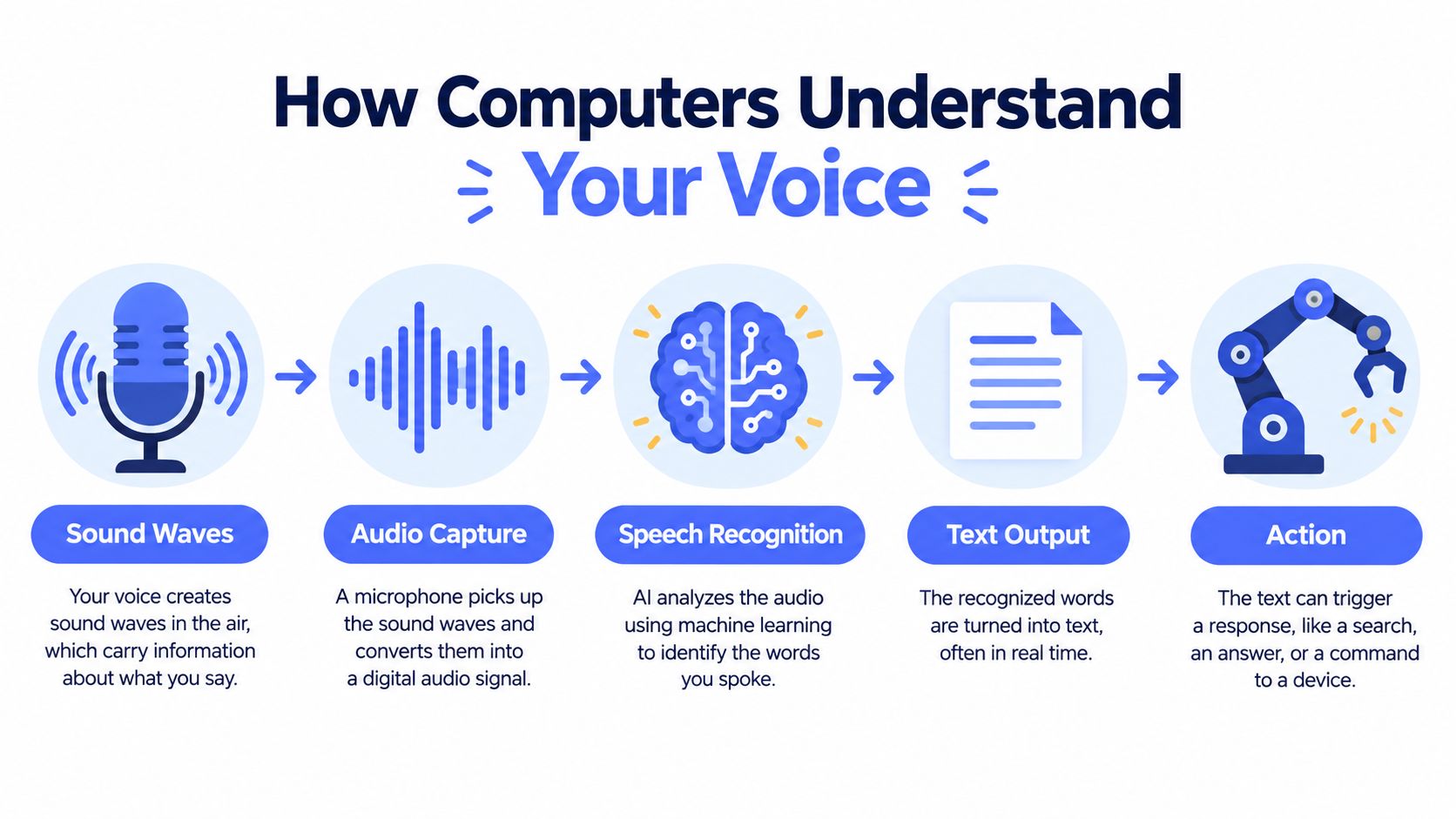
A computer doesn't “hear” your voice the way a person does. It breaks the job into stages. Thinking about those stages makes voice tools much less mysterious.
First, it captures sound
Your microphone turns air vibrations into a digital audio signal. At this stage, the computer still doesn't know whether you're dictating a memo, asking a question, or saying “open calendar.”
That's why microphone quality matters, but only up to a point. A cleaner signal gives the software a better start. It still needs the next layers to decide what your words mean.
Then it decides whether to listen actively
Some systems wait for a key press. Others wait for a wake phrase. That wake phrase is often processed separately from the rest of the request.
Wake-word detection is one of the spots where privacy confusion starts. People often assume “voice assistant” is one single process, but the assistant may handle wake-word detection, transcription, and server-side processing in different places.
Next, it transcribes speech into text
This part is speech recognition or speech-to-text. The system matches patterns in the audio to words and punctuation, then produces text.
A good mental model is a human assistant taking dictation. You speak. The assistant writes down your words. At this moment, the assistant is not yet deciding what action to take. It is producing text.
Mental model: Dictation is about turning speech into text. Assistance starts only after text exists.
If you want a practical overview of the AI layer that sits on top of plain transcription, Chatgrow's guide on what conversational AI means in practice helps separate basic speech recognition from systems that interpret intent.
You can also dig into a more technical explanation of the machine-learning side in this overview of artificial intelligence in speech recognition.
Finally, it decides whether the text is the output or the input
Here's where the three jobs split.
- Dictation
The text itself is the final result. You say, “Please send the revised agenda after lunch comma and attach the notes,” and the software inserts those words into your email.
- Commands
The text is interpreted as an action. You say, “Open Slack,” and the system launches Slack instead of typing those words into a document.
- Conversation
The text becomes input for another layer that tries to understand intent, context, and follow-up. You might say, “Rewrite this paragraph to sound friendlier,” and the computer responds with a changed version instead of merely transcribing your sentence.
Why mistakes happen
People often blame the microphone first. Sometimes that's fair. But accuracy also depends on vocabulary, your speaking pace, background noise, and whether the system expects plain language or rigid commands.
A phrase like “schedule lunch with Priya next Thursday after the client call” is harder than “open calendar” because the software may need to infer names, dates, and structure. The more interpretation required, the more chances there are for friction.
From Audrey to Modern Assistants
A person in the 1950s could talk to a machine, but only in the narrowest sense. The machine might catch a digit or a small command if the conditions were right. It could not handle the three jobs people expect today: capturing words for dictation, carrying out commands, or helping through conversation.
Early systems were small and strict
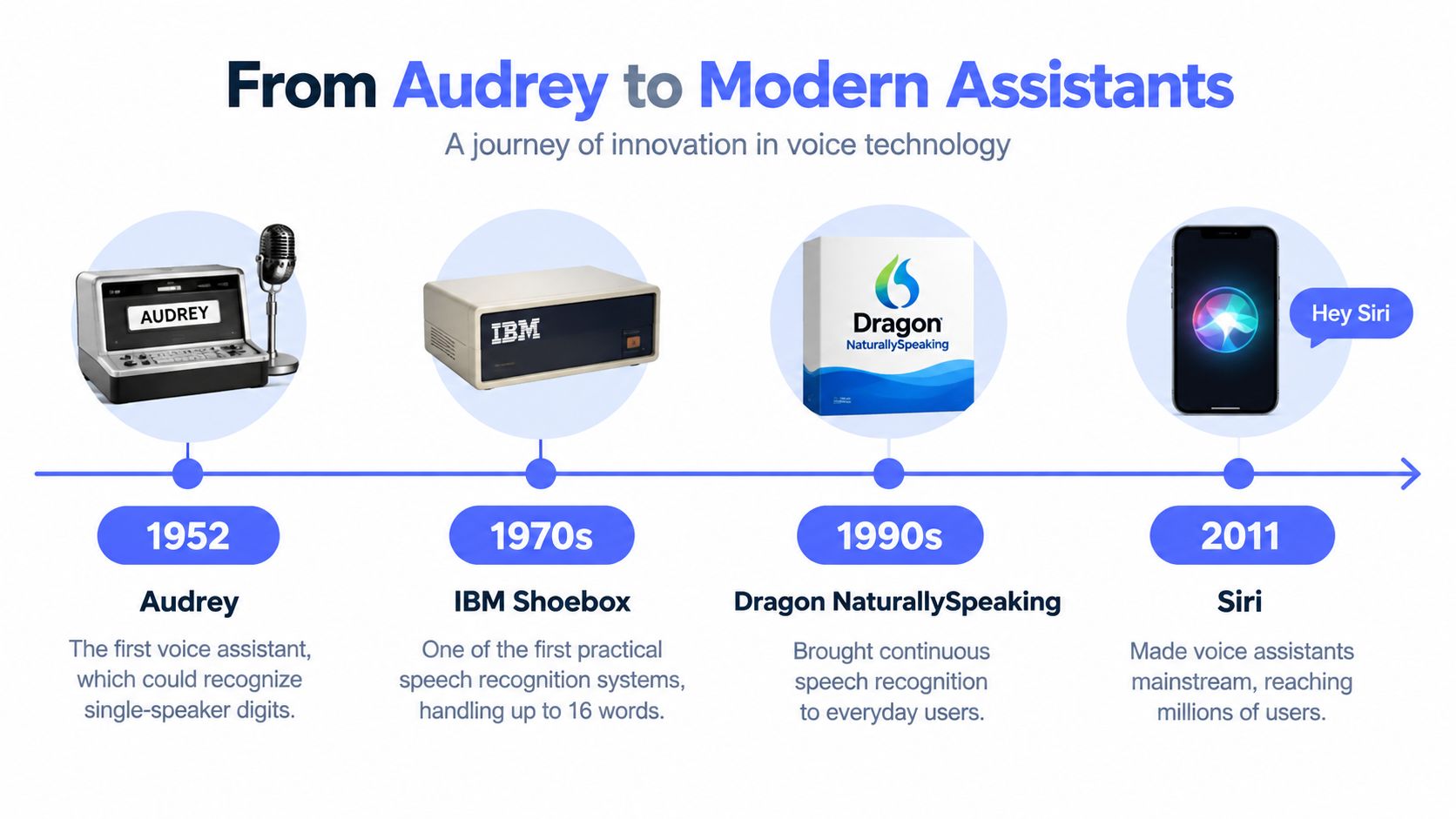
In 1952, Bell Labs researchers built Audrey, a system that recognized spoken digits from one speaker, as summarized in this speech and voice recognition timeline. That may sound modest now, but it established the basic idea that speech could become machine input.
A decade later, IBM showed Shoebox at the Seattle World's Fair. It handled a small spoken vocabulary and some arithmetic words. The machine behaved more like a voice-operated calculator than anything people would call an assistant.
That distinction matters.
Early voice systems were built for one narrow job at a time. They were not trying to be helpful in a general sense. They were matching a limited set of sounds to a limited set of allowed outputs.
Bigger vocabularies came before natural interaction
Research then pushed toward larger word sets. DARPA's Speech Understanding Research program aimed to move beyond tiny demos, and systems such as Harpy showed that a computer could work with a much larger vocabulary than those first experiments.
But a larger vocabulary did not automatically create an easy experience.
A system can recognize more words and still feel rigid if it expects precise phrasing, specific speakers, or controlled conditions. That is why the history of voice computing is not just a story about size. It is a story about jobs. First, machines could catch a few spoken inputs. Later, they became useful for longer text entry. Much later, they began to feel capable of app control and back-and-forth help.
Early voice computing worked like a keypad you could speak to. Modern voice computing works more like three separate tools that happen to share a microphone.
A short visual history helps make that change easier to see:
Why the current moment feels different
What changed was not only accuracy. The computer's role changed too.
For dictation, modern systems can listen continuously and turn speech into usable text without forcing you to pause after every word. For commands, they can connect spoken phrases to operating system actions and app controls. For conversation, they can pass your words into a language model or assistant layer that rewrites, summarizes, answers, or follows up.
Each job tends to favor a different setup. Dictation often works best with a reliable microphone and software tuned for text entry. Commands benefit from predictable phrases and operating system support. Conversation adds another layer, which often means cloud processing, account settings, and stronger privacy questions.
That is why “talk to computer” no longer means one thing. The modern shift is not that assistants got smarter. It is that voice interaction split into three practical categories, each with its own tools, tradeoffs, and privacy mode.
Three Ways to Talk to Your Computer Today
Most frustration with voice tools comes from using the wrong mode for the job. If you ask a dictation tool to think, or ask a conversational assistant to behave like a rigid command system, the experience feels inconsistent.
Dictation is for getting words onto the page
Use dictation when your main goal is text entry. Emails, notes, document drafts, CRM updates, captions, and prompt writing all fit here.
This is the mode people should reach for when they already know what they want to say. The system's job is not to reason. Its job is to capture your words quickly and place them where the cursor is.
For people building this kind of workflow into custom note-taking habits, AppLighter has an example of how teams build voice note apps with AppLighter, which helps illustrate how voice capture differs from broader assistants.
Commands are for control
Commands tell the computer to do something specific. Open an app. Click a button. Start a timer. Move to the next field. Apply a formatting action.
This mode works best when the action is predictable and repeatable. Commands are less about language richness and more about reliable mapping between phrase and result.
Conversation is for help, not just input
Conversational tools handle requests such as rewriting, summarizing, explaining, brainstorming, or answering a contextual question. They're useful when you're not only entering words but also shaping ideas.
Many people say they want to “talk to computer” in the broadest sense. They don't merely want transcription. They want the machine to respond in a useful way.
Which voice mode fits your task
| Mode | Best For | Speed vs Accuracy | Privacy Note |
|---|---|---|---|
| Dictation | Emails, notes, reports, form fields, first drafts | Usually fastest when you already know what to say. Cleanup still matters. | Check whether transcription happens on-device or in the cloud. |
| Commands | Opening apps, navigating, formatting, triggering fixed actions | Can be very reliable when command phrases are clear and limited | Local control is often simpler to reason about than cloud-dependent assistant features. |
| Conversation | Rewriting text, asking questions, analyzing content, planning next steps | Slower than plain dictation because the system is interpreting intent, not just transcribing | These features often rely more heavily on remote processing and context sharing. |
A simple decision rule
Use dictation when you'd otherwise type.
Use commands when you'd otherwise click.
Use conversation when you'd otherwise stop working to think, rewrite, or ask for help.
If you want to see one example of a desktop workflow built specifically around cursor-based dictation across apps, this overview of a voice-to-text desktop app shows the category well.
Hardware and Software You Need to Get Started
You don't need a futuristic setup to talk to your computer well. You need a microphone that captures your voice clearly, software that matches the task, and a privacy mode you understand.
Pick hardware based on your environment
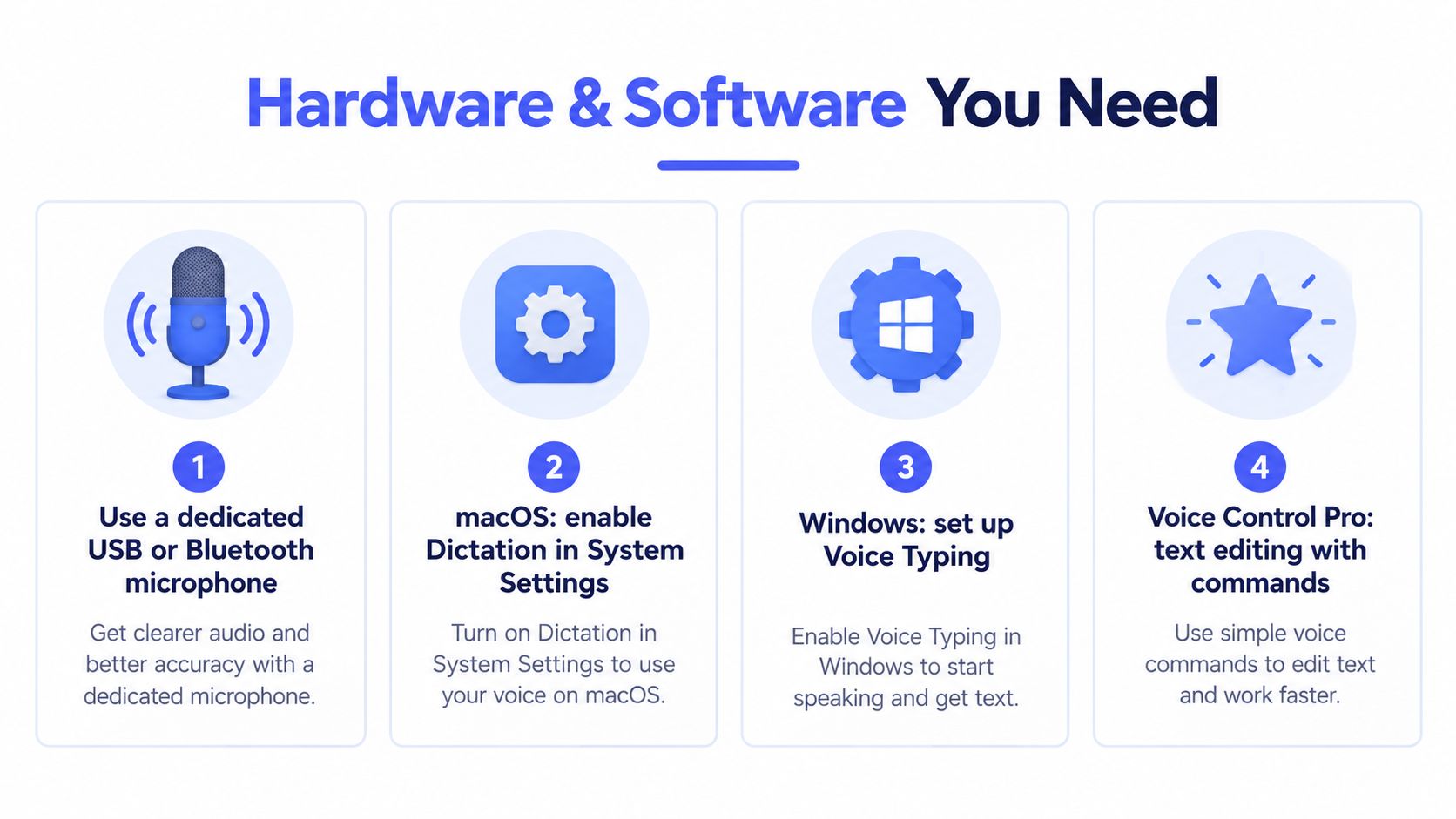
A laptop microphone can be enough in a quiet room. If you work in a shared office, take calls all day, or dictate long stretches, a headset or dedicated USB microphone usually makes voice input easier to trust.
Good hardware doesn't need to be fancy. It needs to reduce room echo, keyboard noise, and distance from your mouth. The simpler test is this: if your microphone makes you sound clear in a meeting, it's often good enough for dictation too.
Match the software to the job
Built-in operating system tools are a good starting point. macOS and Windows both offer voice typing or dictation features, and those are often enough for occasional note capture.
For broader desktop use, some people want a tool that works in any app, not just inside one assistant window. Voice Control Pro is one example of that approach. It lets you press and hold a global shortcut, speak, and insert transcription directly at the cursor across apps. It also includes a local mode for on-device dictation and a separate assistant layer for tasks like rewriting selected text or launching apps by voice.
Choose a trigger you'll actually use
Many desktop users do better with a press-and-hold shortcut than with always-listening behavior. It's clearer. You know exactly when the computer is listening, and you avoid accidental input.
That workflow feels a bit like using a walkie-talkie. Press, speak naturally, release, review. It's fast because it removes mode confusion.
A voice workflow is only useful if starting it feels easier than opening another tab and typing.
Understand local and cloud processing
Privacy is where many guides stay too vague. They say “voice assistant” as if every feature handles data the same way, but it doesn't.
Independent reporting notes that Amazon removed its last local voice-recording option in March 2025, and France's CNIL recommends preferring devices that process data locally over remote processing (smart speaker privacy overview). For practical use, the key questions are simpler than privacy policy language:
- What stays on the device
- What gets uploaded
- Which features stop working if cloud processing is disabled
For sensitive work such as legal notes, customer details, or internal drafts, local dictation may be the safer fit. For rewriting, screen-aware help, or deeper assistant features, cloud processing is often part of the tradeoff.
Practical Tips to Dictate Faster and More Accurately
People often assume good dictation means speaking like a robot. It doesn't. Skill is learning how to speak in chunks that a computer can transcribe cleanly and that you can review quickly.
Use speech for drafting, then edit in passes
A Stanford-led study found that speech input was about 3.0 times faster than typing for English mobile text entry, with measured rates of 161.20 words per minute for speech versus 53.46 words per minute for keyboard input. The reported English error rate was also 20.4% lower for speech in that study, even after correction overhead (Stanford speech input study).
A separate mixed-methods evaluation also found a statistically significant speed advantage for speech, with a large effect size of partial eta squared = 0.64, while also concluding that speech came with a higher error rate than typing overall (speech recognition versus typing evaluation).
Those two findings aren't contradictory. They point to the workflow lesson: voice is often faster for getting words out, but cleanup strategy determines whether you keep the time savings.
Speak in usable chunks
Try these habits:
- Use short bursts: One or two sentences at a time are easier to verify than a long stream.
- Say punctuation when needed: “Comma,” “period,” and “new paragraph” can save later editing.
- Pause between ideas: Brief pauses help the system separate thoughts naturally.
- Name unusual terms early: Product names, client names, and technical jargon often need extra care.
- Review immediately: Fixing a mistake right after dictation is faster than hunting for it later.
Build your own correction rhythm
Some people dictate a whole page and edit once. Others dictate sentence by sentence and clean as they go. The better method is the one that preserves your flow.
If you're doing technical or specialized writing, a custom vocabulary or dictionary can reduce repeated corrections. If you're just getting started, begin with one routine task. Dictate a reply, review it, send it. Repeat until it feels normal.
For a practical walkthrough of that daily habit, this guide on how to use speech to text effectively offers a good desktop-oriented pattern.
Speak for clarity, not performance. You're not giving a speech. You're feeding a draft into a fast input system.
Start Talking to Your Computer with Confidence
Talking to a computer is no longer a party trick. It's a practical input skill. The part that makes it click is recognizing that dictation, commands, and conversation are different jobs.
Once you sort those jobs, decisions get easier. Use plain dictation when you need text fast. Use commands when you need control. Use a conversational assistant when you need help shaping or interpreting work. Then choose hardware and privacy settings based on that specific mode, not on vague ideas about “AI.”
You also don't need a dramatic rollout. Start with one small habit today. Dictate one email, one meeting summary, or one rough paragraph instead of typing it. If it works, keep going. If it needs cleanup, adjust your pacing and try again.
That's how voice becomes useful. Not all at once, but one reliable workflow at a time.
If you want a simple way to make this habit stick, Voice Control Pro gives you cursor-based dictation across apps, plus optional voice-powered rewriting and app control in the same desktop workflow. It's a practical fit when you want to talk to your computer for real work, not just ask a smart speaker a question.