
You've taught Pages a client's surname, but Word still underlines it. Then you paste the same name into a browser form and get another red squiggle. It's tempting to keep clicking Add to Dictionary until everything behaves, but you may be updating different word lists each time.
A custom dictionary on Mac isn't a universal vocabulary switch. The reliable approach is to identify which spelling service an app uses, maintain the right file or list, and test the result before sharing it with colleagues.
Table of Contents
- Choose the Right Method and Where Terms Work
- Match the method to the job
- Where should a term go to work everywhere?
- How to Add, Remove and Fix Single Words
- Teach a word without hiding a mistake
- Repair an accidentally learned typo
- How to Bulk Edit the LocalDictionary File
- Locate the file your Mac uses
- Edit with a rollback copy ready
- How to Export, Import and Move Terms Between Macs
- Transfer a merged list, not an accidental replacement
- Keep cloud storage out of the live-file experiment
- How Voice Control Pro's Custom Dictionary Works
- Use a controlled list for recognition problems
- Confirm the product behavior before deployment
- Test Your Terms and Pick Your Setup
- Check the complete writing workflow
- Choose the smallest setup that solves the problem
Choose the Right Method and Where Terms Work
The macOS spelling list and an app's custom dictionary aren't necessarily the same list. Apple's Pages guide says that adding a word puts it in the macOS dictionary used by Pages and other apps. Word for Mac also has its own custom-dictionary controls, so acceptance in Pages doesn't establish that Word will accept the term.
Browser fields add another complication. A browser, website editor, or writing extension may check spelling independently of macOS. Before changing files, find out which component is drawing the underline.
Match the method to the job
Use this comparison to choose where a term belongs.
macOS methods for custom words compared
| Method | Best for | Reaches | Bulk entry | Undo |
|---|---|---|---|---|
| Learn Spelling (right-click) | One-off names and verified spellings, not actual typos | Apps that use macOS spelling services | No, one word at a time | Unlearn Spelling |
| LocalDictionary file | Lists of product names, surnames and acronyms | Apps that use macOS spelling services | Yes, one entry per line | Delete the line and save |
| Text Replacements (System Settings) | Shortcuts that expand into phrases | Apps that accept macOS text substitution | Yes, through replacement-list import where supported | Delete the replacement |
| App-level dictionary, such as Word for Mac | Terms needed in one program only | That app's spelling workflow | Use the app's dictionary editor or supported import | Remove the entry in the app's custom-dictionary settings |
Learn Spelling is the least disruptive choice when an unfamiliar surname interrupts your writing. Direct file editing makes more sense when you already have an approved terminology list. There's no useful universal cutoff: the question is whether editing a prepared list is easier than teaching words individually.
Text Replacements solves a different problem. In System Settings, look under Keyboard for Text Replacements, then create a shortcut and its expanded text. A shortcut such as ;followup can insert a standard follow-up phrase in compatible text fields.
A custom spelling dictionary only suppresses spelling warnings. It creates no replacement rule. Adding ;followup to a spelling list won't make it expand, and adding a product name won't force an app to correct similar-looking mistakes.
Where should a term go to work everywhere?
Start with the system list when you need the term across apps that use macOS spelling services. Add it inside an application when that application maintains a separate dictionary. For a company-wide rollout, record both destinations rather than assuming a single import covers everything.
Practical rule: An accepted word proves that a particular spelling checker accepts it, not that every app on the Mac does.
Language settings matter too. A term accepted while checking English may behave differently under another language configuration. Test the actual Slack message field, CRM editor, or browser form you use, with the language and writing extensions you normally leave enabled.
How to Add, Remove and Fix Single Words
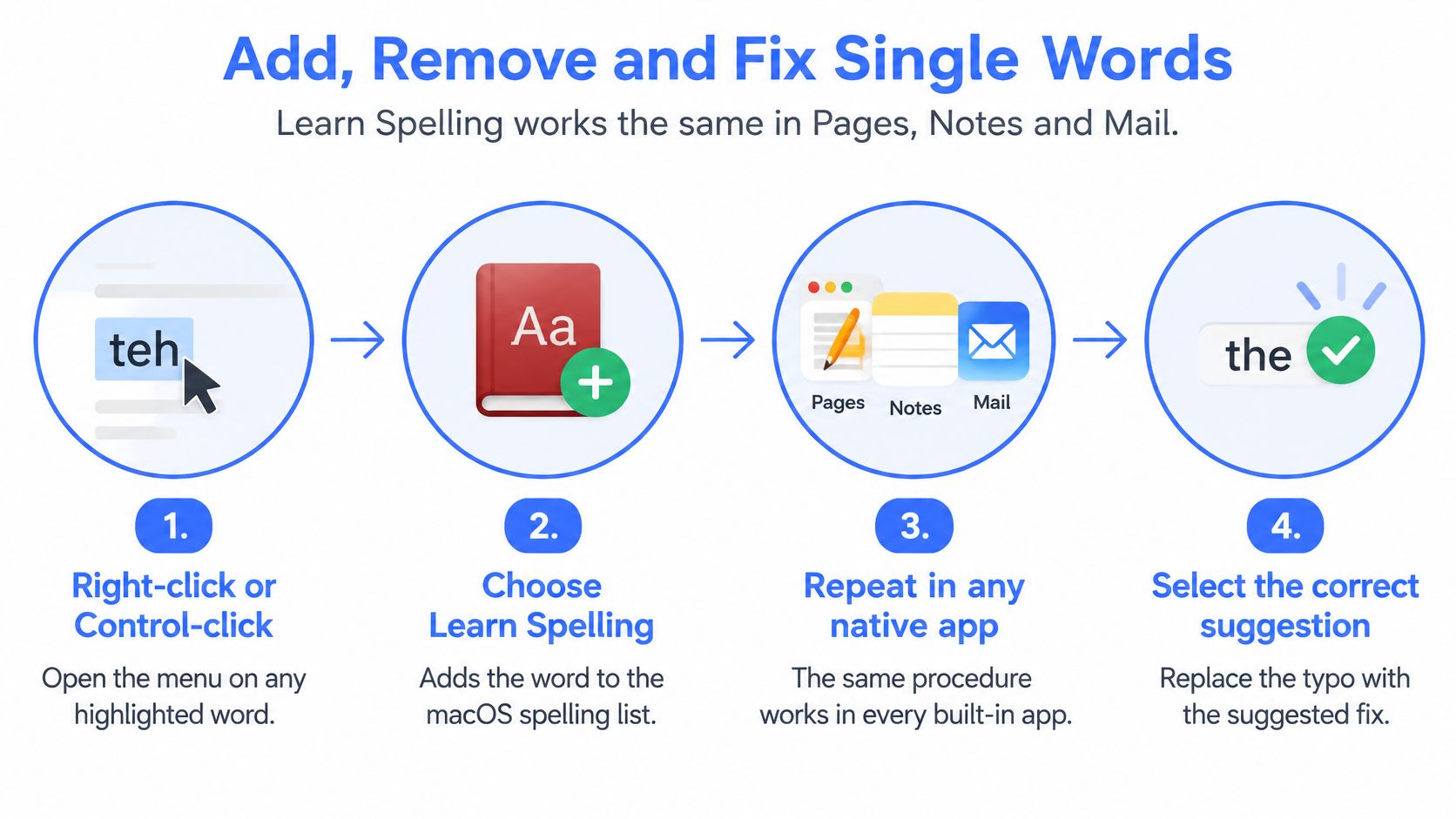
Learn Spelling is part of the macOS spelling workflow used by native apps such as Pages, Notes, and Mail. Words you teach this way go into the Mac's spelling list, so a single right-click can stop a warning in every app that reads that list. App-level dictionaries stay separate, which is why the same word can still get flagged in an editor that keeps its own.
Teach a word without hiding a mistake
- Right-click or Control-click the underlined word. Click directly on the word rather than an empty part of the document. Before opening the menu, check the spelling against something authoritative, such as the client's signature or the product's official name.
- Choose Learn Spelling. This accepts the selected spelling as intentional in supported applications. Don't choose a suggested correction unless you want to replace the word.
- Retype the word or reopen the document to check it. Confirm that the underline disappears with spelling checks still enabled. An app with checking switched off can make an unsuccessful addition look successful.
- To undo an addition, Control-click the learned word and choose Unlearn Spelling. Because the word may no longer be underlined, select it deliberately before opening the menu. This removes your learned entry rather than changing the text already in the document.
- Expect standard dictionary words to resist unlearning. Unlearn Spelling removes entries you added, not words supplied in the built-in dictionary. If you want to prohibit a correctly spelled word in company writing, use an editorial rule or terminology checker instead.
The visual guide shows the contextual-menu workflow. Treat accepting a spelling and choosing a correction as separate actions.
Repair an accidentally learned typo
The most damaging mistake is teaching a misspelling that looks plausible. Once learned, it can stop attracting attention in later documents that use the same spelling service, and a plausible typo is exactly the kind nobody thinks to question.
Unlearn it immediately, correct the document, and type the mistaken version in another supported app to confirm the warning has returned. Keep the correct version nearby so you can verify that you removed the wrong entry, not the approved spelling.
If the problem occurs only in Microsoft's editor, the word lives in that application's own list rather than the system one. Work through the Word custom-dictionary guide to find and remove it there instead of repeatedly changing the system list.
Finish with a small acceptance check: type your most-used client, colleague, and product names in Pages and Mail. Leave checking enabled and confirm the spellings remain accepted after reopening the apps.
How to Bulk Edit the LocalDictionary File
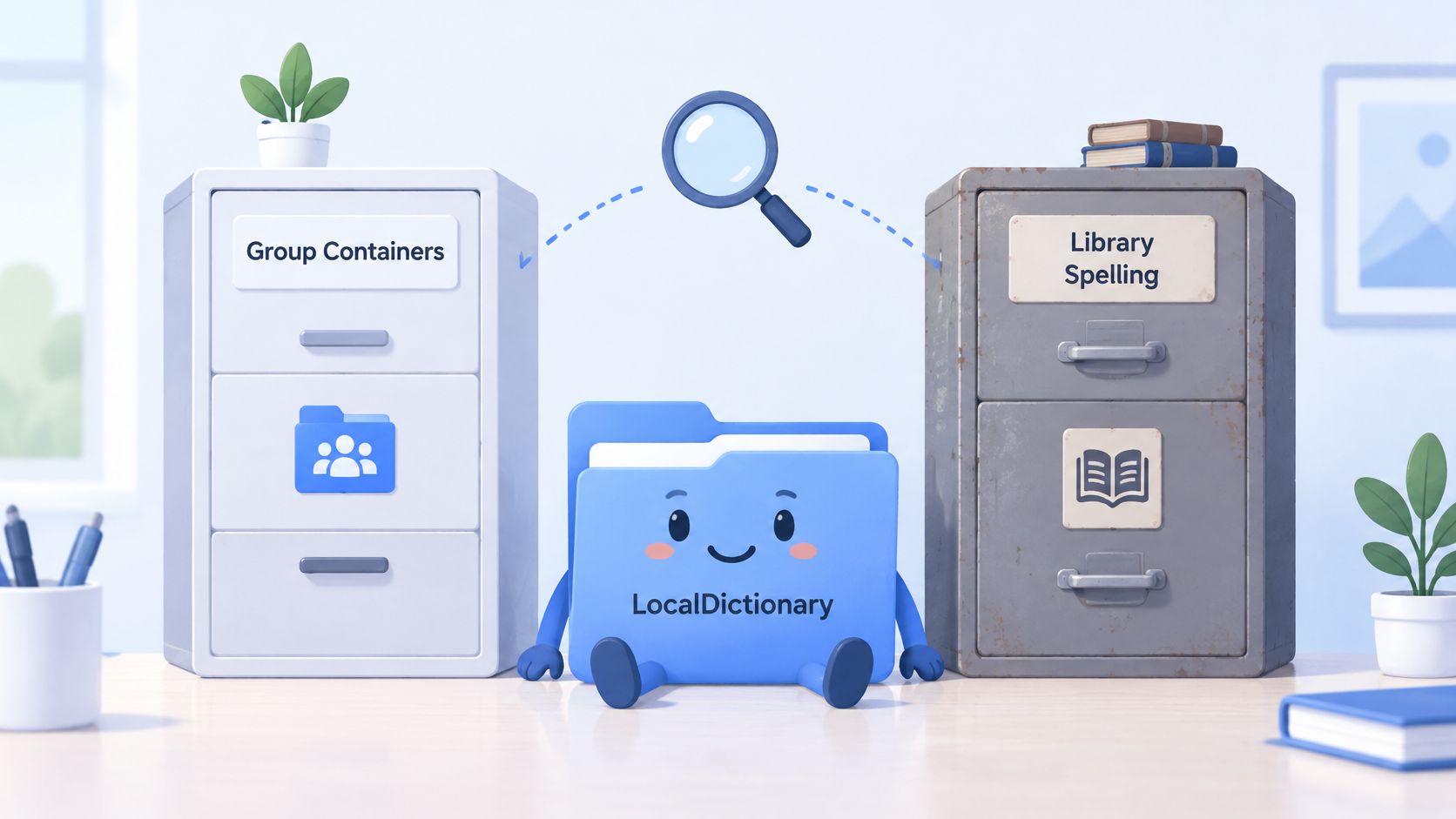
Back up the existing file before editing anything. Guides disagree about the location because macOS installations can use different storage paths; opening the wrong file can produce a perfectly edited list that no active spelling service reads.
The folder illustration is a useful reminder to locate the active file before treating either path as definitive.
Locate the file your Mac uses
The my-words project identifies the group-container location on current installations and the older user-Library location. These are places to check, not a reason to create duplicate lists.
LocalDictionary file locations by macOS generation
| Location | Typical system | What to check |
|---|---|---|
~/Library/Group Containers/group.com.apple.AppleSpell/Library/Spelling/LocalDictionary | Current macOS installations | Open this path first in Finder |
~/Library/Spelling/LocalDictionary | Older systems and many older guides | Use if the file exists here instead |
/Library/Dictionaries | Installed dictionary bundles | Not the spelling list; editing here does not suppress flags |
The tilde means your home folder. If both candidate files exist, learn a distinctive legitimate term through a supported app, then inspect which file receives it before making bulk changes.
Edit with a rollback copy ready
OS X Daily's LocalDictionary walkthrough describes the plain-text workflow, with one entry per line and application restarts when changes don't appear immediately.
- Copy the existing file to the Desktop. Give the backup an unmistakable name, such as
LocalDictionary-before-editing, and leave the working file's name unchanged.
- Open the active location. In Finder, press Shift-Command-G and paste the appropriate path. On an installation using the older location, Terminal's
open ~/Library/Spelling/LocalDictionaryopens that file.
- Quit your writing apps before changing the contents. Save documents first. This reduces the risk of an application or spelling service writing an older in-memory list over your edits.
- Add exact tokens on separate lines. Entries such as
Okafor,PostgreSQL, andCRM-Syncbelong on their own lines, without bullets, commas, or explanatory notes. Match intended capitalization and keep phrases out of a token-based spelling list.
- Save as plain text. In TextEdit, check Format > Make Plain Text if needed. Don't save an RTF document or accidentally add a
.txtextension to the working filename.
- Reopen the affected apps and test. If they still show stale results, log out and back in before deciding the edit failed.
This video provides an additional visual reference for working with the Mac dictionary.
To repair a learned typo, edit or delete its line, save, and restart the affected app. To remove a bulk-added term, delete its line and check the result in another supported app.
The main failure points are editing Dictionary app resources instead of the spelling list and leaving applications open during modification. If the file reverts, restore your backup and repeat with those apps closed.
How to Export, Import and Move Terms Between Macs
Treat dictionary synchronization as something to verify, not something to assume. The file belongs to a user account, and Charm's personal-dictionary guide reflects the uncertainty around iCloud behavior and the need for an explicit transfer-and-test workflow.
Transfer a merged list, not an accidental replacement
- Copy the source Mac's active LocalDictionary file. Use a separate transfer copy rather than moving the live file out of its folder. Keep the original intact until the destination passes testing.
- Back up the destination's existing file. A colleague's Mac may already contain useful surnames, project labels, and technical terms. Replacing that file without preserving it discards their vocabulary.
- Merge the contents in a plain-text editor. Paste both lists into a working document, sort the lines using an editor that supports line sorting, and remove exact duplicates. Review near-duplicates manually, especially differences in capitalization, hyphenation, and regional spelling.
- Install the merged file at the destination's active path. Use the location that the destination reads, even if it differs from the source Mac's location. Quit writing apps before replacing the file, and retain the name
LocalDictionary.
- Test representative terms in real work fields. Check Mail, Pages, and a browser-based tool, including terms originally present only on the destination. That last check catches a destructive replacement that a source-only test would miss.
Keep cloud storage out of the live-file experiment
Don't symlink the live dictionary into a cloud-synced folder unless you've tested simultaneous edits, offline use, and conflict recovery.
A cloud folder is useful for distributing a reviewed copy. It's a different proposition to let a spelling service and a sync client modify the same live file. Conflict copies and competing writes can leave users with inconsistent lists.
For a team, assign someone to approve changes and retain a clean master copy outside the active spelling folder. Distribute reviewed updates rather than collecting everyone's entire personal dictionary, which may contain confidential names or accidental additions.
Before moving an abbreviation list, decide what the abbreviations are supposed to do. If they should insert full phrases, export and test the Text Replacements list separately; transferring a spelling file won't preserve expansion behavior.
How Voice Control Pro's Custom Dictionary Works
A transcription dictionary operates earlier in the writing process than a spelling list. Its job is to preserve the intended vocabulary while speech becomes text, rather than accept a word after it has been typed.
Voice Control Pro fits this workflow: its custom dictionary is a Max feature alongside cursor-based dictation and output-cleanup controls.
Keep that vocabulary separate from LocalDictionary. Teaching macOS a spelling does nothing to help a transcription tool recognize the spoken term.
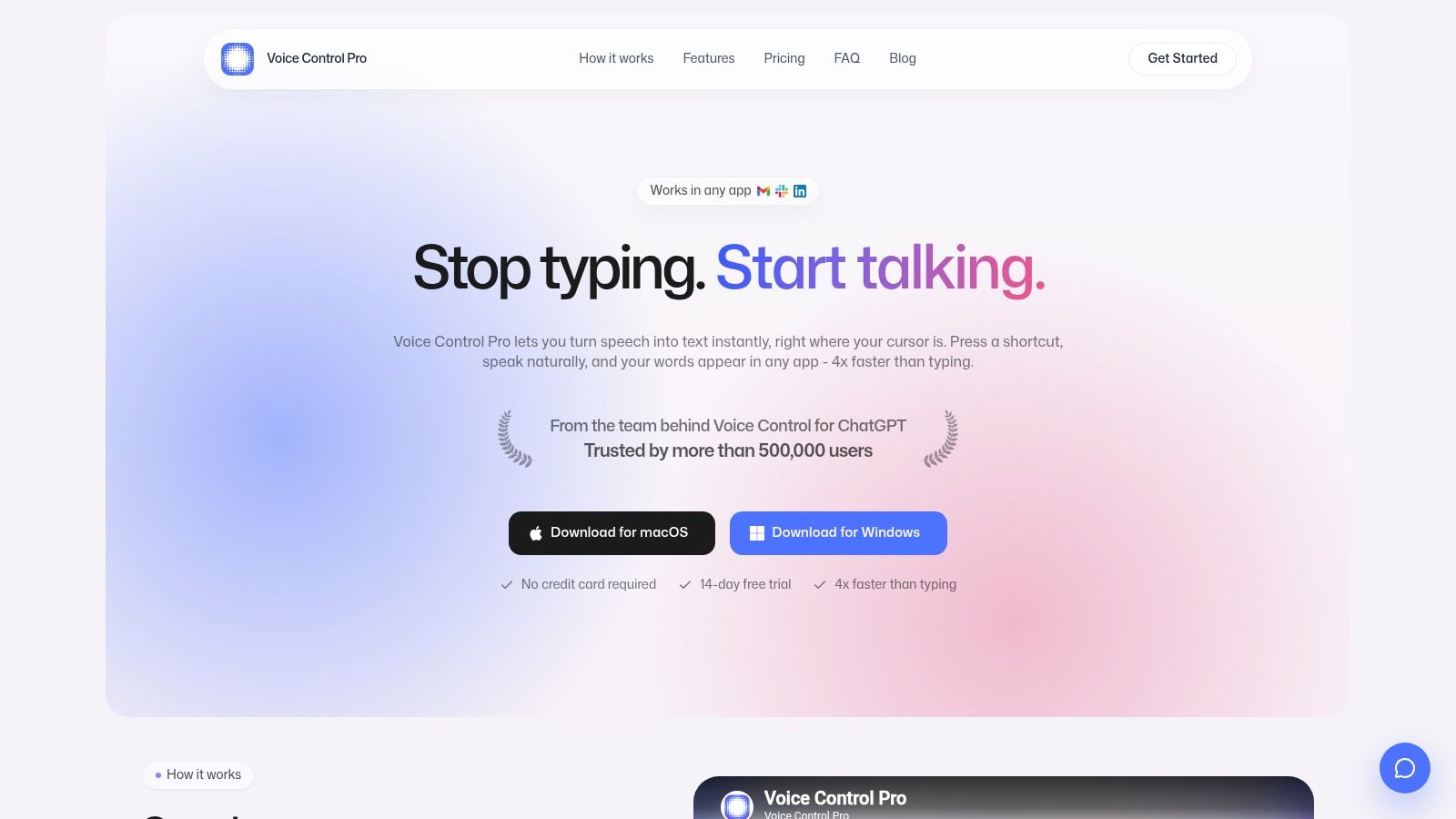
The screenshot shows where the dictionary sits in the interface. Menus and labels change between versions, so treat it as orientation rather than a step-by-step reference.
Use a controlled list for recognition problems
A dictated support update might contain the surname Okafor, the product identifier Atlas-Q, the acronym SLA, and the technical term PostgreSQL. A general transcription model can substitute a familiar name, mangle the identifier, or expand the acronym into ordinary words. A spelling checker cannot reconstruct what you meant to say.
The transcription vocabulary should therefore hold approved terms, not every word that ever drew an underline. Test entries inside normal sentences, because recognition and cleanup behave differently when a name carries surrounding context.
Cult of Mac's custom-spelling-dictionary guide documents the user-level spelling-list approach. Editing that file is a different job from maintaining a centrally managed, versioned team vocabulary.
For multilingual work, keep approved terminology separated by language in your master records. Only import those lists into separate product dictionaries if the application supports that arrangement; don't assume its interface offers language-specific lists.
Confirm the product behavior before deployment
Check the publisher's current documentation for these operational details:
- Entry management: Confirm the actual add, edit, delete, and import steps rather than inferring menu names from a screenshot.
- Storage and portability: Establish where entries are stored and whether they follow an account between Mac and Windows.
- Cleanup behavior: Test whether style adjustments preserve capitalization, identifiers, and acronyms.
- Local processing: Check what Fly Mode processes on-device, which cloud features it pauses, and whether dictionary behavior changes offline.
- Plan limits: Confirm dictionary availability, supported languages, and the free local mode's dictation limits.
Confirm the current language count, Fly Mode behavior, and free-tier limits on the publisher's pricing and documentation pages before choosing a plan. Treat unlimited local dictation and similar plan descriptions as details to check during a trial, not deployment guarantees.
For teams, approve names and acronyms once in a controlled master list, then validate each supported import. Exclude sensitive client information unless its storage and processing arrangements meet your organization's requirements.
Test Your Terms and Pick Your Setup
Run a short acceptance test before relying on a shared vocabulary. Use a deliberately small sample containing client and colleague names, an acronym, a product identifier, and an abbreviation intended to expand.
Check the complete writing workflow
- Type the sample in your working apps. Use Mail, Pages, a browser form, and your usual chat app with normal checking settings enabled.
- Classify each failure. Decide whether the missing behavior belongs to system spelling, an app dictionary, or Text Replacements. Record the application and language setting.
- Dictate the same sample. Inspect the inserted text, including punctuation, capitalization, and product codes. Use these speech-to-text accuracy tips when recognition remains inconsistent.
- Keep a result sheet. Record approved spellings, installation locations, and unresolved exceptions. Recheck after significant application updates or terminology changes.
If your dictated text also becomes video captions, review the exported captions separately. Taja AI's captioning tips for repurposed video clips provide a useful companion workflow for that publishing stage.
Choose the smallest setup that solves the problem
A spelling-only team should maintain an approved master file and test deployment on each Mac. A team inserting standard phrases needs Text Replacements or an equivalent expansion tool, not a larger spelling dictionary.
For recurring dictated names and code terms, evaluate the Max dictionary with a realistic vocabulary sample. The plan also presents transcription history and Hey Max tools, so an upgrade makes sense only if those dictation-related capabilities belong in your workflow and the current documentation confirms what you need.
A term works everywhere only after you've tested it where you use it.
For dictation alongside your Mac spelling setup, visit Voice Control Pro to review cursor-based transcription and the Max custom dictionary. Compare its current vocabulary controls, storage arrangements, and local-processing options against your approved term list before rolling it out to a team.