
You've added a client's surname to Word more times than you can count. The product name in your report still has a red underline. A dictated paragraph turns an internal acronym into three unrelated words. Clicking Add to Dictionary fixes the current annoyance, but it doesn't explain where the word went, which file stores it, or why the same term still fails on another computer.
A custom dictionary for Word is useful when you treat it as a maintained working file rather than a magical spelling switch. It can hold proper nouns, brand names, technical vocabulary, abbreviations, and recurring project language. It can also become full, read-only, misplaced, or unavailable to collaborators because Word stores it with a user profile instead of attaching it to a document.
Table of Contents
- What a Custom Dictionary Actually Does in Word
- What it changes and what it doesn't
- Creating Your First Custom Dictionary in Word
- Attach and activate the file
- Adding and Editing Entries the Right Way
- Keep the file mechanically simple
- Managing Multiple Dictionaries for Different Work
- Using a Custom Dictionary with Voice Dictation
- Fixing Common Custom Dictionary Problems
- When Word says the dictionary is full
- When the file is read-only
- When a document travels without its words
- Habits That Keep Your Dictionary Healthy
What a Custom Dictionary Actually Does in Word
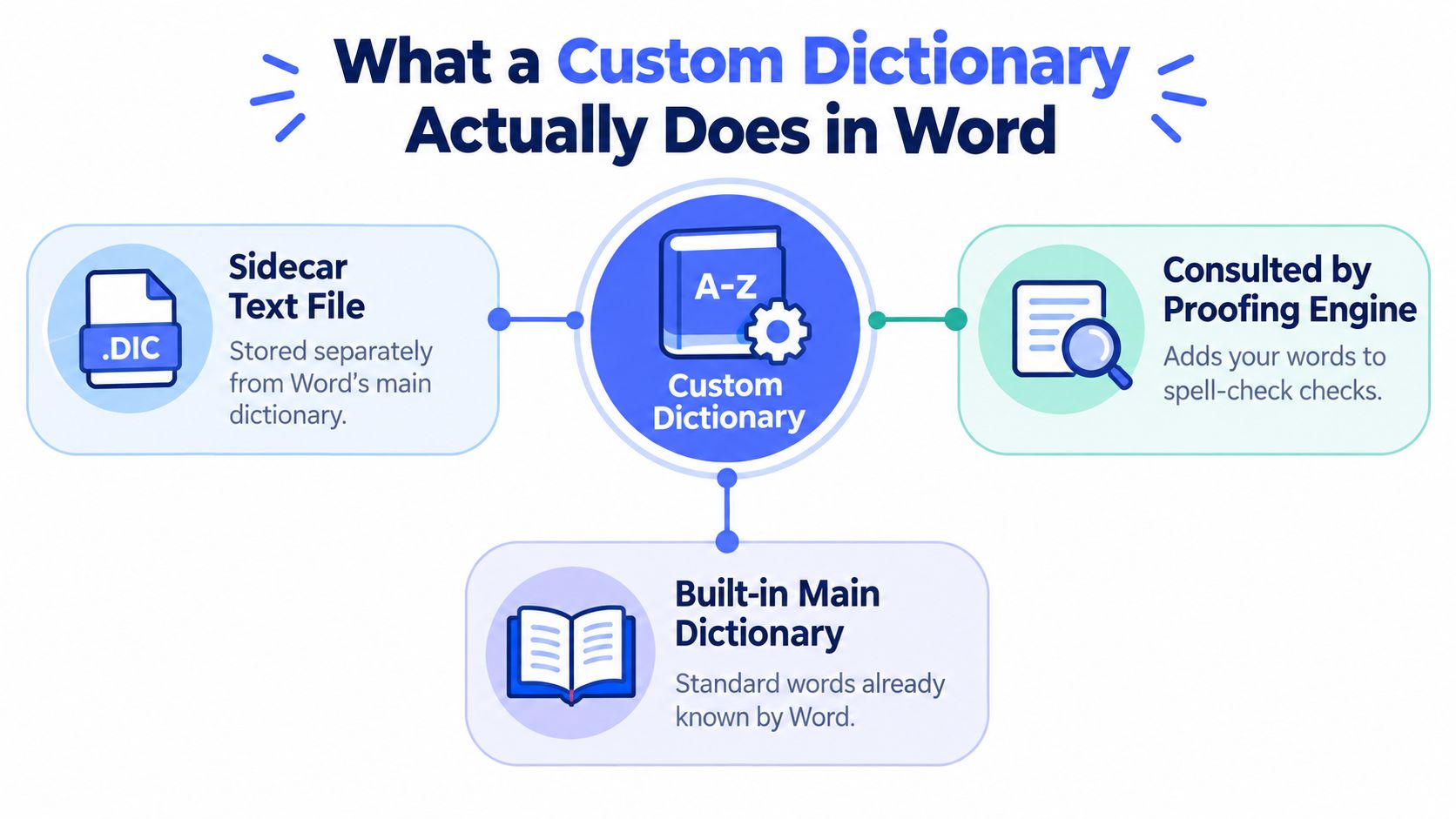
Word's custom dictionary solves a narrow but persistent problem: it tells the proofing engine to accept words that the built-in dictionary doesn't recognize. That includes client and colleague names, product terms, acronyms, industry jargon, foreign-language terms, and specialized labels. When you add a flagged word through Word's spelling tools, Word writes it to the active custom dictionary rather than changing the built-in master dictionary.
The custom file works as a sidecar text file. It sits separately from Word's main dictionary, and the proofing engine consults both when checking spelling. This approach resembles custom vocabulary systems used by major speech and transcription platforms. For example, Amazon Lex V2's custom vocabulary documentation describes structured vocabulary entries that can include a phrase, a boosting weight, and a display form. The underlying principle is the same: give the recognition or proofing system the terms it's likely to miss.
What it changes and what it doesn't
Adding an entry stops Word from treating that spelling as an error. It doesn't change grammar checking, AutoCorrect rules, sentence structure, or hyphenation. If Word accepts a product name but you want it expanded from an abbreviation, configure AutoCorrect separately.
The default scope is also easy to misunderstand. A custom dictionary normally belongs to the Word installation and user profile, not to the .docx file. Microsoft guidance indicates that Word doesn't support a dictionary attached to one document, and such a dictionary wouldn't travel with the file if that feature existed. That limitation is why teams need an explicit sharing process.
A clean spelling list can support cleaner dictation too. If you're refining terminology for writing and speech, improve word choice with diction offers useful context on choosing precise language. For broader speech recognition cleanup, keep a separate reference for speech-to-text accuracy tips, because proofing acceptance and speech recognition are related but not identical tasks.
Creating Your First Custom Dictionary in Word
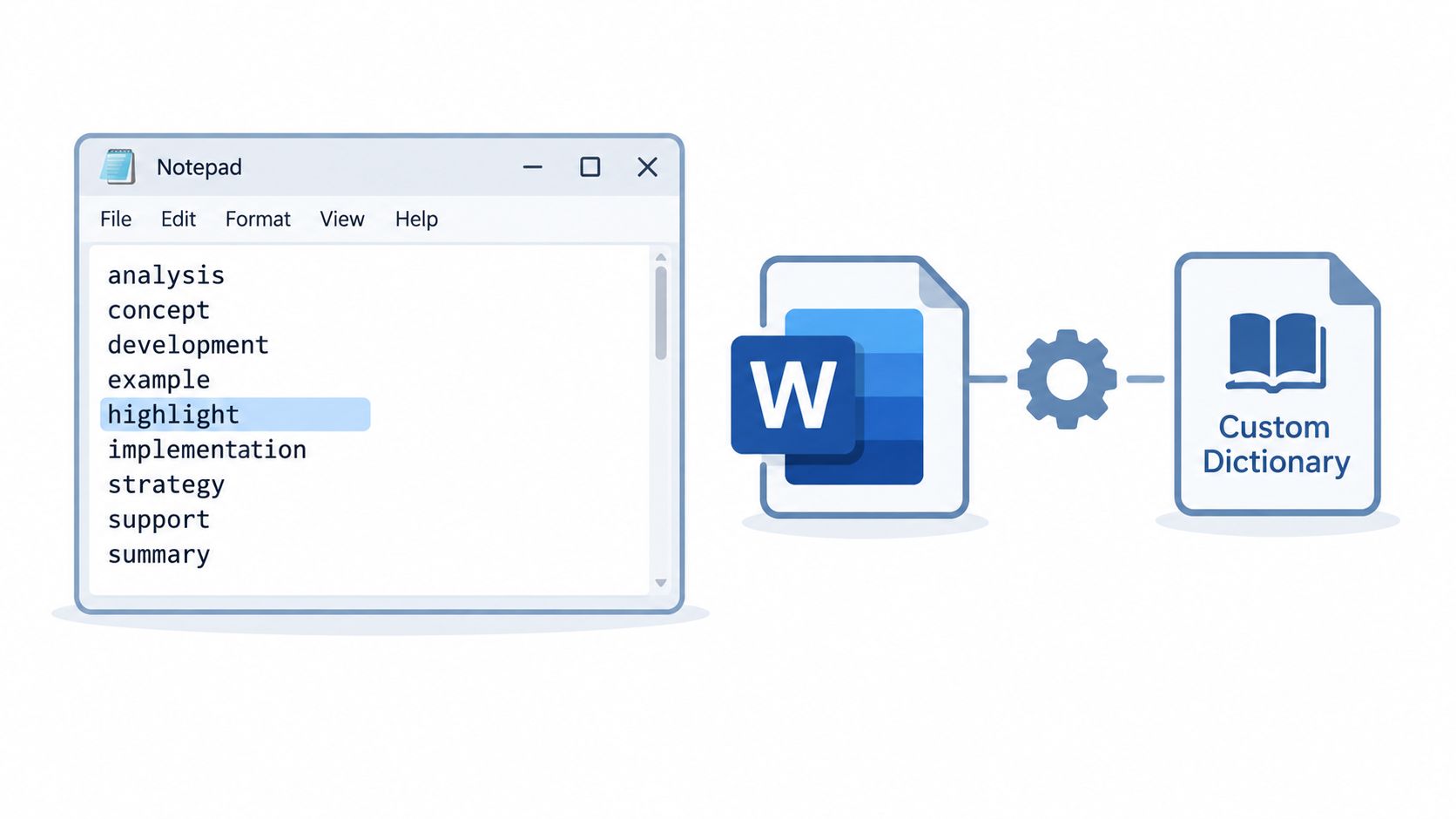
Word doesn't usually give you a prominent New Dictionary button. The dependable method is to create a plain-text .dic file, then attach it through Word's Custom Dictionaries dialog.
Start with Notepad on Windows or another plain-text editor. Put one word or term per line, without a title, header, commas, or explanatory notes. Save the file with a descriptive name such as LegalReview.dic or ProductTerms.dic. If Notepad tries to append .txt, select the option to save as All Files and confirm that the final filename ends in .dic.
On Windows, Word's default CUSTOM.DIC is typically stored at:
%AppData%\Microsoft\UProof
On macOS, the user content location is typically:
~/Library/Group Containers/UBF8T346G9.Office/User Content.localized/
Paths can vary with Office versions, account configuration, and operating-system changes, so use Word's dialog as the authority when you need to locate the active file.
Attach and activate the file
In Word:
- Open File, then Options, then Proofing.
- Select Custom Dictionaries.
- Choose Add and browse to your
.dicfile. - Tick the box beside the dictionary to activate it.
- Select the dictionary and confirm its language setting if Word presents one.
- Apply the changes and return to the document.
The checkbox matters. A file can be attached to Word but inactive, which makes the setup look broken even though the path is correct.
Choose storage deliberately. Keep the default CUSTOM.DIC in its standard location so Word can find it after a profile refresh. For a team glossary, a controlled synced folder can make distribution easier, but syncing also introduces file locks and offline states. Document the path and give users a copy of the file rather than assuming Word will discover it.
For broader vocabulary setup across language tools, a setup workflow for language apps can help you think through naming, importing, and maintaining shared terms.
Adding and Editing Entries the Right Way
For a single unfamiliar word, use the flagged-word shortcut. Right-click the underlined term and choose Add to Dictionary, or use the spelling controls on the Review ribbon. Word sends the entry to the dictionary that's active in the Custom Dictionaries dialog. If several dictionaries are enabled, check which one is selected before adding a term, especially on a managed team computer.
Direct file editing is faster for a prepared vocabulary list. Close Word first, open the .dic file in Notepad, and add one entry per line. Save the file, then reopen Word so the proofing engine reloads the list. This approach is practical for project terminology, but it requires discipline because Word won't validate your editorial intent.
Keep the file mechanically simple
Use a predictable format:
- One term per line: Avoid paragraphs, headings, comments, or blank explanatory text.
- Alphabetical order: Sorting makes duplicate detection and reviews easier.
- Plain text: Don't use Word, Excel, or a rich-text editor to modify the file.
- Exact spellings: Add the form you want Word to accept, including capitalization where it matters.
- Minimal punctuation: Special characters can interfere with matching or produce inconsistent results.
Treat imports as migrations, not casual copies. On another computer, open File, Options, Proofing, and Custom Dictionaries, select Add, and browse to the transferred file. You can keep the old file attached temporarily while checking the new one, then disable or remove the duplicate after confirming that the entries are present.
Practical rule: Never edit a live dictionary while Word is open. Make a backup, close Word, edit the file, and reopen the application.
If an entry contains spaces, test it in a real document after importing. Word's dictionary-file behavior can be particular about how it parses lines, and a complex phrase may not behave like a single word. For large lists, add a small sample first, verify the result, then expand the file.
Managing Multiple Dictionaries for Different Work
One dictionary is convenient until it contains unrelated vocabulary from every project you've touched. Separate files make ownership clearer and let you disable a specialized list without deleting it. A legal review glossary, a medical terminology file, a brand-name list, and a personal dictionary can coexist in Word's Custom Dictionaries dialog.
Use descriptive filenames rather than generic copies such as CUSTOM2.DIC. The name should tell another administrator what the file contains and who should use it. Attach each file through File, Options, Proofing, and Custom Dictionaries, then enable the checkboxes for the dictionaries that should participate in proofing.
The active or default selection matters when Word writes a newly accepted word. It doesn't mean disabled dictionaries disappear, and unchecking a file doesn't erase its contents. It stops Word from using that list until you enable it again. If two enabled dictionaries contain the same term, keep the more authoritative version in the primary working file and remove unnecessary duplication elsewhere.
| Scenario | Recommended Dictionary Name | Example Entries |
|---|---|---|
| Legal drafting | LegalReview.dic | Contract terms, court names, legal abbreviations |
| Medical content | Medical.dic | Clinical terminology, drug names, procedure names |
| Brand governance | Brand.dic | Product names, approved capitalization, campaign labels |
| Multilingual work | Multilingual.dic | Foreign-language names and recurring terms |
| One project or client | ProjectName.dic | Internal labels, stakeholder names, deliverable terms |
Keep specialized dictionaries lean. A tightly scoped list is easier to audit, easier to distribute, and less likely to accept an unintended spelling. It also gives you a cleaner path when a project ends: disable the project file, archive it, and leave the personal dictionary intact.
Using a Custom Dictionary with Voice Dictation
A Word dictionary and a speech-recognition vocabulary list serve different engines, but they address the same troublesome words: names, acronyms, product terms, and specialized jargon. A term that Word accepts after proofing may still be misrecognized during dictation unless the speech tool has its own vocabulary configuration.
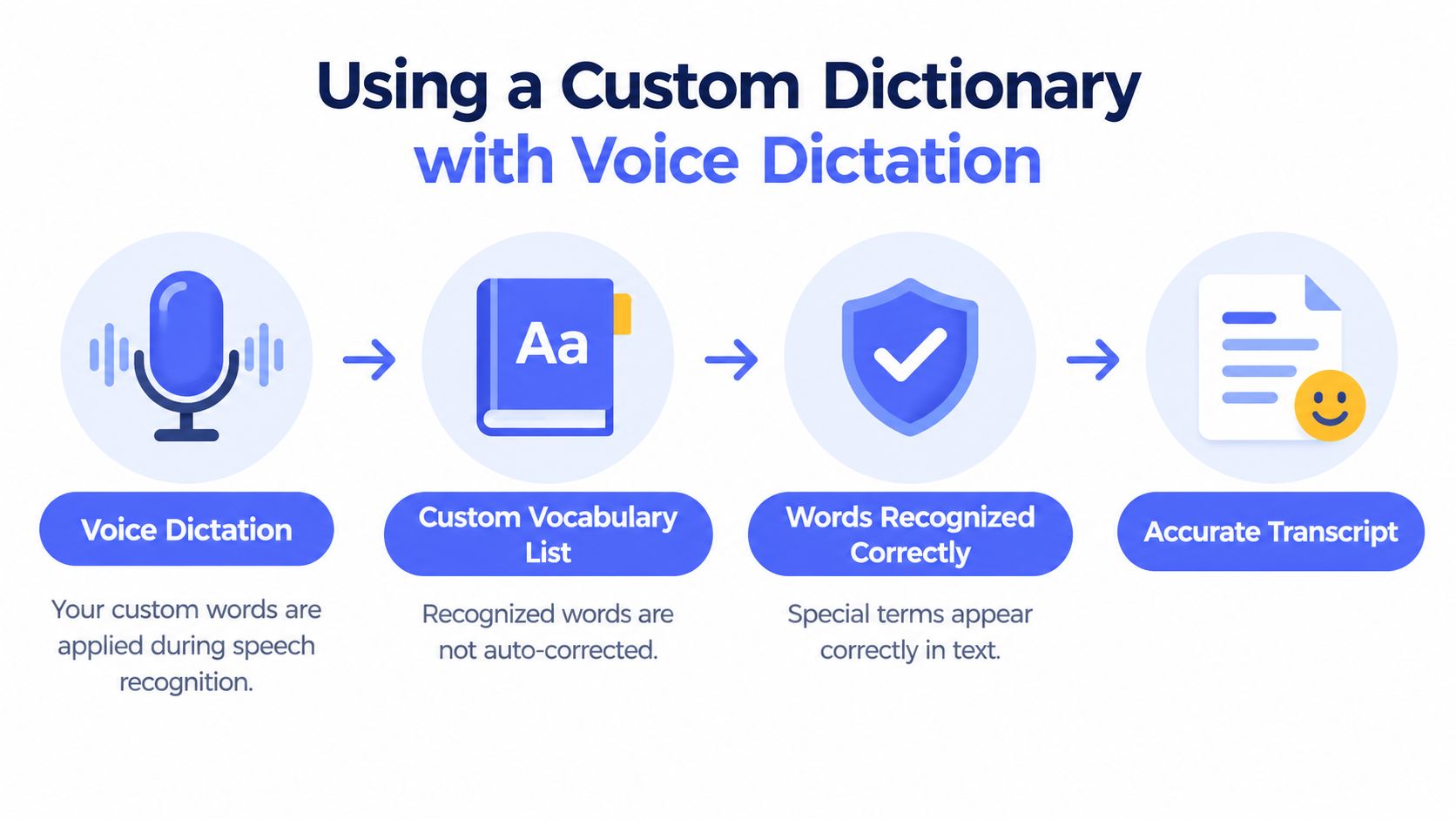
The practical workflow is straightforward:
- Export or copy the useful entries from Word's
.dicfile. - Remove terms that are obsolete, generic, duplicated, or irrelevant to spoken work.
- Import the trimmed vocabulary into your dictation application.
- Test the terms in Word, a browser text field, and another regular destination.
Voice Control Pro includes a custom dictionary for adding recurring terms such as client names, product names, acronyms, project labels, uncommon surnames, and industry vocabulary. Its cross-platform voice-to-text workflow inserts transcription wherever the cursor is active, so a maintained vocabulary list can support work beyond Word. Use it as a separate recognition reference, not as a reason to paste an unmanaged archive into every tool.
A controlled study of Microsoft Speech Recognition Engine found that a moderately trained system moved from 91% accuracy to 94% after adding a customized dictionary and selected pronunciations, while another training comparison moved from 75% to 88%. The same study reported that accuracy varied by approximately ±5 to 10% depending on how much terminology was absent from the default lexicon. The study's findings support a focused approach: mine real domain text, remove terms the base recognizer already knows, and add the unfamiliar words that matter.
Keep the list tight rather than treating it as a vocabulary dump. An Interspeech study found that real-time factor increased as personalized lexicon size grew, while accuracy saturated quickly, and described 1.0 to 1.5 as the typical practical range for personalized applications. The Interspeech paper supports validating latency after each meaningful expansion.
Here's a practical demonstration of dictation in Word:
For the Word-specific capture workflow, use this guide to dictate in Word. Sync the vocabulary explicitly between machines, and remember that adding a spelling to Word doesn't automatically train every speech engine you use.
Fixing Common Custom Dictionary Problems
The Proofing pane makes adding a word look simple. It doesn't expose the operational problems that appear later, especially when a dictionary lives in a user profile, a synced folder, or an unmanaged backup.
When Word says the dictionary is full
A full dictionary usually means the current file has reached its practical entry limit. Don't keep deleting random words until the warning disappears. Copy the file to a backup location, remove obsolete entries, and move specialized vocabulary into separate .dic files. Microsoft community guidance also points users toward creating another dictionary, changing the default, or editing the dictionary file directly when the active file is full.
When the file is read-only
Check the file's properties first. A read-only attribute can prevent saves, and a cloud-synced location can temporarily lock the file while synchronization or another Office process is using it. Pause synchronization, close Word and other Office applications, clear the read-only state if appropriate, or copy the dictionary to a local folder and attach that copy.
If the file is hidden, return to Word's Custom Dictionaries dialog and inspect the listed path. That's safer than guessing through application folders. If the path points to a removed drive or unavailable cloud location, remove the broken reference and attach a known local or synced copy.
When a document travels without its words
A .docx file doesn't carry Word's profile-level custom dictionary with it. Microsoft's guidance confirms that Word doesn't provide a document-attached custom dictionary, so collaborators must receive the .dic file and add it themselves. Include the file beside a template or project handoff, provide installation instructions, and record which dictionary should be active.
Team rule: Distribute the vocabulary file as an explicit project asset. Never assume that sending the document also sends the spelling rules.
For corruption, close Word, preserve the damaged file as evidence, and rebuild a clean dictionary from the latest backup. If no backup exists, open the file in a plain-text editor, remove malformed lines, save it under a new name, and attach the rebuilt copy. Use this faster proofreading workflow for dictated text after testing a restored list, because recognition errors and spelling acceptance still need separate checks.
Habits That Keep Your Dictionary Healthy
A custom dictionary stays useful when someone owns its maintenance. Set a recurring review point, open each active .dic file in a plain-text editor, sort entries alphabetically, remove duplicates, and delete terms that Word now recognizes natively. Keep the review focused on actual documents and dictated text, not on theoretical vocabulary you may never use.
Use this maintenance checklist:
- Back up before editing: Copy every active dictionary to a dated folder before making changes.
- Keep an external copy: Store a backup outside the Documents folder so a profile reset doesn't remove your only record.
- Separate domains: Move legal, medical, brand, and project terms into clearly named files.
- Audit capacity: Avoid uncontrolled growth and split specialty lists before the active file becomes difficult to manage.
- Test after moving: Disable and re-enable a dictionary after changing its location, then verify several known entries.
- Document ownership: Tell teammates which file is authoritative and how they should install it.
The evidence favors curation over accumulation. The Microsoft Speech Recognition Engine study found that gains concentrated on terminology absent from the default lexicon, while the personalized-recognizer research found that accuracy saturated quickly as lexicons grew. A smaller list of frequent, domain-critical terms is easier to troubleshoot and less likely to create false accepts.
Shared team dictionaries, cloud-managed vocabulary, and assisted term suggestions may change how organizations maintain language assets. The core practice won't change: review what people add, preserve a clean backup, and keep profile-level settings separate from document-level expectations.
Voice Control Pro carries custom vocabulary into a cross-platform voice-to-text workflow that inserts polished transcription wherever your cursor is active, with local processing available through Fly Mode and an on-device mode. If you're tired of correcting names, product terms, and recurring jargon after dictation, visit Voice Control Pro and set up a focused dictionary for the words you use every day.