
You're in a lecture with the professor moving faster than your pen, the slides are disappearing, and you already know you won't remember the exact explanation by tonight. That's where the best app for recording lectures earns its keep, not by sounding impressive in a feature list, but by making review usable later. The right tool turns a chaotic hour in class into something you can search, replay, annotate, and study from without starting over from scratch. If you're also thinking about how recording fits into teaching workflows, this lecture recording for educators guide gives a useful broader context.
The category has changed a lot. Apps are no longer judged only on whether they capture clean audio, because modern lecture tools are expected to handle transcription, summaries, language support, and collaboration too, which is why a lot of current roundups focus on those features as core criteria as Otter's lecture app overview notes. That shift matters for students because the real job isn't just pressing record, it's getting from a 60-minute class to study material you can scan and revisit fast. If that's your goal, the right app depends on your workflow more than your device.
Table of Contents
- 1. Voice Control Pro
- Why it works for lecture review
- 2. Otter.ai
- What students actually use it for
- 3. Glean
- Why campuses keep using it
- 4. Notability
- Best for classes with lots of visuals
- 5. Goodnotes 6
- The value is in the structure
- 6. Microsoft OneNote
- Best for students already using Microsoft 365
- 7. Google Recorder
- Best for students who want speed and privacy on Pixel
- 8. Rev Voice Recorder + Transcription
- Best for students who need a clean transcript
- 9. AudioNote 2
- A solid middle ground for privacy-conscious students
- 10. Noted.
- Clean playback for fast review
- Top 10 Lecture Recording Apps: Feature Comparison
- The Right Tool to Transform Your Note-Taking
1. Voice Control Pro
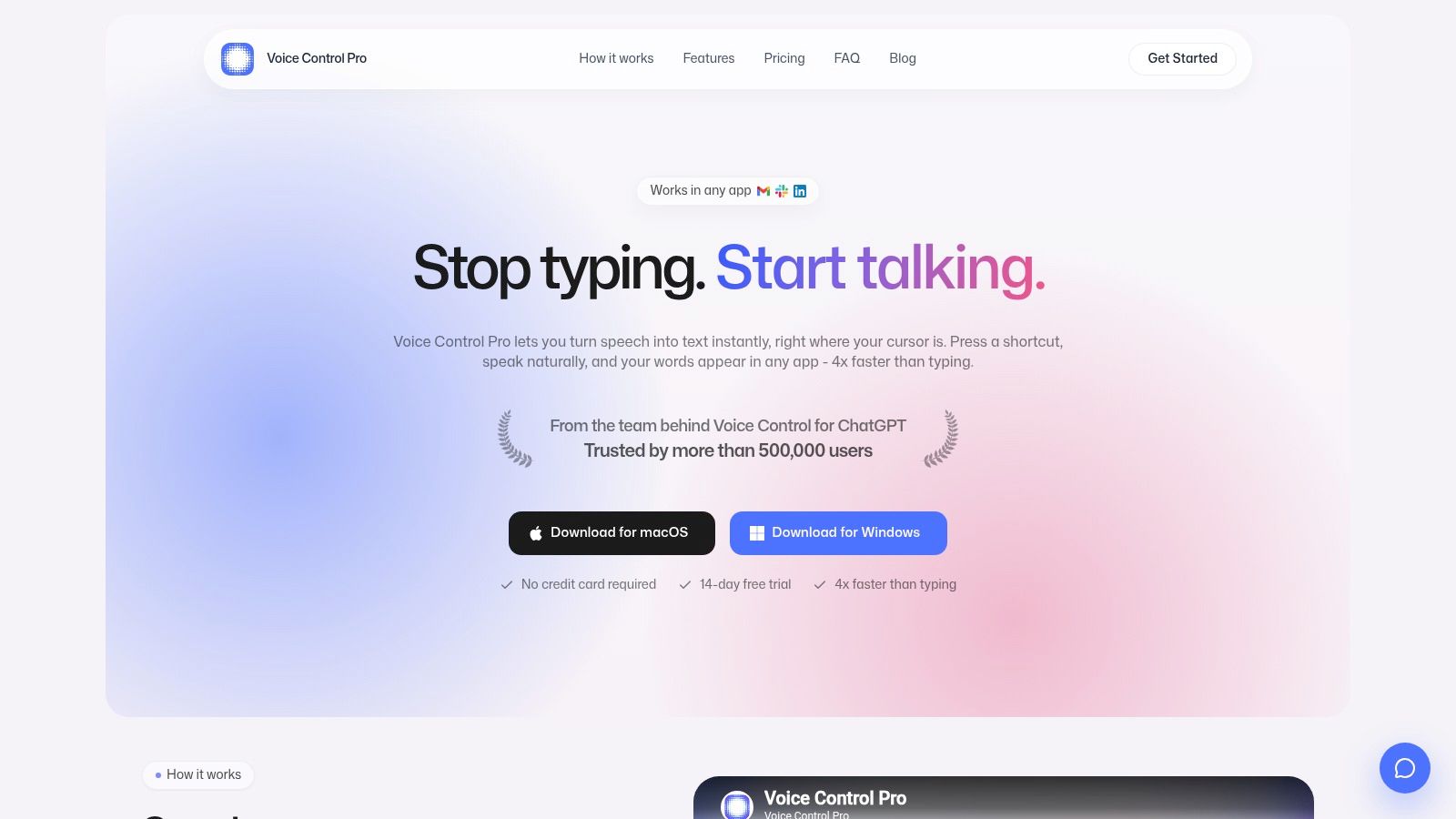
Voice Control Pro fits students whose lecture workflow is really a write-as-you-think workflow. It does not trap you inside one recorder. It puts polished speech-to-text wherever your cursor already is, so you can drop lecture thoughts into Slack, Gmail, Docs, a CRM, or whatever app you are already using. That matters if you do not want another notebook to sort through after class.
The advantage is speed and continuity. Press and hold a shortcut, speak naturally, then release and the text lands in place. That makes it feel more like capturing ideas than managing software, which is useful when you are moving between class notes, follow-up emails, and quick study reminders. The tool also supports 99+ languages, and the free local mode plus Fly Mode give you a privacy-first option when you do not want cloud processing in the middle of a long study day or a sensitive class.
Why it works for lecture review
Voice Control Pro is useful when your lecture notes need to become writing right away. Its built-in Hey Max assistant can rewrite selected text, answer context-aware questions about what is on your screen, and launch installed apps by voice. That lets you clean up notes without breaking your pace, which helps if you draft exam prep, lab reflections, or follow-up questions while the lecture is still fresh.
It also matches a practical student workflow: listen, capture, refine, move on. If you want a closer look at how a speech-to-text app for students fits into that kind of routine, the logic is the same here. You stay in the document or app you already use, instead of copying audio into a separate system and sorting it later.
A few trade-offs are worth keeping in mind.
- Best for in-the-moment writing: It is strongest when you want spoken ideas turned into clean text immediately.
- Privacy controls are real: Fly Mode and the local on-device mode help when cloud exposure is a concern.
- Some features sit behind Max: Unlimited use, cloud backup, transcription history, and Hey Max tools require the paid plan.
- Desktop-first setup: It is built for macOS and Windows, so it is not the right pick if you need a dedicated mobile lecture recorder.
Practical rule: use Voice Control Pro when your lecture workflow ends in writing, not just storage.
The trial path is straightforward. There is a free tier with no credit card required, plus a 14-day free trial, and the Max plan is positioned at roughly $9 per month for unlimited use and advanced features, according to the product's own pricing. The main appeal is simple. It helps you move from listening to writing without the awkward handoff that slows most students down.
Website: Voice Control Pro
2. Otter.ai
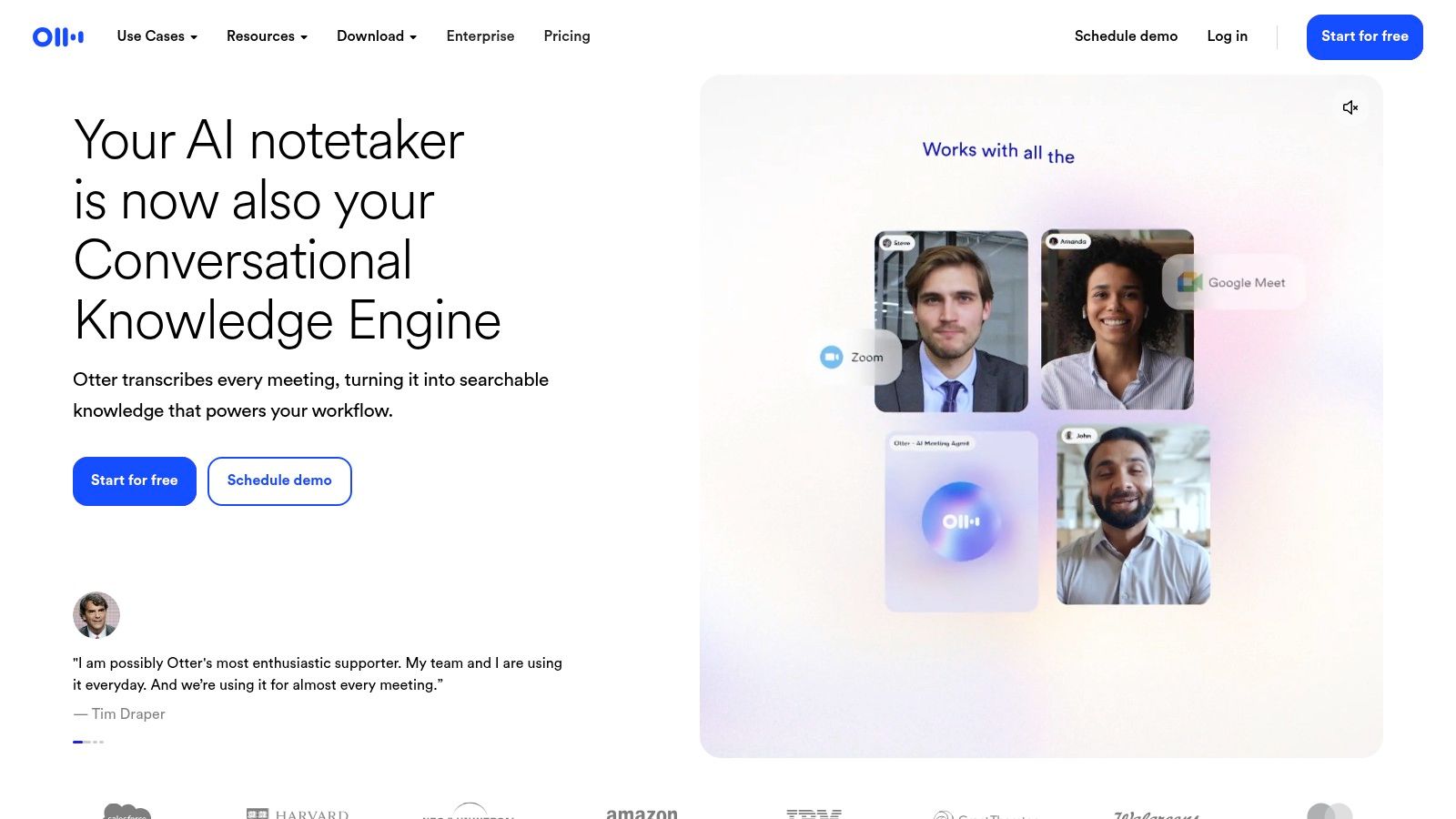
Otter.ai is the obvious pick when your main problem is finding the right part of a lecture again. It records, transcribes live, highlights key moments, and syncs playback to text, so you can skim a dense class instead of replaying the whole thing. That makes it especially useful for seminar-heavy courses, policy classes, and any lecture where spoken explanation matters more than handwritten diagrams.
The value is the workflow. You capture the class, search the transcript later, jump to the moment you need, and keep studying without scrubbing through a long recording. If you want a closer look at that kind of student routine, Otter's lecture recording overview shows how its transcription-first approach is built around fast review, not just storage.
What students actually use it for
Otter works best for review, not just capture. You can search for a term, jump to the relevant moment, and keep going without losing time in a long file. That matters when your professor talks quickly or when you need exact wording before an exam or paper.
The mobile and web workflow is part of the appeal. You can record on your phone, then keep studying on the browser later, which fits the way many students move from class to library to dorm. It also supports education programs and discounts, plus team and campus deployment options, so it is not limited to one student using a single device.
If your study habit starts with “find the one thing the professor said,” Otter is built for that exact habit.
The trade-off is that Otter is still a transcription-first tool, so it is less useful if your notes live in handwriting, slides, or sketches. The free tier also has usage limits, and some advanced features sit behind paid plans. Even so, it stays one of the cleanest options for students who want searchable lecture audio and quick read-along playback.
Website: Otter.ai
Internal reading if you want a broader dictation workflow: voice dictation for lecture notes
3. Glean
Glean feels different from most lecture apps because it's built around a structured study routine, not just a transcript. That's why it shows up so often in campus support settings and disability services. Instead of asking you to capture everything perfectly in real time, it helps you record, mark important moments, and come back later with a cleaner way to review.
That structure matters. A lot of students don't need another generic recorder. They need a workflow that makes it easier to separate the professor's main points from the filler, and Glean's lecture-first design is aimed squarely at that problem. It also supports web, desktop, and mobile access, which helps when your class devices and home devices don't match.
Why campuses keep using it
The strongest part of Glean is how it encourages review after class. You can add slides and notes alongside the audio, then highlight important moments instead of trying to recreate the whole lecture from memory. That's a very different experience from a basic recorder, and it's more useful for students who rely on accommodations or who need a more guided workflow.
There's a catch, though. Individual pricing isn't always transparent on the public site, and a lot of purchases happen through campus programs or quotes. That's not a deal-breaker, but it does make Glean feel less like a quick download and more like a tool your school has to support.
- Best for structured study: It helps you build a repeatable lecture-to-review routine.
- Strong campus footprint: That makes it easier to see it used in real student support settings.
- Less straightforward to buy solo: Public pricing isn't as clear as it is with consumer apps.
- Better for supported workflows: It shines when the institution helps with adoption and access.
Website: Glean
4. Notability
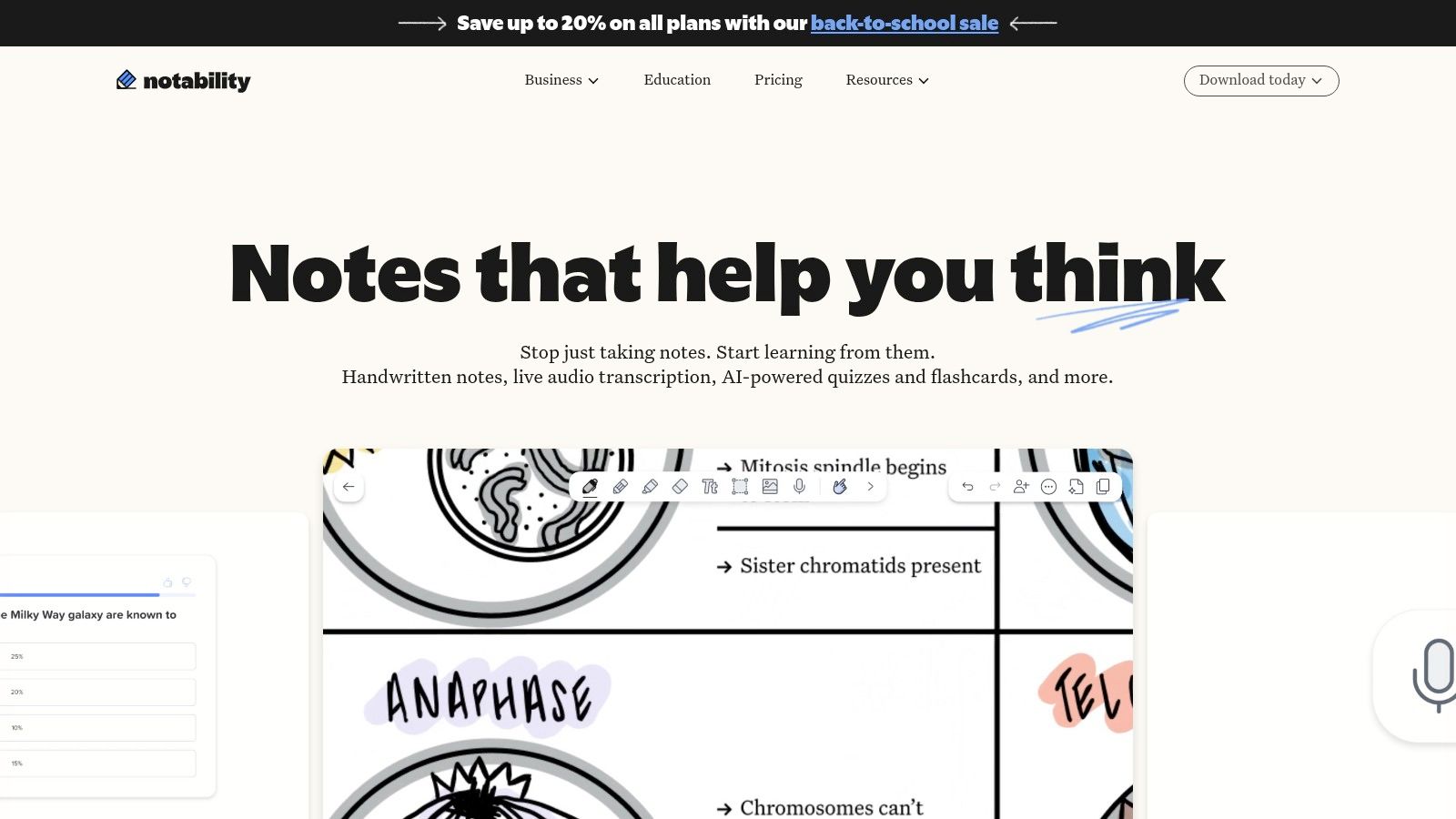
Notability works best for students who want handwriting and audio tied together in one place. The useful part is not just that it records a lecture, but that your marks on the page stay connected to what the professor was saying at that moment. Tap a word or a stroke, and you can jump back to the matching point in the recording, which helps when lectures move fast through slides, equations, or board work.
That workflow fits an iPad really well. If your class notes are mostly handwritten, Notability keeps the review process on the same page instead of scattering it across a recorder, a notebook app, and a folder of files. Newer plans also add transcription and AI tools, so the app has grown beyond the version a lot of students first used.
Best for classes with lots of visuals
Notability makes the most sense in courses where the board, slides, or diagrams matter as much as the spoken explanation. Chemistry, biology, economics, and engineering all benefit from audio that stays linked to ink. You can return to the exact moment you wrote something important, instead of trying to reconstruct the lecture later from memory.
The trade-off is that plan differences matter. Some features, including unlimited live transcription, sit on higher tiers, and the feature set can change over time. That makes it a strong app for lecture capture, but not always a quick one to compare at a glance.
Use it when your notes are part of the lecture record, not separate from it.
That split matters if you are deciding between handwriting and dictation. Notability is strongest when the page itself is the study object and you want to review directly from your notes. It is less useful if you want a transcript-heavy workflow or if you move between unrelated devices all week.
Website: Notability
Internal reading for a voice-first note workflow: voice dictation for lecture notes
5. Goodnotes 6
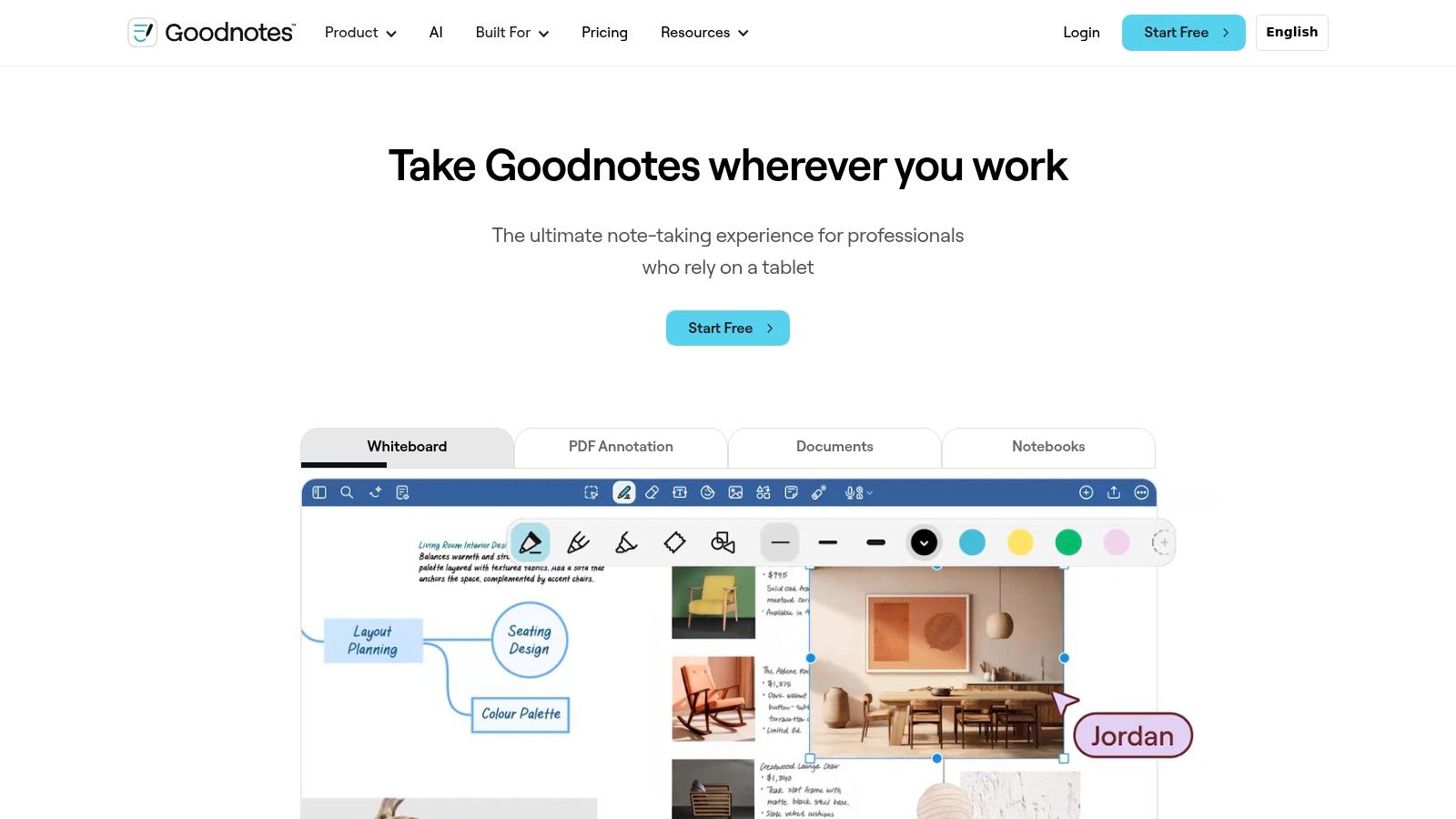
Goodnotes 6 is the strongest pick for students who want their lecture capture to live inside a clean notebook system. It brings audio recording into the same space as handwriting, PDF markup, and subject-based organization, which is helpful when you want your class files to stay tidy across an entire semester. That workflow is especially good if you review by flipping through notebooks, not by searching giant transcript dumps.
It feels more like a course binder than a recorder. That's the point. For students who already use an iPad as their main study device, Goodnotes keeps everything in one place and makes it easier to revisit lecture content without hunting through folders.
The value is in the structure
Goodnotes 6 works well when you need a place for slides, readings, annotations, and lecture audio to sit together. That can save a lot of friction during exam prep because you're not bouncing between a recorder app and a separate notebook app. Its cross-platform sync and collaboration options on higher tiers also make it more flexible than a purely Apple-only setup.
The trade-offs are pretty clear. AI features and broader sync support depend on plan level, and the free tier limits files and audio minutes. If you just want raw transcription, another app may feel faster. If you want an organized notebook that also records, Goodnotes is much more satisfying.
- Best for organized classes: Subject folders and notebooks reduce end-of-semester chaos.
- Good for slides and handouts: Audio, handwriting, and markup live together.
- Less ideal for transcript hunters: It's built around note organization first.
- Worth it if you study visually: The interface supports that style better than transcript-only tools.
Website: Goodnotes 6
6. Microsoft OneNote
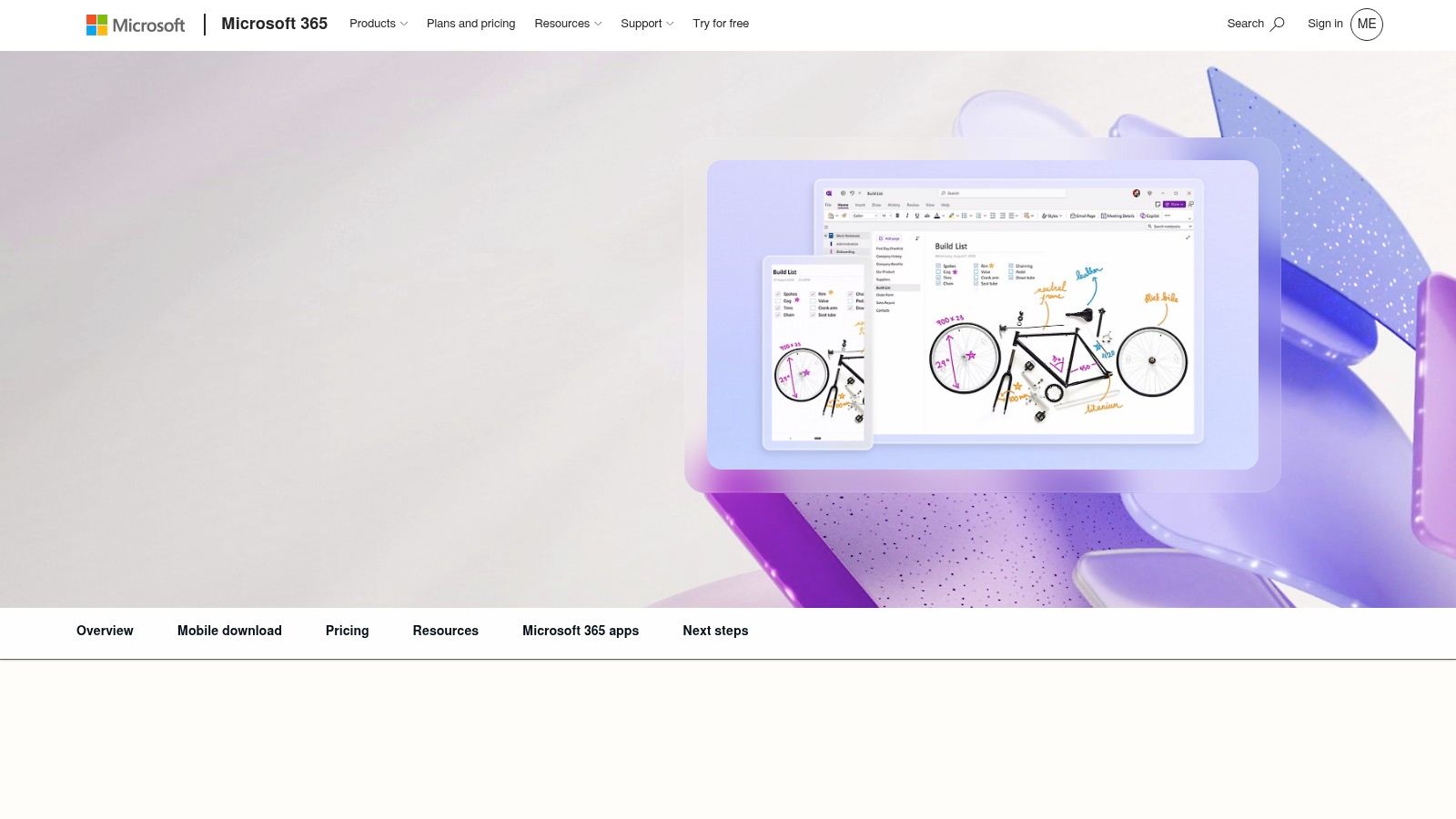
OneNote makes sense for students who need lecture recording to fit into an existing study system. If your school already gives you Microsoft 365, you may have it installed before the semester even starts, so there is no extra setup or account juggling before class. You can record audio directly on the page, then play it back next to typed notes or handwritten annotations, which keeps the lecture and your comments together.
That matters in real study sessions. A recorder by itself only gives you audio, but OneNote gives you a working notebook where slides, screenshots, files, and voice notes can sit side by side. For students moving between Windows, Mac, iPhone, Android, and the web, that cross-device sync is useful because it keeps the same notebook available wherever you study.
Best for students already using Microsoft 365
OneNote works best when your school workflow already runs through Microsoft tools. You can keep class notes in the same ecosystem as your calendar, email, and cloud storage, then return to the recording later when you need to fill in a missed point. That makes it a practical choice for students who want lecture capture without adding another app to manage.
The trade-off is straightforward. OneNote does not give you automatic AI transcription out of the box, and its search and transcript tools are not as strong as what you get in more specialized lecture apps. If you want a polished transcript, this is not the strongest standalone option. If you want a freeform notebook with audio attached, OneNote still does the job well. For students who want to get through note cleanup faster, these transcription workflow tips can help.
OneNote works best when convenience matters more than fancy lecture AI.
Website: Microsoft OneNote
7. Google Recorder
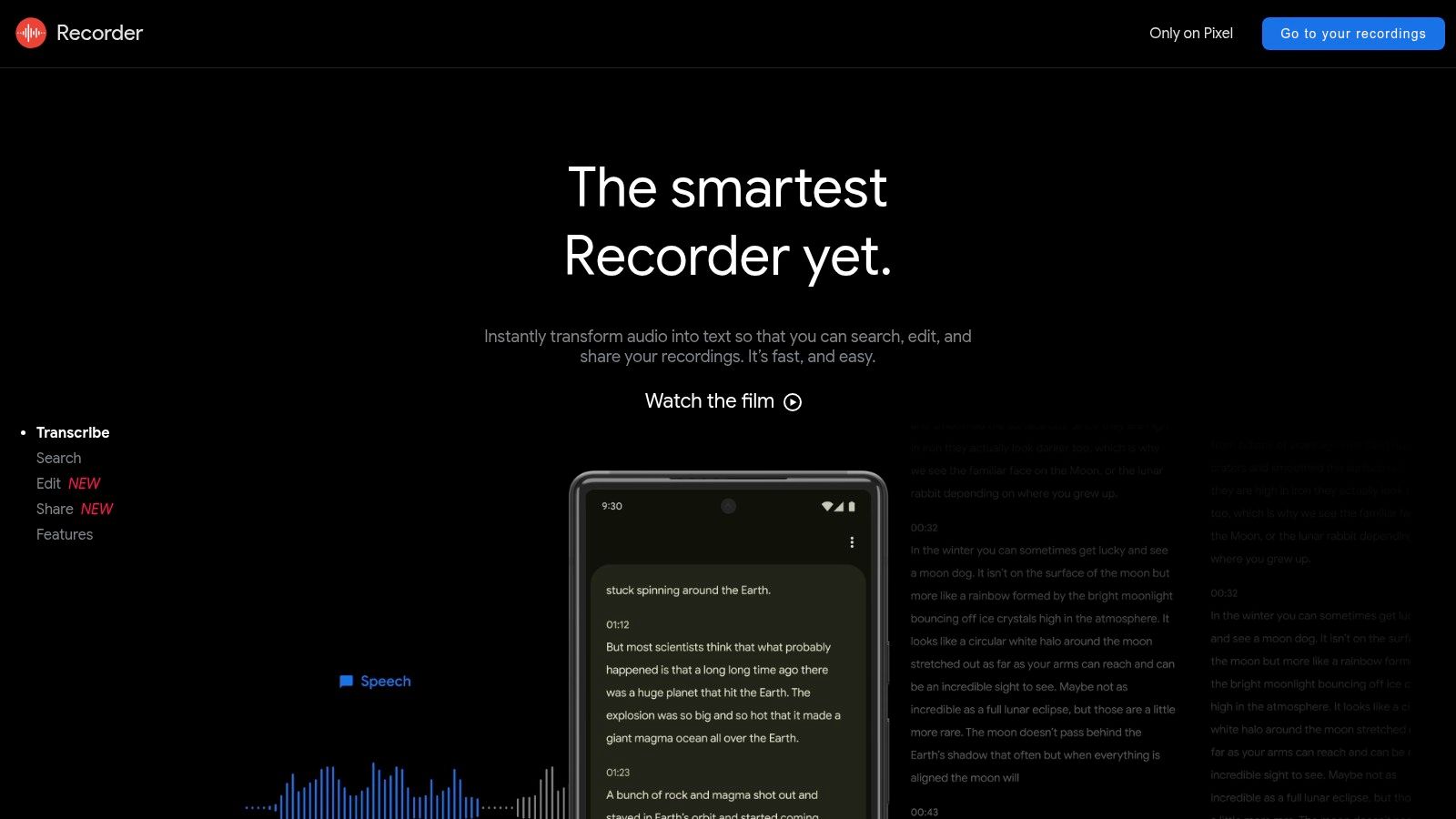
Google Recorder is a very specific kind of winner. If you have a supported Pixel phone, it gives you on-device transcription that makes recordings searchable without relying on a cloud-first workflow. For students who sit in patchy Wi-Fi buildings or prefer keeping recordings local, that's a big deal.
The app is also easy to use. It records, transcribes, and lets you search later, which is really all most students need in a lecture setting. You can review in the browser afterward, so your lecture notes don't have to stay trapped on your phone.
Best for students who want speed and privacy on Pixel
This app shines because it's simple and fast. You can capture a lecture, get searchable text, and move on without extra setup. That makes it especially useful for students who don't want to manage a separate transcript service or think about uploading files after every class.
The limitation is obvious, though. It's a Pixel-only app, so this isn't an option for everyone. There are also occasional bugs after OS updates, which is the trade-off for depending on a tightly integrated device feature. If you already have the right phone, it's one of the cleanest lecture capture experiences available.
- Best on supported Pixel devices: That's the main requirement.
- Strong offline use: Helpful when campus connectivity is unreliable.
- Searchable after recording: Great for finding a key concept fast.
- Less flexible across devices: It's not a universal student tool.
Website: Google Recorder
8. Rev Voice Recorder + Transcription
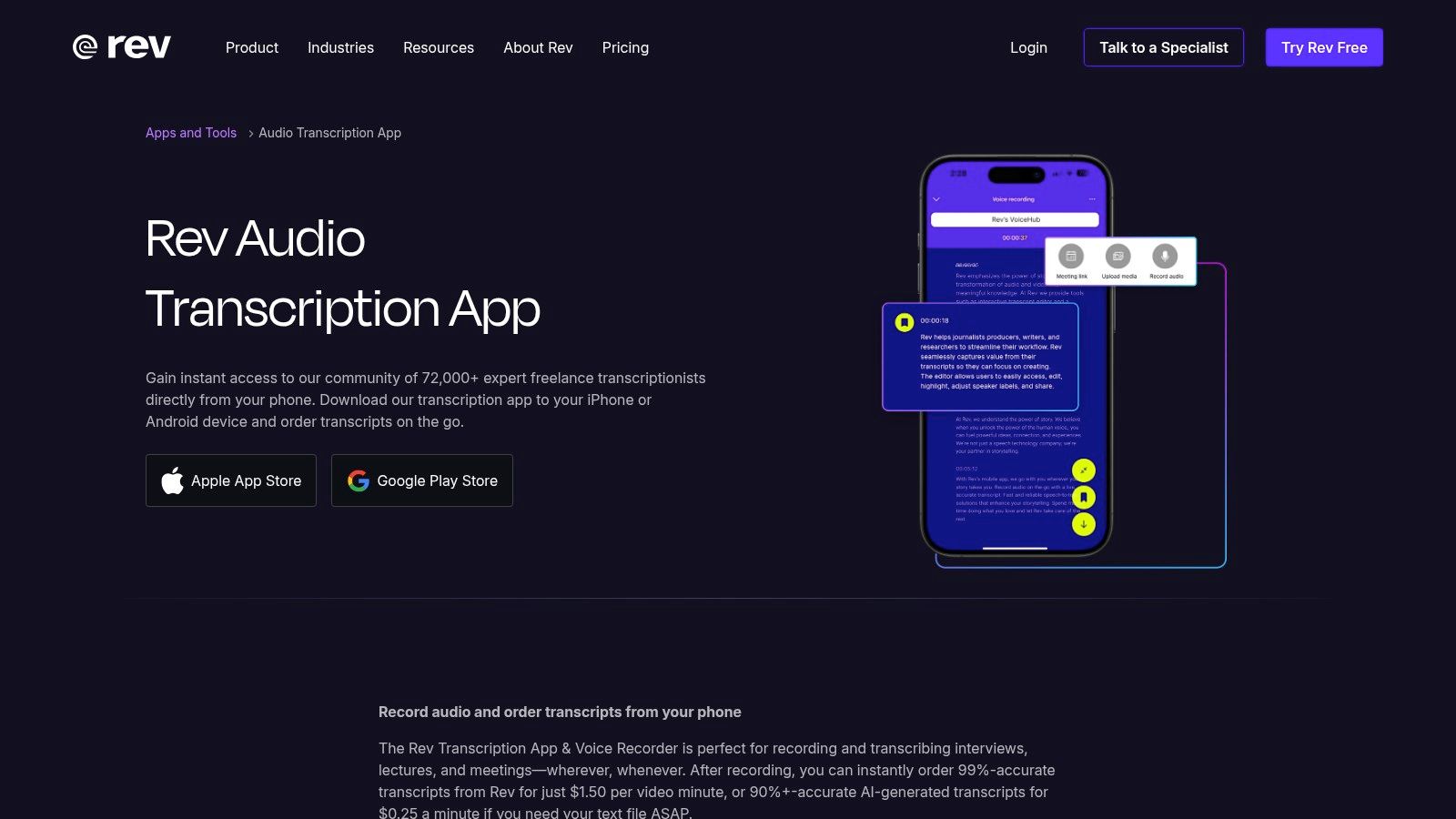
Rev fits a student who treats the transcript as the main deliverable. The recording is just the starting point. You can move from lecture audio to editable text with either AI transcription or human transcription, which matters if you are dealing with a tricky accent, a crowded room, or a class where exact wording matters more than a quick summary.
The workflow is direct. Record on your phone, upload the file, and work from the transcript afterward. That suits students who do not want a crowded all-in-one notebook and prefer a tool built around one job, getting usable text after class.
Best for students who need a clean transcript
Rev's real value is choice. If you only need a draft to skim before recitation or lab, the AI option gets you there quickly. If you need something more dependable for a paper, a study guide, or a conversation-heavy lecture, the human transcript is the stronger path. That trade-off matters in large lecture halls and discussion sections where audio quality slips and names, formulas, or key phrases can get muddled.
The cost is the part you have to think through. Transcription is billed per minute, so using it for every lecture can become expensive fast. Rev works better as a selective tool for classes where you know the transcript will save you time later, not as the default recorder for every meeting on your schedule.
The app's strength is that it keeps the job narrow. It does not try to be your entire note system. It gives you a recording, a transcript, and a path to edit the text once the lecture ends.
Use Rev for the lectures you cannot afford to get wrong.
Website: Rev Voice Recorder + Transcription
Internal reading for faster transcript workflows: how to transcribe faster
9. AudioNote 2
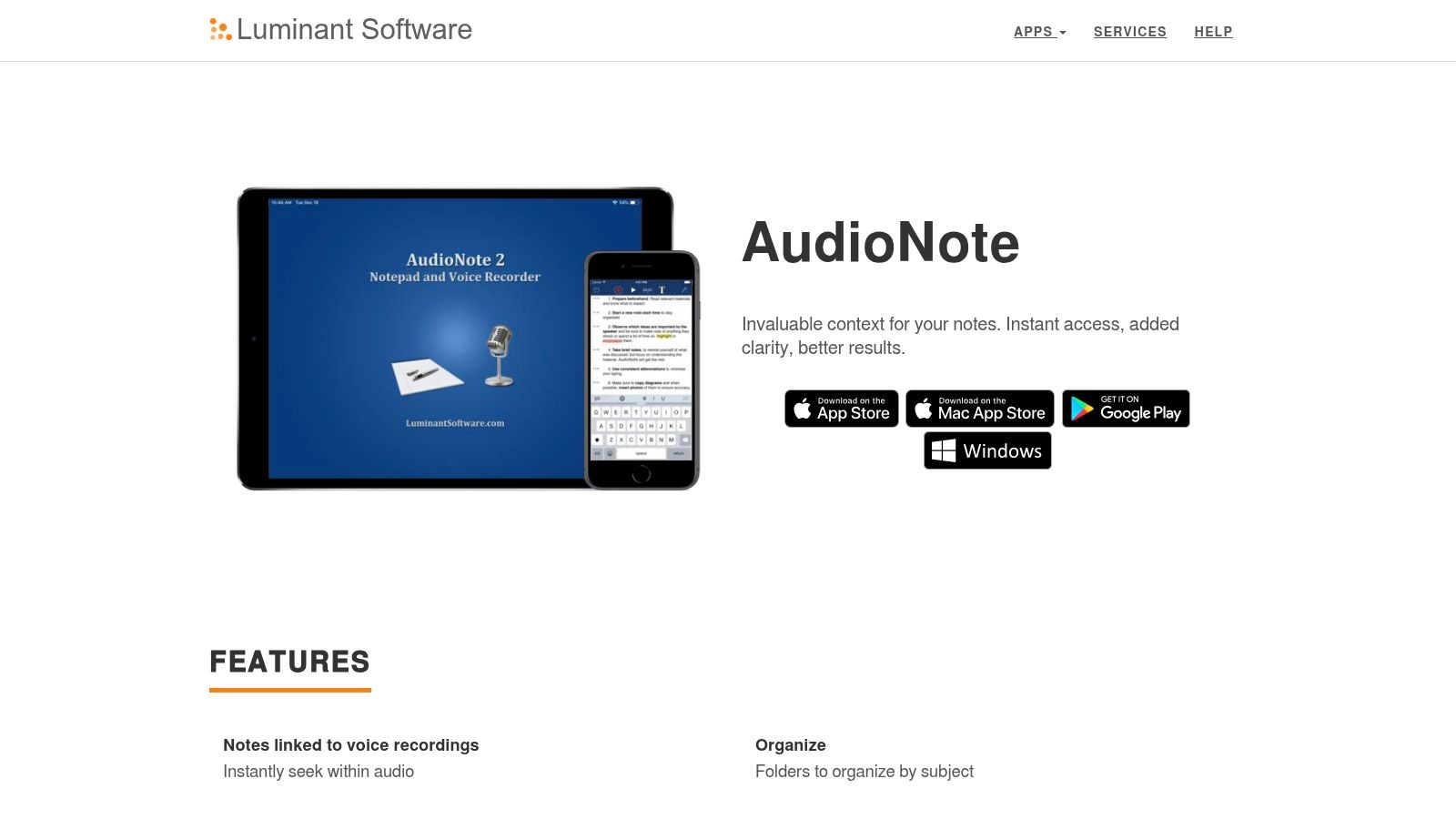
AudioNote 2 is one of the more underrated lecture apps because it does a very practical thing well, it links notes and audio so you can jump straight to the right moment later. Tap your note, hear the exact part of the lecture, and keep studying without searching through a long timeline. That's a great fit for students who like selective review instead of full re-listens.
It also has something a lot of students need and don't get enough of, cross-platform support. With Windows, Mac, iOS, and Android available, it works better than many notebook-style apps in mixed-device households and school environments.
A solid middle ground for privacy-conscious students
The recent on-device transcription and audio tools make AudioNote 2 more relevant now than it used to be. If you want privacy-sensitive lecture capture and still care about replaying the exact moment your professor explained something, it gives you a useful middle path. PDF import and markup add to the appeal if your lectures revolve around handouts or slides.
The interface is more utilitarian than newer note apps, and pricing can vary by platform. That's not the flashiest setup, but it can be the right one if you value function over polish.
- Best for replay-based study: Notes point you to the exact audio segment.
- Good for mixed-device users: Few apps handle that as smoothly.
- Useful for lecture PDFs: Slide markup fits the workflow well.
- Less modern-looking: It feels practical before it feels stylish.
Website: AudioNote 2
10. Noted.
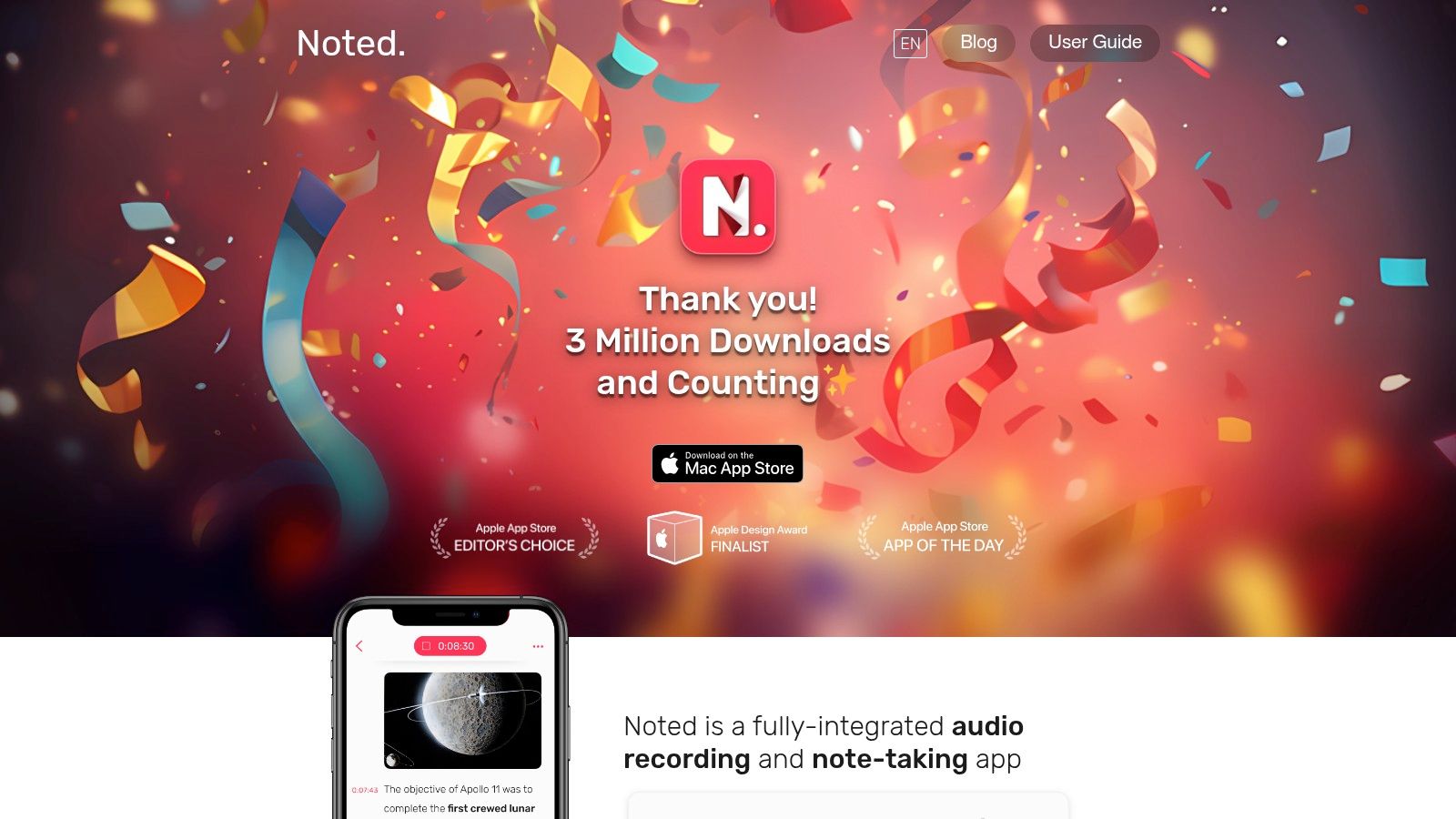
Noted. is built for students who like timestamped notes and fast navigation. You type or handwrite during class, and the app tags those notes so you can jump back to the matching audio later. That makes it especially good for lectures where you only need to bookmark the important moments instead of building a full transcript.
Its Apple-first design is part of the appeal. If you live on iPhone, iPad, Mac, and Apple Watch, the app feels focused rather than cluttered. The clean interface helps you keep attention on the lecture instead of on the software.
Clean playback for fast review
The standout feature here is the way Noted. handles review. You don't need to remember where a professor said something, because your timestamps already point you there. It also includes AI transcription, noise reduction, and intelligent playback to skip silence, which makes post-class cleanup faster.
The downside is platform lock-in. There's no native Windows or Android app, and advanced features require a Noted+ subscription. If you're inside the Apple ecosystem, though, it's one of the smoother lecture capture tools around.
The best lecture app is often the one that gets out of the way during class and shows you the exact moment later.
Website: Noted.
Top 10 Lecture Recording Apps: Feature Comparison
| Product | Core features | UX / Quality | Price & Value | 👥 Target audience | ✨ Unique selling points |
|---|---|---|---|---|---|
| Voice Control Pro 🏆 | Press‑and‑hold global dictation; Hey Max assistant; Fly Mode; 99+ languages | ★★★★★ polished, instant insertion | 💰 Free tier + Max ≈ $9/mo; 14‑day trial; local unlimited | 👥 Knowledge workers, students, devs, customer teams | ✨ Cursor‑insertion across any app, on‑device privacy, rewrite & app‑launch by voice |
| Otter.ai | Live & after‑class transcription; time‑synced audio; mobile & web | ★★★★ searchable playback & highlights | 💰 Free (limits); paid plans for longer meetings/teams | 👥 Students, educators, meeting-heavy teams | ✨ Strong search/read‑along; education programs |
| Glean (Sonocent) | Lecture capture with scaffolded note workflow; slides + audio | ★★★★ structured for study & review | 💰 Campus/institution pricing; individual quotes | 👥 Students, disability services, campuses | ✨ Accommodation-focused workflow; campus deployments |
| Notability | Handwriting + time‑linked audio; transcription on Plus/Pro; PDF tools | ★★★★ fluid ink + audio sync | 💰 Freemium; Plus/Pro for AI/transcription | 👥 iPad/Mac students and note‑takers | ✨ Best‑in‑class handwriting/audio integration |
| GoodNotes 6 | Handwritten notes + audio & transcription; cloud sync & collaboration | ★★★★ robust handwriting tools | 💰 Free tier limits; Pro/add‑ons for AI & sync | 👥 Handwriting-focused learners, iPad users | ✨ Searchable ink, collaboration on Pro |
| Microsoft OneNote | Embed & record audio with time‑linked playback; cross‑device sync | ★★★ solid, dependable note + audio capture | 💰 Free / included with Microsoft 365 | 👥 Microsoft ecosystem users, students | ✨ Included in 365 for many; broad cross‑platform support |
| Google Recorder (Pixel) | On‑device transcription & searchable recordings; offline on Pixel | ★★★★ fast, accurate on supported devices | 💰 Free (Pixel-only) | 👥 Pixel users, casual lecture recorders | ✨ On‑device, offline transcription & keyword search |
| Rev Voice Recorder | Mobile recorder with AI or human transcription options | ★★★ reliable; human option = highest accuracy | 💰 💰 Pay‑per‑minute for transcription (human costs) | 👥 Users needing polished, publication‑ready transcripts | ✨ Human transcription option for max accuracy |
| AudioNote 2 | Synchronized notes & audio; on‑device transcription; cross‑platform | ★★★ utilitarian but functional across OSes | 💰 Paid app + in‑app subscriptions | 👥 Cross‑platform students, privacy‑sensitive users | ✨ On‑device transcription + time‑linked navigation |
| Noted. (Noted+) | Timestamped audio tied to notes; AI transcription; iCloud sync | ★★★★ clean, Apple‑centric UX | 💰 Free; Noted+ subscription for AI features | 👥 Apple users (iPhone/iPad/Mac), students | ✨ Apple Watch capture, Intelligent Playback for lectures |
The Right Tool to Transform Your Note-Taking
The best app for recording lectures is the one that matches how you study. If you want pure transcription and fast search, Otter.ai is a strong pick because it turns spoken lectures into readable, searchable text you can skim later. If your learning style depends on handwriting, diagram review, and audio tied directly to notes, Notability and Goodnotes 6 are better fits because they keep the lecture and your annotations in one workspace.
For students who need fast, private, and flexible dictation to add thoughts wherever they type, Voice Control Pro stands out. It's not just a recorder, it's a workflow tool that lets you capture ideas in place, keep moving across apps, and stay in control of privacy with local processing options. That makes it especially useful if your lecture notes end up in Docs, email, or a study draft instead of a single notebook.
There's no universal winner because the test happens after class. Some students need a transcript they can search in seconds. Others need a notebook they can replay from. Others just need a clean, privacy-conscious way to get their thoughts out before they disappear.
The smartest move is to match the tool to the job. Try one app for live capture, then judge it on how quickly you can review, search, and turn the recording into actual study material. If it saves you time there, it's doing the essential work.
If you want a lecture workflow that goes beyond recording and helps you write cleaner notes in the apps you already use, try Voice Control Pro. It gives you fast voice-to-text, privacy controls, and a way to capture lecture ideas without breaking your flow. If your goal is to turn class time into usable study material faster, it's worth checking out today.