
You're halfway through an email on your desktop when a browser notification steals focus. You switch to your phone to capture a thought, return to the document, and then discover that the shortcut you pressed launched the wrong feature. A productive voice-first workflow depends on separating four jobs: accessibility controls help you reach or operate an interface, screen readers provide auditory feedback, dictation converts speech into text, and automation connects those actions into a repeatable sequence.
The best accessibility shortcuts aren't necessarily the shortest. They're the ones you can discover, remember, activate reliably, and remap when another tool already uses the same key combination. This guide organizes eight options by workflow role rather than platform alone, with exact activation methods, compatibility cautions, setup paths, Voice Control Pro combinations, and troubleshooting checkpoints. Platform labels and shortcut behavior can vary by operating system version, hardware, settings, and app focus, so verify availability on the device you're configuring.
For broader context on how screen readers interact with websites and interfaces, see this DOM Studio accessibility tutorial.
Table of Contents
- 1. Windows Voice Access for Global Activation
- Where the combination works
- 2. macOS Voice Control with the Globe Key
- Configure the handoff
- 3. Android Accessibility Shortcut for Mobile Capture
- Treat mobile and desktop as different stages
- 4. iOS Voice Control with Triple-Click Access
- Use iPhone for ideas, desktop for finished text
- 5. Windows Narrator for Auditory Feedback
- Confirm focus before creating text
- 6. ChromeVox for Keyboard-First Browser Navigation
- Use ChromeVox to verify the destination
- 7. AutoHotkey for Windows Shortcut Remapping
- Build the remap in stages
- 8. Keyboard Maestro for macOS Macro Sequences
- Choose the trigger by workflow
- Accessibility Shortcuts, 8-Tool Comparison
- Turn Shortcuts Into a Reliable Input System
1. Windows Voice Access for Global Activation
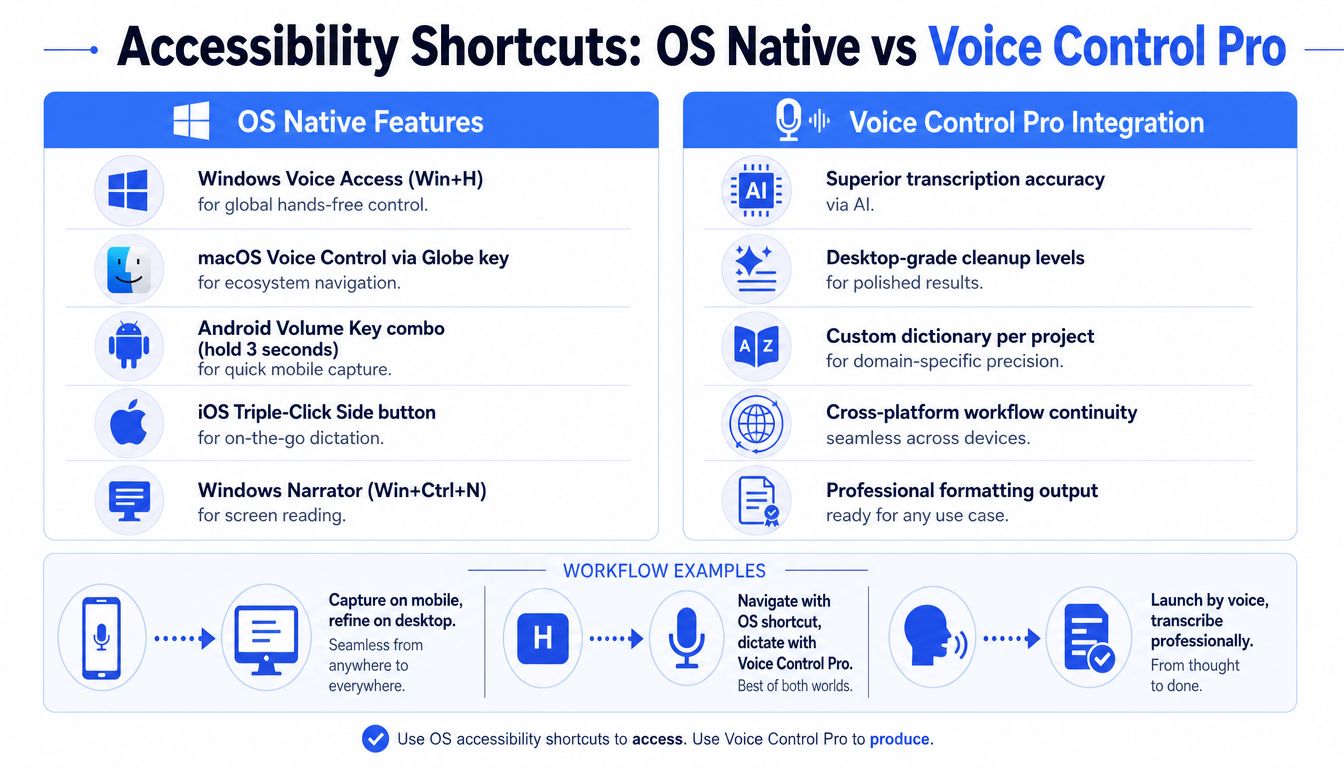
Windows Voice Access is useful when the first task is getting to the right app without touching the mouse or keyboard. Microsoft lists Windows key + H for voice typing, while Windows key + U opens Accessibility Settings and Windows key + Ctrl + O turns on the On-Screen Keyboard in its accessibility shortcut documentation. These commands show how Windows treats voice and keyboard access as system-level controls, not isolated features. (Microsoft's Windows accessibility shortcuts)
A customer support agent might use voice control to launch Voice Control Pro, move to the CRM, and place the cursor in a reply field. Voice Control Pro can then handle the focused transcription, while the operating-system layer handles navigation and app switching. A developer managing repetitive strain can use the same division of labor to reach an editor by voice, then dictate an inline code comment into the active field.
Where the combination works
Use native Windows controls for movement and app launching, then use Voice Control Pro for focused dictation and cleanup. If the interface is visually dense, a numeric overlay can help identify buttons or fields before you switch to transcription. That separation reduces the risk of asking one tool to move, dictate, edit, and interpret every command at once.
You can also create custom voice commands for applications you open repeatedly. Recognition tends to improve when the system has a consistent microphone position and when you speak commands in the same phrasing each time, but accent, background noise, and application focus still affect results.
Practical rule: Use Windows voice controls to reach the destination. Start Voice Control Pro only after the cursor is visibly or audibly in the field where text belongs.
For a detailed comparison of the two approaches, read Voice Control Pro versus Windows Voice Access. The right choice depends on whether you need broad interface control or polished text insertion into the current app.
2. macOS Voice Control with the Globe Key
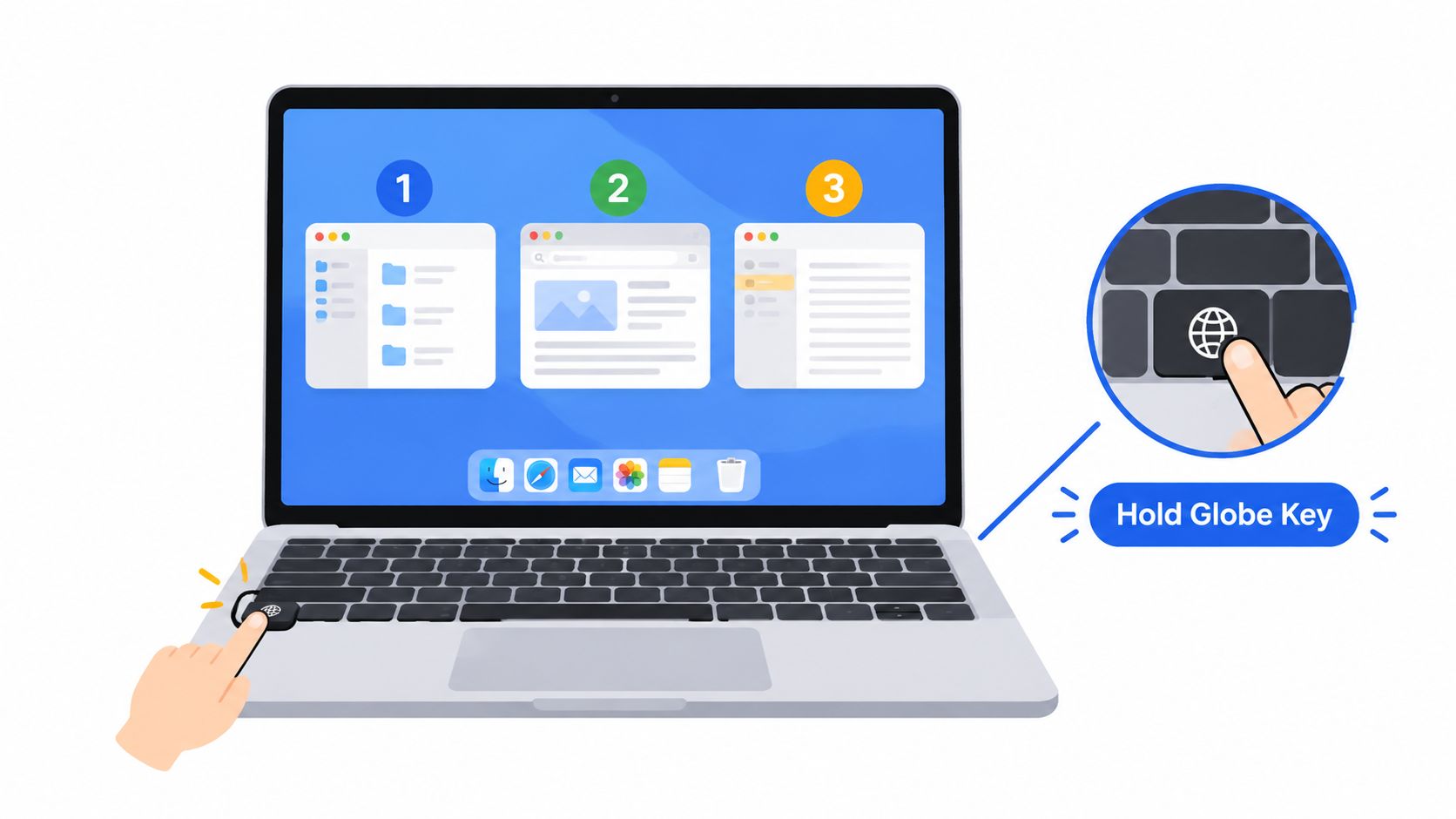
macOS Voice Control provides hands-free navigation and dictation across supported Mac applications. On compatible keyboards, the Globe key can serve as the activation path for configured functions, including dictation-related controls. Because Apple keyboard behavior varies by model and settings, confirm the assigned key in System Settings before building a workflow around it. Apple's documentation also notes that app-specific shortcuts may behave differently from system shortcuts, which makes focus testing essential. (Apple's Mac keyboard shortcut guidance)
A researcher with tremor-related access needs might use macOS Voice Control to open a document editor, select a text field with a spoken command or numeric overlay, and then invoke Voice Control Pro for interview notes. In an accessibility-first workplace, the native feature can remain available for system navigation while Voice Control Pro handles transcription and text refinement.
Configure the handoff
The useful handoff is simple: macOS Voice Control reaches the application, Voice Control Pro inserts the spoken content. You can create a macOS command that launches the Voice Control Pro activation path, but test it in a blank document before using it in live correspondence. Numeric overlays are particularly helpful when a page contains several visually similar controls.
Voice Control Pro's local Fly Mode can complement macOS Voice Control when the workflow requires local processing. It's still important to confirm which features remain available in the selected mode, especially if the workflow depends on cloud-based assistance, rewriting, or other advanced functions.
- Check keyboard behavior: Verify whether the Globe key is assigned to the action you expect.
- Check field focus: Click or select the destination field before dictating.
- Check recognition: Train repeated commands with consistent wording rather than creating many near-duplicates.
For a focused explanation of Mac dictation activation, see this guide to the shortcut for dictation on Mac. Don't assume a shortcut that works in one editor will behave identically in another.
3. Android Accessibility Shortcut for Mobile Capture
Android's accessibility shortcut is most useful as a capture mechanism. On supported configurations, holding both volume keys activates the assigned accessibility feature or menu. Google's accessibility updates also describe a unified Android accessibility shortcut for Voice Access listening mode, but exact behavior depends on the device, Android version, and selected accessibility settings. (Google's accessibility updates)
A sales professional can use the shortcut to begin a quick spoken CRM note on a phone, then move the text to a desktop workflow for correction and refinement. A student can capture a thought during a lecture without opening a full editing environment, then review the wording later in Voice Control Pro on a computer.
Treat mobile and desktop as different stages
Mobile voice input is convenient because the phone is already available. It isn't always the best place for final formatting, terminology control, or longer drafting. Voice Control Pro is designed for desktop use, so the practical combination is to let Android handle portable capture and let the desktop tool handle controlled production.
A synced note, document, or message can become the handoff point. Before relying on that pipeline, test whether punctuation, paragraph breaks, and specialized terms survive the transfer. If your work includes product names, technical vocabulary, or internal abbreviations, prepare Voice Control Pro's custom dictionary on the desktop before processing the captured material.
Mobile capture preserves the idea. Desktop transcription and cleanup prepare it for delivery.
Useful checkpoints include:
- Assign the shortcut deliberately: Open Android Accessibility settings and confirm which feature the volume-key gesture activates.
- Test the gesture with the phone unlocked: Lock-screen behavior and manufacturer settings can change what happens.
- Separate capture from editing: Record the thought first, then perform cleanup where you can inspect the final text.
- Sync before switching devices: Confirm the note appears on the desktop before deleting or replacing the mobile version.
4. iOS Voice Control with Triple-Click Access
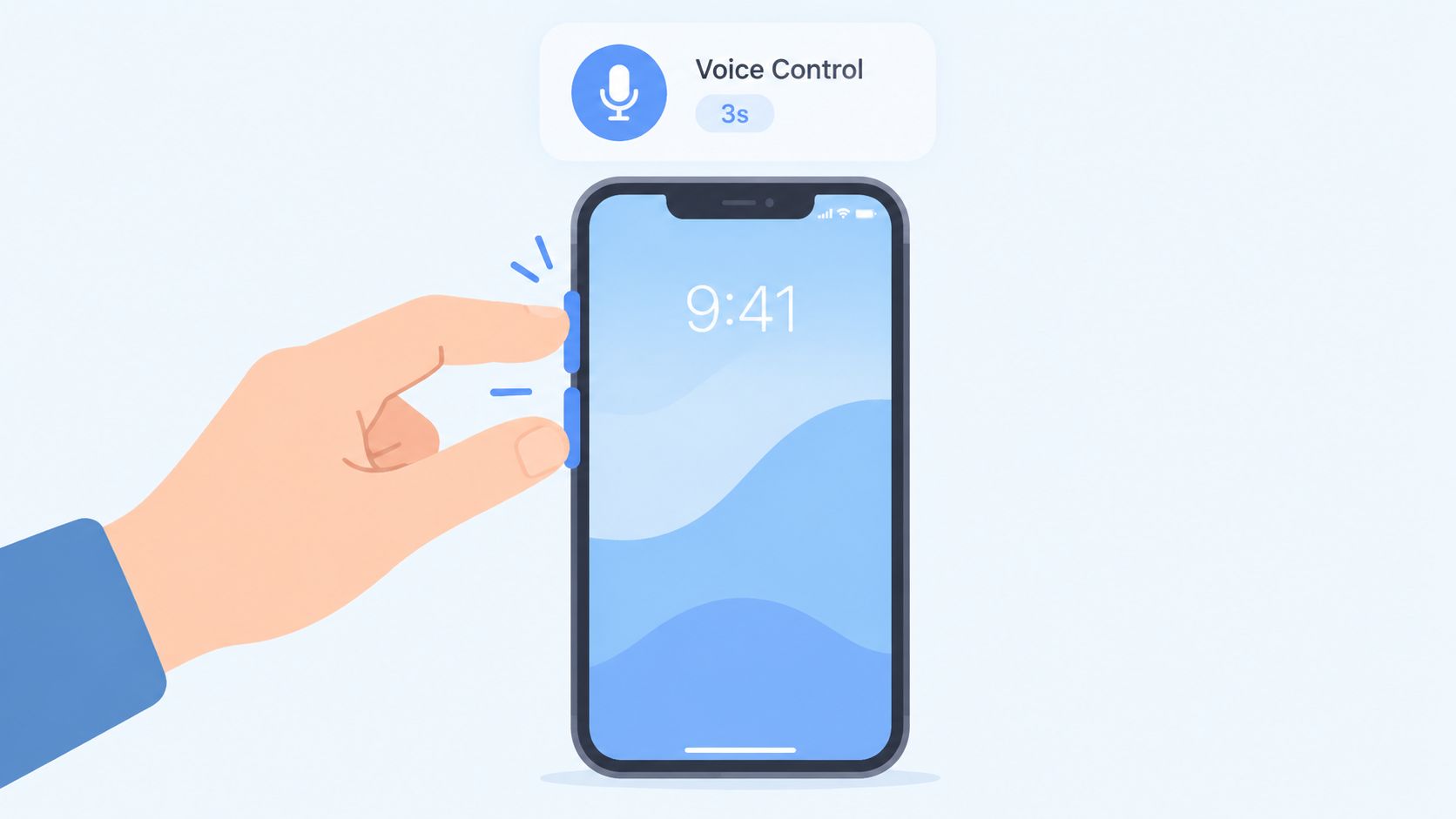
iPhone users can configure an accessibility shortcut that activates through a triple-click of the Side button or Home button, depending on the device. Apple also documents back-tap options for triggering accessibility features, which gives users an alternative when a physical button gesture is uncomfortable or unreliable. (Apple's iPhone accessibility shortcut guide)
The setup path is straightforward. Open Settings > Accessibility > Accessibility Shortcut, select Voice Control or another required feature, and then test the gesture from the lock screen and inside a working app. If several features are assigned to the shortcut, the triple-click may open a selection panel instead of immediately starting the desired function.
Use iPhone for ideas, desktop for finished text
An executive can voice-capture a meeting thought on an iPhone and revise it later with Voice Control Pro at a desk. A customer service representative can record caller feedback, transfer the note into a CRM workflow, and use desktop dictation to format the final entry consistently.
The trade-off is speed versus control. iOS Voice Control is valuable for opening or operating apps and capturing short content, while a desktop voice-to-text tool is usually easier to manage when the work requires longer passages, custom terminology, or repeated formatting. Apple's Shortcuts app can help connect the capture step to a chosen destination, but any automated handoff should be tested with non-sensitive sample text first.
- Choose one primary trigger: A single assigned feature is easier to remember than a menu of options.
- Check button accessibility: Use Back Tap if repeated physical clicks create discomfort.
- Keep terminology consistent: Apply the same custom dictionary or review vocabulary on desktop.
- Review before sending: Mobile recognition can produce text that sounds plausible but needs punctuation or name correction.
Voice Control Pro's own accessibility guidance discusses customizing shortcuts to match individual needs. That principle applies here too. The most useful shortcut is the one that fits the user's movement, device position, and destination app.
5. Windows Narrator for Auditory Feedback
A developer working without reliable visual feedback may need to hear whether a code editor is open, which control has focus, and where the insertion point sits. Windows Narrator handles that auditory layer. It is a screen reader, not a dictation tool, so it reads interface elements, document content, and focus changes aloud.
Windows includes accessibility shortcuts such as Windows key + Ctrl + N for Narrator settings. Available commands and keyboard behavior can vary by Windows version and system configuration, so confirm the active shortcut before documenting it for a team.
Narrator and Voice Control Pro serve different workflow roles. Narrator can announce the structure of an editor and identify the current field. Voice Control Pro can then create a spoken response or insert an inline comment after focus is confirmed. Keeping reading and text creation separate makes it easier to identify whether a problem comes from focus, shortcut handling, or transcription.
Confirm focus before creating text
Narrator answers questions that dictation cannot: Did the application open? Which control is active? Is the cursor in the intended field? Voice Control Pro may produce accurate text while still inserting it into the wrong destination, so auditory confirmation should precede sensitive or irreversible input.
Shortcut conflicts require a controlled test. A Voice Control Pro activation key can overlap with a Narrator command, an application shortcut, or a keyboard layout. Change one assignment at a time, then test reading, navigation, and insertion as separate actions.
Auditory feedback comes before transcription. If you cannot confirm focus, do not dictate sensitive or irreversible content.
Use this sequence when setting up the workflow:
- Start Narrator and confirm that it reads the active window.
- Move to the intended field and listen for its role or label.
- Activate Voice Control Pro with a non-conflicting shortcut.
- Dictate a short test phrase.
- Stop and verify the insertion point before continuing.
This pairing also supports accessibility verification. Narrator can reveal unlabeled controls or confusing focus order, while Voice Control Pro supplies response text without requiring a separate writing application.
6. ChromeVox for Keyboard-First Browser Navigation
ChromeVox is Chrome OS's built-in screen reader. Press Ctrl + Alt + Z to toggle it, although managed Chromebook settings, keyboard layouts, and administrator policies can change whether the command works. Its role is auditory feedback and keyboard-first browser navigation. Use it to locate content, controls, and editing fields before starting transcription with Voice Control Pro.
A student can move through Google Docs, identify the correct document and text area, then dictate through a compatible browser-based Voice Control Pro workflow. A remote worker can reach a cloud productivity suite by keyboard, listen for confirmation that the editor has focus, and only then begin voice input.
Use ChromeVox to verify the destination
ChromeVox announces headings, links, controls, and text positions. Those announcements help catch focus errors before speech is inserted into the wrong field. Voice Control Pro handles the separate job of converting spoken words into text.
Browser input has several possible interception points. Chrome OS, ChromeVox, the web application, or an extension may capture a shortcut first. If Ctrl + Alt + Z does nothing, test the key combination in another context, review keyboard settings, and confirm that device administrators allow ChromeVox.
Use this compact workflow:
- Turn on ChromeVox and move through the page with its keyboard commands.
- Listen for the intended document, editor, or text field.
- Activate Voice Control Pro only after focus is confirmed.
- Dictate a neutral test phrase and check its position and punctuation.
- Close unexpected tabs or modal dialogs before entering longer content.
ChromeVox fits users who need auditory confirmation while working in browser interfaces. Voice Control Pro can then provide focused voice-to-text input. Keeping those roles separate makes troubleshooting clearer: incorrect speech points to transcription, while missing or misplaced text points first to focus, shortcut handling, or the browser.
7. AutoHotkey for Windows Shortcut Remapping
AutoHotkey suits Windows workflows where a single voice shortcut cannot cover every task. Its scripts can remap keys, launch applications, inspect the active window, and run actions in sequence. That makes it an automation layer around Voice Control Pro, rather than a replacement for transcription or screen-reader feedback.
Start with the context in which the shortcut will run. A developer might assign Ctrl + Shift + D to a code-focused Voice Control Pro profile. A support agent could reserve Ctrl + Shift + E for email, while a researcher could use Ctrl + Shift + N to open a note-taking app and prepare a timestamped entry. These combinations are examples, not universal defaults. Test both the script and the Voice Control Pro configuration on the target machine.
Build the remap in stages
Make the first version perform one action, such as launching the application. Confirm that Windows receives the keystroke and that the correct window gains focus. Add profile selection, window checks, clipboard handling, or field navigation only after that trigger works. Each added step creates another failure point if an application loads slowly or changes its interface.
AutoHotkey's WindowGetActiveTitle function can support context-aware rules for a browser, code editor, or mail client. Keep title matching narrow. A broad condition may activate the wrong profile in an unrelated document, while a changed window title can prevent the intended action entirely.
Use these checkpoints before relying on a remap:
- Reserve uncommon combinations: Check shortcuts used by Windows, screen readers, browsers, and major editors.
- Test in a blank document: Keep new automation away from live customer responses.
- Separate workflows: Maintain independent scripts for email, coding, and documentation.
- Document the trigger: Record what each combination launches and which profile it expects.
Automation should remove repetition, not hide state. Make every major step visible or easy to verify.
AutoHotkey is most useful for activation and preparation. Once the cursor is confirmed in the right field, Voice Control Pro can handle spoken input. If nothing starts, check the hotkey, script status, permissions, and active window first. If speech is inaccurate, investigate the transcription setup separately. For writing-oriented workflow ideas, see how to write faster and neater with Voice Control Pro.
8. Keyboard Maestro for macOS Macro Sequences
Keyboard Maestro suits macOS users who need a workflow rather than a single trigger. A macro can respond to a keyboard combination, limit itself to a specific application, inspect context, edit clipboard content, and run actions in order. That makes it useful when email, reports, code, and support tickets each require a different Voice Control Pro profile.
For example, Cmd + Shift + N could check whether TextEdit or Word is active before starting a book-chapter profile. A support workflow might use Cmd + Shift + T to activate the ticket profile, focus the correct text area, and apply formatting. A researcher could assign Cmd + Shift + R to open a research-note profile and send the result to a selected database.
Choose the trigger by workflow
Application scope should come before macro complexity. Set “Available in” restrictions so a report sequence cannot run inside a chat window. The %CurrentApplication% token can select behavior based on the active app, while a palette window can present several Voice Control Pro profiles for users who prefer visible choices over memorized shortcuts.
Clipboard actions are useful for normalizing line breaks, punctuation, or formatting before insertion. They also create a failure point. Work on a copy or in a test document until the output is predictable. Parameter passing needs the same treatment. A macro may appear to run while selecting the wrong profile.
Use these controls during setup:
- Keep triggers distinct: Avoid combinations reserved by macOS or VoiceOver.
- Show state changes: Add notifications or palette states when the active mode changes.
- Allow for loading time: Insert waits before an application or text field receives focus.
- Check the result: Confirm the selected profile and destination before dictating sensitive text.
Keyboard Maestro should coordinate the workflow, not replace its components. macOS provides accessibility navigation, Voice Control Pro handles voice-to-text and optional cleanup, and the macro connects those steps for a particular application. If activation fails, check the trigger, application scope, permissions, timing, and focus in that order. If the profile starts but transcription is poor, troubleshoot recognition separately from the macro sequence.
Accessibility Shortcuts, 8-Tool Comparison
| Item (Activation / Platform) | 🔄 Implementation Complexity | ⚡ Resource Requirements & Speed | ⭐ Expected Outcome (Accuracy / Impact) | 📊 Ideal Use Cases | 💡 Key Advantages / Tips |
|---|---|---|---|---|---|
| Windows Voice Access, Windows 10/11 (Win + H) | Low, built-in, minimal setup | Low local overhead; some modes use internet; instant activation | ⭐⭐, reliable commands; dictation less precise than specialty tools | Launching apps, basic dictation, prepping Voice Control Pro sessions | Native OS integration; use numeric overlays to target UI elements; combine with Voice Control Pro for transcription |
| macOS Voice Control, macOS 10.15+ (Hold Globe key / Settings) | Medium, enable + optional custom commands | Efficient offline mode; moderate setup time for custom commands | ⭐⭐, good navigation; speech-to-text accuracy below advanced AI models | App navigation, offline accessibility, launching Voice Control Pro on Mac | Deep OS integration; create custom commands to invoke Voice Control Pro profiles |
| Android Accessibility Shortcut, Android 6+ (Hold Volume Up+Down ~3s) | Low, gesture-based activation | Very fast; device-dependent voice quality; may need network | ⭐, quick capture but variable transcription quality | Rapid mobile capture for later desktop refinement | Use for mobile-first notes; sync to desktop and apply Voice Control Pro cleanup |
| iOS Voice Control, iOS 13+ (Triple-click Home/Side button) | Low–Medium, enable + optional shortcuts | Consistent hardware activation; modest local resources | ⭐⭐, convenient capture; limited formatting/cleanup | On-the-go dictation, quick meeting notes to polish later | Integrate with Shortcuts to forward notes to Voice Control Pro; set custom vocab |
| Windows Narrator, Windows 10/11 (Ctrl+Alt+Enter / Win+Ctrl+N) | Medium, many features to learn | Moderate resource use; keyboard-focused workflows | ⭐⭐, excellent screen reading; speech-to-text is basic | Accessibility compliance, screen-reading with separate transcription tasks | Use Narrator for verification and Voice Control Pro for high-quality transcription |
| ChromeVox (Chrome OS), Chrome OS (Ctrl+Alt+Z) | Medium, learning curve for full power | Optimized for web apps; low to moderate resources | ⭐⭐, strong navigation; dictation less capable than desktop AI | Chromebook/web workflows, prepping documents before transcription | Master keyboard navigation; combine with Voice Control Pro's web/Browser interface |
| AutoHotkey (Windows), Custom .ahk scripts | High, requires scripting knowledge | Lightweight runtime; development time upfront | ⭐⭐⭐, high productivity gains when automated; depends on script quality | Power-user hotkeys; context-aware Voice Control Pro launches and profiles | Start simple; use window detection to switch Voice Control Pro modes; test thoroughly |
| Keyboard Maestro (macOS), Custom macros | Medium–High, GUI but can be complex | Runs locally; paid license; efficient execution when configured | ⭐⭐⭐, strong workflow automation and consistency | Mac users needing conditional launches, app-specific transcription profiles | Use tokens and app-specific macros to pass parameters to Voice Control Pro; test macros in context |
Turn Shortcuts Into a Reliable Input System
Start with the role that creates the most friction. If reaching applications and controls is the problem, use native voice control on Windows, macOS, Android, or iOS. If auditory feedback or keyboard focus matters, use Narrator or ChromeVox before dictating. If ideas arrive away from the desk, use a mobile accessibility shortcut for capture and move the material to a desktop workflow for review.
Automation belongs later. AutoHotkey and Keyboard Maestro can make a mature workflow fast to repeat, but they also add dependencies, timing assumptions, and new shortcut conflicts. Build the underlying sequence manually first. You should know which tool performs the navigation, which tool reads, which tool transcribes, and which tool formats before you combine them.
WCAG 2.2 formalized a specific safety requirement for single-character shortcuts in Success Criterion 2.1.4. A single-character shortcut must be turn-off-able, remappable to a key combination that includes one or more non-printable keys such as Ctrl or Alt, or limited to the period when its related component has focus. (W3C Web Content Accessibility Guidelines 2.2) This is more than a compliance detail. It explains why modifier-based accessibility shortcuts are generally safer in environments where users type, dictate, and run global tools at the same time.
A 2024 accessibility report found that 24% of respondents cited insufficient keyboard navigation options as a common barrier, a result directly relevant to shortcut discoverability and input design. (Acquia's 2024 accessibility report) A shortcut that technically exists but can't be found, remembered, or customized won't support a reliable workflow.
Use this progression:
- Activate one method: Choose a native control, screen reader, mobile trigger, or automation tool.
- Test a low-risk field: Use a blank note or document rather than a customer record or published page.
- Confirm focus: Check the cursor visually, with spoken feedback, or through the platform's navigation state.
- Customize one command: Change one trigger, profile, or phrase before adding another.
- Check conflicts: Test the shortcut against your browser, editor, screen reader, and operating system.
- Document the sequence: Record the activation method, destination app, expected profile, and recovery step.
Voice Control Pro can fit into several of these combinations as the focused transcription layer. Its global shortcut, cleanup levels, custom dictionary, transcription history, and local Fly Mode are useful when your workflow needs clean insertion, terminology consistency, or on-device processing. The tool works best when the surrounding accessibility shortcut already solves navigation and focus.
Choose one workflow today, activate it, test it in a safe text field, customize one command, and write down the sequence that worked. That small record turns a collection of accessibility shortcuts into an input system you can repeat across real work.
Voice Control Pro inserts polished voice-to-text directly into the app where your cursor is active, with a global shortcut, cleanup controls, custom dictionary, and local Fly Mode for workflows that need on-device processing. Visit Voice Control Pro to see how it can complement native voice control, screen readers, mobile capture, and custom automation.