
Your inbox is open, a reply is half-written, and you already know what you want to say. Instead of typing the next paragraph, you speak it into the email, then reach for the keyboard to fix a name and tighten the closing sentence. That's the useful version of voice typing on Windows 11: dictate the draft, then edit deliberately.
The shortcut is straightforward. Choosing the right voice workflow isn't, especially if you handle confidential material or need to work without internet access.
Table of Contents
- What Voice Typing on Windows 11 Actually Does
- Dictation isn't full computer control
- Enabling Voice Typing and Getting Microphone Permissions Right
- Follow a repeatable setup sequence
- Voice Commands for Punctuation, Editing, and Navigation
- Separate writing from controlling the document
- Choosing a Language and Switching on the Fly
- Voice Typing Language Coverage by Region
- Online Transcription, Local Recognition, and What Happens to Your Voice Data
- Map the route before dictating sensitive material
- When the Built-In Tool Is Not Enough and What to Use Instead
- Compare the work, not just the transcript
- Fixing the Most Common Voice Typing Problems
- Diagnose the symptom
- Test whether the workflow is ready for daily use
What Voice Typing on Windows 11 Actually Does
Start with an ordinary email. Click inside the reply field, activate dictation, and speak the message you'd otherwise type. The important distinction is that Voice Typing belongs to Windows, not to the email application. An application doesn't need its own dictation button for you to enter speech into an editable text field.
Microsoft specifies three requirements: an active internet connection, a working microphone, and an active cursor inside a text box. You launch the feature with Windows + H, or with the microphone button on the touch keyboard, as documented in Microsoft's speech and privacy guidance.
That makes it useful for drafting wherever you already work. You don't have to compose in a separate transcription window and copy the result into your destination. But you still need to decide where the text belongs before speaking.
Dictation isn't full computer control
Voice Typing primarily turns speech into written text. Voice Access is a separate workflow that combines dictation with app control, navigation, and editing. Treating those names as interchangeable leads to unrealistic expectations about what the dictation panel should do.
For everyday writing, a sensible division of labor is to speak the content and use the keyboard for precise adjustments. An email explanation is a good candidate for dictation. A tightly formatted table or a passage full of unfamiliar product identifiers deserves a more cautious approach.
Practical rule: Dictate when you know what you want to say. Edit when you need to inspect exactly what you said.
Don't judge the feature by whether it can replace every keystroke. Judge it by whether you can produce a usable draft without spending the saved effort correcting it afterward. That's a more useful standard for someone who wants voice to become their default input method.
Enabling Voice Typing and Getting Microphone Permissions Right
Before changing hardware or testing longer passages, confirm that Windows can use the microphone you intend to speak into. A laptop microphone, a connected headset, and an external microphone are different input choices, so don't assume the selected device matches the one in front of you.
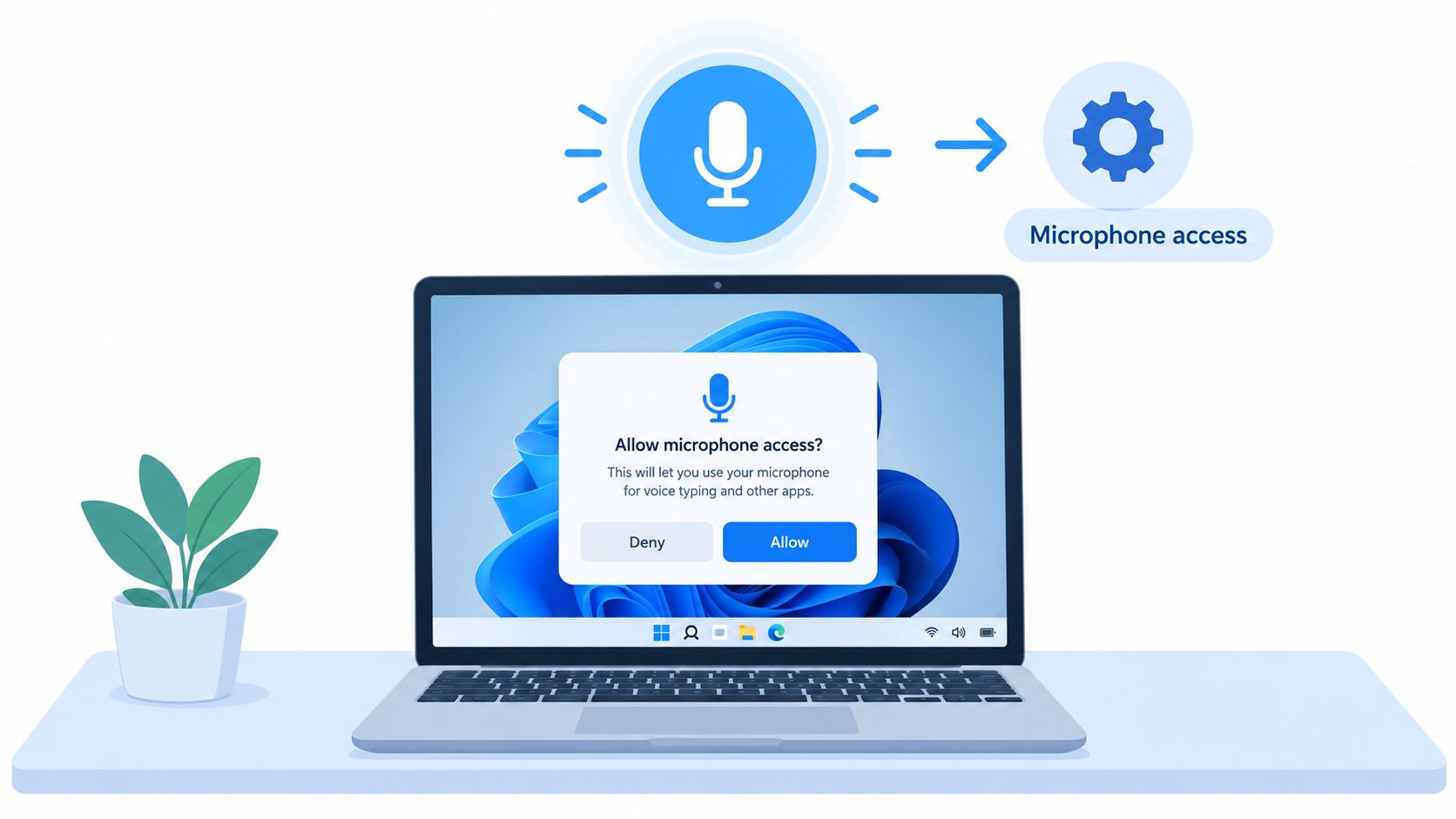
The microphone permission prompt is one part of that setup.
Follow a repeatable setup sequence
Microsoft's voice-typing setup instructions provide the practical settings and launch sequence:
- Allow microphone use. Open Settings > Privacy & security > Microphone. Check microphone access, app access, and desktop-app access rather than changing only the first permission.
- Choose the intended input. Under Settings > System > Sound > Input, select the microphone you want to use.
- Give dictation a destination. Open an editable field and click where the text should appear. Press Windows + H, wait until the panel shows Listening, then speak.
- Check language settings. Confirm the intended speech language under Settings > Time & language > Speech before testing a multilingual workflow.
Use a harmless draft for the first test, not a customer message you could accidentally send. Dictate a complete sentence, inspect the result, and confirm that you're speaking into the selected input.
If you're assembling a desktop workstation and need to compare hardware options, Godukkan's microphones for system builders offers a relevant starting point. Choose around your workspace and connection needs, then test the actual device rather than assuming a purchase will solve recognition problems.
Keep the setup modest initially. A repeatable microphone position and a verified input selection give you a cleaner baseline than changing several settings and devices at once.
Voice Commands for Punctuation, Editing, and Navigation
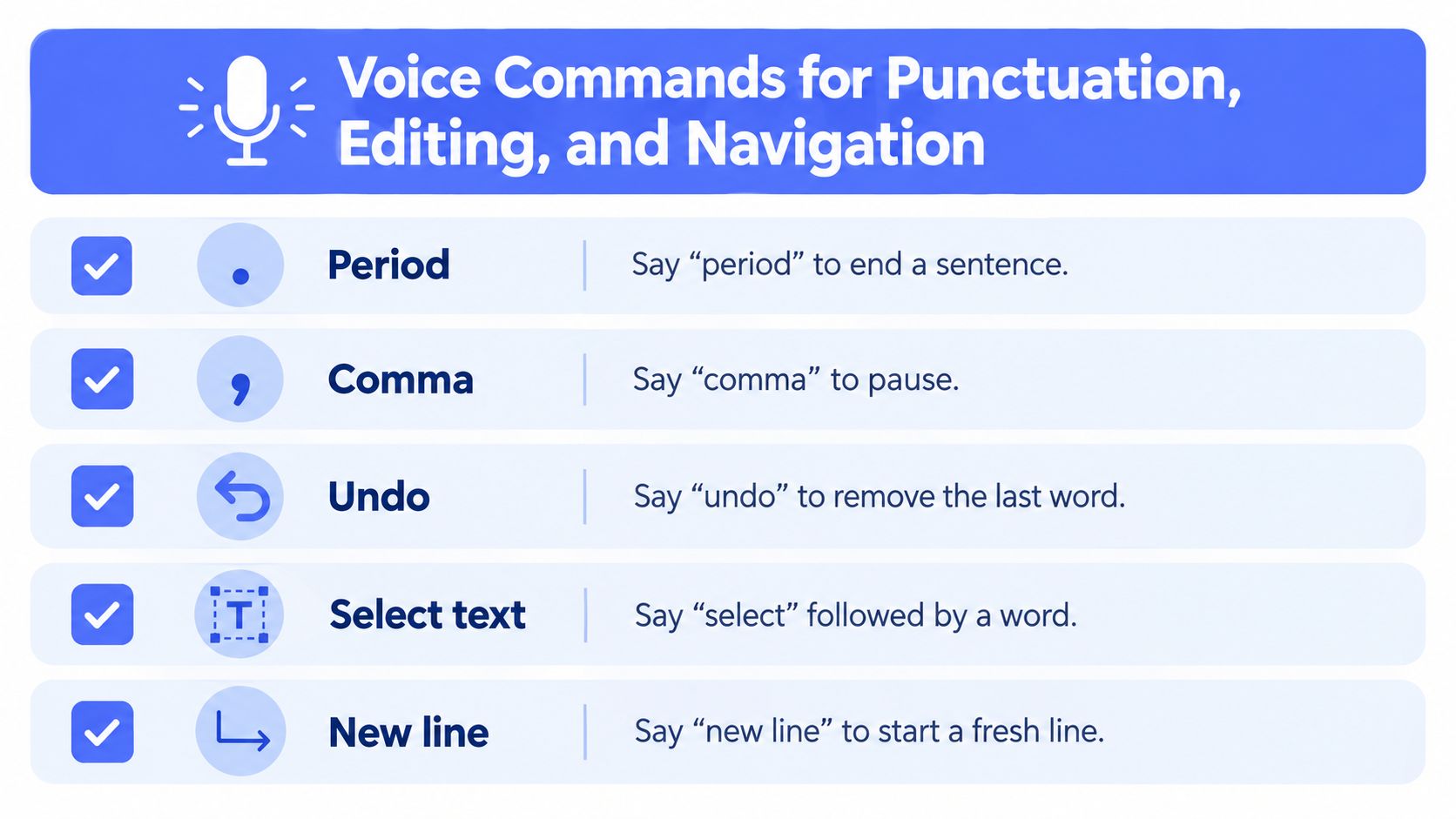
A useful dictation session produces more than a string of words. You need sentence boundaries, paragraph breaks, and a reliable way to repair mistakes without losing your train of thought. However, don't treat every command shown in a Windows voice tutorial as a command for the Windows + H panel.
The following visual is a practice checklist, not a guarantee that every phrase works in both Windows voice tools.
Separate writing from controlling the document
Start with a disposable email draft. Speak a greeting, a short explanation, and a closing request. Test explicit punctuation separately from automatic punctuation so you can tell whether Windows interpreted a spoken instruction or inferred the mark from your phrasing.
For example, try dictating a sentence about reviewing a proposal, then test a spoken period and a new paragraph. Inspect the result before adding selection or correction instructions. Don't assume that undo, selecting a named word, or moving to a paragraph boundary behaves identically across Voice Typing and Voice Access.
A compact practice sheet helps keep those tests organized:
| Task | What to test | Fallback |
|---|---|---|
| Sentence punctuation | Spoken punctuation versus automatic punctuation | Insert the mark manually |
| Paragraph structure | A spoken line or paragraph break | Use the keyboard |
| Misheard vocabulary | Spell the term or correct it afterward | Replace the exact text |
| Selection and navigation | The active tool's supported command wording | Select and move the cursor manually |
Automatic punctuation is worth testing on ordinary prose, but review its behavior with acronyms, internal terminology, and document formatting. For a more deliberate practice routine, use this guide to speech-to-text with punctuation.
The accompanying video provides another way to follow the workflow while practicing in your own document.
The working habit is simple: speak a coherent passage, inspect it, then correct it. Don't keep repeating a failed command when a quick keyboard adjustment would preserve your momentum.
Choosing a Language and Switching on the Fly
Language support has two separate questions: Can Windows transcribe this language? And can you use the same commands in it? A yes to the first doesn't establish a yes to the second.
Microsoft lists 43 language and regional variants for Voice Typing, including multiple English locales, major European languages, and Asian and South Asian languages. Its supported-language and dictation guidance also distinguishes transcription coverage from command availability, with dictation commands specifically available in US English.
Voice Typing Language Coverage by Region
The regional groupings below are descriptive. Microsoft's overall list doesn't provide a regional count breakdown, so assigning approximate totals would imply precision that isn't established.
| Region | Approximate Count | Example Languages |
|---|---|---|
| English-speaking markets | Not separately specified | English for Australia, Canada, India, New Zealand, the United Kingdom, and the United States |
| Europe | Not separately specified | French, German, Italian, Spanish, Dutch, Polish |
| East and Southeast Asia | Not separately specified | Simplified and Traditional Chinese, Japanese, Korean, Thai, Vietnamese |
| South Asia | Not separately specified | Hindi, Gujarati, Marathi, Tamil, Telugu |
Install or select languages under Settings > Time & language > Language & region. Voice Typing follows the active input language, so switch installed input languages with Windows + Space before dictating a passage in another language.
For bilingual work, switch at a clear boundary, such as between messages or paragraphs. Then test a short sentence before committing to the full passage. If the output suddenly becomes implausible, check the active language before adjusting the microphone.
Language availability tells you where to begin testing. It doesn't tell you how much editing your particular documents will need.
Use equivalent samples in each working language: an email, a report paragraph, and a passage containing names or specialist terms. Evaluate transcription and command behavior separately instead of assuming that success in one language transfers unchanged to another.
Online Transcription, Local Recognition, and What Happens to Your Voice Data
Transmission and retention are different privacy questions. A service can receive audio to transcribe it even when optional recording contribution is disabled. That distinction matters more than a general assurance that dictation is private.
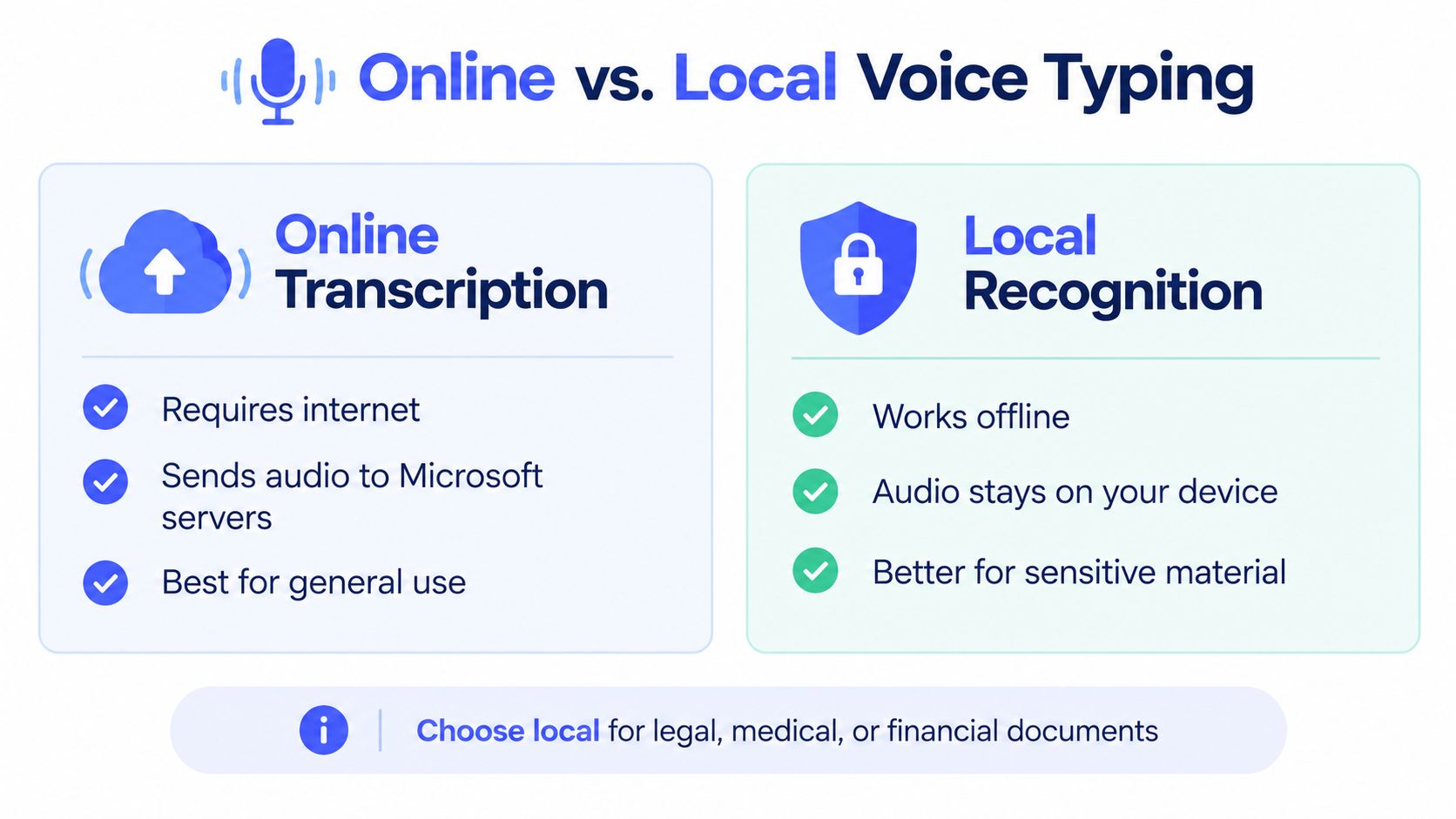
Microsoft's explanation of speech data and privacy states that online speech recognition sends voice data to its cloud service for transcription. Device-based recognition processes speech locally and sends no voice data to Microsoft. Optional voice-clip contribution is separate from using the transcription service.
This comparison highlights the processing distinction, but local processing alone isn't a complete confidentiality policy.
Map the route before dictating sensitive material
For standard Voice Typing, the relevant route is microphone, online recognition service, returned text, destination application. Disabling voluntary clip contribution doesn't convert that route into on-device recognition.
Voice Access offers a different native route: local recognition alongside voice control. Microsoft documents offline operation and support for English, Spanish, French, and German. Evaluate whether that workflow meets your language and interaction needs rather than assuming it's an offline switch for the dictation panel.
Consider a routine scheduling email versus a draft contract clause containing client information. The scheduling message may fit your organization's approved cloud workflow. The contract clause requires checking the policy for that content before speaking it into an online service.
- Check processing location. Establish whether audio leaves the device during recognition.
- Check optional sharing separately. Recording contribution settings don't answer the live-transcription question.
- Check the destination. Local recognition doesn't make an online document editor local. The resulting text still goes wherever you insert it.
The decision framework in cloud versus local speech recognition is useful when comparing those boundaries.
Privacy boundary: Choose the processing route before speaking the confidential passage, not after reviewing the transcription.
If policy requires on-device recognition, use an approved local workflow and verify the destination application too. Don't substitute a marketing label for that check.
When the Built-In Tool Is Not Enough and What to Use Instead
Keep the native tool if it handles your everyday drafts without creating an editing burden. Switching applications just to replace a familiar shortcut isn't automatically an improvement. The reason to switch should be concrete: an offline requirement, recurring vocabulary problems, a preferred activation method, or a need for more controlled cleanup.
The publisher's dictation app is another option to evaluate alongside the native Windows workflows.
Compare the work, not just the transcript
Its hold-and-release global shortcut inserts transcription at the active cursor. The product also offers a free local dictation mode, while Fly Mode keeps processing on the computer and pauses cloud features. Its upgraded tools include cleanup controls, a custom dictionary, transcription history, and assistance with rewriting selected text.
Those capabilities are reasons to test it, not proof that it will outperform your current setup. A dictionary matters only if it helps with the names and terms you repeatedly correct. Automatic cleanup needs scrutiny if preserving your exact wording is important.
| Your requirement | Sensible starting point |
|---|---|
| Routine online drafting with minimal setup | Native Voice Typing |
| Hands-free app control and local recognition | Voice Access |
| Dictation-focused local processing | An approved local-processing tool |
| Repeated terminology and rewriting needs | Compare dictionary and cleanup behavior |
Use the same draft in each candidate. Include a colleague's name, a product term, a paragraph break, and wording you don't want rewritten. Check the final text after cleanup, not only the raw transcription.
Also compare the complete interaction: activation, speaking, insertion, review, and correction. A cleaner transcript isn't enough if the workflow interrupts your work. Conversely, a familiar shortcut isn't enough if its processing route conflicts with your confidentiality requirements.
Choose the tool that meets your essential constraints first. Then compare convenience and editing effort among the options that remain.
Fixing the Most Common Voice Typing Problems
Troubleshoot the input path before blaming recognition quality. Microsoft's voice-typing troubleshooting guidance identifies language selection, microphone choice, permissions, and input-device testing as first-line checks. It doesn't provide a universal success-rate percentage.
Diagnose the symptom
| Symptom | Likely check | Action |
|---|---|---|
| The panel appears, but text has no destination | Text-field focus | Click inside an editable field |
| Windows isn't receiving your speech | Microphone permissions | Inspect microphone, app, and desktop-app access |
| The wrong device picks up your voice | Selected input | Verify the intended device under Sound settings |
| Output resembles the wrong language | Active input language | Switch to the language you're speaking |
| Technical passages gain unwanted punctuation | Automatic punctuation | Compare a sample with the setting disabled |
Treat connection problems separately from transcription errors. For the online workflow, confirm network availability before spending time adjusting speech or vocabulary.
If you're using AirPods with an HP laptop and the headset connection itself is unreliable, Nerds 2 You Edmonton's guide to fix AirPods HP connection issues addresses that preliminary hardware problem. Once connected, still verify which microphone Windows selected.
Test whether the workflow is ready for daily use
Dictate a representative paragraph from the kind of work you do. Count corrections per 100 words, then repeat with each intended microphone and working language. This is an acceptance-test method, not a promised Windows accuracy figure.
Separate spelling fixes from punctuation, terminology, and formatting fixes. A transcript can look convincing while still requiring substantial work before it's suitable for a customer or colleague. Note whether cleanup changes meaning, especially in technical or contractual writing.
For persistent workflow problems, why voice dictation still breaks and how to fix it offers a broader troubleshooting perspective.
Change one variable at a time and keep the sample consistent. The useful result isn't a flattering demonstration. It's a setup you can trust with tomorrow's emails and reports.
Voice Control Pro offers cursor-based dictation with a hold-and-release shortcut, plus local processing for workflows where online recognition isn't appropriate. Visit Voice Control Pro and test its local mode with a non-confidential email draft, then compare the corrections and interaction with your native Windows setup.