
You're halfway through a client update, your wrists are aching, and the same sentence keeps coming out garbled when you dictate it. You press Win+H, speak at normal speed, then spend longer fixing names and punctuation than you saved by not typing. Or the Wi-Fi drops, dictation stops, and you realize you don't know whether that last confidential paragraph was processed on your laptop or in the cloud.
That's the test for voice typing software for Windows. It isn't whether a demo handles slow, careful English. It's whether the tool keeps working offline, respects confidential material, and produces text you can send after a quick edit.
Table of Contents
- Best Voice Typing Tools for Windows at a Glance
- Quick Picks to Narrow the Field
- Matching Local or Cloud Mode to Confidential Work
- The Three Questions That Matter
- Side-by-Side Feature Matrix for Windows Dictation Tools
- How the Columns Break Down
- Why Headline Accuracy Numbers Mislead Multilingual Users
- Measure Usable Accuracy Instead
- Which Tool Fits Knowledge Workers, Accessibility Needs and Developers
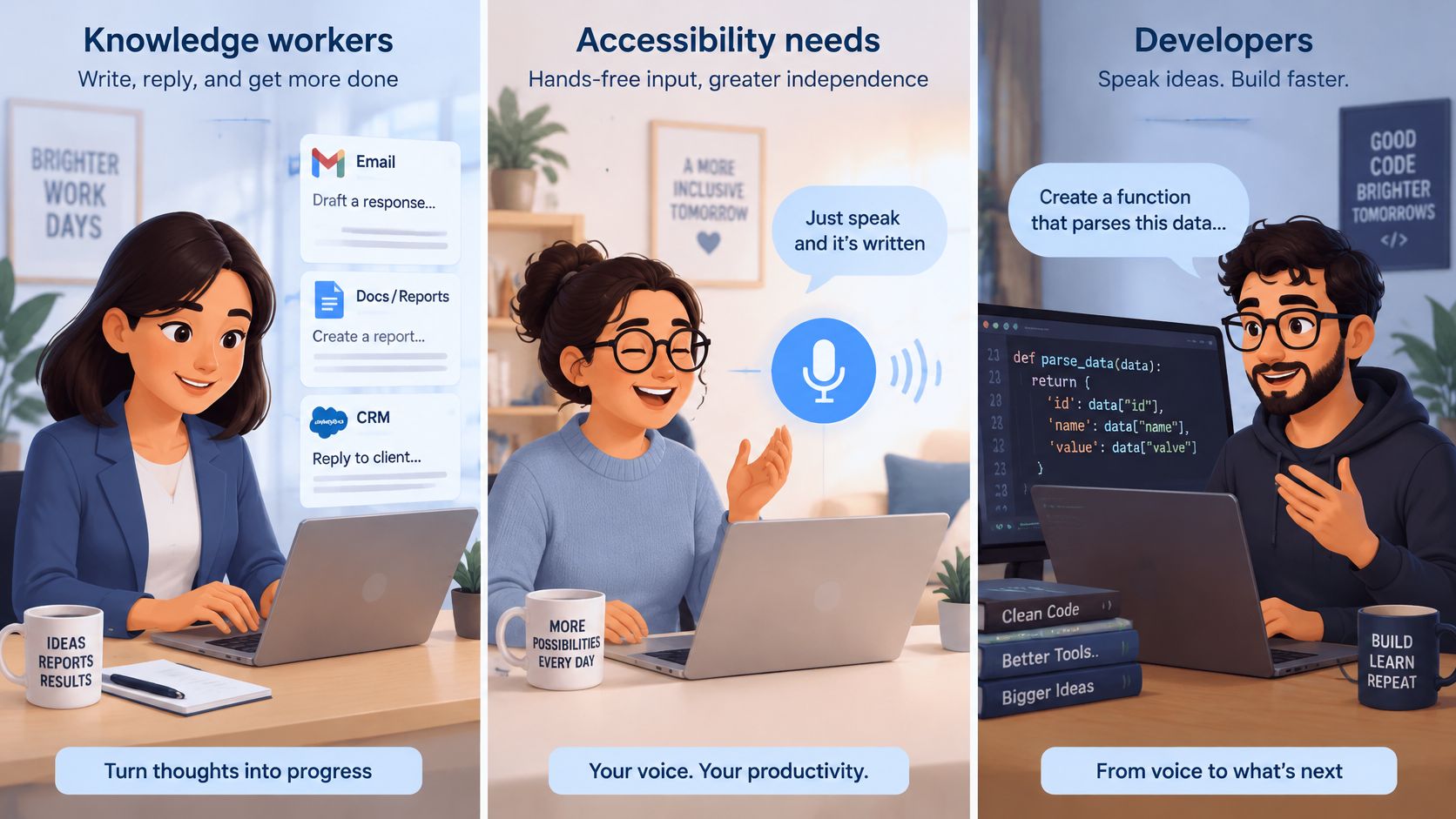
- Knowledge Workers Drafting All Day
- Accessibility and Repetitive Strain
- Developers and Prompt Engineers
- How to Set Up Voice Control Pro and Switch from Built-In Dictation
- Setup Steps
- Migration Notes
- Run a One-Week Trial Before You Commit
- The Trial Protocol
- The Cost Check and Decision Rule
Best Voice Typing Tools for Windows at a Glance
Voice typing dictates text. Voice access dictates text and controls your computer. That distinction sorts most of the confusion before you compare brands.
The Microsoft voice typing guide says you can start voice typing with the Windows logo key plus H when your cursor is in a text box, and it describes voice typing as primarily for dictating text while voice access combines dictation with computer control, including interaction with applications and text editing. The same guide notes that Voice access replaced Windows Speech Recognition for Windows 11 version 22H2 and later in September 2024, while older Windows versions continue to provide Windows Speech Recognition.
Built-in voice typing uses online speech recognition powered by Microsoft Azure Speech, so you'll need an internet connection and a working microphone. Voice access covers English, Spanish, French, and German in Microsoft's listing, while classic Windows Speech Recognition supports additional languages and regional English variants. Check your language before you build a workflow around either one.
Quick Picks to Narrow the Field
| Tool | Best for | Main limitation |
|---|---|---|
| Windows voice typing (Win+H) | Fast dictation into any text box with no setup | Needs internet; uses online speech recognition |
| Windows voice access | Hands-free dictation plus app and text control | Language set limited to English, Spanish, French and German; Windows 11 22H2 or later |
| Google Voice Typing | Browser-based writing in Google Docs | Not a system-wide tool for every Windows app |
| Dragon Professional | Long professional documents and specialist vocabulary | Paid licence; verify current pricing before buying |
| Voice Control Pro | Dictation across any app with a press-and-hold shortcut | Advanced languages and cleanup features need the Max tier |
Cloud dictation inside one web app is a third category. Google Voice Typing works mainly inside Google Docs and Chrome, which is fine if you live there and frustrating if your day moves between Outlook, a CRM, and chat. Dragon Professional suits people dictating long, specialist documents who'll invest in setup and training. Cross-app tools with a global shortcut suit people who jump between text boxes all day.
I would choose the tool whose main limitation you can live with, not the one with the longest feature list. If you can't tolerate a cloud dependency, cross out cloud-only options first. If you need hands-free app control, a dictation-only tool won't do, however accurate it is.
Matching Local or Cloud Mode to Confidential Work
Decide by threat model and connectivity first, brand second. A tool that's fine for a routine status email can be the wrong choice for a client file, and the difference is usually one question. Does your audio leave the machine?
Microsoft's naming doesn't help. The Microsoft Voice Access FAQ distinguishes features with different data flows: Windows 11 Voice Access can author text and control apps without an internet connection, while Windows voice typing relies on online speech recognition, cloud voice data is used to produce transcriptions, and device-based recognition can operate without sending voice data to Microsoft.
The Three Questions That Matter
- Does audio leave the computer? If yes, your organization's cloud-processing policy applies, and client, legal, health, or financial material needs explicit approval.
- Does dictation continue when Wi-Fi fails? If not, travel, client sites, and patchy home broadband will break your workflow mid-sentence.
- What happens in secure fields? Microsoft says fluid dictation is automatically disabled in secure fields such as passwords and PINs, but you should still verify that behavior in the apps you use.
Practical rule: Treat any mode you haven't tested offline as a cloud mode, whatever the settings screen calls it.
Cloud mode also brings latency variation on congested networks and questions about retention you can't answer from the dictation bar alone. If you're weighing those policy questions for AI tools more broadly, the AI chatbot compliance considerations from SupportGPT are a useful companion. For the dictation-specific trade-off, this guide to cloud versus local speech recognition works through the processing choices in detail.
Echo cancellation is the one cloud-side feature worth testing even if you lean local. Suppressing speaker playback helps support agents and researchers dictate notes while call audio is playing, instead of transcribing the other person.
| Situation | Recommended mode | Check before relying on it |
|---|---|---|
| Confidential client or legal material | Local-only (voice access offline or Voice Control Pro Fly Mode) | Confirm dictation works with the network disconnected |
| Travel or unstable Wi-Fi | Local model | Test in airplane mode with the target app open |
| Password, PIN or other secure fields | Rely on the automatic block, but verify it | Dictate into a test secure field and confirm no text appears |
| General email and drafts in several languages | Cloud for wider language coverage | Confirm your organisation's cloud-processing policy allows it |
| Calls or support sessions with speaker audio | Built-in voice typing with echo cancellation | Test with real playback at normal volume |
Test airplane mode, VPN on and off, secure fields, and app permissions before you trust any mode with sensitive work. Five minutes of testing beats an awkward conversation with a client later.
Side-by-Side Feature Matrix for Windows Dictation Tools
Choose a dictation tool by checking its processing mode, language coverage, and cost against the work you need to do. Privacy and connectivity come first: cloud recognition may suit routine drafts, while confidential documents call for a local option. Then compare accuracy evidence in your own working conditions.
The Microsoft accessibility guide to voice typing explains that Windows 11 Voice Typing uses online speech recognition powered by Azure Speech services. That means network access and your organisation's cloud-processing rules matter, as can latency. Microsoft does not publish a universal real-world word-error-rate or latency guarantee, so performance depends on your microphone, background noise, and audio setup.
How the Columns Break Down
Accuracy evidence is not directly comparable across tools because vendors and researchers use different tests. Treat speed and accuracy claims as claims to check with your own vocabulary and documents. The classic Windows Speech Recognition figures below come from one speaker study and refer to that older engine, not current voice access.
Processing separates the options. Windows Voice Typing uses online recognition, while voice access can work without internet. Google Voice Typing is cloud-based. Voice Control Pro offers a free local mode with an on-device model, and Fly Mode keeps processing local while pausing cloud features. That distinction matters if audio must stay on your computer, or if you need dictation when offline.
Languages can narrow the shortlist quickly. Voice access lists English, Spanish, French, and German. Voice Control Pro's Max tier supports 99+ languages, though you should check how well it handles your language and dialect. Microsoft also documents a configurable “wait time before acting” and echo cancellation, which can help you adjust voice access for slower speech or dictation near speakers.
Price is straightforward for built-in tools, which come with Windows. Voice Control Pro's local tier provides unlimited dictation at no cost, while Max is a paid upgrade. For paid licences, check the vendor's current price before budgeting.
| Tool | Accuracy evidence | Processing | Languages | Price |
|---|---|---|---|---|
| Windows voice typing | Microsoft publishes no universal word-error-rate; test in your setup | Online, Azure Speech | Set by your Windows speech language | Included with Windows |
| Windows voice access | Limited independent data; classic Windows Speech Recognition (not voice access) scored 59.58% to 64.96% for L1 speakers in one 2026 study | Can work without internet | English, Spanish, French, German | Included with Windows 11 22H2 or later |
| Google Voice Typing | Reported as strong for second-language speech in some studies; test with your own speakers | Cloud | Selected in the Google Docs voice typing menu | Free |
| Dragon Professional | No figure in the cited 2026 study; test with your vocabulary | Desktop software; confirm mode for your edition | Set by the language edition you buy | Paid licence; check current vendor price |
| Voice Control Pro | Vendor says dictation is often four times faster than typing; test it with your work | Free local mode and Fly Mode run locally | 99+ on Max | Free local tier; Max is a paid upgrade, check current price |
Use the columns that match your work rather than treating every feature as equally important. A support agent may prioritise echo behaviour and dictation in a CRM; a lawyer may need local processing and reliable handling of specialist terms. Those needs can lead to different choices.
Why Headline Accuracy Numbers Mislead Multilingual Users
A tool that handles a prepared English passage may struggle with a real workday: names, technical terms, unfinished thoughts, and sentences revised while speaking. Privacy and connectivity matter too. Before comparing scores, check whether audio leaves your machine and whether dictation still works offline. The same tool may suit an email draft but be a poor fit for confidential client files.
A 2026 study comparing Google and Windows Speech Recognition involving Arabic-, Chinese-, and Spanish-background speakers found Windows Speech Recognition accuracy ranged from 59.58% for Chinese L1 speakers to 64.96% for Arabic L1 speakers. Its accuracy also fell substantially on free speech compared with read speech. Google performed better overall in the study, while Windows Speech Recognition correlated more closely with human judgments of intelligibility.
Those results measure different things. A transcript can contain errors while still reflecting how understandable speech is. The overview of why speech clarity matters professionally explains that distinction. Accuracy isn't a single metric.
Results vary by speaker group and task, so a tool can score well for one group and poorly for another. That is why a single percentage on a product page tells you little about how it will handle your speech and documents.
Measure Usable Accuracy Instead
Test the conditions that create correction work in your actual writing:
- Accents and pacing: Speak at conversational speed, rather than carefully enunciating as if giving a presentation.
- Code-switching: Mix languages as you do in real messages, if that is part of your workflow.
- Names and technical vocabulary: Include your client names, product terms, and abbreviations.
- Punctuation: Check whether the output is readable or arrives as one long block.
- Post-editing time: Time the cleanup as well as the dictation.
The guide to why multilingual speech recognition matters on desktop covers language coverage at work. For your own test, compare total time, including corrections.
Fixing errors can erase the time saved by dictation. Time the corrections to see the difference.
For example, a short email needing twelve corrections at twenty seconds each adds four minutes of editing to a message dictated in one minute. If typing the email would take three minutes total, dictation has made the task slower. Compare the full workflow, not just recognition scores.
Which Tool Fits Knowledge Workers, Accessibility Needs and Developers
Different jobs fail in different ways, so they need different tools. Match the profile first, then check features.
Knowledge Workers Drafting All Day
Say you're moving between email, a report, and CRM replies before lunch. Your priority is speed in whichever app is open, so built-in Win+H or a cross-app press-and-hold shortcut usually fits better than a tool locked to one editor. A custom dictionary earns its place here, because client names and product terms are the errors you'll otherwise fix fifty times a week.
Rule of thumb: if you dictate short pieces in many apps, optimize for the shortcut and the dictionary, not for long-document features.
Accessibility and Repetitive Strain
If typing hurts or isn't possible, dictation alone isn't enough. You need to open apps, move around documents, and edit text by voice, which makes voice access the first candidate on Windows 11 22H2 or later. On older machines, classic Windows Speech Recognition covers additional languages, so check the language list before committing to either path.
Echo cancellation helps if you keep speaker output on for calls or screen reading. This overview of accessibility and voice input covers setup considerations for hands-free workflows. Rule of thumb: test a full task end to end, from opening the app to sending the message, without touching the keyboard once.
Developers and Prompt Engineers
Your failure mode is vocabulary. Identifiers, file names, API terms, and prompt instructions get mangled into plausible English words, and plausible is worse than obviously wrong because you miss it on a skim. Test with real prompts and code comments, and add your recurring terms to the dictionary before judging accuracy.
Rewrite and selected-text tools inside an assistant also save window switching when you're iterating a prompt. You dictate a rough instruction, select it, and tighten it in place instead of pasting into a separate editor. Rule of thumb: judge the tool on your ten most-used technical terms, spoken at normal speed.
The best tool is the one whose failure modes match your tolerance, not the one with the highest headline score.
How to Set Up Voice Control Pro and Switch from Built-In Dictation
Switching tools fails when people install first and think later. Do the checks in order and the move takes one short session.
Setup Steps
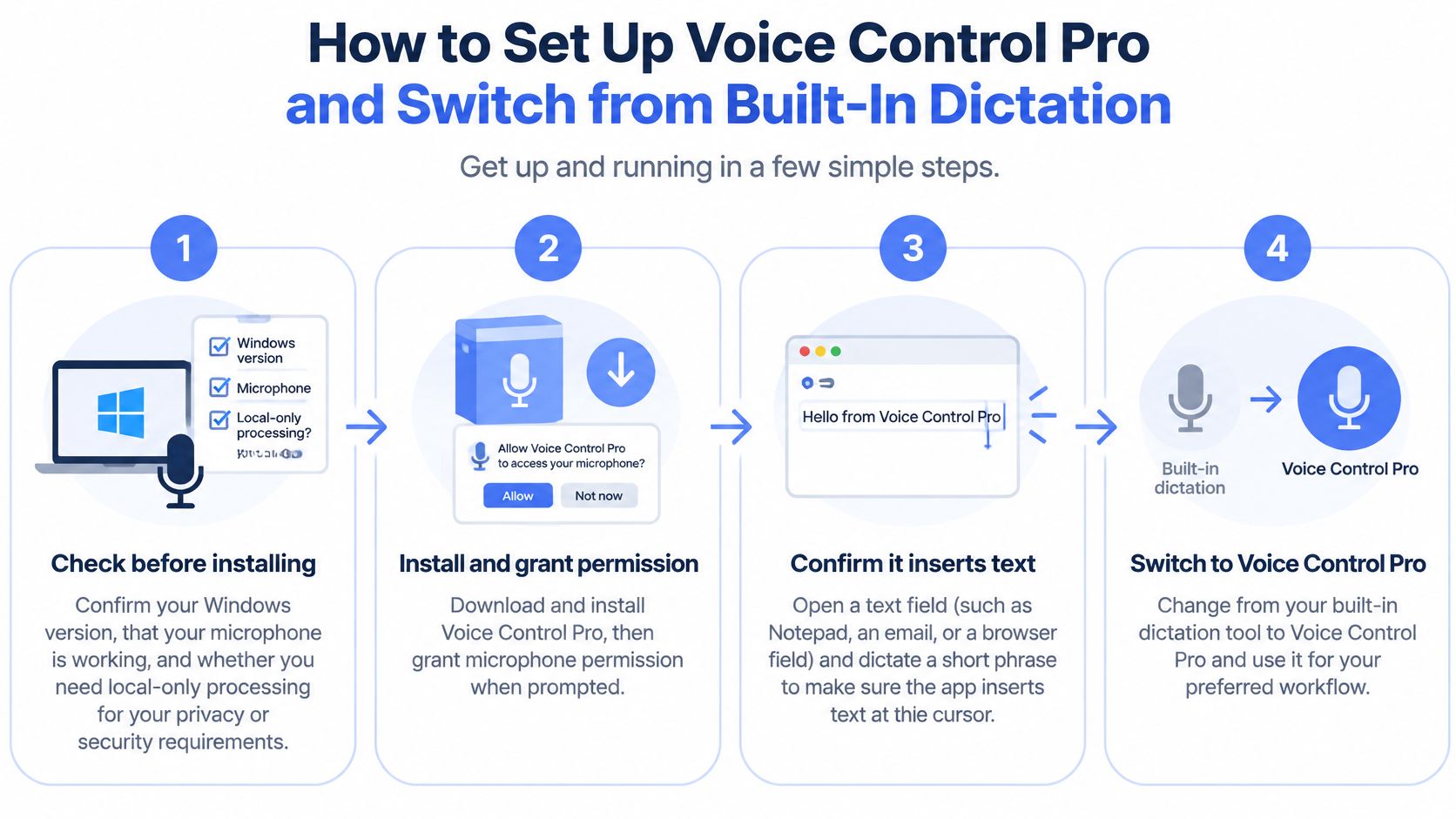
- Check your starting point: Confirm your Windows version, test your microphone in a quick recording, and decide whether you need local-only processing before you install anything.
- Install and grant permission: Install the app, allow microphone access when Windows prompts, and dictate one sentence into a test document to confirm text lands at your cursor.
- Set the shortcut: Choose the press-and-hold global shortcut and check it doesn't clash with your Win+H habit or shortcuts in your main apps. A clash you discover mid-meeting is one you'll blame on the tool.
- Choose your mode: Start with the free local tier for unlimited dictation with an on-device model. Use Fly Mode when you want processing kept local with cloud features paused. Move to Max for 99+ languages and advanced cleanup.
- Pick a cleanup level: Match it to your writing style, from light punctuation fixes to fuller polishing. If you write tersely, heavy cleanup can change your voice, so start light.
- Load the custom dictionary: Add client names, product terms, and technical vocabulary before your first real session, not after a week of correcting the same words.
- Decide on transcription history: Keep it if you reuse dictated text and your confidentiality rules allow it. Turn it off if stored transcripts would create a records problem.
Migration Notes
Move the Win+H habit gradually. Use the new shortcut for low-stakes messages for a few days while your fingers relearn, and keep built-in dictation available as a fallback. Keep voice access enabled if you rely on app control, since dictation and computer control are separate jobs and you may legitimately want both.
Verify menu labels in the current app version as you go, because interfaces change between releases. If a setting name differs from what you expected, search the settings panel for the function, cleanup, dictionary, history, rather than assuming it's missing. I would spend the saved setup time on the dictionary. It's the dullest step and the one that pays back fastest.
Run a One-Week Trial Before You Commit
A week of dictation on real work can show whether a tool fits your documents, privacy requirements, and connection conditions. Keep the test structured so your decision rests on time and results rather than first impressions.
The Trial Protocol
- Pick three real documents: Choose an email, a report section, and notes that include names and technical terms.
- Dictate each twice: Use cloud mode once and local mode once, keeping the microphone, room, and background noise the same.
- Stress the network: Repeat one session in airplane mode and another with your VPN on. Check how offline use and routed traffic affect the workflow.
- Test a secure field: Dictate into a test password field and confirm that no text appears.
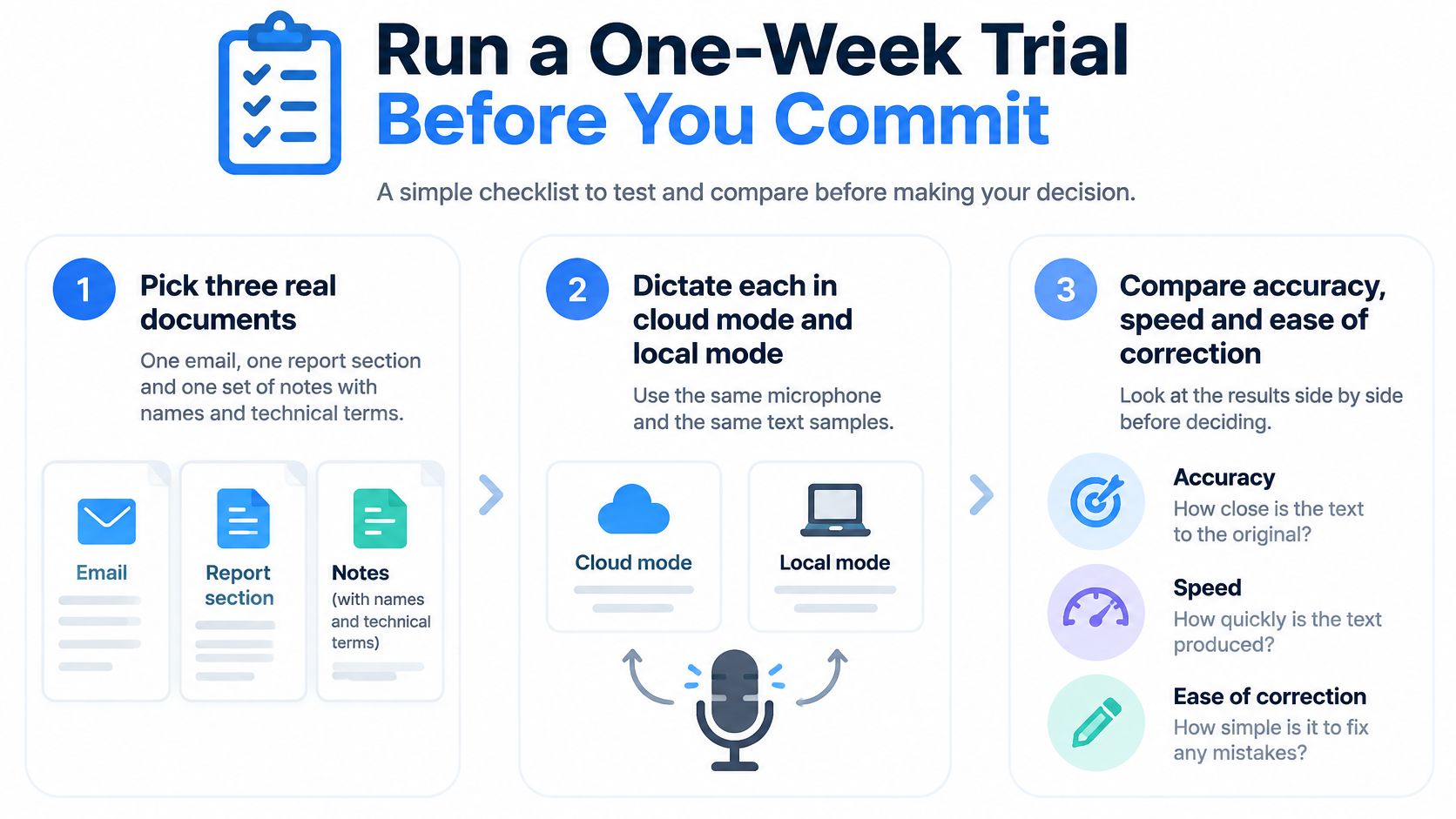
- Time the corrections: Track how long each document takes to clean up. Post-editing can erase the time gained through dictation.
- Run a language test if needed: If your team works across accents or languages, have a native and a non-native speaker dictate the same passage.
- Compare with typing: Add dictation and correction time for each document, then compare the total with the time it takes to type the same piece by hand.
Use the privacy decision table earlier in this guide as the pass-or-fail standard for steps 3 and 4. A tool that fails a privacy check is out, even if it is faster.
The Cost Check and Decision Rule
At the end of the week, calculate the potential monthly value. Convert your hourly rate to a per-minute rate, multiply it by the minutes saved per working day, then multiply that daily value by the number of working days in the month. Subtract the monthly subscription cost. This puts saved time and subscription cost on the same monthly basis.
Keep a tool only if it passes your privacy checks and still saves time after corrections. If a free local tier covers your work, start there. Pay for more only when you can name the capability you need, such as broader language support, stronger cleanup, or transcription history, and the trial shows its absence matters.
Start small: install the free local tier, add ten dictionary terms, and time yourself dictating tomorrow's first email.
Start the trial with Voice Control Pro, which offers a free local mode with unlimited on-device dictation, a press-and-hold shortcut across Windows apps, and Fly Mode for confidential work. Use the week to measure correction time. Consider Max for 99+ languages and cleanup levels only if your results show that the added features are worth the cost.