
You press the dictation shortcut to answer an email, but the tool turns a colleague's name into an ordinary word, adds punctuation where you didn't want it, and sends audio to a service you haven't checked. The microphone seems like the obvious culprit, yet swapping it may not fix the formatting or privacy problems.
Reliable voice to text settings come from tuning three separate things: what the microphone captures, how the app formats recognized speech, and where transcription is processed. Treat those as distinct controls, then save configurations for the work you do. That's more useful than cycling through toggles and hoping a transcript feels better.
Table of Contents
- Why Most Voice to Text Settings Never Get Touched
- Treat the settings panel as part of the tool
- Microphone and Acoustic Setup That Actually Changes Accuracy
- Choose a mic, then keep its position consistent
- Compare conditions with WER
- Language, Punctuation, and Cleanup Levels as a Separate Layer
- Set language and formatting for the destination
- Compare raw text with the finished transcript
- Privacy Modes and Local vs Cloud Transcription
- Use a decision matrix, not an assumption
- Custom Dictionary, History, and Presets for Real Workflows
- Four presets for four common jobs
- Accessibility, Speech Patterns, and Hands-Free Input
- Give the user control over pauses and activation
- Troubleshooting and a 10-Minute Settings Audit
- Run the audit
Why Most Voice to Text Settings Never Get Touched
A typical dictation session starts with the defaults: open an app, allow microphone access, and start talking. When the transcript goes wrong, the user blames the microphone or assumes the recognition model can't handle their voice. But a misheard name, unwanted paragraph break, and cloud-dependent feature are different failures. One setting can't solve all three.
Defaults tend to suit a narrow situation: one person speaking clearly in a quiet space, using a familiar language, with no concern about how the transcript will be used. That isn't every office. A developer dictating an API name needs the tool to preserve technical terms. Someone drafting an email may want punctuation and capitalization cleaned up. A support agent working with customer information may need to know whether audio stays on the device. The same configuration won't serve all those jobs equally well.
Treat the settings panel as part of the tool
On a Mac, start with System Settings > Keyboard > Dictation to review built-in dictation controls. On Windows, Windows key + H opens voice typing in a text field; use the settings on its voice typing bar to check available options. Dedicated tools vary, so look for controls covering the microphone, language, activation, formatting, and processing mode rather than assuming they all work the same way.
Then diagnose errors by type. If the app substitutes words, check the selected microphone, room noise, language, and vocabulary. If it recognizes the words but produces awkward sentences, adjust punctuation or cleanup. If you're unsure whether processing is local, test the workflow without a network connection and confirm what still works.
Practical rule: Change one setting at a time, then dictate the same short sample. If you change the microphone, language, and cleanup level together, you won't know which change helped or hurt.
A settings audit isn't busywork. It's how you turn a generic dictation feature into a tool that fits your writing, workplace, and privacy needs.
Microphone and Acoustic Setup That Actually Changes Accuracy
A laptop fan, keyboard clicks, or nearby conversation can mask speech before transcription begins. In a study of 15,000 recognition experiments, overall accuracy was 71.31%. It reached 93.51% when machine noise stayed below 61.2 decibels, and fell to 29.17% above that level (study of acoustic noise and voice-recognition accuracy).
Choose a mic, then keep its position consistent
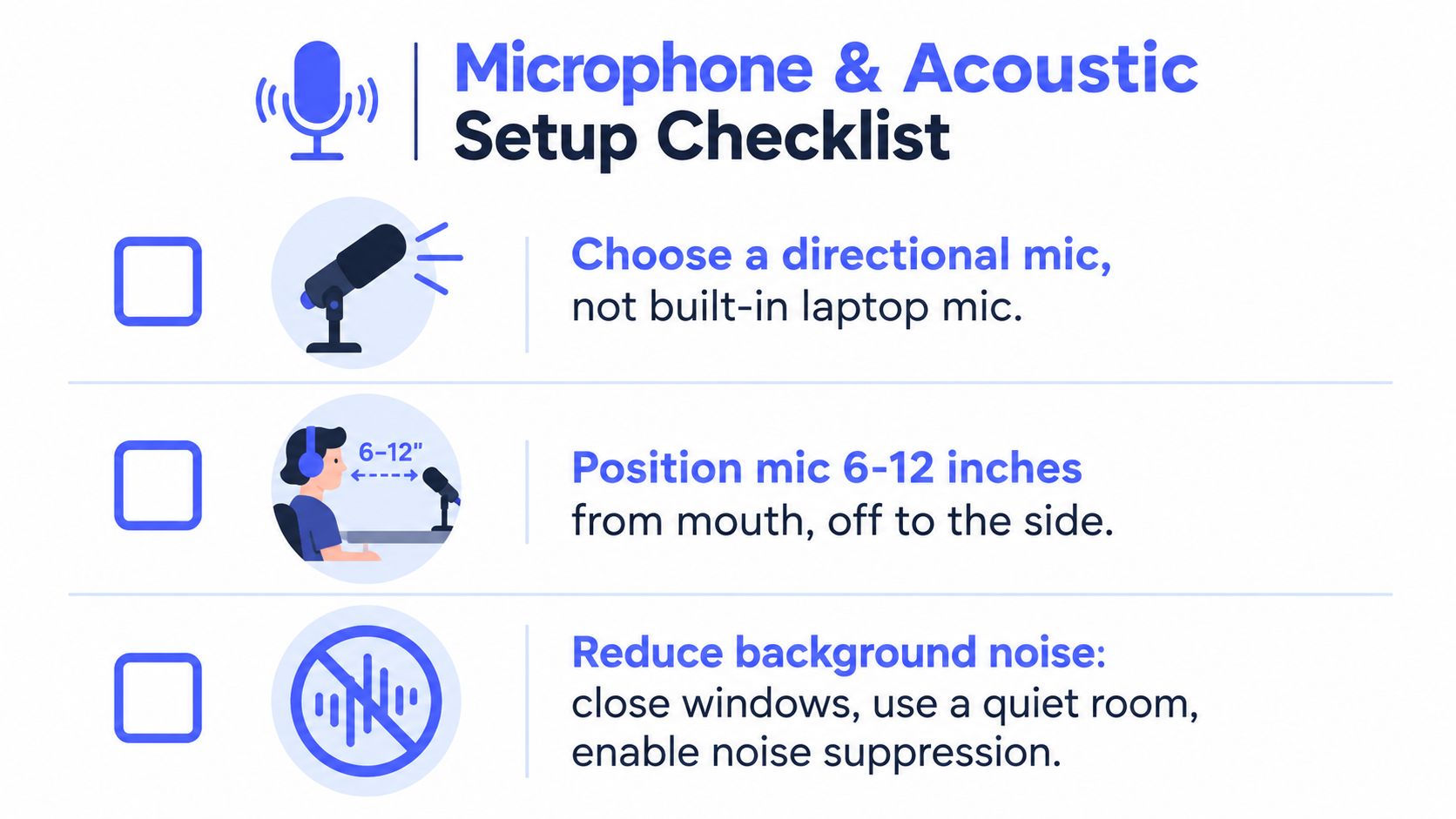
A built-in laptop microphone is convenient, though it may pick up room sound from around the computer. A headset places the mic near your mouth and keeps its distance steady as you move. A USB microphone can also work well at a desk, provided it's positioned sensibly and the room is quiet enough for your voice to stand out.
Choose a microphone you can wear or position comfortably. Keep a steady distance, and avoid turning away mid-sentence. For placement tips, see this guide to microphone setup for desktop voice dictation.
Compare conditions with WER
Word Error Rate, or WER, counts substitutions, deletions, and insertions against a reference transcript: (S + D + I) / N. To compare setups, dictate the same short passage in four conditions: computer microphone in a quiet room, headset in a quiet room, computer microphone with background noise, and headset with background noise. Keep the language and speaking style consistent.
One participant's WER fell from 16.53% to 14.88% with a headset in quiet conditions. For another participant, it dropped from 27.27% to 20.66% under noise in the reported testing (headset and microphone WER evaluation). These results don't guarantee the same improvement for every person or headset. They show why a microphone comparison can be more useful than tweaking minor interface settings.
For a visual microphone setup walkthrough, watch:
Language, Punctuation, and Cleanup Levels as a Separate Layer
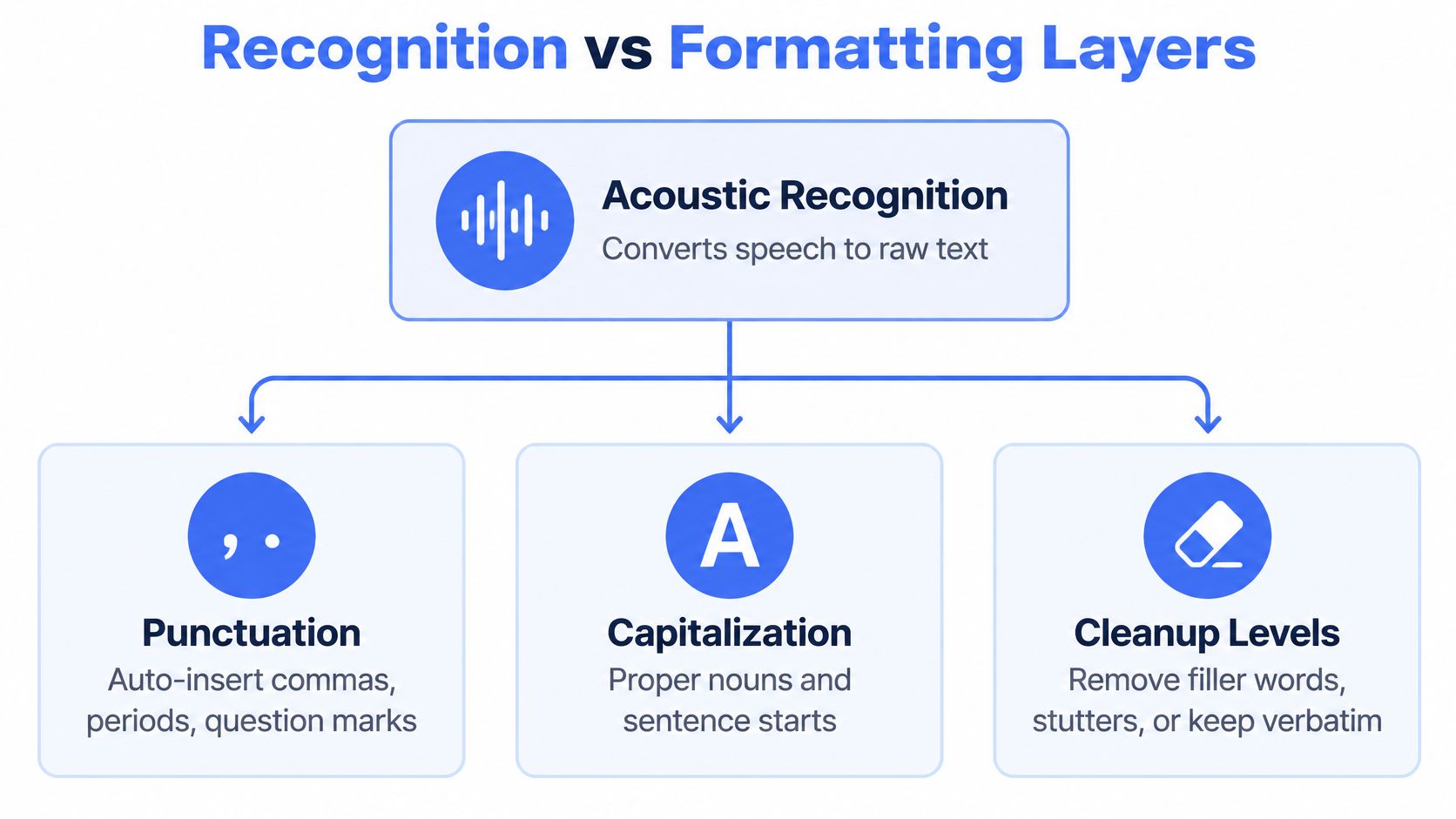
A transcript can contain the right words and still be hard to use. That's why recognition and formatting should be tested separately. NIST's ASR scoring guidance evaluates word recognition as verbatim, case-insensitive text, so punctuation and capitalization belong to additional formatting checks, not ordinary word-recognition errors (NIST OpenSAT evaluation plan).
Set language and formatting for the destination
Choose the language you're speaking, especially if you switch between languages or regional varieties. Then decide how much cleanup belongs in the destination text. For code comments, prompts, and names, light cleanup is safer: aggressive rewriting can alter identifiers, remove meaningful repetition, or change the way you expressed a technical point. Emails and reports generally benefit from automatic punctuation, capitalization, and paragraph breaks, followed by a human review.
Automatic punctuation can make dictation easier to read, but it may misread pauses or phrasing. If your app offers profanity filtering, check whether it masks words you need to transcribe. Echo cancellation can help with some audio setups, but don't treat it as a substitute for choosing the right input device.
Research summarized in the NIST material reports capitalization precision and recall approaching 0.90. It also reports specialized modeling improvements of about 9 percentage points for periods and 6.2 points for question marks. Those results concern formatting research, not a guarantee for a particular operating system or dictation app.
Compare raw text with the finished transcript
Record a fixed sample that includes a question, a proper noun, a technical term, and a pause. First inspect the raw words, then turn on punctuation and capitalization and compare the formatted version. Note how much time you spend correcting the result, not just whether it looks polished at a glance.
If you're configuring transcription for a phone system rather than desktop dictation, these cloud PBX speech-to-text instructions offer a different context for thinking about how speech recognition settings fit a communication workflow.
Privacy Modes and Local vs Cloud Transcription
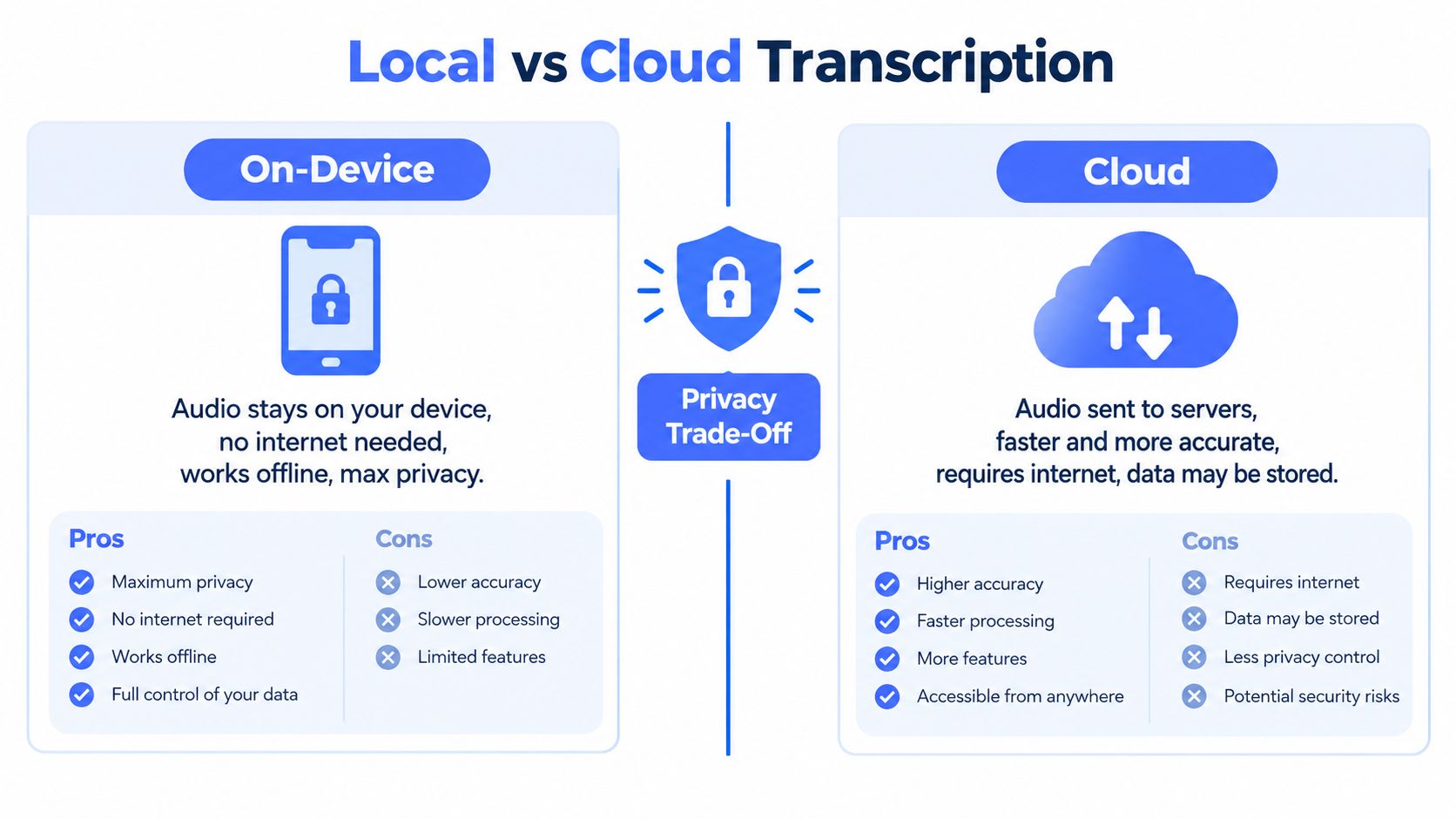
A privacy label doesn't tell you what happens to every feature. Dictation may run on-device while rewriting or other cleanup relies on a network connection. Processing can also vary by language, device, and fallback behavior. Privacy is a per-feature setting and behavior, not a promise you can safely infer from an app's name.
Use a decision matrix, not an assumption
| Check | Local processing | Cloud processing |
|---|---|---|
| Audio handling | Processing happens on the device for features that truly run locally. | Audio or transcription may be sent to a service for processing. |
| Connectivity | Some local features may continue without a connection. | Cloud-dependent recognition or cleanup may stop when connectivity drops. |
| Language | Availability can depend on downloaded language support. | Less-common languages may rely on server processing. |
| Workflow | Confirm which dictation, formatting, and editing tools remain available offline. | Check what the service processes and what information its privacy controls disclose. |
For confidential work, test the exact language and feature combination in airplane mode. Dictate a harmless sample, try the cleanup or rewriting controls you normally use, and note which functions stop working. Don't use sensitive customer, medical, legal, or business content to discover whether an app falls back to the cloud.
Some software provides an explicit local mode. Voice Control Pro's Fly Mode processes dictation locally and pauses cloud features; its local mode also provides on-device dictation. That distinction matters: a local dictation path doesn't mean every connected feature in the same product also runs locally. For a broader comparison of the trade-offs, see this guide to cloud versus local speech recognition.
Record your findings by feature: dictation, punctuation, cleanup, rewriting, history, and language. If a setting's behavior isn't clear, keep sensitive material out of the workflow until you've verified it.
Custom Dictionary, History, and Presets for Real Workflows
A custom dictionary helps with names and vocabulary the recognizer repeatedly gets wrong. Add the words you use: a teammate's surname, a product name, or a technical term. Then dictate a sample containing those words and check the written forms. A dictionary won't fix a noisy recording, but it can address repeat substitutions that persist in otherwise clear audio.
Transcription history can make troubleshooting more concrete when a tool offers it. Look for recurring errors rather than treating every mistake as a new mystery. If a name fails repeatedly, add it to the dictionary. If errors cluster around long pauses, adjust the wait time if available. If the transcript is accurate but hard to read, change formatting without changing the acoustic setup.
Four presets for four common jobs
Save separate configurations where your tool allows it. If it doesn't, keep a short checklist of the settings to switch before changing tasks.
| Workflow | Cleanup Level | Punctuation | Custom Dictionary | Activation Mode |
|---|---|---|---|---|
| Email drafting | Standard cleanup | Automatic | Names, teams, product terms | Hold-to-talk or deliberate toggle |
| Coding and prompts | Light, preserve wording | Off or minimal | API names, commands, technical terms | Hold-to-talk |
| Research notes | Light to standard | Paragraphs on, review afterward | Authors, topics, specialist vocabulary | Toggle or hands-free when practical |
| Support replies | Standard, use a saved tone if available | Automatic | Product names, policy terms, customer vocabulary | Push-to-talk in shared spaces |
For coding, the priority is preserving precise wording. For customer replies, readability and consistent terminology matter more. Notes can tolerate fragments that a finished email shouldn't. These are working defaults, not universal rules, so validate them against your own text.
Keep one fixed sample for each preset. Include representative names, numbers, technical terms, and dictated punctuation where relevant. Compare the transcript and the time needed to correct it after you change a setting. Voice Control Pro is one option for system-wide dictation, with a custom dictionary and adjustable cleanup controls; its settings can be configured for the workflow rather than treating every destination as the same kind of text.
Accessibility, Speech Patterns, and Hands-Free Input
Voice input can reduce reliance on a keyboard, but it isn't accessible for everyone in every situation. Some people can't speak aloud comfortably or reliably; others work in shared rooms where dictating customer information would be inappropriate. A tool that assumes continuous speech and uninterrupted listening can create barriers instead of removing them.
Give the user control over pauses and activation
Push-to-talk works well when you want dictation only while holding a key or button. It reduces the chance of accidental activation and can be discreet in a shared space. A toggle or hands-free mode may suit someone who can't keep pressing a control, but it needs a clear way to pause listening and recover if the app captures unwanted speech.
Adjustable wait time can help when a person pauses before continuing. Microsoft documents wait time, automatic punctuation, profanity filtering, language selection, and echo cancellation among voice input settings, but the relevance of those controls to atypical pauses, stuttering, and shared spaces is often left unexplained (overview of voice input settings). Test the controls with the person who'll use them, rather than assuming a longer delay or automatic punctuation is automatically better.
Keyboard fallback matters too. Users should be able to correct a misheard word, stop listening, and switch to typing without losing their place. Bilingual speakers may need to change the active language or use a dictionary for terms the recognizer doesn't know. If speech is not appropriate, discreet keyboard input is a valid route, not a failure of the setup.
For caregivers who want to capture observations while occupied with other tasks, this practical resource on how to log your child's day hands-free illustrates one kind of workflow where voice notes may be useful. For more on configurable input and user control, see this guide to accessibility and voice input.
Troubleshooting and a 10-Minute Settings Audit
A transcript can fail at two different layers: recognition may mishear the words, or formatting may alter text you dictated correctly. Test them separately. If the transcript is blank, check the selected microphone and app permissions. If offline dictation stops working, check whether the feature requires a server connection or a downloaded language pack. If technical terms get rewritten, reduce cleanup and check your custom dictionary.
Run the audit
Use the same short passage for each comparison, then change one setting at a time:
- Record a sample that resembles your actual writing.
- Check recognition first, before enabling punctuation or cleanup.
- Compare formatted output after turning on punctuation and capitalization.
- Time your corrections to catch settings that produce polished text but take longer to fix.
- Repeat with your usual headset and background noise.
When the transcript goes blank, check input selection and permissions before adjusting language or formatting. Unexpected punctuation calls for a formatting test; unwanted activation calls for a change to the listening trigger. Recheck the setup when your device, room, language, or workflow changes, using the same fixed sample as in the earlier microphone comparison. Keep the audit as part of the workflow, not a one-time setup.
Set up one preset for your main task, then test it with a real sample before using it for important work. Voice Control Pro offers system-wide dictation, local processing options, a custom dictionary, and cleanup controls for macOS and Windows. Tune its settings around the apps and writing tasks you already use.