
Most guides tell you to start a recording, download the transcript, and treat that file as the writing. That advice breaks the moment the job is a channel reply, not a meeting archive. Voice to text in Teams covers three jobs that only look alike. Captions help you follow speech while the call is open. A transcript stores who said what after the call. Dictation drops words into the box where your cursor already sits.
A transcript isn't a chat message. It doesn't appear in the compose field, it doesn't know you wanted three short sentences, and it won't fix a name, a date, or an 8 percent figure before you hit send. If you're still staring at a blinking cursor after a messy call, pick the path that matches the words you need to ship.
Table of Contents
- Pick the Right Voice to Text Path
- Dictate into Teams Chat and Channels
- Put the cursor in the message first
- A channel update you could send today
- Turn On Captions and Meeting Transcripts
- Captions for the live call
- A saved transcript from the same menu
- Settings That Make Speech Readable
- Mic, turns, and language
- Privacy versus coverage
- Fix Voice to Text When It Fails
- Read the symptom, then the owner
- What a human still has to check
- Choose Cursor Dictation for Everyday Writing
- One trial in the same compose box
Pick the Right Voice to Text Path
A meeting transcript can preserve what people said and still leave you with a blank message box. Choose the tool by the result you need: a saved meeting record, live text to follow along, or words inserted where you are typing.
Teams treats captions and transcription as meeting features. Their availability depends on licensing and admin policy. Live translated transcription requires Teams Premium for the organizer or attendees. A meeting transcript is a record, not a drafted reply: it does not put polished text at your cursor. For writing outside a call, switching windows and cleaning up the text can add extra work.
| Method | Text lands in | Saved afterward | Best for | Main limit |
|---|---|---|---|---|
| Windows or Mac dictation in the compose box | Chat, channel, or meeting chat field | Only if you send the message | Replies you are writing now | No speaker labels and weak on names |
| Teams live captions | On-screen caption bar during the meeting | No | Following a live call | Disappears when you leave |
| Teams transcription | Transcripts tab and meeting recap | Yes, with the recording in OneDrive or SharePoint | Decisions, owners, and people who missed the call | Needs license, policy, and a meeting |
| Live translated transcription | Translated meeting text | Storage can differ from the original transcript | Mixed-language attendees | Teams Premium for organizer or attendees |
| Voice Control Pro or similar global dictation | Wherever the cursor is, including Teams | Your sent message or the other app's document | Polished chat, email, and notes outside a transcript | Not a speaker-attributed meeting record |
Use the table to match the output before changing settings. Compose-box dictation uses Windows Win+H or macOS Dictation while the cursor is in a chat, channel post, or meeting chat. You review the words, correct details, and send them as a message. Live captions display speech during the call. Transcription creates a speaker-labeled meeting record in the Transcripts tab, which you can download, edit, and keep with the recording. A global dictation tool instead places cleaned-up text at the cursor, whether you are writing in Teams or another app.
Practical rule: If the transcription control is missing, check licensing and admin policy before troubleshooting the microphone. A mic problem affects speech input; a permission or license issue affects access to the meeting feature.
Dictate into Teams Chat and Channels
This routine only fills the message you're writing. It never creates captions and it never produces a downloadable meeting file. If you need a record of who said what, skip ahead to recording. If you need the reply itself, stay here.
Put the cursor in the message first
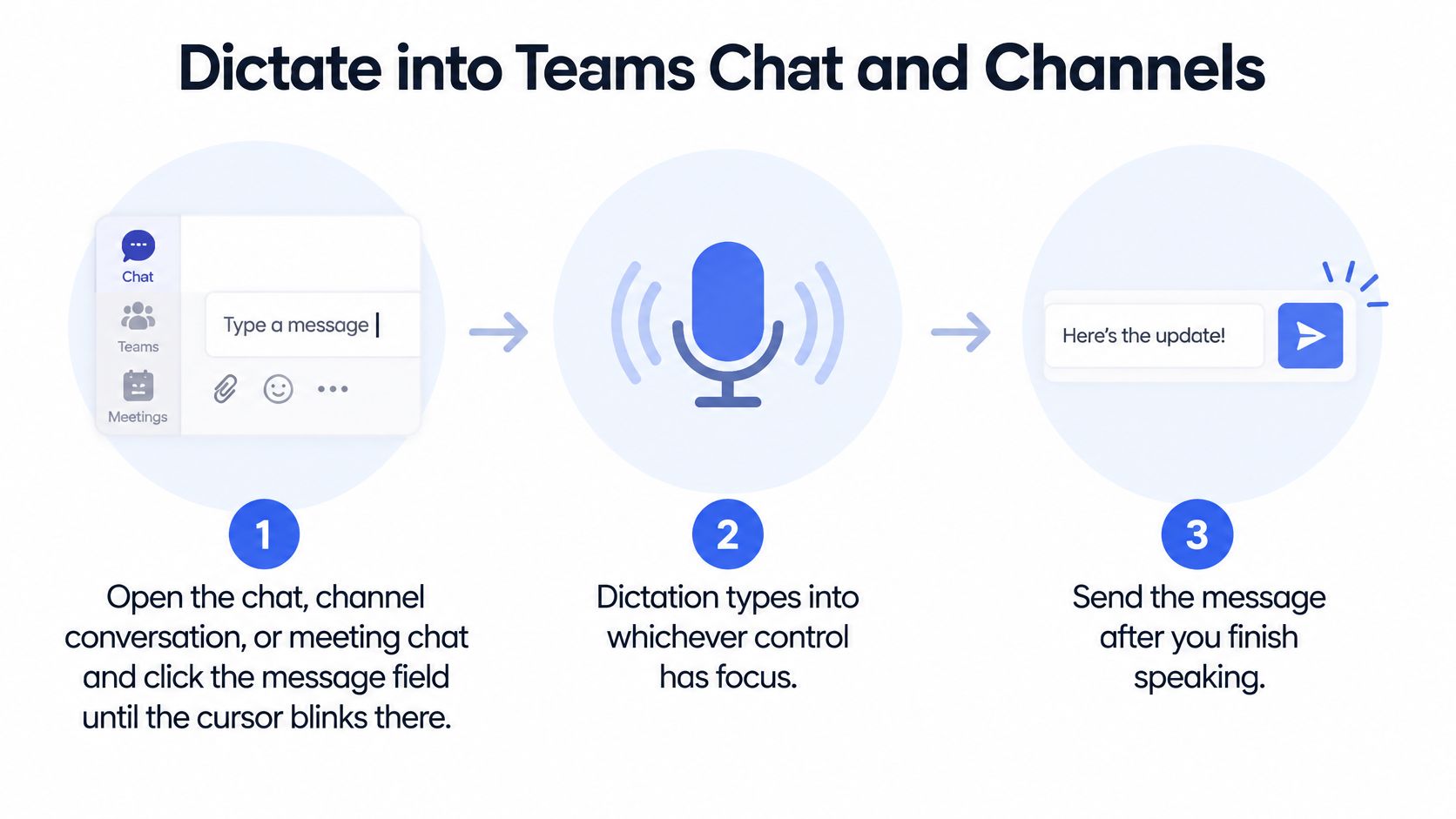
- Open the chat, the channel conversation, or meeting chat and click the message field until the cursor blinks there. Dictation types into whichever control has focus, so a click in Search sends the whole draft to the wrong place.
- On Windows, press Win+H and wait for the listening bar. If the Teams compose toolbar shows a microphone, you can use that instead. On Mac, turn on Dictation in System Settings under Keyboard, then press the dictation shortcut, often the Fn key twice.
- Speak one or two sentences at a normal pace. Say punctuation if the operating system doesn't insert it, and pause so the text commits before you continue. People who write a lot of async updates can borrow the pacing from voice dictation for remote teams.
- Fix names, percentages, dates, and product spellings in the box before you send. Teams won't clean them up for you.
- Add bold, lists, and @mentions with the keyboard after the sentence lands. Speaking "bold" or "mention Jordan" rarely produces real formatting.
A channel update you could send today
Say a renewal call moved and you owe the channel a short note. With the cursor in the post field, try this out loud: "Renewal call moved to Thursday. Discount cap is 8 percent. Jordan owns the order form." Read it once. Change "Thursday" if the model wrote "Thursday's," and confirm the percent sign. Then send.
Two slips waste the draft. Starting dictation while focus is still in Search dumps the sentences into a query nobody asked for. Talking over a loud mechanical keyboard turns "8 percent" into nonsense and forces a rewrite you could have avoided by muting or pausing.
On Teams mobile, the compose-box microphone may not appear. Tap the message field and use the keyboard's own dictation key on iOS or Android, then review the text before sending. Same rule as desktop: the words only count if they land in the message, and only the sent message is saved.
Speak the facts, then type the formatting. The operating system is better at sentences than at @mentions.
Turn On Captions and Meeting Transcripts
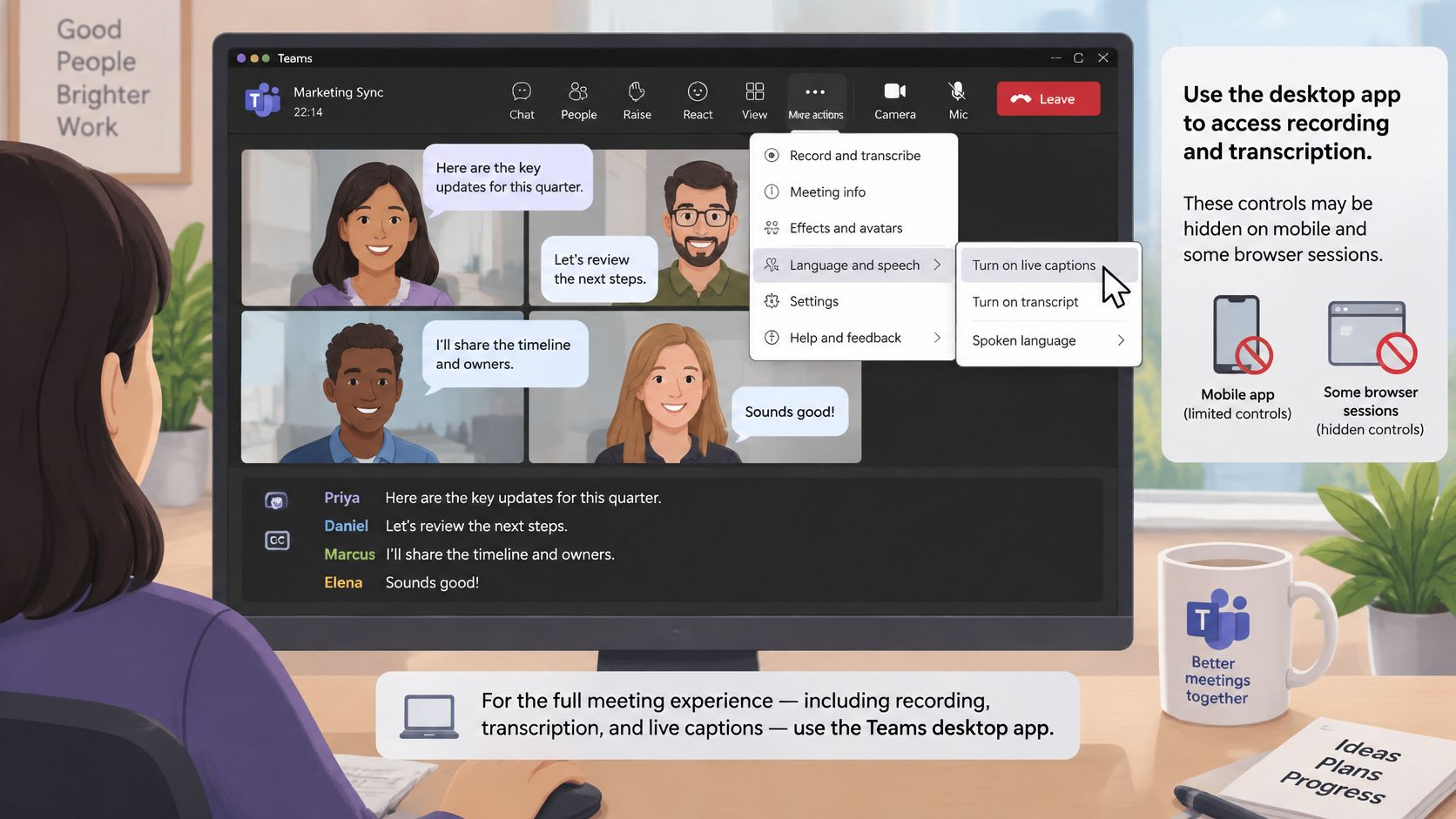
Join from the Teams desktop app. Mobile and some browser sessions hide recording and transcription controls, so a missing menu on a phone isn't proof the feature is off for your tenant.
Captions for the live call
- In the meeting, select More actions, then Language and speech, then Turn on live captions.
- Set Spoken language to the language people are speaking. A wrong setting makes every line look like a bad translation even when the audio is clear.
- Leave captions on only while you need them. They help you follow the call, and they disappear when you leave. They are not the file you'll search next week.
A saved transcript from the same menu
- Open More actions, then Record and transcribe. If the menu offers Start transcription, use it. If it doesn't, select Start recording so the tenant generates the transcript from the recording. Keep the consent banner visible so attendees know they're being captured.
- Ask each person to say their name once at the start. Speaker labels are easier to check later when the first line of audio matches the roster.
- After the meeting, open Recap or the Transcripts tab, download the VTT or DOCX file, correct wrong names, and share it yourself. Teams doesn't post the full transcript into every chat.
In August 2021, Microsoft's Teams recordings update planned live transcription when someone selected Start recording on the desktop client, including channel and ad-hoc meetings, plus 15 additional spoken languages for live transcription and captions. Users could download transcripts from the Transcripts tab, edit them, and share them manually, while recordings moved toward OneDrive and SharePoint beginning August 16, 2021. An admin can still disable the control even when the license includes it. Policy, not the desktop app, has the last word.
Captions are temporary help for following the call. The transcript is the searchable record kept with the recording. If your team also compares phone platforms, the calling software comparisons from VoxNote are a useful side read before you decide which calls even belong in Teams. For turning spoken notes into something you can file, see voice dictation for meeting notes.
Settings That Make Speech Readable
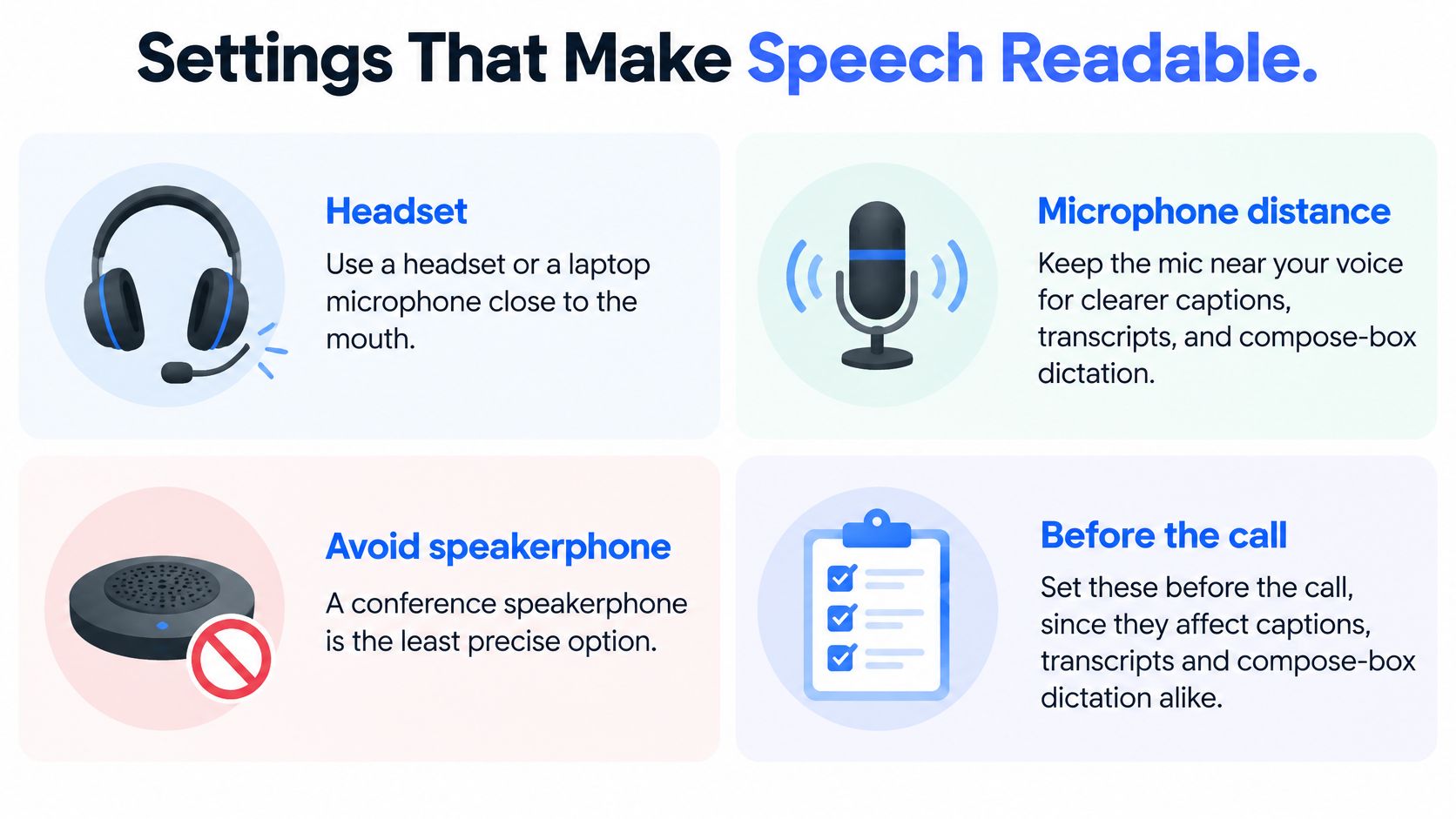
Set these before the call. They change captions, transcripts, and compose-box dictation in the same way, and fixing them mid-meeting rarely catches the first ten minutes.
Mic, turns, and language
Use a headset or a laptop microphone close to the mouth. A conference speakerphone is the usual reason names and figures come out wrong. Keep one person talking at a time. Overlap confuses both the caption line and the speaker label, and no language setting repairs two voices at once.
Set the spoken language for the meeting. In a mixed-language call, have each participant choose their own spoken language instead of hoping one setting handles code-switching. Microsoft's meeting options describe multilingual speech recognition that lets people pick preferred spoken languages, with regional variants of English, Arabic, Chinese, French, German, Portuguese, and Spanish. Translated text may need Teams Premium and may not be stored like the original transcript. Never treat a translation as the record of a decision.
Privacy versus coverage
Maximum language coverage and maximum privacy aren't the same goal. Built-in Teams speech is a cloud meeting feature. If the call includes customer data, health details, legal material, or unreleased plans, check retention rules and whether transcription is allowed at all. When the words must stay on the computer, or the connection is unreliable, use local dictation. Fly Mode in Voice Control Pro pauses cloud features and keeps processing on the machine.
- Spell once: Say an awkward product name letter by letter the first time, then use the short form.
- Store the term: Add it to the operating-system dictionary, or to a dictation tool that accepts custom words.
- Cut the noise: Mute music and give mechanical keyboards a rest during the sentences that matter.
- Name yourself: State your name at the start of high-stakes calls so later labels have a clean anchor.
Punctuation still needs a habit. If periods and paragraphs keep landing in the wrong place, the walkthrough on how to dictate punctuation and paragraphs is worth ten minutes before the next client call. Teams that push call notes into a CRM can also look at call-to-CRM workflows for revenue operations so a cleaned file, not a raw caption dump, is what sales files.
Fix Voice to Text When It Fails
Start with the failure you can see, and only after the earlier steps. The most common one on Windows is no listening bar after Win+H. Dictation is off, or the microphone is blocked under Settings, Privacy, Microphone, for both Teams and desktop apps. Allow the mic, click the compose box, and try again before you blame the model.
Read the symptom, then the owner
| Symptom | Usual cause | Fix |
|---|---|---|
| No listening bar after Win+H | Dictation disabled or mic blocked | Allow the microphone for Teams and desktop apps, then focus the compose box |
| Text lands outside the message | Cursor was in Search or another app | Click the chat or channel field, then start dictation again |
| Captions show the wrong language | Spoken language doesn't match the speakers | Set Language and speech to the language being spoken |
| Start transcription is missing | License or admin meeting policy | Ask IT; use live captions or compose dictation until policy allows it |
| Names and numbers are garbled | Far-field or noisy audio, often above 35 percent WER | Switch to a headset; close-talk audio is nearer 12 percent WER |
| Action items assigned to the wrong person | Overlapping speech and weak diarization | One speaker at a time, then verify owners in the file |
| Transcript gone after the call | Recording never started or storage policy | Check Recap, the organizer's OneDrive, and SharePoint |
| Translation won't start | Teams Premium or unsupported language pair | Keep the original transcript and don't treat a translation as the record |
A guest can't force Start transcription. That's a license or meeting policy. Use captions or compose-box dictation while IT checks the tenant.
Garbled names are usually the microphone. Research summarized for the AMI corpus in a Microsoft Research paper reports approximately 12% word error rate with close-talk microphones but more than 35% with far-field audio from one room microphone. A headset beats another round of editing. Word error rate is substitutions, deletions, and insertions divided by the reference-word count. Diarization error rate is separate, because the words can be right and still belong to the wrong person.
What a human still has to check
Wrong owners on action items come from overlap and weak speaker assignment. Even fluent sentences need a pass on names, numbers, and commitments. If the transcript never shows in Recap, confirm that recording started, then look in the meeting owner's OneDrive or the channel's SharePoint library.
The useful pipeline is close-talk audio, a check that someone is speaking, separation when people talk over each other, recognition, lining words up with speakers, then a human review of decisions. Overlap is the expensive failure, and turn-taking plus mic placement usually costs less than another editing pass. When policy won't allow a meeting record, move the writing to cursor dictation instead of waiting on a caption that can't be saved.
Choose Cursor Dictation for Everyday Writing
Use one rule. If the output must say who said what in a meeting, stay with Teams transcription, a headset, and a manual check of owners and figures. If the output is a chat reply, channel update, email, ticket, or document you're writing now, stop downloading a transcript and cleaning it in another window.
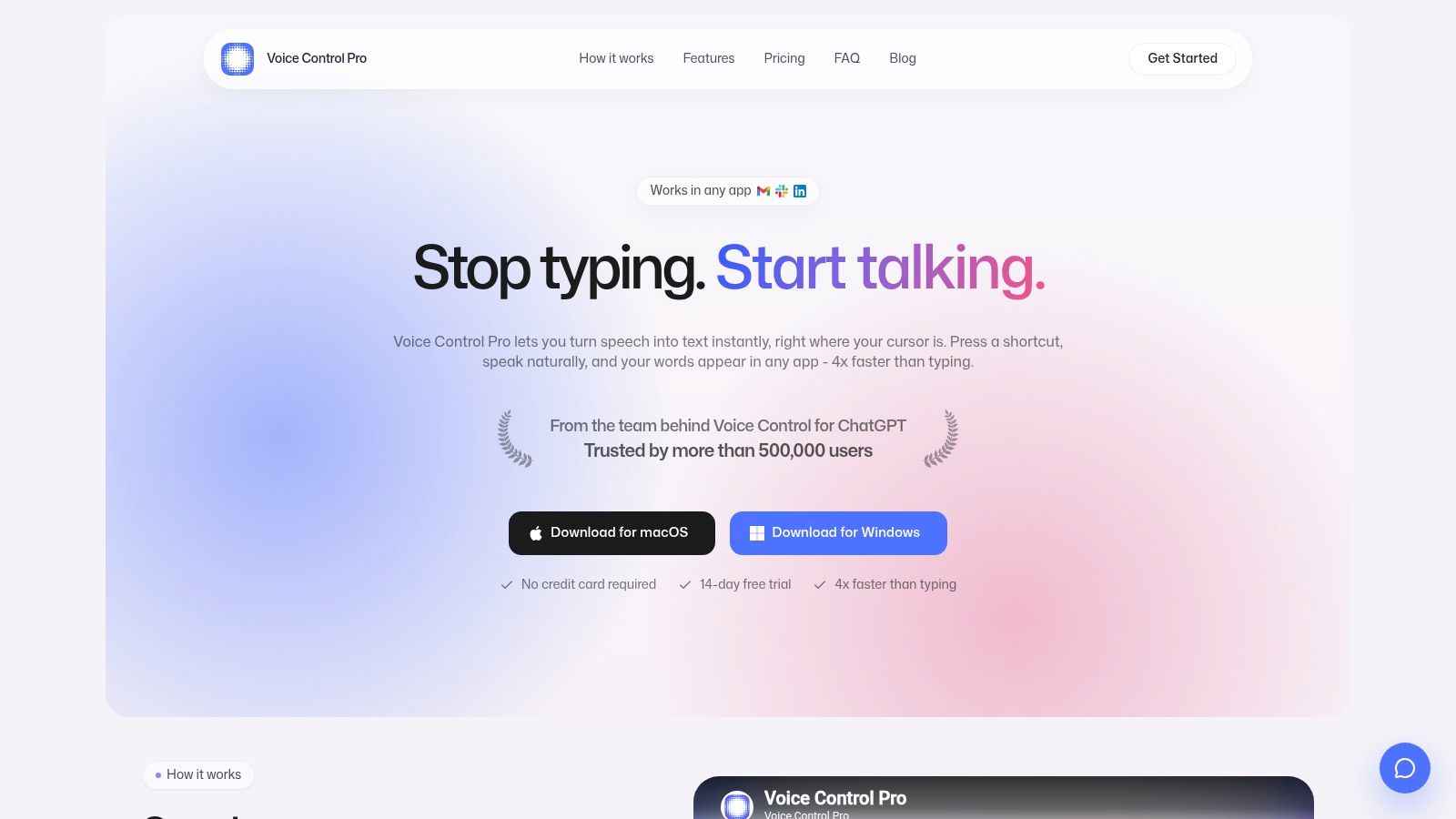
Voice Control Pro fills that gap by inserting text wherever the cursor already is, including Teams chat and channels. Press and hold the shortcut, speak naturally, and release to drop the text. Fly Mode runs processing on the computer and pauses cloud features for sensitive work. A free local mode offers unlimited dictation with an on-device model. Max adds support for 99-plus languages, cleanup levels, a custom dictionary, transcription history, and Hey Max, which rewrites selected text or answers questions about what's on screen without leaving Teams.
One trial in the same compose box
Dictate a three-sentence channel update with Windows or Mac dictation. Repeat it with the global shortcut into the same box. Keep the version that needs less fixing. Don't swap in the global tool when the business requirement is a speaker-attributed meeting record. That file still belongs to the meeting, the license, and the recap.
A short demo of cursor dictation makes the difference easier to see than another settings tour.
The meeting can stay messy. The message you send doesn't have to.
Voice Control Pro puts polished voice to text at your cursor in Teams chat, channels, email, and documents, without turning a meeting into a file you have to clean later. Use it when you need a reply now, and keep Teams transcription for the calls that must show who decided what. Try it at Voice Control Pro.