
You're halfway through a client email, the cursor is blinking, and the open office is loud enough that you don't want to type every sentence. A voice to text device lets you speak the draft and drop the words where that cursor already sits. The catch is that a quiet demo rarely matches your room, your accent, or the moment the tool decides your audio should leave the computer.
A useful choice starts with what the device really does, then with the conditions that make it fail. Headline accuracy is the least stable number on the box.
Table of Contents
- What a Voice to Text Device Actually Is
- How Transcription Works On-Device Versus in the Cloud
- Which path fits the work
- Why Microphone Placement Matters More Than the Model
- What distance and noise do to the signal
- Hardware and a test you can run
- Accents, Languages and Context Shape Accuracy
- Errors that change the meaning
- A test you can finish this week
- Privacy Trade-Offs of Local and Cloud Dictation
- Two different privacy questions
- Where Voice-to-Text Devices Pay Off Most
- Where the text lands
- Setup Steps and Fixes for Common Dictation Errors
- When the text comes out wrong
- Choose Your Voice-to-Text Device With This Checklist
- How to score a two-week trial
What a Voice to Text Device Actually Is
A consultant is finishing a client report between calls. She holds a shortcut, speaks the next paragraph, and the sentences land in the document. She doesn't paste from a separate window, and she doesn't wait for a file to upload.
A voice to text device captures speech through a microphone and turns it into written text. It can be dedicated hardware, or it can be software on a computer or phone.
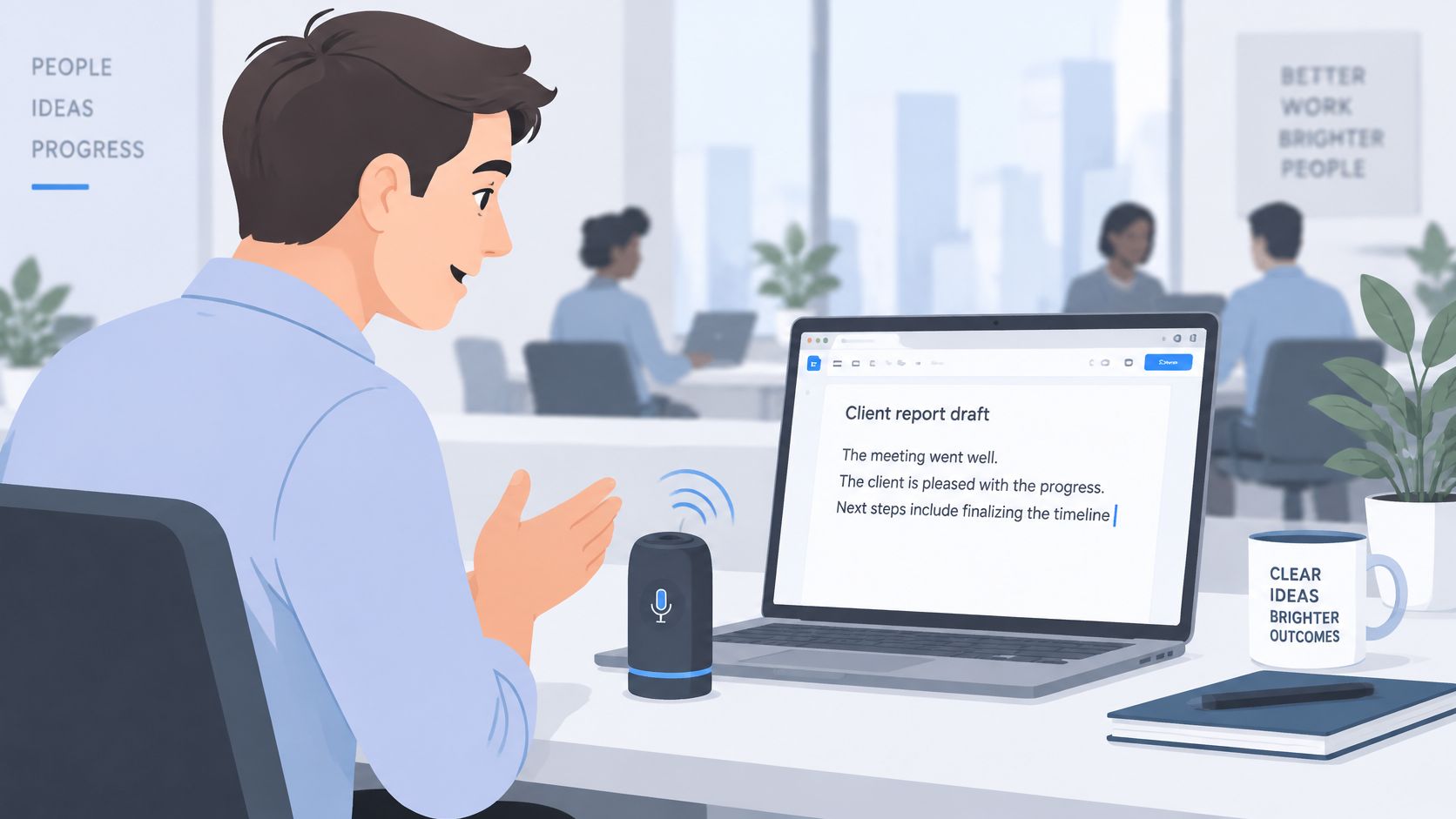
Speech recognition is the largest slice of this market. It represented 64.6% of the global voice and speech recognition market in 2023, according to Grand View Research. That share covers many products that look nothing alike once you ask where the audio is processed.
| Type | Examples | Where processing runs | Best for | Main limit |
|---|---|---|---|---|
| Handheld recorder with transcription | Dedicated recorders and transcribers | Device plus vendor app or cloud | Interviews, field notes, offline capture | Battery life and export formats |
| Built-in OS dictation | Phone and PC built-in voice input | Varies by OS, often cloud-assisted | Short messages and quick drafts | Limited editing and cross-app control |
| Desktop dictation software | Cursor-insertion tools for macOS and Windows | Local, hybrid, or cloud | Emails, reports, prompts, code comments | Microphone setup and permissions |
| Cloud transcription service | Browser and API platforms | Remote servers | Recorded meetings and batch files | Upload privacy and processing wait |
| Microphone hardware paired with software | Headsets, close-talk and USB microphones | Captured locally, processed by software | Improving any option above | A microphone alone transcribes nothing |
Most professionals don't buy one gadget and stop. They pair a close microphone with dictation software that types into the app already open. The rest of this guide judges each type by room sound, accent, and what happens to the audio, not by a single accuracy claim.
How Transcription Works On-Device Versus in the Cloud
Think of a court stenographer. She listens, spots patterns in the sound, and types the result. A voice to text device does the same job in four stages, only faster and with less judgment about what you meant.
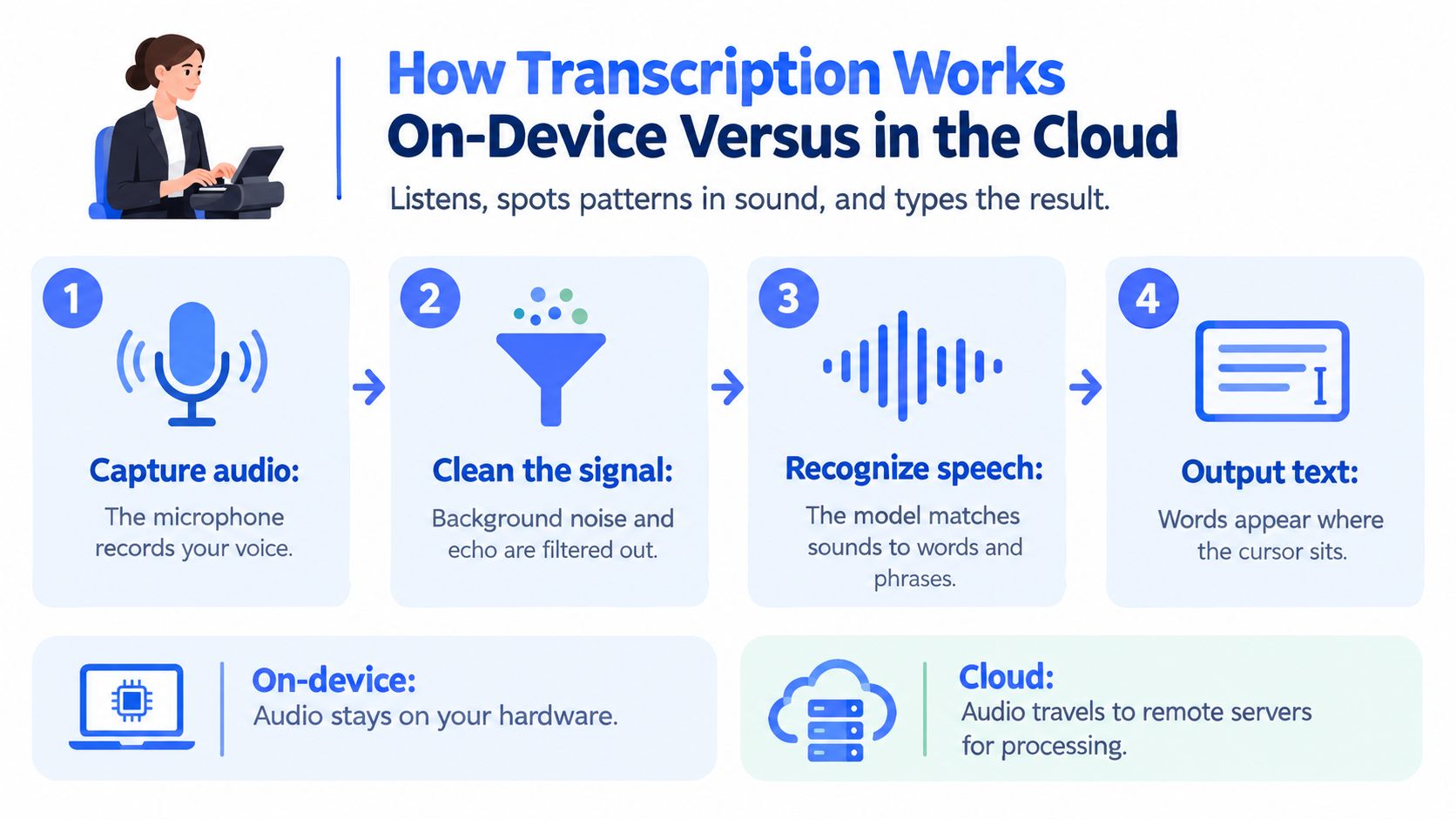
Capture is the microphone recording your voice. Cleaning filters noise and echo before the model sees the signal. Recognition matches those sounds to words and phrases. Output adds punctuation and inserts the text in the active field.
Modern tools run that recognition either on your hardware or on remote servers. The split changes speed, whether you need a network, how many languages you get, and who can see the audio. A short comparison of cloud and local speech recognition is worth reading before you trust a default setting with client work.
| Factor | On-device | Cloud |
|---|---|---|
| Where audio is processed | Your computer or phone | Remote servers |
| Typical latency | Often near-instant on capable hardware | Depends on network round trip |
| Offline use | Works without internet | Fails or degrades when disconnected |
| Language coverage | Usually narrower, set by the installed model | Usually broader, updated centrally |
| Model size and accuracy ceiling | Limited by device memory and battery | Larger models can run on servers |
| Data exposure | Audio stays on the device by default | Audio leaves the device, so check retention terms |
Which path fits the work
On-device recognition suits private notes, flights, and all-day dictation when the installed model covers your language. Cloud recognition suits wider language coverage and larger models, but only if you accept that the audio leaves the machine.
Practical rule: Use on-device mode for private or offline dictation. Use the cloud when you need broader language coverage and you have confirmed, in the vendor's terms, where audio is processed and how long it is kept.
If a demo only shows the cloud path, ask what happens when the connection drops mid-sentence. A tool that freezes, or that silently queues confidential audio, is a different product from one that keeps typing locally.
This short walkthrough shows the same pipeline in motion, from the microphone through to text on screen.
Why Microphone Placement Matters More Than the Model
A voice-to-text device can mishear a sentence before its recognition model gets a chance to help. The microphone first turns your voice and the room around you into an audio signal. If your speech arrives faint or mixed with echoes and background noise, the model has less clear information to work with.
An ISCA conference-room evaluation reported a 4.1% word-error rate with a near-field microphone and 26.3% with a far-field microphone. The result suggests that microphone distance can matter substantially in the tested conditions, though one evaluation does not establish how every device will perform. In that evaluation, noise reduction combined with log-spectral subtraction lowered the far-field rate to 8.2%, without changing the recognizer.
What distance and noise do to the signal
A microphone farther from the speaker picks up more of the room along with the voice. Reflections from walls arrive after the original sound, blurring speech details. Noise and reverberation can therefore make the recording harder to recognize, much as a muffled phone call is harder to follow. Noise reduction may help, but it cannot reliably restore details that were never captured clearly.
The impact of added noise also depends on its level and type. A comparison of recognizers under added noise found higher word-error rates as noise increased in the tested conditions. Its noise measurements do not translate into a simple threshold for deciding whether a particular room is suitable for dictation, so use the finding as a reason to test your own setup rather than as a universal pass-or-fail rule.
| Condition | Word error rate (WER) | What it shows |
|---|---|---|
| Near-field microphone | 4.1% | Result reported for close microphone placement |
| Far-field microphone | 26.3% | Result reported for more distant microphone placement |
| Far-field with noise reduction and log-spectral subtraction | 8.2% | Processing reduced errors without changing the recognizer |
Hardware and a test you can run
Start with the recording path, not a model name. A headset or close-talk microphone keeps your voice prominent; a laptop microphone across a desk may capture more keyboard noise and room echo. Keep a clear path between your mouth and the microphone, and try noise suppression if your device offers it. For practical placement ideas, see this guide to a desktop microphone setup for dictation.
Then test the conditions you work in. Record the same short paragraph with office chatter, keyboard noise, and room echo, and compare the transcript in each case. Try changing the microphone position as well. If errors improve when the microphone moves closer, placement was part of the problem; if they persist, the device or recognition settings may need attention.
A strong result in a quiet recording does not guarantee clear dictation beside a keyboard or in a reflective room. Check the capture conditions before blaming the software.
Accents, Languages and Context Shape Accuracy
A device can transcribe a clear standard accent well, then stumble when a speaker changes languages, says a regional name, or uses a familiar word in an unfamiliar way. Those conditions reveal more than a single headline accuracy score.
An assistive-technology study compared accented speech with a standard U.S. broadcast accent. It found significantly worse performance on both word-error rate and semantic similarity for accented speech. The authors argue that assistive tools need broader accent training and evaluation. That finding concerns the study's tested speech and systems, not every device or speaker.
Errors that change the meaning
A misspelled word can be easy to fix. A mistaken negation, dosage, or client name can change the whole message. Word-error rate counts transcription mistakes, while semantic similarity considers whether the result retains the meaning. A sentence can score acceptably on one measure and still fail on the other.
Conversational context can help a system distinguish words that sound alike, much as the surrounding sentence helps a listener resolve an ambiguous phrase. A guide to multilingual speech recognition on the desktop discusses how multilingual recognition fits into everyday desktop use. Context is not a cure for accents or language combinations a system handles poorly. A custom dictionary can prevent recurring errors in names and jargon, but it cannot correct every misunderstanding.
A test you can finish this week
A long language list on a product page does not show how well dictation handles your team's speech. Test the actual mix.
- Choose speakers whose accents match those used at work, including non-native speakers when relevant.
- Have each person dictate the same three paragraphs, including real names, jargon, and a language switch.
- Mark meaning-changing errors separately from spelling mistakes.
- Add a custom dictionary, repeat the test, and compare which errors remain.
The result is a more useful measure than a general accuracy claim: whether the device captures the words and meaning your work depends on.
Privacy Trade-Offs of Local and Cloud Dictation
A support agent dictates a customer's account number into a chat tool. A researcher records unpublished findings between meetings. Either recording could also capture health details, source code, or a nearby conversation. Privacy depends on what happens to the audio and transcript after the microphone picks them up, not just on an “offline” label in the settings.
Two different privacy questions
Transcription privacy concerns where audio and transcripts are processed or stored. Assistant privacy concerns whether selected text or screen content is sent to a remote model. Dictation might stay on the computer while a request to rewrite a paragraph, or provide screen context, sends that content elsewhere. Check both behaviors separately.
A mixed setup can keep sensitive dictation local and use cloud processing for tasks such as broader language coverage or rewriting. Context can also improve recognition, as the previous section explained, but supplying context gives the system more surrounding material to process. The trade-off is easy to overlook if you only check whether dictation works offline.
Voice Control Pro is one desktop option with local processing. Confirm its offline, pause, and history behavior in the vendor's current terms. Other desktop tools may handle those functions differently, so the word “local” alone does not explain what happens to your data.
Before a team rollout, get clear answers to these questions:
- Unlimited offline dictation: Does routine dictation remain available without a daily cap when the device is disconnected?
- Clean pause: Do cloud rewrite, translation, and screen features stop, or are requests queued?
- History: How long are transcripts retained, and in which region?
- Screen context: Does asking the tool to inspect the screen send its contents off the device?
- Controls: What encryption, admin policies, and data-residency options are available?
- Dropped connection: Does the current sentence stay local, fail visibly, or upload later?
An offline-mode checkbox does not tell you whether yesterday's transcript remains on a server.
Custom vocabulary needs the same scrutiny. Names and product terms can be sensitive, and may sync wherever the vendor stores account data. Check whether vocabulary syncs, where it is stored, and which devices or account users can access it. Local processing limits where audio is sent during transcription; it does not automatically explain how synced settings or transcripts are handled.
Where Voice-to-Text Devices Pay Off Most
The payoff isn't the same job for every person. It shows up when speaking is faster than typing and the text lands in the tool you already have open.
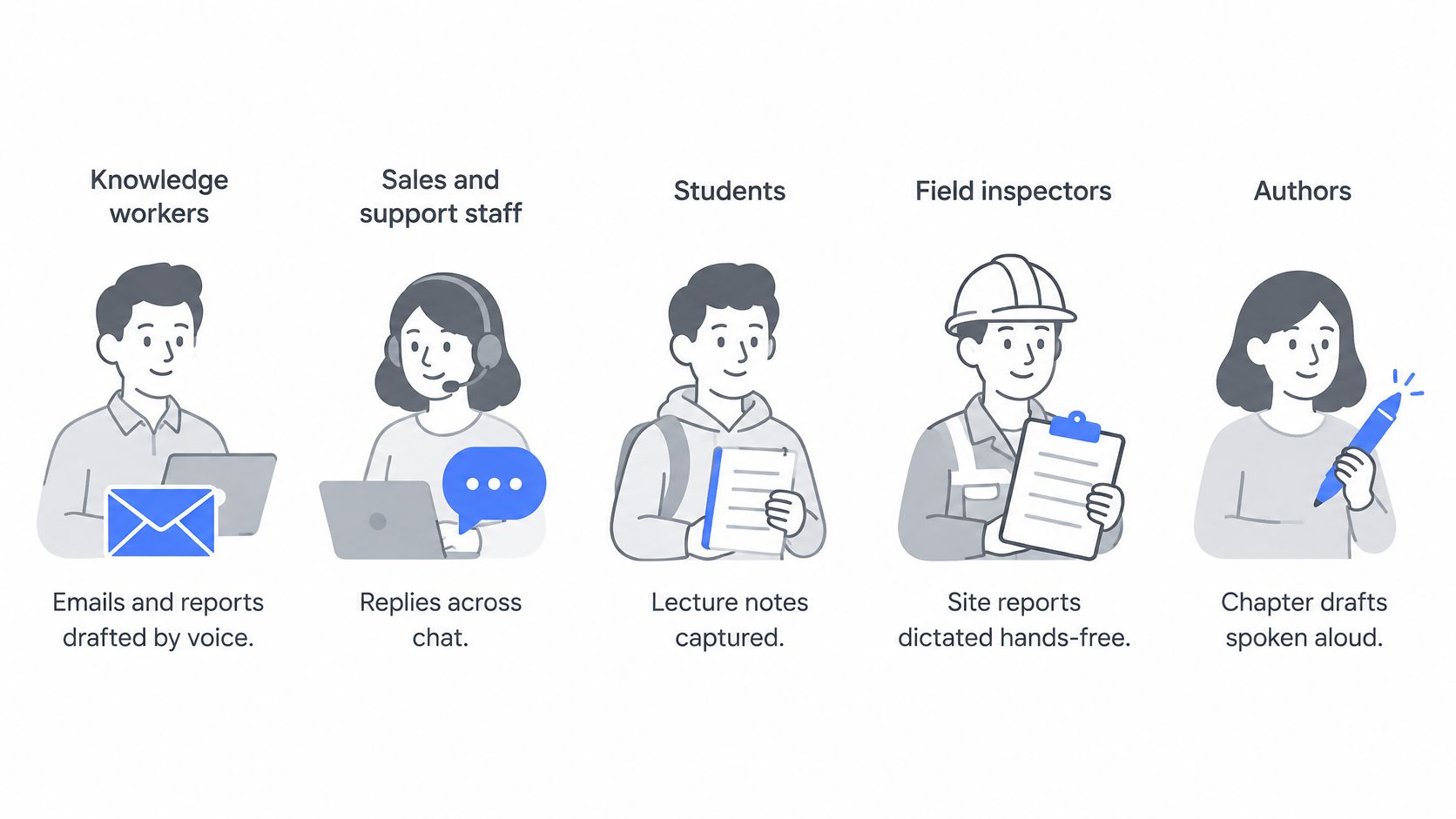
Knowledge workers draft the email or the report out loud, then edit by hand. The win is the first draft, not a finished document that needs no review.
Sales and support staff answer in chat and in the CRM without hopping between a notes app and the ticket. One spoken reply, cleaned up in place, beats retyping the same explanation.
Students and researchers capture a lecture summary or an idea list while it's still fresh. Check the institution's recording rules before you capture anyone else's voice. Your own study notes are a different case from a classmate's presentation.
Developers and prompt engineers speak a prompt or a code comment, then tighten it with the keyboard. Dictation is a fast first pass. It isn't a substitute for reading the diff.
People who want less keyboard time, or who can't type for long, use dictation as the main input. Clinical settings are one reason this category is large on its own. The global medical speech recognition software market was valued at USD 1.5 billion in 2023, according to Grand View Research. That figure is about clinical documentation, not about your inbox, but it shows how much correction cost is tied to getting speech into the right record.
Where the text lands
Integration is the test that separates tools. A dictation app that inserts text at the cursor removes the copy-and-paste step. A standalone transcript forces a transfer, and that transfer is where people abandon the habit.
Try the browser, the CRM, the editor, and the mail client you use every day. Time one real task in each. If the shortcut only works inside one window, you don't have a voice to text device for your work. You have a voice to text device for that window.
Setup Steps and Fixes for Common Dictation Errors
Setup is mostly signal and focus. Do it once, in this order, before you judge the model.
- Pick the input. Use a headset or a close-talk microphone. Leave the laptop microphone for calls you aren't dictating.
- Set the system input and the level. Speech should peak clearly without clipping into distortion.
- Assign a press-and-hold shortcut you can keep down without cramping a finger.
- Record two minutes in a quiet room, then again with normal background noise.
- Add names, product terms, and acronyms to the custom dictionary before the first real document.
- Choose a cleanup level that matches how you write. Heavy cleanup can "fix" a sentence into something you didn't say.
- Dictate one real email and count the corrections. That count is your baseline.
When the text comes out wrong
| Symptom | Likely cause | Fix |
|---|---|---|
| First words of sentences dropped | Shortcut released early or microphone clipping | Hold the shortcut until you finish and lower input gain |
| Names and product terms wrong | No custom vocabulary | Add terms to the custom dictionary |
| Text lands in the wrong window | Focus lost during dictation | Click the target field before pressing the shortcut |
| Frequent errors in a noisy office | Far-field microphone or background noise | Switch to a headset and enable noise suppression |
| Text appears slowly | Cloud round trip or a weak processor | Switch to on-device mode or use a wired connection |
| Works in demos but not on calls | Laptop microphone still selected | Select the headset as the system input |
Keep a short log of corrections for one week. The same missed name, or the same dropped first word, usually points at gain, focus, or vocabulary. It rarely means the whole device is a bad fit.
If errors jump only when you join a call, check the input device again. Many apps switch back to the built-in mic as soon as a headset disconnects.
Choose Your Voice-to-Text Device With This Checklist
The better voice to text device is the one that passes your own test. It isn't the one with the best number on a quiet sample.
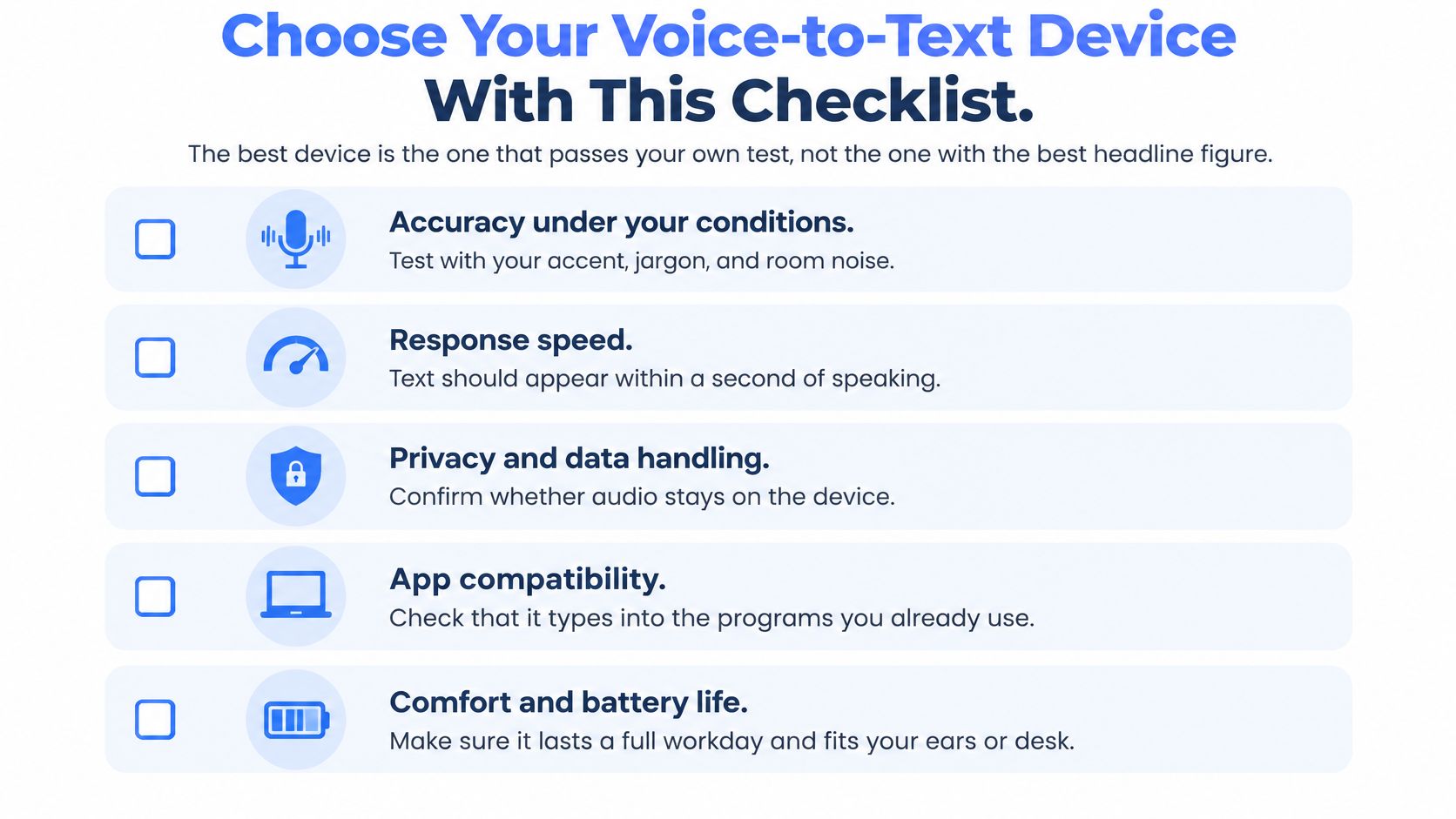
Group the trial around five criteria, then note the practical extras beside them.
- Accuracy under your conditions: Noise, distance, your accent, and your jargon, scored as meaning-changing errors, not only misspellings.
- Latency: Time from releasing the shortcut to seeing text, on your machine, not in a vendor video.
- Language support: The languages and dialects you regularly mix, not the size of the catalog.
- Privacy: Local mode, a real pause for cloud features, history retention, and whether screen context leaves the device.
- Integrations: Cursor insertion in your browser, CRM, editor, and mail client.
Also check operating system support, price tiers, a custom dictionary, cleanup levels, and whether transcription history stays on the device. A cheap tool that fails two of the five criteria costs more in corrections than a paid one that passes them.
How to score a two-week trial
Rate each device from 1 to 5 on each criterion using real work, not a script written for the demo. On ten dictations, time the gap with a stopwatch so latency isn't a feeling.
Then run the same three paragraphs through your current tool and each shortlisted option. Keep the one with the highest combined score. If two scores tie, keep the one that still works when the network drops and the room gets noisy.
Voice Control Pro types at the cursor in the app you're already using, with local processing when you don't want audio to leave the computer. If room noise, accents, and data handling are the tests you care about, try a real paragraph rather than a demo clip. Start at Voice Control Pro.