
Your browser is open. Gmail has three drafts waiting. Slack is active. A Google Doc needs cleanup. A CRM note still isn't logged. By mid-afternoon, your hands are doing repetitive, low-value work that your brain already finished an hour ago.
That's why voice to text in Chrome matters. Not because it feels futuristic, but because it removes friction from the places professionals already work. The catch is that there isn't just one way to do it. Google Docs voice typing works well for document drafting. Chrome extensions push dictation into more web forms and text fields. And if your day jumps between browser tabs and desktop apps, browser-only dictation starts to feel cramped fast.
Table of Contents
Why Typing Less and Talking More Is a Game Changer
Typing breaks your momentum in a way talking often doesn't. You can think through a reply, explain a process, or sketch an idea much faster out loud than by pecking through every sentence. For people who spend all day in email, docs, and chat, that difference adds up to less friction and less hand strain.
Voice input also isn't a niche feature anymore. Google's browser speech stack helped make speech-to-text feel normal inside everyday web apps, and Google notes that its underlying Speech-to-Text capabilities support 125+ languages with synchronous, asynchronous, and streaming modes in its broader platform, which shows how far the technology has matured for real-time workflows in Chrome and beyond (Google Chrome speech support).

Three practical ways people use it
Most professionals end up in one of these camps:
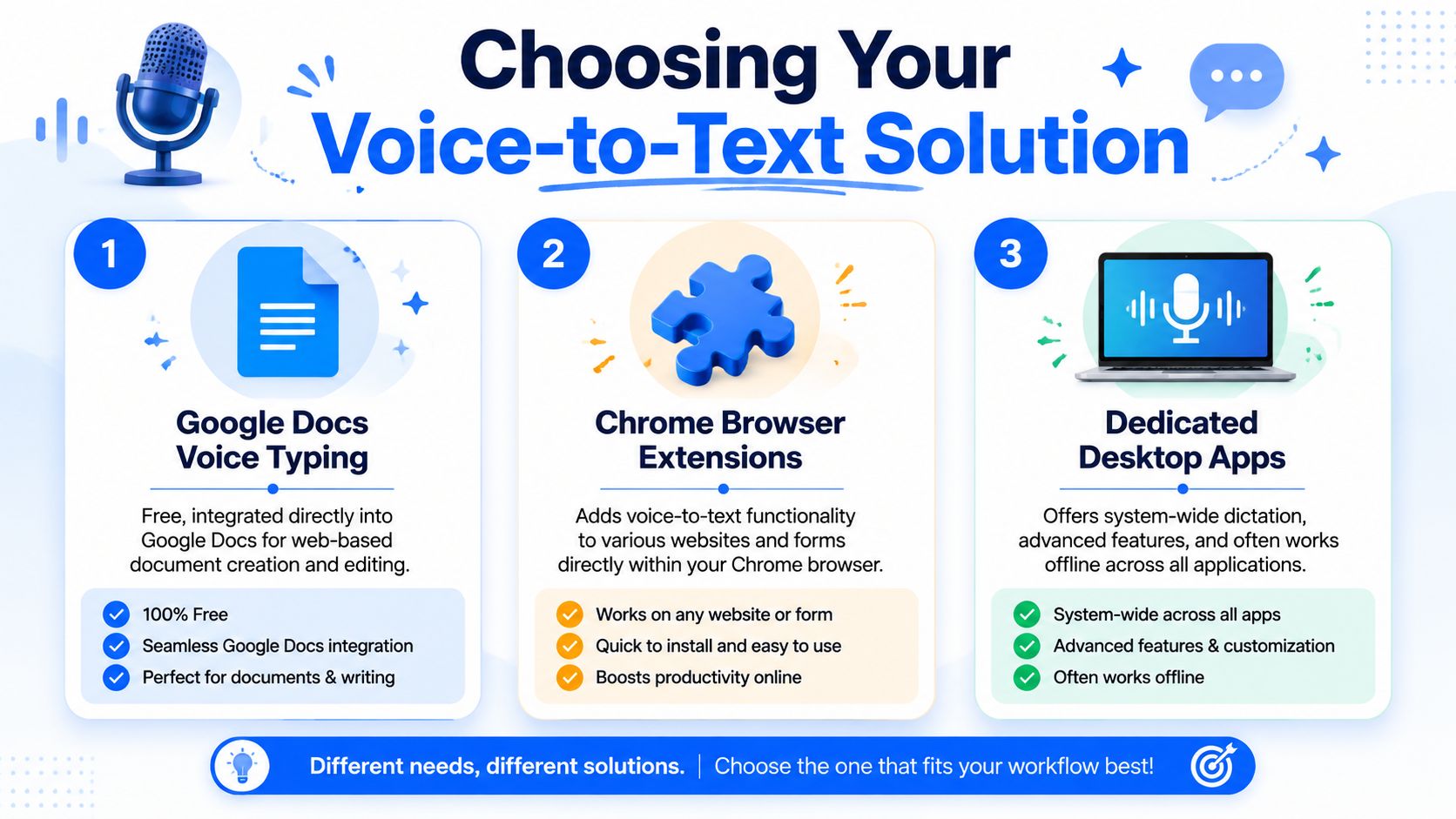
- Google Docs voice typing: Good for drafting notes, reports, outlines, and meeting recaps inside one document window.
- Chrome extension dictation: Better when your work stays in the browser and you need voice input in Gmail, web forms, CRMs, or chat tools.
- System-wide dictation software: Useful when your day moves across Chrome, desktop chat apps, note tools, and other native software.
Practical rule: Pick the simplest option that matches where you actually type all day, not the one with the shortest setup.
The big shift is psychological as much as technical. Once speech input works in familiar tools, people stop seeing it as assistive software and start treating it like another normal input method, right alongside keyboard and mouse.
Where voice input pays off fastest
The easiest wins usually come from repetitive writing tasks:
- Short replies: Support answers, sales follow-ups, and status updates.
- Rough drafting: First-pass content, meeting summaries, idea capture.
- Form filling: CRM notes, ticket fields, internal comments.
- Prompt writing: AI prompts, instructions, revisions, and clarifications.
If you've never used voice to text in Chrome seriously, start with one task you already repeat every day. That's where the payoff shows up first.
Getting Started with Google Docs Voice Typing
Google Docs is the easiest place to begin because the tool is already built into a workflow many people use every day. If you're testing voice to text in Chrome for the first time, this is the lowest-friction starting point.
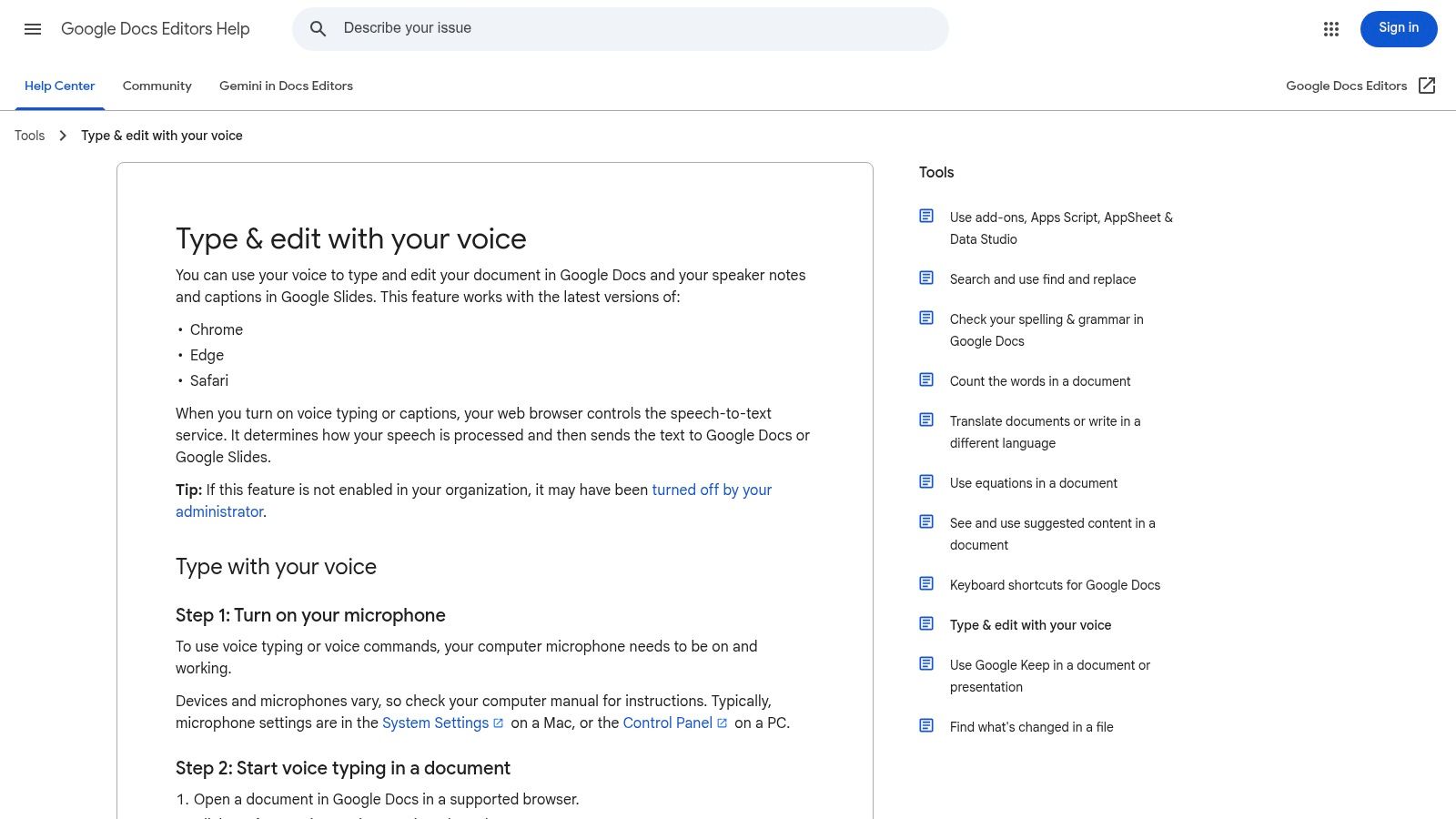
Google's official flow is simple. Use a working microphone, open Tools → Voice typing, then click the microphone icon and start speaking. Google also recommends speaking clearly at a normal pace and pausing before and after commands so the system can separate commands from dictated text more reliably.
Set it up the right way
A smooth first session usually looks like this:
- Check your microphone first. If Chrome is using the wrong mic, the rest of the setup won't matter.
- Open a clean document. Don't test in a document full of formatting and comments if you're still learning the rhythm.
- Start with plain dictation. Say full sentences before you try commands for punctuation or editing.
- Pause briefly around commands. That helps when you say things like “comma” or “new paragraph.”
- Use undo without hesitation. Misrecognitions happen. Correct them fast and keep moving.
Google's own help page for Google Docs voice typing is worth reading once because it shows the expected workflow and reinforces that pacing matters just as much as pronunciation.
What works well in real use
Docs voice typing is strongest when you're drafting longer text in one place. It's especially good for:
- Brain-dumping first drafts
- Turning bullet points into full paragraphs
- Writing meeting summaries while the details are fresh
- Rewriting awkward sentences by speaking them naturally
If you want a few practical workflow ideas beyond the basics, HypeScribe's Google Docs transcription tips offer useful suggestions for making the tool feel less clunky during actual drafting.
Here's a quick walkthrough if you want to see the interface in action before trying it yourself.
Speak in phrases, not isolated words. Dictation engines handle natural language flow better when you sound like you're actually writing.
The limitation shows up quickly, though. Docs voice typing is tied to Google Docs. The minute you switch to Gmail, Slack in the browser, a web form, or a desktop app, that clean workflow disappears. If that's the friction you're hitting, this comparison of Voice Control Pro vs Google Docs Voice Typing is a useful next read because it focuses on where built-in dictation starts to fall short outside the document editor.
Using Chrome Extensions for Dictation Anywhere in Your Browser
If Google Docs voice typing feels too narrow, Chrome extensions are the next logical step. They're built for the core problem users encounter after the first week of dictation. You don't only write in Docs. You write in Gmail, support platforms, LinkedIn, CMS editors, CRMs, comment boxes, and web chat tools.
That's where browser-based dictation gets much more practical. Instead of opening one special document just to speak, you add voice input directly to the sites where work already happens.
Where extensions help most
Chrome extensions can make almost any text field feel dictation-ready. That's useful when your workday is browser-heavy and you're constantly moving between tabs.
One of the clearest signs that this category is mature is the scale of real usage. The Chrome Web Store listing for Voice In reports 600,000+ users, support for 10,000+ websites, and availability in 50+ languages (Voice In on the Chrome Web Store).
In practice, extensions are a strong fit for tasks like:
- Email drafting: Writing replies in Gmail or Outlook on the web.
- CRM updates: Logging call notes without stopping to type every sentence.
- Support work: Responding in browser-based help desks and live chat tools.
- Social publishing: Drafting posts and comments directly in web interfaces.
What to check before you install one
The convenience is real, but so are the trade-offs. Not every extension handles privacy, permissions, or site compatibility the same way.
Before installing one, look at these areas:
- Permission scope: Some extensions need broad access to websites because they insert text into fields across many pages.
- How audio is handled: Some tools emphasize local or in-browser transcription. Others may depend more heavily on server-side processing.
- How activation works: A floating mic button, a toolbar icon, or a keyboard shortcut can each feel very different during fast work.
- Behavior in rich text editors: Extensions sometimes behave differently in complex editors than in plain text boxes.
What matters most: Browser extensions remove a lot of typing, but they still depend on the browser being the center of your workflow.
That last point is the ceiling. If your whole job runs in Chrome, an extension may be enough. If you also jump into native Slack, Notion desktop, Word, notes apps, design tools, or development environments, browser-only dictation starts to create an awkward split. You get used to speaking in one place and typing everywhere else.
That split is exactly why many professionals outgrow the extension stage.
When You Need Voice-to-Text Everywhere
The moment browser-only dictation becomes frustrating is easy to recognize. You dictate a polished customer reply in Chrome, then switch to a desktop app and your voice workflow vanishes. Now you're back to the keyboard for a meeting note, a project update, or a message in a native app.
That inconsistency slows people down more than they expect. It's not just the lost dictation. It's the constant mode switching.
The browser-only ceiling
This gap is common because professionals rarely work inside one browser tab all day. Google's Chromebook dictation guidance makes clear that built-in dictation is tied to places where you type in that environment, and broader Chrome extension workflows are still centered on browser text fields. That's why mixed workflows remain the weak spot for Chrome-only tools (Chromebook dictation limitations).
The practical problem looks like this:
- Email in Chrome works
- Google Docs works
- A browser CRM works
- Native desktop chat apps become manual
- Desktop note apps become manual
- Anything outside the browser breaks the habit
If you write across browser and native software, you need one input method that follows your cursor, not one that depends on a tab.
What a system-wide tool changes
A cross-platform dictation tool makes more sense than another browser add-on. A system-wide tool lets you trigger dictation anywhere you can type, which is a better fit for people who move between email, docs, chat, prompts, and native software all day.
One example is Voice Control Pro. It uses a global shortcut so you can speak and insert text directly at the cursor across apps, rather than limiting dictation to Chrome fields. That changes the workflow in a very practical way. You stop thinking about which app supports voice input and start treating speech like a normal system-wide input method. If privacy is part of your evaluation, this breakdown of cloud vs local speech recognition is worth reviewing before you choose a tool.
Browser dictation solves input in websites. System-wide dictation solves input as a habit.
There's also a quality-of-work difference. When one voice workflow works everywhere, you're more likely to capture ideas immediately, draft rough text before overediting it, and stay in flow while switching tools. For professionals, that consistency matters more than novelty.
Choosing the Right Voice-to-Text Method for You
There isn't one correct setup for everyone. The right choice depends on where you write, how often you switch apps, and how much setup you're willing to tolerate to remove friction later.
The easiest way to choose is to ignore feature lists at first and focus on your actual work surface. If most of your writing happens in one document editor, keep it simple. If your day is scattered across websites, use a browser-wide option. If your work crosses browser and desktop apps constantly, choose a system-wide approach.
Comparison of Voice-to-Text Methods in Chrome
| Method | Best For | Key Limitation | Typical Cost |
|---|---|---|---|
| Google Docs Voice Typing | Drafting inside Google Docs | Stays inside Docs | Usually free with Google Docs access |
| Chrome Extensions | Browser-heavy work across websites and forms | Stops at the browser boundary | Varies by extension |
| Dedicated Desktop Apps | Mixed workflows across browser and native apps | More setup and tool selection upfront | Varies by app |
A simple way to decide
Use these questions as a filter:
- Do you mostly write documents in one place? Start with Google Docs voice typing.
- Do you live in Chrome all day? Use an extension and check permissions carefully.
- Do you bounce between web apps and desktop tools? Choose a dedicated desktop dictation app.
A few common profiles make the choice clearer:
- Student or researcher: Docs voice typing is often enough for notes, rough drafts, and study material.
- Support or sales rep: A Chrome extension fits well if your tickets, CRM, and email all live in the browser.
- Manager, founder, or operator: A system-wide tool usually makes more sense because the day spans browser tabs, desktop chat, docs, and notes.
- Mobile-first note taker: If you often capture thoughts on the go before moving them into Chrome later, this guide to transcribing voice notes on iPhone or Android is a helpful companion workflow.
The key is matching the tool to the writing surface you use most, not the one you wish you used.
Pro Tips for Clear and Accurate Dictation
Most dictation problems aren't caused by the software alone. They come from rushed pacing, weak microphone placement, noisy rooms, and speaking in fragments that don't resemble natural written language.
The good news is that a few habits improve almost every voice to text Chrome setup, whether you use Google Docs, a browser extension, or a desktop dictation tool.
Small habits that improve recognition
Start with the physical side of the setup:
- Use a decent microphone: Built-in laptop mics can work, but they often pick up room noise, keyboard taps, and echo. If dictation is part of your daily workflow, a better mic setup pays off quickly. This guide to the best microphone setup for voice dictation on desktop covers the main considerations.
- Keep mic distance consistent: Don't lean in and out while speaking. Volume changes can confuse recognition.
- Reduce competing audio: Turn down music, mute notifications, and close the loud fan if you can.
Then fix the speaking pattern itself:
- Speak in sentences: Full thoughts produce better output than a stream of isolated words.
- Pause around commands: If your tool supports spoken punctuation or editing commands, give it a little space before and after.
- Maintain a normal pace: Rushing hurts recognition more than speaking naturally does.
Editing habit: Dictate first, correct second. If you interrupt every phrase to fix a tiny error, dictation feels slower than typing.
How to sound more natural on the page
A lot of people stop using dictation because the result sounds too spoken. That usually means they're speaking the way they talk in conversation, not the way they'd write.
Try this instead:
- Think one sentence ahead. Don't start speaking while you're still deciding what you mean.
- Use verbal structure. Say punctuation, paragraph breaks, and section transitions intentionally.
- Proofread the final output. Voice input is fast. Final polish is still your job.
One useful trick is to draft with more complete phrasing than you think you need. Spoken text that is slightly more formal tends to transcribe into cleaner writing than casual fragments and half-finished thoughts.
If you build those habits, dictation stops feeling like a novelty and starts feeling like standard professional input.
- * *
If Chrome dictation feels helpful but too limited for the way you work, Voice Control Pro is worth evaluating as a cross-platform option. It's designed for people who want one voice workflow across browser tabs and desktop apps, with text inserted directly where the cursor is instead of only inside Chrome.