
You're probably doing this right now. A dozen tabs are open, Slack is pinging, your email draft is half-finished, and the document you need to write is still a blank page with a cursor blinking back at you. The bottleneck usually isn't thinking. It's getting thoughts out fast enough, cleanly enough, without breaking your flow every few seconds to fix wording, punctuation, or whatever autocorrect just mangled.
That's why voice dictation on Mac has changed from a niche accessibility feature into a serious productivity tool for knowledge work. The old model was simple speech-to-text. You spoke, the computer dumped words into a text field, and you cleaned up the mess later. The newer model is closer to voice-first writing. You speak into email, docs, chat, prompts, notes, and code comments, then let the software help shape the result into something usable.
If your work involves drafting, revising, or responding all day, that shift matters. It also helps to separate dictation from transcription. If you're dealing with recorded audio or interviews, Tutorial AI's transcription guide is a useful primer on that adjacent workflow. But if your goal is to think out loud and have polished text land directly where your cursor is, you need different criteria.
Table of Contents
- From Slow Typing to Fluid Thoughts
- What changes when speaking becomes the input layer
- Why basic dictation no longer feels enough
- Your Two Main Mac Dictation Options
- Apple's built-in option
- Where native tools start to feel cramped
- The third-party route
- How to Choose the Right Voice Software
- Start with privacy, not marketing
- Then test for workflow friction
- Don't ignore latency and offline behavior
- A fast decision checklist
- Setup and Optimization Tips for Mac
- Fix the audio chain before blaming the app
- Match the software to the hardware
- Small habits that improve output
- Advanced Dictation Workflows for Professionals
- Writing an outline without losing momentum
- Editing inside the app you're already using
- Technical and specialist work
- Our Recommendations for Mac Users in 2026
- Who should choose what
- My practical view
From Slow Typing to Fluid Thoughts
The biggest pain with typing isn't speed alone. It's interruption. You start with a clear idea, stop to rephrase a sentence, switch to another app for a reference, come back, then lose the shape of the argument you were building.
That's especially obvious on a Mac because many people work across several text-heavy apps at once. You might sketch an outline in Notes, answer follow-up questions in Slack, draft the formal version in Google Docs, and send the final version in Mail. The keyboard works, but it forces your thinking into short bursts. Voice lets you move in longer stretches.
What changes when speaking becomes the input layer
Good voice dictation software for Mac doesn't just help you “type with your voice.” It changes how you draft. Speaking allows for the formulation of complete ideas faster than typing complete sentences, particularly when the material is already known.
That matters for:
- Email drafting: You can talk through the structure of a reply before overthinking every line.
- First drafts: Spoken language is often a better way to get momentum than staring at a polished blank page.
- Revision passes: Some tools now help clean up rough spoken text instead of leaving all editing to you.
- Context-heavy work: When you're juggling chat, docs, and internal tools, voice input reduces handoffs.
The best dictation workflow doesn't feel like “using dictation.” It feels like removing one layer of friction between thought and text.
Why basic dictation no longer feels enough
Plenty of Mac users start with Apple's built-in tools and hit the same wall. Basic dictation is fine when you need a sentence or two. It feels weaker when you're writing something nuanced, confidential, or full of jargon.
That's where newer AI dictation apps have pushed the category forward. They're not just trying to hear words correctly. They're trying to help you finish the task with less cleanup. For knowledge workers, that's a major advantage.
Your Two Main Mac Dictation Options
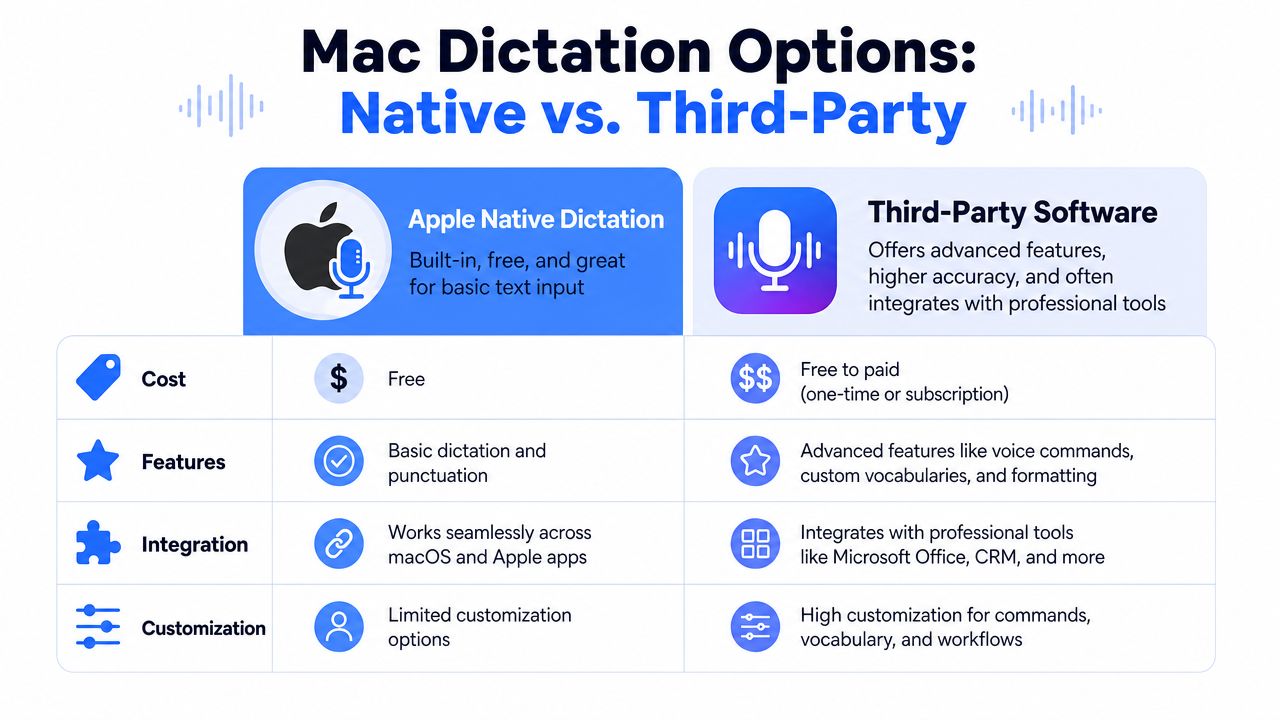
If you're comparing voice dictation software for Mac, the options are simpler than they seem. You have Apple's native tools and specialized third-party apps. Everything else is just a variation on those two paths.
Apple's built-in option
Apple Dictation is the baseline because it's already there. Apple says Mac Dictation lets users “speak to enter text anywhere you can type it,” supports dictation of text of any length without a timeout, and stops automatically after 30 seconds with no speech detected. Apple also notes you can start it with the Microphone key, a dictation shortcut, or Edit > Start Dictation in the menu bar, as described in Apple's Mac Dictation documentation.
That makes it convenient. No purchase decision. No extra app to evaluate. No setup rabbit hole.
For casual use, that's enough. If you occasionally dictate a message, add a paragraph to a note, or want lightweight voice input across macOS, Apple Dictation is a solid starting point.
Where native tools start to feel cramped
The trouble starts when dictation becomes part of your actual job instead of a convenience feature. Native tools generally feel best when the task is simple. They feel less capable when the workflow includes rewriting, preserving tone, handling domain-specific terms, or moving fluidly between apps all day.
There's also a difference between speech entry and workflow control. Apple's tools help with the first. They're not designed to be a full writing layer for professional work.
A good breakdown of that gap appears in this comparison of Voice Control Pro vs macOS Dictation, especially if you're deciding whether built-in dictation is enough for more than occasional use.
The third-party route
Third-party dictation apps exist because many Mac users need more than a microphone attached to a text field. They usually focus on one or more of these goals:
| Option | Best fit | Typical strength | Typical weakness |
|---|---|---|---|
| Apple Dictation | Casual Mac users | Built-in access | Limited workflow depth |
| Accessibility-focused control tools | Hands-free navigation users | Broader control model | Can feel heavy for writing-first work |
| AI dictation apps | Writers, managers, developers, support teams | Better cleanup and workflow support | Extra setup or cost |
Practical rule: If dictation is occasional, built-in is fine. If dictation is how you write for work, the default tool usually won't carry the whole load.
The simplest analogy is this. Apple Dictation is like the notepad that comes with your system. Modern AI dictation software is closer to a full writing environment that happens to use your voice as the input method.
How to Choose the Right Voice Software
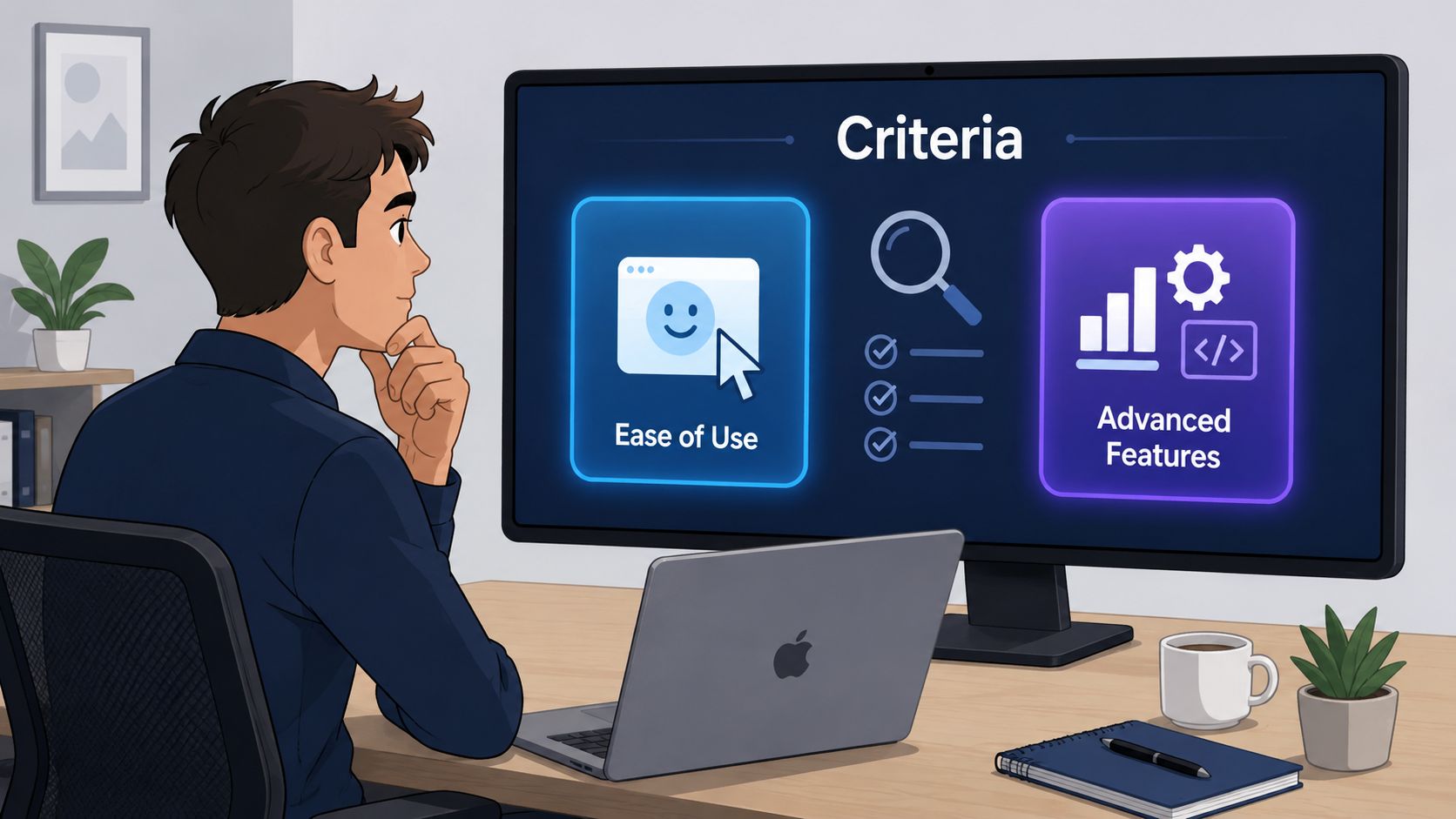
Most reviews obsess over who has the “best accuracy.” That matters, but it's not the first question I'd ask anymore. For knowledge workers, the better question is whether the software lets you dictate privately, across your real app stack, and with less editing after the fact.
Start with privacy, not marketing
A neglected issue in voice dictation software for Mac is whether your words stay on your machine. Independent coverage has noted that privacy and on-device processing are a major concern for users who want dictation across any app without sending sensitive text to the cloud, and that Apple's built-in Dictation and Voice Control still have practical limits for longer or more complex workflows, as discussed in Setapp's overview of Mac dictation software.
If you handle client material, HR notes, legal drafts, product plans, or anything confidential, this shouldn't be an afterthought.
Use this filter first:
- On-device processing: Best for sensitive work and unreliable internet.
- Cloud processing: Can be fine for low-risk drafting, but you need to know what leaves your machine.
- Hybrid setups: Often the most practical, but only if the local mode is effective.
If you want a broader primer on that trade-off, this piece on cloud vs local speech recognition is worth reading before you commit to a tool.
Then test for workflow friction
The next issue is simple. Does the tool work where you write?
Some products are excellent inside one app and awkward everywhere else. Others work system-wide but feel clumsy when you need to trigger them, pause them, or correct mistakes. For real productivity, you want software that disappears into your day.
Check these points:
- Activation: Can you start speaking quickly without hunting for a button?
- App coverage: Does it work in Mail, Slack, Docs, browsers, CRMs, and coding tools?
- Cleanup tools: Can it improve rough dictated text instead of just inserting it?
- Vocabulary handling: Does it cope with names, acronyms, and technical language?
Don't ignore latency and offline behavior
Privacy and speed often overlap. If the software depends heavily on cloud processing, the round trip can become part of the annoyance. Local inference is increasingly the meaningful differentiator.
If you're evaluating offline-first options, this guide to explore offline voice recognition gives useful context on what “offline” usually means in practice.
Choose the tool that creates the least post-editing, not the one with the loudest claim on the landing page.
A fast decision checklist
Before installing anything, answer these four questions:
- Will I use this for confidential material?
- Do I need it to work across every app I type in?
- Am I trying to capture raw text, or finish polished writing faster?
- Do I want speech recognition only, or editing help too?
Those answers narrow the field much faster than feature grids do.
Setup and Optimization Tips for Mac
Even strong dictation software fails with bad setup. Most accuracy complaints come from the microphone, the room, or the user's habits, not just the speech model.
Start with the physical side first.
Fix the audio chain before blaming the app
MacBook microphones are usable, but an external microphone usually gives cleaner input and more consistent results, especially in busy rooms or on calls. Accessibility guidance around dictation also consistently points users toward local setup choices such as external microphones when they want better accuracy.
A few practical rules help right away:
- Use one microphone consistently: Switching devices changes the sound profile and can make results feel unpredictable.
- Reduce room noise: Fans, keyboard clatter, and open-office chatter all interfere with spoken punctuation and proper nouns.
- Speak in phrases, not word-by-word: Dictation engines handle natural cadence better than hesitant bursts.
- Keep mic distance stable: Don't lean in for one sentence and turn away for the next.
If your environment is noisy, Isolate Audio's creator guide is a practical resource for improving recorded voice quality before you start fine-tuning software settings.
Match the software to the hardware
For privacy-sensitive Mac dictation, on-device speech models are becoming a real technical separator. VoiceInk says it requires Apple Silicon and macOS 14.4+ because it uses the Neural Engine for local processing, with 8 GB RAM recommended. That same source describes Apple's built-in dictation as having internet dependence for some use cases, which helps explain why local inference often feels better for latency and offline behavior in daily work, according to VoiceInk's product details.
That means older Intel Macs and newer Apple Silicon Macs can have very different experiences with advanced local dictation apps.
For desktop setups, microphone choice and placement matter as much as the software. This guide to the best microphone setup for voice dictation on desktop is useful if you're trying to build a dependable workstation setup rather than relying on a laptop mic.
Small habits that improve output
Once the hardware is good, the next gains come from routine.
Speak the punctuation you actually want during drafting. It's faster than fixing sentence structure later.
Also keep a short list of your repeated terms. Product names, client surnames, internal acronyms, and technical words are where dictation usually stumbles first. If your app supports a custom dictionary, use it early.
Later in the setup process, it helps to watch a working example instead of guessing what “good” sounds like in practice.
Advanced Dictation Workflows for Professionals
The primary upgrade isn't speaking instead of typing. It's speaking and staying inside the task until it's done.
Recent coverage of AI dictation tools notes that the category is shifting toward context-aware tools that use selected text, clipboard content, and active-app context to generate more precise outputs. The same coverage argues that the key differentiator is no longer transcription speed alone, but how well a tool reduces post-editing and supports task completion inside email, docs, chat, and coding tools, as described in this analysis of AI dictation tools for Mac.

Writing an outline without losing momentum
A consultant preparing a strategy memo usually doesn't need perfect prose at minute one. They need structure while the thinking is still hot. Voice works best here because spoken thought naturally comes out as sections, arguments, and caveats.
A good workflow looks like this:
- Outline by voice first: Say the headline, then the key points as bullets or short paragraphs.
- Add examples while they're fresh: Don't stop to polish transitions.
- Run cleanup after the draft exists: Editing is faster once the skeleton is visible.
That's much closer to how people think through a problem than sentence-by-sentence typing.
Editing inside the app you're already using
Managers often hit a different problem. They can talk through a detailed review or project update quickly, but then spend too much time softening tone, tightening wording, or removing repetition.
Modern dictation tools separate themselves from classic speech-to-text. The useful ones don't just insert words. They help reshape those words based on context. If you've selected a paragraph in an email, the software should help refine that paragraph without forcing you into a separate editor.
The fastest dictation workflow is the one that avoids copy-paste between capture, cleanup, and final delivery.
Technical and specialist work
Developers, analysts, and researchers also benefit, but not because dictation suddenly writes code for them. It helps with the text-heavy parts around the core work:
| Workflow | Where voice helps | What breaks with basic dictation |
|---|---|---|
| Code comments | Drafting explanations quickly | Technical terms often need cleanup |
| Prompt writing | Iterating long instructions | Raw transcription can be messy |
| Research notes | Capturing observations in real time | Manual reformatting slows review |
| CRM and support replies | Fast drafting with context | Tone consistency can drift |
The pattern is consistent. The more your job depends on drafting, rephrasing, and responding, the more modern voice dictation software for Mac becomes a workflow tool rather than an input novelty.
Our Recommendations for Mac Users in 2026
For many Mac users, the right answer is still the simple one. Start with Apple Dictation if your needs are light, your text isn't sensitive, and you mainly want quick voice entry without installing anything else. It's built in, easy to reach, and good enough for casual use.
For professional work, I'd make a different call. If you dictate every day, move between multiple apps, and care about privacy or editing efficiency, modern AI dictation tools are the better fit. That's where the category has clearly moved.
A 2026 comparison of dictation tools reported that Apple Dictation is built into macOS, while newer AI dictation apps aim to outperform it with stronger accuracy and privacy features. In that same comparison, Wispr Flow claimed 95%+ accuracy and “40%+ better accuracy than built-in” dictation, while VoiceInk was described as a local macOS app reaching up to 99% accuracy with 100% offline processing, according to this 2026 dictation tools comparison.
That doesn't mean every third-party app is automatically worth paying for. It means your evaluation should focus on the things that matter in daily use:
Who should choose what
- Choose Apple Dictation if you want free, built-in, low-friction dictation for everyday text input.
- Choose an on-device focused app if privacy, offline behavior, and lower round-trip delay matter more than convenience alone.
- Choose an AI workflow tool if your real pain is cleanup, rewriting, formatting, and staying productive across email, docs, chat, and coding tools.
My practical view
If dictation is a side feature in your day, don't overcomplicate it.
If dictation is becoming your main way of drafting, treat it like any other serious productivity system. Test privacy. Test activation speed. Test how much editing is left after you speak. That's what determines whether voice dictation software for Mac becomes a gimmick or a genuine edge.
If you want a tool built for that second category, Voice Control Pro is worth a close look. It's designed for people who dictate across apps, want cleaner text inserted directly at the cursor, and need more than raw transcription. The local mode and Fly Mode are especially relevant if you care about privacy, while the rewrite and contextual assistant features make sense for heavy email, document, chat, and prompt workflows.