
You're halfway through a thought when the keyboard gets in the way. Maybe you're walking home, rinsing a cup, or lying in bed with an idea that feels important. By the time you get your phone, find the right app, and start typing, the useful part has blurred.
A voice activated journal solves that capture problem by letting you speak first and organize later. It turns reflection into something closer to leaving yourself a clear message, without demanding a blank page, perfect phrasing, or a long uninterrupted session.

This guide will show you what happens between your spoken words and the finished entry, why speaking can make journaling easier to maintain, and how to weigh convenience against privacy. You'll also see a cursor-level workflow that works inside the writing app you already use, rather than forcing you to switch into a locked journal environment. If you're comparing dedicated tools with broader AI reflection platforms, Sintera's AI journaling app offers useful context for thinking about what should happen after your words have been captured.
The path is practical. First, we'll define the technology in everyday terms. Then we'll look at speed and habit formation, examine cloud and local processing, build a hands-free setup, and apply it to student notes, professional debriefs, and personal reflection. By the end, you'll have a repeatable way to speak, review, and keep the thoughts that normally disappear.
Table of Contents
- Introduction to Voice Activated Journaling Without Friction
- What a Voice Activated Journal Is and How It Works
- Capture, cleanup, and control
- Why Voice Journaling Feels Faster and Easier to Keep
- The habit effect of shorter sessions
- What speed does and doesn't solve
- Privacy and Control When Your Journal Listens
- Questions to ask before sharing sensitive entries
- Privacy is also a control question
- Setting Up Your Hands Free Journaling Workflow
- Build the capture loop
- Match the tool to the thought
- Prompts and Examples for Students Professionals and Everyday Reflection
- The student after class
- The professional after a meeting
- The everyday reflector
- Building a Sustainable Voice Journaling Practice
Introduction to Voice Activated Journaling Without Friction
A voice activated journal is less like dictating a formal essay and more like handing a trusted scribe a rough thought. You speak naturally, the system converts your words into text, and the result can be saved, searched, edited, or revisited later.
That distinction matters because capture is often more important than polish at the beginning. A typed entry can tempt you to fix the sentence before you've finished the idea. Speaking lets you follow the thought while it's still available, then decide afterward whether it needs cleanup, a title, or no editing at all.
The format also helps people who find typing tiring, awkward, or inaccessible. It fits moments when your hands are occupied and places where opening a notebook feels inconvenient. You don't need to build a dramatic morning ritual. A short spoken note after a meeting, before sleep, or during a walk can become a useful record.
This guide treats voice journaling as a friction-free capture system, not merely a transcription feature. That means looking at where the text appears, how much control you have over the audio and transcript, and whether an app helps you reflect without making assumptions about your emotional state.
You'll start with the basic flow from microphone to searchable text. Next comes the reason voice feels quicker, followed by a privacy checklist for sensitive thoughts. The practical setup then uses a press, speak, and release loop that can work wherever your cursor is. Finally, examples and prompts will help you turn occasional recordings into a sustainable habit.
What a Voice Activated Journal Is and How It Works
Think of a voice activated journal as a digital scribe sitting behind your cursor. You place the cursor in a note, document, message field, or journal entry, activate the microphone, and speak. The software captures the sound, recognizes the words, applies whatever cleanup you've chosen, and inserts the result into that location.
Core idea: Voice journaling separates the act of having a thought from the slower act of formatting it.
The process usually has several layers. First, the microphone receives your speech. A speech-recognition model identifies words and punctuation. A cleanup layer may remove verbal clutter, improve paragraph breaks, or preserve your rough phrasing. The final layer places the text in the active field, so you don't have to copy it from one app and paste it into another.
That cursor-level behavior separates this workflow from a traditional voice memo. A voice memo preserves sound, which can be valuable, but finding one specific thought later may require listening through recordings. A transcript gives you words that can be searched, scanned, and rearranged.
It also differs from a typed journal. Typing makes editing immediate, but it can interrupt the flow of reflection. Voice capture lets you produce a rough, complete thought first and decide on structure afterward. The best setup doesn't force you to choose between raw audio and polished writing. It lets you choose how much transformation you want.
Capture, cleanup, and control
You might want a light cleanup level for an emotional entry because the pauses and imperfect wording are part of the record. For a work debrief, you may prefer clearer paragraphs and punctuation. The important feature is control. A system that rewrites your meaning can make a personal journal feel less like your own voice.
Searchability creates another advantage. Once entries exist as text, you can look for repeated topics, unfinished ideas, or moments you want to revisit. That turns a journal from a collection of isolated notes into a memory surface you can browse.
If you're thinking about the security of spoken communication more broadly, Ciphar's guide to encrypted voice messaging provides helpful background on the difference between sending audio and protecting its contents.
The central question isn't whether an app can hear you. Ask what it creates, where that text goes, how long recordings remain available, and whether you can work without changing windows.
Why Voice Journaling Feels Faster and Easier to Keep
You finish a difficult meeting, leave your desk, and notice the main thought already fading. Opening a journal app may feel like another task. Speaking gives that thought a direct route into the same app you already use, with less stopping to format, correct, or organize it.
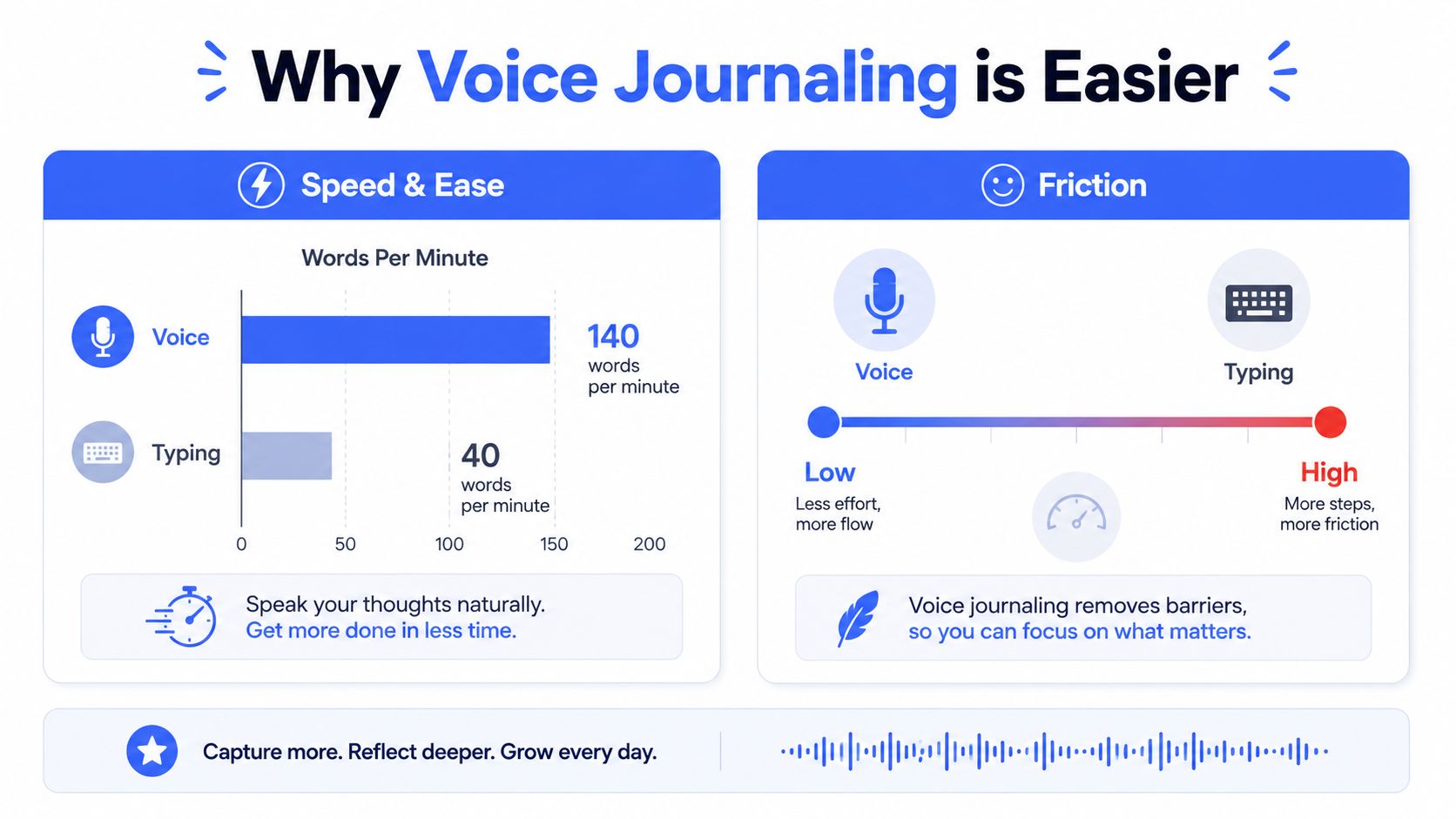
A source comparing input methods reports English speech at 153 words per minute versus 52 words per minute on a phone keyboard, a nearly 3:1 speed ratio (voice journaling speed comparison). The advantage is not perfect wording. Your mind can keep moving while your fingers are no longer the narrowest part of the process.
The same source estimates that a two-minute voice entry can produce about 300 words, while typing the same amount can take roughly 7 to 8 minutes. That shorter capture window can change reflection from a task postponed until later into a small action you complete now. Voice journaling therefore works less like composing an essay and more like opening a quick capture channel wherever your cursor already sits.
The habit effect of shorter sessions
A peer-reviewed diary study offers a useful picture of real-world use. Nine participants generated 110 recordings totaling 3 hours and 55 minutes, with an average recording length of 2.5 minutes and 97% of expected diary completions achieved (peer-reviewed audio diary study). The point is not to copy that exact routine. It is that spoken reflection can fit into brief check-ins instead of requiring a formal writing appointment.
The same study found that morning recordings between 6:00 and 12:00 accounted for 38% of recordings, while late-evening recordings between 20:00 and 00:00 accounted for 36%. These patterns match two natural transitions, starting the day and closing it. A reminder attached to one of those transitions can make the habit easier to remember.
Short entries also reduce physical effort. Speaking offers another input path when your hands are tired, your posture is uncomfortable, or typing creates strain. It can help away from a desk too, but follow local safety rules and never record while driving.
What speed does and doesn't solve
Fast capture cannot create meaningful reflection by itself. A person can speak quickly and still avoid the question that matters. Speed gives you room to stay with a thought, explain its context, and keep details that typing might cause you to abandon.
A useful first entry might sound like this: “I keep saying the meeting was fine, but I felt quiet afterward. I think I was frustrated because the decision changed without anyone explaining why.” The wording is unfinished, yet the observation is clear. Keep the transcript rough or revise it later.
Pair the low-friction workflow with one small prompt: what happened, what you noticed, and what you want to remember. Then stop. The aim is to preserve enough of the moment for your future self to recognize it.
Privacy and Control When Your Journal Listens
A private journal isn't private merely because the app uses a lock screen. Your spoken thoughts may pass through several systems before becoming text, so privacy depends on the complete route from microphone to storage.
Cloud transcription sends audio or speech data to remote servers for processing. That model can offer useful capabilities, but it introduces questions about transmission, retention, account linkage, and transcript synchronization. On-device processing keeps the recognition work on your phone or computer, which can reduce exposure, especially when the system can operate offline.
Questions to ask before sharing sensitive entries
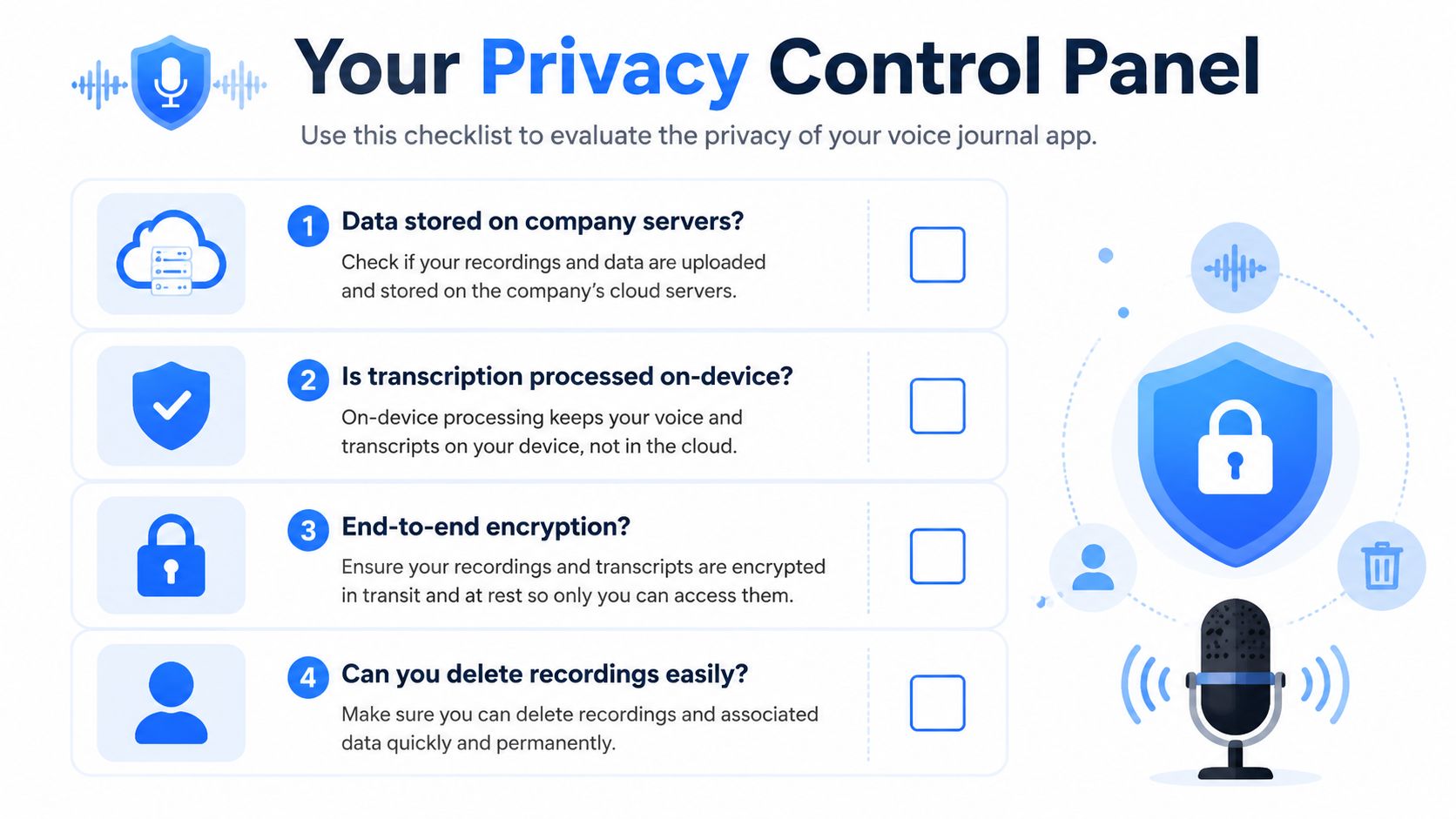
Use the product's privacy documentation, then test the behavior yourself. A useful checklist includes:
- Server processing: Does audio or transcription data go to company servers?
- Local capability: Does the app process speech on-device, and does it continue working offline?
- Storage behavior: Are recordings kept separately from transcripts, and can you delete both?
- Account dependence: Can you use the journal without creating an account or enabling synchronization?
- Encryption boundaries: Is data protected during transfer and storage, and what does that protection cover?
An airplane-mode test can reveal more than a vague privacy label. If transcription stops when the device has no connection, the feature likely depends on a server. Independent privacy guidance emphasizes that on-device models are the only setup where entries never leave the device (voice journaling privacy analysis).
For a practical comparison of processing locations, see this explanation of cloud versus local speech recognition. The right choice depends on the entry. You might accept cloud processing for a grocery reminder and choose local-only processing for family conflict, health concerns, financial details, or work information.
Privacy is also a control question
Consider whether the app lets you pause cloud features, remove old audio, export text, and choose what AI analysis can access. Encryption matters, but it doesn't answer every concern. A highly sensitive entry can still create risk if the service retains the original recording, builds an account-linked history, or analyzes emotional tone without clear consent.
Reflective AI adds another layer. Trend coverage describes systems that ask follow-up questions, identify patterns, and offer contextual insights, including emotion detection and passive emotional tracking (coverage of reflective AI journaling). Those features may help you notice recurring themes, but they shouldn't be treated as therapy, diagnosis, or an unquestionable reading of your inner life.
Choose the least complicated setup that gives you enough value. For sensitive journaling, local processing, minimal storage, and manual review may be more appropriate than maximum automation.
Setting Up Your Hands Free Journaling Workflow
The most flexible setup turns the app you already use into a journal. Open a text editor, note system, document, or private file, then use a voice-to-text tool that inserts transcription at the cursor. This avoids a common failure point, switching windows just to capture one thought.
Build the capture loop
- Choose a home for entries. Create one private document or folder with a clear naming pattern. You might separate daily reflections from project notes, but keep the first version simple enough that you'll use it.
- Set a global shortcut. On macOS or Windows, choose a press-and-hold command that you can activate from the app where you're writing. The purpose is to make capture feel like one physical gesture, not a chain of navigation steps.
- Place the cursor. Click where the thought should appear. This could be beneath the current date, inside a note, or in a blank document.
- Press, speak, and release. Hold the shortcut, talk in complete thoughts, and release when you're finished. The transcript should appear at the cursor, leaving the surrounding app and document in place.
- Review before polishing. Read the text once. Correct names, dates, and meanings first. Style edits can wait, especially for personal entries.
Voice Control Pro is one option for this cursor-level approach. It runs on macOS and Windows, uses a global press-and-hold shortcut, and can insert cleaned transcription into the active field. Its Fly Mode processes locally and pauses cloud features, while its broader configuration includes cleanup levels, a custom dictionary, transcription history, language support, and Hey Max tools for rewriting, screen questions, and app launching. If you're working primarily on an iPhone, this comparison of the best dictation apps for iPhone can help you evaluate a mobile-first alternative.
Match the tool to the thought
| Need | Suitable choice | Why |
|---|---|---|
| Raw emotional capture | Light cleanup | Preserves your wording and natural pauses |
| Daily reflection | Moderate cleanup | Makes entries easier to scan later |
| Work debrief | Stronger cleanup | Produces clearer paragraphs and punctuation |
| Specialized names | Custom dictionary | Reduces repeated corrections |
| Sensitive entry | Local or offline mode | Limits dependence on remote processing |
Language settings deserve attention too. Select the language you speak, add names or specialist terms where possible, and test a short paragraph before trusting the workflow for a long entry. Recognition quality depends on the microphone, your environment, and whether other people are speaking. A review of speech-recognition performance reported word error rates as low as 0.087 in tightly controlled dictation and above 50% in conversational or multi-speaker audio, showing why quiet, single-speaker conditions matter (speech-recognition accuracy review).
For more ideas on making cursor-based dictation part of everyday writing, explore this speech-to-text workflow for daily writing. The best workflow is the one that leaves you in the same document, with the same thought, and fewer correction steps.
Prompts and Examples for Students Professionals and Everyday Reflection
A voice activated journal becomes more useful when you give it a small direction. Without a prompt, you may record “busy day” and move on. A question such as “What did I understand today that I didn't understand yesterday?” gives your voice somewhere to go.
The student after class
A student can open a note immediately after studying and speak a short review:
“The hardest idea today was the difference between correlation and causation. I can explain the definition, but I still need an example from the reading. Tomorrow I'll test myself without looking at my notes.”
That entry captures understanding, uncertainty, and a next action. Useful prompts include “What part would I explain to a classmate?” and “What question should I bring to the next session?” A student who wants to develop this into a searchable study record can also review these voice writing examples.
The professional after a meeting
A professional might record a debrief before opening the next task:
“Three decisions were clear, but ownership of the launch checklist wasn't. I agreed to send the summary, though I should confirm who owns the final review. I felt rushed when the deadline changed, and I want to ask for the reason before promising more work.”
This kind of note separates facts from interpretation. It can later become an email, a task list, or a private record of what needs clarification. Ask “What was decided?”, “What remains vague?”, and “What should I not forget?”
The everyday reflector
For personal reflection, keep the language ordinary. “What gave me energy today?” may reveal a small pattern without forcing a grand conclusion. “What am I carrying into tomorrow?” can help you name an unfinished concern.
Short, frequent entries are practical. The diary research described earlier found recordings clustering in morning and late-evening windows, which supports using transitions as reminders rather than waiting for a large block of free time. A follow-up tool can ask about repeated themes, but treat its suggestions as prompts for your own judgment, not as facts about your emotions or mental health.
Building a Sustainable Voice Journaling Practice
Sustainability comes from connecting capture, privacy, and review into one small loop. Choose a regular cue, such as making coffee, closing your laptop, or getting into bed. Press the shortcut, speak one focused entry, release, and leave the transcript where you can find it.
You don't need perfect silence or perfectly formed sentences. A good microphone and a single speaker improve recognition, but the habit should survive ordinary life. If a transcript contains an error, fix the meaning that matters and keep moving.
Reviewing is what turns a pile of entries into reflection. Return to transcription history when you need to remember a decision, find an idea, or notice a repeated question. Use AI follow-up only when it adds useful structure. For some entries, simple local capture is safer and sufficient.
Start with one two-minute entry today. Say what happened, what you noticed, and what you want to remember. Then adjust the prompt, storage location, cleanup level, or privacy setting after you've used the workflow in real life.
Voice Control Pro lets you press and hold a shortcut, speak naturally, and insert polished text wherever your cursor is, across the apps you already use. Visit Voice Control Pro to set up a hands-free journaling workflow that supports local dictation, searchable capture, and optional reflection tools without forcing you to switch windows.