
You're probably here because typing in Spanish is slowing you down. The accents break your rhythm, autocorrect “fixes” words you wanted, and every paragraph takes longer than it should. If you switch between English and Spanish all day, the friction gets worse. The keyboard becomes the bottleneck.
That's exactly where Spanish dictation starts paying off. Good speech recognition no longer feels like a novelty when you're writing emails, case notes, lesson plans, CRM updates, or research summaries. It becomes the fastest way to get words onto the page, especially when your ideas are arriving faster than your fingers can keep up.
Table of Contents
- Why Mastering Spanish Dictation Is a Game Changer
- Choosing Your Spanish Speech to Text Tool
- What good performance actually looks like
- How the three tool categories differ
- Essential Setup for Flawless Dictation
- Start with the microphone, not the software
- Enable Spanish correctly at the system level
- Build a dictation environment that stays consistent
- Mastering Spanish Accents and Dialects
- Why one Spanish setting is not enough
- How to train the system around your variety of Spanish
- Advanced Workflows for Peak Productivity
- A better way to handle sensitive work
- How professionals dictate faster without sounding robotic
- Use voice for capture first and cleanup second
- Troubleshooting Common Dictation Problems
- The words are wrong even when I speak clearly
- It keeps typing in the wrong language
- It writes punctuation words instead of punctuation marks
- Dictation conflicts with another app
Why Mastering Spanish Dictation Is a Game Changer
Spanish isn't a niche workflow. It's a major professional language, and the scale matters. Spanish is spoken by approximately 7.6% of the global population, roughly 580 million people, which makes it one of the world's most widely spoken languages and a serious use case for voice technology, as noted in Rev's overview of Spanish transcription.
That matters in practical terms. If you teach, support customers, recruit, document cases, interview users, or manage multilingual teams, Spanish speech to text isn't just convenient. It changes how fast you can move through writing-heavy work.
For language educators and training teams, the productivity gain compounds because Spanish content rarely lives in one place. It moves across feedback notes, lesson materials, parent communication, and internal documentation. Platforms like Tutorbase for language schools are a good example of the kind of operational environment where faster voice input can remove a lot of repetitive admin.
Practical rule: If you write the same kinds of Spanish sentences every day, dictation usually gives you more leverage than another typing shortcut.
The catch is that “Spanish” on a product page doesn't mean your Spanish, your region, or your privacy requirements are handled well. Many people try dictation once, see a few bad transcriptions, and assume the whole category isn't ready. That's usually the wrong conclusion.
What determines success is more specific: microphone quality, language configuration, dialect fit, and whether the tool processes your speech locally or sends it elsewhere. Desktop users working across languages should also care about how recognition behaves outside a single app, which is why this piece on why multilingual speech recognition matters on desktop is worth reading before you standardize on a workflow.
Choosing Your Spanish Speech to Text Tool
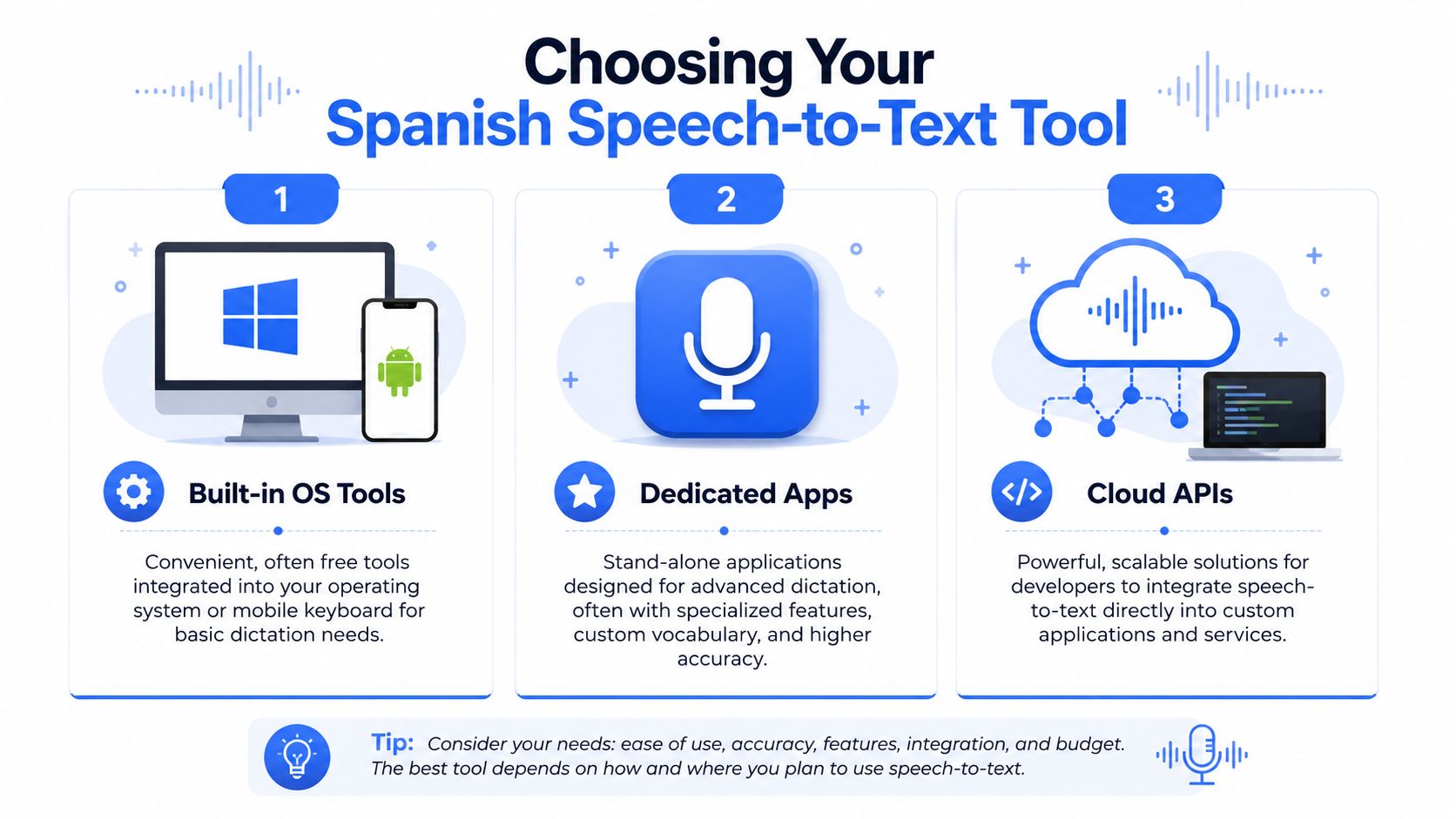
Not every tool solves the same problem. Some are fine for quick notes. Others are built for all-day drafting. A few are better treated as infrastructure than as user-facing dictation tools.
What good performance actually looks like
On clean audio, modern Spanish speech recognition is strong. In 2026, modern speech-to-text engines for Spanish achieve 94–97% accuracy on clean audio, corresponding to a 3–6% Word Error Rate, and consumer hardware with a USB headset in a quiet room consistently delivers above 95% accuracy across both Castilian and Latin American Spanish variants, according to this Spanish dictation benchmark overview.
That's the benchmark to keep in your head. If your results are nowhere near that level, the issue is often setup, dialect mismatch, or the wrong tool category for your use case.
How the three tool categories differ
Built-in operating system tools are the easiest starting point. Windows dictation and macOS voice features are already on the machine, and they're good enough for low-stakes writing. If you send casual messages, draft short responses, or capture rough notes, start there.
Web-based tools look attractive because they're frictionless. Open a tab, click a mic, and talk. The downside is consistency. Browser permissions, tab focus, latency, and remote processing can all get in the way. For occasional transcription, they're fine. For daily production work, they often feel fragile.
Dedicated apps are where professionals usually end up. They tend to offer better insertion behavior across apps, stronger cleanup, better shortcuts, and more control over language handling. If you're evaluating software seriously, this list of top speech-to-text software is a useful starting point.
Here's the quick comparison I use when advising colleagues:
| Feature | OS Built-in (Windows/macOS) | Web-Based Tools | Dedicated Apps (e.g., Voice Control Pro) |
|---|---|---|---|
| Setup effort | Low | Low | Medium |
| Best use case | Casual dictation | Quick transcription in browser | Daily professional writing |
| Works across apps | Limited to moderate | Weak outside browser | Strong |
| Offline options | Sometimes available | Usually weak | Often better |
| Custom vocabulary | Basic | Limited | Better |
| Privacy control | Depends on OS settings | Often unclear | Usually clearer |
| Workflow depth | Basic | Basic to moderate | High |
A practical buying rule helps here:
- Choose built-in tools if you're testing whether Spanish dictation fits your habits at all.
- Choose web apps if you only need occasional transcription and don't care where the text lands.
- Choose dedicated software if you dictate into email, docs, chat, forms, and business systems all day.
Don't buy based on feature lists alone. Buy based on where your cursor spends most of its time.
Another overlooked factor is multilingual workload. If your day includes Spanish dictation, English prompts, and translated output, the workflow around the speech engine matters almost as much as raw transcription quality. For teams comparing broader language tooling, TranslateBot's Django translation analysis is a useful example of how translation systems behave differently depending on context and implementation.
Essential Setup for Flawless Dictation
Most bad dictation starts before you say the first word. People blame the software when the underlying problem is a laptop mic, bad positioning, or an operating system that isn't fully configured for Spanish.
Start with the microphone, not the software
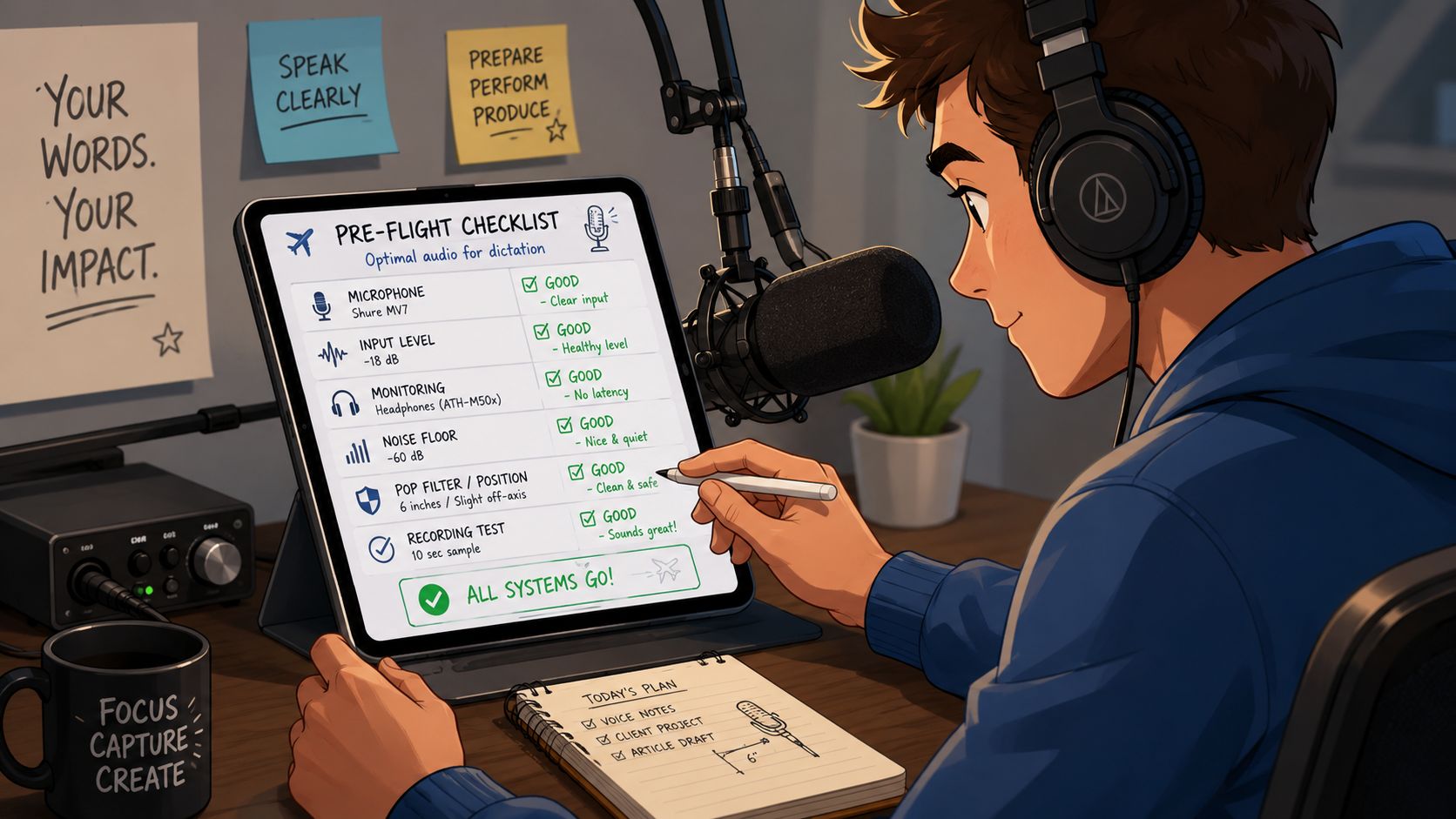
A USB headset is the safest default for Spanish speech to text. It gives you stable mic distance, reduces room echo, and avoids the shifting sound you get when leaning toward and away from a laptop.
If you want a deeper walkthrough, this guide to the best microphone setup for voice dictation on desktop covers the practical trade-offs.
Use this checklist before you test any app:
- Pick one mic and stick with it: Changing microphones makes it harder to judge whether your software is improving.
- Keep the capsule off-axis: Don't point the mic directly at your mouth. A slight angle cuts breath noise.
- Control the room first: Turn off fans, notifications, and nearby speakers before you tweak software settings.
- Watch input selection: Many users talk into a headset while the system still listens to the laptop mic.
Enable Spanish correctly at the system level
On Windows, install the Spanish language pack you speak, then confirm speech recognition and keyboard language are aligned. On macOS, add Spanish under keyboard and dictation settings, then verify the chosen variety matches your workflow as closely as the system allows.
This sounds basic, but it fixes a surprising number of failures. A system set to the wrong language variety can produce constant near-misses that look like poor model quality when the root issue is configuration.
The fastest way to ruin Spanish dictation is to leave the operating system half-configured and hope the app will compensate.
Punctuation settings also matter. Some tools expect spoken commands like “coma” or “punto.” Others insert punctuation more naturally when auto-punctuation is enabled. Test both modes with the kind of writing you do, not with one perfect demo sentence.
A short visual walkthrough helps if you're setting this up from scratch:
Build a dictation environment that stays consistent
Professionals who get excellent results usually do a few boring things consistently. They dictate in the same room, at similar volume, with the same hardware, and they start speaking a fraction of a second after activating the mic instead of clipping the first word.
I also recommend a short calibration passage in your normal Spanish. Read two or three sentences containing your usual punctuation, proper nouns, and regional vocabulary. If that sample fails, don't start working yet. Fix the environment first.
A clean setup routine looks like this:
- Open the right app first: Don't dictate into a field that steals focus or reformats text oddly.
- Check the active language: Especially if you were working in English moments earlier.
- Speak in complete phrases: Short fragments produce more ambiguity than steady clauses.
- Review your first paragraph: Early errors usually reveal the underlying problem quickly.
Mastering Spanish Accents and Dialects
Most guides talk about Spanish as if it were one acoustic target. It isn't. Regional pronunciation, voseo, rhythm, local vocabulary, and consonant patterns all affect recognition.
Why one Spanish setting is not enough
This is the hidden issue that frustrates skilled users. A 2024 study by the University of Barcelona found that Google's ASR model had a 22% higher word error rate for Argentine Spanish compared to Mexican Spanish, highlighting how real-time Spanish recognition can vary sharply by dialect, as summarized in WillowVoice's discussion of Spanish speech-to-text tools.
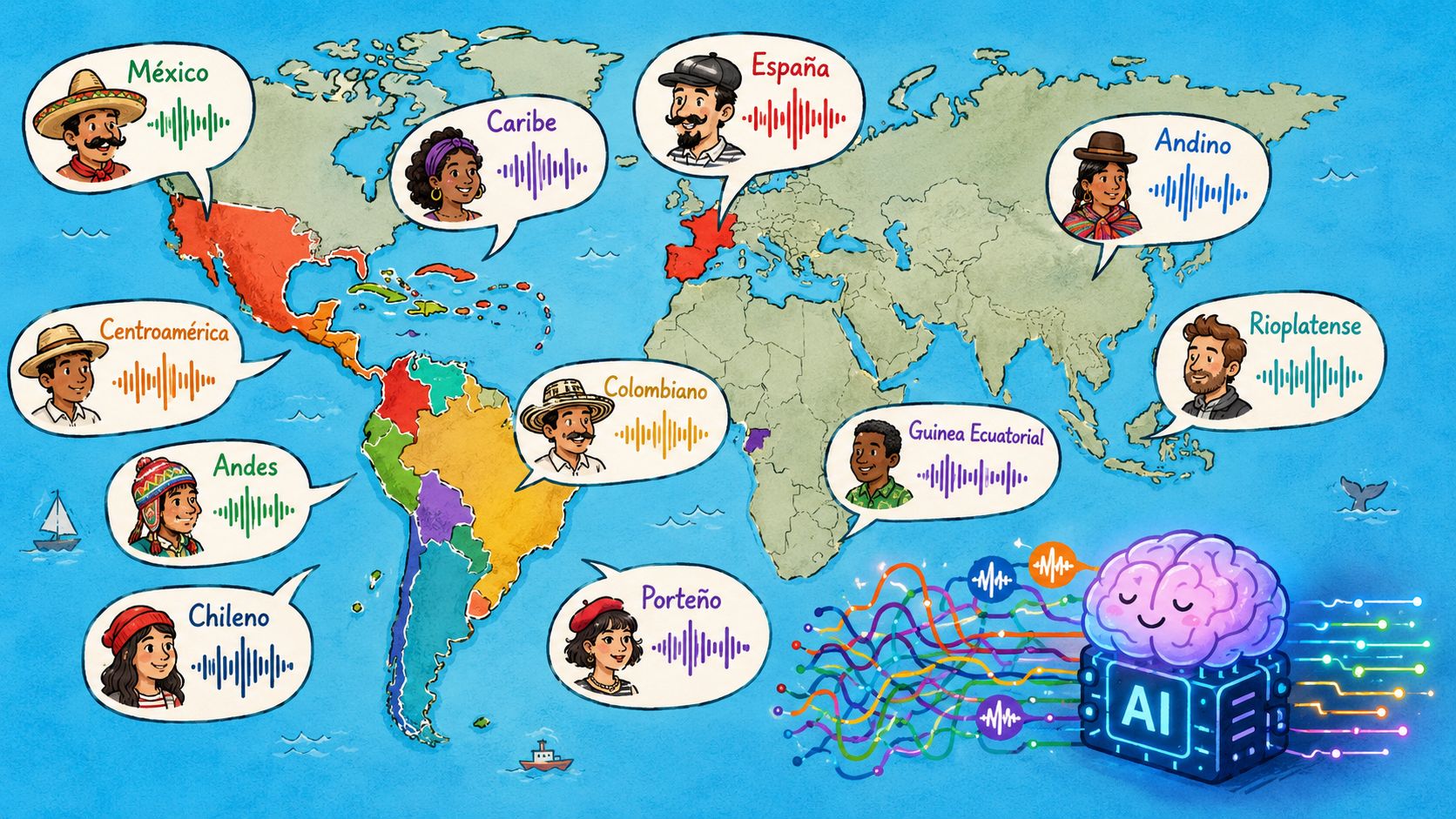
That finding matches what many bilingual professionals notice in practice. A tool may look excellent in generic demos, then stumble when the speaker uses Rioplatense intonation, Caribbean elision, Andalusian features, or region-specific vocabulary. The product page still says “Spanish supported,” but that label hides meaningful variation.
This is why you should distrust universal claims about Spanish accuracy when the vendor doesn't say which variety they tested.
How to train the system around your variety of Spanish
You usually can't retrain the model yourself, but you can make your speech input more learnable and your workflow more forgiving.
Start with consistency. If you switch between highly formal dictation and very colloquial speech in the same session, recognition tends to become less predictable. For drafting, aim for your natural professional register. Not overly stiff, not ultra-casual.
Then handle vocabulary deliberately:
- Add names and terms early: Client surnames, product names, neighborhoods, and institutional jargon should go into any custom dictionary the tool offers.
- Standardize recurring phrases: If you say the same opening or closing often, use the same wording each time.
- Watch dialect-heavy function words: Forms like “vos,” region-specific imperatives, and local fillers can trigger odd substitutions if the tool wasn't tuned for them.
- Correct patterns, not single mistakes: If one regional word fails repeatedly, replace it in your spoken workflow or teach it explicitly.
A dictation tool doesn't need you to erase your accent. It needs stable patterns, clear audio, and enough repetition to stop guessing.
If your software offers language variants such as Spain, Mexico, or a general Latin American setting, test each one with the same paragraph. Don't rely on intuition. The “correct” regional label isn't always the most accurate one for your actual pronunciation.
Another useful trick is to separate capture from polish. Speak naturally enough to stay fluent, but simplify the most failure-prone words during capture if they aren't essential. Then restore your preferred phrasing in revision. That's often faster than forcing perfect first-pass recognition on every regional expression.
Advanced Workflows for Peak Productivity
Once the setup is solid, significant gains come from workflow design. The professionals who get the most out of Spanish dictation don't use it as a one-to-one replacement for typing. They use it to move through the right tasks in the right order.
A better way to handle sensitive work
Privacy deserves more attention than it gets. A January 2025 report from the European Data Protection Board found that 68% of free Spanish speech-to-text services transmit user audio to cloud servers without explicit consent, a concern highlighted in Voicegain's write-up on Spanish speech-to-text and local processing.
That changes the recommendation immediately for legal, healthcare, HR, finance, and internal corporate work. If dictated content includes names, case details, patient context, or confidential plans, offline or on-device processing isn't a bonus feature. It's the safer default.
In practice, I separate workflows into two buckets:
| Workflow type | Better fit |
|---|---|
| Private notes, regulated content, sensitive drafts | Local or offline dictation |
| Public content, low-risk drafts, temporary transcription | Cloud tools can be acceptable |
The trap is that many “free online transcription” tools don't make this distinction obvious. If privacy matters, assume nothing. Check whether audio is processed locally, uploaded remotely, or both.
How professionals dictate faster without sounding robotic
The best Spanish dictation doesn't sound like someone reading punctuation commands every few words. It sounds like fluent speech with a few learned controls layered in.
A productive pattern looks like this:
- Draft in thought-sized chunks: One sentence or one clause group at a time works better than isolated fragments.
- Use spoken punctuation selectively: “Coma,” “punto,” and “punto y aparte” are worth mastering because they reduce cleanup.
- Keep navigation simple: Voice works well for moving, selecting, and replacing small pieces of text if your app supports it.
- Reserve the keyboard for precision edits: Names, tables, and unusual formatting are often faster to finalize manually.
Here's a realistic example. A support lead answering Spanish tickets can dictate the full reply, speak punctuation for the tricky sentence boundaries, then quickly tab through fields and correct only proper nouns. A researcher can capture a paragraph of findings by voice, then trim wording afterward. A manager can dictate performance notes immediately after a meeting while details are still fresh.
If you try to make dictation produce publication-ready prose in one pass, you'll feel friction. If you use it to capture high-quality first drafts, it feels fast.
Use voice for capture first and cleanup second
One of the biggest mindset shifts is stopping the obsession with perfect live transcription. You don't need a flawless sentence every time to beat typing. You need a fast first pass that's structurally sound.
That's why advanced users often split the process:
- Capture the idea aloud
- Let the text land where the cursor is
- Scan for nouns, numbers, and names
- Polish style only after the content exists
This works especially well for:
- Emails: dictate the body, type the subject if needed.
- Meeting notes: capture bullets live, organize later.
- Research summaries: speak key observations while reading source material.
- CRM updates: dictate the narrative, then standardize fields manually.
The benefit is cognitive as much as mechanical. Speaking lets you stay with the idea. Typing invites early editing. For bilingual workers, that difference is huge because the extra friction of accents, punctuation, and code-switching disappears during capture.
Troubleshooting Common Dictation Problems
When Spanish dictation fails, the symptom usually looks random. It usually isn't. Most problems fall into a small number of fixable categories.
The words are wrong even when I speak clearly
The likely causes are mic quality, distance, room noise, or a mismatch between your Spanish variety and the active language setting.
Try this sequence:
- Check the input device: Make sure the app is using the microphone you think it is.
- Move closer in a controlled way: Consistent distance beats speaking louder.
- Test a quieter environment: Room echo can hurt more than obvious background noise.
- Switch language variant if available: A different Spanish option may fit your pronunciation better.
It keeps typing in the wrong language
This usually happens when the operating system, keyboard, and dictation app aren't aligned.
Confirm three things:
- The system language is set correctly for speech input
- The active keyboard matches Spanish
- The app itself hasn't defaulted back to English
If you work bilingually, make language switching an explicit action. Don't assume the software will infer it every time.
It writes punctuation words instead of punctuation marks
That's often a settings issue, but it can also be a command-recognition limitation.
Use this approach:
- Turn on auto-punctuation if the tool supports it and your writing style is standard prose.
- Speak commands distinctly when using manual punctuation.
- Pause slightly before punctuation commands if the app tends to treat them as ordinary words.
- Test the command list inside the tool because some apps expect different phrasing.
Dictation conflicts with another app
Global shortcuts, accessibility permissions, and browser mic permissions often compete with each other.
Start by closing other voice-enabled software, screen recorders, meeting apps, or browser tabs that may be listening for audio input. Then re-enable only the tool you intend to use. If text lands in the wrong field, the issue is often window focus rather than recognition quality.
A quick rule helps here: if the transcript is good but lands badly, it's a control problem. If the transcript itself is bad, it's an audio or language problem.
If you want a tool built specifically for fast desktop dictation across apps, Voice Control Pro is worth trying. It supports polished voice input directly where your cursor is, includes local processing options for privacy-sensitive work, and fits the kind of bilingual workflow where Spanish dictation needs to work reliably in documents, chat, forms, and everyday professional writing.