
Your day starts with a pile of work that doesn't care how fast you can type. Emails stack up, a report needs finishing, meeting notes are half-captured, and the keyboard starts to feel like the bottleneck instead of the tool. Speech recognition software for Windows matters because it gives you another way to work through that load, with your voice doing the first draft while your hands stay free for editing, organizing, and moving on.
Windows didn't arrive here overnight. Microsoft's speech stack goes back to Whisper in 1993, then Speech API in Windows 95, and later Windows Speech Recognition in Windows Vista became a built-in operating-system feature, which marked the shift from niche add-on to native capability (historical perspective of speech recognition). That long history matters because it explains why voice input on Windows is no longer a novelty. It's part of how the platform has grown.
Table of Contents
- How Speech Recognition Changes the Windows Workflow
- Understanding How Voice Becomes Text
- From microphone to meaning
- Cloud brain versus local brain
- Five Critical Factors for Choosing Your Software
- Accuracy and Context
- Latency and Real Time Factor
- Language Support
- Privacy and Local Processing
- Workflow Integrations
- Cloud vs. Local Processing At-a-Glance
- Setting Up Your System for Flawless Dictation
- Start with the room and microphone
- Tune the software to your words
- Practical Workflows for Maximum Productivity
- For professionals who write all day
- For students and researchers
- For developers and AI prompt work
- The Future of Voice Is Your Workflow
How Speech Recognition Changes the Windows Workflow
A deadline is close, your notes are still rough, and typing every sentence starts to slow the thinking that matters most. Speech recognition changes that workflow by letting you capture ideas as speech first, then refine them later, which is often a better fit for drafting, email replies, meeting notes, and hands-busy tasks.
Its primary value extends beyond faster text entry. On Windows, voice input can sit inside the same desktop environment you already use for documents, browser work, support tools, and accessibility features, so it can fit into daily work instead of feeling like a separate app you have to remember to open. That matters because the best tool is the one you can consistently use when the office is noisy, your hands are busy, or you need to move quickly between dictation and editing.
Practical rule: if voice input only works when everything is perfect, it is not practical. It has to handle real desks, real offices, and real interruptions.
That is also why speech recognition software for Windows is not one simple category. Some tools send audio to the cloud for processing, which can improve convenience and model updates. Others process locally on your PC, which can reduce latency and keep sensitive audio closer to your machine. The choice affects privacy, speed, and how tightly the software fits into your workflow, so raw accuracy is only one part of the decision.
A useful way to judge the difference is to compare it with drafting at a desk versus passing notes across a hallway. Cloud processing can feel like sending the work to a shared service that does the heavy lifting, while local processing keeps the work on your own machine and gives you more control over the environment. If you handle private client material, work on a slow network, or need speech to respond immediately, that difference changes the practical experience a lot.
For a closer look at how audio patterns are turned into usable text, see the guide to speech pattern analysis.
The bigger shift is how voice changes the shape of the workday. It lets you move from idea to draft without staring at a blank page, capture thoughts before they fade, and switch between speaking, editing, and command input with less friction. For a Windows user, that can mean less strain and a workflow that feels more responsive to the way people actually work.
Understanding How Voice Becomes Text
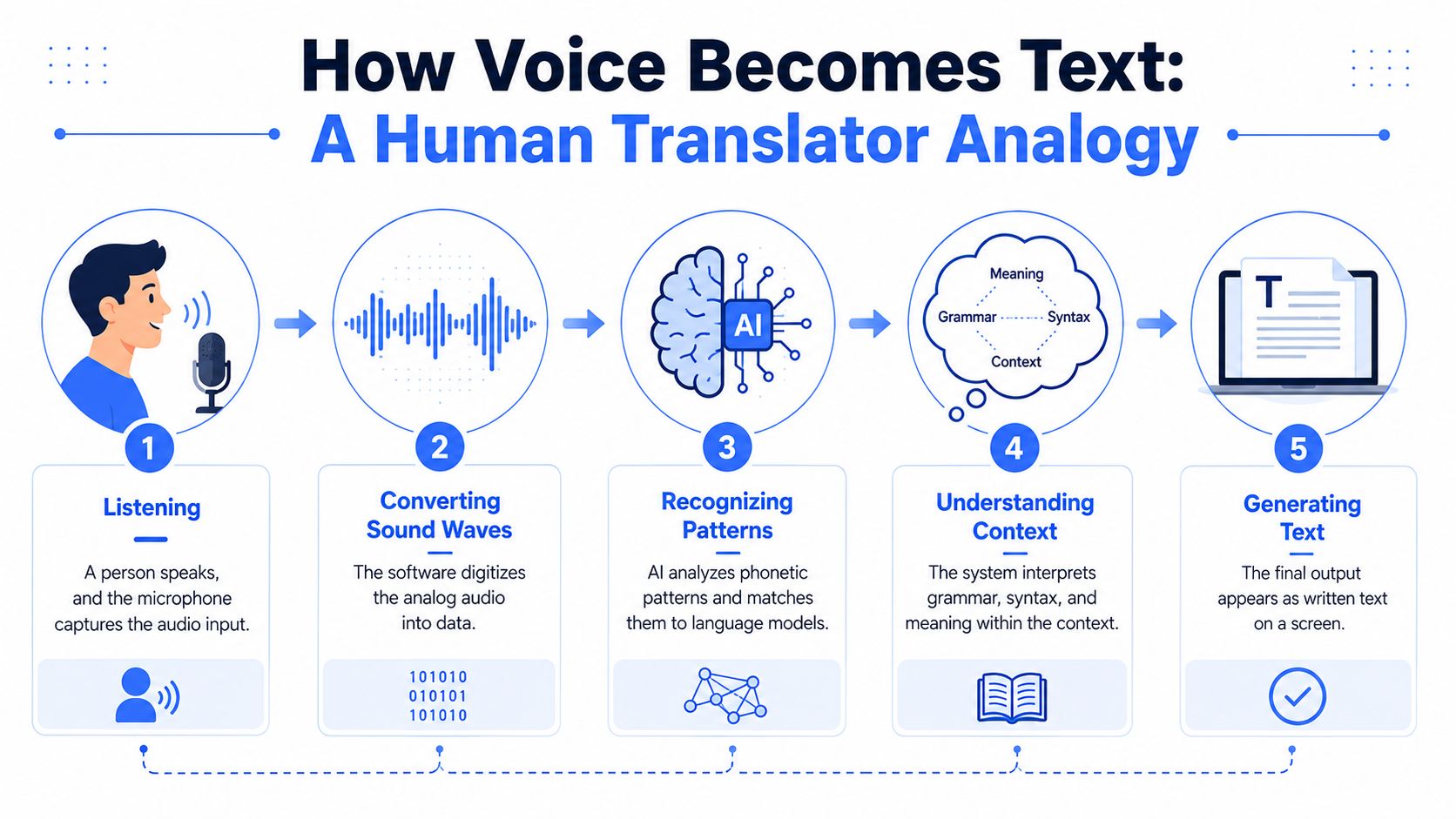
Speech recognition software for Windows turns spoken language into text through a multi-step process. Your microphone captures sound, the software breaks that sound into usable data, and language models decide which words are most likely to match what you said. That work can happen in the cloud on a remote server, or locally on your own machine.
From microphone to meaning
The process starts with audio capture. Your microphone records speech, then the software converts the signal into a form the system can analyze. From there, the engine looks for speech patterns, compares them with learned language behavior, and builds the text you see on screen. Microsoft Research described early Whisper work as supporting continuous speech recognition, speaker independence, online adaptation, tolerance for noise, and dynamic vocabularies (historical perspective of speech recognition). That matters because the system is not just matching isolated sounds, it is trying to follow speech as it changes from word to word, sentence to sentence, and speaker to speaker.
If you want a closer look at how those patterns are analyzed, the guide to speech pattern analysis gives a useful technical lens. It helps explain why one setup handles a busy room well, while another starts missing words as soon as there is background noise or a weak microphone signal.
Cloud brain versus local brain
Cloud-based processing sends your voice to a remote model for transcription. Local processing keeps the work on your device, which changes how the software behaves in day-to-day use. Microsoft's Windows speech guidance includes both paths, with Whisper via Foundry Local on Windows 10+ and the older Windows SDK speech-recognition engine available on Windows 10+ (Microsoft speech recognition APIs). Microsoft also notes that Whisper performance varies by device and is not available on all hardware, so the choice comes down to fit rather than one universal answer.
For a practical overview of that tradeoff, see cloud versus local speech recognition on Windows. The comparison usually comes down to four things, how the system handles connectivity, where your audio lives, how much your PC has to do, and how predictable the experience feels inside your workflow.
| Criterion | Cloud-Based Processing | Local (On-Device) Processing |
|---|---|---|
| Internet need | Usually depends on connectivity | Can work without network access |
| Privacy posture | Voice data leaves the device | Audio stays on the device |
| Hardware dependence | Less tied to your PC's raw power | Strongly tied to your PC's throughput |
| Deployment feel | Easier to start | Better for locked-down or offline use |
That split matters in real work. A cloud setup can feel easier to start and maintain, especially if you want minimal installation friction. A local setup can be the better fit when your environment blocks outside services, your audio is sensitive, or you need responses to land quickly while you keep typing or editing. The right choice depends on how the software fits your daily routine, not just how well it scores in a benchmark.
Five Critical Factors for Choosing Your Software
A useful way to choose speech software starts with failure, not marketing. A tool that is a little less accurate but responds quickly can serve daily work better than a tool that looks impressive in a demo, then hesitates, drops out, or breaks inside your setup.
Accuracy and Context
Raw transcription quality matters, but context matters too. Microsoft's guidance for speech experiences recommends context-specific grammar, custom pronunciations, and careful handling of low-confidence recognition (speech interactions guidance). That point is easy to miss, because good speech software is not just matching sounds to words, it is also trying to infer the kind of task you are doing.
If you write technical documentation, client emails, product notes, or support replies, the system needs to learn your vocabulary pattern, not just your accent. A tool that misses specialized terms can still be usable if it recovers cleanly and lets you correct fast. A tool that sounds polished but mangles names, acronyms, and domain terms will slow you down every day.
Latency and Real Time Factor
Latency is what makes voice feel smooth or clumsy. Microsoft's embedded-speech guidance defines real-time factor, or RTF, as processing time divided by audio length, and lower RTF means lower latency and a smoother interactive experience (ASR benchmark guidance). In practice, that means text appears close to when you speak it, so your attention stays on the task instead of on the wait.
A fast-enough system often beats a theoretically smarter one, because it lets you keep talking without mental interruption.
Hardware matters here more than people expect. A Windows laptop with modest compute can make even a strong speech engine feel sticky, while a better machine can make the same workflow feel much more natural. Test the software on the device you use, because a demo on a powerful machine can hide delays you will notice at your desk.
Language Support
Language support sounds straightforward until you need one tool across regions, teams, or mixed-language notes. The more useful question is whether the language you need behaves well in the workflow you use every day. A tool that supports switching but makes the commands awkward can still create friction.
That is why this factor is really about operational fit. If you work in a multilingual team, or you move between client-facing English and internal shorthand, a rigid system can slow you down even when the transcription engine itself is strong. Support for your working language, your accent, and your vocabulary style all belong in the same decision.
Privacy and Local Processing
This is the part many buyer guides underplay. Microsoft's current built-in guidance splits its voice features, with Voice Typing cloud-based and requiring internet access, while Voice Access handles voice control across the desktop, and some organizations block Voice Typing for security reasons. That makes privacy more than a side issue, because it can decide whether a tool is approved at all.
If you work in a school, government office, clinic, law practice, or any environment with tight policy controls, local processing can be the deciding feature. Even outside regulated settings, some people do not want spoken notes leaving the device. For a practical look at that tradeoff, see cloud versus local speech recognition on Windows. Start with the option that fits your rules, then compare the rest after that.
Workflow Integrations
A speech engine that only produces text is useful. A speech system that works inside your actual workflow is much better. Microsoft's developer guidance shows why, because high-performing voice systems rely on commands, custom vocabulary, and graceful recovery rather than transcription alone. That matches how people really work. They dictate, then edit, rewrite, search, launch, and correct without breaking their pace.
If you want to compare deployment models in more detail, the cloud versus local speech recognition guide is worth reading before you commit to a tool. The point is to separate what sounds impressive from what fits your environment, your privacy rules, and the way your day moves.
Cloud vs. Local Processing At-a-Glance
| Criterion | Cloud-Based Processing | Local (On-Device) Processing |
|---|---|---|
| Privacy fit | Better for casual use in connected environments | Better for sensitive or restricted work |
| Speed feel | Can be quick, but depends on network conditions | Can feel immediate when hardware is strong |
| Offline use | Usually limited | Better suited to disconnected work |
| Admin policy | Can be blocked by organizations | Often easier to approve in locked-down environments |
| Workflow role | Good for simple dictation | Better for privacy-first, low-friction setups |
Setting Up Your System for Flawless Dictation
A good dictation tool can still feel unreliable if the setup works against it. A noisy room, a weak microphone, or an awkward speaking angle can make accurate speech recognition feel inconsistent. Start with the input path, because that is usually where the friction begins.

Start with the room and microphone
A dedicated microphone usually performs better than a laptop mic because it stays closer to your mouth and captures less room noise. Keep the mic in the same position each time, and avoid speaking across the room or turning away in the middle of a sentence. Background noise, keyboard clatter, and fan hum all give the model more to sort through, which makes the experience feel less steady.
For practical microphone-noise ideas, the gamer's guide to clear audio is a useful reference, because the same basics help voice dictation too. Reduce the unwanted sound first, then let the software handle the words.
Tune the software to your words
The next layer is vocabulary. Add names, acronyms, product terms, and other words you use often, because speech tools usually handle familiar language better than unfamiliar jargon. That matters for support teams, writers, analysts, and developers who rely on domain-specific shorthand throughout the day.
Editing commands matter just as much. “New line,” punctuation, and correction flows save time when they become part of your habit instead of a separate cleanup step. The smoother your command routine is, the less you need to reach for the keyboard after speaking.
For a setup built around desktop dictation rather than only transcription, the best desktop dictation setup guide gives a useful reference point for how people structure these workflows on Windows.
A brief video walkthrough can also help you spot setup issues you might miss in text alone.
Older Windows speech systems required more training and tuning, while newer ones aim to reduce friction through better models and tighter system integration, as noted earlier. That history matters because it explains why two tools can feel similar in a demo but behave very differently once you start dictating for real. The best setup is the one that removes avoidable friction before you begin.
Practical Workflows for Maximum Productivity
A speech tool earns its place when it matches the work in front of you. One person needs to clear an inbox faster. Another needs to keep a train of thought intact while researching. A developer may want to turn rough ideas into prompts or comments without breaking focus.
For professionals who write all day
Voice input works best at the drafting stage, before the cleanup begins. A report outline, a follow-up email, or a first-pass summary often comes together faster when spoken than when typed. Voice Control Pro fits that pattern naturally, because it inserts dictated text at the cursor with a global shortcut, and it can also rewrite selected text or launch installed apps by voice.
A significant advantage is less context switching. You can speak a block of text, refine it, and keep going instead of opening separate tools for drafting and revision. For anyone handling inbox work, meeting follow-ups, and short documents in the same day, that can make writing feel more continuous and less stop-start.
For students and researchers
Lecture notes call for a different approach. You are not trying to produce polished prose in the moment, you are trying to capture ideas before they disappear. Voice helps most with side notes, rough summaries, and quick reflections after a reading or class session.
Local processing can matter a lot here if you work in libraries, labs, or shared study spaces where internet access is unreliable or policies are strict. Windows now supports different speech paths for different setups, including newer local models and older engine options, which shows how much the platform values flexibility as well as accuracy. That flexibility matters because the best setup is the one that stays available when you need it.
For developers and AI prompt work
Developers usually care about precision and speed of iteration. Windows speech tools reflect that balance, with local options for stronger hardware and broader compatibility paths for more devices. That difference is more than technical detail. It shapes whether dictation feels dependable in a daily coding workflow or only useful in a demo.
If you write prompts, comments, issue summaries, or draft documentation, voice helps you stay with the idea instead of the keyboard. It also fits rewrite-heavy work, because you can capture a rough thought and then revise it without leaving the app you are already using. For iterative text work, that matters more than a single accuracy number.
Workflow insight: speech recognition becomes valuable when it reduces the number of times you have to stop thinking and start clicking.
For a deeper example of that style of writing flow, the best speech-to-text workflow for daily writing guide shows how dictation can fit into a repeatable routine instead of feeling like a separate task. Voice stops being a feature and starts acting like a layer in the workflow.
The Future of Voice Is Your Workflow
The smartest way to choose speech recognition on Windows is to stop asking which product makes the biggest claims and start asking which one fits into your day without getting in the way. Privacy, latency, device support, and workflow integration all matter because they decide whether you keep using the tool after the first week or abandon it when the workflow feels clumsy. The cloud-versus-local choice sits at the center of that decision. It affects where your voice is processed, how quickly text appears, and whether the software matches your workplace rules.
A useful way to judge any system is to look at how it handles uncertainty. Strong voice input depends on context-specific grammars, custom pronunciations, and calm recovery when the system is not fully sure, because transcription is only part of the job. The other part is correction. A tool that keeps you moving through low-confidence moments behaves more like a steady assistant at your side than a fragile demo that falls apart as soon as the input gets messy.
That is the standard to use. Pick the option that matches how you work, where you work, and how much control you need over your data. Then build a setup that lets your voice produce the first draft, so your hands can stay focused on the edits, clicks, and app switching that still need a keyboard.