
Your thoughts are moving. Your fingers aren't.
You start answering an email, then think of a better framing for the proposal due this afternoon. Mid-sentence, you remember a follow-up from yesterday's meeting. By the time you switch tabs and start typing again, the sharp version of the idea is gone. That gap between thinking and typing is where a lot of knowledge work gets slower than it needs to be.
Real time transcription closes that gap. It turns speech into text while you're still working, so drafting, note capture, and quick responses happen closer to the speed of thought. That matters more now because voice input is no longer a side feature tucked inside accessibility settings. It's becoming standard productivity infrastructure. The global AI transcription market is projected to grow from USD 4.5 billion in 2024 to approximately USD 19.2 billion by 2034, at a 15.6% CAGR, according to this market projection on AI transcription.
The practical question isn't whether the category matters. It's which kind of tool helps in your day-to-day workflow, and which one creates new problems around privacy, delay, and cleanup.
Table of Contents
- Introduction From Thought to Text Instantly
- How Real Time Transcription Actually Works
- The basic pipeline
- Why streaming feels different from dictation
- The Critical Choice On-Device vs Cloud Processing
- What cloud processing does well
- Why local processing matters more than most guides admit
- On-Device vs. Cloud Transcription at a Glance
- Decoding Performance Key Metrics That Matter
- Accuracy is more than a marketing promise
- Latency decides whether you stay in flow
- Real-World Workflows for Knowledge Workers
- Five places where voice saves the most friction
- When real time transcription does not help
- Your Evaluation Checklist for Choosing the Right Tool
- What to test before you commit
- A simple shortlist method
- The Future of Voice and Final Thoughts
Introduction From Thought to Text Instantly
A lot of people first encounter transcription in meetings, captions, or accessibility tools. That's useful, but it undersells what's changed. For a knowledge worker, real time transcription is often a writing tool before it's anything else.
Think about the moments when typing is the bottleneck. You're outlining a strategy memo. You're replying to a difficult client message and need to sound measured, not rushed. You're unpacking a rough idea that isn't clear enough to type in polished form yet. Speech works well in these moments because talking tolerates ambiguity better than typing does. You can get the raw material out first, then shape it.
That changes the rhythm of work. Instead of pausing to encode every sentence through your keyboard, you externalize faster, edit later, and keep momentum longer. For many professionals, that's the main win. Not perfect transcripts. Fewer interrupted thoughts.
Practical rule: Use voice when you need output volume or idea velocity. Switch back to keyboard when you need tight editing, formatting, or precise structure.
The strongest use cases tend to share one trait. The person speaking already knows roughly what they want to say. They don't need a blank page solved. They need friction removed.
That's why real time transcription has moved into everyday workflows for drafting, note capture, chat replies, research summaries, and prompt writing. It lets you work in a more conversational way, which is often closer to how ideas form in the first place.
How Real Time Transcription Actually Works
Real time transcription looks magical when it works well, but the mechanics are straightforward. The easiest way to think about it is as a very fast stenographer with software ears. It listens, slices speech into manageable pieces, interprets what was said, and pushes text onto the screen before the conversation has moved on.
The basic pipeline
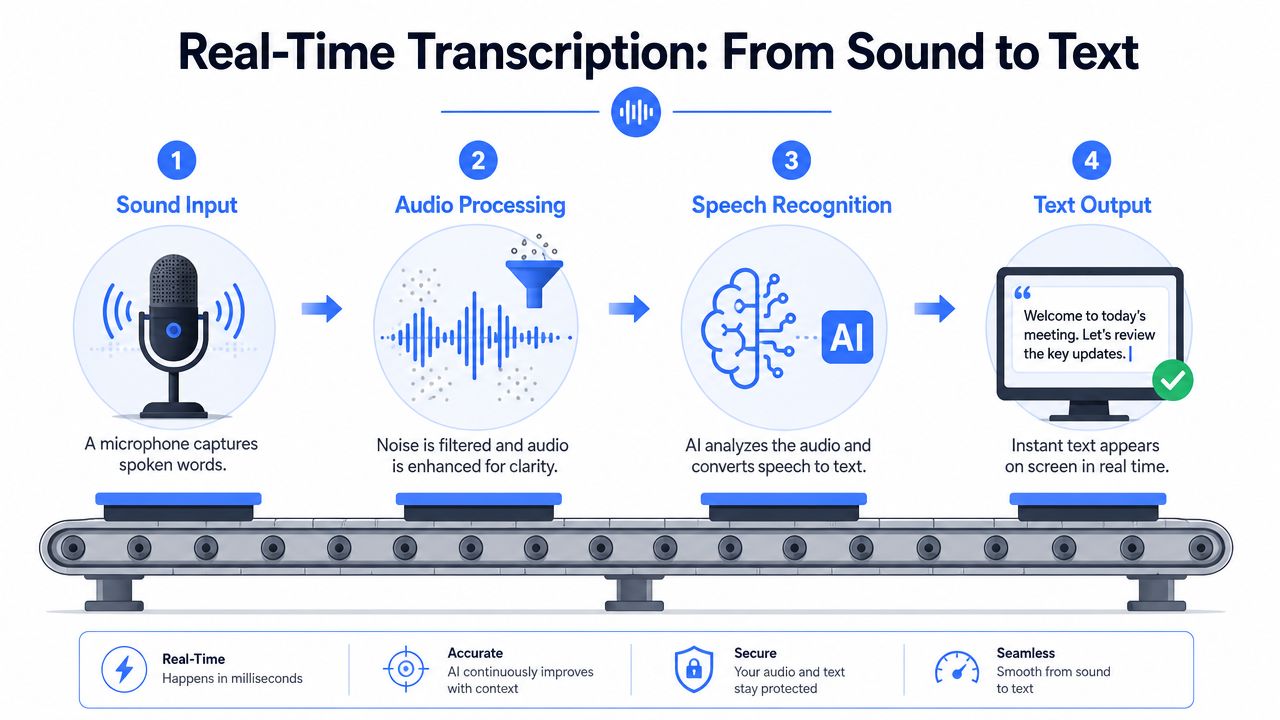
At a practical level, most tools follow four steps:
- Sound input
Your microphone captures speech. Mic quality, room noise, distance from your mouth, and whether you're using a laptop mic or headset all shape what happens next.
- Audio processing
The system cleans the signal as much as it can. It may reduce background noise, normalize volume, and detect when speech starts and stops.
- Speech recognition
An ASR engine, short for Automatic Speech Recognition, maps the audio into words. If you want a plain-language primer on the broader category, this guide to voice-to-text AI systems gives a useful overview.
- Text output
The transcription appears in a text field, document, note app, caption window, or system overlay. Some tools insert text directly at the cursor. Others keep output in their own app first.
That's the visible part. The invisible part is timing. A good tool doesn't wait too long for perfect certainty, but it also doesn't rush so much that every sentence needs repair.
Why streaming feels different from dictation
Traditional dictation often behaves like batch processing. You speak, pause, and then wait for a chunk of text to arrive. Real time transcription behaves more like a live feed. Words begin appearing while you're still talking.
That difference changes user behavior. When feedback is immediate, you can self-correct in the moment. You notice when the tool missed a product name, misheard a proper noun, or inserted the wrong punctuation rhythm. You don't have to discover all of that at the end.
A transcription tool is easiest to trust when it feels present while you're speaking, not after you're done.
The best systems also decide how to split incoming audio intelligently. Split too aggressively and the output arrives fast but with weak context. Wait too long and quality improves, but the text lags behind your speech. That trade-off shows up later when you compare tools on latency and accuracy.
The Critical Choice On-Device vs Cloud Processing
For knowledge workers, the biggest product decision usually isn't interface design or shortcut keys. It's where your voice goes.
Some tools send audio to remote servers for transcription. Others process speech locally on your computer or phone. Both approaches can work. They solve different problems, and they carry different risks.
What cloud processing does well
Cloud transcription is attractive for obvious reasons. It can tap into large models, update quickly, and handle heavy workloads without asking much from your device. That often means easier setup and broader feature depth.
Cloud systems also tend to pair well with extras like shared meeting capture, centralized transcript storage, search across conversations, and downstream processing such as summaries or analytics. If your work is collaborative and the content isn't highly sensitive, that stack can be useful.
The downside is equally obvious. Your audio leaves your local environment. Even when a provider has serious security controls, you're still trusting another party with drafts, client discussions, internal planning, or personal notes.
Why local processing matters more than most guides admit
In this area, most generic reviews get too shallow. They treat privacy as a settings page detail when it's often the deciding factor.
In privacy-sensitive markets, 74% of new speech-to-text adopters in the EU and US require on-device rendering to comply with regulations like GDPR and HIPAA, and 68% of knowledge workers in regulated fields avoid tools over cloud data exposure fears, according to this discussion of privacy trends in real-time transcription. If you work in legal, healthcare, finance, HR, research, or any role that handles confidential drafts, those concerns aren't abstract.
On-device processing changes the risk profile. Audio stays local. You can work offline. You don't depend on server availability. You also get more control over when cloud features are fully disabled, which matters when a single client note or internal strategy draft shouldn't leave your machine.
A local-first setup also fits individual workflows better than many enterprise tools do. A lawyer dictating case notes, a recruiter drafting performance feedback, or a consultant shaping a private recommendation memo doesn't need a giant call-center platform. They need fast insertion, clean transcription, and predictable privacy behavior.
For people evaluating local options, this overview of offline speech recognition is a helpful companion read.
On-Device vs. Cloud Transcription at a Glance
| Factor | On-Device Processing | Cloud Processing |
|---|---|---|
| Privacy | Stronger control because audio can remain local | Requires sending audio to external servers |
| Internet dependency | Can work offline | Usually depends on a stable connection |
| Setup | May require more device compatibility checks | Often easier to start |
| Performance consistency | Depends on your hardware | Depends on server quality and network conditions |
| Sensitive drafting | Better fit for confidential notes and drafts | Often less comfortable for regulated work |
| Advanced shared features | Usually narrower | Often broader collaboration and storage features |
Decision shortcut: If the transcript contains client secrets, regulated data, or rough thinking you'd never email around, start with on-device tools and only move to cloud when there's a clear reason.
There's also a middle path. Some products offer hybrid modes where you can use local processing for sensitive work and enable cloud features only when you want extra capabilities. For individual professionals, that flexibility is often more useful than an all-or-nothing architecture.
Decoding Performance Key Metrics That Matter
Most product pages promise speed and accuracy. That doesn't help much unless you know what to ask for.
The three metrics that matter together are accuracy, latency, and compute efficiency. Benchmarks highlighted by Picovoice's real-time transcription comparison make the point clearly. Some cloud services such as Amazon Transcribe Streaming are listed with 12.6% Punctuation Error Rate, while an on-device-capable engine like Cheetah Streaming is listed at 8.3% WER and 12.6% PER, showing why you can't evaluate a tool on one dimension alone.
Accuracy is more than a marketing promise
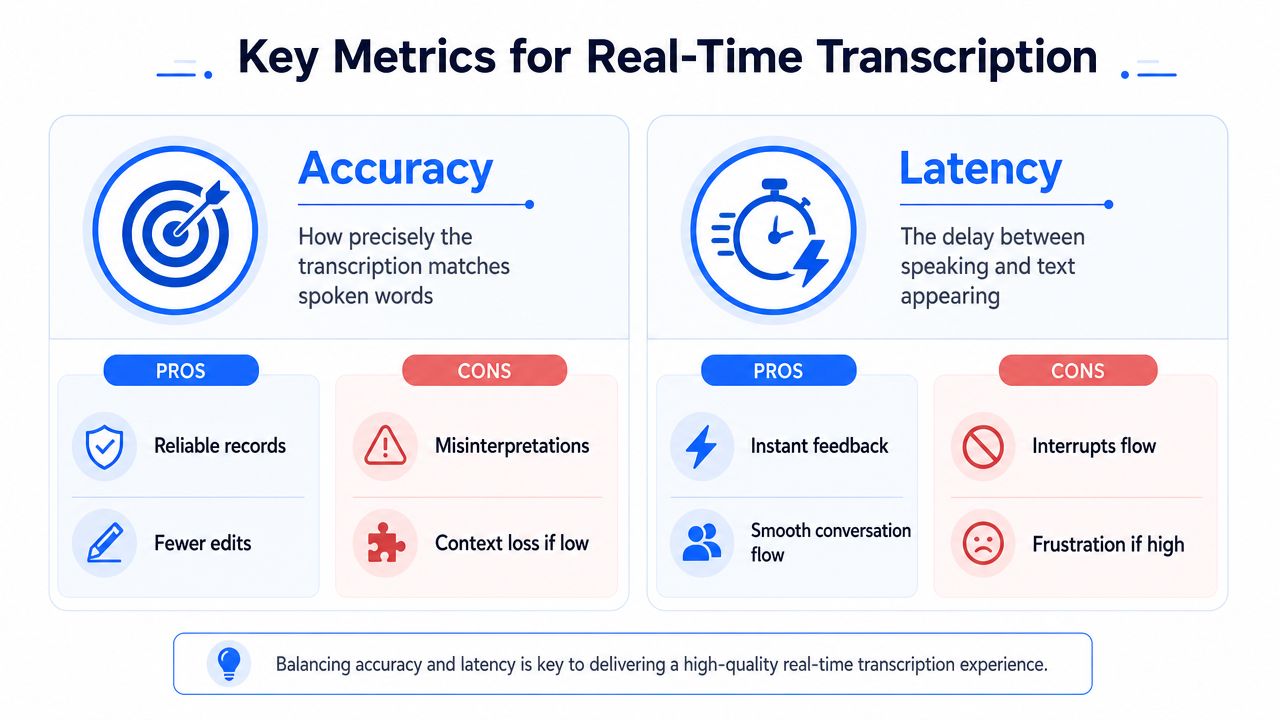
WER, or Word Error Rate, tells you how often the system gets words wrong. In practice, errors aren't equal. Missing a filler word may not matter. Mishearing a medication name, a pricing term, or a person's name definitely does.
PER, or Punctuation Error Rate, matters more than many people expect. For quick drafting, bad punctuation is annoying. For read-back, transcript clarity, and polished insertion into documents, punctuation affects how much cleanup you'll need.
What usually hurts real workflows isn't one obvious error. It's accumulated friction:
- Domain terms break first when the tool hasn't learned your product names, acronyms, or client vocabulary.
- Proper nouns create trust problems because one repeated name error makes people watch the transcript instead of using it.
- Weak punctuation slows editing because you spend time restructuring text you already said correctly.
Latency decides whether you stay in flow
Latency is the delay between speech and visible text. In streaming systems, a key measure is Word Emission Latency, which tracks how long it takes for a spoken word to appear.
For production voice AI, sub-second latency is essential, and advanced systems have shown a median time of 249ms to a final transcribed segment, according to this analysis of streaming transcription latency. That matters because once the delay gets too noticeable, the transcript stops feeling like an extension of thought and starts feeling like a lagging tool you have to babysit.
A useful mental model is a live interpreter. If the interpreter speaks too early, they'll miss context and make mistakes. If they wait too long, the conversation becomes unusable. Real time transcription works under the same constraint.
Low latency keeps your attention on the idea. High latency pulls your attention toward the tool.
Compute efficiency is the third piece, especially for local use. A model that transcribes well but drains your machine, overheats a laptop, or only works on a narrow hardware setup may be fine for demos and bad for daily use. For individual users, practical efficiency often beats benchmark prestige.
Real-World Workflows for Knowledge Workers
The best way to judge real time transcription is to watch where it removes friction from ordinary work, not where it looks impressive in a demo.
Five places where voice saves the most friction
Email drafting is one of the clearest wins. A difficult email usually stalls because you're composing and editing at the same time. Speaking a rough version first lets you get tone, logic, and intent onto the page, then tighten the wording after.
Meeting capture works best when you're pulling out decisions and next actions rather than trying to preserve every syllable. Short live notes spoken into your system right after a call are often more useful than a long transcript you never revisit. If you also work from recorded notes, Translate AI's transcription guide is a practical reference for handling voice memos and turning them into usable text.
Brainstorming and outlining benefits from speech because spoken thought is less linear. You can talk through possibilities, objections, and half-formed ideas without stopping to clean every sentence.
Chat replies are another strong fit. Quick responses in Slack, Teams, or internal chat often don't justify opening a formal note app, but they still eat time when typed all day.
Prompt iteration is the sleeper use case. If you work with AI tools, speaking changes the speed of experimentation. You can describe the task, refine constraints, then restate the prompt naturally instead of repeatedly switching between thinking, typing, and editing.
After a few paragraphs of explanation, it helps to see voice-driven workflow in motion:
When real time transcription does not help
It isn't the best input method for everything.
- Dense editing passes still belong to the keyboard. Moving clauses around, fixing citations, and tightening formatting are visual tasks.
- Open offices can make voice awkward unless you have privacy and noise under control.
- Highly structured input such as spreadsheets, code formatting, or exact tables often needs more manual precision.
That's normal. The strongest workflows are mixed workflows. Speak to generate. Type to refine.
Your Evaluation Checklist for Choosing the Right Tool
A good trial process beats reading feature grids. You want to know how a tool behaves with your voice, your apps, your vocabulary, and your privacy requirements.
What to test before you commit
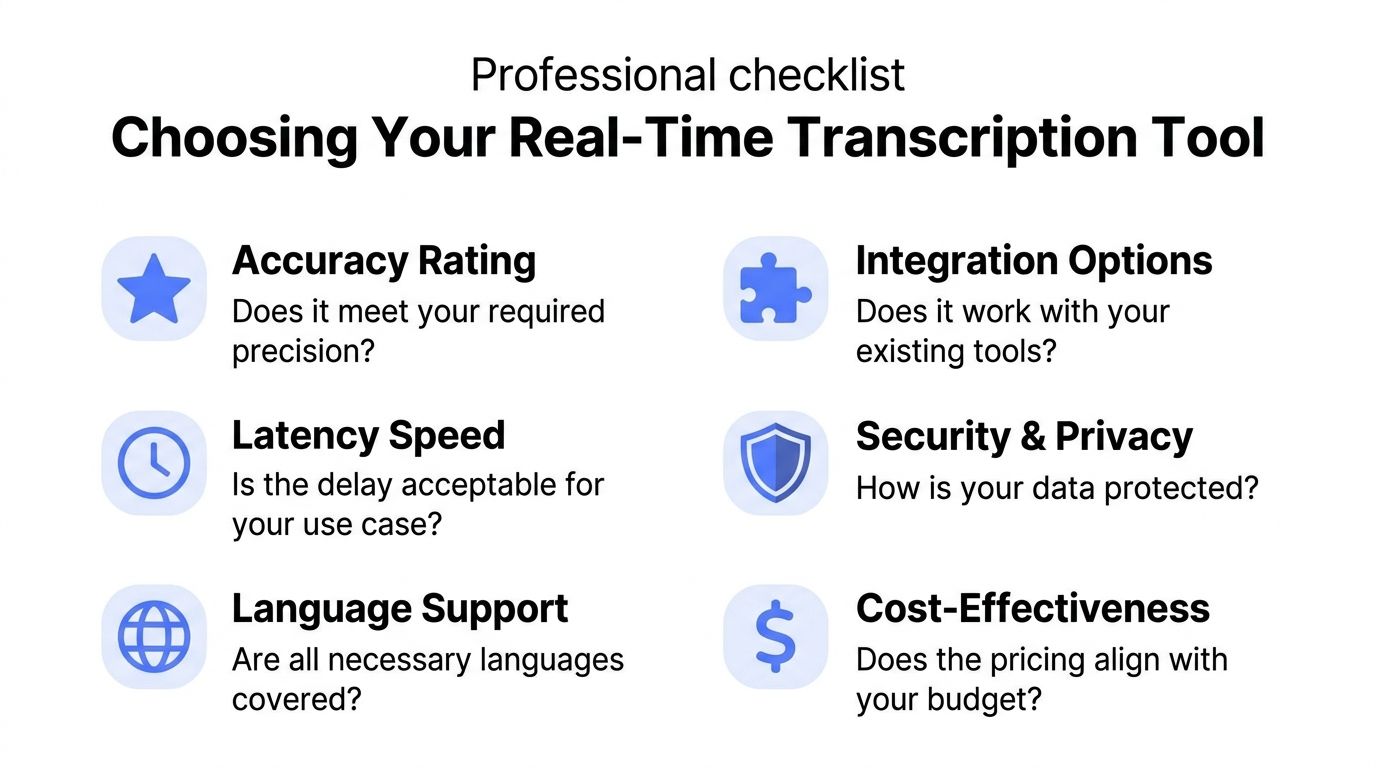
Start with a short test set you already understand well: a reply email, a meeting summary, a private note, and a jargon-heavy paragraph. Then evaluate against these criteria:
- Accuracy in your actual domain
General English is easy. Your client names, product terms, and recurring phrases are the true test.
- Visible delay while speaking
Don't rely on specs alone. Watch whether text appears fast enough to support flow or slow enough to distract you.
- Privacy model
Check where audio is processed, what gets stored, and whether local-only use is available when needed.
- Insertion behavior
Some tools transcribe well but make you copy and paste constantly. If it doesn't land text where you work, adoption drops.
- Cleanup controls
Good tools should let you shape formatting, punctuation style, or custom vocabulary instead of forcing one output style.
- Cross-app reliability
Test in the apps you use all day, not only in the vendor's demo field.
One useful way to expand your shortlist is to compare category overviews rather than individual marketing pages. This review of top speech-to-text software is a practical place to start, and this roundup of leading video content converters is useful if part of your workflow includes turning recorded media into text as well.
A simple shortlist method
Run the same ten-minute workflow in three tools. Don't optimize your speaking style for any of them. Use your normal pace and vocabulary.
Then ask:
- Did the transcript appear quickly enough to stay usable?
- Did you trust it with sensitive material?
- Did it reduce editing, or create more of it?
- Did it work where your cursor already was?
If two tools feel similar, choose the one with the better privacy fit and the lower workflow friction. In day-to-day use, convenience compounds. So does annoyance.
“The best transcription tool is the one you stop noticing because it fits your work instead of interrupting it.”
The Future of Voice and Final Thoughts
Real time transcription is moving from a utility into an interface layer. That shift matters. Once voice input becomes reliable enough, people stop treating it as a special mode and start using it wherever typing is the wrong tool for the moment.
For knowledge workers, the decision framework is straightforward. First, choose the privacy model that matches the sensitivity of your work. Then test whether the tool stays responsive enough to preserve flow. Finally, judge how much cleanup it creates once the text lands in your document, chat, or notes.
The future is likely to feel less like dictation software and more like continuous voice-aware computing. Better operating system integration, stronger local models, and assistants that can respond to both your spoken intent and what's on your screen will make voice more conversational and less mechanical. That's especially promising for people who think out loud, revise iteratively, and want fewer mode switches during the day.
The important shift is practical, not futuristic. When you can capture ideas as they form, without handing every thought to the keyboard first, work feels less fragmented. That's why real time transcription is worth taking seriously now.
If you want a tool built around that exact workflow, Voice Control Pro is worth a look. It lets you speak directly into the app you're already using, supports local processing modes for privacy-sensitive work, and helps with drafting, rewriting, and voice-driven iteration without constant window switching.