
You're probably reading this because typing has become a daily drag. You answer emails all day, write reports under deadline, bounce between chat, docs, and CRM fields, and somehow the keyboard still feels like a bottleneck. Maybe you type fast enough to get by, but the mistakes pile up. Maybe you're accurate, but every reply takes longer than it should. Maybe your wrists are starting to complain.
Individuals often try to solve this with random typing tests and bursts of motivation. That usually doesn't work. To improve typing speed and accuracy, you need a system that fixes technique, builds repeatable practice, and fits the way professionals work now. That means touch typing, yes. It also means knowing when typing isn't the best input method and when voice can take over for drafting.
Table of Contents
- Assess Your Current Typing Skill
- What your score actually means
- Set a baseline you can work with
- Choose a realistic target
- Relearn the Fundamentals of Touch Typing
- Measure the right thing first
- Fix posture and home row discipline
- Use drills that teach control
- Build a Deliberate Practice Schedule
- Why random practice stalls progress
- A weekly deliberate practice drill focus
- Advanced Techniques to Shatter Plateaus
- Find the real source of the plateau
- Correct faster and with less disruption
- Check whether your keyboard is fighting you
- The Hybrid Workflow for Peak Input Speed
- Use voice for capture and typing for control
- When to switch input modes
- Sustain Your Progress and Keep Improving
- Track a small set of useful metrics
- Protect your body while you improve
Assess Your Current Typing Skill
Frustration usually starts with a vague feeling. You know you should be faster, but you don't know whether the underlying issue is speed, accuracy, or fatigue. That's why the first move is simple. Get a baseline.
Use one reliable typing test and stick with it for a few sessions so your numbers are comparable. Take the test three times, not once. The first run is often distorted by nerves or overconfidence, the second settles down, and the third usually shows your everyday level more accurately.
A useful benchmark comes from a large-scale NIH-hosted study of student typists, which found that the most proficient typists reached a mean speed of 80 wpm with 88% accuracy, while the least proficient averaged about 25 wpm with 75% accuracy. That range matters because it shows typing skill is trainable and measurable. You're not stuck with your current level.
What your score actually means
A single WPM number can fool you.
If your score is moderately fast but messy, your real problem is correction overhead. If your score is slower but clean, you already have the better foundation. In practice, accurate typists usually improve faster because they aren't reinforcing bad motor patterns every session.
Use this quick interpretation framework:
- Fast but sloppy: You probably force speed before your hands know the pattern.
- Slow but precise: You need more repetition and better rhythm, not more rushing.
- Inconsistent from test to test: Your technique changes under pressure.
- Accurate on easy text, inaccurate on punctuation or mixed-case text: Your drills are too narrow.
Practical rule: Judge progress by how much clean text you can produce without interruption, not by your best heroic one-minute sprint.
Set a baseline you can work with
Write down four things after each of your first few tests:
- WPM
- Accuracy
- What went wrong most often
- How your hands felt
That last one matters. If speed comes with tension in your shoulders, wrists, or jaw, it won't hold up during a real workday.
Simple tracking helps. A short log or spreadsheet is enough, but if you want a cleaner habit system, these effective goal tracking strategies are useful for turning a vague goal into a repeatable routine.
Choose a realistic target
Don't pick a number because it sounds impressive. Pick one that fixes your workflow.
A good target is specific and behavior-based. For example, aim to hold high accuracy across repeated sessions before pushing harder on speed. That gives you a benchmark that reflects real work, not just test performance.
Relearn the Fundamentals of Touch Typing
Most typing plateaus aren't caused by slow fingers. They're caused by unstable mechanics. People reach for keys differently every time, glance down at the keyboard, collapse their posture late in the day, and then wonder why progress stalls.
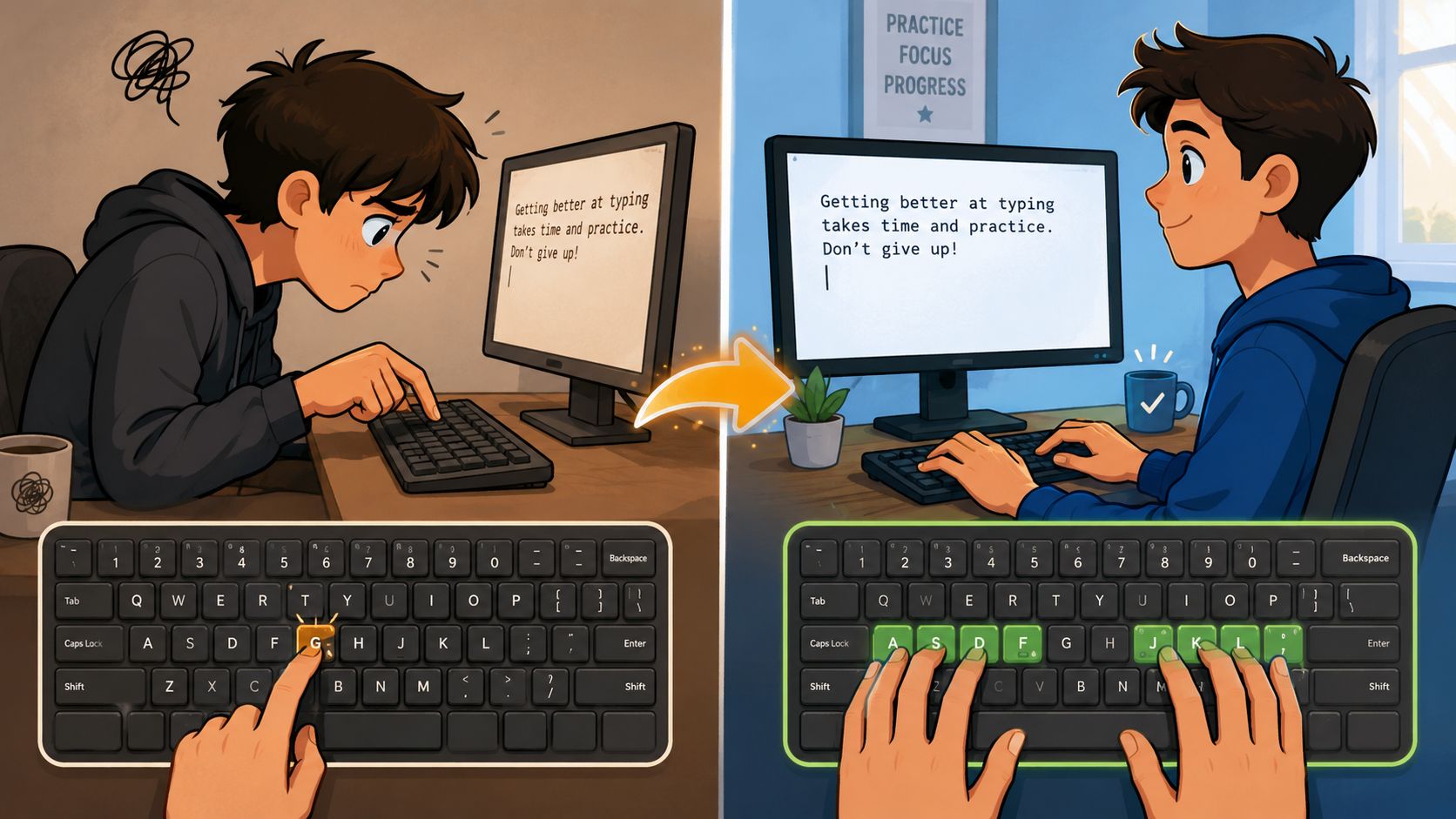
Touch typing fixes that by making key locations automatic. You stop searching and start executing.
Measure the right thing first
An accuracy-first approach works better than trying to force raw speed. In a widely cited discussion on improving typing speed, the recommendation is to practice at a minimum of 98% accuracy, slowing down enough to hit the correct keys consistently before increasing pace. That same source notes that typists using this method can move from 50 WPM to 70–85 WPM within 3–6 months of consistent daily practice.
That sounds almost too basic, but it matches what changes performance. When your hands learn the correct movement pattern, speed follows. When your hands learn rushed mistakes, you build a ceiling.
Fix posture and home row discipline
Start with the essentials:
- Sit close enough to the keyboard: Your elbows should rest comfortably rather than reaching forward.
- Keep wrists neutral: Don't plant them hard on the desk and don't bend them upward.
- Place fingers on home row: Left hand on A-S-D-F, right hand on J-K-L-;.
- Let thumbs handle the spacebar: That frees your other fingers to stay assigned to their zones.
- Keep your eyes on the screen: Looking down breaks rhythm and prevents true spatial memory from forming.
If you currently type with mostly index fingers, expect this retraining to feel slower for a while. That isn't failure. It's the awkward middle stage where old shortcuts stop working and real skill starts replacing them.
Use drills that teach control
Not all drills are equal. Random word races can be fun, but they won't reliably fix weak finger patterns.
Use drills with a purpose:
- Home row drills: Reinforce finger placement and return.
- Problem key drills: If you keep missing T, Y, B, or punctuation, isolate them.
- Real-text drills: Practice with sentences, not only word lists, so your rhythm includes capitals and punctuation.
- No-look drills: Cover your hands if needed. Visual dependence keeps bad habits alive.
One advanced skill worth practicing is the rollover technique, where you press the next key as the previous key is still releasing. That smooth overlap is part of what makes experienced typists look effortless instead of frantic.
A short visual walkthrough can help if you need to reset your mechanics:
Slow practice isn't wasted practice. It's how you build movements you can trust when the work gets fast.
Build a Deliberate Practice Schedule
Random practice feels productive because your hands are moving. It usually isn't. If you jump between typing games, tests, and casual repetition without a plan, you mostly rehearse what you already do. That's why so many people stay stuck at roughly the same level for months.
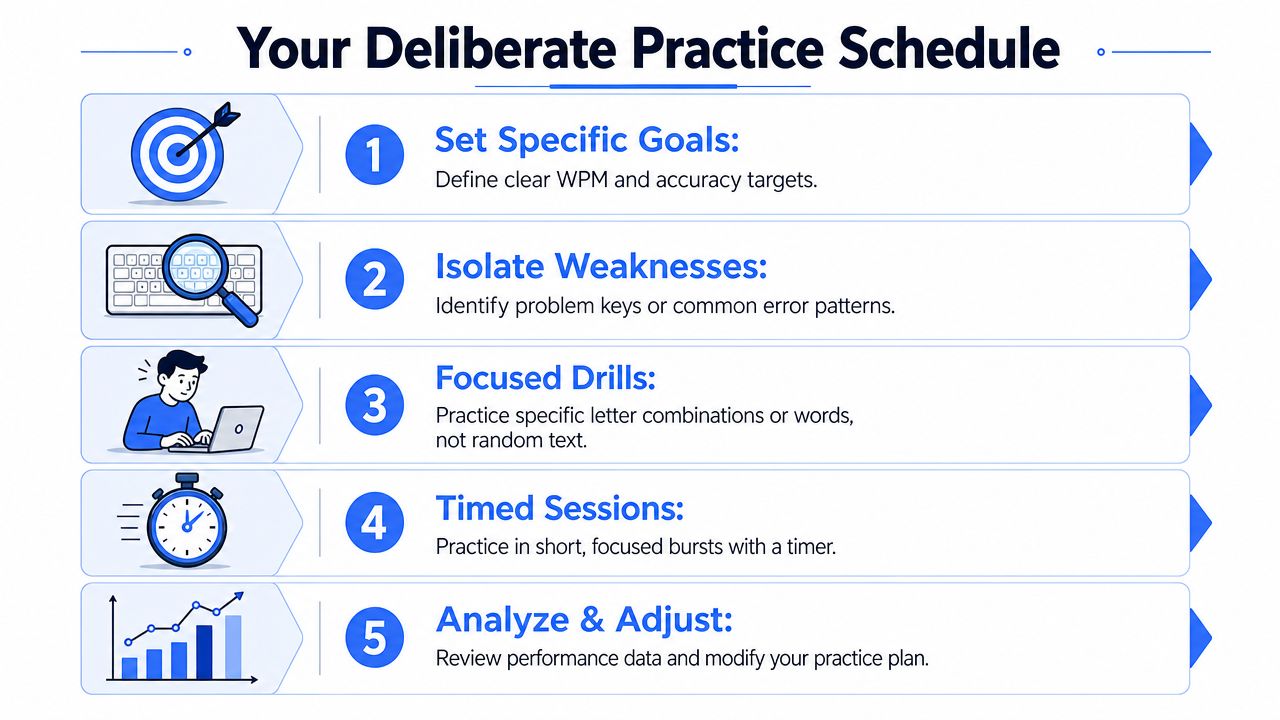
Why random practice stalls progress
Deliberate practice has a clear target. It isolates a weakness, applies focused reps, and checks whether the weakness improved. That's very different from taking ten speed tests and hoping one of them magically pushes your average up.
For professionals, short and repeatable beats ambitious and inconsistent. A daily block works better than occasional marathon sessions because your nervous system learns through frequency. You want enough repetition to build control, but not so much that your form degrades into tension and shortcuts.
One useful modern addition is to think beyond drills alone. If your work includes long-form drafting, brainstorming, or high-volume reply writing, it helps to study a speech-to-text workflow for daily writing alongside your keyboard practice. That keeps your training tied to actual output rather than test scores in isolation.
A weekly deliberate practice drill focus
Use a schedule with distinct purposes for each day. That prevents the common mistake of treating every session like a speed race.
| Day | Drill Type | Focus | Example Tool/Exercise |
|---|---|---|---|
| Monday | Accuracy session | Clean key strikes and no-look typing | Short passages typed below maximum pace |
| Tuesday | Weakness isolation | Problem letters, numbers, or punctuation | Repeated drills built from your most common errors |
| Wednesday | Real-world text | Emails, notes, report sentences | Copy a paragraph with normal capitalization and punctuation |
| Thursday | Speed intervals | Brief controlled pushes above comfort pace | Timed bursts followed by slower recovery rounds |
| Friday | Correction efficiency | Editing, deletion, and shortcut use | Rewrite text and fix errors with full-word deletion shortcuts |
| Saturday | Mixed session | Accuracy plus real work simulation | Alternate drills with actual writing tasks |
| Sunday | Review and reset | Check patterns and adjust next week | Review your log and pick one weakness for the next cycle |
A few ground rules make this schedule work:
- Keep sessions short: Fifteen focused minutes is enough if you show up consistently.
- End before form falls apart: Sloppy fatigue practice teaches the wrong lesson.
- Use one primary metric: For one week, maybe that's clean punctuation. For another, it's steadier rhythm.
- Practice with your real workload in mind: If your day is full of customer replies, train on sentence transitions and common phrasing, not only isolated word lists.
Most people don't need more practice time. They need practice that has a job.
Advanced Techniques to Shatter Plateaus
A plateau usually means one of two things. Either your mechanics are leaking efficiency, or your correction habits are costing more time than you realize. In both cases, typing faster isn't the first fix. Typing cleaner and recovering faster is.
Find the real source of the plateau
Watch your own typing for one work session. Not a test. Real work.
You'll often find a repeatable pattern behind the stall:
- Specific letters trip you up: often reaches across the keyboard or same-finger sequences
- You slow down around punctuation: especially commas, parentheses, slashes, or apostrophes
- You collapse on long words: your rhythm breaks and you restart mid-word
- You overcorrect: one typo turns into a string of hesitant backspaces
For knowledge workers drafting emails or reports, a 5% error rate can increase total task time by 23% due to context-switching and correction latency, and those frequent corrections can hurt working memory retention enough to lower output quality. That's the hidden tax behind “I type pretty fast, but writing still feels slow.”
Correct faster and with less disruption
Typists often use backspace like a panic button. They peck at it repeatedly, retype the word, then lose their place in the sentence. That method is expensive.
A better approach is to make correction decisive:
- Delete whole words when the word is broken: Use the full-word deletion shortcut on your system instead of tapping backspace several times.
- Finish the phrase when the mistake is minor: If the typo doesn't block meaning, keep moving and clean it once the clause is complete.
- Train common error clusters: If you repeatedly mistype the same word pair, drill the pair rather than hoping it disappears.
At this stage, plateau-breaking happens. You stop treating mistakes as random and start treating them as recurring workflow defects.
Check whether your keyboard is fighting you
Technique matters most, but hardware still affects comfort and confidence. If you bottom out hard on every keypress or the switches feel scratchy, your hands may tense up without you noticing. It can help to compare switch characteristics before blaming yourself for every inconsistency. This Gamer Hardware switch data is a practical place to look if you want to understand how different keyboard switches feel under real use.
If you always miss the same keys, that's not bad luck. It's a pattern. Patterns can be trained.
The Hybrid Workflow for Peak Input Speed
Typing is essential, but typing isn't always the fastest way to get words onto the screen. That's especially true when you're drafting from scratch, explaining a complex idea, or trying to capture a thought before it disappears.
The more effective model is hybrid. Use voice for raw capture. Use the keyboard for refinement.
Use voice for capture and typing for control
Emerging hybrid input data shows that voice-to-text tools can be up to 4x faster than average typing, and 2025 accessibility research found a 31% reduction in error rates when voice is used for initial idea capture followed by keyboard-based editing. That combination matters because it separates two jobs your brain often tries to do at once: generating language and polishing language.
When you dictate a rough draft, you protect momentum. When you switch back to typing, you regain precision for formatting, naming, punctuation cleanup, and final edits.
This approach is also useful for people trying to reduce strain or vary input methods during long workdays. If that's relevant, this guide on finding your ideal keyboard alternative for 2026 offers a practical way to think through alternatives without abandoning typing altogether.
When to switch input modes
Use voice when the main job is getting ideas out. Use typing when the main job is exactness.
A simple decision rule works well:
- Dictate first for brainstorming, long email drafts, meeting recap notes, outlines, and first-pass explanations.
- Type first for passwords, short edits, structured data entry, formatting-heavy work, and anything requiring exact placement.
- Switch mid-task when your thought speed outpaces your hands. That's often the moment where typing starts to feel like friction.
Many professionals resist this because they think dictation and typing are competing skills. They're not. They solve different parts of the same problem. If your goal is to improve typing speed and accuracy, the smartest system doesn't force every sentence through the keyboard.
Sustain Your Progress and Keep Improving
Typing skill fades if you stop paying attention to it. Not all at once, but gradually. The first signs are small. More glances at the keyboard, more hesitation on punctuation, more tension as the day progresses, and slightly messier corrections.
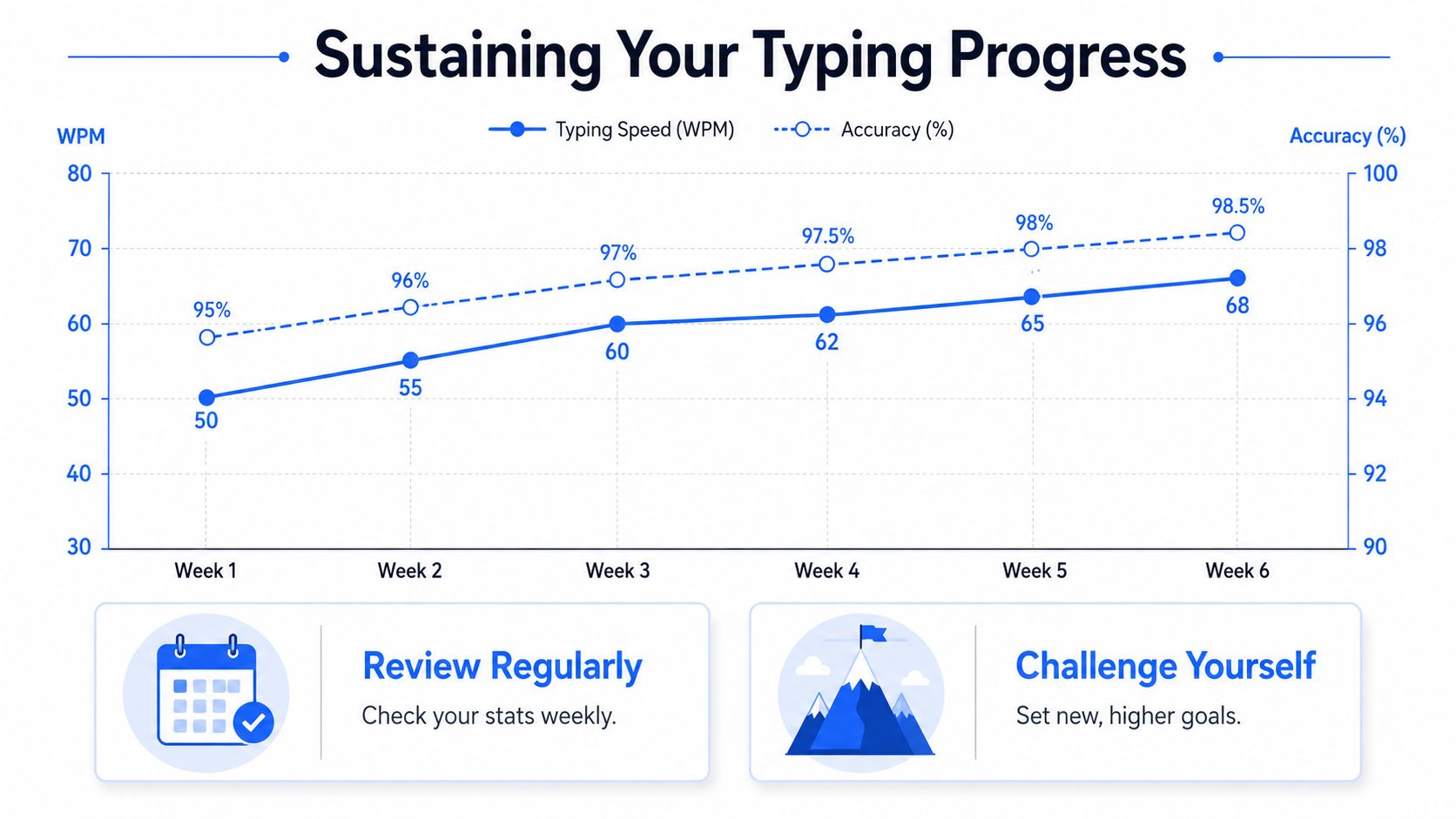
Track a small set of useful metrics
Keep the review process lean so you'll do it.
Track:
- Typing speed trend: Not your best score. Your repeatable score.
- Accuracy trend: This tells you whether progress is clean or noisy.
- Error themes: Which keys, words, or situations keep creating mistakes.
- Body feedback: Wrist tension, shoulder fatigue, eye strain, mental fatigue.
Review once a week. If your speed rises while accuracy slips, tighten technique. If accuracy is steady but speed stalls, push controlled intervals or increase real-text practice. If discomfort rises, treat that as a warning sign, not a side note.
Protect your body while you improve
Sustainable typing depends on comfort. If your eyes dry out, your neck cranes forward, or your hands tense up, your form will deteriorate even if your motivation stays high. Many professionals benefit from adjusting screen height, reducing glare, and using eyewear designed for computer use. If screen fatigue is part of your workday, these best computer vision glasses can help you think through what to look for.
It also helps to rotate input methods, take brief breaks, and pay attention to strain signals early. If repetitive stress is on your radar, this guide to repetitive strain injury prevention offers practical habits for protecting your hands and shoulders over time.
The long game is straightforward. Keep your mechanics clean. Practice with purpose. Use modern tools when they fit the task. That's how typing stops feeling like a bottleneck and starts becoming invisible.
If you want a faster way to capture ideas without giving up precision, Voice Control Pro is worth a look. It lets you dictate directly into the app you're already using, then switch back to the keyboard for clean editing and final control. That makes it a strong fit for professionals who want less strain, fewer interruptions, and a smoother path from rough thought to polished text.