
You're halfway through a client email, the cursor is blinking, and your wrists already feel the morning of chat replies. The notes from the last call are still in your head, not on the page. Voice input should close that gap in a couple of minutes. It usually doesn't, because the first pass drops a name, invents a word, or sits there with the mic muted.
How to use voice recognition software starts as a setup job, not a typing replacement. Turn the feature on for the device in front of you, fix the microphone and the language, learn a few commands, then test the output and decide which text may leave the machine. I would not trust a long document until that short loop is done in a plain notes app.
Table of Contents
- Turn On Voice Recognition on Your Platform
- First sentence in a notes app
- Set Up Your Microphone and Language for Clean Text
- Pace, pauses, and a draft you will reread
- Dictation Commands and Shortcuts You Will Use Daily
- A shortcut that doesn't fight your other apps
- Fix Recognition Errors and Accent Problems
- When the accent doesn't match the model
- Choose Local or Cloud Processing for Sensitive Text
- What you trade for keeping audio on the machine
- Start With a Two-Minute Test Before You Rely on It
- What counts as good enough
Turn On Voice Recognition on Your Platform
You need three things before any shortcut matters. A working microphone is enough, and the built-in mic is fine in a quiet room. A headset cuts echo when the room is live. The app must have permission to use that mic. Engines that send audio to a cloud service also need an internet connection.
If you want a plain definition of the engine behind these menus, iScribe Live Transcribe's speech recognition guide walks through how speech becomes text before you pick a shortcut.
| Platform | Where to turn it on | How to start dictation |
|---|---|---|
| macOS | System Settings > Keyboard > Dictation | Press the dictation shortcut you set, often Fn twice |
| Windows 11 | Win + H opens voice typing; speech settings under Settings > Time & Language > Speech | Press Win + H, then speak |
| iPhone or iPad | Settings > General > Keyboard > Enable Dictation | Tap the microphone key on the keyboard |
| Android (Gboard) | Gboard settings > Voice typing | Tap the microphone key on the keyboard |
| Google Docs | Tools > Voice typing | Ctrl + Shift + S on Windows or Chromebook, Cmd + Shift + S on Mac |
macOS Dictation and Windows voice typing write into the focused field of almost any app. iPhone, iPad, and Gboard write into the keyboard's current box, so the cursor has to sit in that box or the mic key does nothing useful. Google Docs voice typing runs only while that document is the active tab. On Android, the keyboard path is easy to miss the first time, and this Android phone voice to text walkthrough spells out the Gboard taps.
First sentence in a notes app
- Turn the feature on at the path in the table.
- Allow microphone access when the system asks.
- Choose the input device in Sound settings and check that the level meter moves when you talk.
- Click where the text should go, press the start shortcut, and speak one full sentence.
- Press the shortcut again and read the result.
You're done with this pass when the text lands at the cursor, the punctuation is roughly right, and you've seen that result in Notes or Notepad before you open email. If the meter doesn't move, stop. A wrong input device wastes the rest of the setup.
Practical rule: Prove the shortcut in a blank note before you dictate into a message you might send by accident.
Set Up Your Microphone and Language for Clean Text
The change that moves accuracy most is physical. Put the mic about a hand's width from your mouth, slightly off to one side, and keep that distance every session. Use a headset when the room is noisy or echoey. A laptop mic on a hard desk picks up keyboard taps and the person across the table.
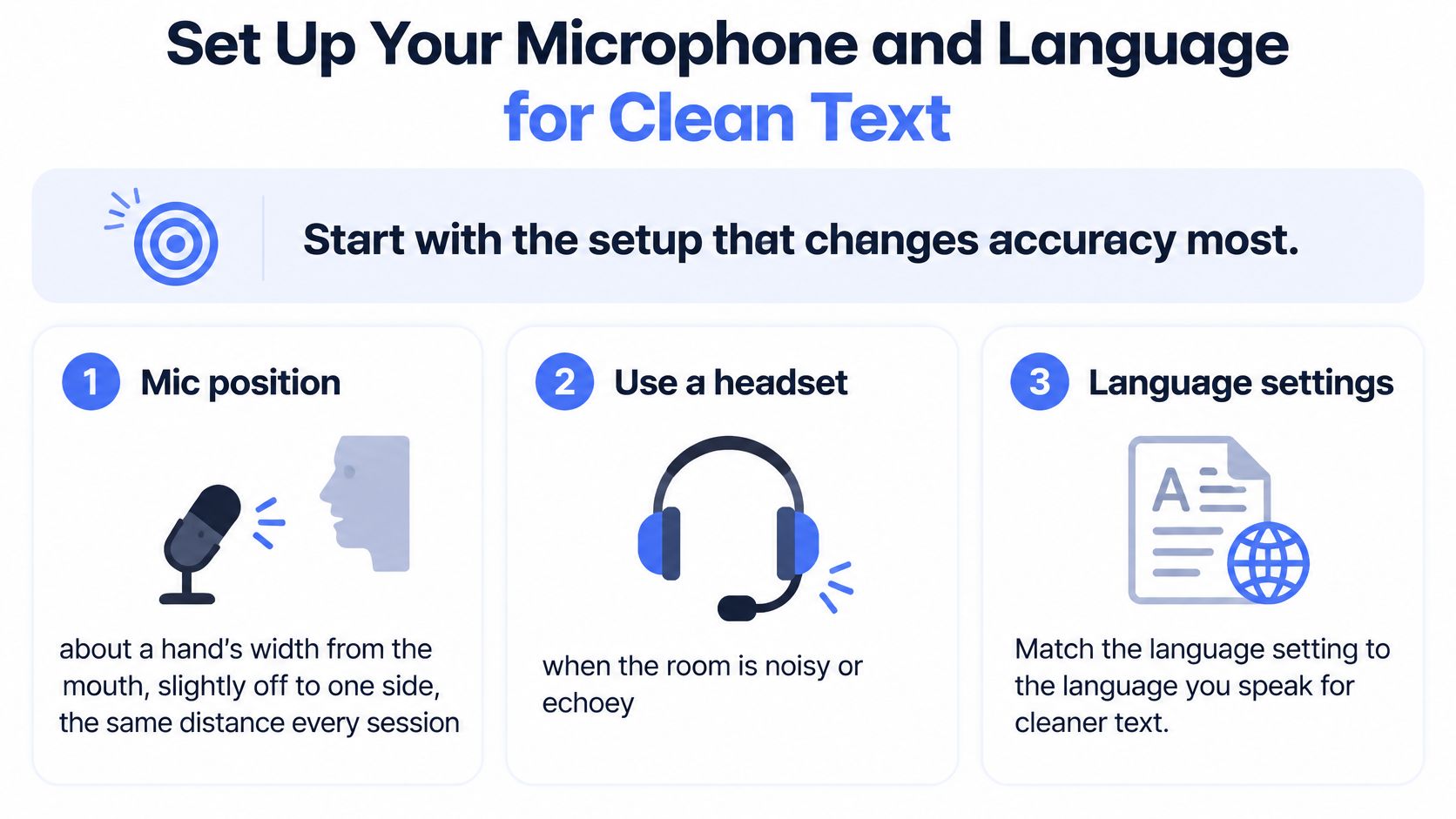
Match the language region to the accent you speak, such as English (United States), English (United Kingdom), or English (Australia). Add a second language only if you switch languages in the same session. An unused language pack can steer ordinary words toward the wrong vocabulary. People dictating in Spanish, or waiting on broader assistant coverage, can see how region support is still moving in Apple's AI beta for Spanish speakers.
Pace, pauses, and a draft you will reread
Speak in complete phrases. Pause briefly at the end of each sentence. Say punctuation out loud, such as "period" or "new line." On a long sentence, keep a steady pace instead of speeding up at the end. Pauses mark phrase boundaries. The language setting keeps the vocabulary closer to your words. Mic distance keeps noise out of the audio the model scores.
Judge the result with word error rate, the share of words wrong from substitutions, deletions, and insertions against a correct transcript. In the 1998 NIST Broadcast News tests summarized by Communications of the ACM, prepared baseline speech reached 7.8% word error rate while spontaneous speech reached 14.4%. Unscripted talk produced more errors on the same class of systems. Treat the first output as a draft.
- Quiet room: Close the door and mute other audio.
- Fixed mic distance: Same hand's width, same side, every session.
- Correct language: Region matches your accent. A second language only if you switch mid-session.
- One test paragraph: Read it aloud, then keep that output as a draft until you read it back.
A headset in a noisy room beats a fancier language setting with a laptop mic on a conference table.
Dictation Commands and Shortcuts You Will Use Daily
The commands you repeat are short. They fail when you run them into the previous word without a pause.
| Say | Result | Where it works |
|---|---|---|
| new line | starts a new line | macOS, iPhone and Google Docs |
| new paragraph | starts a new paragraph | macOS and iPhone |
| period, comma, question mark | inserts that punctuation | macOS, iPhone, Windows and Google Docs |
| delete that | removes the last phrase | macOS and iPhone |
| select all | selects the whole document | macOS |
Support isn't identical on every platform. If a phrase does nothing, open the command list in that system's dictation settings and use the wording listed there. For the punctuation you need in almost every email, keep how to dictate punctuation and paragraphs clearly open during the first week.
A shortcut that doesn't fight your other apps
Hold-to-talk keeps the mic live only while a key is down. Press-to-start, press-to-stop means one press begins and the next press ends. Pick the mode your hands already understand, then check that the shortcut isn't taken by the browser, the editor, or a screenshot tool. A clash looks like a dead mic when another app ate the keystroke.
When a command inserts the wrong line, use the platform undo key, Ctrl+Z or Command+Z, instead of retyping the sentence. Undo removes the last insertion as one chunk. Typing on top of a bad phrase usually leaves both versions in the field.
- Pause, then command: Say the command after a short pause so it isn't glued to the last word.
- Keep the cursor in the field: Dictation writes where focus is. A click in the wrong window dumps the sentence there.
- Read before you send: A clean command still doesn't fix a wrong name.
Build a five-command routine for the writing you do daily. New line, period, delete that, select all, and stop covers most notes. If select all isn't on your platform, use the keyboard select-all shortcut after you stop dictating.
Fix Recognition Errors and Accent Problems
Missing words show up first when you speed up. The engine is still scoring the last phrase while you've started the next one. Slow to a steady pace and pause at each phrase end. That change fixes more drafts than a new microphone.
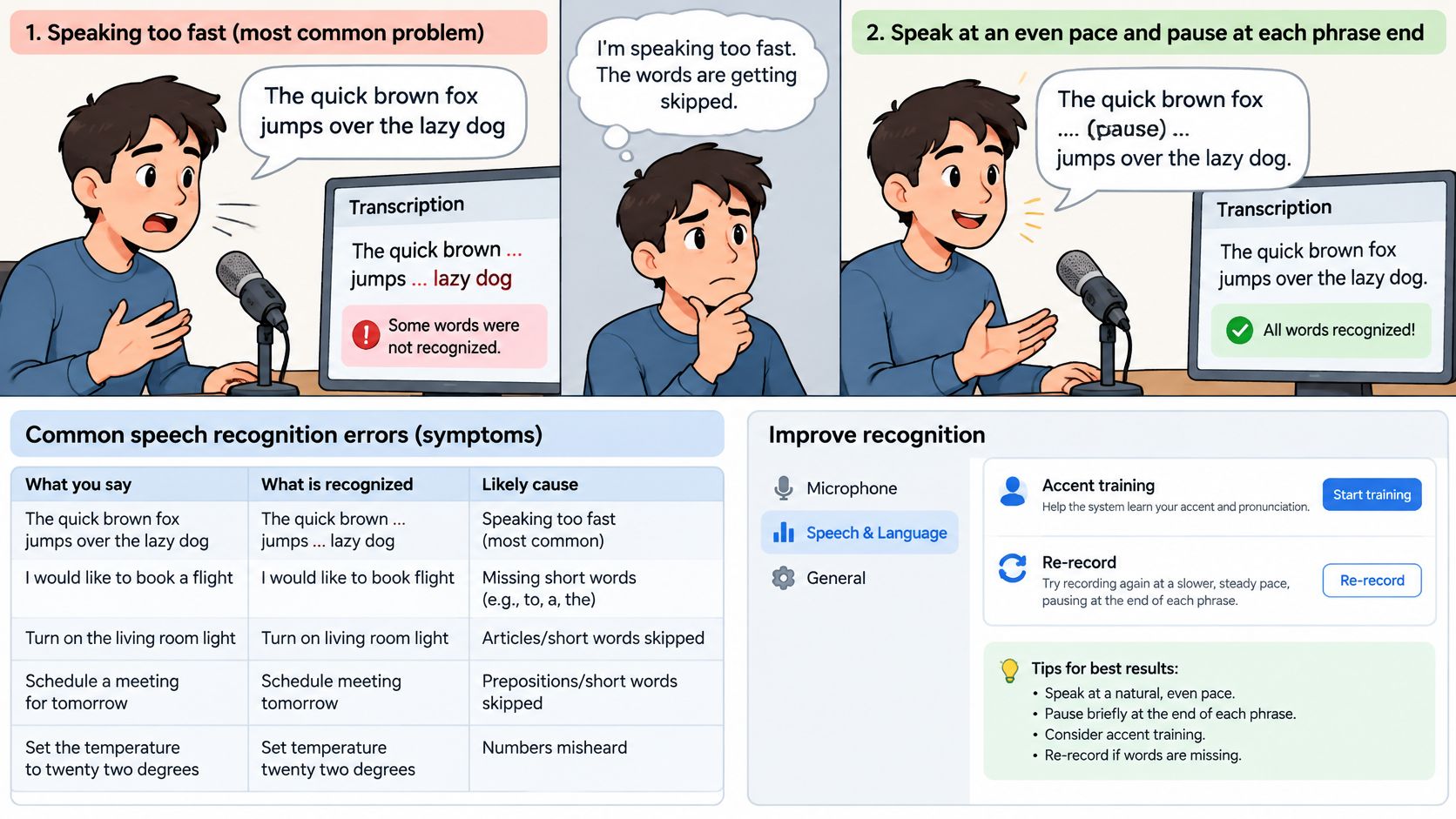
| Symptom | Likely cause | Fix |
|---|---|---|
| Words missing in fast speech | Speaking faster than the engine keeps up with | Slow to a steady pace and pause at each phrase end |
| Names and jargon replaced by common words | Terms missing from the vocabulary | Add them to the custom dictionary or personal word list |
| Works in a quiet room but fails in a cafe | Background noise and echo | Use a headset mic, move away from noise sources and close the door |
| Repeated errors on the same sounds | Accent mismatch with the trained model | Read the personal test script, try a different region setting and correct recurring errors |
| No text appears at all | Wrong input device or missing microphone permission | Check the input device in Sound settings and the microphone permission in privacy settings |
When the accent doesn't match the model
Speaking "more clearly" rarely closes an accent gap by itself. A 2025 ISCA evaluation of learner and variety speech reported an average word error rate of 26.9% on English learners' speech versus 2.3% on controlled laboratory speech, mean accuracy in one accent-identification setting falling from 87.6% for mainstream accents to roughly 55.8% for second-language accents, and a look at more than 300 English varieties in which the gap for second-language speakers can widen as models improve on first-language English.
Newer, larger models aren't automatically fairer. Customer-support agents, researchers, students, and professionals who dictate in a second language, or in an underrepresented variety of English, should count their own misses. Read a short personal script of names, technical terms, local vocabulary, and code once in a quiet room and once while talking freely. Add the words that fail every time to the custom dictionary, and run that pair of readings again after a major update.
A short demo is useful if you'd rather watch the pause-and-correct habit than only read the table.
Choose Local or Cloud Processing for Sensitive Text
Some speech should not leave the device, and privacy and accessibility aren't opposites. Local processing still lets you dictate when typing hurts. It also keeps medical details, customer records, unreleased plans, passwords, and legally privileged conversations off a remote server. Cloud processing fits when the text isn't sensitive and you want wider language support.
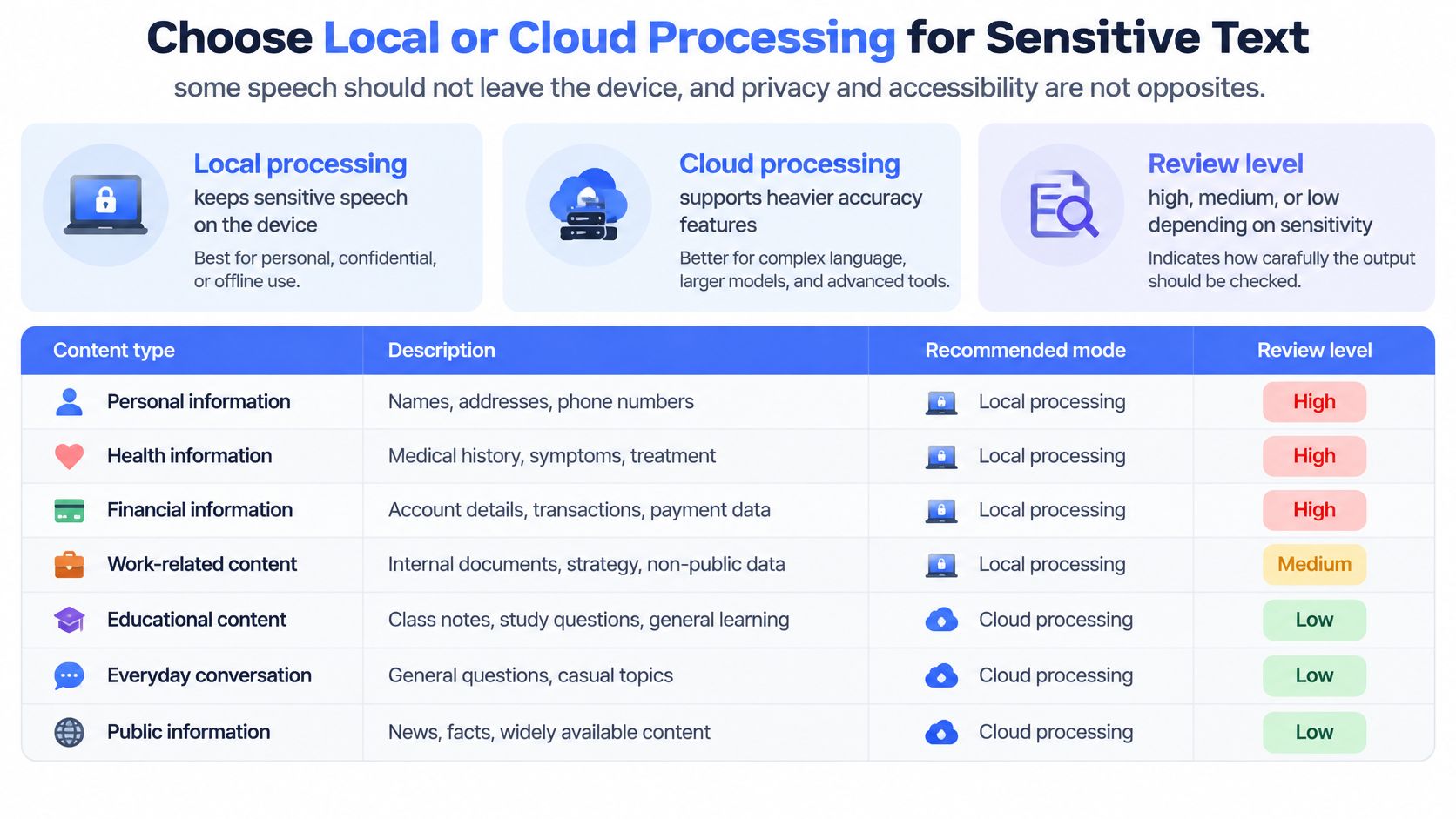
| Content | Recommended mode | Review before sending |
|---|---|---|
| Routine emails and notes | Cloud mode for wider language support | Quick skim |
| Non-sensitive multilingual drafts | Cloud mode | Full read for names and numbers |
| Medical details or customer records | Local mode, such as Fly Mode in Voice Control Pro | Full read and check every name and figure |
| Unreleased plans or legal conversations | Local mode | Full read, and type any uncertain word |
| Passwords | Do not dictate | Type them manually |
| Offline work with no connection | Local mode | Full read, accepting possibly reduced language coverage |
What you trade for keeping audio on the machine
Local mode processes speech on the computer and pauses cloud features. You may get fewer languages and a weaker model, so mic position and a personal word list matter more. A 2025 study of accent and speaking context reported higher error rates for Nigerian-accented speech than for US-accented speech, and found that emotionally charged, dense, or spontaneous speech creates more errors than read speech. The microphone isn't the whole story.
For a side-by-side of what stays on the machine, use this comparison of cloud and local speech recognition. When a word looks uncertain, type it or say the sentence again. Don't guess a name into a record.
Standing rule: High-stakes text gets a full read-through before it leaves your screen, every time. Type passwords. Don't dictate them.
Start With a Two-Minute Test Before You Rely on It
The setup is finished only after you score a script you wrote, not a demo sentence from the help menu.
- Write a 150-word script with the names, numbers, jargon, local vocabulary, and code you use in your work.
- Dictate it once in a quiet room, then once while talking freely, so you can compare a read pass with spontaneous speech.
- Count substitutions, missing words, and extra words against the script.
- Add recurring misses to the custom dictionary. If the error count stays high, try a different region setting.
- Choose the mode for each content type: cloud for ordinary drafts, local for sensitive or offline work, and no dictation for passwords.
What counts as good enough
A good result isn't a perfect transcript. It's few enough errors that one read-through fixes the text before you treat it as a draft. Names and figures should match the script. Commands should have created the line breaks you asked for, not the words "new line" sitting in the paragraph.
Repeat the same script after an app update and whenever you switch accent region. A model that improved on someone else's speech can get worse on yours. Keeping the wording fixed is what makes this week's count comparable to next week's.
Few enough errors for one read-through is the bar. A flawless first pass is not.
Run the test in the app you use most this week. Then set the review routine for daily writing: a skim for ordinary notes, a full read for names and numbers, and typed corrections for anything you wouldn't want wrong in a client record.
Voice Control Pro inserts recognized speech at the cursor in the app you're already using, with a press-and-hold shortcut for everyday drafts and local processing when the text shouldn't leave the computer. That matches the setup above: test the script, then pick cloud or on-device mode for each kind of writing. Visit Voice Control Pro and run the two-minute test in the tool you open every morning.