
You open your laptop to clear a backlog. One email turns into five, a meeting recording still needs a transcript, and the notes you meant to capture are stuck in your head because typing takes longer than the thought itself. Free speech to text software helps, but only if you pick the right kind of tool for the job.
The useful split is simple. Everyday dictation tools help you get words into a text field fast. Meeting and file transcription tools turn recordings into readable drafts. Developer tools give you more control, but they also ask for setup time, testing, and a higher tolerance for rough edges.
Privacy changes the decision just as much as features. Some tools process speech locally on your device, which is often the better fit for sensitive notes, client material, or offline use. Others rely on cloud processing, which can be more convenient for syncing, collaboration, and longer recordings, but it comes with a different security trade-off.
I kept this guide focused on day-to-day use. Accuracy matters, but so do correction speed, command support, platform limits, and whether a tool works where you already write. If you also want a dedicated hardware option for capturing conversations on the go, take a look at this AI intelligent voice recorder.
Table of Contents
- 1. Voice Control Pro
- Why it stands out
- Who should use it
- 2. Windows 11 Voice Access
- Best fit
- 3. Apple Dictation
- Where it works well
- 4. Gboard Voice Typing
- Mobile reality
- 5. Voice In Speech-to-Text Dictation
- Browser-first workflow
- 6. Google Docs Voice Typing
- Good inside Docs, limited outside it
- 7. Otter.ai
- Best for meetings, not cursor-first dictation
- 8. MacWhisper
- Privacy-first transcription on Mac
- 9. OpenAI Whisper
- Best for file transcription, experiments, and custom workflows
- 10. Vosk
- Where Vosk makes sense
- Top 10 Speech-to-Text Tools Comparison
- Our Pick: How to Choose the Best Tool for You
1. Voice Control Pro
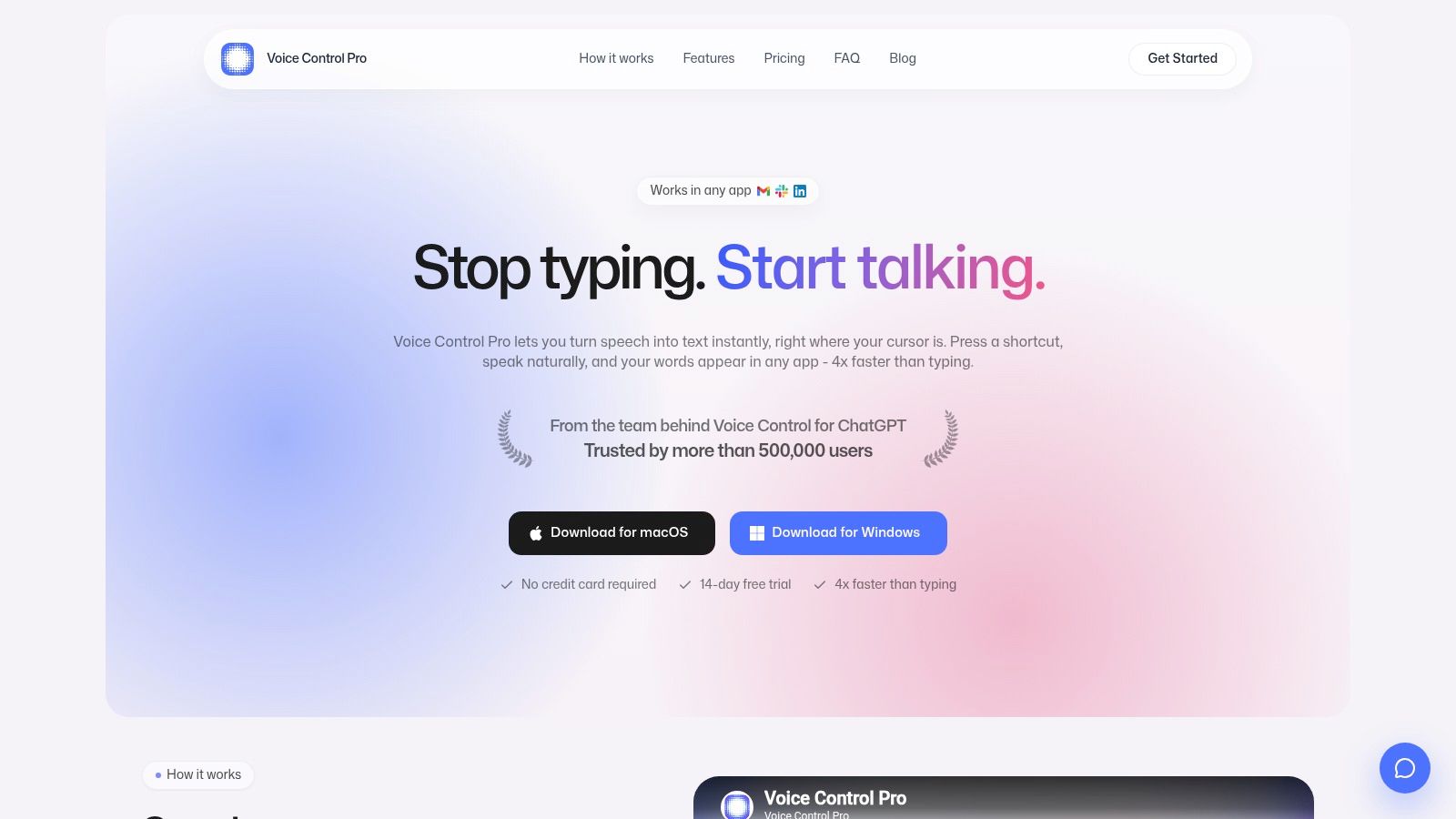
If your main job is turning thoughts into text across different apps, Voice Control Pro is the most workflow-friendly option on this list. The core behavior is simple: hold a global shortcut, speak, release, and the text drops in at the cursor. That sounds small until you compare it with tools that force you to switch windows, reopen the mic, or clean up rough transcripts every few minutes.
This is the one I'd put in the “everyday dictation” category for people who live in Gmail, Slack, docs, CRMs, and AI tools all day. The insertion workflow is the point. You stay in the app you're already using.
Why it stands out
Voice dictation is often faster than typing in raw terms. Average speaking speed is 150 words per minute, while professional typing typically lands around 40 to 60 words per minute, with practical dictation still estimated to be about 2.5 times faster after editing. Voice Control Pro leans into that advantage better than most free speech to text software because it avoids the stop-start friction that kills speed in practice.
It also goes beyond dictation. Hey Max can rewrite selected text, answer context-aware questions about what's on screen, and launch installed apps by voice. That makes it useful when the job isn't just “transcribe what I said,” but “help me finish the thought without breaking flow.”
Practical rule: If a dictation tool makes you think about the tool while you're writing, it's already costing you time.
Privacy is another real differentiator. Fly Mode pauses cloud features and keeps processing local, and there's an on-device dictation mode when you don't want audio leaving your machine. That's a strong fit for people handling internal docs, client notes, or anything sensitive.
Who should use it
Voice Control Pro is a strong match for:
- Knowledge workers: Draft emails, reports, prompts, and notes in whatever app you already use.
- People who hate workflow interruptions: The press-and-hold shortcut feels faster than opening a dedicated dictation box.
- Privacy-conscious users: Local processing options are more reassuring than cloud-only tools.
- Accessibility and RSI use cases: It lowers keyboard load without forcing a complicated command system.
The trade-off is straightforward. The site shows a free tier with weekly word limits, while Max provides unlimited usage and more advanced features. It also officially supports macOS and Windows, not Linux.
2. Windows 11 Voice Access
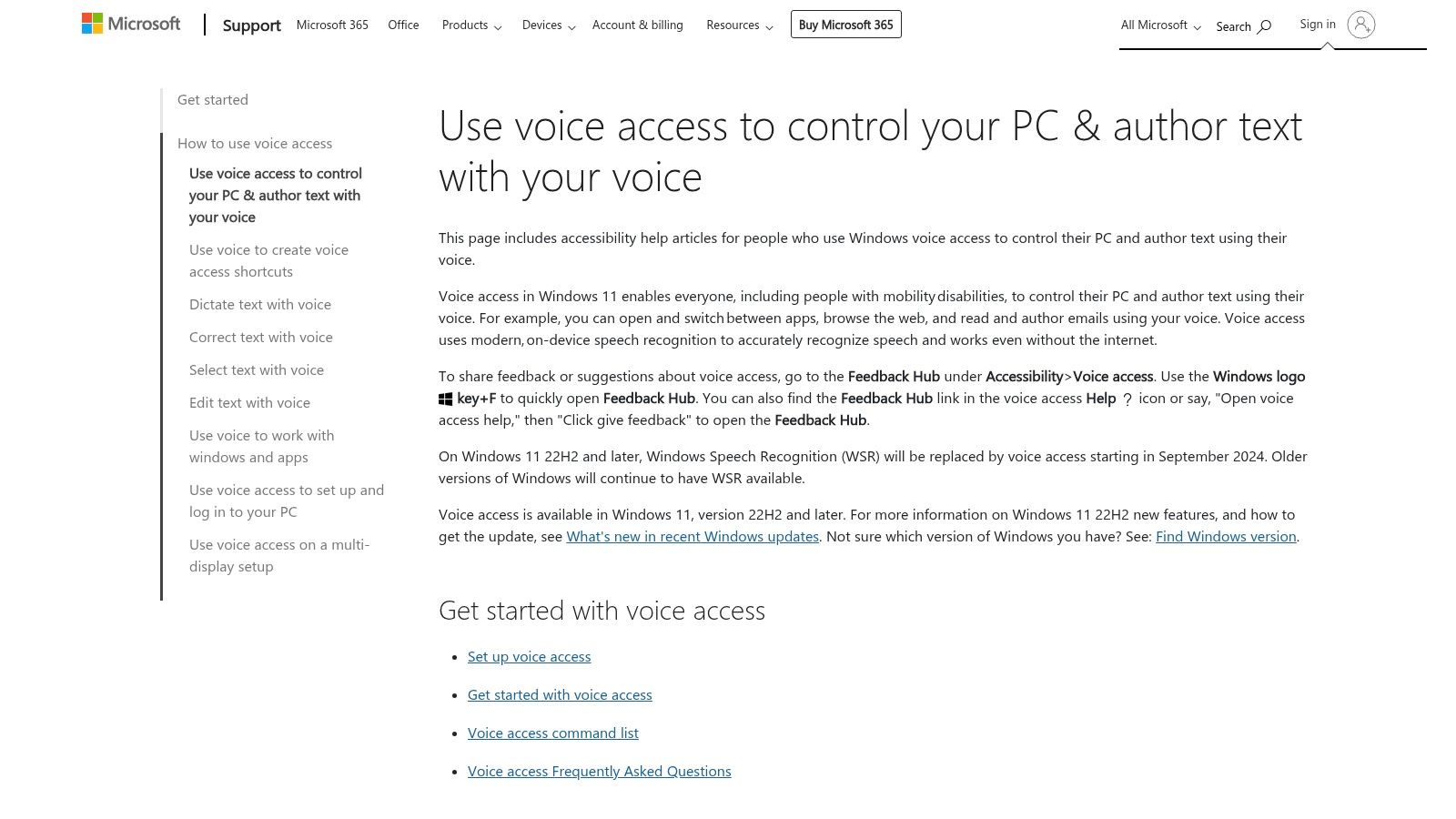
Windows 11 Voice Access is the best zero-cost starting point for Windows users who want system-level voice control, not just dictation. It works across apps, includes editing and navigation commands, and doesn't require installing anything extra.
What it does well is deep OS integration. You can dictate, move through interface elements, select text, and issue commands in a way browser tools can't match. If you want a built-in option before trying paid software, it's a good place to start.
Best fit
The catch is that Windows-native dictation often breaks your rhythm. Existing coverage tends to skip the interruption issue, but users regularly run into pauses, window-switch stops, and manual reactivation problems in free tools. Descript's review of free tools highlights that this stop-and-restart friction is one reason frictionless shortcut-driven alternatives can feel much faster in real work, even when baseline recognition is good.
That's the primary trade-off with Voice Access. It's capable, but it isn't the smoothest option for rapid, all-day drafting.
If you want to compare built-in Windows dictation with a cursor-first alternative, this Voice Control Pro vs. Windows Voice Access comparison is useful.
Use it if you want hands-free control and don't mind learning commands. Skip it if your priority is effortless insert-anywhere dictation with the least friction.
3. Apple Dictation
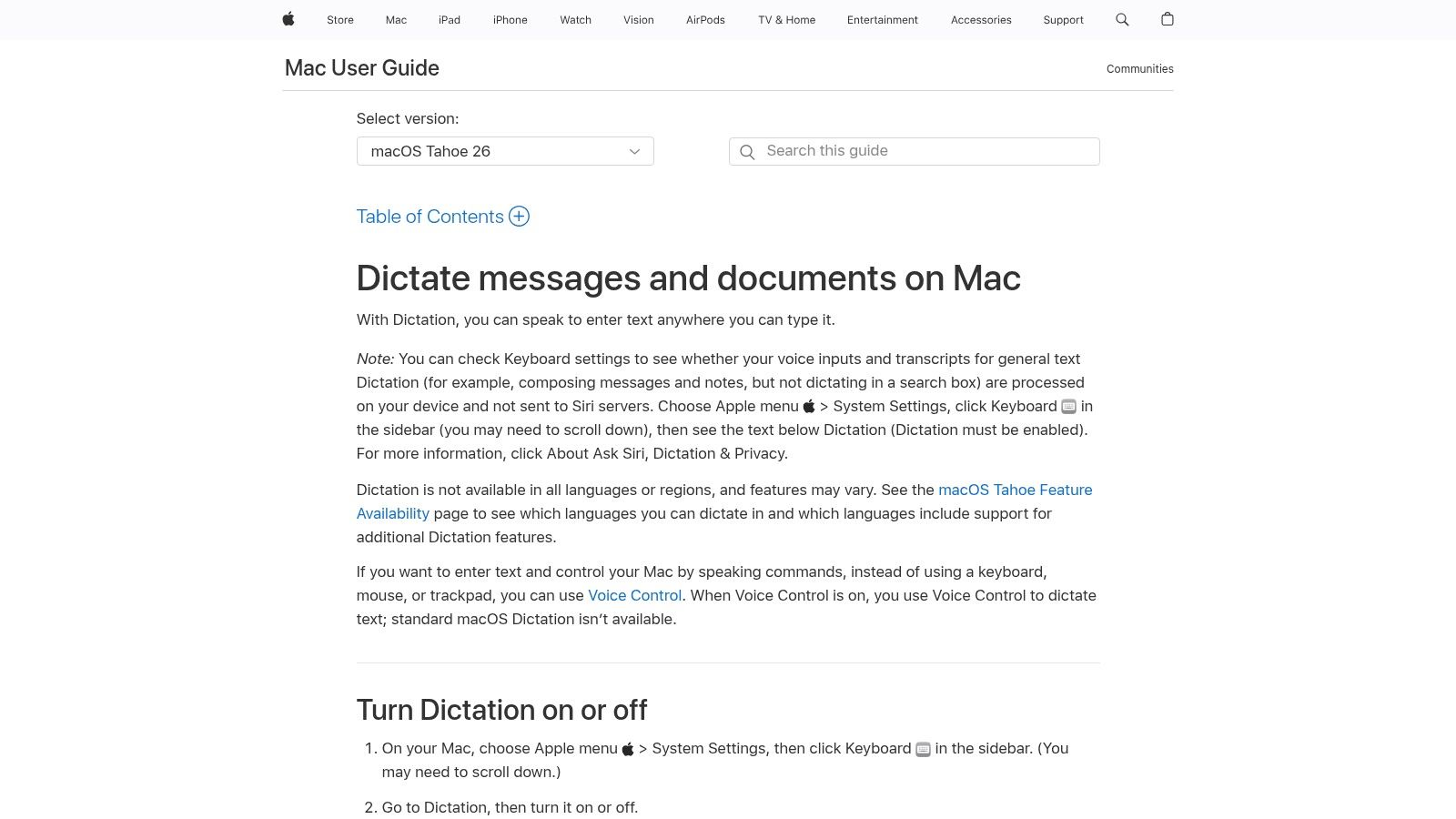
Apple Dictation is the easiest option for Mac users because it's already there. Turn it on, hit the shortcut, and start talking into almost any text field. For occasional use, that convenience is hard to beat.
I like it most for short bursts: messages, quick notes, sentence-level edits, and lightweight drafting. It also fits nicely with Apple's privacy and accessibility stack, which matters if you already trust the platform and don't want to manage another app.
Where it works well
The practical limitation is silence handling. Standard Dictation tends to stop after a short pause, so it's less comfortable for rambling ideation or long-form drafting. If you need more continuous voice control on Mac, Apple's Voice Control adds a broader command layer, but that's a different workflow from simple dictation.
Apple Dictation is best when “free” and “native” matter more than advanced control. It's not the most flexible tool on this list, but it's often the quickest one to try.
- Best for short writing tasks: Email replies, notes, search fields, and quick document edits.
- Best for Mac-first users: No installation, no extension, no account setup.
- Less ideal for long sessions: Pause too long and the flow breaks.
For a direct side-by-side look at native Mac dictation versus a dedicated insert-anywhere tool, see Voice Control Pro vs. Apple Dictation.
4. Gboard Voice Typing
For phones, Gboard Voice Typing is the default recommendation. It's built into a keyboard many people already use, it works across apps wherever the keyboard appears, and it's quick enough for messaging, note capture, and short mobile drafting.
This belongs firmly in the “everyday dictation” bucket, but only on mobile. If you're trying to answer Slack messages on the move, dictate a reminder, or draft an email from a cab, Gboard is one of the least annoying ways to do it.
Mobile reality
The downside is consistency. Mobile dictation quality changes with device, microphone quality, noise, and language setup. Recent Pixel devices get richer voice typing features, but that experience isn't identical across all Android phones or on iOS.
Many users don't need more than that. They need a mic button that works inside WhatsApp, Gmail, Notes, and forms.
Gboard is at its best when the task is short, casual, and happening on a phone you already have in your hand.
Use Gboard if mobile is your main dictation environment. Don't expect it to replace a desktop-first workflow for long documents or deep editing.
5. Voice In Speech-to-Text Dictation
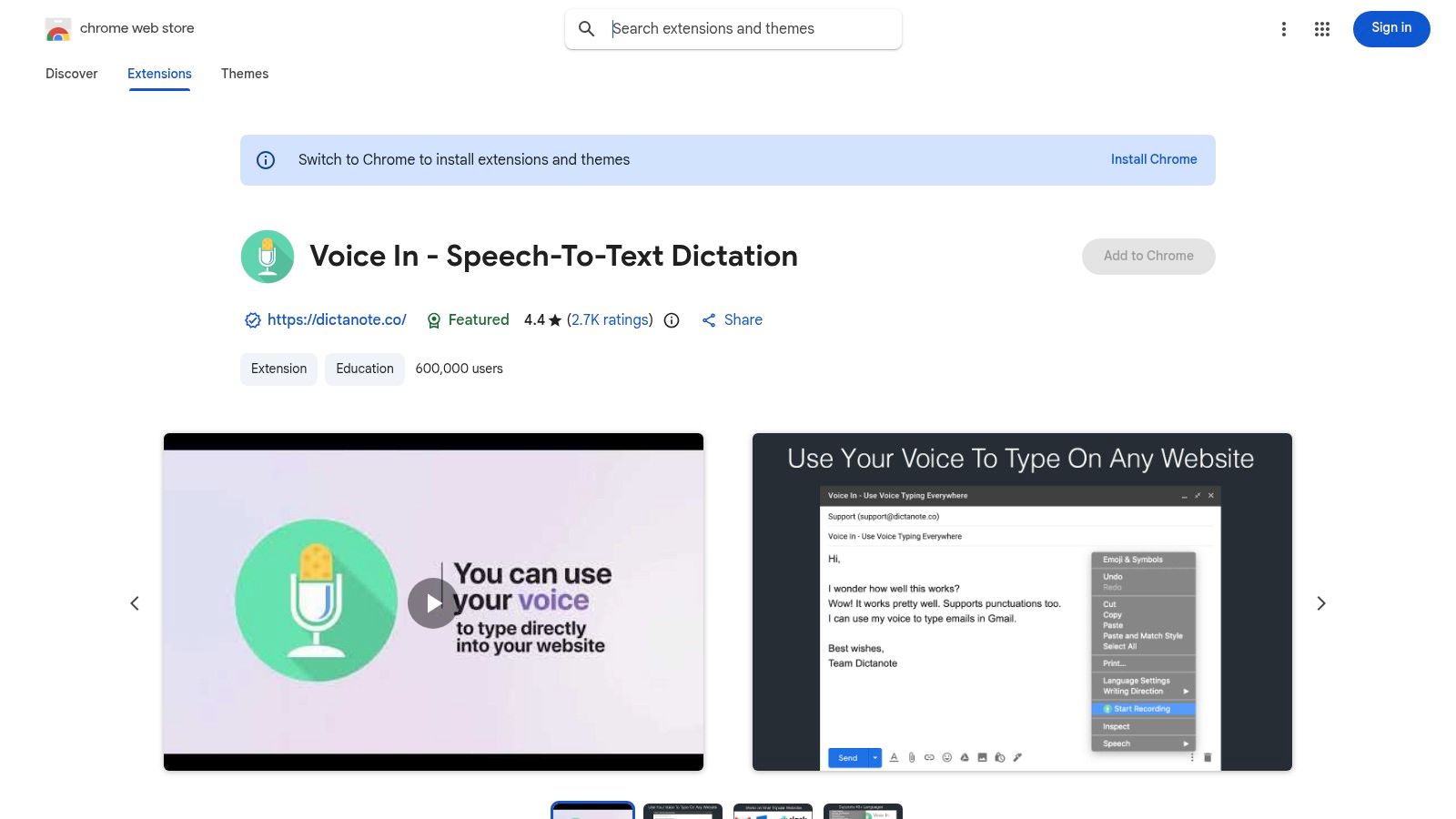
Voice In – Speech-to-Text Dictation is a smart pick if your work happens mostly in the browser. It's a Chrome and Edge extension that injects dictation into web fields, which makes it useful for Gmail, support tools, CRMs, chat apps, and web-based forms.
That browser-only focus is both the reason to use it and the reason to skip it. If you live in browser tabs all day, it's convenient. If you bounce between native apps and web apps, the boundary becomes obvious fast.
Browser-first workflow
Voice In works best when you want low setup overhead. Install the extension, click into a field, talk, and keep moving. For many users, that's enough to make browser work noticeably less tedious.
Its limitations show up when you need system-wide consistency. It won't follow you into desktop apps, and some sites behave better than others depending on how their input fields are built.
- Use it for web-heavy workflows: Gmail, help desks, CMSs, web CRMs.
- Avoid it for mixed desktop work: It won't replace a true system-wide dictation layer.
- Expect some compatibility quirks: Browser extensions always depend on the site in front of them.
If your job happens mostly in a browser, Voice In is one of the better free speech to text software options without going into developer territory.
6. Google Docs Voice Typing
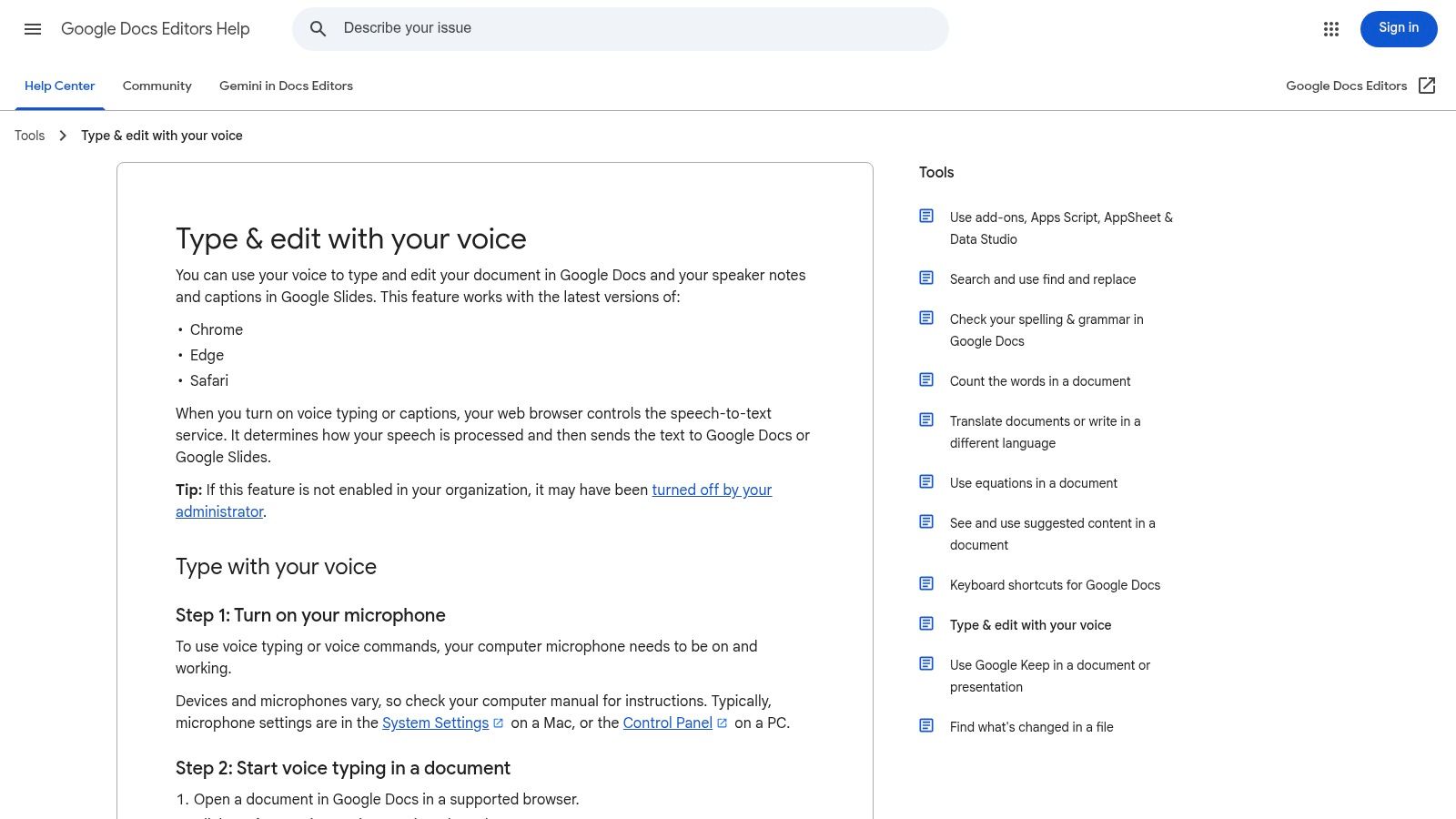
Google Docs Voice Typing is still one of the simplest ways to test whether dictation fits your writing style. Open a doc in Chrome, turn on Voice Typing, and start speaking. No install, no pricing page, no setup beyond microphone permissions.
It's especially useful for students, solo writers, and anyone who already drafts in Google Docs. You can dictate directly into a shared doc and keep the rest of the collaboration workflow unchanged.
Good inside Docs, limited outside it
The limitation is obvious and important. It works inside Docs and Slides speaker notes, not across your system. That's fine if your whole writing process starts and ends in Google Docs. It's frustrating if your day includes email, chat, ticketing systems, notes apps, and forms.
Google Docs Voice Typing is also a good example of how “free” can still interrupt your flow. Free dictation coverage often focuses on language support or accuracy, but not on what happens when the mic stops listening after pauses or context changes. That matters more than feature lists suggest.
For long-form drafting in a browser, Google Docs Voice Typing is still one of the easiest free tools to recommend.
Use it when your output is a document. Look elsewhere when your work is scattered across many apps.
7. Otter.ai
Otter.ai is not the best choice for cursor-first dictation, but it is one of the best-known free tools for meetings and recorded conversations. That distinction matters. If you want searchable meeting notes with speaker separation and replay, Otter is built for that from the start.
Its free plan is useful, but bounded. Otter lists a Basic plan with 300 minutes per month, a 30-minute cap per conversation, and only 3 lifetime file imports on the free tier. Those limits are fine for light class notes or occasional meetings. They're not enough for heavy weekly use.
Best for meetings, not cursor-first dictation
Otter shines when you need transcripts you can search later, not polished text inserted directly into an active app. It's stronger as a meeting memory tool than as a daily writing companion.
That cloud-first design is also a privacy trade-off. Audio is processed on Otter's servers, which many teams will accept for general meetings, but some won't for internal or sensitive material.
- Best for classes and meetings: Searchable transcripts and playback are the point.
- Less useful for writing: It doesn't replace app-level dictation.
- Worth checking for light use: The free plan is real, but the caps are real too.
If your need is “remember what was said,” Otter makes sense. If your need is “write faster everywhere,” it doesn't.
8. MacWhisper
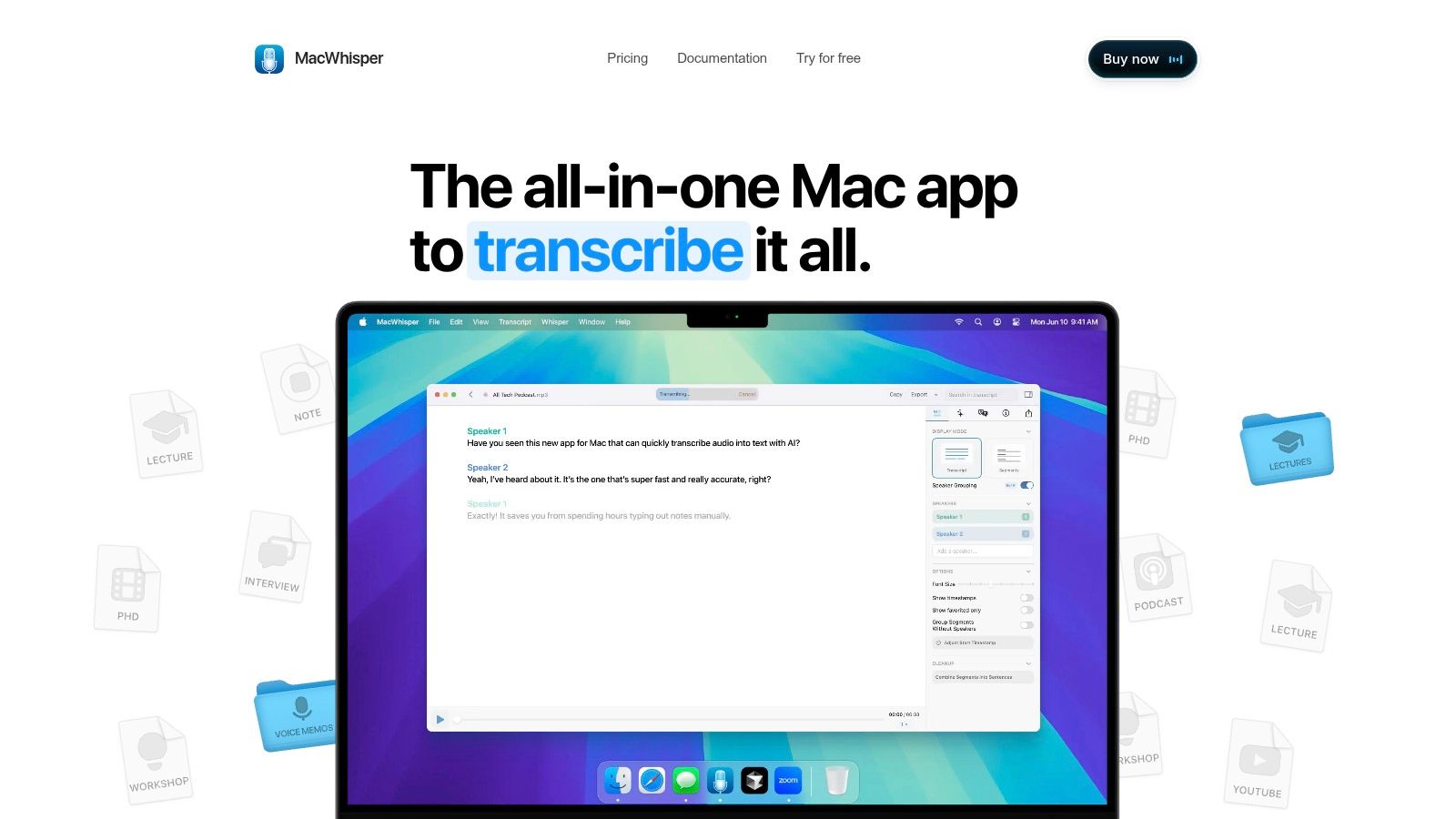
MacWhisper is one of my favorite recommendations for Mac users who care about privacy but don't want to wrestle with a command line. It wraps Whisper in a native Mac app, so you can drag in audio or video files and get local transcription without uploading everything to a hosted service.
That puts it in the “meeting and file transcription” category, not everyday dictation. It's built for recorded material you already have, not for speaking into Slack at the cursor.
Privacy-first transcription on Mac
The big win is local processing. A lot of free speech to text software makes an implicit trade of convenience for cloud dependence. MacWhisper makes the opposite bet. Your files stay on your machine, and the interface is simple enough for non-developers to find accessible.
There are still trade-offs. It's Mac-only, and some advanced models or features sit behind the paid version. But as a privacy-first file transcription tool, it's one of the easiest to recommend.
If you record interviews, lectures, or internal calls and don't want to upload them, MacWhisper is the cleanest Mac option.
Choose it for offline transcription on a Mac. Don't choose it if what you really need is live dictation across apps.
9. OpenAI Whisper
You have a folder full of interviews, call recordings, or product demos, and sending them to a cloud service is off the table. Whisper fits that job well.
OpenAI Whisper belongs in the “developer tools” category, even though plenty of non-developers have heard its name through apps built on top of it. The core appeal is control. It is open source, supports multiple languages, can run locally, and avoids the usage caps that define many “free” speech tools.
That local option is the primary dividing line in this list. If privacy rules, client agreements, or internal security policy make cloud upload a problem, Whisper gives you a path to keep transcription on your own machine or server. If your priority is quick setup and cursor-based dictation across apps, it usually feels like infrastructure, not a finished daily writing tool.
Best for file transcription, experiments, and custom workflows
In practice, Whisper is strongest with recorded audio and batch transcription. Developers use it for internal tools, media workflows, research projects, and speech features that need to be customized. It can also handle translation, which makes it more flexible than simple dictation software.
The trade-off is setup friction.
You need to choose a model, manage hardware limits, and add other components if you want something close to live dictation or polished voice control. That work is reasonable for developers and technical teams. It is a poor fit for someone who just wants to speak into email, docs, or chat and move on.
- Choose Whisper if: you want self-hosted transcription, multilingual support, and flexibility for custom workflows.
- Skip Whisper if: you need plug-and-play everyday dictation with editing commands and minimal setup.
- Privacy angle: local deployment is a real advantage over cloud-only services, but you are responsible for setup, speed, and maintenance.
If you are deciding between a self-hosted transcription stack and a desktop dictation app, this comparison of Voice Control Pro vs. OpenAI Whisper shows where each one fits.
10. Vosk
A common Vosk use case is simple: a team needs offline speech recognition on a laptop, phone, kiosk, or small device, and cloud audio processing is off the table. That is where Vosk earns its spot on this list.
Vosk belongs in the "Developer Tools" category, not "Everyday Dictation" or "Meeting & File Transcription." It is open source, runs locally, supports multiple platforms, and makes sense when you need speech recognition inside a product or internal system rather than a polished dictation app for writing.
I usually recommend Vosk to developers who care more about control, offline use, and hardware efficiency than top-tier accuracy on difficult audio. Compared with larger transcription stacks, it is lighter and easier to run on modest machines. Compared with consumer dictation tools, it asks for more setup and gives you far less out-of-the-box convenience.
Where Vosk makes sense
Vosk fits privacy-first deployments, embedded projects, and local applications that cannot send audio to a cloud API. It has bindings for several languages and can run across desktop, mobile, and edge-style hardware. That flexibility matters if you are building custom voice features instead of dictating emails or documents all day.
The trade-off is recognition quality under stress. In noisy rooms, messy recordings, or speech with stronger accents, Vosk usually needs more tolerance from the user than newer neural models. For security-sensitive teams, that can still be the right trade. Local processing means tighter control over data, but you accept more responsibility for tuning, testing, and user experience.
Vosk is a practical choice for tinkerers, embedded developers, and organizations that need local speech recognition with no cloud dependency. If you are comparing lightweight offline tooling with a more capable local transcription stack, this Voice Control Pro vs. OpenAI Whisper comparison helps clarify where Whisper pulls ahead and where a simpler approach still makes sense.
Top 10 Speech-to-Text Tools Comparison
A good speech-to-text pick depends less on headline features and more on where the words need to land. Dictating messages and documents is a different job from transcribing a one-hour meeting or wiring speech recognition into an app. Privacy changes the decision too. Some tools keep audio local, while others trade that control for easier setup and better collaboration features.
| Product | Best fit category | Core features | Privacy model | UX / Quality ★ | Price / Value 💰 | Target & USP 👥 ✨ |
|---|---|---|---|---|---|---|
| Voice Control Pro 🏆 | Everyday Dictation | Speak-to-insert across apps; Hey Max assistant; Fly Mode & local model; broad language support | Hybrid, local option available | ★★★★★ | Free (limited) → Max $9/mo 💰 | 👥 Knowledge workers, students, devs · ✨ In-place rewrites, screen Q&A, app launch |
| Windows 11 Voice Access | Everyday Dictation | System-wide dictation plus voice commands for editing and navigation | Mostly local OS feature set | ★★★★ | Built-in, free 💰 | 👥 Windows 11 users · ✨ Deep OS integration, extensive editing commands |
| Apple Dictation | Everyday Dictation | System dictation in macOS fields; integrates with Voice Control; on-device options | Local-friendly, with Apple ecosystem controls | ★★★★ | Built-in, free 💰 | 👥 macOS users · ✨ Native privacy and accessibility support |
| Gboard Voice Typing | Everyday Dictation | Keyboard push-to-talk; broad language support; Pixel Assistant mode | Mostly cloud, varies by device/features | ★★★★ | Free 💰 | 👥 Mobile users · ✨ Fast texting and multilingual input |
| Voice In – Speech-to-Text Dictation | Everyday Dictation | Chrome/Edge extension; real-time insertion into web text fields | Browser extension, depends on service settings | ★★★ | Free basic; paid upgrades 💰 | 👥 Web users and support teams · ✨ Dictation in many web apps |
| Google Docs Voice Typing | Everyday Dictation | Dictation plus basic edit and format commands inside Docs and Slides | Cloud-based | ★★★★ | Free (Chrome) 💰 | 👥 Google Docs users · ✨ Useful for drafting directly in shared docs |
| Otter.ai | Meeting & File Transcription | Live meeting transcription, speaker ID, searchable transcripts and playback | Cloud-based | ★★★★ | Free tier (limits); paid plans 💰 | 👥 Meeting note-takers and teams · ✨ Live captions, sharing, search |
| MacWhisper | Meeting & File Transcription | Local Whisper-powered transcription; drag-and-drop UI; export subtitles/text | Local | ★★★★ | Free/basic; Pro paid 💰 | 👥 Mac users wanting local ASR · ✨ On-device Whisper without command line setup |
| OpenAI Whisper | Developer Tools | Open-source multilingual ASR; multiple model sizes; offline use | Local, if self-run | ★★★★ | Free (open-source) 💰 | 👥 Developers and power users · ✨ High control, strong file transcription quality |
| Vosk | Developer Tools | Lightweight offline ASR; SDKs for Python/Node/Java/C#; runs on embedded devices | Local | ★★★ | Free (open-source) 💰 | 👥 Embedded and privacy-focused devs · ✨ Low-resource models, broad platform support |
The fastest way to narrow this list is to choose your lane first.
If you want everyday dictation, built-in tools and browser-based options are usually enough. Windows 11 Voice Access and Apple Dictation work best for people who live inside their operating system all day and want voice control tied closely to the desktop. Gboard is the practical mobile default. Voice In and Google Docs Voice Typing make more sense if your work already happens in the browser.
If you want meeting or file transcription, use a tool built for recorded audio instead of forcing a dictation app to do that job. Otter.ai is convenient for live meetings, team sharing, and searchable notes. MacWhisper is the better fit for Mac users who care more about local processing and file privacy than cloud collaboration.
If you need developer tools, the trade-off shifts from convenience to control. Whisper gives better transcription quality and flexibility, but setup is heavier. Vosk is lighter and easier to run on constrained hardware, though accuracy usually drops sooner on difficult audio.
Privacy is where the categories become more than a feature list. Cloud tools such as Otter.ai and Google Docs are easier to start with and better for collaboration. Local tools such as MacWhisper, Whisper, and Vosk make more sense for sensitive audio, regulated work, or anyone who does not want recordings leaving the device. Hybrid options sit in the middle and are often the most practical choice for daily work.
Our Pick: How to Choose the Best Tool for You
A good way to choose is to start with the moment where speech-to-text usually breaks down. You are switching between apps, trying to capture a meeting, or handling audio that should not leave your device. The right tool depends less on headline features and more on that specific job.
For daily writing across apps, Voice Control Pro is the option I would put in front of heavy dictation users first. Its strength is not just raw transcription. It is the faster capture loop, system-wide text insertion, and privacy options that make it usable for real work instead of occasional voice input. That matters more than feature count if you spend hours a day writing email, docs, chat messages, and notes in different places.
Built-in tools still make the most sense for a large share of people. Apple Dictation and Windows 11 Voice Access are easy starting points if you want to test whether dictation fits your routine before adding another app. Gboard is the practical phone choice. Google Docs Voice Typing is still one of the easiest ways to try voice input if most of your work already lives in the browser.
The cleaner way to read this list is by category. Everyday Dictation tools help with live writing and short-form input. Meeting and File Transcription tools are better for recorded audio, searchable transcripts, and summaries. Developer Tools trade convenience for control, giving technical users more flexibility with deployment, customization, and local processing.
That category split also makes the privacy trade-off easier to judge.
Cloud-first tools are usually faster to start and better for collaboration. Otter.ai fits that model well if you want meeting notes, sharing, and search without much setup. Local tools ask for a bit more from the user, but they make sense when recordings are sensitive. MacWhisper is the obvious Mac choice in that group. Whisper and Vosk are better fits for technical users who want tighter control over where audio is processed and how the pipeline works.
If I were narrowing this list for different readers, I would keep it simple:
- Pick Voice Control Pro for frequent everyday dictation across multiple apps.
- Pick Apple Dictation or Windows 11 Voice Access if you want to start with what is already built in.
- Pick Gboard or Google Docs Voice Typing if your workflow is mostly mobile or browser-based.
- Pick Otter.ai or MacWhisper if recorded meetings, lectures, or audio files are the main job.
- Pick Whisper or Vosk if you are technical and want local control, custom workflows, or offline use.
One caution from actual use. Do not choose based on accuracy demos alone. The bigger difference shows up after a week of use, when you notice whether a tool fits your workflow, handles corrections well, and keeps sensitive audio in the right place.
As noted earlier, analysts expect strong growth in the speech recognition market over the next several years. That tracks with what these tools now do in practice. Voice input is no longer just an accessibility feature or a novelty. For the right kind of work, it is a faster input method.