
A writer moves between a draft in Word, a client email, and a prompt in a browser. Each time the destination changes, the typing method changes too, and the interruption makes it harder to keep a thought intact. The best dictation software for PC depends less on how many features a tool lists and more on where your words need to land.
Some tools insert speech at the cursor in many apps. Others keep dictation inside a particular suite, while transcription tools save recordings to a searchable archive instead of typing directly into your current document. This list is organized around those differences and each tool's privacy model. It includes built-in Windows features, app-bound dictation, full voice-control tools, offline transcribers, and meeting-focused services.
Recognition quality depends on your microphone, accent, speaking style, and vocabulary setup. Test a tool with the kind of speech you use, including names and specialist terms, then check how much editing the result needs. Historical evaluations have found meaningful differences between read and spontaneous speech, as well as across languages and speakers, so a single headline accuracy figure won't tell you whether a tool suits your daily work (comparative desktop speech-recognition evaluation).
Table of Contents
- 1. Windows Voice Typing
- Where it fits, and where it stops
- 2. Windows 11 Voice Access
- Dictation plus interface control
- 3. Dictation in Microsoft 365
- Best for Office-first drafting
- 4. Google Docs Voice Typing
- Useful inside Docs, not across the desktop
- 5. Nuance Dragon Professional v16
- A voice-control suite, not a casual add-on
- 6. Talon Voice
- Flexible, but expect to configure it
- 7. Buzz
- A transcript destination, not a typing shortcut
- 8. Otter.ai
- For conversations that need a record
- 9. Notta
- Better for saved transcripts than live drafting
- 10. Descript
- Editing is the differentiator
- Top 10 PC Dictation Software Comparison
- Match the Tool to Your Text Destination Before You Buy
1. Windows Voice Typing
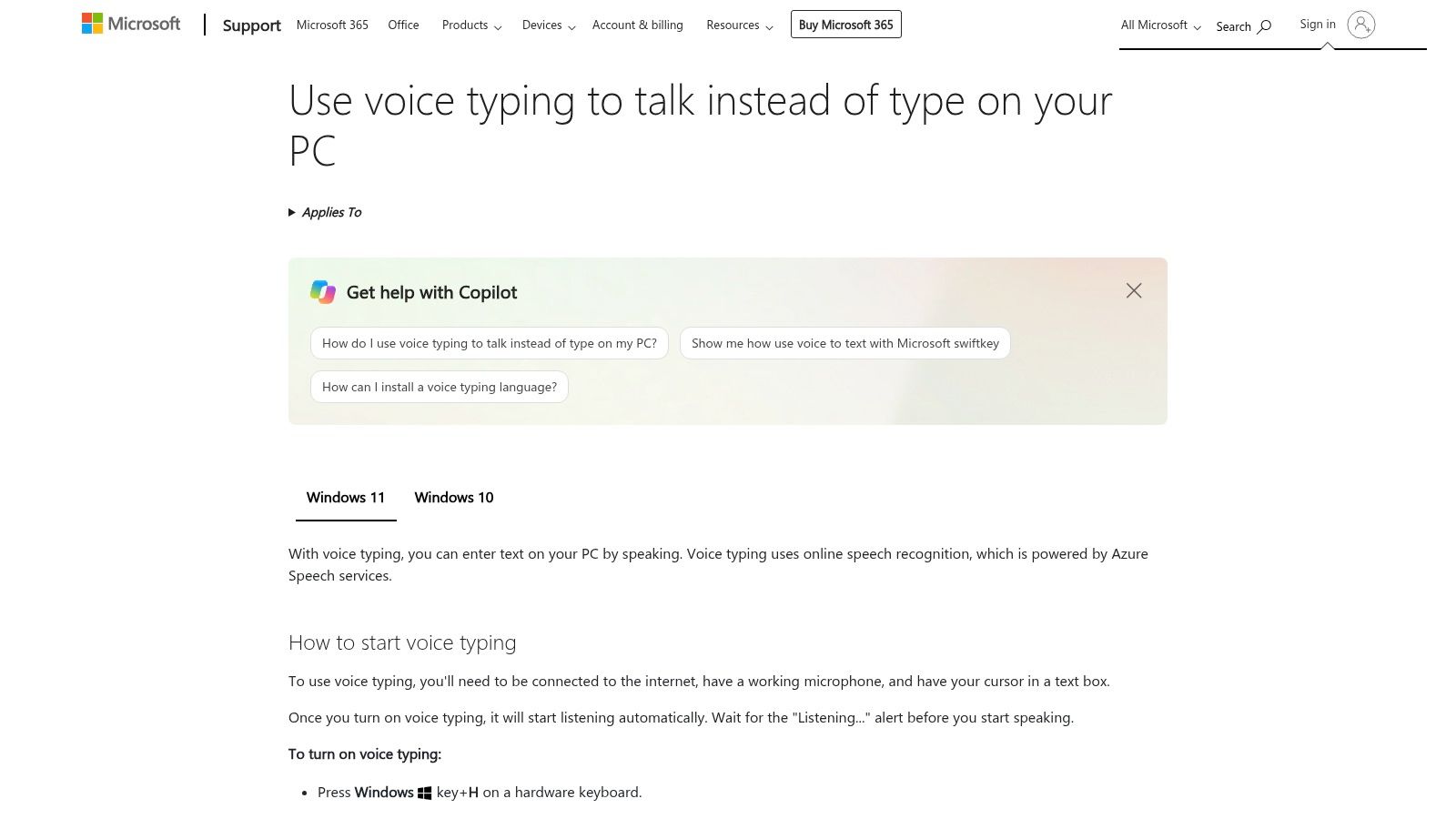
Windows Voice Typing is the quick-start option for short dictation in a text field. Press Win+H to open the dictation pane, then speak into the active app. It's a lightweight way to draft a reply or capture a note without installing another program.
The main advantage is convenience. Voice Typing has a minimal interface, supports multiple languages available in Windows, and offers optional automatic punctuation. For a user who wants to speak a few sentences into a document, the small setup burden is appealing. Microsoft explains how to start and use the feature in its Windows Voice Typing guide.
Where it fits, and where it stops
This is text insertion, not full voice control. Voice Typing can put words into a text field, but it isn't designed to move around Windows or operate every part of an interface by voice. It also relies on an internet connection for recognition, and it doesn't provide a transcription archive or custom dictionary.
- Good fit: Short messages, rough drafts, and occasional notes in apps with text fields.
- Less suitable: Sensitive work that must stay local, technical vocabulary that needs custom terms, or longer sessions where you need a transcript history.
Practical rule: If a sentence needs to appear in the app you're already using, try the built-in option first. If you need commands, custom vocabulary, or offline processing, compare it with a fuller voice-control tool.
Voice Typing is a useful baseline, but the distinction between quick dictation and hands-free PC control matters. For a feature-by-feature comparison with another Windows option, see Voice Control Pro versus Windows Voice Typing.
2. Windows 11 Voice Access
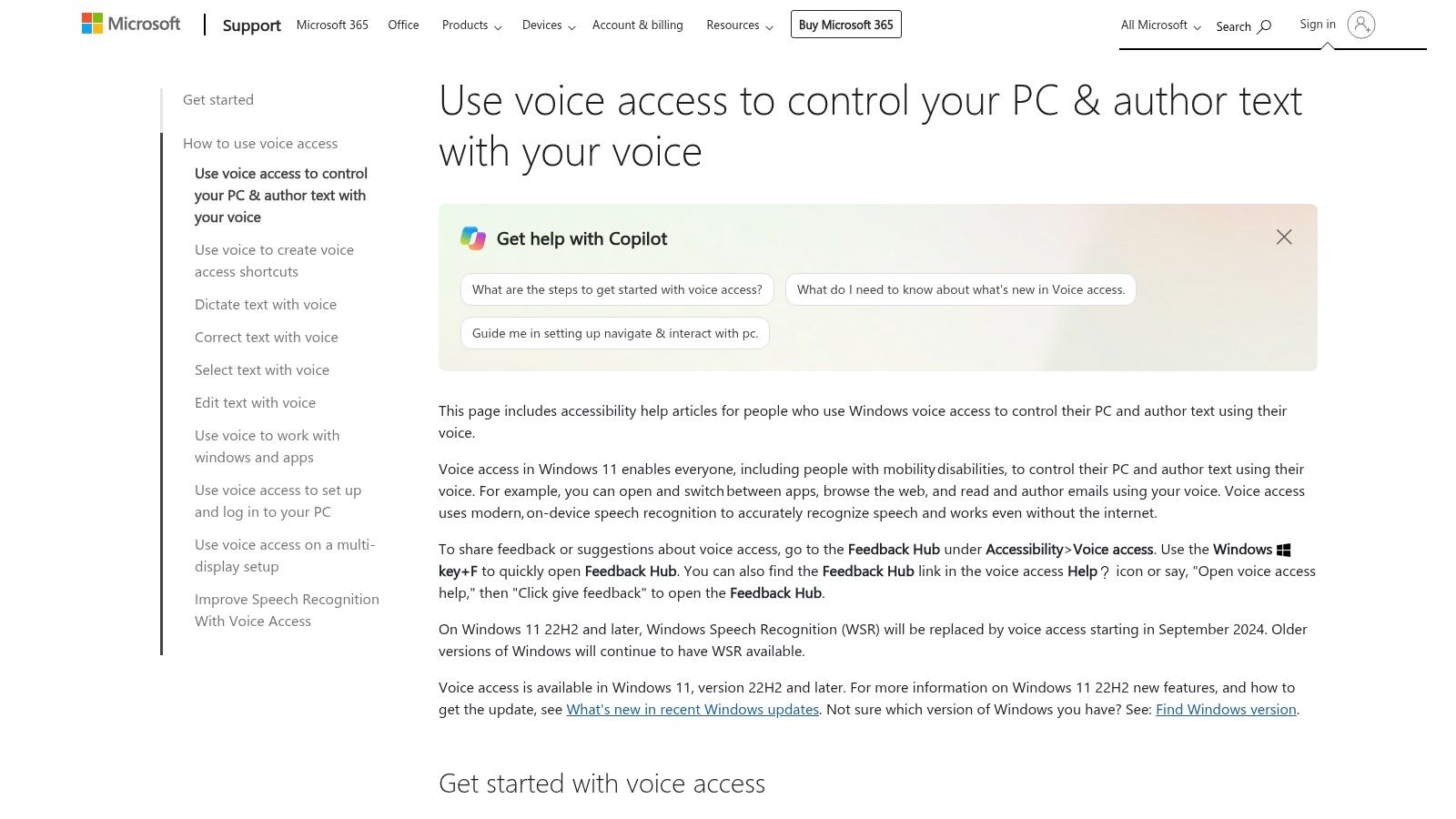
Voice Access is the Windows option to consider when dictation is only part of the job. It combines speech-to-text with commands for navigating and controlling the PC, so it can help users who want to operate apps without relying on a mouse and keyboard.
The feature includes an on-device speech model with offline capability, plus correction, spelling, and custom vocabulary tools. Number overlays help select interface elements by voice. Because it's integrated into Windows 11, there's no separate suite to install. Microsoft's Voice Access instructions explain how to set it up and use commands.
Dictation plus interface control
The trade-off is depth. Voice Access provides a useful built-in starting point for dictation and PC navigation, but it offers fewer advanced macros than a dedicated voice-control suite such as Dragon. Language availability can also vary with the speech package installed on the system, so check your preferred language before making it part of a regular workflow.
Choose Voice Access if you want to dictate and control Windows in one place, especially if offline capability matters. If your main need is to speak a paragraph into a particular document, the lighter Voice Typing pane may feel more direct. For someone building a hands-free routine, however, navigation and correction commands can matter as much as raw text entry.
3. Dictation in Microsoft 365
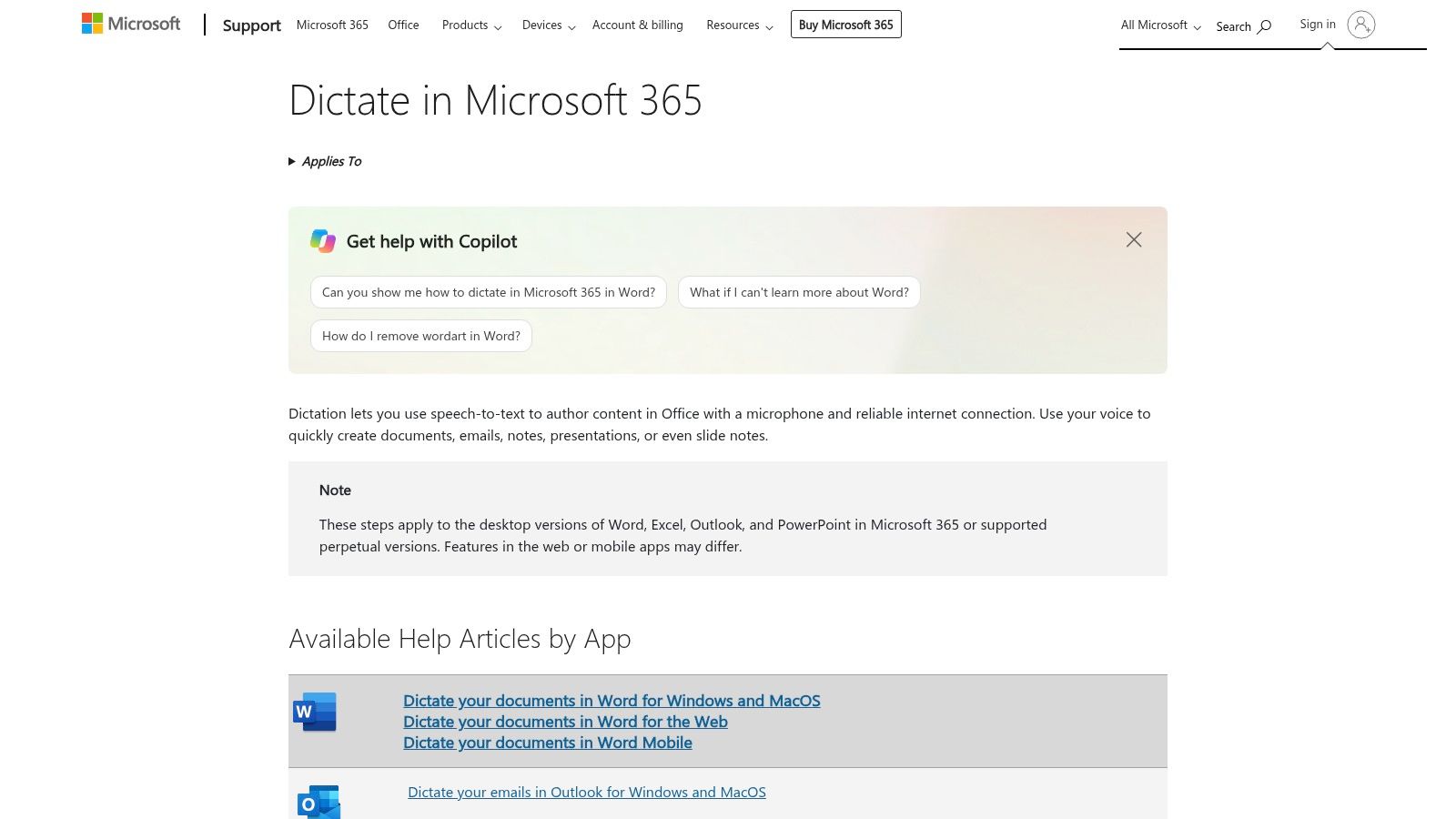
If your writing already lives in Word, Outlook, or PowerPoint, Microsoft 365 Dictate keeps speech input within the app where the text belongs. Use the built-in Dictate feature to draft a document, compose an email, or add text to a presentation, with basic punctuation and formatting commands available.
This app-bound setup is its strength. You can work in familiar Office tools without routing the text through a separate transcription archive or copying it in from another window. Microsoft's Dictate guide for Microsoft 365 lists the supported apps and describes how to use the feature.
Best for Office-first drafting
Dictate is included with eligible Microsoft 365 subscriptions, and speech recognition is cloud-powered, so a reliable internet connection is part of the workflow. That dependency is worth considering before dictating confidential material. Check the policies that apply to your account and organization rather than assuming that an Office feature processes everything locally.
The boundary is equally clear: Microsoft 365 Dictate is not system-wide dictation. It's intended for supported Office apps, not for inserting speech directly into any text field on your PC. If you spend most of your day in those apps, that limitation may not get in the way. For related guidance on Microsoft's productivity features, see CloudOrbis Inc. on Copilot adoption.
4. Google Docs Voice Typing
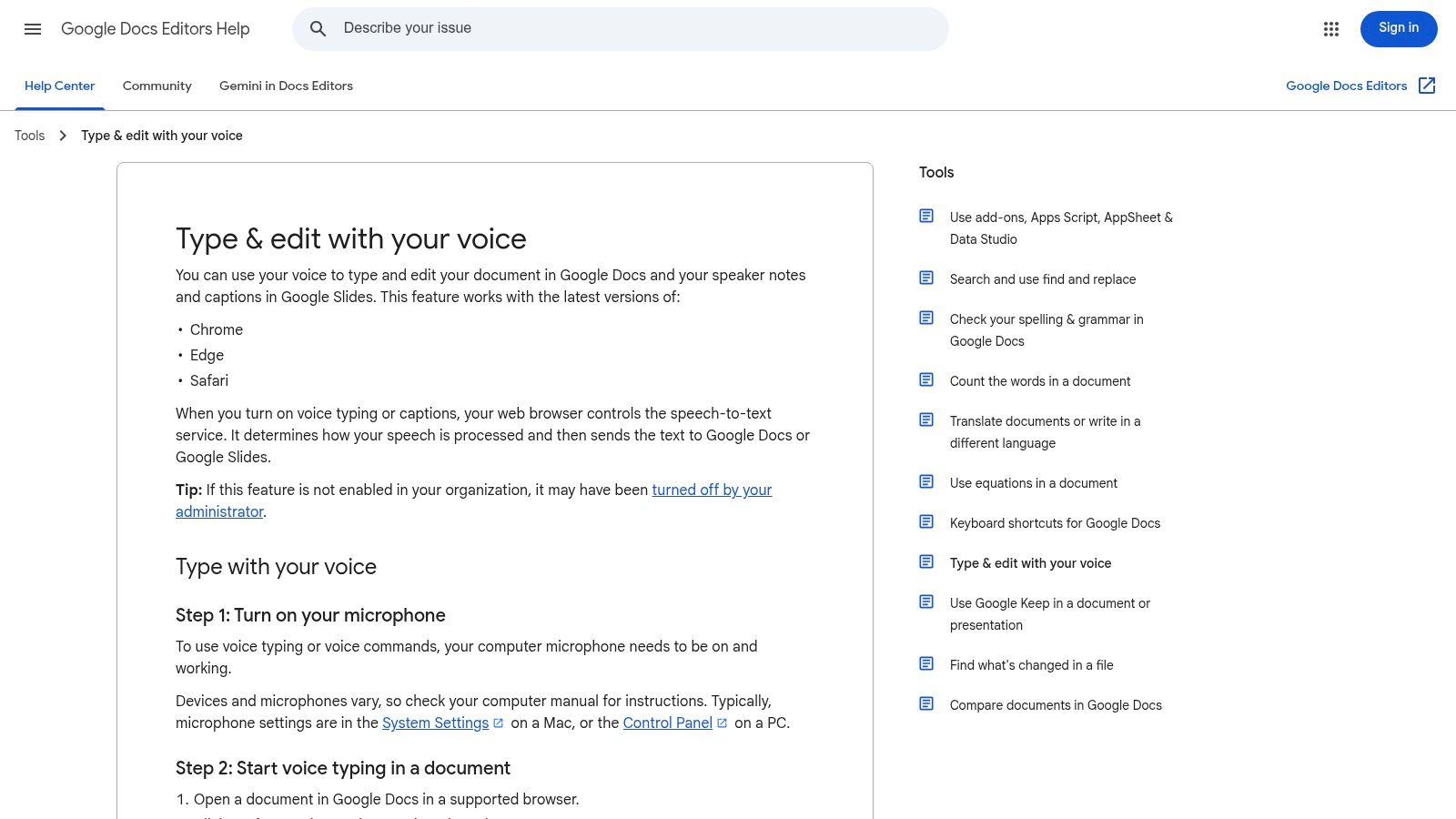
Google Docs Voice Typing is a good match for browser-based drafting when the finished text belongs in Docs. Open a document in Chrome on Windows, choose Tools, then Voice typing, and allow microphone access. Google also supports voice typing for speaker notes in Slides, making this a practical option for notes prepared alongside a presentation.
The appeal is simple: it's free with a Google account and doesn't require a desktop dictation program. Google's Voice typing help page explains the feature and its voice commands for editing and formatting.
Useful inside Docs, not across the desktop
The limit is its destination. Google Docs Voice Typing works in Docs, with related functionality for Slides speaker notes, but it doesn't provide system-wide dictation for email, CRM forms, chat apps, or other desktop text fields. It also requires an internet connection and browser microphone permissions.
That makes it a straightforward choice for students, researchers, and teams who already write in Google Workspace. If you need the same spoken input to land in several unrelated apps, a cursor-level dictation tool will be a closer fit. If most of your voice drafting ends in a Google document, staying inside the browser keeps the workflow uncomplicated.
5. Nuance Dragon Professional v16
Dragon Professional is built for people who want more than speech-to-text. It combines dictation with voice commands and macros across apps, and supports custom vocabulary and voice profiles. Its offline processing makes it a candidate for Windows users who need local recognition or hands-free control in a specialized workflow.
The feature set suits professionals who dictate regularly and are prepared to tune the software. Custom terms matter when a job involves names, medical language, legal vocabulary, or other words a general-purpose tool may not recognize consistently. Dragon also supports transcription of recorded audio files. Nuance describes its offerings on the Dragon product page.
A voice-control suite, not a casual add-on
Dragon's advantages come with costs: it's Windows-only, has a high upfront cost, and takes time to learn. Some parts of the interface feel dated, so the tool may be more compelling for someone who'll use its command-and-control features every day than for a person who only wants to dictate occasional messages.
Its broader control system can suit legal, medical, and accessibility workflows, but don't assume it will be ready for your vocabulary without setup and review. Evaluate it against your actual documents and correction needs. For a direct comparison with another approach to hands-free input, see Voice Control Pro versus Dragon.
6. Talon Voice
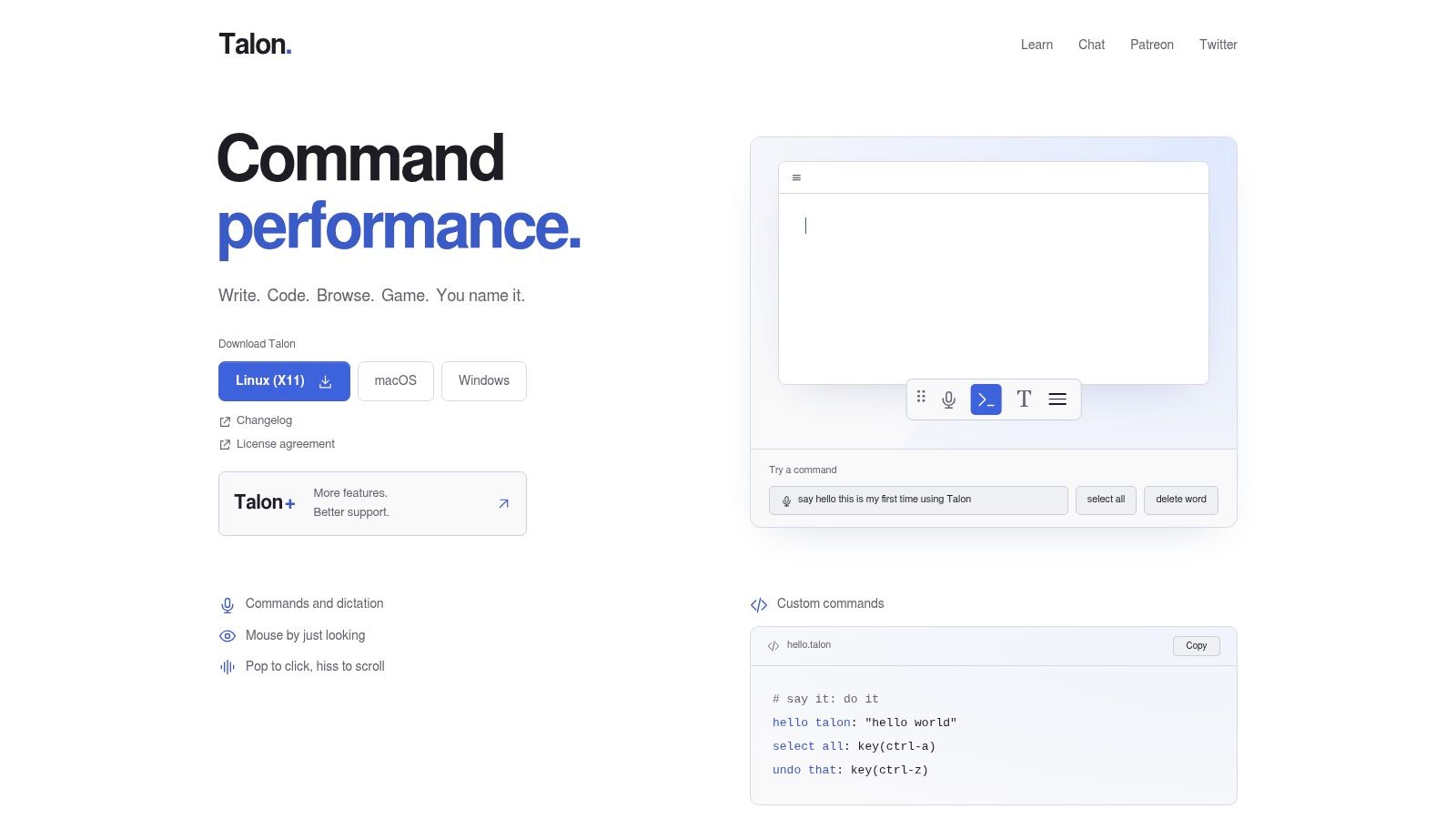
Talon Voice is a flexible hands-free input platform for Windows, macOS, and Linux. It combines dictation with system-wide commands and custom scripting, making it particularly interesting to power users, developers, and people building an accessibility-focused setup around their own habits.
Its design gives users room to shape how they control the desktop. Talon supports eye tracking, scrolling options based on hiss and pop sounds, and custom command scripts. The core app is free, and community language packs add options beyond a fixed out-of-the-box command set. Details are available on the Talon Voice website.
Flexible, but expect to configure it
Talon can support dictation across apps, but it isn't a polished, ready-made replacement for every commercial suite. Its command grammar has a learning curve, setup and tuning take time, and new users may need to build or adapt workflows before the tool feels natural.
That flexibility is valuable if standard commands don't match how you work. It's less attractive if you want to install a program and start dictating with minimal decisions. Treat Talon as a configurable voice-control environment: choose it when you want to shape the interaction, not capture a quick transcript.
7. Buzz
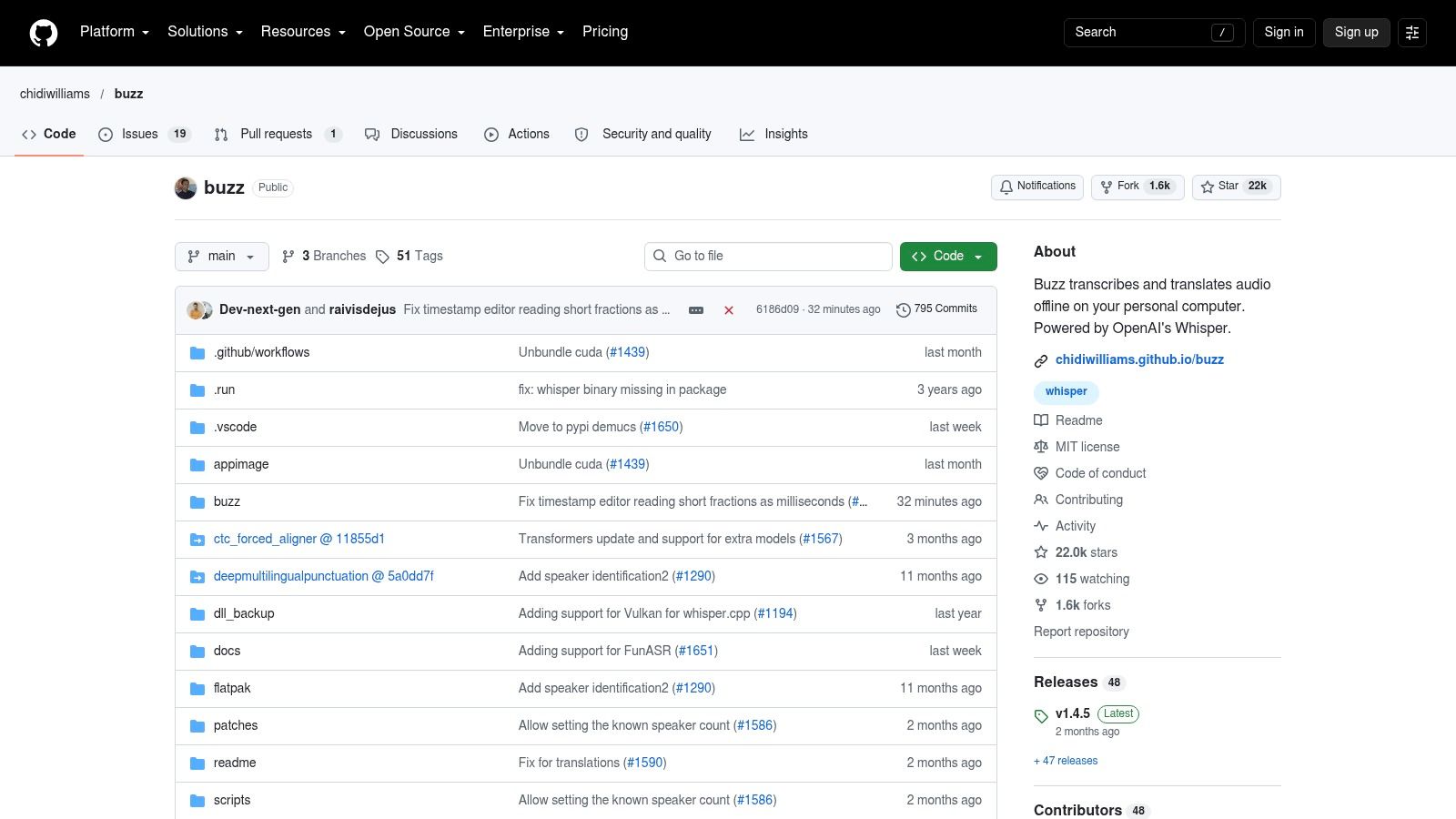
Buzz is a free, open-source Windows desktop app for transcribing recordings or microphone input. It uses Whisper and Faster-Whisper models, with local processing available, so it suits people who want an offline transcription workflow rather than live insertion at the cursor.
You can use it to process audio files in batches or capture live microphone input. Faster-Whisper can also support GPU acceleration, depending on the setup. The project and installation details are on the Buzz GitHub repository.
A transcript destination, not a typing shortcut
The distinction is important: Buzz doesn't work as a type-anywhere dictation tool by default. It creates transcripts from audio, rather than inserting spoken words into whichever email, document, or chat field currently has focus. That makes it a better fit for recorded interviews, voice notes, and audio that needs to become editable text.
Local processing can help keep audio on the PC, but larger models may demand substantial CPU or GPU resources. Check the model requirements and available hardware before building a workflow around them. Choose Buzz when you need control over transcription files and processing, not when you need to speak directly into a form.
8. Otter.ai
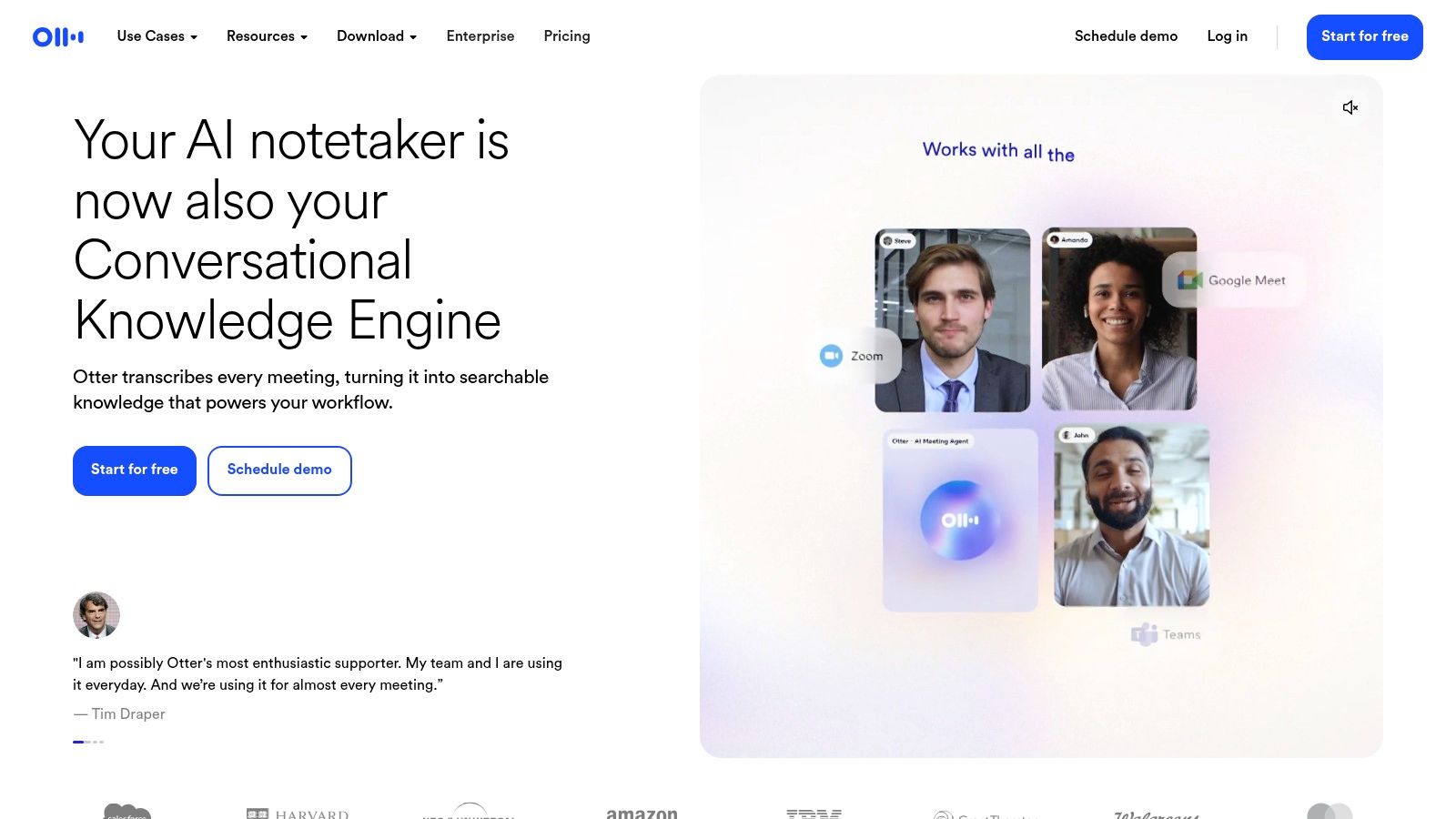
Otter.ai is designed for meetings and shared notes, not dictation at the cursor. Its Windows desktop, web, and mobile apps can capture meetings or microphone input and create live transcripts with speaker identification. Searchable notes, summaries, exports, and collaboration features make it useful when several people need to review a conversation afterward.
That archive-centered workflow is the point. Instead of speaking into an email and immediately editing the text there, you record a discussion, review the transcript, and use the resulting notes for follow-up. Otter describes its product on the Otter.ai website.
For conversations that need a record
Otter's free Basic plan includes a monthly transcription allowance, while many features require a paid plan. Because plan limits and feature availability can change, check the current terms before deciding whether it covers your meeting routine.
It's not the right tool if your priority is fast text insertion into whatever desktop app you happen to be using. For recurring meetings, searchable conversation history and team follow-up tools may matter more than cursor control. For a focused comparison of those different purposes, see Voice Control Pro versus Otter.ai.
9. Notta
Notta is another transcription and note-taking service, with Windows and Mac desktop apps as well as web and mobile access. It handles meetings, interviews, uploaded audio, searchable archives, summaries, and translation. Its desktop app can capture microphone and system audio without a meeting bot.
That capture option can suit a conversation or interview where you want a record without adding a bot to the meeting. Notta also offers custom vocabulary, which can help when recurring names and specialist terms need attention. Product details are available on the Notta website.
Better for saved transcripts than live drafting
Notta's destination is an archive, not the cursor in any active app. It's suited to people who want to capture and revisit meetings or interviews, then work from the saved transcript. It isn't designed as a system-wide dictation layer for writing directly in a CRM, email client, or document editor.
Higher-tier plans are required for unlimited options, so confirm the limits that apply to your intended use. If you're choosing between live dictation and recorded conversation capture, focus on where you'll use the text afterward. Notta makes more sense when the conversation itself needs to remain searchable.
10. Descript
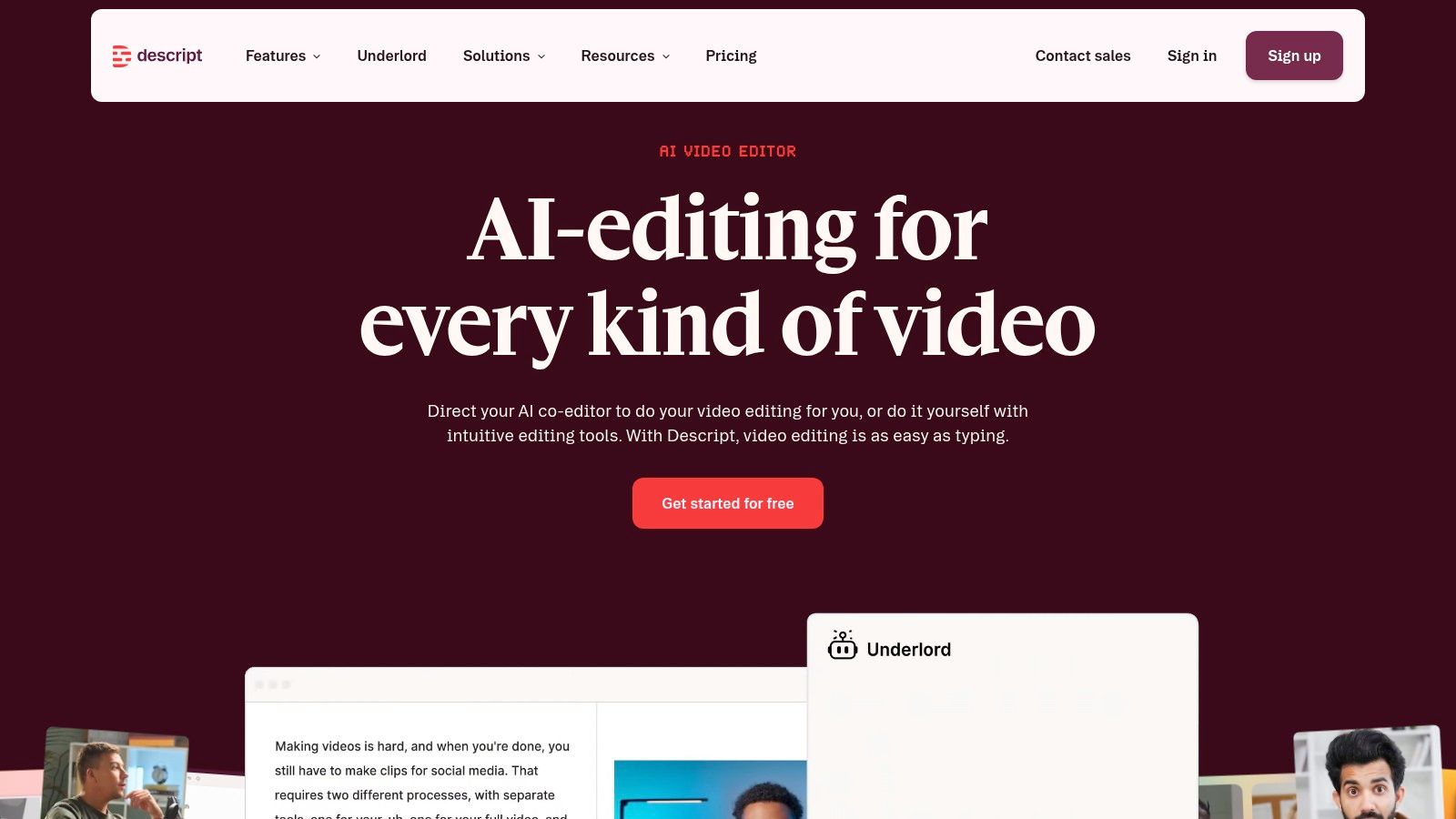
Descript is a creator-focused Windows tool for recording, transcribing, and editing audio and video. It turns a transcript into an editing interface: users can work with the text to edit media, label speakers, remove filler words, collaborate, and export finished projects.
That makes Descript useful when spoken material is part of a production workflow. A recorded voiceover or interview can become both an editable transcript and a media project. The Descript website outlines its transcription and editing features.
Editing is the differentiator
Descript isn't system-wide dictation, so it won't insert your spoken words directly into any app at the cursor. Its value is what happens after recording: text-based editing, speaker labels, filler-word removal, and project collaboration can all sit alongside the audio or video work.
A free tier is available, but transcription hours are capped by plan. Check the current plan limits before using it for a steady production schedule. Choose Descript when you're shaping recorded media, not when you want to dictate a client email.
Top 10 PC Dictation Software Comparison
| Tool | Core Features & Workflow | Privacy & Platform | Experience / Strength | Value / Pricing | Best For |
|---|---|---|---|---|---|
| Voice Control Pro | ✨ Hold a shortcut to dictate anywhere; Hey Max rewrites text, answers screen questions, and launches apps | macOS and Windows; local Fly Mode and unlimited local dictation | ★ Polished transcription, 99+ languages and customizable cleanup with Max | 💰 Free local mode; paid Max upgrade | 👥 Cross-app dictation, writing, and voice-assisted workflows |
| Windows Voice Typing | Win+H dictation with optional auto-punctuation | Windows 11; internet required | ★ Simple, quick setup for short sessions | 💰 Free | 👥 Windows users needing basic dictation |
| Windows 11 Voice Access | Dictation plus PC navigation, correction, spelling, and custom vocabulary | Windows 11; on-device models support offline use | ★ Controls apps and interface by voice | 💰 Free | 👥 Windows users seeking hands-free PC control |
| Microsoft 365 Dictation | Dictation and basic formatting in Word, Outlook, and PowerPoint | Supported Microsoft 365 apps; cloud-powered | ★ Convenient in familiar Office documents | 💰 Included with eligible subscriptions | 👥 Microsoft 365 users drafting documents and emails |
| Google Docs Voice Typing | Dictation and editing or formatting commands in Docs and Slides | Chrome on Windows; internet and microphone permissions required | ★ Simple controls and strong accuracy | 💰 Free with a Google account | 👥 Google Docs users |
| Nuance Dragon Professional v16 | Dictation, macros, custom vocabularies, and audio-file transcription | Windows; local offline processing | ★ Mature, customizable hands-free workflow | 💰 High upfront cost | 👥 Legal, medical, and heavy-dictation users |
| Talon Voice | System-wide dictation, voice commands, eye tracking, and scripting | Windows, macOS, and Linux | ★ Highly flexible; setup and command learning take time | 💰 Core app is free | 👥 Accessibility users, developers, and voice-control power users |
| Buzz | Local live or file transcription, translation, and batch processing | Windows; offline local models | ★ Open-source transcription; not designed for cursor-level dictation | 💰 Free and open source | 👥 Users transcribing recordings privately |
| Otter.ai | Live meeting transcripts, speaker labels, summaries, and searchable notes | Windows, web, and mobile; cloud service | ★ Strong meeting notes and collaboration | 💰 Free Basic plan; paid plans add features | 👥 Teams and users capturing meetings |
| Notta | Meeting and file transcription, summaries, translation, and searchable archives | Windows, Mac, web, and mobile | ★ Broad capture options, including system audio | 💰 Free and paid tiers; higher tiers unlock unlimited options | 👥 Users transcribing meetings and interviews |
| Descript | Transcription, speaker labels, and text-based audio/video editing | Windows desktop; cloud-synced projects | ★ Powerful editing and cleanup tools | 💰 Free tier; plan-based transcription limits | 👥 Creators editing audio and video |
Match the Tool to Your Text Destination Before You Buy
Start with the destination. Windows Voice Typing and Voice Access are built-in options for quick input and Windows control. Microsoft 365 Dictate and Google Docs Voice Typing keep dictation inside their respective suites. Dragon and Talon are better suited to hands-on voice control, while Buzz focuses on offline file transcription. Otter.ai, Notta, and Descript center on recorded conversations, searchable transcripts, or media editing, not system-wide cursor insertion.
For dictation at the cursor across apps on Windows or macOS, Voice Control Pro is another option. It inserts speech wherever the cursor is after a press-and-hold shortcut. Its Fly Mode processes dictation locally and pauses cloud features, and its free local mode offers unlimited dictation using an on-device model. The Max upgrade adds support for more languages, cleanup levels, a custom dictionary, transcription history, and Hey Max tools for rewriting selected text, asking questions about screen content, and launching installed apps by voice. The practical trade-off is that Fly Mode limits cloud-dependent features, while Max is paid.
Before choosing any tool, check the capabilities that affect your actual workflow:
- System-wide insertion: Confirm whether speech can go directly into any text field or only into one app or archive.
- Offline behavior: Find out what works without a connection and what processing stays on the computer.
- Language and vocabulary: Check your language, accent needs, specialist terms, and whether custom vocabulary is available.
- Integrations and history: Make sure the tool fits your apps and decide whether you need searchable transcripts.
- Privacy and plan limits: Review the product's policy, cloud dependencies, and restrictions that apply to your intended use.
On setup, confirm the microphone input, set the dictation shortcut, and test a passage that sounds like your real work. Include names, technical terms, and the kind of sentences you'd send. If a tool requires language packs, check that your preferred language is installed before relying on it for a deadline.
Choose one daily workflow, such as drafting customer replies or preparing meeting notes, and test two tools against the same task with your own voice. Compare not only the initial transcript but also the time and effort needed to make it ready to send or share.
Voice Control Pro offers cursor-level dictation across desktop apps, with a local mode for users who want on-device processing. If that workflow fits your day, visit Voice Control Pro and test it with a real email, document, or prompt.