
You're halfway through a customer reply, a project note, or a long prompt when your hands are busy and typing slows you down. You press a shortcut, start speaking, and expect the words to appear in the box where your cursor is. With dictation on Windows 11, that basic task can mean two different things: quick text entry with Voice Typing, or broader hands-free control with Voice Access.
Knowing which one you've opened makes the difference between a smooth draft and commands that don't work. The right choice also depends on whether you're writing a CRM reply, switching between languages, or handling text that shouldn't be processed online.
Table of Contents
- What Dictation on Windows 11 Actually Means in 2026
- Enabling Voice Typing and Configuring Your Microphone
- Check permission and input device
- Set the language you'll dictate in
- The Daily Dictation Workflow That Actually Holds Up
- Choose punctuation deliberately
- Voice Typing vs Voice Access and the Offline Question
- Why Supported Languages Are Not Equal Accuracy
- Benchmark your own vocabulary
- Troubleshooting the Dictation Failures You Will Hit
- When the Built-In Tools Are Not Enough
What Dictation on Windows 11 Actually Means in 2026
If you need to dictate into an email, chat, document, or CRM field, Voice Typing is usually the first feature to try. Click inside the text box and press Windows key + H. Windows opens its dictation controls, and your speech is inserted into the active field. Microsoft lists support for at least 30 language or regional variants, including English, Chinese, and French locales, as well as languages such as German, Hindi, Japanese, and Spanish (Microsoft's Voice Typing language and setup documentation).
Voice Access is a different tool. It can dictate text, but it's also designed for hands-free interaction with Windows and applications. That distinction matters when you want to move around a screen or issue commands, not just turn speech into text. Voice Typing focuses on authoring; Voice Access adds computer control.
A useful first decision is based on the task:
- Short reply or draft: Start with Voice Typing in the target text field.
- Navigation and editing by voice: Use Voice Access, which supports commands for interacting with Windows.
- Offline dictation: Consider Voice Access and its downloadable speech pack, rather than assuming Win+H processes speech locally.
- Multilingual writing: Check the specific language and region, then test recognition with your own vocabulary.
The tools overlap in that both recognize speech, but their purpose and behavior aren't interchangeable. If you say an editing command while Voice Typing is active, Windows may treat it as text instead of an instruction. Once you know which feature fits the task, setup becomes much easier to troubleshoot.
Enabling Voice Typing and Configuring Your Microphone
Start in the place you plan to write. Click inside an ordinary text field, then press Windows key + H and wait until the controls show Listening before you speak. Microsoft recommends this sequence because dictation needs an active text field, and speaking before the listening state appears can cause the first words to be missed (Microsoft's Voice Typing workflow).
Check permission and input device
If nothing happens, check Windows' microphone access before changing apps. Open Settings > Privacy & security > Microphone, then confirm that microphone access and access for the apps you're using are enabled. Next, open Settings > System > Sound > Input and choose the microphone you intend to use. Laptops, docks, headsets, and monitors can each expose a different input device, so don't assume Windows selected the right one.
A quick test in the Sound settings can help separate a microphone problem from a dictation problem. If the input meter doesn't respond when you speak, resolve the device or permission issue first.
Set the language you'll dictate in
Add the language you need through Settings > Time & language > Language & region. Windows distinguishes the language used for speech input from other regional and keyboard settings, so adding a language alone may not make it active for dictation. Switch the active input language with Windows key + Space, then test Win+H in your intended app.
You don't need to install optional speech-recognition packages just to use basic Voice Typing. For microphone placement and hardware choices, see this practical guide to setting up a microphone for desktop voice dictation.
The Daily Dictation Workflow That Actually Holds Up
A reliable session starts with the field, not the shortcut. Click where the words should go, press Windows key + H, and wait for Listening before starting. Speak in complete phrases, then pause briefly at natural boundaries. That rhythm gives you a chance to catch recognition problems without interrupting every sentence.

For a customer-support reply, dictate the main answer as a coherent passage rather than a series of fragments. Pause between the explanation and the next step, then review names, order details, and any commitment before sending. In a developer note or report, use the same approach: dictate a paragraph at a time, then scan for terminology and formatting that speech recognition may not have captured cleanly.
Choose punctuation deliberately
Automatic punctuation can make ordinary prose easier to dictate, but it isn't a dependable substitute for review. You can also speak formatting commands such as “new line,” “open quote,” “close quote,” “hyphen,” or “em dash” when you need a specific structure. If the punctuation changes the meaning of a technical instruction, contract wording, or customer commitment, say the command explicitly and check the result.
A brief demonstration of Windows dictation controls is available below.
Practical rule: Dictate the substance first, then make a focused editing pass. Trying to correct every recognition choice while speaking breaks your flow and makes it harder to keep the message coherent.
For a short chat reply, automatic punctuation may be enough. For structured text, use spoken commands for line breaks and quotation marks, then proofread acronyms, names, and sentence boundaries. That combination is more reliable than expecting the speech engine to infer every formatting choice correctly.
Voice Typing vs Voice Access and the Offline Question
The key privacy distinction is straightforward: Voice Typing uses online speech recognition, while Voice Access can work without an internet connection. Microsoft says Voice Typing sends voice data to Microsoft for transcription; its privacy documentation distinguishes that online processing from Voice Access's on-device capability (Microsoft's speech and privacy documentation).
| Dimension | Voice Typing (Win+H) | Voice Access |
|---|---|---|
| Main purpose | Dictate text into the active field | Dictate and control Windows or apps |
| Processing | Online speech recognition | Can operate without an internet connection |
| Commands | Primarily text entry | Includes navigation and editing commands |
| Best fit | Quick messages and drafts | Hands-free workflows or offline use |
For offline Voice Access, open the feature and download the required speech pack if Windows lists it as available for download. Then test the commands in the application you will use. Voice Access command functionality is documented for English, German, Spanish, and French; Microsoft's command documentation also lists Chinese and Japanese for commands, so don't assume that every language available for general dictation offers the same control vocabulary (Voice Access language and command FAQ).
This is a practical trade-off, not just a settings detail. Voice Typing is the simpler route when you need to insert prose into a field and can use online processing. Voice Access is the relevant built-in option when you need offline speech input or spoken control of the PC. For a deeper explanation of the local-versus-cloud distinction, see this guide to cloud and local speech recognition.
Why Supported Languages Are Not Equal Accuracy
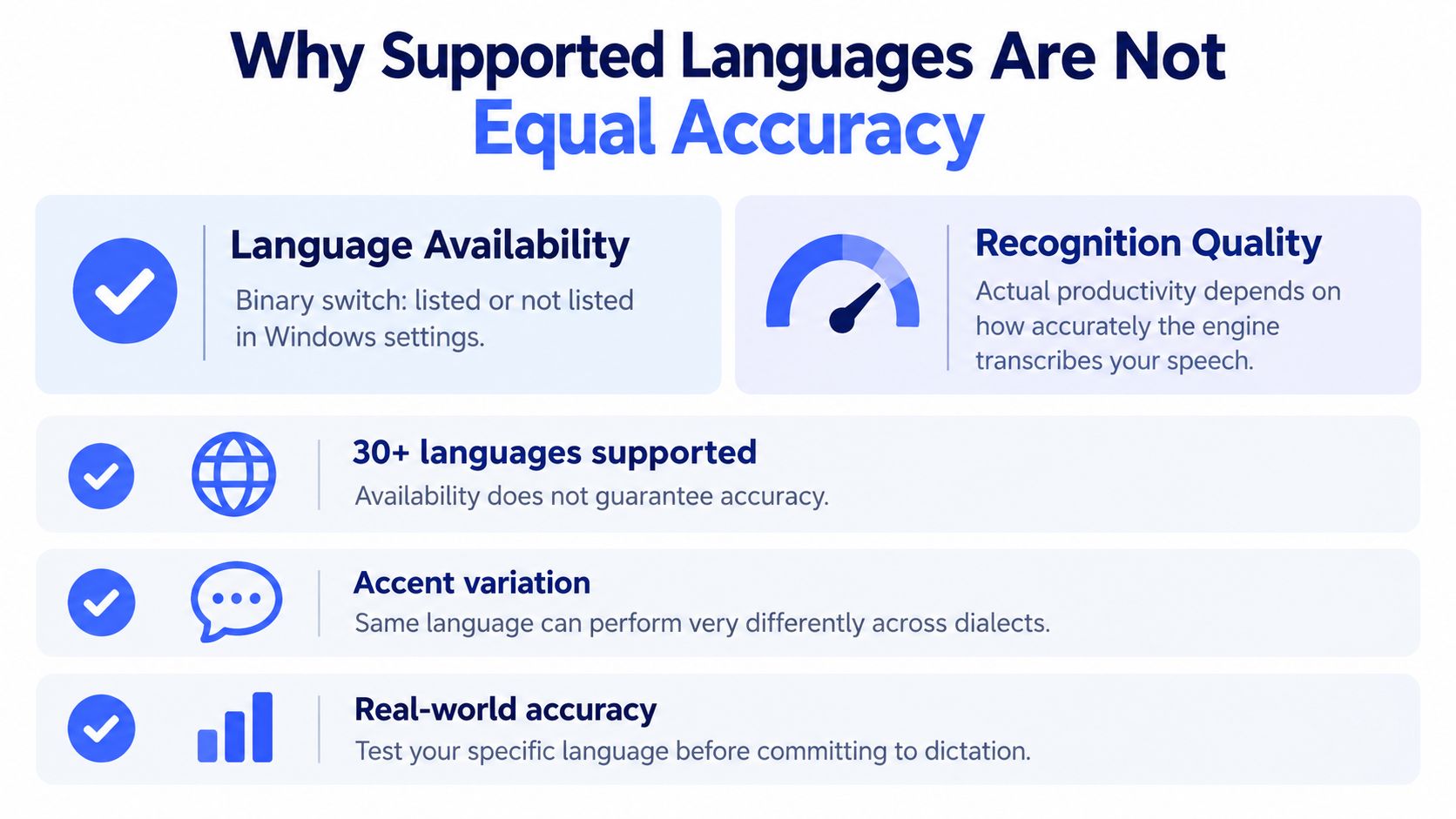
A language appearing in Windows settings tells you it's available, not that it will handle every speaker or subject equally well. Microsoft documents selected language-region combinations for Voice Typing and requires users to add the language and switch the active input language before dictating (Microsoft's language setup instructions). Recognition can still need correction when you use a regional accent, specialist terminology, product names, or mixed-language phrases.
Benchmark your own vocabulary
Before rolling dictation into a team workflow, test what that team says. Use a short, repeatable sample:
- Dictate ten names used in your work.
- Try five acronyms or product terms.
- Speak three numeric strings, such as an order reference or version label.
- Dictate a sentence with commas, a question, and a quoted phrase.
- Review the transcript and note how much correction it needs.
The sample is a practical test, not a score for the product. Repeat it in the environment where you'll dictate, including the headset or laptop microphone you plan to use. Background noise and fast speech can expose problems that a quiet, carefully spoken test sentence won't.
For multilingual emails or customer records, confirm three settings separately: speech language, active keyboard/input language, and regional format. Switching between English and French, for example, can fail if the speech language and active input language don't match your intended dictation. This distinction is also why a language list alone isn't a reliable guide to day-to-day productivity. For more context on multilingual speech recognition on desktop, focus on testing the phrases your team uses, not just checking whether a language is listed.
Troubleshooting the Dictation Failures You Will Hit
A support agent presses Win+H inside a CRM reply box, the mic icon flashes, and the first half-sentence disappears. That single symptom can come from four different places: focus, microphone input, timing, or the service path behind Voice Typing.
Treat Voice Typing like a chain. If one link is wrong, the output looks “broken” even though recognition is fine. Change one variable, retest in the same field, then move to the next link.
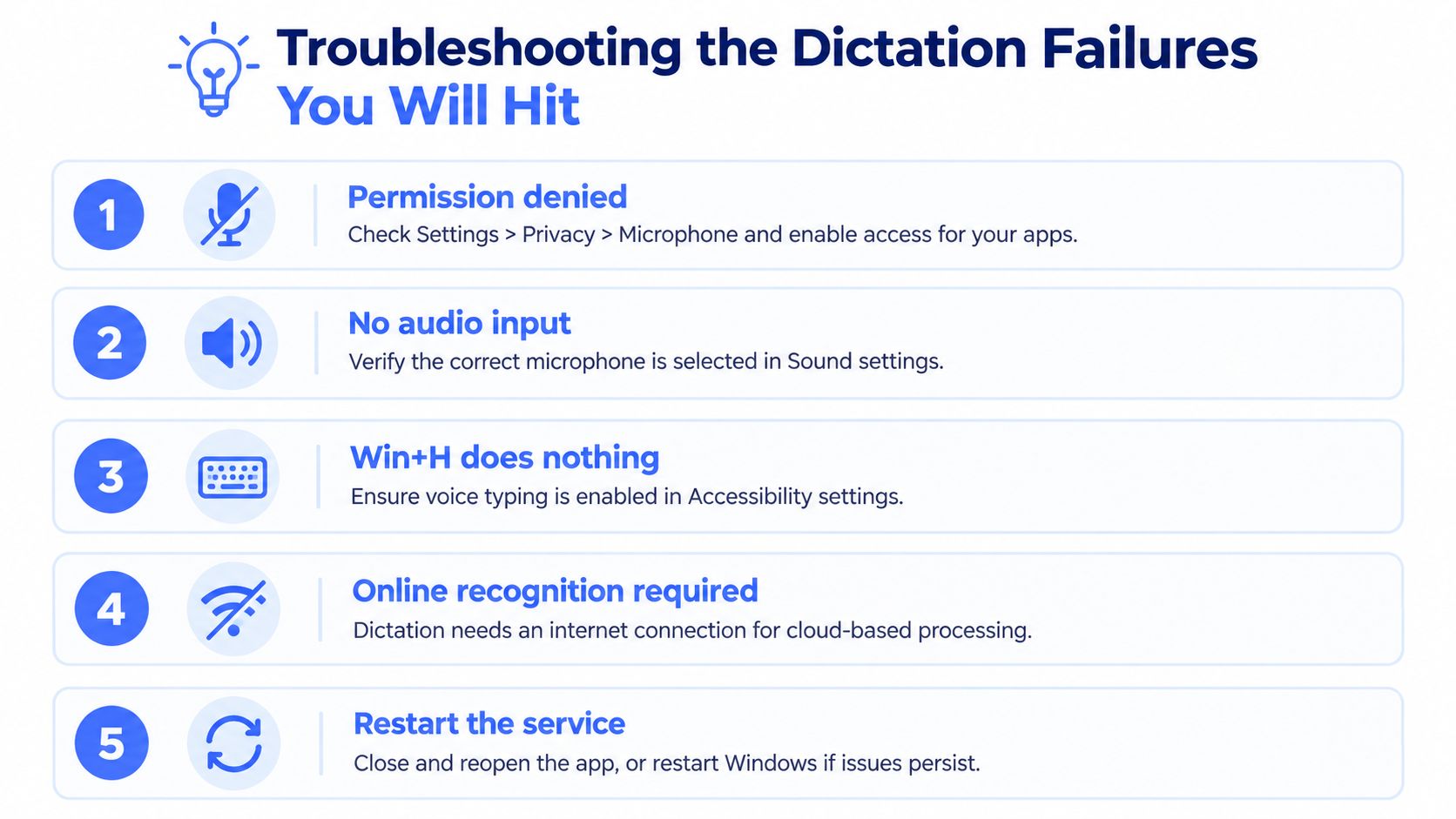
- Win+H opens nothing: Click inside a real text field first. If the panel still does not appear, check microphone permission and make sure you are not expecting Voice Access commands from the dictation tool.
- Listening never appears: Check Settings > Privacy & security > Microphone, then confirm the active input under Settings > System > Sound > Input.
- The first words disappear: Wait for Listening before speaking. Starting early puts the beginning of the phrase outside the recognition window.
- Results vary by app: Test the exact box you use, especially in browser forms and CRM fields. Some controls accept pasted or typed text differently from dictated text.
- Punctuation or acronyms come out wrong: Say the mark outright when precision matters, such as “period,” “comma,” or “question mark,” and disable automatic punctuation if it creates more cleanup than it saves. Microsoft's Voice Typing guide lists the spoken punctuation and editing commands Win+H accepts.
- Everything fails at once: Check connectivity before reinstalling anything. Voice Typing depends on cloud processing, while Voice Access is the offline-capable control feature; confusing the two creates the wrong fix.
If dictated text lands in the wrong place, stop and reselect the target field before trying again. Reopen the app only after checking focus, input device, listening state, and connection; a restart is a blunt instrument, not the first diagnostic step.
When the Built-In Tools Are Not Enough
A support agent who dictates a CRM reply, switches to a ticket note, answers a chat in a second language, then drafts a confidential memo hits the ceiling of both built-in tools inside one shift. Voice Typing writes text well but needs an internet connection and fills one field at a time. Voice Access keeps working offline and drives the whole PC, though its command grammar suits controlling Windows rather than producing long-form prose.
A dedicated dictation app earns a serious look when the friction repeats every day: jumping between many text fields, keeping sensitive drafts off the cloud, or fixing the same specialized terms in every session. Voice Control Pro is one option in that space. Its Fly Mode processes speech locally and pauses cloud features, the free local mode offers unlimited dictation through an on-device AI model, and the Max plan adds language support, cleanup options, a custom dictionary, transcription history, and Hey Max tools for rewriting, screen questions, and app launching.
None of that makes paid software mandatory.
Test Win+H first, measure the correction time and the privacy trade-off, and pay for a separate tool only when those costs keep recurring.
If online recognition and basic text entry meet your needs, keep using Win+H. If you want to compare that workflow with local dictation that inserts text across apps, visit Voice Control Pro and review whether its on-device mode and terminology tools fit the way you work.